How to connect Bing Webmaster Tools to Grok Bot

Connect Grok Bot to Bing Webmaster Tools MCP. List verified sites with indexing issues, submit new urls for bing indexing, and more using natural language, with authentication handled for you.

Bing Webmaster Tools logoBing Webmaster Tools
Api Key

Bing Webmaster Tools is Microsoft's search console for site performance, crawling, indexing, URL submission, and verified site management. It helps site owners understand Bing Search visibility and fix issues that affect organic traffic.

13 Tools

Introduction

Grok is xAI's assistant, and its bot builder lets you create a personal agent that holds context, runs skills, and connects to the apps you already use through plugins.

This guide explains how to connect Bing Webmaster Tools to a Grok bot using Composio Connect, which handles OAuth, token refresh, and reliability so you do not have to. You add Composio as a plugin, authenticate once, then ask your bot to work with Bing Webmaster Tools in plain language.

For exact tool slugs and parameter tables, see the tool catalog in the Composio docs.

Why use Composio?

Composio exposes 2,000+ apps to your Grok bot through a single connection, so you get:

  • Connect to 2,000+ apps with on-demand tool loading, so you do not fill your context window with unnecessary tool definitions.
  • Use programmatic tool calling through a remote workbench, letting the model write its own code to handle complex tool chaining. This reduces back-and-forth for frequent tool calls.
  • Handle large tool responses outside the model context to keep conversations lean.

Connecting Bing Webmaster Tools to Grok Bot

Once Grok Bot is set up, you connect Bing Webmaster Tools entirely from its interface, and the whole flow takes under a minute.

Set up Grok Bot

Get access. Grok Bot is included with Cursor Ultra, Cursor Premium Teams, and SuperGrok Heavy. Get the desktop app for macOS or Windows from x.ai/bot and sign in. An iPhone companion app is also available, and your bots sync across devices.

Create a bot. Pick a suggested role or define your own, then give it a short name, one primary job, and a short description of how it should work. Focused bots work best, because a clear role gives the bot more useful context over time.

Connect Bing Webmaster Tools

1. Add the Composio plugin

Click the button. The Composio listing on x.ai opens and launches Grok Bot for you. If the app does not open on its own, click Add to Grok Bot.

Add to Grok Bot
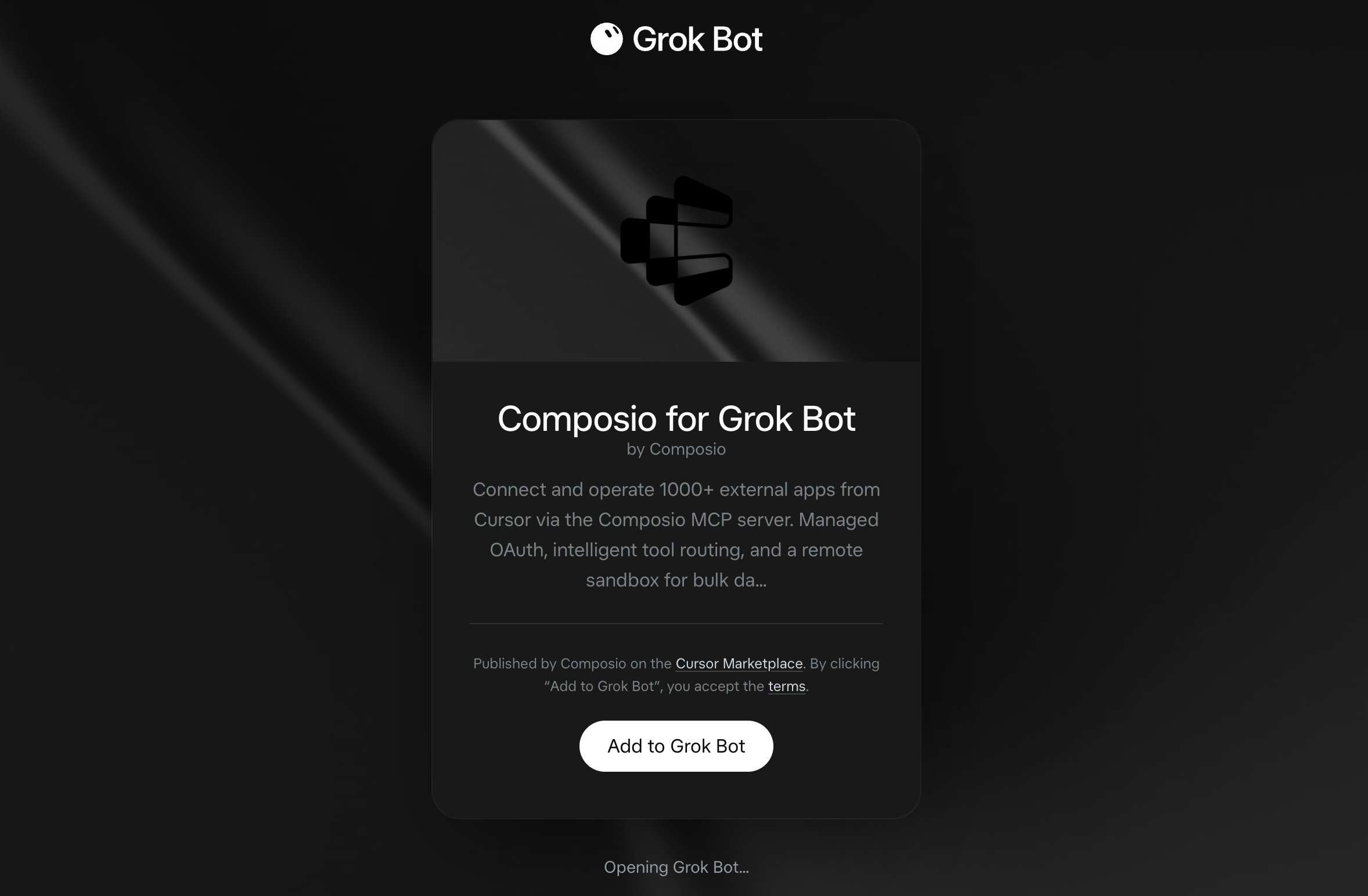
Composio for Grok Bot listing on x.ai with the Add to Grok Bot button

Grok Bot opens the Composio plugin, showing its connector and skills. Click Add.
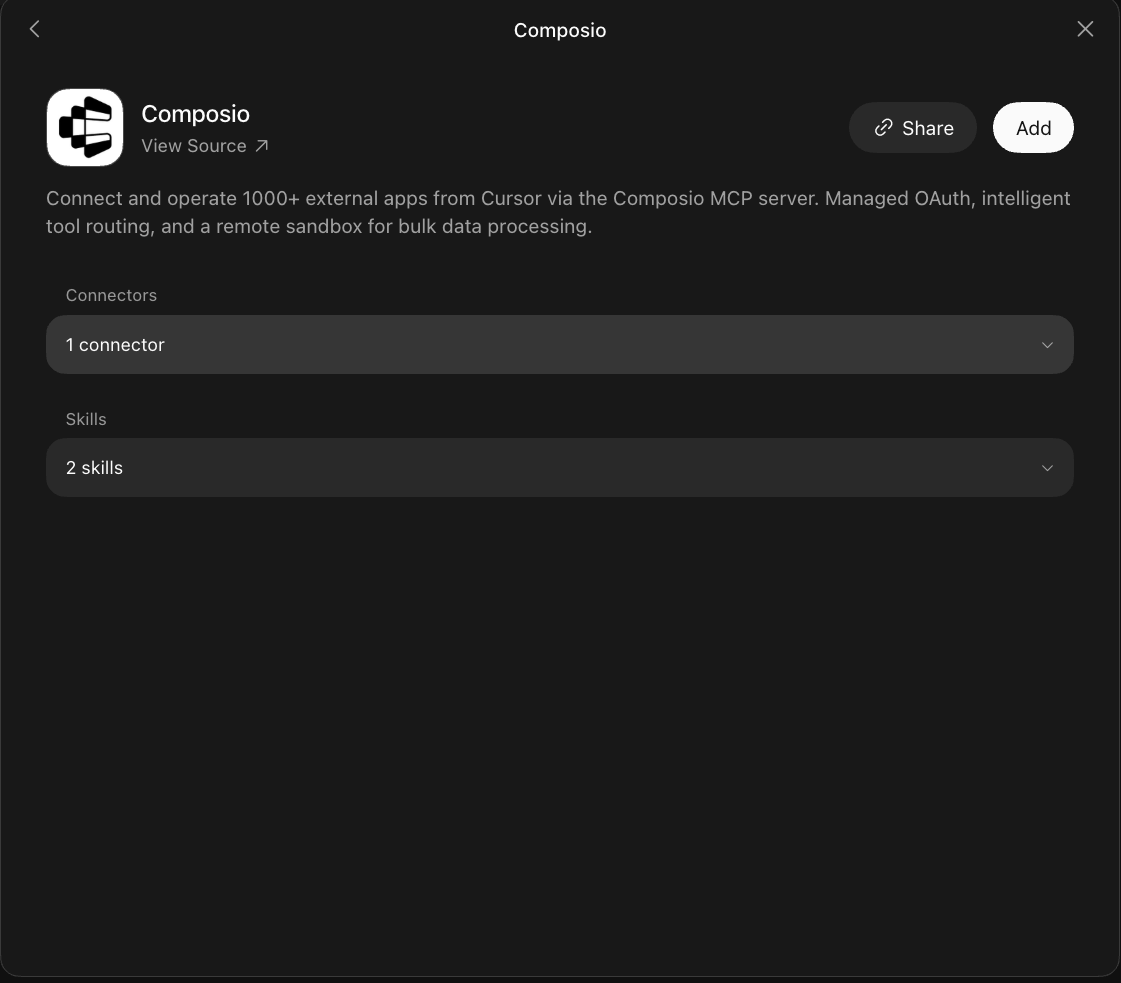
Composio plugin sheet in Grok Bot with the Add button

2. Authenticate

Go to the Installed section and click the Composio entry. You'll see its connector and skills listed.
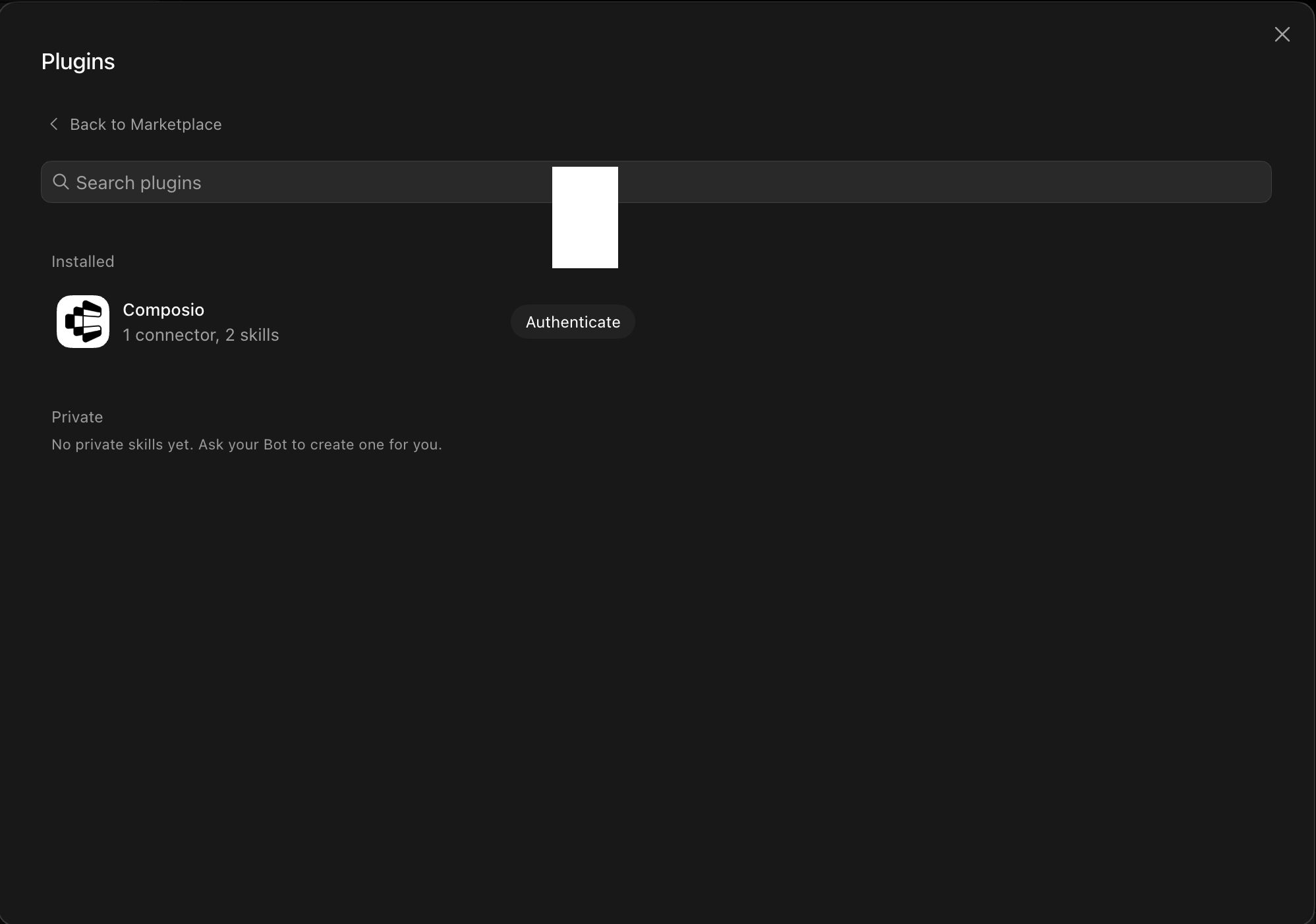
Installed Composio plugin showing the Authenticate button

Click Authenticate. You'll be taken to the Composio consent screen. Review the access it requests and click Authorize. Composio handles the OAuth handshake for you, so you never touch API keys or tokens.
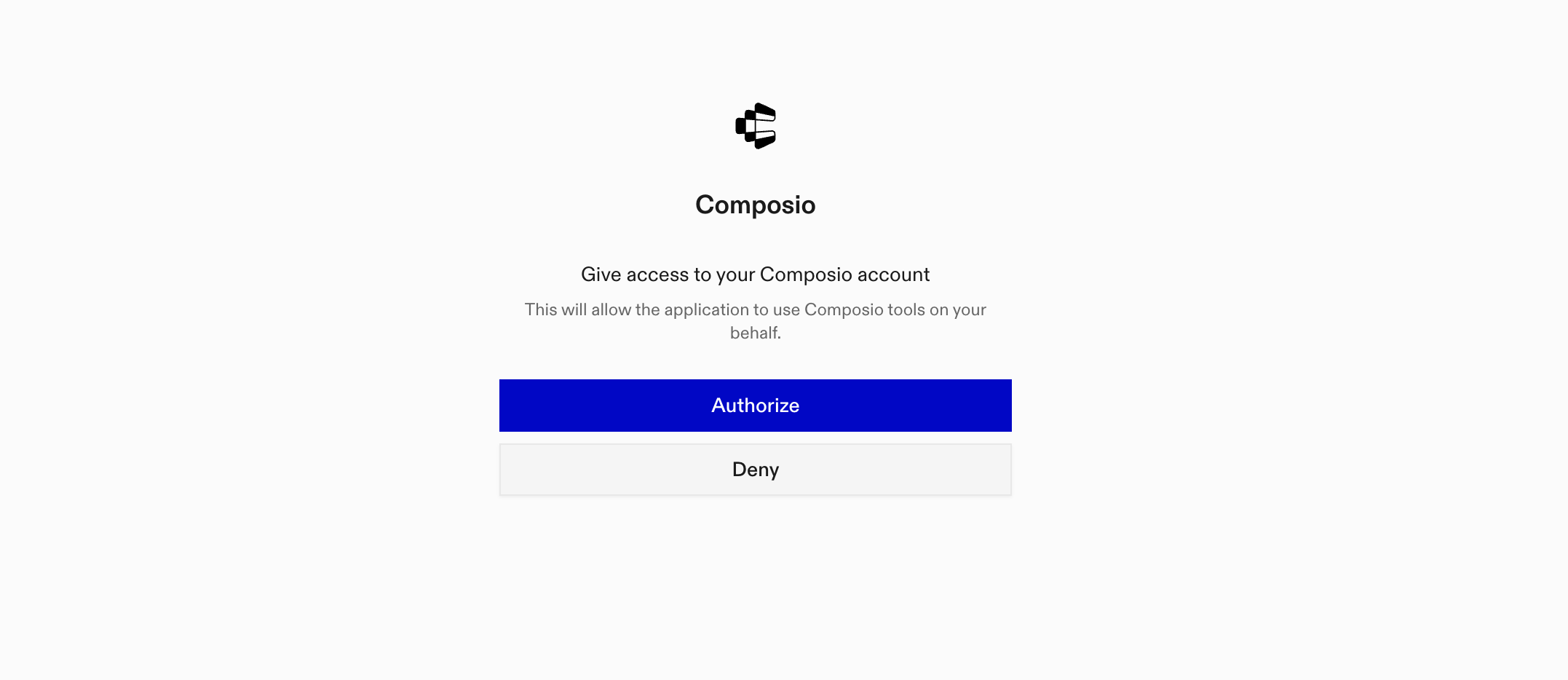
Composio authorization screen with Authorize and Deny

3. Connect your Bing Webmaster Tools account

Back in the chat, ask your bot to connect to Bing Webmaster Tools or give it any Bing Webmaster Tools task.

For example, ask it to:

  • "List verified sites with indexing issues"
  • "Submit new URLs for Bing indexing"
  • "Summarize search clicks by query"

It will prompt you to authenticate and authorize access.

That's it. Composio's tools are now available in your Grok bot, and your Bing Webmaster Tools account is ready to use.

What is Grok Bot?

Grok is xAI's assistant, available as a chat interface and a bot builder for creating personal agents that run skills and connect to external apps.

With Composio Connect, your Grok bot can securely access apps like Bing Webmaster Tools through MCP without you sharing account credentials directly with the agent.

What is the Bing Webmaster Tools MCP server, and what's possible with it?

The Bing Webmaster Tools MCP server is an implementation of the Model Context Protocol that connects your AI agent and assistants like Claude, Cursor, etc directly to your Bing Webmaster Tools account. It provides structured and secure access to your verified sites, search performance, crawl data, indexing details, links, feeds, and keyword research, so your agent can analyze search traffic, diagnose crawl issues, inspect pages, research keywords, and submit content to Bing on your behalf.

  • Search performance analysis: Have your agent review daily search totals, top queries, top pages, and performance trends for specific queries or URLs.
  • Crawl and index diagnostics: Let the agent find crawl issues, review daily crawl statistics, inspect URL index status, and examine indexed pages within site directories.
  • Keyword and link research: Direct your agent to research keyword impressions, historical trends, related ideas, and inbound links for your verified sites.
  • Sitemap and URL submission: Instruct your agent to review submitted feeds, submit sitemaps, send owned URLs to Bing for crawling, and check remaining submission quotas.
  • Verified site management: Have your agent list connected sites, check their verification state, and retrieve available verification codes.

Way Forward

Now that Bing Webmaster Tools is connected, extend your setup by connecting the other apps you already use every day, so your Grok bot can run true cross-app workflows end to end.

  • Connect Calendar to turn threads into scheduled meetings automatically.
  • Connect Slack or Teams to post summaries, approvals, and alerts where your team works.
  • Connect Notion, Linear, Jira, or Asana to convert requests into tickets, tasks, and docs.
  • Connect Drive, Dropbox, or OneDrive to fetch, file, and share attachments without manual steps.

Start with one workflow you do repeatedly, then keep adding apps as you find new handoffs. With everything behind a single connection, your bot can coordinate multiple tools safely and reliably in one conversation.

TOOLS

Supported Tools

Every Bing Webmaster Tools action and event your agent gets out of the box.

Get Crawl Diagnostics

Read crawl issues or daily crawl statistics for a verified site.

Get Feeds

List a site's submitted sitemaps and feeds, or inspect one feed's child details.

Get Inbound Links

Read inbound-link counts across a site or link details for one target URL, one provider page at a time.

Get Page Performance

Read traffic for one owned URL, its search queries, or a paged set of child URLs.

Get Query Performance

Analyze one Bing search query over time, across ranking pages, or for one query-page pair.

Get Search Performance

Read site-level Bing search performance as daily totals, top queries, or top pages.

Get Submission Quotas

Get remaining daily and monthly URL and/or content submission quotas for a verified site.

Inspect URL

Get Bing index and crawl metadata for one page or directory in a verified site.

List Child URLs

Return one Bing index-detail page for URLs below a directory or container, with optional crawl and index filters.

List Sites

List the sites associated with the connected Bing Webmaster Tools user, including verification state and verification codes.

Research Keywords

Get Bing keyword impressions, historical statistics, or related keyword ideas for a country and language.

Submit Feed

Submit a sitemap or feed URL for non-recallable Bing processing; do not retry when the submission result is ambiguous.

Submit URLs

Submit one to 500 owned URLs to Bing, consuming URL-submission quota and starting a non-recallable crawl and indexing request that does not guarantee indexing.

FAQ

Frequently asked questions

Start with Bing Webmaster Tools.It takes 30 seconds.

Managed auth, hosted MCP servers, and every Bing Webmaster Tools tool your agent needs.Free to start.

Start building

