How to connect Akta to Claude

Connect Claude Web, Desktop and Cowork to Akta MCP. Generate target companies for fintech startups, enrich leads with firmographic and signals, and more using natural language, with authentication handled for you.

Akta logoAkta
Api Key

Akta is a company intelligence platform providing enrichment, news, and alternative business signals. It helps teams build targeted company lists and enrich data-driven workflows.

19 Tools

Introduction

Claude is Anthropic's AI assistant, available on the web, in the desktop app, and on mobile. Cowork is its agent for knowledge work, and it runs on all of those surfaces too. Connected to your apps, Claude can work with your files and services to accomplish complex tasks on your behalf.

This guide walks you through the easiest and most secure way to connect your Akta account to Claude via Composio Connect, enabling it to generate target companies for fintech startups, enrich leads with firmographic and signals, alert me on company fundraising news, and more such actions on your behalf without compromising your account security.

Setup is the same on Claude Web, Desktop, and Cowork, and you only need to do it once. The connector is tied to your account, so it's available in all three.

Also integrate Akta with

Connecting Akta to Claude Web, Desktop, and Cowork

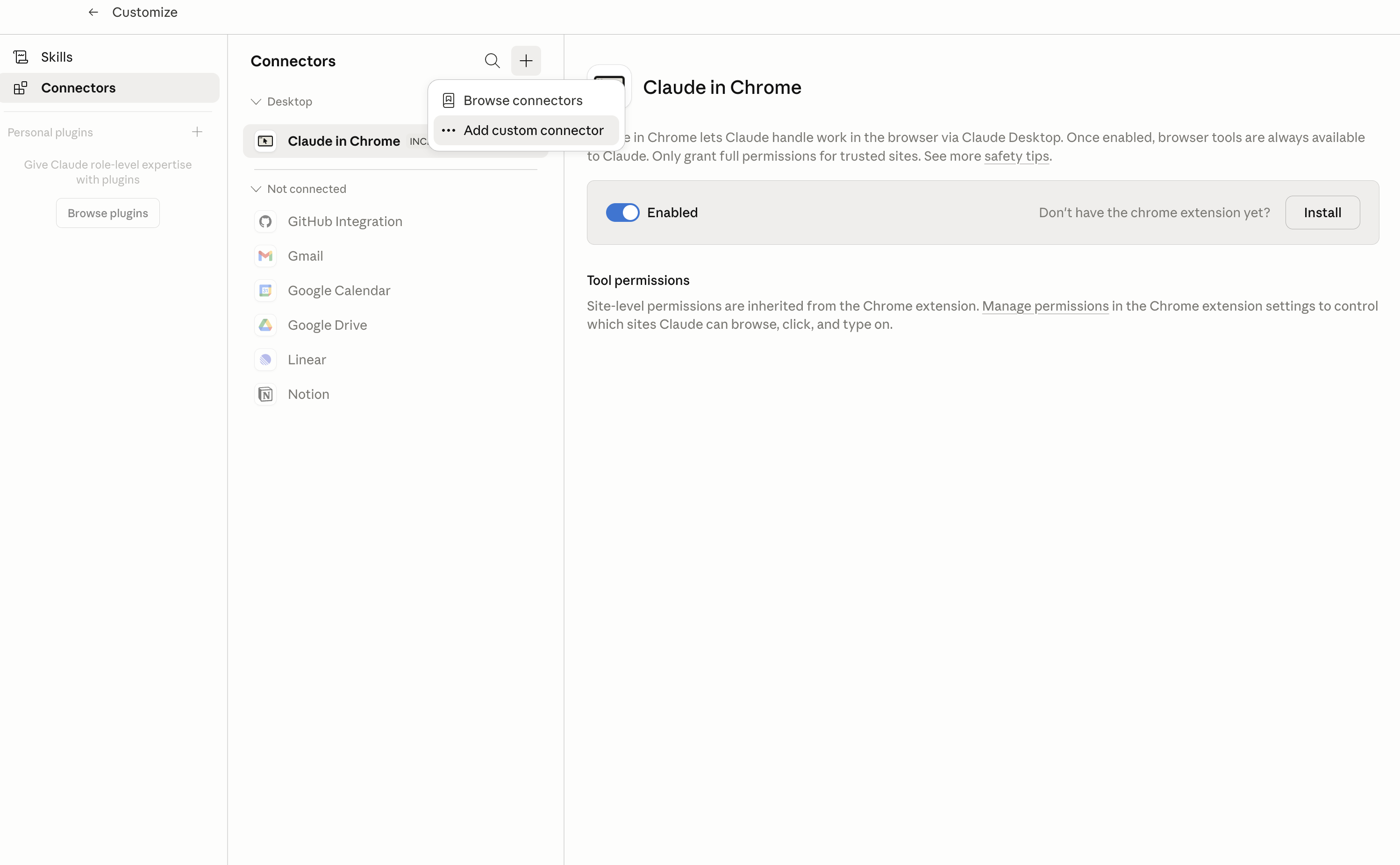
1. Open Customize

In Claude Desktop, click Customize in the left sidebar, then select Connectors and click the + icon at the top.

Claude Desktop connectors screen with Add custom connector selected

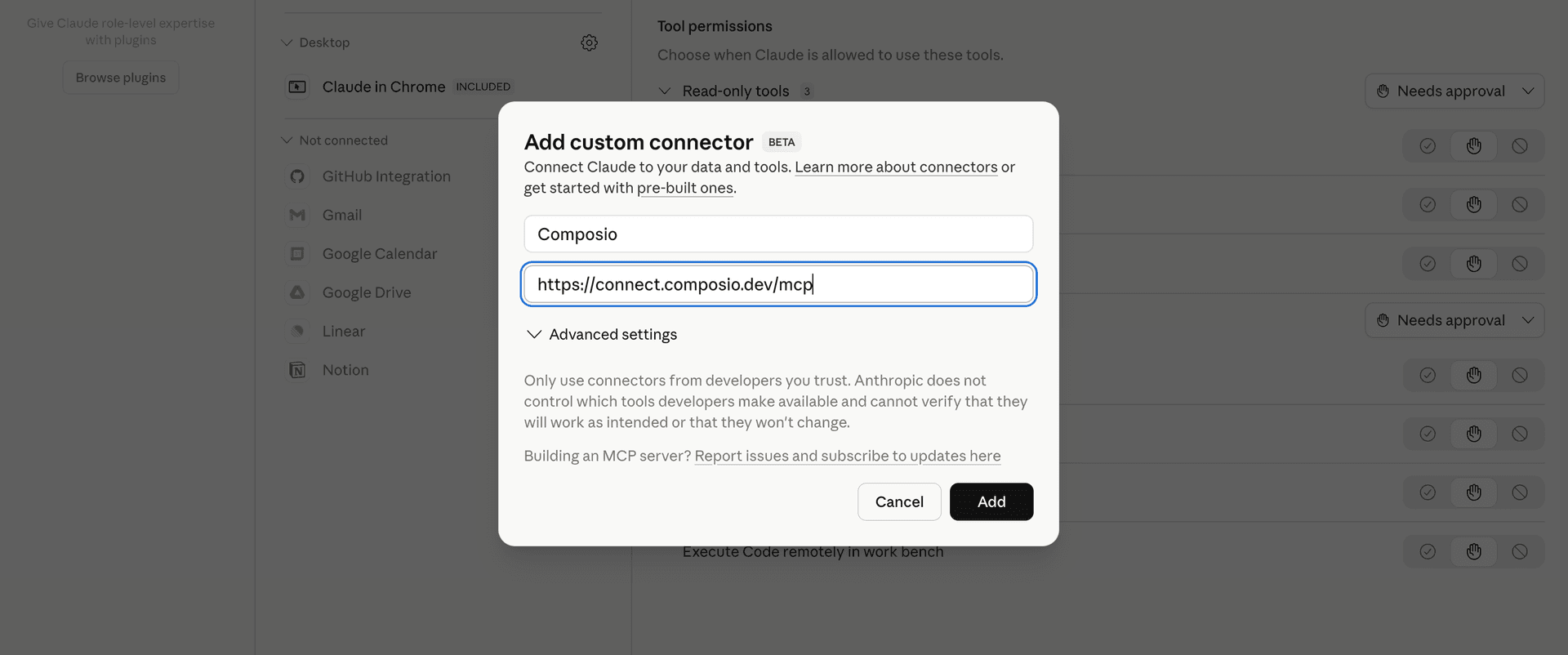
2. Add the Composio MCP server

Click Add custom connector and paste in the Composio MCP server URL:

bash
https://connect.composio.dev/mcp
Add custom connector dialog with Composio MCP server URL

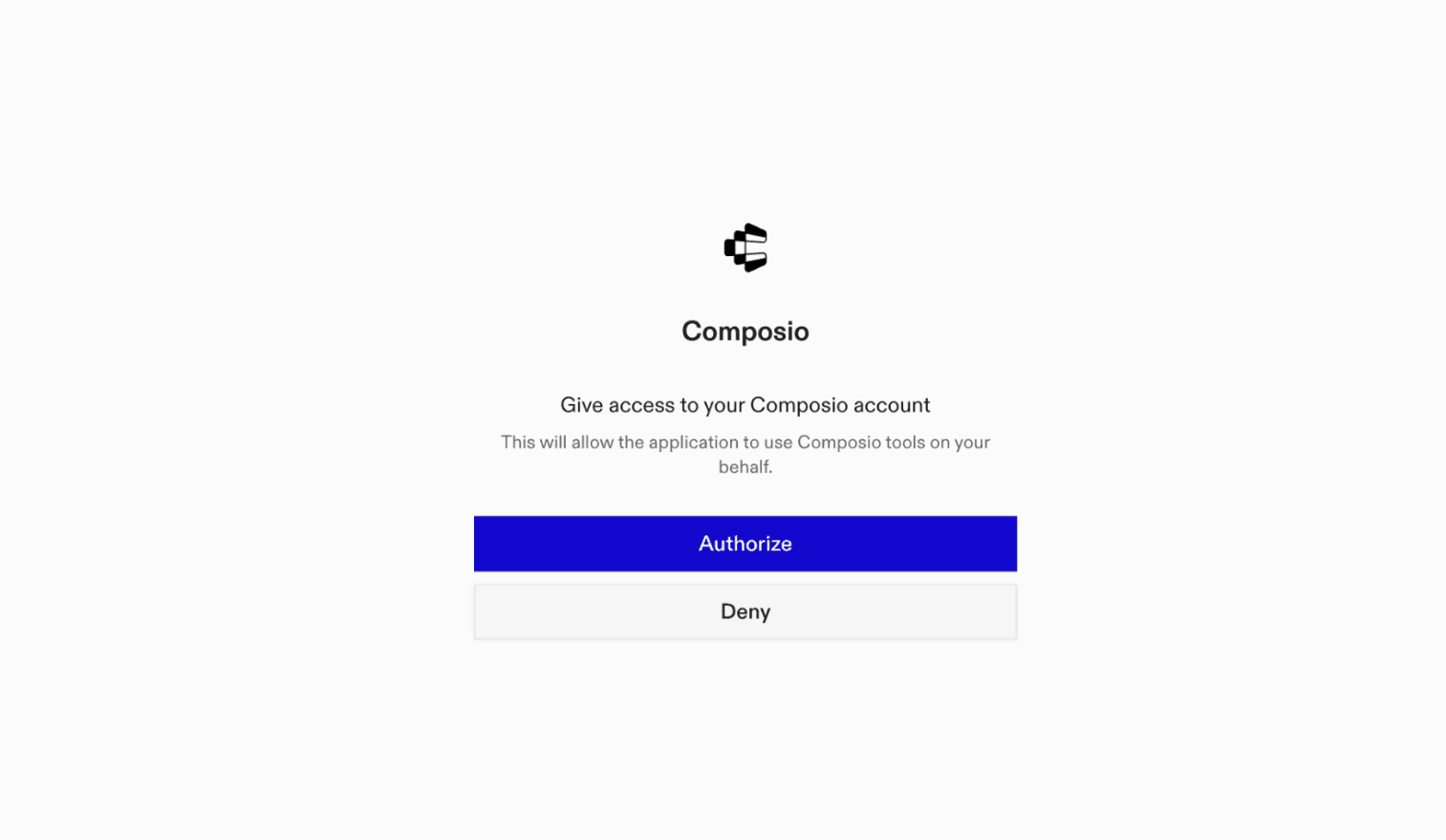
3. Authorize in your browser

Click Connect. You'll be redirected to a browser window where you can authorize Composio to continue.

Composio authorization screen for Claude Web, Desktop, and Cowork

4. Connect your Akta account

Back in Claude, ask it to connect to Akta or give it any Akta-related task.

For example, ask Claude to:

  • "Generate target companies for fintech startups"
  • "Enrich leads with firmographic and signals"
  • "Alert me on company fundraising news"

It will prompt you to authenticate and authorize access.

That's it. Composio's tools are now available in Claude, and your Akta account is ready to use.

What is the Akta Claude Connector, and what's possible with it?

The Akta MCP server is an implementation of the Model Context Protocol that connects your AI agent and assistants like Claude, Cursor, etc directly to your Akta account. It provides structured and secure access so your agent can perform Akta operations on your behalf.

Troubleshooting

1. Why does Claude not use the Composio connector for Akta?

The connector can show as connected, but Claude must use it in each Akta conversation.

  • Click + at the lower left of the chat, or type /.
  • Hover Connectors.
  • Turn on Composio.
  • Ask Claude to connect to Akta again.

2. Why does Claude show an MCP server error before Akta connects?

Claude can show Couldn't reach the MCP server or Authorization with the MCP server failed when you add the connector for Akta.

  • Check that the connector URL is https://connect.composio.dev/mcp.
  • Connectors run from Anthropic's cloud, so your device network is usually not the problem.
  • Add the connector again from Customize > Connectors, then ask Claude to connect Akta.
  • If it fails again, send the error and the ofid_ reference id to support@composio.dev.

3. Why does the Akta authorization link not work?

The Composio connector is one server. Your Akta account connects separately when Claude asks for it.

  • If the browser does not open, or the link expires, ask Claude to retry the Akta connection.
  • Composio creates a fresh Akta authorization link.
  • Open that link in your browser and finish the Akta sign-in.

4. Why do Akta actions fail after they worked before?

The Akta connection can expire or lose permission.

  • Ask Claude to inspect the Akta connection.
  • If the connection is unhealthy, disconnect it when Claude prompts you.
  • Reconnect the Akta account and retry the action.
  • If Claude shows a permission prompt, approve it before Claude changes data in Akta.
  • If the action still fails with a permission error, check that the connected account has that permission in Akta itself.

5. How do I switch to a different Akta account?

Claude can manage the Akta connection for you.

  • Ask Claude to disconnect or delete the current Akta account.
  • Ask Claude to connect Akta again.
  • Open the new Composio authorization link for Akta.
  • Sign in with the other Akta account in the browser.
  • After the account connects, ask Claude to retry the Akta task.

6. Why is my Akta connection missing in Claude Desktop or on a Team plan?

The connector belongs to your Claude account, so your Akta connection works in Claude Web, Desktop, and Cowork.

  • In Claude Desktop, open Customize > Connectors.
  • Next to Composio, click and click Clear cache.
  • If Akta tools still do not appear, click , disconnect, remove the connector, and add it again.
  • On Team or Enterprise, an Owner or Primary Owner must enable the connector before you can connect Akta.
TOOLS

Supported Tools

Every Akta action and event your agent gets out of the box.

Build Company Filters

Translate a natural-language company description into reusable structured filters for company-list generation.

Generate Company List

Generate one caller-controlled offset page of matching companies from exactly one natural-language query or non-empty structured filters object.

Get Account Status

Return the connected Akta account's package, Enterprise entitlement, credit balance, spend, and currency before choosing tier-gated or credit-consuming tools.

Get Company Enrichment

Get selected company-data sections as structured JSON or Markdown, or request Akta's fixed concise overview.

Get Company Filter Values

Resolve allowed label/value choices for one or more fixed-value company-list filters in a single free batch request.

Get Company Headcount Trends

Return a company's current headcount, monthly history, growth periods, and workforce breakdown by function; consumes credits.

Get Company Product Reviews

List a company's product catalog when product_ids is omitted, or return detailed ratings and one caller-controlled offset page of reviews for selected products.

Get Company Website Traffic

Return a company's website engagement, monthly visit estimates, and acquisition-source mix.

Get News Articles

Fetch complete enrichment and full article text for up to 10 Akta news IDs returned by AKTA_SEARCH_NEWS.

Get Request Status

Get the current state and detail of an asynchronous Akta request, such as a company-addition request.

List Company Employee Reviews

Return workplace rating aggregates and one explicit offset page of individual employee reviews for an Akta company.

List Company Filters

List the structured filter fields accepted by company-list generation and identify fields whose values come from fixed lookups, nested objects, or same-array-element matching semantics.

List Company Job Posts

Return one explicit offset page of a company's current LinkedIn and Indeed job posts with role details.

List Company Social Posts

Return one caller-controlled offset page of a company's social posts with content classification and engagement metrics.

Request Company Addition

Submit a missing company for asynchronous addition to Akta.

Search Companies

Resolve a company name, website, or Akta UUID to matching Akta company identities for use with company-data tools.

Search Industries

Resolve free text to similarity-ranked Akta industry taxonomy codes for company-list and news filters.

Search News

Search enriched Akta news by company, industry, topic, date, entity, sentiment, quality, and deduplication filters.

Search Regions

Resolve a region name or UN M49 code to Akta region records, or omit query to list supported regions.

FRAMEWORKS

How to build Akta MCP Agent with another framework

FAQ

Frequently asked questions

With a standalone Akta MCP server, the agents and LLMs can only access a fixed set of Akta tools tied to that server. However, with the Composio Tool Router, agents can dynamically load tools from Akta and many other apps based on the task at hand, all through a single MCP endpoint.

Yes, you can. Claude Cowork fully supports MCP integration. You get structured tool calling, message history handling, and model orchestration while Tool Router takes care of discovering and serving the right Akta tools.

Yes, absolutely. You can configure which Akta scopes and actions are allowed when connecting your account to Composio. You can also bring your own OAuth credentials or API configuration so you keep full control over what the agent can do.

All sensitive data such as tokens, keys, and configuration is fully encrypted at rest and in transit. Composio is SOC 2 Type 2 compliant and follows strict security practices so your Akta data and credentials are handled as safely as possible.

Start with Akta.It takes 30 seconds.

Managed auth, hosted MCP servers, and every Akta tool your agent needs.Free to start.

Start building