




Have you ever needed to scrape data from websites? Perhaps for a side project, research, or to automate a tedious task? You probably know the pain: setting up scraping frameworks, writing code, dealing with endless configuration, and wrestling against the messy, unstructured data you get back. It's enough to make anyone want to throw their computer out the window.

Literally me throwing my laptop on my employer’s face if MCPs weren’t there!!
That's when you might have searched for tools like Firecrawl. If you haven't heard of it, Firecrawl is a tool that turns websites into structured, LLM-ready data with just a simple crawl. No more fighting with HTML parsing or weird edge cases - just write a prompt and let it do the work.
But what if you could take it a step further? Could you combine Firecrawl's powerful web scraping with Claude Code's AI automation and run the whole thing right from your terminal? In this article, we'll show you exactly how to do that - so you can automate web data extraction and analysis without the usual headaches.
However, before we delve into the details, let's take a brief look at what Firecrawl is and how we can connect Composio's Firecrawl MCP to automate web scraping whenever needed.
What is MCP?
Think of MCP as a bridge that connects all your SaaS tools to your AI agent. It acts like an adapter, enabling your AI agent (Client) to understand and interact with your tools.
According to Anthropic (the team behind Claude and MCP),
“MCP is an open protocol that standardizes how applications provide context to LLMs. Think of MCP like a USB-C port for AI applications. Just as USB-C provides a standardized way to connect your devices to various peripherals and accessories, MCP provides a standardized way to connect AI models to different data sources and tools.”
credits: modelcontextprotocol.io
What is Firecrawl?
Firecrawl is an AI-powered web crawler that fetches and processes web content into structured, machine-readable formats (such as Markdown, JSON, or HTML). It's designed to integrate with AI tools, making it a perfect blend for web automation where an LLM needs real-time or contextual data from the web.
What is Firecrawl MCP by Composio
Composio provides an MCP (Model Context Protocol) server that enables LLMs, such as Claude and Cursor, to interact with Firecrawl. It provides an interface layer to manage authentication (via API keys, etc.) and handles the data exchange between the LLM and Firecrawl. What can you do with it? You can automate web scraping, data extraction, and content gathering to index the site and gain a better understanding of the content.
The MCP layer provides a set of tools for interacting with Firecrawl. Some of the tools are:
FIRECRAWL_CRAWL_URLS- Starts a crawl job for a given URL, applying various filtering options and content extraction options.FIRECRAWL_SCRAPE_EXTRACT_DATA_LLM- To scrape a publicly accessible URL.FIRECRAWL_EXTRACT- To extract structured data from a web page.FIRECRAWL_CANCEL_CRAWL_JOB- To cancel a crawl job.FIRECRAWL_CRAWL_JOB_STATUS- Retrieves current status, progress of a web crawl job, and so much more. Read more about the tools here.
Now, I can literally ask Claude to crawl a site, summarise it, extract data, or even perform some analysis by generating structured data, all using natural human language, without having to write any code.
What‘s Covered?
How to connect Composio's Firecrawl MCP and Claude Code
How to configure Claude Code to manage Firecrawl jobs from your terminal
How to prompt Claude to crawl a site, scrape a page, and extract structured data
Additionally, we'll learn a few best practices to use Firecrawl MCP with Claude Code
Setting things up with no extra effort
We'll be using the following tools:
Setup using Composio Connect (Recommended)
With the new setup, you no longer need to install or run MCP servers locally.
There’s no need to create or run an MCP server manually, Composio handles everything in the background by providing a hosted MCP layer accessible via authentication (OAuth or API key).
Step 1: Open Composio Connect
Go to: https://connect.composio.dev/
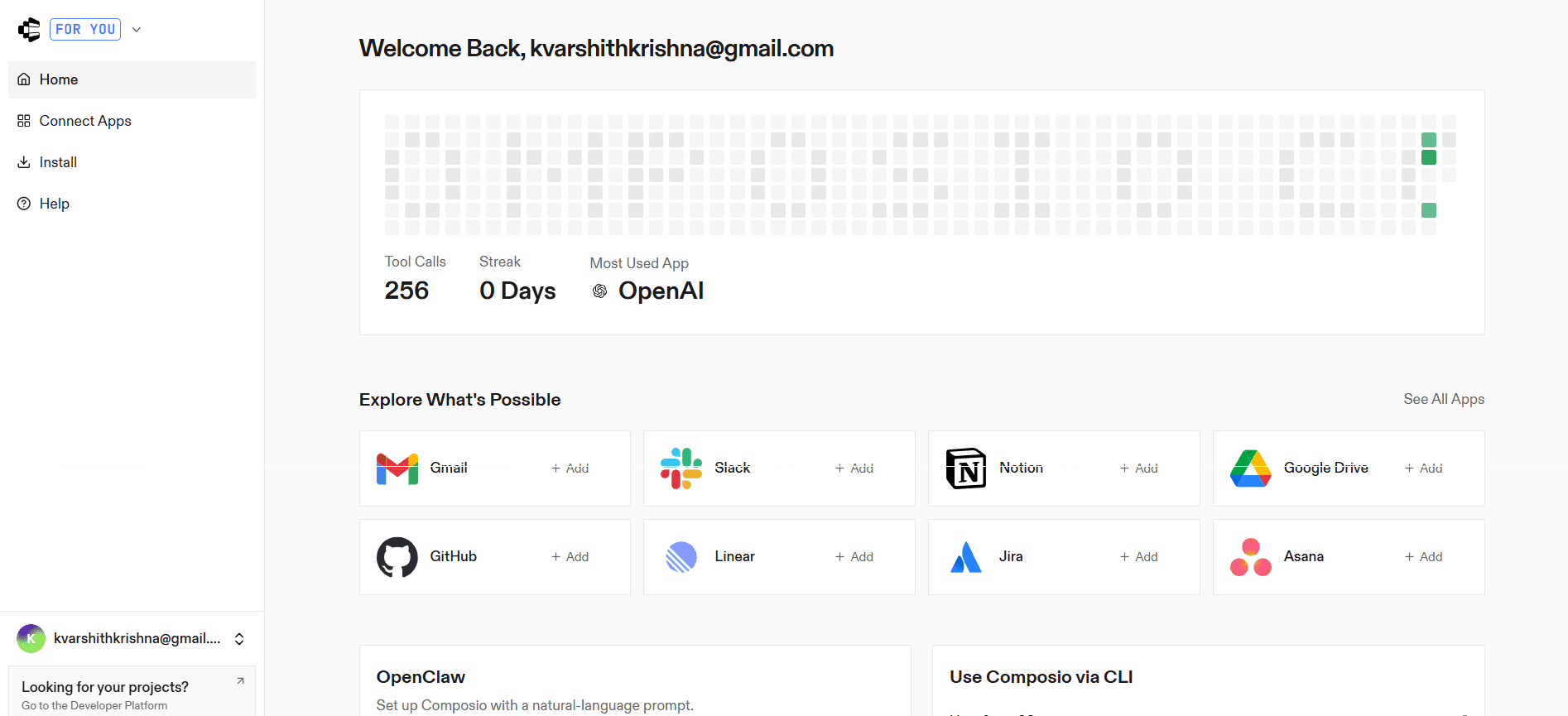
Step 2: Enable Firecrawl Integration
Search for Firecrawl
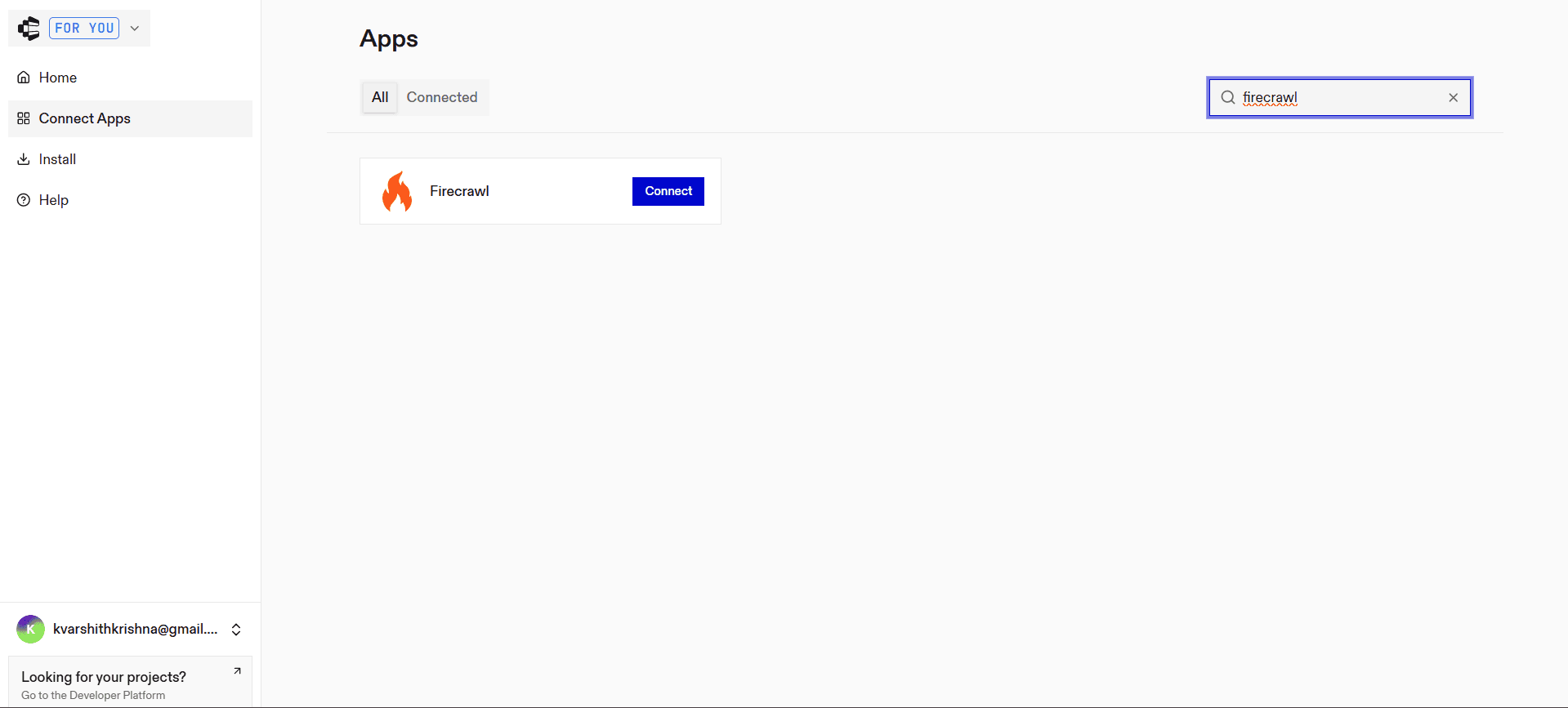
Click Integrate
Paste your Firecrawl API key
Click Connect
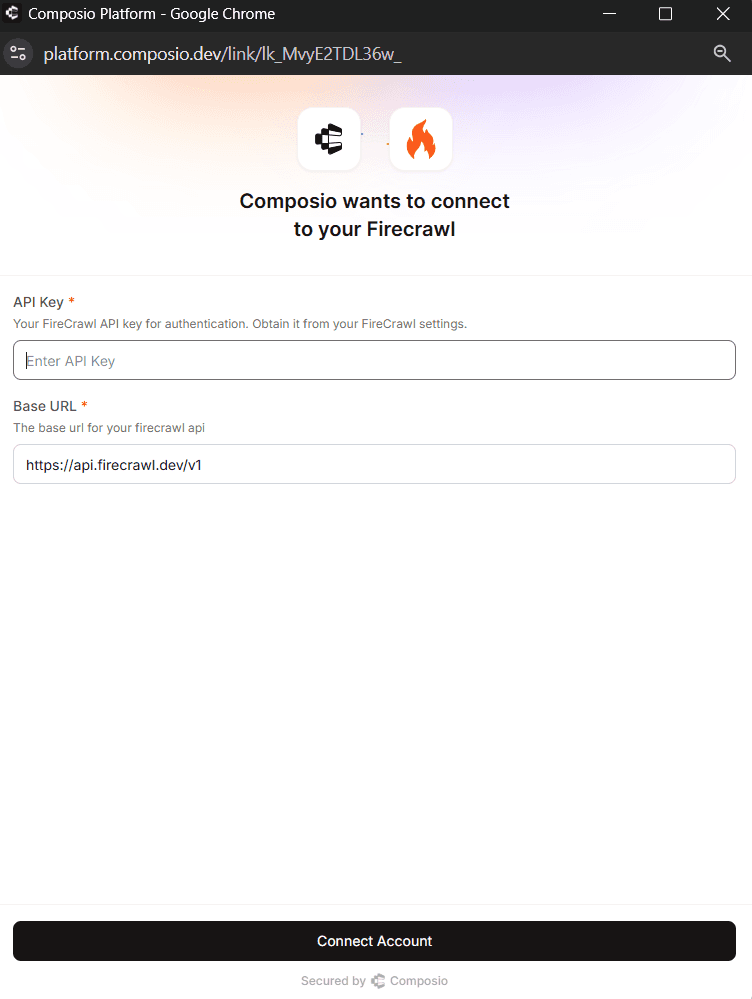
Once done, your integration is ready.
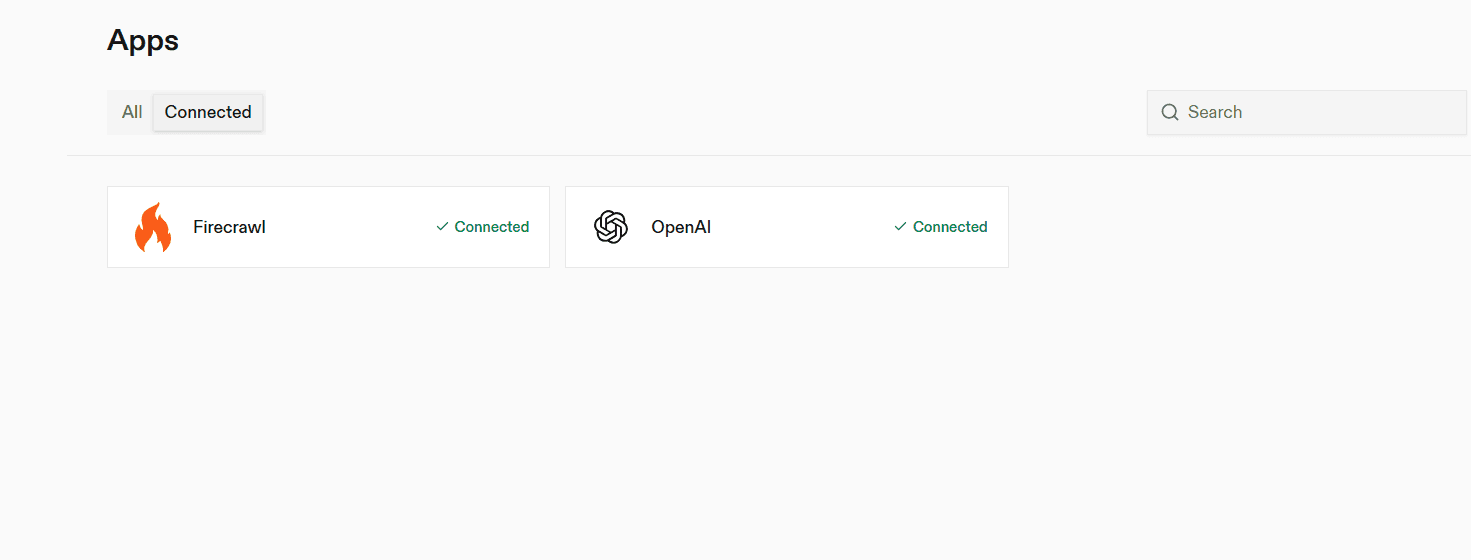
Open Connectors in Claude Desktop
Launch Claude Desktop
Go to Settings
Select Connectors
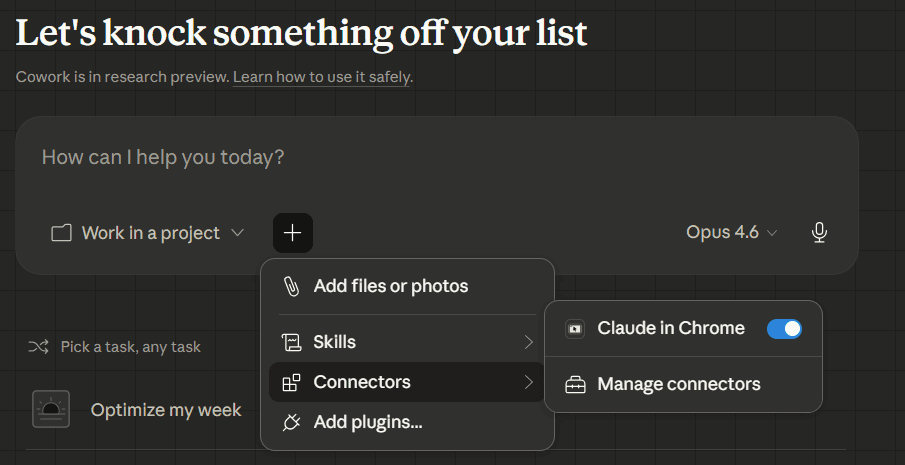
Step 3: Add the MCP server
Click Add custom connector
Enter the URL:
https://connect.composio.dev/mcp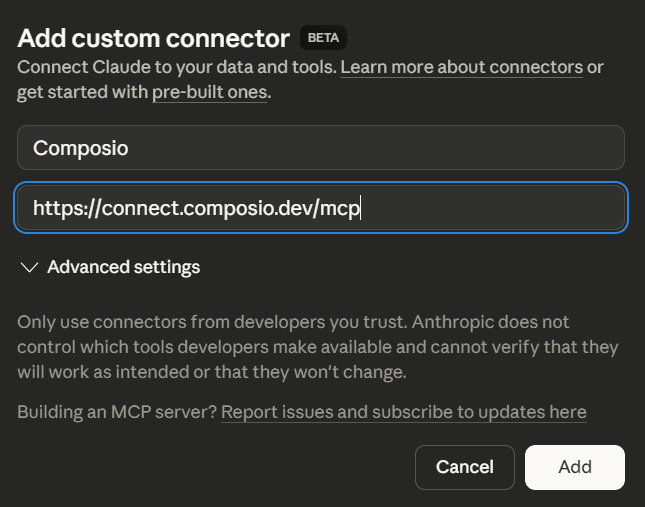
This connects Claude to all applications linked through Composio.
Step 4: Authorize access
A browser window will open. Sign in to your Composio account and approve the connection. Once completed, the integration becomes active.
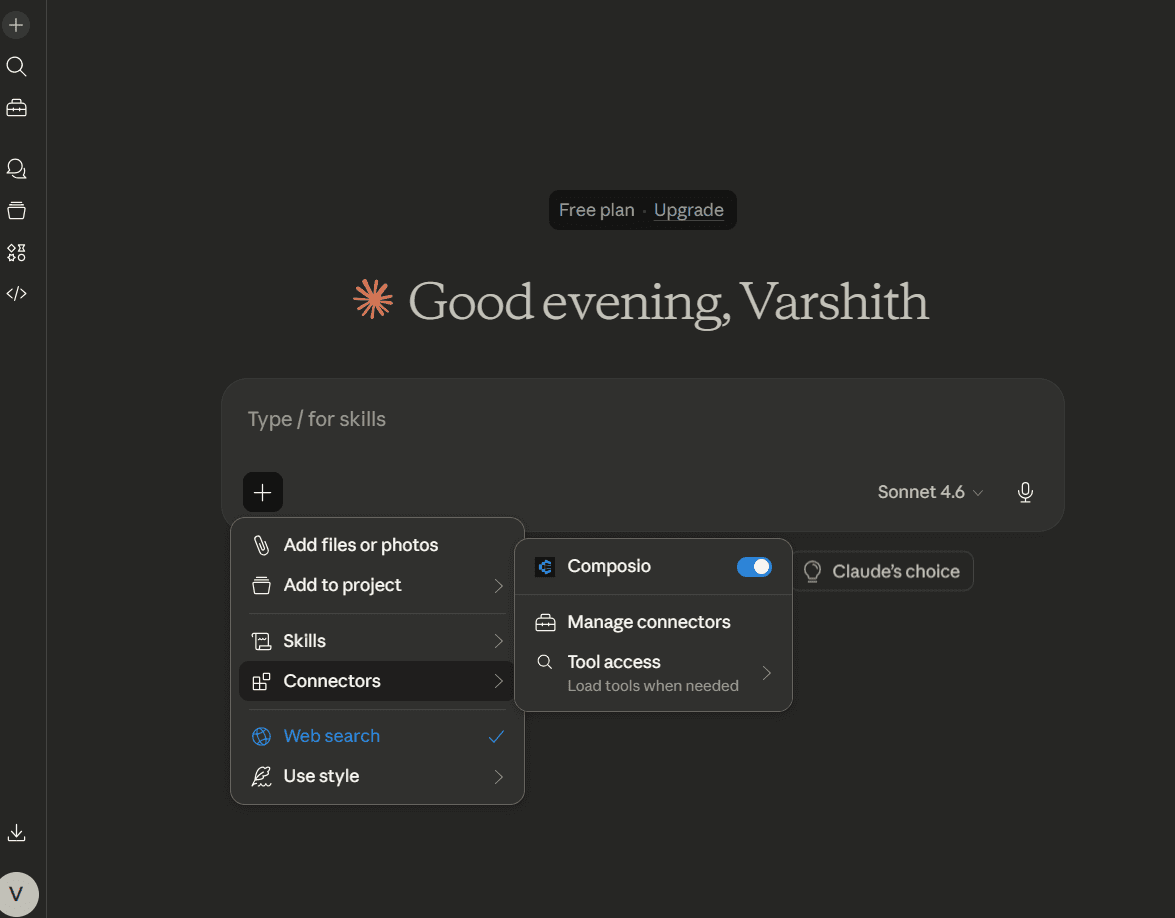
Testing the Integration:
You can test the integration in the next step. In the Action dropdown, select "Scrape URL" and pass this prompt:
Generate a valid JSON input payload for Firecrawl's `Scrape URL` action based on the following:

URL: <https://en.wikipedia.org/wiki/How_Brown_Saw_the_Baseball_Game>

Requirements:
- The `formats` field must include `"json"`.
- Since `json` is requested, include the required `jsonOptions` field (it can be empty `{}` or include common options like `removeScripts`).
- Set `onlyMainContent` to `true` to get only the main article.
- Use a `timeout` of 30000 milliseconds.
- Use `waitFor` value of `0`.
- You may leave `actions`, `excludeTags`, `includeTags`, and `location` empty.

Output a valid JSON object for the input payload.
It'll generate a valid JSON input payload for the Scrape URL action. You can now hit "Run" to see the output.
Conclusion
Firecrawl MCP makes it easy to scrape structured content from any site. With Composio Connect, you can now get started without any local setup or CLI configuration.
Simply connect your Firecrawl account, authenticate using OAuth or an API key, and start using it directly with Claude Code.
This makes it faster and easier than ever to build powerful AI-driven web scraping workflows.

 Get started



