




If you’ve been using coding agents like Claude Code, Codex, and OpenCode, you might have noticed how painful MCP can be most of the time. The models are simply better at writing shell scripts than at calling functions. And it makes sense, given that the internet has more high-quality Shell data on GitHub and Stack Overflow than any amount of synthetic tool-calling data.
Claude can compose CLI commands to accomplish complex automation, whereas to do the same, it has to make multiple to-and-fro calls to the MCP servers.
But what are the CLI tools that will actually elevate your productivity with coding agents? This post is a curated list of all the CLI tools for Claude Code that I find quite helpful.
We have made an awesome repo with a curated collection of CLI tools for coding agents: https://github.com/ComposioHQ/awesome-agent-clis

What does "CLI tools for Claude Code" actually mean?
Claude Code is already powerful on its own.
But it gets even better when you pair it with the right terminal tools, especially since you’re already working in the terminal.
I’m not talking about tools built specifically for Claude Code.
I mean the CLI tools that make the overall workflow smoother, faster, and easier to manage while Claude is working in your repo.
1. GitHub CLI
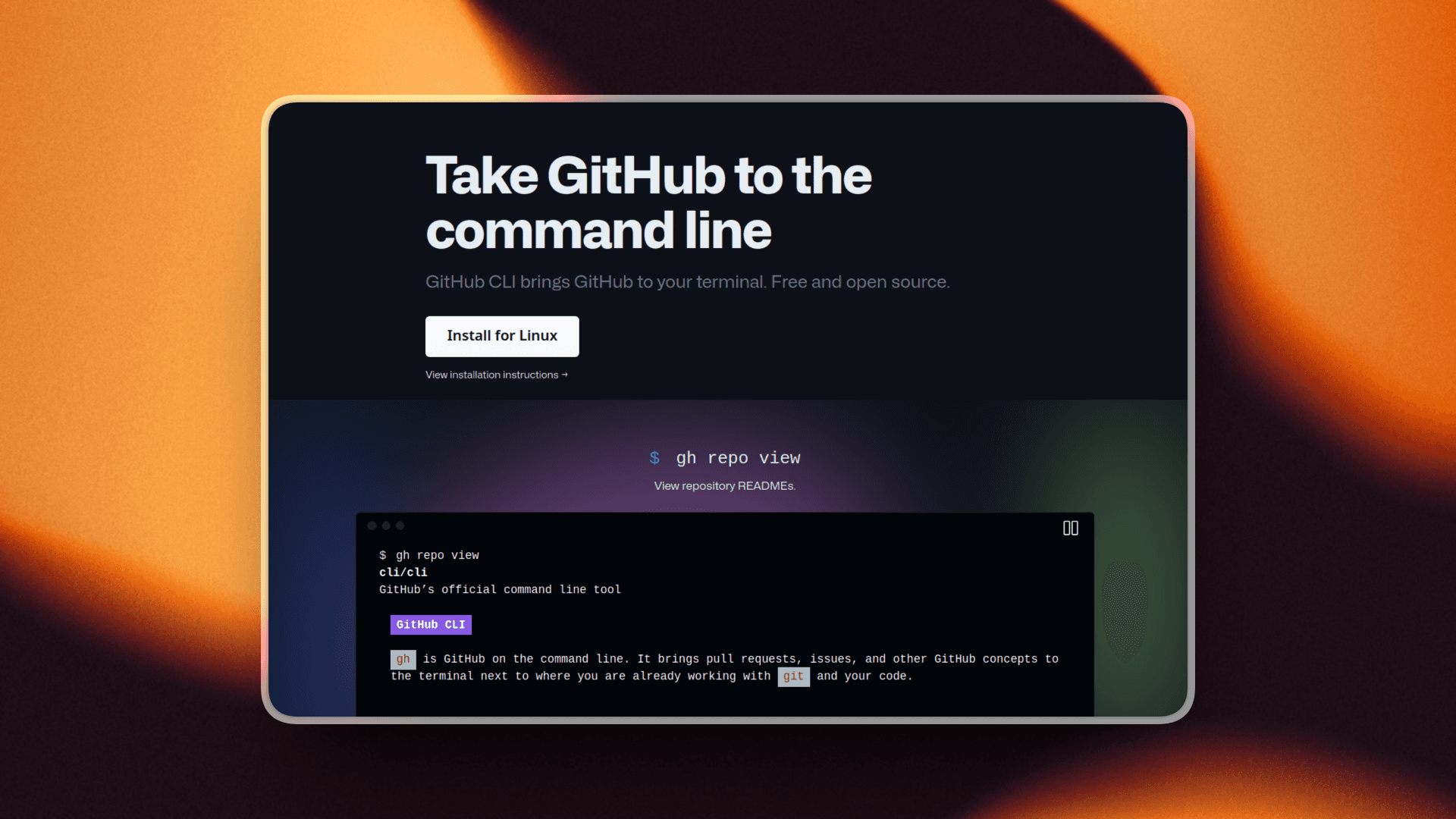
ℹ️ GitHub’s official CLI for working from the terminal.
What is it?
GitHub CLI is basically running GitHub from your terminal. You can create repos, check issues, review PRs, manage branches, and handle a bunch of GitHub workflow stuff without leaving your shell.
It can be as simple as:
gh repo createfor creating a new repository through an interactive prompt, which is one I use the most. And there are tons of other commands you can use.
Find all the others in the help window.
gh --helpWhy use it with Claude Code?
This one probably will not be for everyone.
A lot of people do not want to give Claude access to their GitHub repos, and that is totally fair. But if you are comfortable with it, I honestly think it is one of the best tools to pair with Claude Code.
Or even if you do not want Claude directly using it, GitHub CLI is still great to have beside Claude Code, since you can just run the commands yourself and keep moving without leaving the terminal.
2. Composio Universal CLI
ℹ️ An MCP server that connects Claude Code to hundreds of external apps.
What is it?
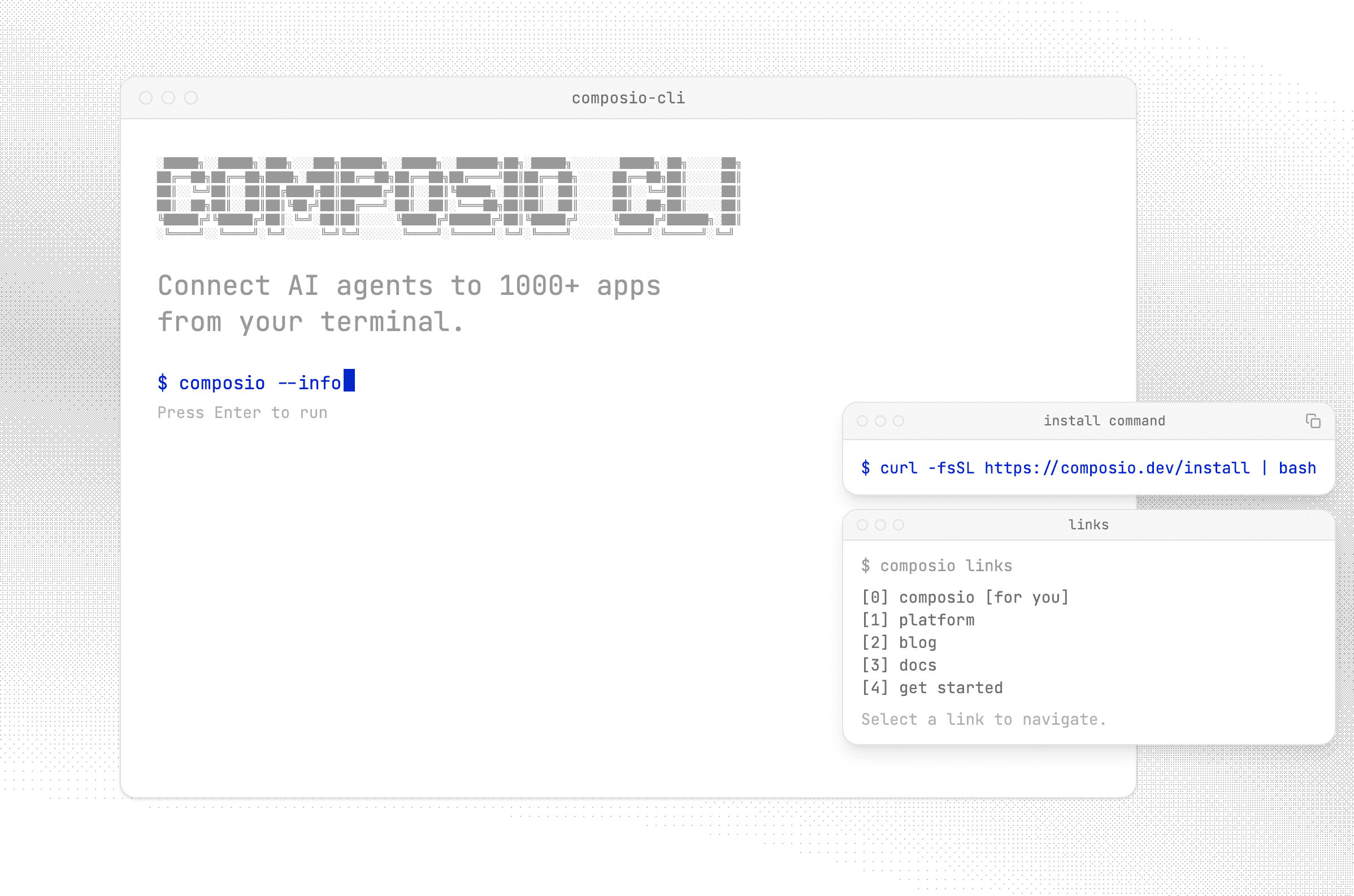
If you need a single gateway to 1000+ SaaS applications from Gmail, Outlook, and Notion to Jira, Confluence, Slack and more. With the Composio CLI, agents can self-authenticate with Composio and connect directly to your apps, such as Gmail, Notion, HubSpot, and more.
You can find how to connect Composio with Claude Code here: Composio Universal CLI
How to install and authenticate?
Composio now has CLI support, and to install is as simple as:
curl -fsSL https://composio.dev/install | bashThen log in with:
composio login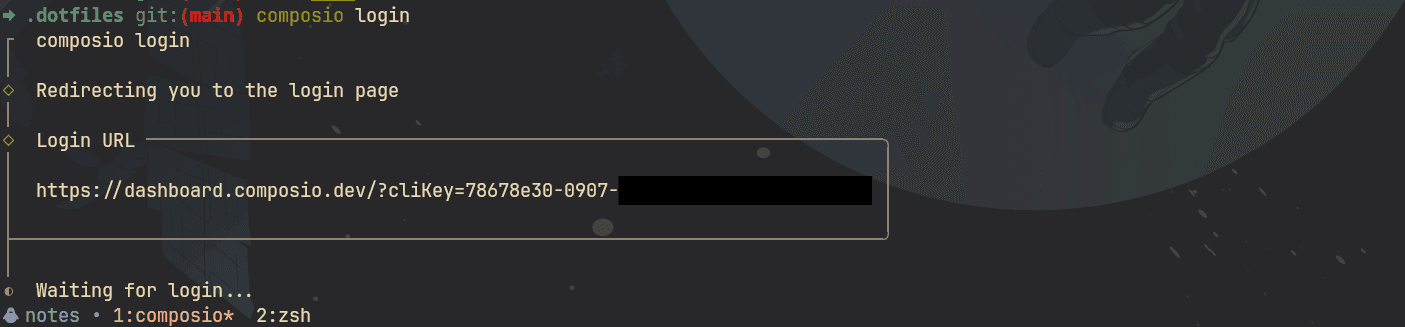
Upon running this command, it gives you a link to sign in through Composio’s dashboard. From there, you can connect the apps you want to use, and Composio handles things like OAuth and the rest.
You can find the CLI docs here: Composio CLI
Why use it with Claude Code?
Composio can do just-in-time tool loading, it can fetch tools as per the context to avoid context overloading, execute them with automatic input validation
and connection checks, and proxy raw API calls through your linked accounts without managing tokens yourself. Triggers let your agents react to real-world events — a new email, a calendar invite, a GitHub push — so workflows can be event-driven.
For development, Composio provides a playground with test users, execution logs, and real-time trigger streaming so you can iterate on agent behaviour locally before going to production.
3. ripgrep
ℹ️ The fastest way to search through a codebase from the terminal.

What is it?
It is a ridiculously fast search tool for the terminal.
It lets you search through files, code, and folders almost instantly.
If you have ever used grep, which I assume you have, it's a complete and faster replacement for that in real-world repos.
A simple example:
rg "useEffect"That will search for useEffect across your entire project and show you where it appears.
Why use it with Claude Code?
This is one of the first tools I'd install.
When working on a real-world repo, you are constantly searching for things. Function names, config, and whatnot.
ripgrep basically makes that fast.
Even Claude Code defaults to using this tool when searching for things in its workflow. Overall, it's super handy to have a quick way to move around the repo yourself without digging through it manually.
4. tmux
ℹ️ A better way to manage terminal sessions.
What is it?
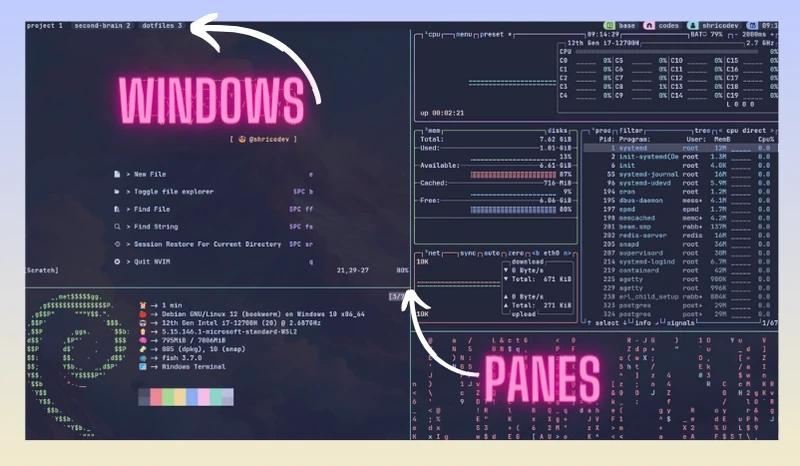
tmux lets you run multiple terminal sessions within a single terminal.
You can split panes, open multiple windows, switch between them quickly, and keep everything organised without opening a bunch of separate terminal tabs.
It might feel a little unnecessary at first. But once you get used to it, there is no way back.
Why use it with Claude Code?
For me, tmux is one of the most useful tools to pair with Claude Code, and it is actually what is running in my terminal right now as I work on this blog inside Neovim. 👀
I usually have Claude in a pane, with Neovim or a server running in one window, Lazygit in another, and then some extra panes for running commands.
If you use Neovim, it gets even better. You can have Claude open in one split and Neovim in another. As Claude makes changes, if you need to edit something, Neovim is right there. And for diffs or Git work, Lazygit is sitting in another window.
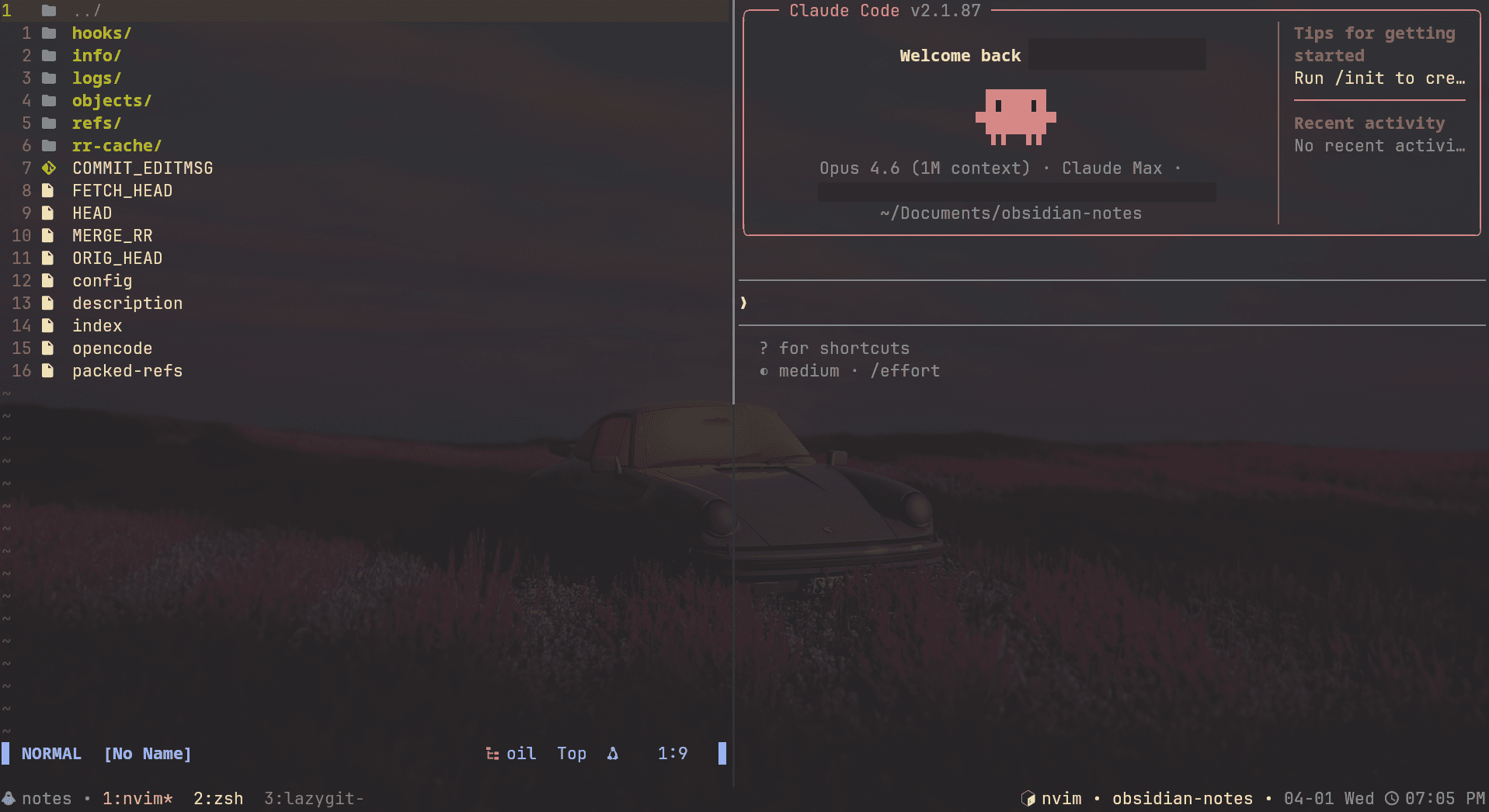
How cool is that?
You are not constantly jumping between tabs or losing track of what is running where.
5. FFmpeg
ℹ️ The go-to CLI tool for handling just about any media file.
What is it?
Honestly, this is one of the best tools I have added to my workflow recently.
FFmpeg is a command-line tool for working with media files. You can use it to convert images from one format to another, like PNG to JPG, convert video formats, compress files, trim audio, and do all sorts of file processing.
It supports basically every format you can think of.
As developers, we end up doing this kind of stuff all the time. And having one tool that handles all of it from the terminal is just super handy.
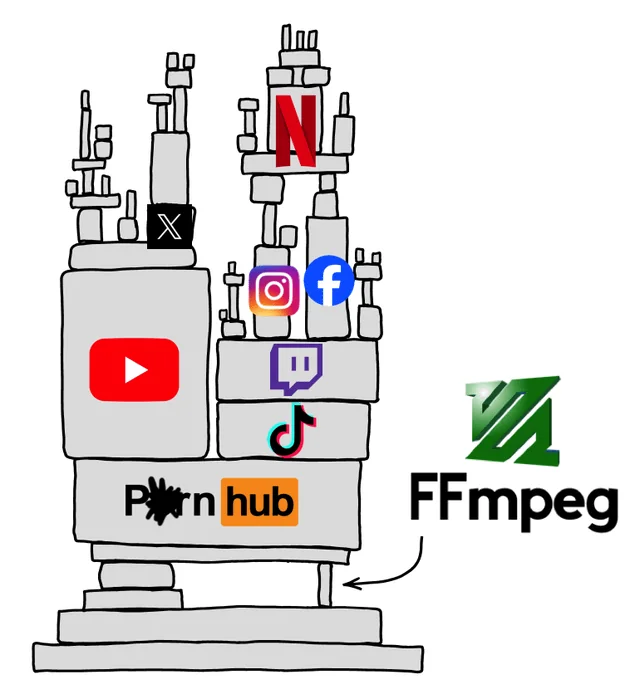
💡 FUN FACT: Almost all the online media tools that you use on the internet, like online video compressors and similar stuff, are powered by FFmpeg under the hood.
Once you have it in your terminal, you really don't need to ever visit such sites.
Why use it with Claude Code?
The only catch is that FFmpeg commands are a little complex.
Even for a simple task, the syntax is just a little too much to understand.
Here's a quick command to crop a video file:
ffmpeg -i input.mp4 -vf "crop=1280:720:0:0" -c:a copy output.mp4That is exactly where Claude Code becomes useful.
You can just describe what you want in plain English, and let Claude generate the right FFmpeg command for you.
6. Lazygit
ℹ️ A simple TUI for Git

What is it?
Lazygit is a terminal UI for Git.
It gives you a much nicer way to handle things like commits, branches, stashing, rebasing, and reviewing changes without typing every Git command manually.
You still stay in the terminal.
It just makes the whole Git workflow super easy, and you do not need to remember and type out any commands. Just knowing the concepts is enough.
Why use it with Claude Code?
This is one I always have open beside Claude Code.
When Claude makes many changes across a bunch of files, Lazygit makes it easier to review everything, stage only what you want, and manage the overall Git workflow.
I usually keep Lazygit open in every tmux session, in its own window, so I can quickly jump to it and handle Git stuff whenever I need to.
I will talk about tmux a bit later in the list, but this combo works really well.
7. btop
ℹ️ A much better way to monitor your system
What is it?
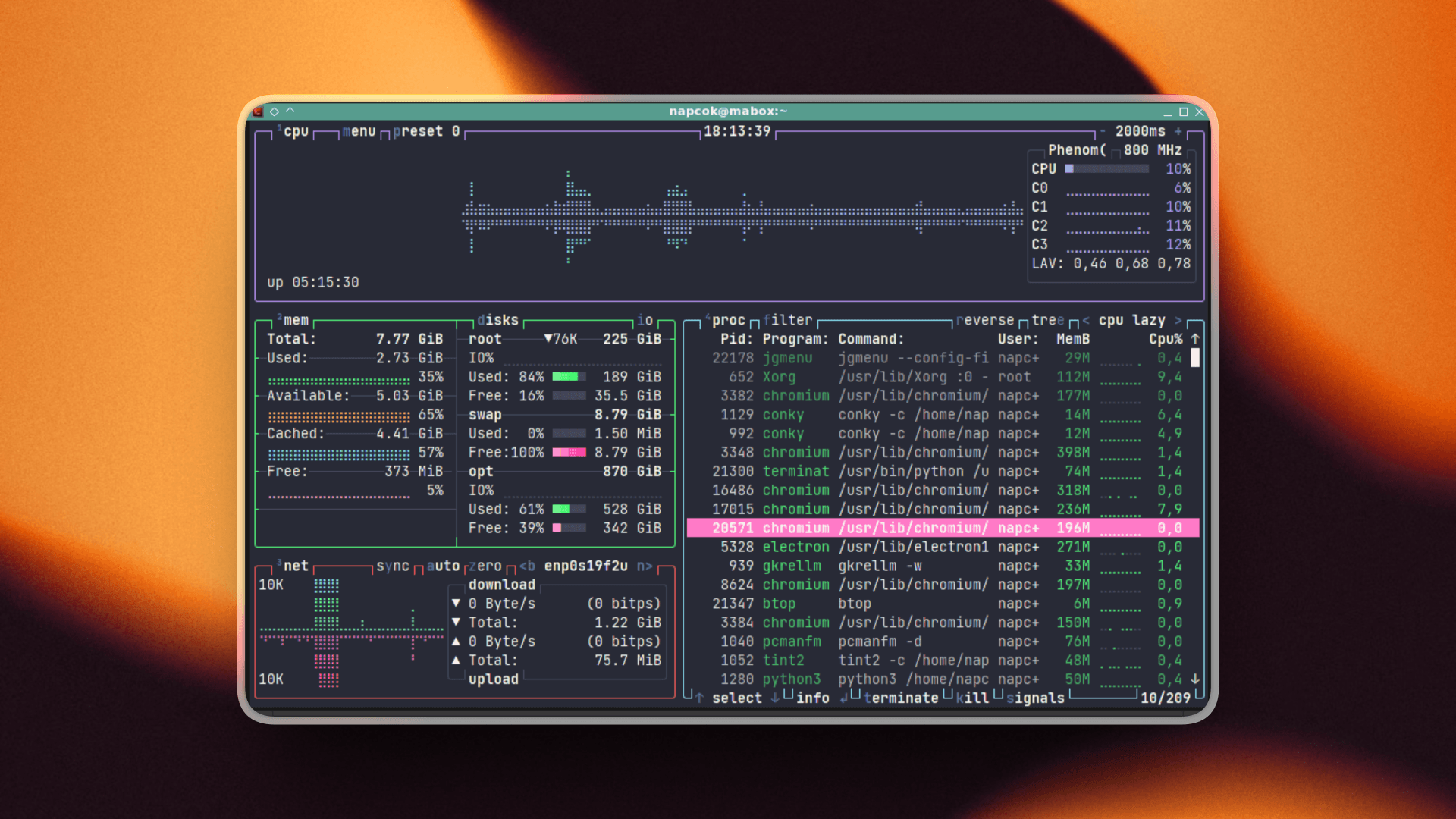
btop is a system monitor for the terminal.
It gives you a clean view of CPU, memory, disk, network, and running processes, all in one place.
There is also htop, which many people already know and use. But personally, I prefer btop.
It just feels a bit more user-friendly, and overall nicer and easier to filter down processes.
Why use it with Claude Code?
When you are doing a lot of work in the terminal, especially with larger repos, it is really useful to keep an eye on system usage.
That might be Claude, any processes it launches with your permission, local servers, or anything else running in the background.
btop gives you a quick way to see what is eating memory, what is using CPU, and whether your machine is starting to struggle, especially when you're using local models.
8. fzf
ℹ️ The backbone of fuzzy finding in the terminal
What is it?
I have probably been using this tool longer than any other in this list.
fzf is a command-line fuzzy finder.
It lets you search for and select items interactively from the terminal.
That could be files, directories, Git branches, command history, processes, or really anything you can pipe into it.
If you haven't heard of this tool or haven't used it, you are doing something wrong 😏.
A simple example:
find . -type f | fzfThis gives you a fuzzy, searchable list of files in the current directory.
Why use it with Claude Code?
This is one of those tools that just makes terminal workflows feel faster.
Whether I am jumping between files, searching for something, or picking from a long list of options, fzf is usually involved. I have so many scripts built around fzf.
And when you are already spending a lot of time in the terminal with Claude Code, that kind of speed matters.
It is not really a Claude-specific tool. It is one of the foundations that make working in the terminal and moving between things overall much better.
9. (Optional) LLMFit
ℹ️ Handy if you are experimenting with local or custom models alongside Claude Code.
What it is?
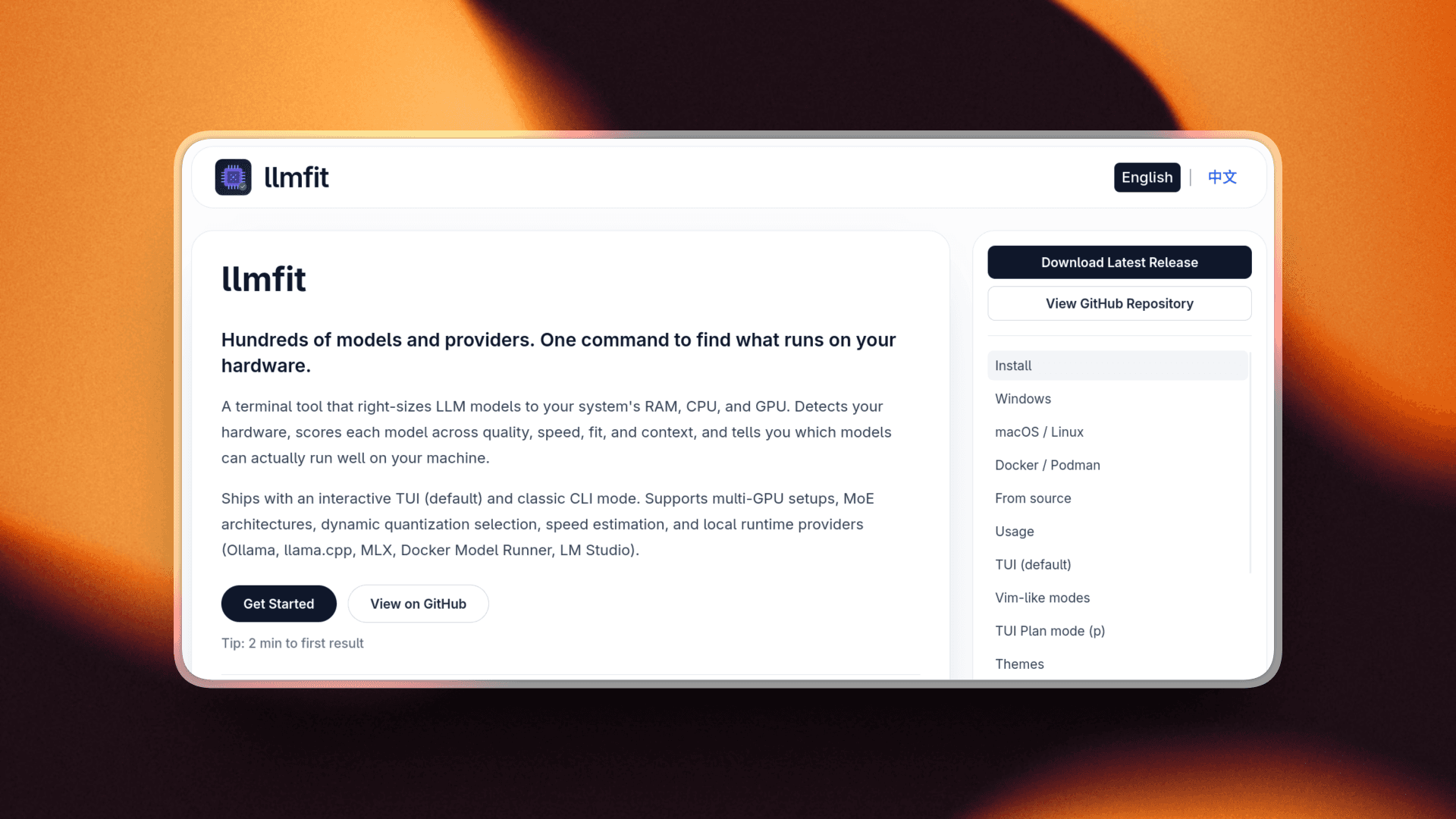
LLMFit is a CLI tool that scans your system hardware and tells you which local AI models you can run smoothly on your system.
If you are planning to run a local model, it is a nice way to avoid downloading something that your system will struggle with. Its whole purpose is to help match models to the machine you have.
Installing is as simple as:
pip install llmfitNow, to scan your hardware against models, run this:
llmfit scanand it will list out all the models with their metadata and performance scores based on your hardware.
Why use it with Claude Code?
This one is definitely more niche.
But if you are running Claude Code with a local or custom model setup, it can help you figure out what will run well on your machine before you waste time downloading the wrong model.
It is not something everyone will need, but for people who prefer the Claude Code agent and want to test newer local or custom models from other providers, this is an option as well.
You can find many guides on doing that. One that I referenced while trying it out is by Luong NGUYEN.
A few more nice ones
There are also a few other terminal tools I use a lot that I did not want to give a full section to, but they are still very much part of the overall workflow.
Things like fd, zoxide, eza, yazi, and bat all make the terminal feel nicer to work in.
Some help you move around directories faster. Some make listing files, previewing content, or moving around in the filesystem way better than the default.
I leave it up to you to research these tools.

None of these are Claude Code specific.
Ones I'd install first
If I had to set this up again from scratch, I’d probably start with ripgrep, GitHub CLI, tmux, and Lazygit.
That already covers much of the core workflow for Claude Code.
And I’d also set up Composio. It’s a bit different from the rest here. It’s not exactly another CLI tool; it's more of an MCP server. Really useful if you want to automate parts of your workflow and connect Claude to external apps in a cleaner way.
Final thoughts
You definitely do not need every tool in this list.
But a few of them can make working with Claude Code a lot smoother, especially once you start using it more seriously.
At the end of the day, it’s really just about making the workflow around Claude feel cleaner and easier to manage.

 Get started



