




I have always found it frustrating to switch between tools to figure out what’s going on. Jira has the tickets, Supabase has the logs, and somewhere in the middle, I lose track of what I was even trying to solve. I have written more glue scripts than actual product code.

But this new wave of tools is starting to change that. We have LLMs, smart editors like Cursor, and now Composio helps everything talk to each other.
Lately, I have been using Cursor a lot, and connecting it to Jira and Supabase through MCP has made life much easier. I can check tasks, review logs, and get real context without leaving my editor.
In this blog post, I will show you how to set up Jira and Supabase with Composio MCP inside Cursor. This setup makes it easier to stay focused and get real work done.
What’s Covered
Configuring Composio Jira + Supabase MCP. (This is my favourite setup for debugging and product data. Super fast and reliable.)
Connect the MCP server to Cursor to pull tasks and logs into your editor. (Works great for staying in flow and solving things quickly.)
Using real examples to show how this setup helps you:
Debug and prioritize issues using Jira + Supabase logs.
Generate live product reports directly inside Cursor
Prerequisites
Claude Desktop: Install from claude.ai/download
Claude Pro or Max plan: Required to use Cowork
Composio account: Set up at dashboard.composio.dev
Jira account: For accessing projects and issues
Supabase account: For accessing the database and backend data
Connect Jira and Supabase to Claude Cowork using MCP
Claude Cowork can connect to both Jira and Supabase through Composio, allowing it to work across project management and backend data from a single interface. It can access issues, workflows, and database records in real time, helping you manage tasks and analyse data without switching tools.
Step 1: Connect Jira and Supabase in Composio
Log in to your Composio dashboard: dashboard.composio.dev
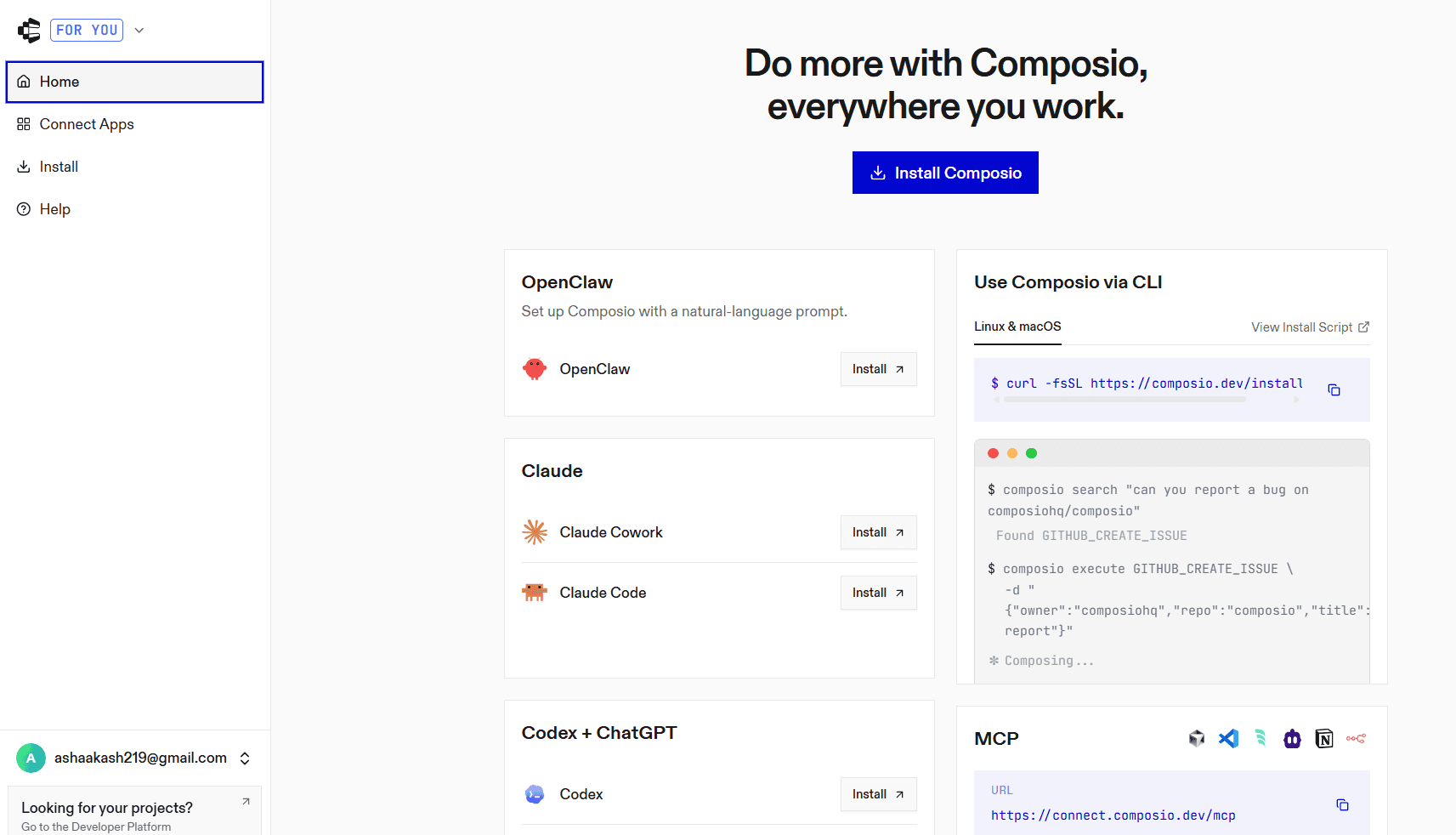
Go to Connect Apps
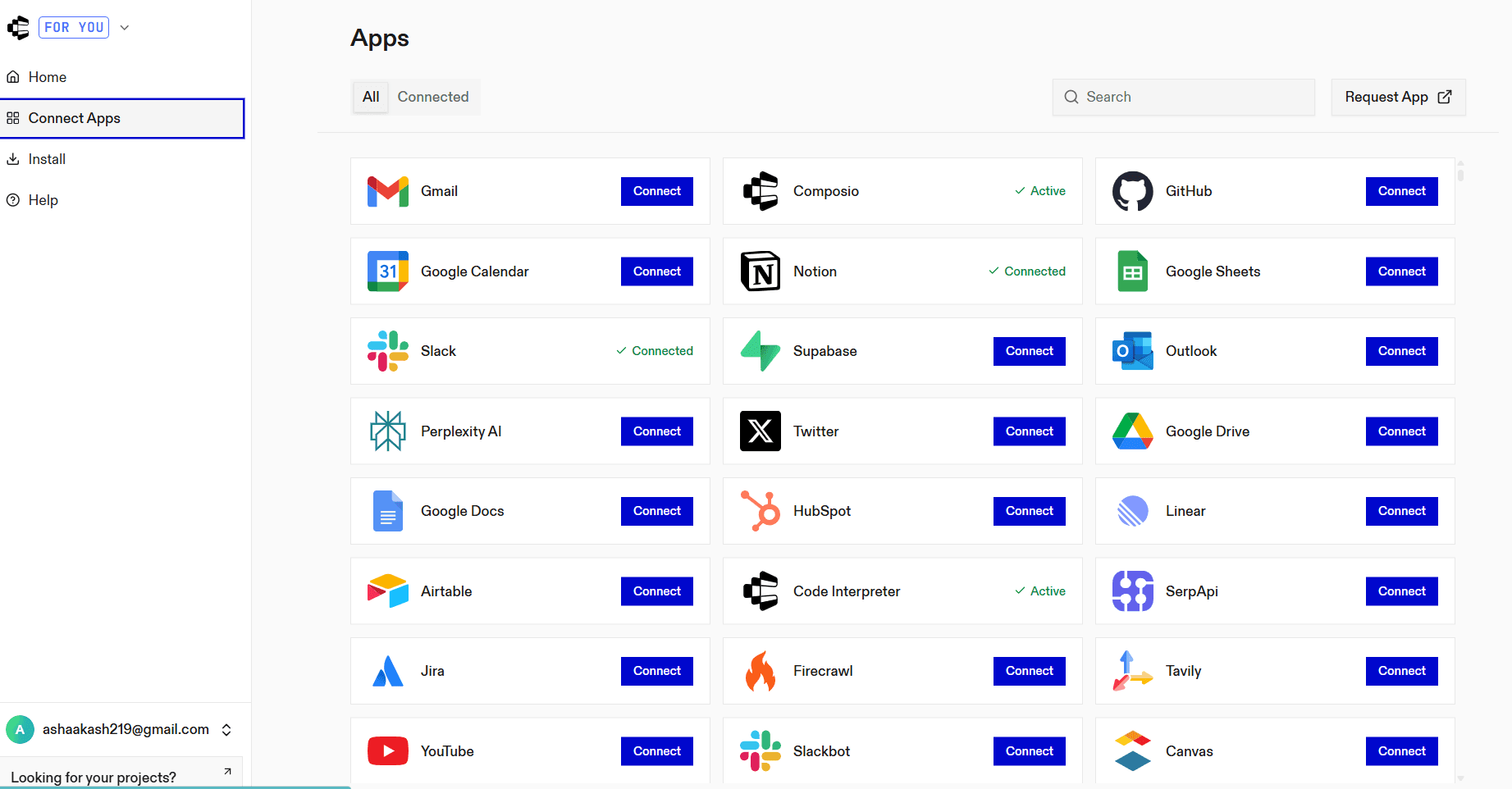
Search for Jira and complete authentication
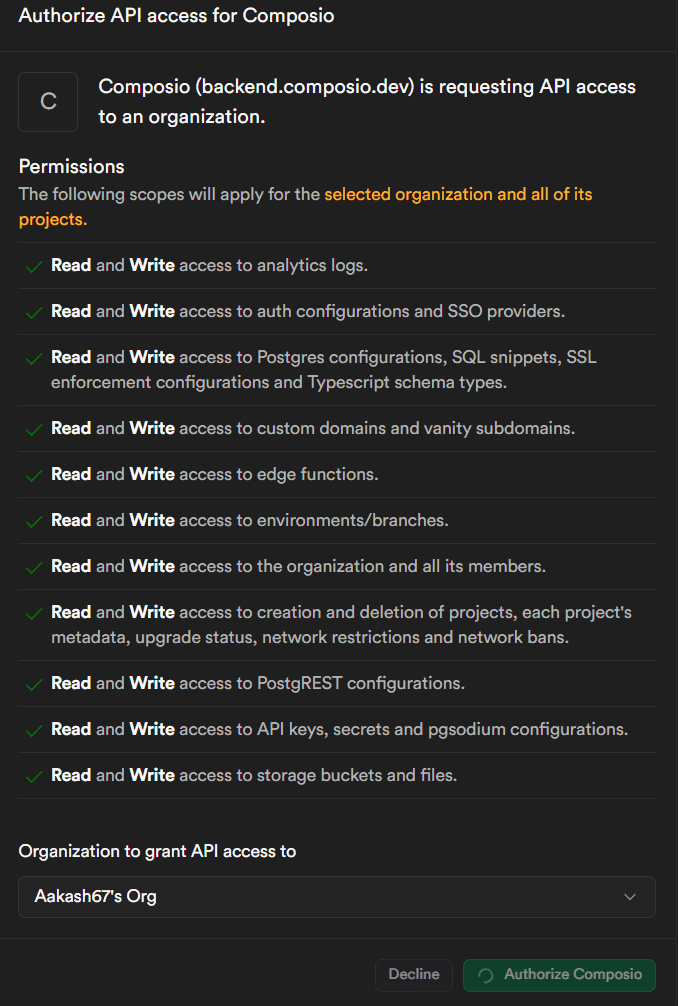
Repeat the same for Supabase
Both tools will appear in your connected apps list.
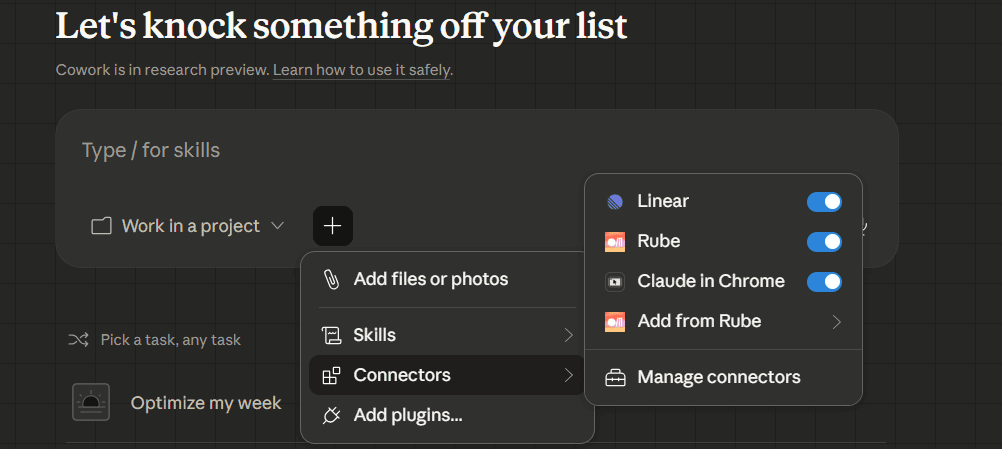
Step 2: Open Connectors in Claude Desktop
Launch Claude Desktop
Go to Settings
Click Connectors
Step 3: Add the MCP server
Click Add custom connector
Paste:
https://connect.composio.dev/mcp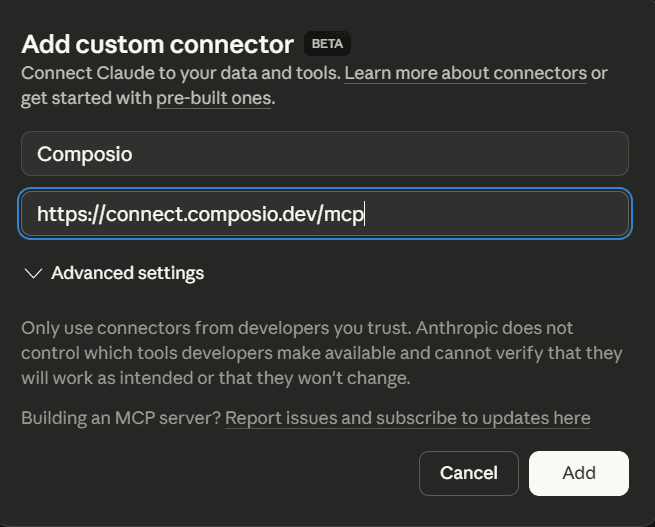
This connects Claude to all apps linked through Composio, including Jira and Supabase.
Step 4: Authorize access
A browser window will open. Sign in to your Composio account and approve access. The connection becomes active once confirmed.
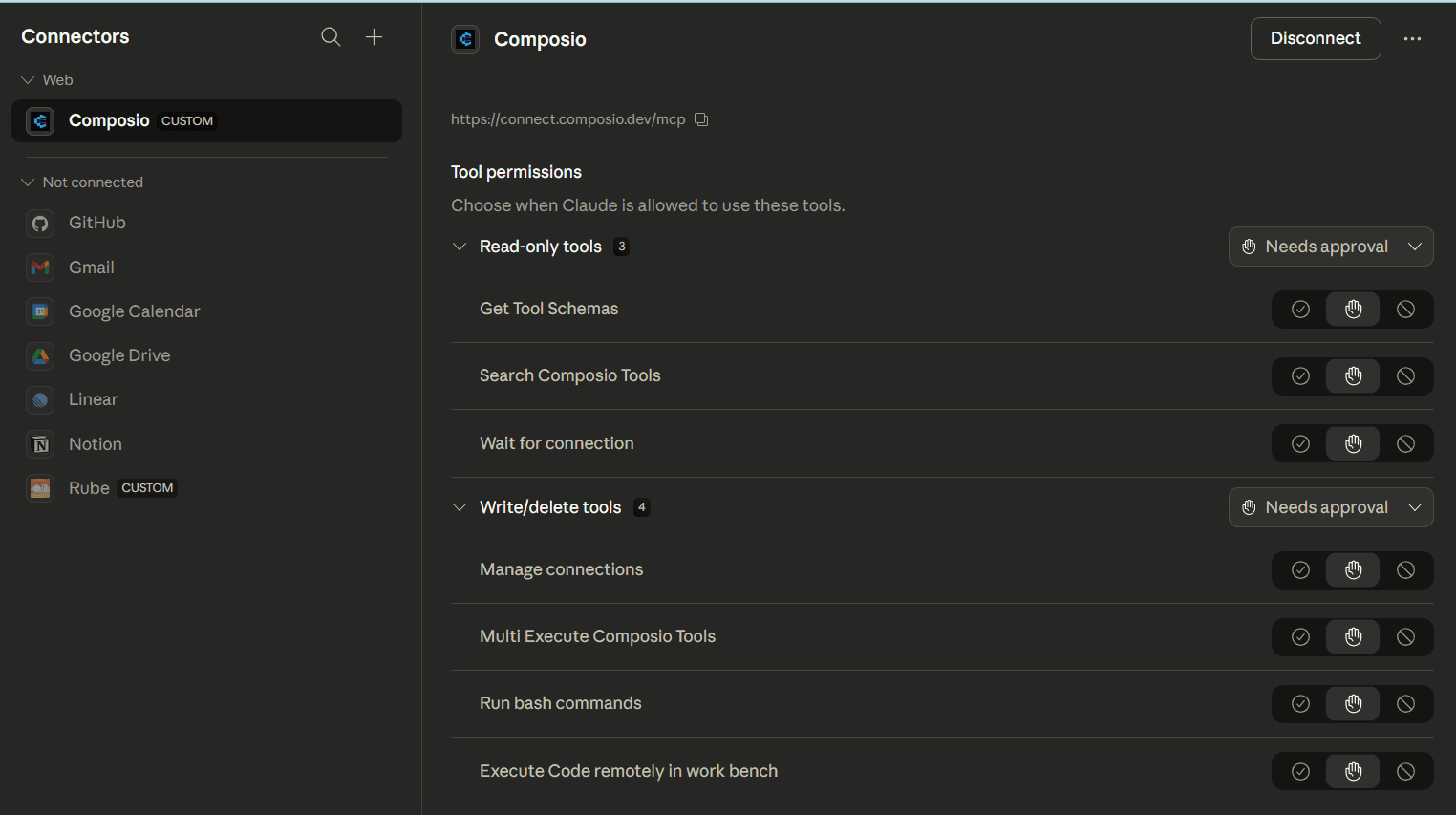
Step 5: Start using Jira and Supabase in Claude
Both Jira and Supabase are now available inside Claude Cowork. You can:
Track and update Jira issues, assign tasks, and monitor progress
Query Supabase tables, analyse records, and support backend workflows
This setup allows Claude to operate across both systems, helping you connect project execution with underlying data in a single workflow.
Connect Jira and Supabase to Cursor using MCP
Cursor can connect to Jira and Supabase through Composio, allowing it to work across project tracking and database operations in one place. This setup gives Cursor access to live issues, workflows, and backend data, enabling it to assist with both task management and data-level actions.
You can configure this connection using OAuth or an API key.
Method 1: OAuth (Recommended)
Step 1: Install in Cursor
Go to your **Composio dashboard: **https://dashboard.composio.dev/
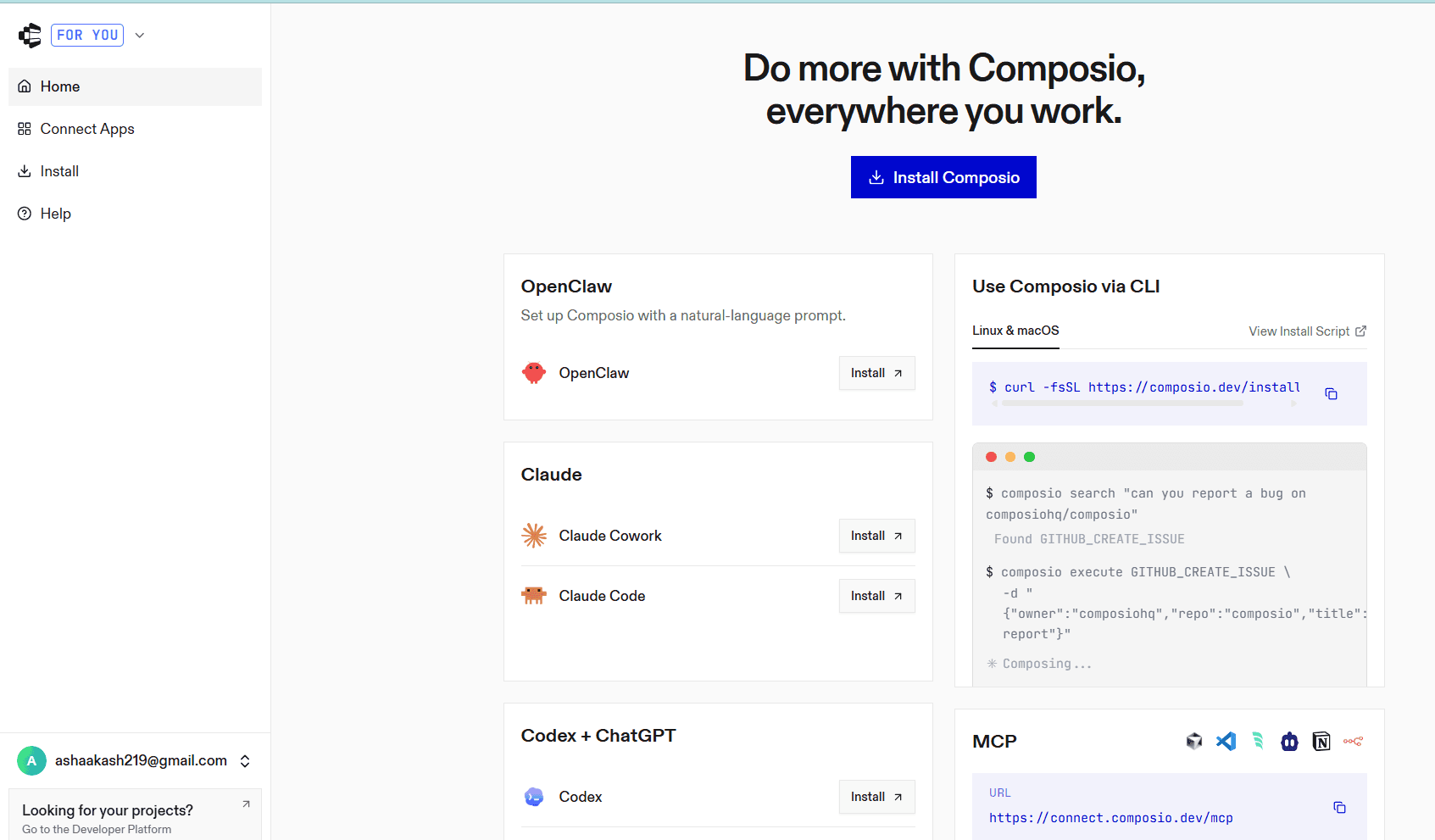
Navigate to the MCP section
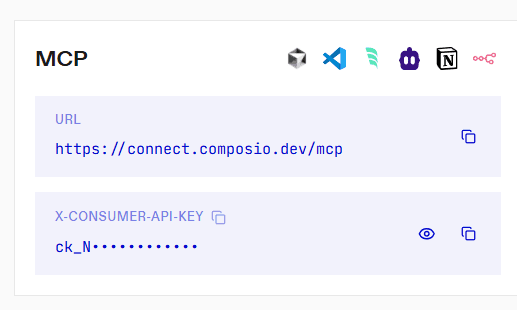
Click on the Cursor icon
You will see the Install in Cursor button.Click Install in Cursor
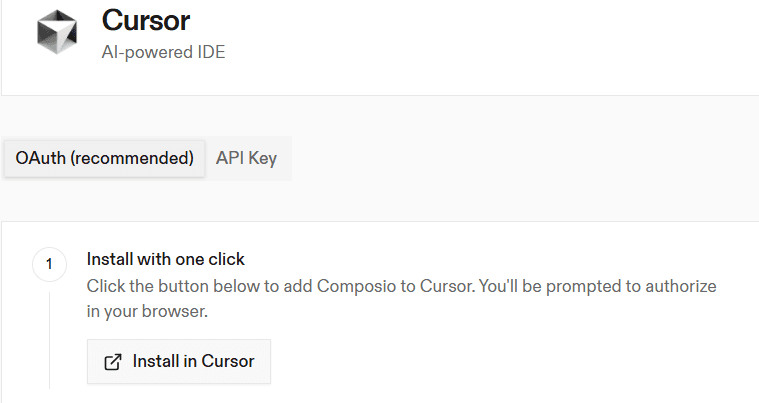
You will be redirected to Cursor’s MCP tools settings
Click Install to complete the setup
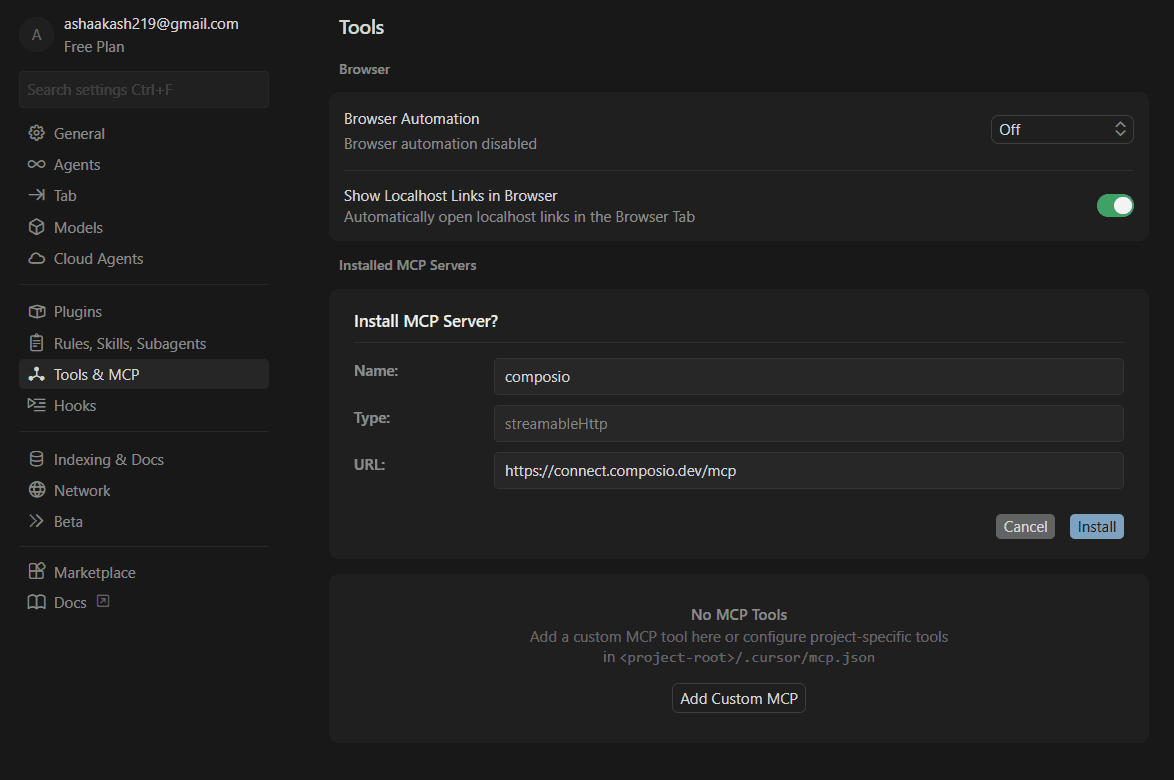
Step 2: Add manually (optional)
If you prefer manual setup:
Open
.cursor/mcp.jsonin your project root*(or~/.cursor/mcp.jsonfor global setup)*Add the following configuration:
{
  "mcpServers": {
    "composio": {
      "url":"https://connect.composio.dev/mcp"
    }
  }
}
Step 3: Authorize in browser
Restart Cursor
Go to MCP Tools settings
Click Connect next to Composio
A browser window will open for authorization. Once completed, the connection becomes active.
Method 2: API Key
Step 1: Install in Cursor
Click Install in Cursor
This will add Composio using your API key
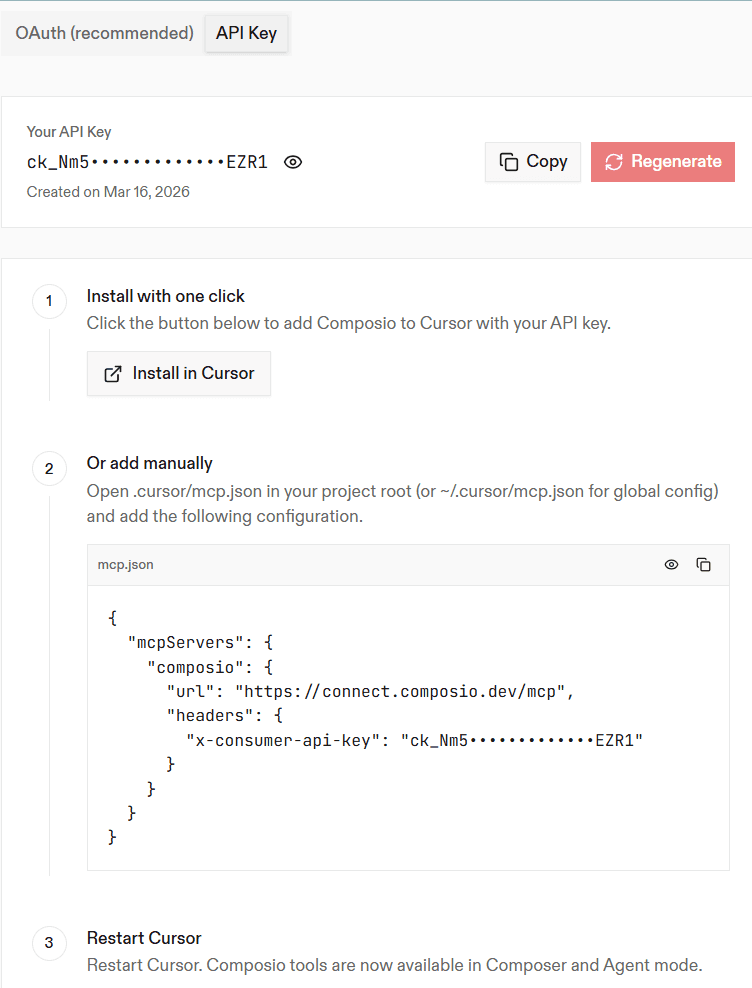
You will be redirected to Cursor’s MCP tools settings
Click Install to complete the setup
Step 3: Restart Cursor
Restart the Cursor application
Composio tools will now be available in Composer and Agent mode
Use Case 1: Debug and Prioritize Issues Using Jira + Supabase in Cursor
Let’s start with a common developer workflow: diagnosing bugs and prioritising them based on backend data.
In this setup:
Jira holds the list of open issues from the team.
Supabase stores error logs generated by your product.
Cursor brings it all together by pulling live data from both tools through your custom Composio MCP server.
Instead of manually checking logs, copying them into tickets, or guessing what caused an issue, you can ask Cursor directly:
“Summarize Jira issue KAN-1 and show any related error logs from Supabase.”
🔍 What Happens Under the Hood
Cursor queries Jira using the MCP endpoint to fetch the issue
KAN-1.It extracts the issue description, priority, labels, and comments.
It then queries Supabase using the same MCP server to find rows from the
error_logstable whererelated_issue_key = 'KAN-1'.Cursor combines both sources and generates a contextual summary or debugging suggestion.
✅ Example Prompt in Cursor
Summarize the cause of Jira issue KAN-1 using Supabase logs, and suggest the most likely fix.Cursor will respond with something like:
Issue Summary: Crash on login due to Google SSO
Related Logs:TypeError: Cannot read property 'profile' of undefined
Suggested Fix: Add a null check before accessing user profile data during the OAuth callback.
🎥 Watch It in Action
Use Case 2: Generate Live Product Reports from Supabase in Cursor
The second workflow demonstrates how Supabase can power real-time reporting within Cursor independently. This is useful for teams that want visibility into product usage, adoption trends, or feature engagement without needing to export data, create dashboards, or run SQL queries manually.
In this setup:
Supabase stores raw event data, such as user sessions, logins, and feature usage.
Supabase MCP provides structured, live access to that data.
Cursor fetches and analyzes it on the fly, turning queries into readable reports.
You don’t need BI tools or spreadsheets. Just run a prompt inside Cursor and get a summary based on the latest data.
✅ Example Table: user_sessions
We created a simple table in Supabase:
create table user_sessions (
  id uuid primary key default gen_random_uuid(),
  user_id uuid,
  started_at timestamptz default now(),
  duration_seconds int
);
And inserted a few mock rows:
insert into user_sessions (user_id, duration_seconds)
values
(gen_random_uuid(), 350),
(gen_random_uuid(), 220),
(gen_random_uuid(), 640);
💡 Example Prompt in Cursor
Query the user_sessions table for sessions from the last 7 days, and generate a short usage report including total sessions, average session duration, and any outliers.🎥 Watch It in Action
Summary
Jira and Supabase can be connected through Composio using MCP, allowing both Claude Cowork and Cursor to access project workflows and backend data from a single setup. This creates a unified layer where AI can work with live issues, tasks, and database records without manual context sharing.
In Claude Cowork, this enables direct interaction with Jira and Supabase inside a desktop workspace for task updates, tracking, and data analysis. In Cursor, the same connection extends into development workflows, where both tools are available within Composer and Agent mode.
This combined approach helps maintain continuity between execution and data, reduces context switching, and allows AI to operate across systems with full visibility into both project state and underlying data.
FAQs
1. How do Claude Cowork and Cursor differ in using Jira and Supabase?
Claude Cowork focuses on structured task execution within a desktop workspace, while Cursor integrates these tools into development workflows through Composer and Agent mode.
2. Do I need separate setups for Claude Cowork and Cursor?
The Composio connection is shared, but each environment requires its own connector setup to activate access.
3. Can both tools access the same Jira projects and Supabase data?
Yes. Access depends on the permissions granted during Composio authentication, so both can work on the same data if authorized.
4. What type of tasks can be handled across Jira and Supabase together?
You can track issues in Jira while analysing related data in Supabase, enabling workflows that connect task progress with underlying system data.
5. Is this setup suitable for team environments?
Yes. Teams can use it to maintain alignment between project tracking and backend data, ensuring updates and decisions are based on current information.

 Get started



