




Trello is great for keeping projects on track, but it can quickly fill up with cards, long comment threads, and checklists that all need attention. With so much going on, it is easy to lose track of priorities or what should happen next.
Getting AI involved usually means copying text from Trello into a prompt and explaining all the background first. That extra work slows things down and pulls you out of the flow.
Trello MCP makes it simpler. It links Claude Cowork directly to your Trello boards through Composio, allowing them to work with your actual cards, lists, and comments instantly. The AI understands what is happening and can jump straight into helping without you having to prepare anything.
In this post, you will learn how to set it up and use it to make Trello updates, planning, and follow-ups much easier.
What is MCP?
Think of MCP as a bridge that connects all your SaaS tools to your AI agent. It acts like an adapter, enabling your AI agent (Client) to understand and interact with your tools.
According to Anthropic (the team behind Claude and MCP),
“MCP is an open protocol that standardizes how applications provide context to LLMs. Think of MCP like a USB-C port for AI applications. Just as USB-C provides a standardized way to connect your devices to various peripherals and accessories, MCP provides a standardized way to connect AI models to different data sources and tools.”
credits: modelcontextprotocol.io
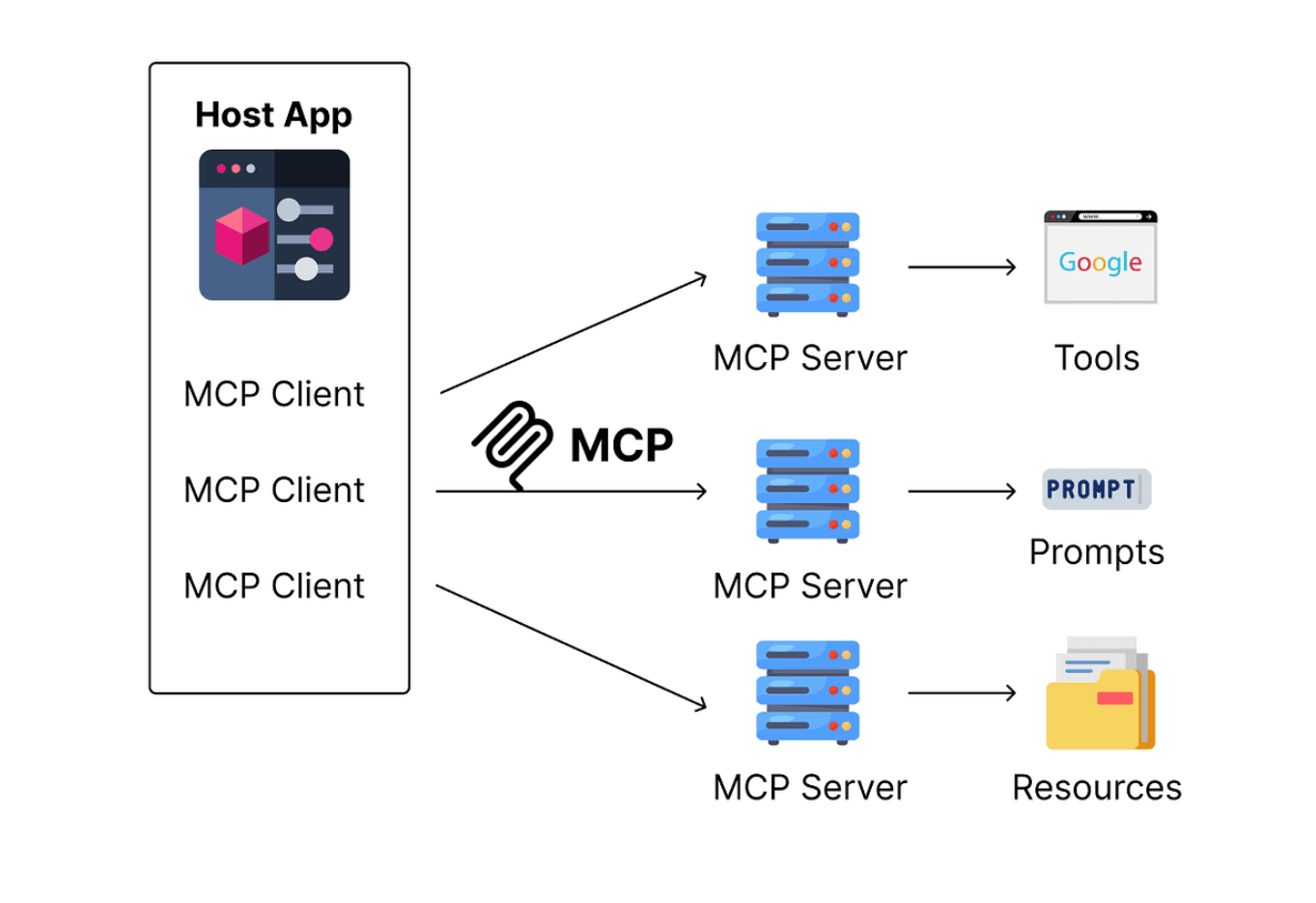
For more, check out this detailed post or MCP components: MCP Explained.
What is Trello MCP?
Trello MCP is a secure connection powered by Composio that lets Claude and similar AI tools work directly with your Trello boards. Once connected, they can see the identical cards, lists, and comments you do and respond based on real information instead of copied snippets.
With Trello MCP, you can:
Read boards, lists, and cards, including members, labels, due dates, checklists, and comments
Create new cards with titles, descriptions, labels, and due dates
Update card details such as descriptions, due dates, and labels, or move them to another list
Search across cards and boards to quickly find what you need
Add comments directly to a card conversation
Look up who is assigned to cards or participating on boards
It turns Trello into a live workspace for your AI, enabling it to help you summarise updates, plan tasks, assign work, and keep projects moving without extra steps.
Setting up Trello MCP with Claude Cowork
Setting up Trello with Claude Cowork
Claude Cowork is Anthropic’s agentic AI system built for knowledge work. It runs on desktop, connects to local files and apps, and handles multi-step tasks from start to finish. It removes the need to connect Trello through config files or terminal commands, offering a simpler, no-code way to achieve the same outcome.
What you need before starting
Claude Desktop: Download it from claude.ai/download. Cowork is available inside the desktop app along with Chat and Code.
A Claude Pro or Max plan: Cowork is included in the Pro plan for quick tasks, and in the Max plan for more complex workloads.
A Composio account — Sign up for free at dashboard.composio.dev
Step 1: Connect Trello in Composio
Visit dashboard.composio.dev and log in
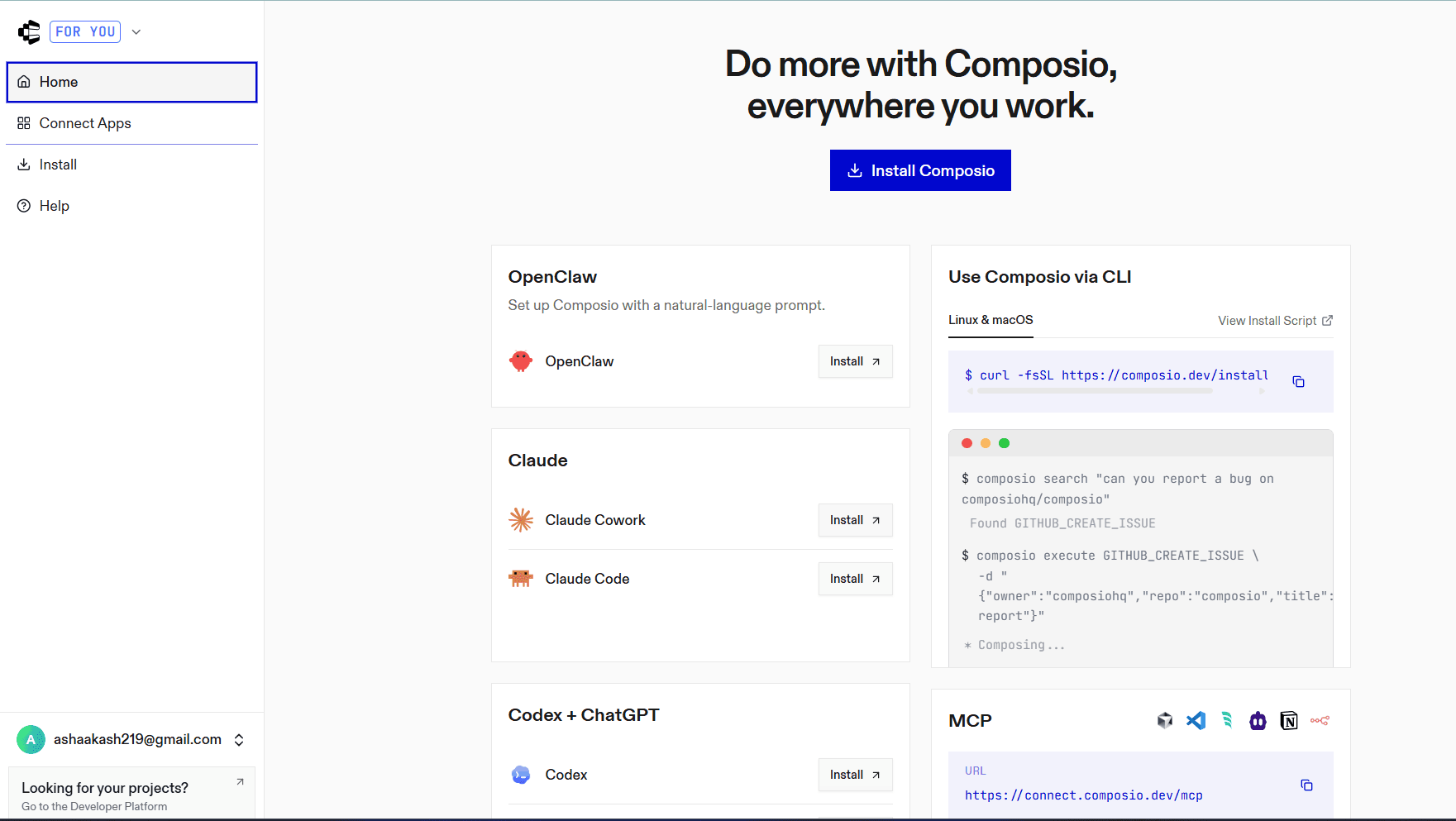
On the left sidebar, click Connect Apps
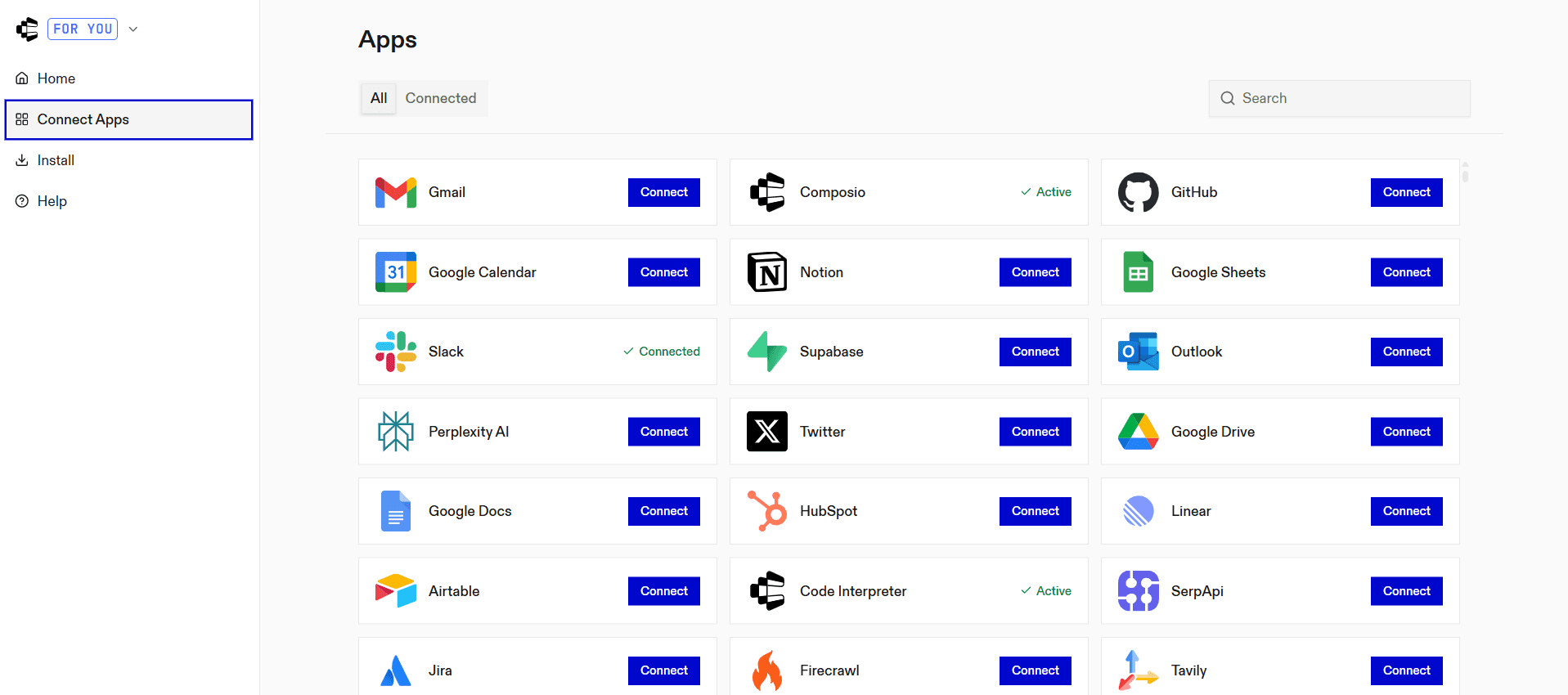
Search for Trello and select it
Follow the authentication flow to authorise Composio to access your Trello workspace
Once complete, Trello will appear as a connected app in your Composio dashboard.
Step 2: Open Connectors in Claude Desktop
Launch Claude Desktop
Go to Settings, then click Connectors
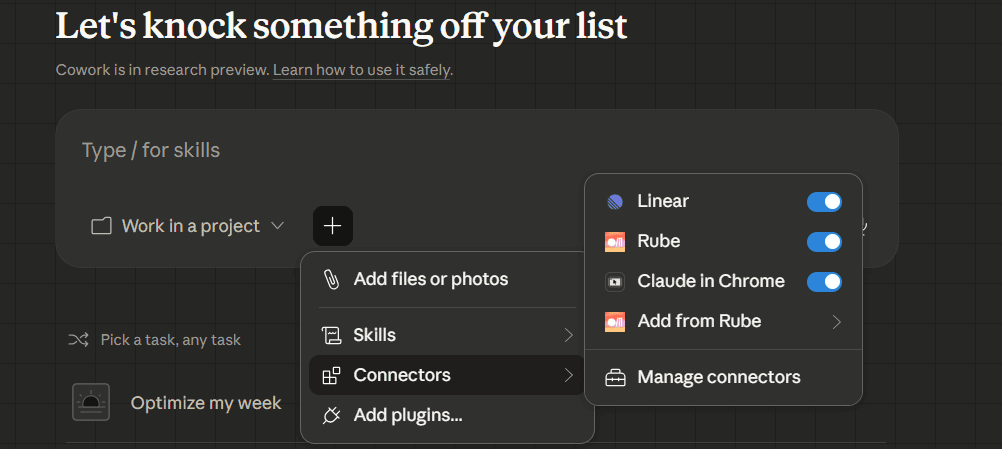
Step 3: Add the Composio MCP server
Click "Add custom connector"
Paste the following Composio MCP server URL:
https://connect.composio.dev/mcp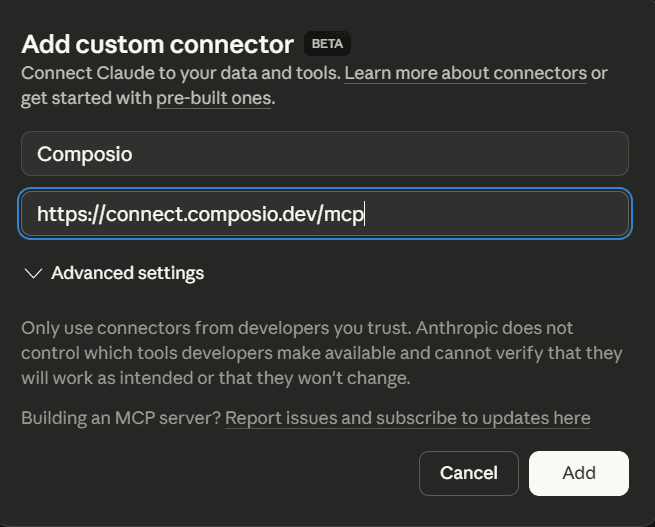
This single URL connects Claude Desktop to all the apps you have linked in Composio, so if you connect more tools later, they become available automatically without repeating this step.
Step 4: Authorize in your browser
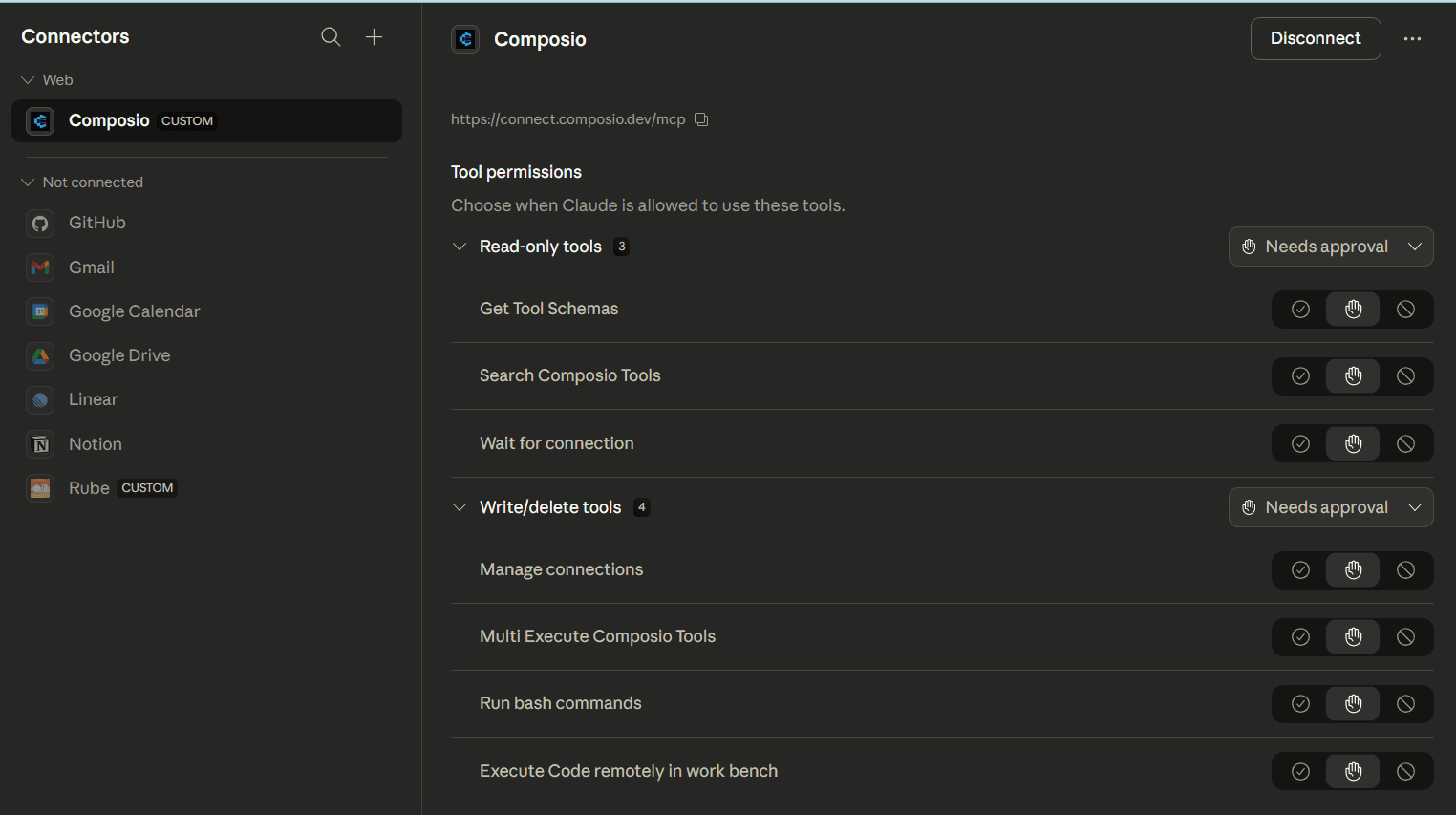
A browser window will open automatically. Sign in to your Composio account to authorize Claude Desktop to access it. Once you confirm, the connection will be active.
Step 5: Start using Trello in Claude
Composio tools, including Trello, are now available inside Claude Desktop. You can start asking Claude to read boards, update cards, post comments, and more using live data from your workspace.
Use case: Summarise card updates and post next steps
Trello cards can collect a lot of activity, updates, decisions, questions, and checklists, which often get mixed together in the comment thread. When you return to a card after a while, it can take some time to read everything and determine what still needs to happen.
With Trello MCP connected, you can ask Claude Cowork to read the latest activity on a card, extract the key details, and post a clear follow-up right inside that card.
Example prompt
Look at the recent comments on the card “Product Launch Prep”
Summarise the discussion, highlight any open questions and post a follow up in the card
What happens in the background
Claude Cowork uses Trello MCP via composio connector to fetch the comments from that card, sorts through the updates, and writes a short reply with the key points and next steps. It then posts that reply directly as a new comment so the whole team can see it.
▶️ Watch it in action
This video shows Claude Cowork reading a real Trello card thread, summarising key updates and posting a proper follow-up in the same conversation. It all happens inside the prompt using live Trello data, without you having to prepare anything manually.
Summary
Trello boards often build up with updates, which makes it harder to review progress and decide what to do next.
Composio plays a key role by acting as the connection layer between Claude Cowork and Trello. Through MCP, it allows Claude to access live boards, cards, and discussions directly, so there is no need to copy or explain context manually.
After a simple setup in Claude Desktop using the Composio connector, Claude can work on real data. It can summarise activity, update cards, and post follow-ups, helping teams stay aligned and keep tasks moving.
FAQs
1. What problem does Trello MCP solve in real workflows?
Trello MCP removes the need to manually transfer context into AI tools. It allows Claude to access live board data, so decisions, summaries, and updates are based on actual project activity instead of static inputs.
2. How does Claude interact with Trello after the connection is set up?
Claude uses MCP through Composio to query and act on Trello data. It can retrieve card details, interpret discussions, update fields, move cards across lists, and post structured follow-ups directly within the workflow.
3. What role does Composio play in this architecture?
Composio acts as the integration layer that exposes Trello and other SaaS tools to Claude via MCP. It handles authentication, standardizes tool access, and ensures that Claude can interact with external systems in a controlled and consistent way.
4. How does this setup improve team productivity compared to manual usage?
It reduces context-switching and eliminates repetitive steps like copying data or writing summaries. Teams can rely on Claude to interpret ongoing work, highlight gaps, and maintain continuity within task discussions.
5. Can this setup scale beyond Trello to broader workflows?
Yes. Since Composio supports multiple integrations, the same setup can extend to other tools. This allows Claude to operate across systems, enabling coordinated actions and insights that span different parts of a workflow.

 Get started



