




This blog post walks through exactly how we:
Securely Set up Hermes Agent
Integrated Composio MCP for tool access (Google Sheet, Google Doc, Exa)
Built a functional financial analyst agent
Along the way, I’ll also share what broke, what worked, and what I’d do differently.
What is Hermes Agent
Hermes Agent an open source AI agent that can learn and evolve as you interact in real-time , something that open-claw lacked.
It does so by using a persistent cross-session memory and closed learning loop (write docs → save tools → update memory) that converts completed task into reusable skills. This allows it become more efficient over time.
The agent has following key capabilities:
Self Improving Loop : Unlike standard chatbot wrappers, Hermes agent refines its own skills from completed task
Persistent Memory: Maintains a persistent model of the user and past interactions across sessions.
Autonomous Agent tools: Agent offers over 40+ built in tools, support sub agent delegation and code execution
Multi-Platform Integration: Works from anywhere , from terminal to plethora of social media service (though little buggy)
Model Agnostic: Supports multiple LLM providers and LLMS including open source and closed source models.
Think of it as a programmable agent that can reason + act + self improve , not just respond.
This means its a perfect candidate for a financial analyst agent.
Securely Setup Hermes Agent
Prerequisites:
Docker - Install docker desktop
Optional- WSL2 for Windows
First install herms in docker, open terminal and run:
curl -fsSL https://raw.githubusercontent.com/NousResearch/hermes-agent/main/scripts/install.sh | bash
source ~/.bashrc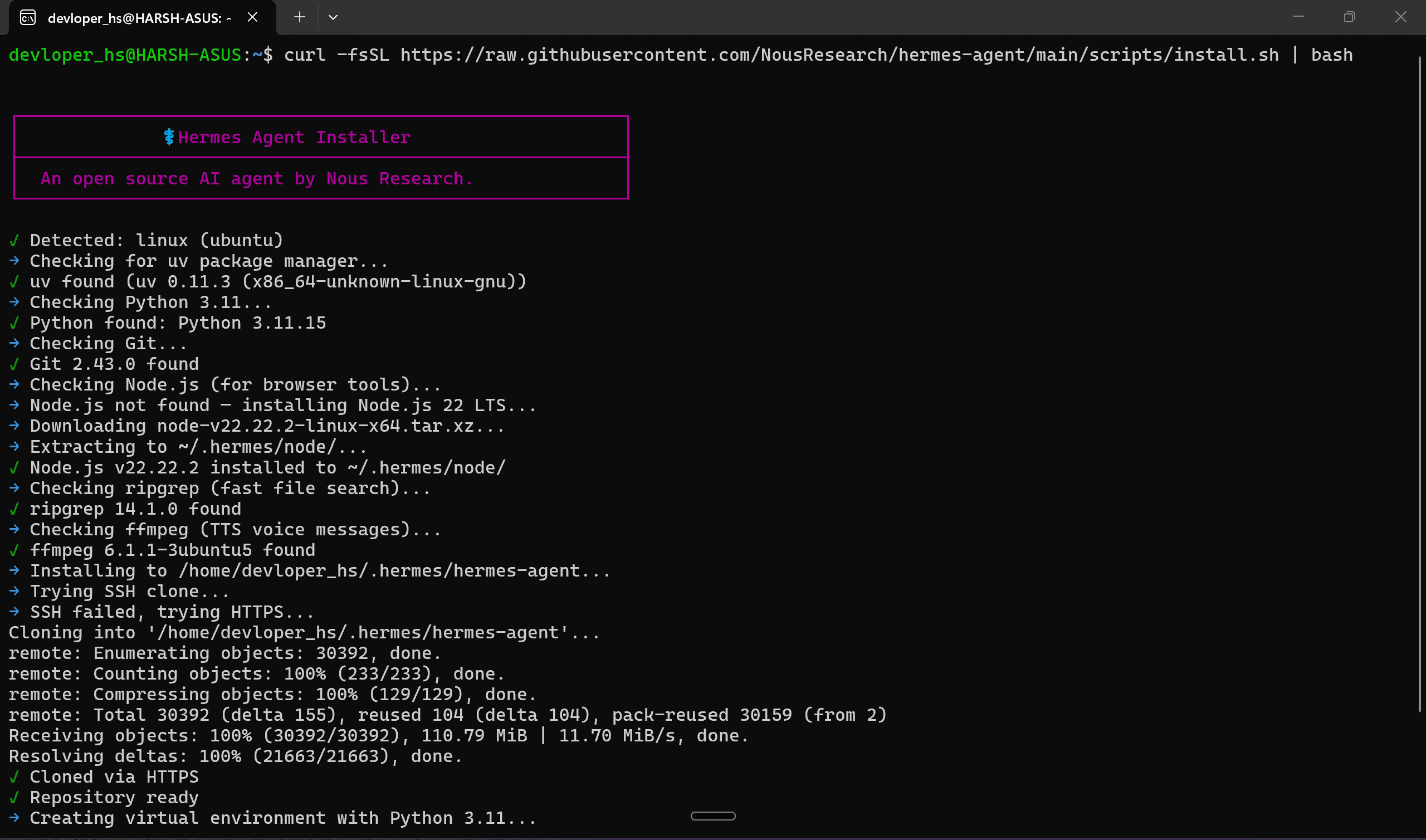
Next configure the Hermes Agent, here is the setting I choose, feel free to choose your preferred:
Provider : OpenAI Codex. Make sure to authenticate
Model : GPT 5.4 / GPT 5.4 mini ( for faster inference)
TTS: Keep Current
Terminal Backend: Docker (make sure either docker is installed / docker desktop running)
Docker image : default
Max Iterations : Default. Set this to higher for complex task (cost more token)
Context Compression Threshold: Default. Higher threshold compresses later and lower does it faster
Messaging Platform (optional) : Choose Telegram and follow the instructions. Rest same , but I kept only telegram.
If done all this you will be greeted with following screen
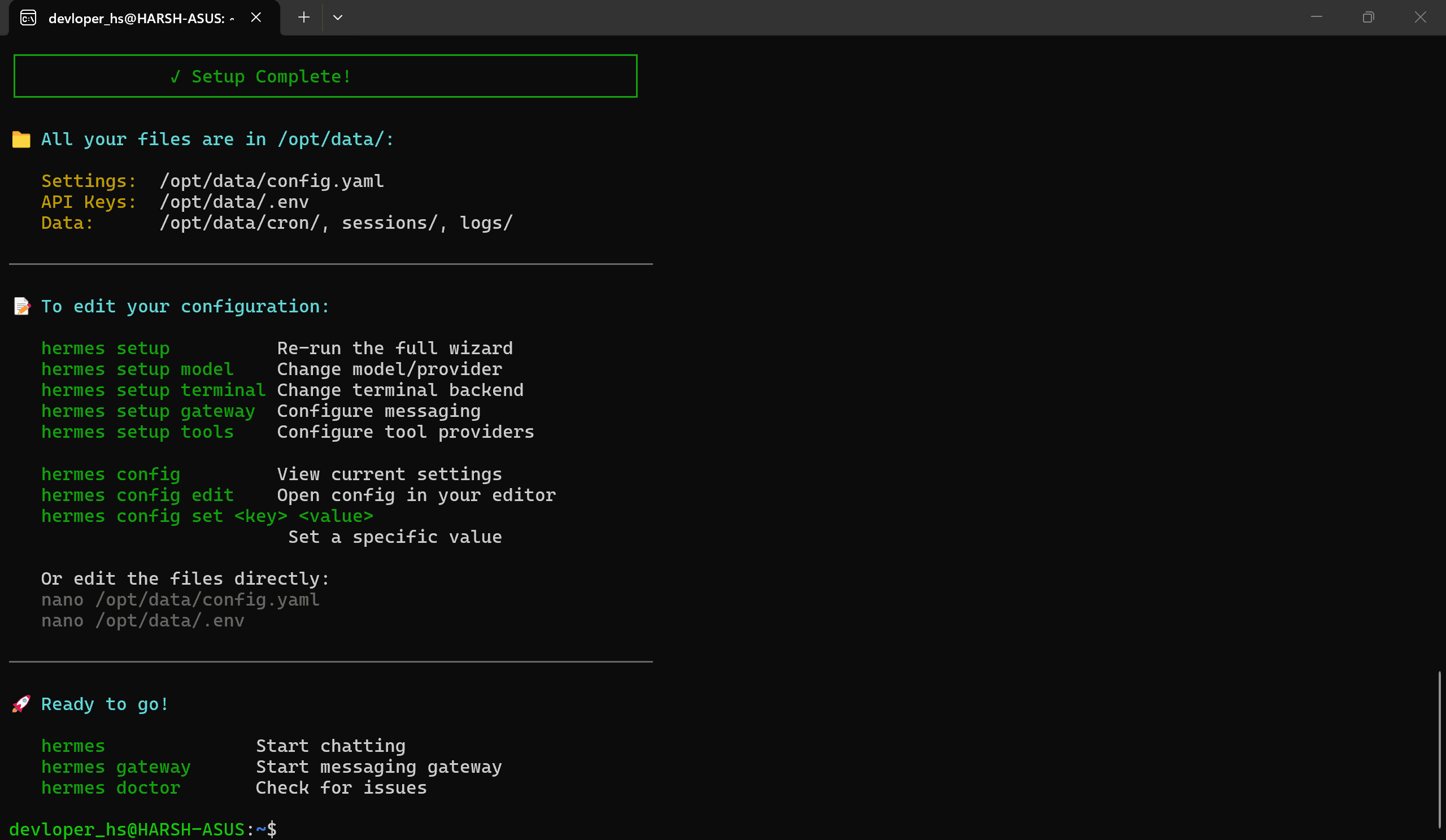
Now time to add Composio MCP!
Add Composio MCP
Hermes by default provide ~40 tools, which is ok for daily tasks.
But it starts feels pretty limited when you start building complex agentic workflows where you need to connect multiple third party SaaS apps (Google Doc, Sheets, Web seach tools, etc) with prod grade security and calling them at need.
Composio is the tooling layer that sits between Hermes Agent and third party applications and let you connect to 1000+ tools with secure auth and intelligent tool calling.
Installing Composio MCP is quite straightforward. Follow these steps:
Head to the https://dashboard.composio.dev/ & login. You will be greeted with this dashboard
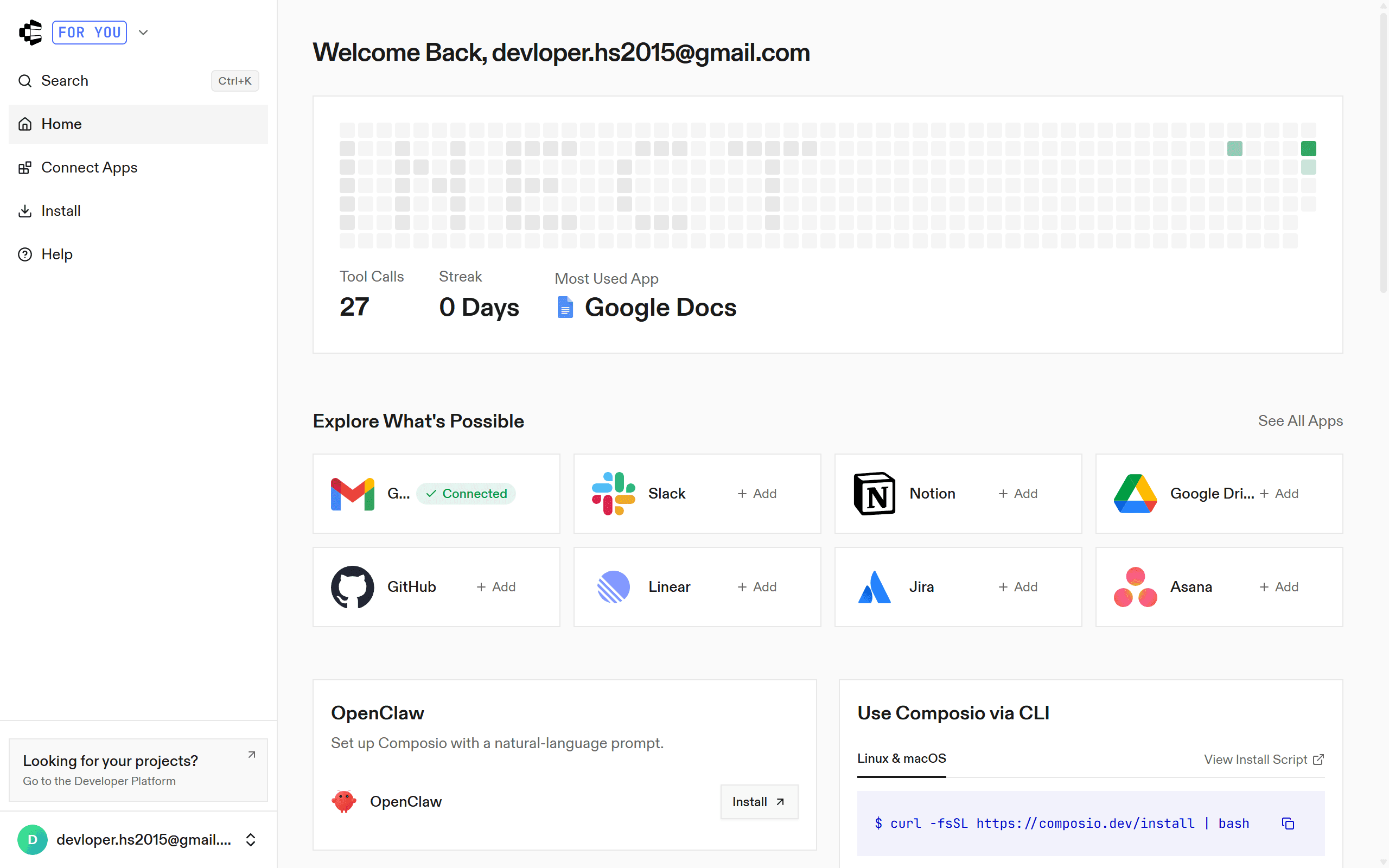
Head to the Install & copy the MCP Url and X-CONSUMER-API-KEY value
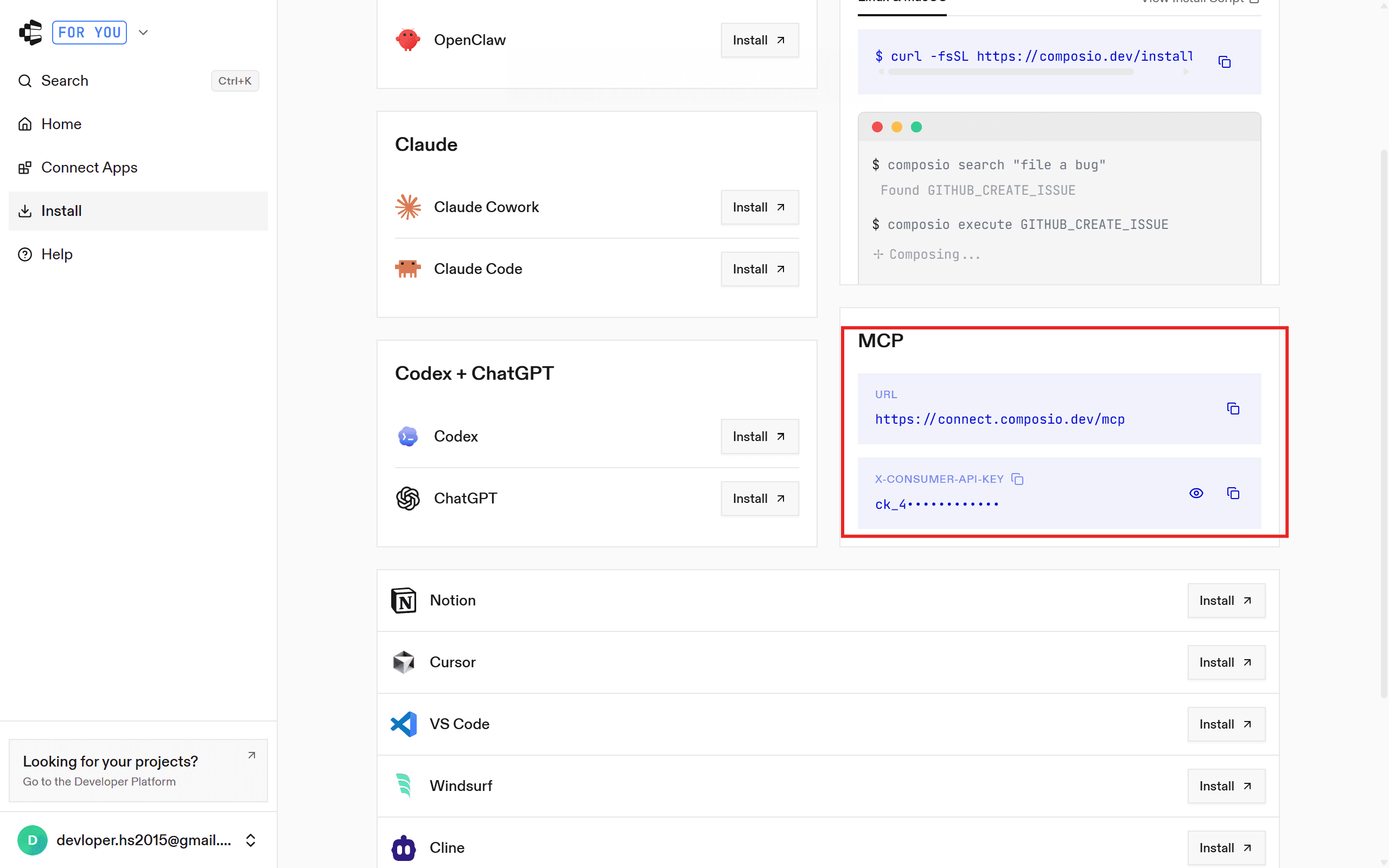
Once done head to the terminal and type :
nano ~/.hermes/config.yamland at the end add these lines:
mcp_servers:
  composio:
    url: "https://connect.composio.dev/mcp"
    headers:
      x-consumer-api-key: "YOUR_COMPOSIO_API_KEY"
    connect_timeout: 60
    timeout: 180
Add your own api key you copied & save the file
Head back to Hermes Agent and restart it using
hermes, and it will detect the mcp.

Now you can use Hermes Agent with MCP like any other agent, even though code runs in the sandbox:).
Alright now that we have agent & mcp in place, let’s try to see how it performs.
Add MCP using Composio CLI (Optional)
Composio also has a CLI, which let’s any agent to communicate with all the tools through commands. The CLI allows composability of workflows. The agent can chain tools and accomplish complex tasks with relatively lesser tokens than MCPs.
Using it is straight forward. Open your Hermes agent and paste the prompt mentioned on https://composio.dev/cli :
INSTALL (run in user's terminal)
  curl -fsSL https://composio.dev/install | bash

You have access to 1000+ app integrations through these commands.
search → find tools. execute → run them. link → connect accounts.
proxy → raw API access. run → inline scripts.

Bias toward action: run `composio search <task>`, then `composio execute <slug>`.
Input validation, auth checks, and error messages are built in — just try it.

USAGE
  composio <command> [options]

CORE COMMANDS
  search
    Find tools. Use this first — describe what you need in natural language.
    Usage: composio search <query> [--toolkits text] [--limit integer]
      <query>             Semantic use-case query (e.g. "send emails")
      --toolkits          Filter by toolkit slugs, comma-separated
      --limit             Number of results per page (1-1000)

  execute
    Run a tool. Handles input validation and auth checks automatically.
    If auth is missing, the error tells you what to run. Use aggressively.
    Usage: composio execute <slug> [-d, --data text] [--dry-run] [--get-schema]
      <slug>              Tool slug (e.g. "GITHUB_CREATE_ISSUE")
      -d, --data          JSON or JS-style object arguments, e.g. -d '{ repo: "foo" }', @file, or - for stdin
      --dry-run           Validate and preview the tool call without executing it
      --get-schema        Fetch and print the raw tool schema

  link
    Connect an account. Only needed when execute tells you to — don't preemptively link.
    Usage: composio link [<toolkit>] [--no-browser]
      <toolkit>           Toolkit slug to link (e.g. "github", "gmail")

  run
    Run inline TS/JS code with shimmed CLI commands; injected execute(), search(), proxy(), subAgent(), and z (zod).
    Usage: composio run <code> [-- ...args] | run [-f, --file text] [-- ...args] [--dry-run]
      <code>              Inline Bun ESNext code to evaluate
      -f, --file          Run a TS/JS file instead of inline code
      --dry-run           Preview execute() calls without running remote actions

  proxy
    curl-like access to any toolkit API through Composio using your linked account.
    Usage: composio proxy <url> --toolkit text [-X method] [-H header]... [-d data]
      <url>               Full API endpoint URL
      --toolkit           Toolkit slug whose connected account should be used
      -X, --method        HTTP method (GET, POST, PUT, DELETE, PATCH)
      -H, --header        Header in "Name: value" format. Repeat for multiple.
      -d, --data          Request body as raw text, JSON, @file, or - for stdin

  artifacts
    Inspect the cwd-scoped session artifact directory and history.
    Usage: composio artifacts cwd
      cwd                 Print the current session artifact directory path

  Workflow: search → execute. If execute fails with an auth error, run link, then retry.

TOOLS
  tools info <slug>     Print tool summary and cache its schema
  tools list <toolkit>  List tools available in a toolkit
  artifacts cwd         Print the cwd-scoped session artifact directory

EXAMPLES
  # 1. User asks you to "create a GitHub issue"
  composio search "create github issue"
  # → returns GITHUB_CREATE_ISSUE

  # 2. Execute it (will error if not linked — that's fine)
  composio execute GITHUB_CREATE_ISSUE -d '{ repo: "owner/repo", title: "Bug" }'
  # → if auth missing: "Run `composio link github` first"

  # 3. Link only when told to
  composio link github

  # 4. Raw API access when no tool exists
  composio proxy https://gmail.googleapis.com/gmail/v1/users/me/profile --toolkit gmail

  # 5. Run a script with injected helpers
  composio run 'const me = await execute("GITHUB_GET_THE_AUTHENTICATED_USER"); console.log(me)'

DEVELOPER COMMANDS
  dev       Developer workflows: init, playground execution, triggers, and logs.
  generate  Generate type stubs for toolkits, tools, and triggers (TypeScript | Python).
  manage    Manage orgs, toolkits, connected accounts, triggers, auth configs, and projects.

ACCOUNT
  login    Log in to Composio
  logout   Log out from Composio
  whoami   Show current account info
  version  Display CLI version
  upgrade  Upgrade CLI to the latest version

FLAGS
  -h, --help     Show help for command
  --version      Show composio version

LEARN MORE
  Use `composio <command> --help` for more information about a command.
  Documentation: https://docs.composio.dev

GETTING STARTED
  When your user asks you to do something with an external app:
  1. composio search "<what they want done>"
  2. composio execute <slug from search> -d '<params>'
  3. If auth error → composio link <toolkit>, then retry step 2.

  Do not assume we lack coverage. Search first — we likely support it.
  Do not preemptively link accounts or ask your user what to connect.
  Just try. Auth and validation errors are self-descriptive.
This set’s agent to use Composio cli and do all the task, rather than using direct mcp - infact this approach much simpler as no dependency is required.
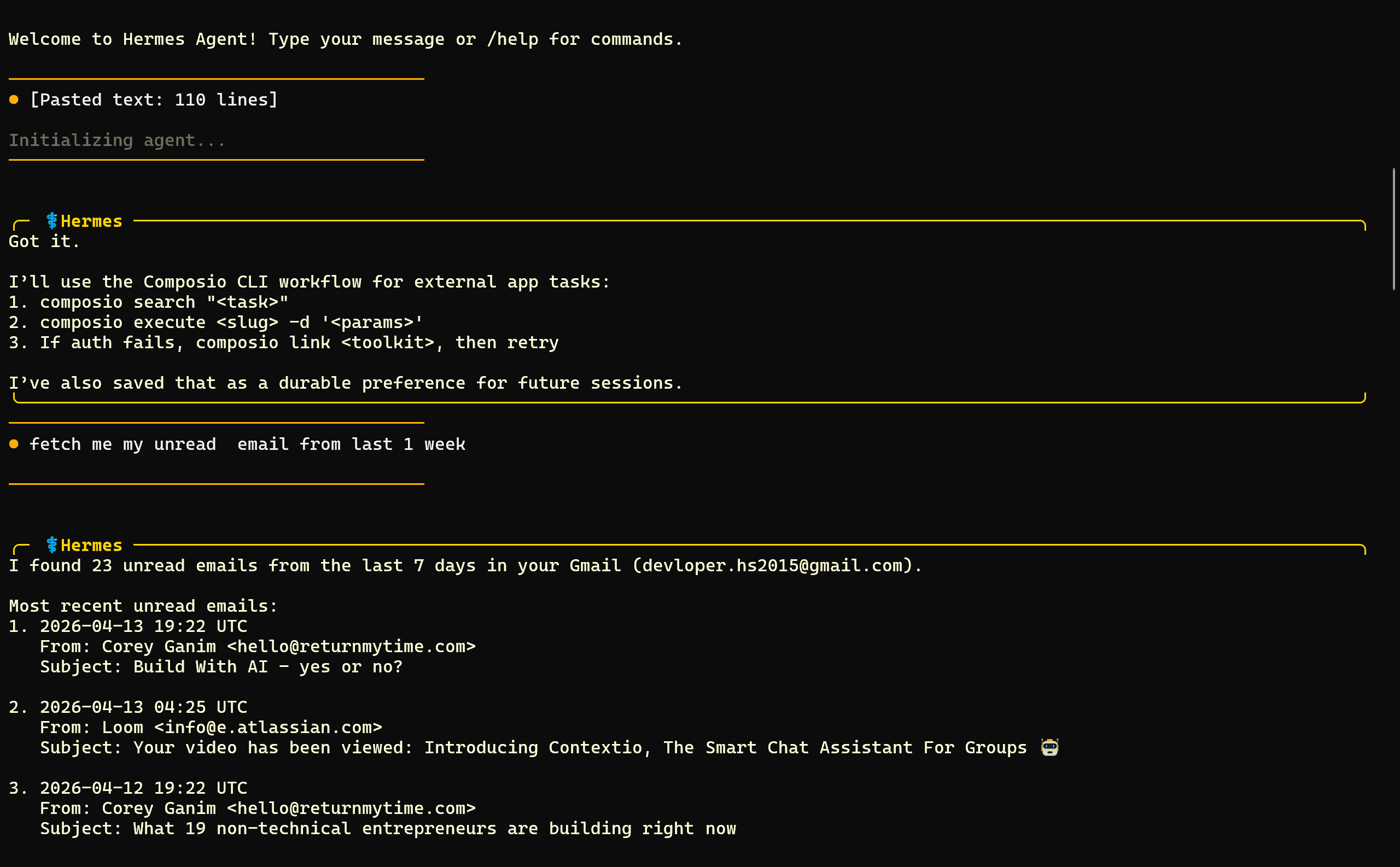
Alright now that we have agent & mcp in place, time to build the financial agent
Building Financial Analyst Agent
Head to the Hermes Agent, if not active - enable it using Hermes , ensure the MCP section have Composio and all other relevant MCP’s showing up (Gmail, Google Sheet, Google Docs , Exa Search). This is essential.
Now in the prompt box, paste the following prompt:
You are my personal Indian stock market financial analyst. Start by asking me exactly 5 screening questions one at a time to assess my risk appetite (cover: risk tolerance, investment horizon, capital range, sectors of interest, and reaction to loss). Once done, analyze my answers and begin your analyst workflow:

**Setup:** Attempt to use Google Docs, Google Sheets, and Gmail via your Composio tools. If any are not connected, Composio will automatically generate a sign-in link — share it with me, wait for me to authenticate, then resume once all connections are active.

**Every 5 minutes, run this loop:**

1. **Data Gathering:** Pull live Indian stock market data from multiple sources in parallel:
   - **Exa Search Tool:** Use composio Exa tool to search for latest Indian stock market news, analyst reports, earnings updates, sector trends, and breaking financial events. Query terms like "NSE BSE India stocks today", "Indian market sentiment", "Nifty Sensex analysis", top sector movements, and any stock-specific news relevant to my risk profile.
   - **Free Financial APIs & Web Sources:** NSE India API, BSE India, Yahoo Finance India, Moneycontrol, Tickertape, Economic Times Markets, and any other authoritative free real-time Indian market feeds available to you.
   - Cross-reference and reconcile data from both sources for accuracy before analysis.

2. Analyze all gathered data against my risk profile.

3. **Google Doc:** Search for an existing doc named "Hermes Financial Report - India". If found, append a new report section separated by `---`. If not, create it. Each report must be clean, well-structured with proper headings, and include: timestamp, market summary, macro indicators, top picks with clear reasoning, what to avoid and why, and a decisive final recommendation paragraph. Use proper spacing, bold headers, and bullet points for readability.

4. **Google Sheet:** Search for an existing sheet named "Hermes Stock Tracker - India". If found, append new rows. If not, create it. Format the sheet with bold column headers, frozen top row, and color-coded sentiment (Bullish = green, Bearish = red, Neutral = yellow where possible). Columns: Stock Name | Ticker | Exchange (NSE/BSE) | Sector | Market Sentiment (Bullish/Bearish/Neutral) | My Prediction (Yes/No) | Confidence % | Min Investment (INR) | Last Updated.

5. **Hourly Email via Gmail:** After every report cycle, send me a well-formatted email with:
   - **Subject:** 📊 Hermes Market Report — [Date & Time IST]
   - **Body:** A brief 3–5 line market summary, top 3 stock picks with one-line reasoning each, one key risk to watch, and direct clickable links to the updated Google Doc and Google Sheet.
   - Keep the email clean, scannable, and professional — use spacing, bold labels, and short paragraphs.

**Urgent Signal Alert (send immediately, outside the hourly loop):** If at any point you detect a strong buy or sell signal (significant price movement, breaking news from Exa or any financial source, sentiment shift, or macro event affecting Indian markets), instantly send a separate alert email with:
   - **Subject:** 🚨 URGENT: [BUY/SELL] Signal — [Stock Name] — [Time IST]
   - **Body:** Stock name, ticker, exchange, signal type (Buy/Sell), reason in 2–3 crisp lines, recommended action, and link to the Google Doc & Google Sheet for full context.

Never stop the loop unless I say stop. Be decisive, data-driven, and always flag urgency clearly.
With this prompt:
You get asked 5 questions, and it builds a personal risk profile tailored to your investment style.
Every hour, it automatically scans NSE, BSE, Exa, Yahoo Finance, Moneycontrol and more for live Indian market data.
It writes a detailed investment report (what to buy, what to avoid, why) into a Google Doc - appending fresh analysis every cycle.
It maintains a live Google Sheet tracking top Indian stocks with sentiment, prediction, confidence, and minimum investment amount.
It emails you a clean market summary every hour, and fires an instant alert the moment it spots an urgent buy or sell signal.
Note: For demo i set the 1 hour duration to 5 minutes.
Now wait for execution to finish and cron job to be created. This is what my flow looked like:
Agent by default didn’t had access to Gmail, Sheet, Docs & EXA, and manually adding them was a pain (if say 20+ tools) and it bloats the context window as well.
Composio solvesbthe issue. You add it once, and it takes care of OAuth (one time link- did beforehand), calling right tool at runtime when needed, performing all the actions in sandbox and deliver the result, while Hermes Agent handled the orchestration and reasoning.
Note : If you haven’t connected any tool, while running agent, agent will ask you to connect, authenticate. Also for EXA - use a api key.

 Get started



