




MCP is all the rage. But you can only use them inside the Claude Desktop app, Cursor, Windsurf, etc. However, you can build your MCP client chatbot and add any MCP servers (via SSE and Stdio) at will, entirely locally.
If this sounds interesting, stick with the blog. We’ll build a super cool MCP-powered AI chatbot with multi-tool calling support, similar to Claude and Windsurf.
Let’s jump right in!
What’s Covered?
In this easy-to-follow tutorial, you’ll learn how to build your own chat AI-powered MCP client with Next.js that can connect to both remote and locally hosted MCP servers.
What you will learn:
What is MCP?
How to build a Next.js chat MCP client application
How to connect the MCP client with Composio-hosted MCP servers
How to connect the MCP client with local MCP servers
MCP Overview
Before we start building things with MCP, let me give you a rough idea of what MCP is all about.
MCP stands for Model Context Protocol. Think of it as a bridge between AI models and external tools, which can provide them with data and the ability to take action on it.
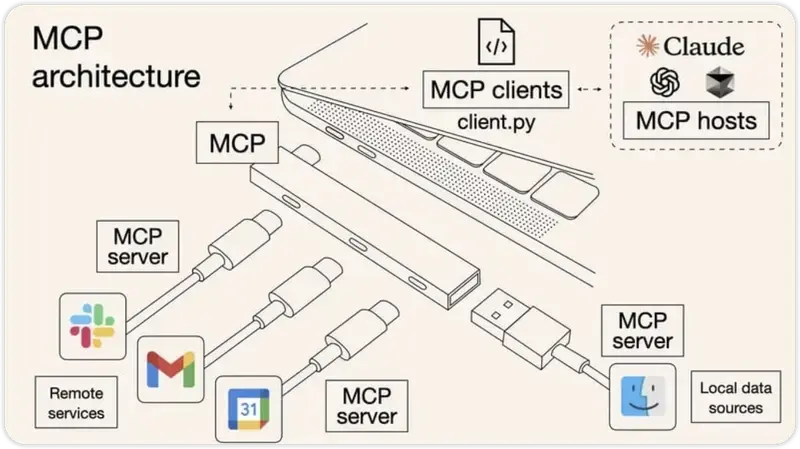
This could be a bouncer for some of you, so let me share the issue it solves so you can better visualise it.
Generative AI models aren’t instrumental in real-world scenarios. They only provide information based on the data they were trained on.
This information isn’t real-time and is mostly outdated. Plus, they can’t take any action on the data themselves. MCP solves both of these issues—this is the whole idea of MCP.
Here are some things you can do with your AI models once you add MCP support:
✅ Send emails through Gmail/Outlook.
✅ Send messages in Slack.
✅ Create issues, PRs, commits, and more.
✅ Schedule or create meetings in Google Calendar.
The possibilities are endless. (All this is done by sending natural language prompts to the AI models.)
There are five core components to MCP:
MCP Hosts: Programs like Claude Desktop, IDEs, or AI tools that get data through MCP.
MCP Clients: Protocol clients that maintain one-on-one connections with servers
MCP Servers: Lightweight programs that provide specific features using the standardised Model Context Protocol. For more, check this blog on the MCP Server.
Local Data Sources: Your computer’s files, databases, and services that MCP servers can safely access
Remote Services: External systems you can find online (like through APIs) that MCP servers can hook up to
Now that you’ve got the basics of MCP and enough understanding of what we’ll be building, let’s start with the project.
Project Setup 🛠️
In this section, we’ll complete all the prerequisites for building the project.
Or clone the GitHub repository here: ChatMCP Client
Initialise a Next.js Application
Initialise a new Next.js application with the following command:
You can use any package manager of your choice. For this project, I will use npm.
npx create-next-app@latest chat-nextjs-mcp-client \
--typescript --tailwind --eslint --app --src-dir --use-npm
Next, navigate into the newly created Next.js project:
cd chat-nextjs-mcp-clientInstall Dependencies
We’ll need some dependencies. Run the following command to install all the dependencies:
npm install @composio/core @composio/openai openai dotenv @modelcontextprotocol/sdkComposio Setup
NOTE: If you plan to run the application with local MCP servers, you don’t need to set up Composio. If you want to test some cool hosted MCP servers, which I’ll do in this blog, make sure to set it up. (Recommended)
First, before moving forward, we need to get access to a Composio API key.
Go ahead, create an account on Composio, obtain an API key, and paste it in the .env file in the root of the project:
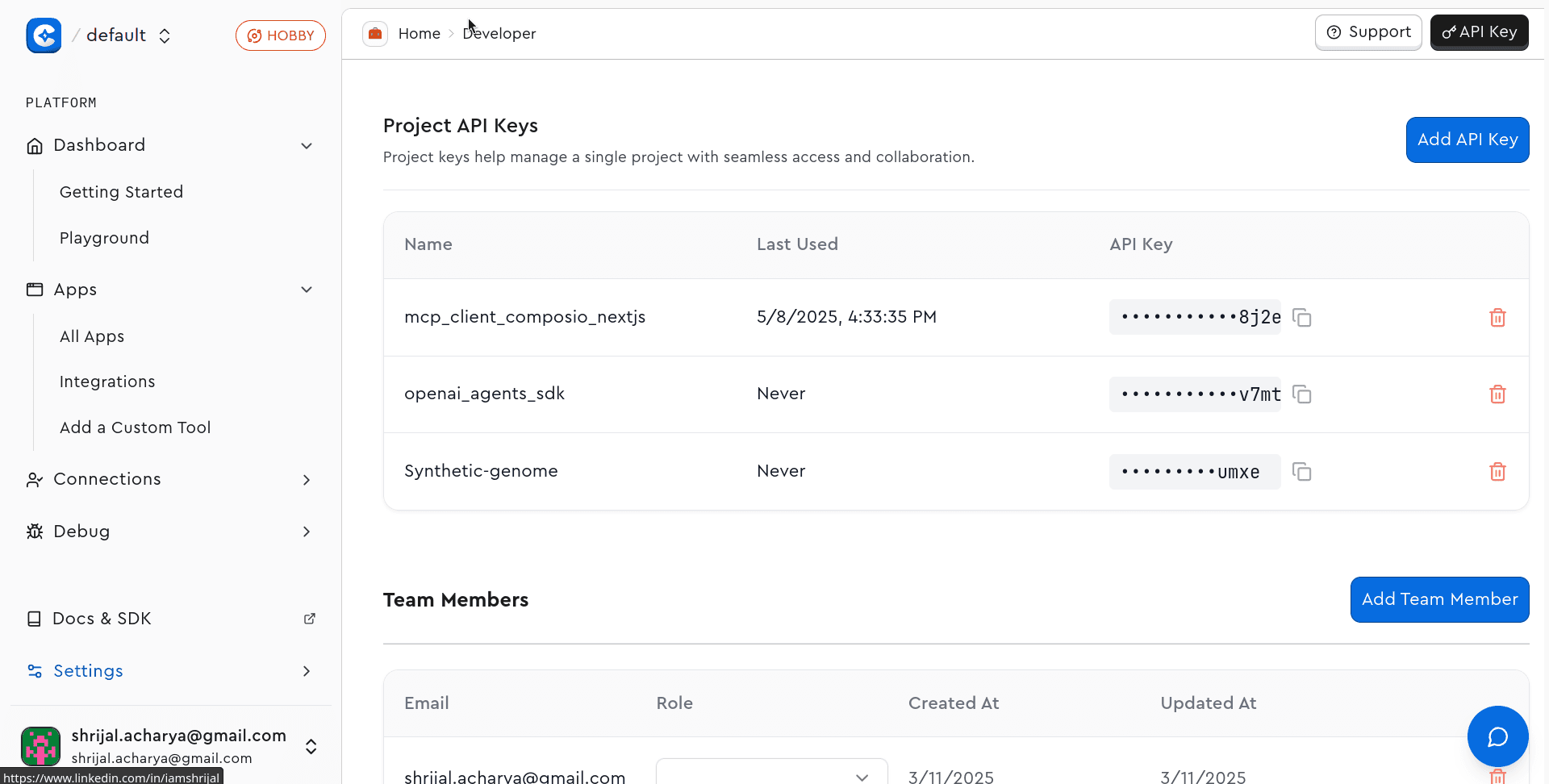
COMPOSIO_API_KEY=<your_composio_api_key>Now, you need to add toolkits (integrations) to your project. Head over to your project and under the Auth Configs tab, add all the integrations you'd like.
You can create Auth Configs for apps programmatically. For simplicity, we will set up the manual dashboard.
Now, we’re almost there. For the demo, I plan to use Gmail and Linear.
💡 NOTE: If you want to test some different integrations, feel free to do so. You can always follow along, the steps are going to be the same.
That's all the steps we require on the Composio setup for now.
Shadcn UI Setup
We’ll use shadcn/ui to collect ready-to-use UI components. Initialise it with the default settings by running:
npx shadcn@latest init -dWe won’t be using a lot of UI components, just four of them. Install it with the following command:
npx shadcn@latest add button tooltip card accordionThis should create four new files in the components/ui directory calledbutton.tsx, tooltip.tsx, accordion.tsx and card.tsx.
Code Setup
In this section, we’ll cover all the coding necessary to create a simple chat interface and connect it to the Composio MCP server for testing.
Initial Setup
In app/layout.tsx, change the following lines of code: (Optional, if you don’t want to add Tooltips)
// ... Rest of the code
import { TooltipProvider } from "@/components/ui/tooltip";

export default function RootLayout({
  children,
}: Readonly<{
  children: React.ReactNode;
}>) {
  return (
    <html lang="en">
      <body
        className={`${geistSans.variable} ${geistMono.variable} antialiased`}
      >
        <TooltipProvider delayDuration={0}>{children}</TooltipProvider>
      </body>
    </html>
  );
}
All we are doing here is wrapping the children components with the <TooltipProvider /> so we can use tooltips in our application.
Now, edit the app/page.tsx with the following lines of code:
import { Chat } from "@/components/chat";

export default function Page() {
  return <Chat />;
}
We don’t have a <Chat /> component yet, so first, let’s create it.
Build Chat Component
The <Chat /> component is responsible for the overall Chat interface so we can talk with the LLMs and connects the chat route to the application.
Inside the components directory, create a new file called chat.tsx and add the following lines of code:
"use client";

import { useState } from "react";
import { ArrowUpIcon } from "lucide-react";
import { Button } from "@/components/ui/button";
import {
  Tooltip,
  TooltipContent,
  TooltipTrigger,
} from "@/components/ui/tooltip";
import { AutoResizeTextarea } from "@/components/autoresize-textarea";
import { Card, CardContent, CardHeader, CardTitle } from "@/components/ui/card";
import {
  Accordion,
  AccordionContent,
  AccordionItem,
  AccordionTrigger,
} from "@/components/ui/accordion";

type Message = {
  role: "user" | "assistant";
  content: string | object;
  // eslint-disable-next-line  @typescript-eslint/no-explicit-any
  toolResponses?: any[];
};

export function Chat() {
  const [messages, setMessages] = useState<Message[]>([]);
  const [input, setInput] = useState("");
  const [loading, setLoading] = useState(false);

  const handleSubmit = async (e: React.FormEvent<HTMLFormElement>) => {
    e.preventDefault();
    const userMessage: Message = { role: "user", content: input };
    setMessages((prev) => [...prev, userMessage]);
    setInput("");
    setLoading(true);

    // Add a temp loading msg for the llms....
    setMessages((prev) => [
      ...prev,
      { role: "assistant", content: "Hang on..." },
    ]);

    try {
      const res = await fetch("/api/chat", {
        method: "POST",
        headers: { "Content-Type": "application/json" },
        body: JSON.stringify({ messages: [...messages, userMessage] }),
      });

      const data = await res.json();
      const content =
        typeof data?.content === "string"
          ? data.content
          : "Sorry... got no response from the server";

      const toolResponses = Array.isArray(data?.toolResponses)
        ? data.toolResponses
        : [];

      setMessages((prev) => [
        ...prev.slice(0, -1),
        { role: "assistant", content, toolResponses },
      ]);
    } catch (err) {
      console.error("Chat error:", err);
      setMessages((prev) => [
        ...prev.slice(0, -1),
        { role: "assistant", content: "Oops! Something went wrong." },
      ]);
    } finally {
      setLoading(false);
    }
  };

  const handleKeyDown = (e: React.KeyboardEvent<HTMLTextAreaElement>) => {
    if (e.key === "Enter" && !e.shiftKey) {
      e.preventDefault();
      handleSubmit(e as unknown as React.FormEvent<HTMLFormElement>);
    }
  };

  return (
    <main className="ring-none mx-auto flex h-svh max-h-svh w-full max-w-[35rem] flex-col items-stretch border-none">
      <div className="flex-1 overflow-y-auto px-6 py-6">
        {messages.length === 0 ? (
          <header className="m-auto flex max-w-96 flex-col gap-5 text-center">
            <h1 className="text-2xl font-semibold leading-none tracking-tight">
              MCP Powered AI Chatbot
            </h1>
            <p className="text-muted-foreground text-sm">
              This is an AI chatbot app built with{" "}
              <span className="text-foreground">Next.js</span>,{" "}
              <span className="text-foreground">MCP backend</span>
            </p>
            <p className="text-muted-foreground text-sm">
              Built with 🤍 by Shrijal Acharya (@shricodev)
            </p>
          </header>
        ) : (
          <div className="my-4 flex h-fit min-h-full flex-col gap-4">
            {messages.map((message, index) => (
              <div key={index} className="flex flex-col gap-2">
                {message.role === "assistant" &&
                  Array.isArray(message.toolResponses) &&
                  message.toolResponses.length > 0 && (
                    <Card>
                      <CardHeader>
                        <CardTitle className="text-base">
                          Tool Responses
                        </CardTitle>
                      </CardHeader>
                      <CardContent>
                        <Accordion type="multiple" className="w-full">
                          {message.toolResponses.map((toolRes, i) => (
                            <AccordionItem key={i} value={`item-${i}`}>
                              <AccordionTrigger>
                                Tool Call #{i + 1}
                              </AccordionTrigger>
                              <AccordionContent>
                                <pre className="whitespace-pre-wrap break-words text-sm">
                                  {JSON.stringify(toolRes, null, 2)}
                                </pre>
                              </AccordionContent>
                            </AccordionItem>
                          ))}
                        </Accordion>
                      </CardContent>
                    </Card>
                  )}

                <div
                  className="max-w-[80%] rounded-xl px-3 py-2 text-sm data-[role=assistant]:self-start data-[role=user]:self-end"
                  data-role={message.role}
                  style={{
                    alignSelf:
                      message.role === "user" ? "flex-end" : "flex-start",
                    backgroundColor:
                      message.role === "user" ? "#3b82f6" : "#f3f4f6",
                    color: message.role === "user" ? "white" : "black",
                  }}
                >
                  {typeof message.content === "string"
                    ? message.content
                    : JSON.stringify(message.content, null, 2)}
                </div>
              </div>
            ))}
          </div>
        )}
      </div>

      <form
        onSubmit={handleSubmit}
        className="border-input bg-background focus-within:ring-ring/10 relative mx-6 mb-6 flex items-center rounded-[16px] border px-3 py-1.5 pr-8 text-sm focus-within:outline-none focus-within:ring-2 focus-within:ring-offset-0"
      >
        <AutoResizeTextarea
          onKeyDown={handleKeyDown}
          onChange={(e) => setInput(e)}
          value={input}
          placeholder="Enter a message"
          className="placeholder:text-muted-foreground flex-1 bg-transparent focus:outline-none"
        />
        <Tooltip>
          <TooltipTrigger asChild>
            <Button
              variant="ghost"
              size="sm"
              className="absolute bottom-1 right-1 size-6 rounded-full"
              disabled={!input.trim() || loading}
            >
              <ArrowUpIcon size={16} />
            </Button>
          </TooltipTrigger>
          <TooltipContent sideOffset={12}>Submit</TooltipContent>
        </Tooltip>
      </form>
    </main>
  );
}
The component is pretty straightforward itself; all we are doing is keeping note of all the messages in a state variable, and each time a user submits the form, we request the api/chat endpoint and show the response back in the UI. That’s it!
If you realize, we have another component <AutoResizeTextarea /> which is not added yet, and this is just a textarea, but why not use a plain <textarea />?
Simply because a plain textarea looks terrible and unsuitable for an input textbox.
Inside the components directory, create a new file called autoresize-textarea.tsx and add the following lines of code:
"use client";

import { cn } from "@/lib/utils";
import React, { useRef, useEffect, type TextareaHTMLAttributes } from "react";

interface AutoResizeTextareaProps
  extends Omit<
    TextareaHTMLAttributes<HTMLTextAreaElement>,
    "value" | "onChange"
  > {
  value: string;
  onChange: (value: string) => void;
}

export function AutoResizeTextarea({
  className,
  value,
  onChange,
  ...props
}: AutoResizeTextareaProps) {
  const textareaRef = useRef<HTMLTextAreaElement>(null);

  const resizeTextarea = () => {
    const textarea = textareaRef.current;
    if (textarea) {
      textarea.style.height = "auto";
      textarea.style.height = `${textarea.scrollHeight}px`;
    }
  };

  useEffect(() => {
    resizeTextarea();
  }, [value]);

  return (
    <textarea
      {...props}
      value={value}
      ref={textareaRef}
      rows={1}
      onChange={(e) => {
        onChange(e.target.value);
        resizeTextarea();
      }}
      className={cn("resize-none min-h-4 max-h-80", className)}
    />
  );
}
This <AutoResizeTextarea /> already looks better out of the box and expands based on the size of the message, and that’s the ideal way to handle it.
The api/chat endpoint is not yet implemented, which we’ll do in a moment.
API Route Setup with Composio
This is the section where we’ll create the api/chat endpoint and connect it with the Composio-hosted MCP server(s). Check the latest docs for any possible changes.
Create the app/api/chat directory and add a route.ts file with the following lines of code:
import { NextRequest, NextResponse } from "next/server";
import { Composio } from "@composio/core";
import { OpenAIProvider } from "@composio/openai";
import OpenAI from "openai";

const openai = new OpenAI({
  apiKey: process.env.OPENAI_API_KEY,
});

const composio = new Composio({
  apiKey: process.env.COMPOSIO_API_KEY,
  provider: new OpenAIProvider(),
});

export async function POST(req: NextRequest) {
  const { messages } = await req.json();
  const userQuery = messages[messages.length - 1]?.content;

  if (!userQuery) {
    return NextResponse.json(
      { error: "No user query found in request" },
      { status: 400 },
    );
  }

  try {
    const userId = process.env.COMPOSIO_USER_ID ?? "default";

    const session = await composio.create(userId, {
      toolkits: ["GMAIL"],
    });

    const tools = await session.tools();

    let fullMessages: OpenAI.ChatCompletionMessageParam[] = [
      {
        role: "system",
        content:
          "You are a helpful assistant. Use Composio tools to help the user with Gmail tasks.",
      },
      { role: "user", content: userQuery },
    ];

    let response = await openai.chat.completions.create({
      model: "gpt-4o-mini",
      messages: fullMessages,
      tools: tools,
      tool_choice: "auto",
    });

    while (response.choices[0].message.tool_calls?.length) {
      const toolCalls = response.choices[0].message.tool_calls;
      const results = await composio.provider.handleToolCalls(userId, response);

      fullMessages.push(response.choices[0].message);
      toolCalls.forEach((tc, i) => {
        fullMessages.push({
          role: "tool",
          tool_call_id: tc.id,
          content: JSON.stringify(results[i]),
        });
      });

      response = await openai.chat.completions.create({
        model: "gpt-4o-mini",
        messages: fullMessages,
        tools: tools,
        tool_choice: "auto",
      });
    }

    return NextResponse.json({
      role: "assistant",
      content: response.choices[0].message.content || "Task completed.",
    });
  } catch (err) {
    console.error("[ERROR]:", err);
    return NextResponse.json(
      { error: "Something went wrong!" },
      { status: 500 },
    );
  }
}
Here, I’ve used OAuth 2.0 for authentication, but other methods are also available, such as Bearer Token and API Key. You can review the documentation for each tool to determine which one best suits your needs. The complete list of tools is available here.
On your first run, you'll see an authentication URL in the console. Follow the link and complete the authentication.
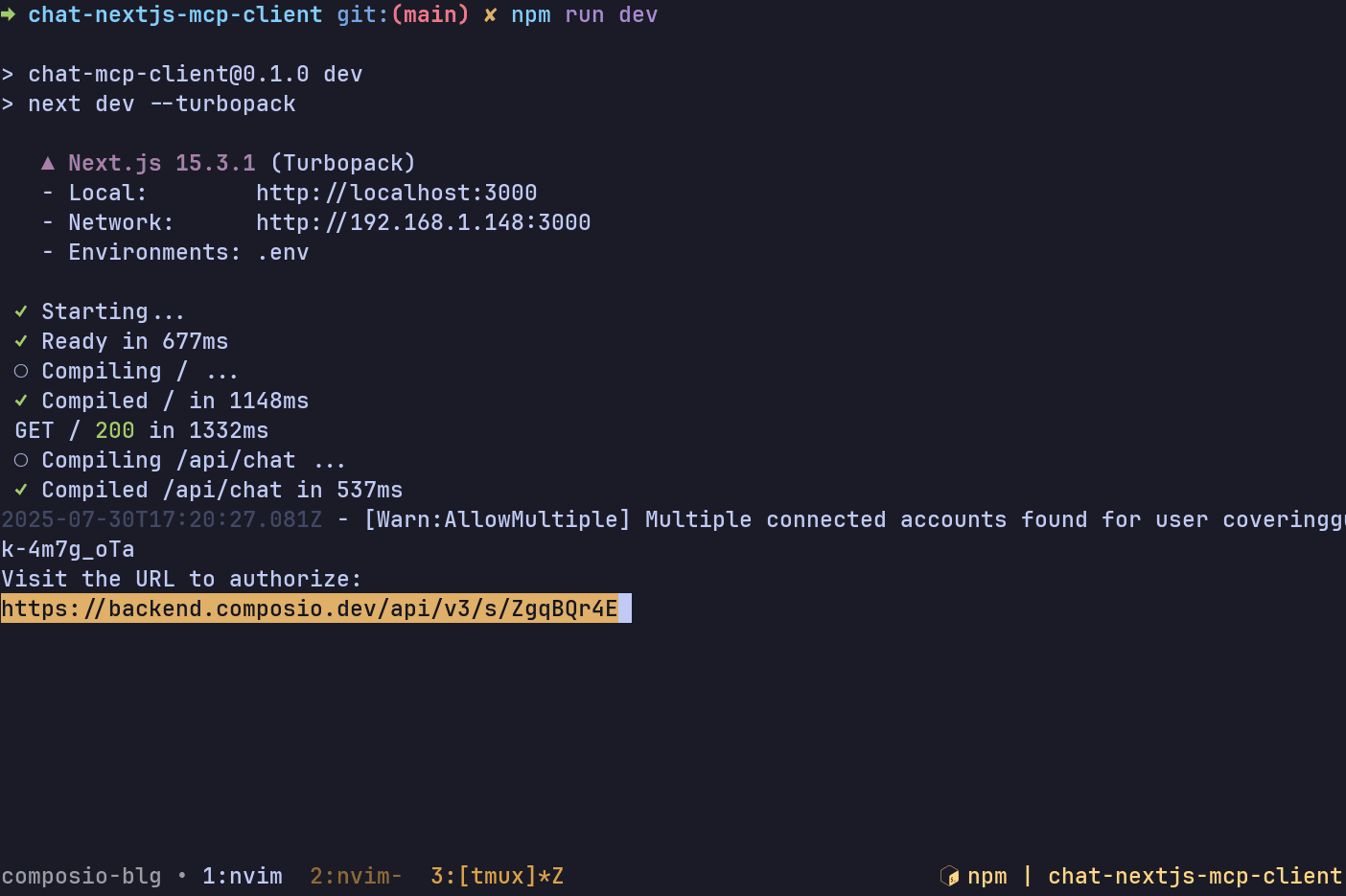
Here’s a complete workflow where I used the Gmail and Linear MCP servers from Composio: 👇
Custom MCP Server Use
Above, we set up our chat application to use Composio-hosted MCP, but guess what if you want to test it with your own locally hosted MCP server? This is possible as well.
Local MCP Server Setup
We won’t be coding this together; many local MCP servers are available everywhere. Here, we’ll be using a Filesystem MCP server that I’ve placed in the other branch where the final code is stored.
First, ensure you are out of the Next.js client application one level up. Then, run the following command:
git clone --depth 1 --branch custom-fs-mcp-server \
https://github.com/shricodev/chat-nextjs-mcp-client.git chat-mcp-server
Now, you should have a folder structure as shown below:
.
├── chat-nextjs-mcp-client
│   ├── .git
│   ├── app
│   ├── components
│   ├── lib
│   ├── node_modules
│   ├── public
│   ├── ...
├── chat-mcp-server
│    └── custom-fs-mcp-server
│        ├── src
│        ├── .gitignore
│        ├── eslint.config.js
│        ├── package-lock.json
│        ├── package.json
│        └── tsconfig.json
All you need to do here is build the application and pass the path to it to the chat route in our Next.js MCP client.
Run the following command:
cd chat-mcp-server && npm run buildThis should build the application and place an index.js file in the build directory. Take note of the path of the index.js file as we’ll need it in another step.
You can get the path to the file using the realpath command:
realpath chat-mcp-server/custom-fs-mcp-server/build/index.jsLocal Server Utility Functions
Previously, we connected to the Composio server with their package available, but for connecting to the local MCP servers, we need to initialize the connection manually.
Create a lib/mcp-client/index.ts directory and add an index.ts file with the following lines of code:
import { OpenAI } from "openai";
import { Client } from "@modelcontextprotocol/sdk/client/index.js";
import { StdioClientTransport } from "@modelcontextprotocol/sdk/client/stdio.js";
import dotenv from "dotenv";

dotenv.config();

const OPENAI_API_KEY = process.env.OPENAI_API_KEY;
const MODEL_NAME = "gpt-4o-mini";

if (!OPENAI_API_KEY) throw new Error("OPENAI_API_KEY is not set");

const openai = new OpenAI({
  apiKey: OPENAI_API_KEY,
});
const mcp = new Client({ name: "nextjs-mcp-client", version: "1.0.0" });

// eslint-disable-next-line @typescript-eslint/no-explicit-any
let tools: any[] = [];

let connected = false;

export async function initMCP(serverScriptPath: string) {
  if (connected) return;

  const command = serverScriptPath.endsWith(".py")
    ? process.platform === "win32"
      ? "python"
      : "python3"
    : process.execPath;

  const transport = new StdioClientTransport({
    command,
    args: [serverScriptPath, "/home/shricodev"],
  });

  mcp.connect(transport);

  const toolsResult = await mcp.listTools();

  tools = toolsResult.tools.map((tool) => ({
    type: "function",
    function: {
      name: tool.name,
      description: tool.description,
      parameters: tool.inputSchema,
    },
  }));

  connected = true;
  console.log(
    "MCP Connected with tools:",
    tools.map((t) => t.function.name),
  );
}

// eslint-disable-next-line @typescript-eslint/no-explicit-any
export async function executeToolCall(toolCall: any) {
  const toolName = toolCall.function.name;
  const toolArgs = JSON.parse(toolCall.function.arguments || "{}");

  const result = await mcp.callTool({
    name: toolName,
    arguments: toolArgs,
  });

  return {
    id: toolCall.id,
    name: toolName,
    arguments: toolArgs,
    result: result.content,
  };
}

// eslint-disable-next-line @typescript-eslint/no-explicit-any
export async function processQuery(messagesInput: any[]) {
  const messages: OpenAI.ChatCompletionMessageParam[] = [
    {
      role: "system",
      content: "You are a helpful assistant that can use tools.",
    },
    ...messagesInput,
  ];

  const response = await openai.chat.completions.create({
    model: MODEL_NAME,
    max_tokens: 1000,
    messages,
    tools,
  });

  const replyMessage = response.choices[0].message;
  const toolCalls = replyMessage.tool_calls || [];

  if (toolCalls.length > 0) {
    const toolResponses = [];

    for (const toolCall of toolCalls) {
      const toolResponse = await executeToolCall(toolCall);
      toolResponses.push(toolResponse);

      messages.push({
        role: "assistant",
        content: null,
        tool_calls: [toolCall],
      });

      messages.push({
        role: "tool",
        content: toolResponse.result as string,
        tool_call_id: toolCall.id,
      });
    }

    const followUp = await openai.chat.completions.create({
      model: MODEL_NAME,
      messages,
    });

    return {
      reply: followUp.choices[0].message.content || "",
      toolCalls,
      toolResponses,
    };
  }

  return {
    reply: replyMessage.content || "",
    toolCalls: [],
    toolResponses: [],
  };
}
The initMCP As the name suggests, this function starts a connection to the MCP server with the specified path and fetches all the available tools.
The executeToolCall function takes a tool call object, parses the arguments, executes the tool, and returns the result with the call metadata.
The processQuery function handles all the chat interactions with OpenAI. If the AI decides to run tools, it runs them via MCP and sends follow-up messages with the tool results.
Edit Chat Route to use the Local MCP Server.
Now, we’re almost there. All that’s left is to edit the chat route app/api/chat/route.ts file with the following lines of code:
import { NextRequest, NextResponse } from "next/server";
import { initMCP, processQuery } from "@/lib/mcp-client";

const SERVER_PATH = "<previously_built_mcp_server_path_index_js>";

export async function POST(req: NextRequest) {
  const { messages } = await req.json();
  const userQuery = messages[messages.length - 1]?.content;

  if (!userQuery) {
    return NextResponse.json({ error: "No query provided" }, { status: 400 });
  }

  try {
    await initMCP(SERVER_PATH);

    const { reply, toolCalls, toolResponses } = await processQuery(messages);

    if (toolCalls.length > 0) {
      return NextResponse.json({
        role: "assistant",
        content: "Successfully executed tool call(s) 🎉🎉",
        toolResponses,
      });
    }

    return NextResponse.json({
      role: "assistant",
      content: reply,
    });
  } catch (err) {
    console.error("[MCP Error]", err);
    return NextResponse.json(
      { error: "Something went wrong" },
      { status: 500 },
    );
  }
}
No other changes are required. You’re all good. Now, to test this in action, run the following command inside the MCP client directory:
npm run devYou don’t need to run the server separately, as the client already launches it in a separate process.
Now, you’re all set and can use all the tools that are available in the MCP server. 🚀
Conclusion
Whoa! We covered a lot, from building a chat MCP client with Next.js that supports Composio-hosted MCP servers to using our own locally hosted MCP servers.

 Get started



