




Bored of building the same text-based chatbots that just... chat? 🥱
Yeah, same here.
What if you could talk to your AI model and have it control Gmail, Notion, Google Sheets, or any other application you use without touching your keyboard?

If that sounds like something you want to build, stick around till the end. It’s gonna be fun.
Let’s build it all, step by step. It's going to be a bit lengthy, but it will be worth it. ✌️
What’s Covered?
In this tutorial, you will learn:
How to work with Speech Recognition in Next.js
How to power your voice AI agent with multiple SaaS apps like Gmail, Google Docs, etc, using Composio
And most importantly, how to code all of it to complete a web app
If you're impatient, here is the GitHub link for the AI Voice Assistant Chatbot
Want to know how it turns out? Check out this quick demo where I've used Gmail and Google Sheets together! 👇
Project Setup 👷
Initialise a Next.js Application
🙋♂️ In this section, we'll complete all the prerequisites for building the project.
Initialise a new Next.js application with the following command:
ℹ️ You can use any package manager of your choice. For this project, I will use npm.
npx create-next-app@latest voice-chat-ai-configurable-agent \\\\
--typescript --tailwind --eslint --app --src-dir --use-npm
Next, navigate into the newly created Next.js project:
cd voice-chat-ai-configurable-agentInstall Dependencies
We need some dependencies. Run the following command to install them all:
npm i @composio/core zustand @langchain/core @langchain/openai \
framer-motion openai react-speech-recognition use-debounce
Here's what they are used for:
composio-core: Integrates tools into the agent
zustand: A simple library for state management
openai: Provides AI-powered responses
framer-motion: Adds smooth animations to the UI
react-speech-recognition: Enables speech recognition
use-debounce: Adds debounce to the voice input
Configure Composio
We'll use Composio to add integrations to our application. You can choose any integration you like, but make sure to authenticate first.
Before moving forward, you need to obtain a Composio API key.
Go ahead and create an account on Composio, get your API key, and paste it in the .env file in the root of the project.
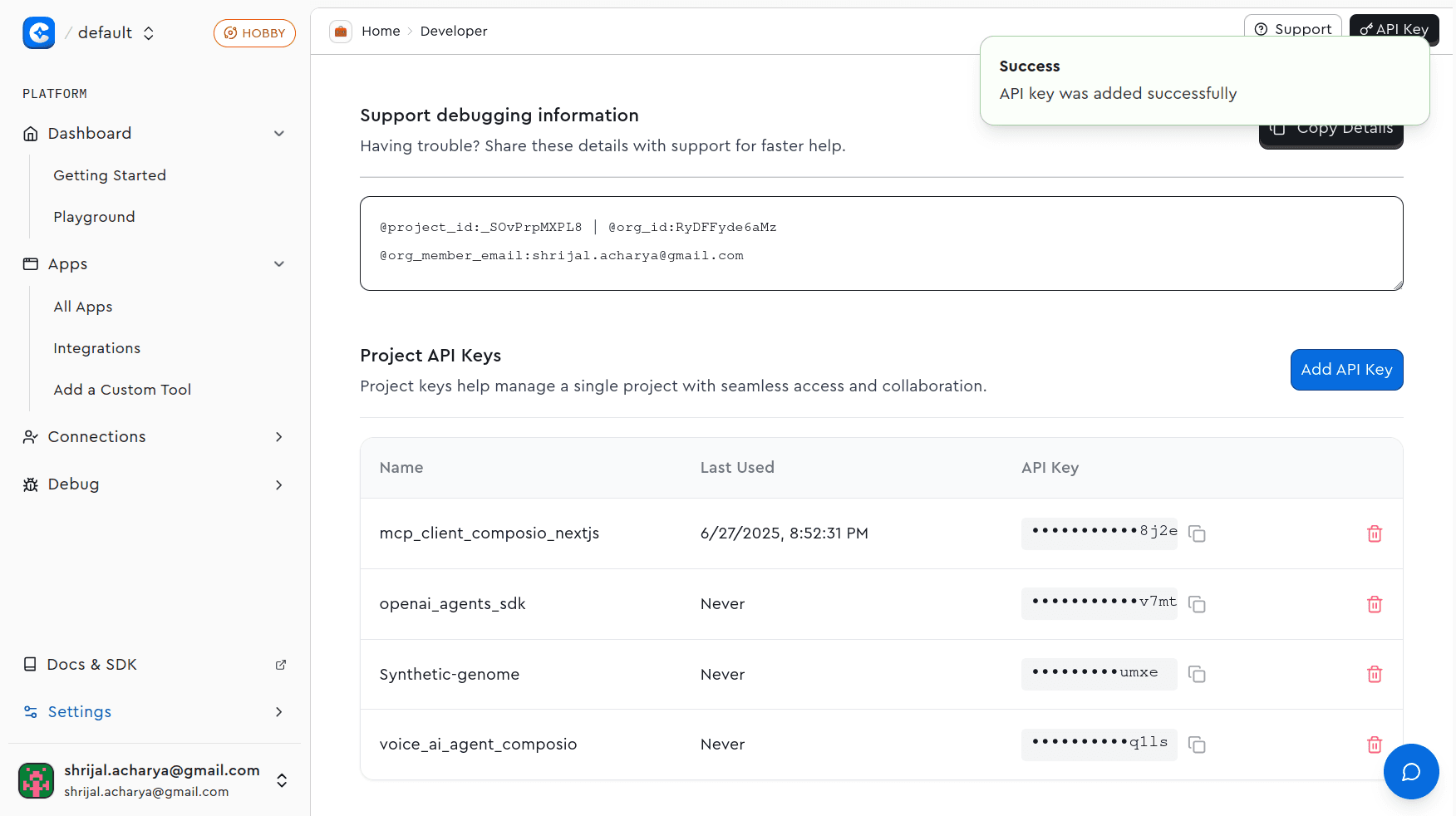
COMPOSIO_API_KEY=<your_composio_api_key>Install and Set Up Shadcn/UI
Shadcn/UI comes with many ready-to-use UI components, so we'll use it for this project. Initialize it with the default settings by running:
npx shadcn@latest init -dWe will need a few UI components, but we won't focus heavily on the UI side for the project. We'll keep it simple and concentrate mainly on the logic.
npx shadcn@latest add button dialog input label separatorThis should add five different files in the components/ui directory called button.tsx, dialog.tsx, input.tsx, label.tsx, and separator.tsx.
Code Implementation
🙋♂️ In this section, we'll cover all the coding needed to create the chat interface, work with Speech Recognition, and connect it with Composio tools.
Add Helper Functions
Before coding the project logic, let's start by writing some helper functions and constants that we will use throughout the project.
Let's begin by setting up some constants. Create a new file called constants.ts in the root of the project and add the following lines of code:
export const CONFIG = {
  SPEECH_DEBOUNCE_MS: 1500,
  MAX_TOOL_ITERATIONS: 10,
  OPENAI_MODEL: "gpt-4o-mini",
  TTS_MODEL: "tts-1",
  TTS_VOICE: "echo" as const,
} as const;

export const SYSTEM_MESSAGES = {
  INTENT_CLASSIFICATION: `You are an intent classification expert. Your job is to
determine if a user's request requires executing an action with a tool (like
sending an email, fetching data, creating a task) or if it's a general
conversational question (like 'hello', 'what is the capital of France?').

    - If it's an action, classify as 'TOOL_USE'.
    - If it's a general question or greeting, classify as 'GENERAL_CHAT'.`,

  APP_IDENTIFICATION: (availableApps: string[]) =>
    `You are an expert at identifying which software
applications a user wants to interact with. Given a list of available
applications, determine which ones are relevant to the user's request.

        Available applications: ${availableApps.join(", ")}`,

  ALIAS_MATCHING: (aliasNames: string[]) =>
    `You are a smart assistant that identifies relevant
parameters. Based on the user's message, identify which of the available
aliases are being referred to. Only return the names of the aliases that are
relevant.

Available alias names: ${aliasNames.join(", ")}`,

  TOOL_EXECUTION: `You are a powerful and helpful AI assistant. Your goal is to use the
provided tools to fulfill the user's request completely. You can use multiple
tools in sequence if needed. Once you have finished, provide a clear, concise
summary of what you accomplished.`,

  SUMMARY_GENERATION: `You are a helpful assistant. Your task is to create a brief, friendly,
and conversational summary of the actions that were just completed for the
user. Focus on what was accomplished. Start with a friendly confirmation like
'All set!', 'Done!', or 'Okay!'.`,
} as const;
These are just some constants that we will use throughout, and you might be wondering what these alias names are that we are passing in these constants.
Basically, these are alias key names used to hold key-value pairs. For example, when working with Discord, you might have an alias like 'Gaming Channel ID' that holds the ID of your gaming channel.
We use these aliases because it's not practical to say IDs, emails, and those things with voice. So, you can set up these aliases to refer to them easily.
🗣️ Say "Can you summarize the recent chats in my gaming channel?" and it will use the relevant alias to pass to the LLM, which in turn calls the Composio API with the relevant fields.
If you're confused right now, no worries. Follow along, and you'll soon figure out what this is all about.
Now, let's work on setting up the store that will hold all the aliases that we will store in localStorage. Create a new file called alias-store.ts in the lib directory and add the following lines of code:
// 👇 voice-chat-ai-configurable-agent/lib/alias-store.ts

import { create } from "zustand";
import { persist, createJSONStorage } from "zustand/middleware";

export interface Alias {
  name: string;
  value: string;
}

export interface IntegrationAliases {
  [integrationName: string]: Alias[];
}

interface AliasState {
  aliases: IntegrationAliases;
  addAlias: (integration: string, alias: Alias) => void;
  removeAlias: (integration: string, aliasName: string) => void;
  editAlias: (
    integration: string,
    oldAliasName: string,
    newAlias: Alias,
  ) => void;
}

export const useAliasStore = create<AliasState>()(
  persist(
    (set) => ({
      aliases: {},
      addAlias: (integration, alias) =>
        set((state) => ({
          aliases: {
            ...state.aliases,
            [integration]: [...(state.aliases[integration] || []), alias],
          },
        })),
      removeAlias: (integration, aliasName) =>
        set((state) => ({
          aliases: {
            ...state.aliases,
            [integration]: state.aliases[integration].filter(
              (a) => a.name !== aliasName,
            ),
          },
        })),
      editAlias: (integration, oldAliasName, newAlias) =>
        set((state) => ({
          aliases: {
            ...state.aliases,
            [integration]: state.aliases[integration].map((a) =>
              a.name === oldAliasName ? newAlias : a,
            ),
          },
        })),
    }),
    {
      name: "voice-agent-aliases-storage",
      storage: createJSONStorage(() => localStorage),
    },
  ),
);
If you've used Zustand before, this setup should feel familiar. If not, here's a quick breakdown: we have an Alias type that holds a key-value pair and an AliasState interface that represents the full alias state along with functions to add, edit, or remove an alias.
Each alias is grouped under an integration name (such as "Slack" or "Discord"), making it easy to manage them by service. These are stored in an aliases object using the IntegrationAliases type, which maps integration names to arrays of aliases.
We use the persist middleware to persist the aliases so they don't get lost when reloading the page, and this will come in really handy.
The use of createJSONStorage ensures the state is serialised and stored in localStorage under the key "voice-agent-aliases-storage".
ℹ️ For this tutorial, I've kept it simple and stored it in
localStorage, and this should be fine, but if you're interested, you could even setup and store it in a database.
Now, let's add another helper function that will return the correct error message and status code based on the error our application throws.
Create a new file called error-handler.ts in lib directory and add the following lines of code:
// 👇 voice-chat-ai-configurable-agent/lib/error-handler.ts

export class AppError extends Error {
  constructor(
    message: string,
    public statusCode: number = 500,
    public code?: string,
  ) {
    super(message);
    this.name = "AppError";
  }
}

export function handleApiError(error: unknown): {
  message: string;
  statusCode: number;
} {
  if (error instanceof AppError) {
    return {
      message: error.message,
      statusCode: error.statusCode,
    };
  }

  if (error instanceof Error) {
    return {
      message: error.message,
      statusCode: 500,
    };
  }

  return {
    message: "An unexpected error occurred",
    statusCode: 500,
  };
}
We define our own Error class called AppError that extends the built-in Error class. We will not use this in our program just yet, as we don't need to throw an error in any API endpoint.
However, you can use it if you ever need to extend the application's functionality and throw an error.
handleApiError It's pretty simple; it takes in the error and returns a message and the status code based on the error type.
Finally, let's end by setting up the helper functions and writing a Zod validator for validating user input.
Create a new file called message-validator.ts in the lib directory and add the following lines of code:
// 👇 voice-chat-ai-configurable-agent/lib/message-validator.ts

import { z } from "zod";

export const messageSchema = z.object({
  message: z.string(),
  aliases: z.record(
    z.array(
      z.object({
        name: z.string(),
        value: z.string(),
      }),
    ),
  ),
});

export type TMessageSchema = z.infer<typeof messageSchema>;
This Zod schema validates an object with a message string and an aliases record, where each key maps to an array of { name, value } string pairs.
This is going to look something like this:
{
  message: "Summarize the recent chats in my gaming channel",
  aliases: {
    slack: [
      { name: "office channel", value: "#office" },
    ],
    discord: [
      { name: "gaming channel id", value: "123456789" }
    ],
    // some others if you have them...
  }
}
The idea is that for each message sent, we will send the message along with all the set-up aliases. We will then use an LLM to determine which aliases are needed to handle the user's query.
Now that we're done with the helper functions, let's move on to the main application logic. 🎉
Create Custom Hooks
We will create a few hooks that we will use to work with audio, speech recognition, and all.
Create a new directory called hooks in the root of the project and create a new file called use-speech-recognition.ts and add the following lines of code:
// 👇 voice-chat-ai-configurable-agent/hooks/use-speech-recognition.ts

import { useEffect, useRef } from "react";
import { useDebounce } from "use-debounce";
import SpeechRecognition, {
  useSpeechRecognition,
} from "react-speech-recognition";
import { CONFIG } from "@/lib/constants";

interface UseSpeechRecognitionWithDebounceProps {
  onTranscriptComplete: (transcript: string) => void;
  debounceMs?: number;
}

export const useSpeechRecognitionWithDebounce = ({
  onTranscriptComplete,
  debounceMs = CONFIG.SPEECH_DEBOUNCE_MS,
}: UseSpeechRecognitionWithDebounceProps) => {
  const {
    transcript,
    listening,
    resetTranscript,
    browserSupportsSpeechRecognition,
  } = useSpeechRecognition();

  const [debouncedTranscript] = useDebounce(transcript, debounceMs);
  const lastProcessedTranscript = useRef<string>("");

  useEffect(() => {
    if (
      debouncedTranscript &&
      debouncedTranscript !== lastProcessedTranscript.current &&
      listening
    ) {
      lastProcessedTranscript.current = debouncedTranscript;
      SpeechRecognition.stopListening();
      onTranscriptComplete(debouncedTranscript);
      resetTranscript();
    }
  }, [debouncedTranscript, listening, onTranscriptComplete, resetTranscript]);

  const startListening = () => {
    resetTranscript();
    lastProcessedTranscript.current = "";
    SpeechRecognition.startListening({ continuous: true });
  };

  const stopListening = () => {
    SpeechRecognition.stopListening();
  };

  return {
    transcript,
    listening,
    resetTranscript,
    browserSupportsSpeechRecognition,
    startListening,
    stopListening,
  };
};
We’re using react-speech-recognition to handle voice input and add debounce so we don’t trigger actions on every tiny change.
Basically, whenever the transcript stops changing for a bit (debounceMsand it's different from the last one we processed, we stop listening, call onTranscriptComplete, and reset the transcript.
startListening clears old data and starts speech recognition in continuous mode. And stopListening... well, stops it. 🥴
That’s it. It's a simple hook to manage speech input with debounce to make sure it does not submit as soon as we stop, and adds a bit of a delay.
Now that we covered handling speech input, let's move on to audio. Create a new file called use-audio.ts and add the following lines of code:
// 👇 voice-chat-ai-configurable-agent/hooks/use-audio.ts

import { useCallback, useRef, useState } from "react";

export const useAudio = () => {
  const [isPlaying, setIsPlaying] = useState<boolean>(false);
  const currentSourceRef = useRef<AudioBufferSourceNode | null>(null);
  const audioContextRef = useRef<AudioContext | null>(null);

  const stopAudio = useCallback(() => {
    if (currentSourceRef.current) {
      try {
        currentSourceRef.current.stop();
      } catch (error) {
        console.error("Error stopping audio:", error);
      }
      currentSourceRef.current = null;
    }
    setIsPlaying(false);
  }, []);

  const playAudio = useCallback(
    async (text: string) => {
      try {
        stopAudio();

        const response = await fetch("/api/tts", {
          method: "POST",
          headers: { "Content-Type": "application/json" },
          body: JSON.stringify({ text }),
        });
        if (!response.ok) throw new Error("Failed to generate audio");

        const AudioContext =
          // eslint-disable-next-line  @typescript-eslint/no-explicit-any
          window.AudioContext || (window as any).webkitAudioContext;
        const audioContext = new AudioContext();
        audioContextRef.current = audioContext;

        const audioData = await response.arrayBuffer();
        const audioBuffer = await audioContext.decodeAudioData(audioData);
        const source = audioContext.createBufferSource();
        currentSourceRef.current = source;

        source.buffer = audioBuffer;
        source.connect(audioContext.destination);

        setIsPlaying(true);

        source.onended = () => {
          setIsPlaying(false);
          currentSourceRef.current = null;
        };

        source.start(0);
      } catch (error) {
        console.error("Error playing audio:", error);
        setIsPlaying(false);
        currentSourceRef.current = null;
      }
    },
    [stopAudio],
  );

  return { playAudio, stopAudio, isPlaying };
};
Its job is simple: to play or stop audio using the Web Audio API. We’ll use it to handle audio playback for the speech generated by OpenAI’s TTS.
The playAudio function takes in user input (text), sends it to an API endpoint (/api/tts), gets the audio response, decodes it, and plays it in the browser. It uses AudioContext under the hood and manages state, like whether the audio is currently playing, through isPlaying. We also expose a stopAudio function to stop playback early if needed.
We have not yet implemented the /api/tts route, but we will do it shortly.
Now, let's implement another hook for working with chats. Basically, we will use it to work with all the messages.
// 👇 voice-chat-ai-configurable-agent/hooks/use-chat.ts

import { useState, useCallback } from "react";
import { useAliasStore } from "@/lib/alias-store";

export interface Message {
  id: string;
  role: "user" | "assistant";
  content: string;
}

export const useChat = () => {
  const [messages, setMessages] = useState<Message[]>([]);
  const [isLoading, setIsLoading] = useState<boolean>(false);
  const { aliases } = useAliasStore();

  const sendMessage = useCallback(
    async (text: string) => {
      if (!text.trim() || isLoading) return null;

      const userMessage: Message = {
        id: Date.now().toString(),
        role: "user",
        content: text,
      };
      setMessages((prev) => [...prev, userMessage]);
      setIsLoading(true);

      try {
        const response = await fetch("/api/chat", {
          method: "POST",
          headers: { "content-type": "application/json" },
          body: JSON.stringify({ message: text, aliases }),
        });
        if (!response.ok) throw new Error("Failed to generate response");

        const result = await response.json();
        const botMessage: Message = {
          id: (Date.now() + 1).toString(),
          role: "assistant",
          content: result.content,
        };

        setMessages((prev) => [...prev, botMessage]);
        return botMessage;
      } catch (err) {
        console.error("Error generating response:", err);
        const errorMessage: Message = {
          id: (Date.now() + 1).toString(),
          role: "assistant",
          content: "Error generating response",
        };

        setMessages((prev) => [...prev, errorMessage]);
        return errorMessage;
      } finally {
        setIsLoading(false);
      }
    },
    [aliases, isLoading],
  );

  return {
    messages,
    isLoading,
    sendMessage,
  };
};
This one’s pretty straightforward. We use useChat to manage a simple chat flow — it keeps track of all messages and whether we’re currently waiting for a response.
When sendMessage is called, it adds the user’s input to the chat, hits our /api/chat route with the message and any aliases, and then updates the messages with whatever the assistant replies. If it fails, we just drop in a fallback error message instead. That’s it.
We're pretty much done with the hooks. Now that we have modularized all of these into hooks, why not create another small helper hook for component mount check?
Create a new file called use-mounted.ts and add the following lines of code:
// 👇 voice-chat-ai-configurable-agent/hooks/use-mounted.ts

import { useEffect, useState } from "react";

export const useMounted = () => {
  const [hasMounted, setHasMounted] = useState<boolean>(false);

  useEffect(() => {
    setHasMounted(true);
  }, []);

  return hasMounted;
};
Just a tiny hook to check if the component has mounted on the client. Returns true after the first render, handy for skipping SSR-specific stuff.
Finally, after working on four hooks, we are done with the hooks setup. Let's move on to building the API.
Build the API logic.
Great, now it makes sense to work on the API part and then move on to the UI.
Head to the app directory and create two different routes:
mkdir -p app/api/tts && mkdir app/api/chatGreat, now let's implement the /tts route. Create a new file called route.ts in the api/tts directory and add the following lines of code:
// 👇 voice-chat-ai-configurable-agent/app/api/tts/route.ts

import { NextRequest, NextResponse } from "next/server";
import OpenAI from "openai";
import { CONFIG } from "@/lib/constants";
import { handleApiError } from "@/lib/error-handler";

const OPENAI_API_KEY = process.env.OPENAI_API_KEY;

if (!OPENAI_API_KEY) {
  throw new Error("OPENAI_API_KEY environment variable is not set");
}

const openai = new OpenAI({
  apiKey: OPENAI_API_KEY,
});

export async function POST(req: NextRequest) {
  try {
    const { text } = await req.json();
    if (!text) return new NextResponse("Text is required", { status: 400 });

    const mp3 = await openai.audio.speech.create({
      model: CONFIG.TTS_MODEL,
      voice: CONFIG.TTS_VOICE,
      input: text,
    });

    const buffer = Buffer.from(await mp3.arrayBuffer());
    return new NextResponse(buffer, {
      headers: {
        "content-type": "audio/mpeg",
      },
    });
  } catch (error) {
    console.error("API /tts", error);
    const { statusCode } = handleApiError(error);
    return new NextResponse("Error generating response audio", {
      status: statusCode,
    });
  }
}
This is our /api/tts route that takes in some text and generates an MP3 audio using OpenAI’s TTS API. We grab the text from the request body, call OpenAI with the model and voice we've set in CONFIG, and get back a streamable MP3 blob.
The important thing is that OpenAI returns an arrayBuffer, so we first convert it to a Node Buffer before sending the response back to the client.
Now, the main logic of our application comes into play, which is to identify if the user is requesting a tool call. If so, we find any relevant alias; otherwise, we generate a generic response.
Create a new file called route.ts in the api/chat directory and add the following lines of code:
import { NextRequest, NextResponse } from "next/server";
import { z } from "zod";
import { Alias } from "@/lib/alias-store";
import {
  SystemMessage,
  HumanMessage,
  BaseMessage,
} from "@langchain/core/messages";
import { ChatOpenAI } from "@langchain/openai";
import { ToolNode } from "@langchain/langgraph/prebuilt";
import { messageSchema } from "@/lib/validators/message";
import { CONFIG, SYSTEM_MESSAGES } from "@/lib/constants";
import { handleApiError, logError } from "@/lib/error-handler";
import { Composio } from "@composio/core";
import { LangchainProvider } from "@composio/langchain";

const OPENAI_API_KEY = process.env.OPENAI_API_KEY;
const COMPOSIO_API_KEY = process.env.COMPOSIO_API_KEY;
const COMPOSIO_USER_ID = process.env.COMPOSIO_USER_ID;

if (!OPENAI_API_KEY) {
  throw new Error("OPENAI_API_KEY environment variable is not set");
}
if (!COMPOSIO_API_KEY) {
  throw new Error("COMPOSIO_API_KEY environment variable is not set");
}
if (!COMPOSIO_USER_ID) {
  throw new Error("COMPOSIO_USER_ID environment variable is not set");
}

const composio = new Composio({
  apiKey: COMPOSIO_API_KEY,
  provider: new LangchainProvider(),
});

const llm = new ChatOpenAI({
  model: CONFIG.OPENAI_MODEL,
  apiKey: OPENAI_API_KEY,
  temperature: 0,
});

export async function POST(req: NextRequest) {
  try {
    const body = await req.json();

    const parsed = messageSchema.safeParse(body);
    if (!parsed.success) {
      return NextResponse.json(
        { error: parsed.error.message },
        { status: 400 },
      );
    }

    const { message, aliases } = parsed.data;
    const isToolUseNeeded = await checkToolUseIntent(message);

    if (!isToolUseNeeded) {
      console.log("handling as a general chat");
      const chatResponse = await llm.invoke([new HumanMessage(message)]);
      return NextResponse.json({ content: chatResponse.text });
    }

    console.log("Handling as a tool-use request.");
    const availableApps = Object.keys(aliases);
    if (availableApps.length === 0) {
      return NextResponse.json({
        content: `I can't perform any actions yet. Please add some integration parameters in the settings first.`,
      });
    }

    const targetApps = await identifyTargetApps(message, availableApps);
    if (targetApps.length === 0) {
      return NextResponse.json({
        content: `I can't perform any actions yet. Please add some integration parameters in the settings first.`,
      });
    }

    console.log("Identified target apps:", targetApps);

    for (const app of targetApps) {
      if (!aliases[app] || aliases[app].length === 0) {
        console.warn(
          `User mentioned app '${app}' but no aliases are configured.`,
        );
        return NextResponse.json({
          content: `To work with ${app}, you first need to add its required parameters (like a channel ID or URL) in the settings.`,
        });
      }
    }

    const aliasesForTargetApps = targetApps.flatMap(
      (app) => aliases[app] || [],
    );
    const relevantAliases = await findRelevantAliases(
      message,
      aliasesForTargetApps,
    );

    let contextualizedMessage = message;
    if (relevantAliases.length > 0) {
      const contextBlock = relevantAliases
        .map((alias) => `${alias.name} = ${alias.value}`)
        .join("\n");
      contextualizedMessage += `\n\n--- Relevant Parameters ---\n${contextBlock}`;
      console.log("Contextualized message:", contextualizedMessage);
    }

    const finalResponse = await executeToolCallingLogic(
      contextualizedMessage,
      targetApps,
    );
    return NextResponse.json({ content: finalResponse });
  } catch (error) {
    logError(error, "API /chat");
    const { message, statusCode } = handleApiError(error);
    return NextResponse.json(
      { content: `Sorry, I encountered an error: ${message}` },
      { status: statusCode },
    );
  }
}

async function checkToolUseIntent(message: string): Promise<boolean> {
  const intentSchema = z.object({
    intent: z
      .enum(["TOOL_USE", "GENERAL_CHAT"])
      .describe("Classify the user's intent."),
  });

  const structuredLlm = llm.withStructuredOutput(intentSchema);

  const result = await structuredLlm.invoke([
    new SystemMessage(SYSTEM_MESSAGES.INTENT_CLASSIFICATION),
    new HumanMessage(message),
  ]);

  return result.intent === "TOOL_USE";
}

async function identifyTargetApps(
  message: string,
  availableApps: string[],
): Promise<string[]> {
  const structuredLlm = llm.withStructuredOutput(
    z.object({
      apps: z.array(z.string()).describe(
        `A list of application names mentioned or implied in the user's message, from the available apps list.`,
      ),
    }),
  );

  const result = await structuredLlm.invoke([
    new SystemMessage(SYSTEM_MESSAGES.APP_IDENTIFICATION(availableApps)),
    new HumanMessage(message),
  ]);

  return result.apps.filter((app) => availableApps.includes(app.toUpperCase()));
}

async function findRelevantAliases(
  message: string,
  aliasesToSearch: Alias[],
): Promise<Alias[]> {
  if (aliasesToSearch.length === 0) return [];

  const aliasNames = aliasesToSearch.map((alias) => alias.name);

  const structuredLlm = llm.withStructuredOutput(
    z.object({
      relevantAliasNames: z.array(z.string()).describe(
        `An array of alias names that are directly mentioned or semantically related to the user's message.`,
      ),
    }),
  );

  try {
    const result = await structuredLlm.invoke([
      new SystemMessage(SYSTEM_MESSAGES.ALIAS_MATCHING(aliasNames)),
      new HumanMessage(message),
    ]);

    return aliasesToSearch.filter((alias) =>
      result.relevantAliasNames.includes(alias.name),
    );
  } catch (error) {
    console.error("could not determine relevant aliases:", error);
    return [];
  }
}

async function executeToolCallingLogic(
  contextualizedMessage: string,
  targetApps: string[],
): Promise<string> {
  const composioAppNames = targetApps.map((app) => app.toUpperCase());
  console.log(
    `Fetching Composio tools for apps: ${composioAppNames.join(", ")}...`,
  );

  // LangchainProvider returns tools with built-in execute functions
  // No manual composio.tools.execute() needed
  const tools = await composio.tools.get(COMPOSIO_USER_ID!, {
    toolkits: composioAppNames,
  });

  if (!tools || tools.length === 0) {
    console.warn("No tools found from Composio for the specified apps.");
    return `I couldn't find any actions for ${targetApps.join(" and ")}. Please check your Composio connections.`;
  }

  console.log(`Fetched ${tools.length} tools from Composio.`);

  // Bind Composio tools to the LLM
  const modelWithTools = llm.bindTools(tools);

  // ToolNode handles execution automatically — no manual execute calls
  const toolNode = new ToolNode(tools);

  const conversationHistory: BaseMessage[] = [
    new SystemMessage(SYSTEM_MESSAGES.TOOL_EXECUTION),
    new HumanMessage(contextualizedMessage),
  ];

  const maxIterations = CONFIG.MAX_TOOL_ITERATIONS;

  for (let i = 0; i < maxIterations; i++) {
    console.log(`Iteration ${i + 1}: Calling LLM with ${tools.length} tools.`);

    const llmResponse = await modelWithTools.invoke(conversationHistory);
    conversationHistory.push(llmResponse);

    const toolCalls = llmResponse.tool_calls;
    if (!toolCalls || toolCalls.length === 0) {
      console.log("No more tool calls. Returning final response.");
      return llmResponse.text;
    }

    // ToolNode executes all tool calls and returns ToolMessages
    const toolMessages = await toolNode.invoke(conversationHistory);
    conversationHistory.push(...toolMessages);
  }

  console.log("Generating final summary...");
  const summaryResponse = await llm.invoke([
    new SystemMessage(SYSTEM_MESSAGES.SUMMARY_GENERATION),
    new HumanMessage(
      `Based on this conversation history, provide a summary of what was done. The user's original request is in the first HumanMessage.\n\nConversation History:\n${JSON.stringify(conversationHistory.slice(0, 4), null, 2)}...`,
    ),
  ]);

  return summaryResponse.text;
}
First, we parse the request body and validate it using Zod (messageSchema). If it passes, we check whether the message needs tool usage with checkToolUseIntent(). If not, it’s just a regular chat, and we pass the message to the LLM (llm.invoke) and return the response.
If tool use is needed, we pull out the available apps from the user’s saved list aliases, and then try to figure out which apps are actually being referred to in the message using identifyTargetApps().
Once we know which apps are in play, we filter the aliases for only those apps and send them through findRelevantAliases(). This uses the LLM again to guess which ones are relevant based on the message. If we find any, we add them to the message as a context block (--- Relevant Parameters ---) so the LLM knows what it’s working with. From here, the heavy lifting is done by executeToolCallingLogic(). This is where the magic happens. We:
fetch tools from Composio for the selected apps,
start a little conversation history,
call the LLM and check if it wants to use any tools (via
tool_calls),Execute each tool,
and push results back into the convo.
We keep doing this in a loop (max N times), and finally ask the LLM for a clean summary of what just happened.
That’s basically it. Long story short, it's like:
💡 “Do we need tools? No? Chat. Yes? Find apps → match aliases → call tools → summarize.”
That's basically it. This is the heart of our application. If you've understood this, now all that's left is working with the UI.
If you're following along, try building it yourself. If not, let's keep going!
Integrate With the UI
Let's start with the model where the user assigns aliases, as we've discussed. We'll use the aliasStore to access the aliases and all the functions to add, edit, and remove aliases.
It's going to be pretty straightforward to understand, as we've already worked on the logic; this is just attaching all the logic we've done together to the UI.
Create a new file called settings-modal.tsx in the components directory and add the following lines of code:
// 👇 voice-chat-ai-configurable-agent/components/settings-modal.tsx

"use client";

import { Button } from "@/components/ui/button";
import {
  Dialog,
  DialogClose,
  DialogContent,
  DialogDescription,
  DialogFooter,
  DialogHeader,
  DialogTitle,
  DialogTrigger,
} from "@/components/ui/dialog";
import { Input } from "@/components/ui/input";
import { Label } from "@/components/ui/label";
import { Separator } from "@/components/ui/separator";
import { useAliasStore } from "@/lib/alias-store";
import { Settings, Plus, Trash2, Edit, Check, X } from "lucide-react";
import { useState } from "react";

export function SettingsModal() {
  const { aliases, addAlias, removeAlias, editAlias } = useAliasStore();

  const [newIntegration, setNewIntegration] = useState<string>("");
  const [newName, setNewName] = useState<string>("");
  const [newValue, setNewValue] = useState<string>("");
  const [editingKey, setEditingKey] = useState<string | null>(null);
  const [editName, setEditName] = useState<string>("");
  const [editValue, setEditValue] = useState<string>("");

  const handleAddAlias = () => {
    if (!newIntegration.trim() || !newName.trim() || !newValue.trim()) return;
    addAlias(newIntegration, { name: newName, value: newValue });
    setNewIntegration("");
    setNewName("");
    setNewValue("");
  };

  const handleEditStart = (
    integration: string,
    alias: { name: string; value: string },
  ) => {
    const editKey = `${integration}:${alias.name}`;
    setEditingKey(editKey);
    setEditName(alias.name);
    setEditValue(alias.value);
  };

  const handleEditSave = (integration: string, oldName: string) => {
    if (!editName.trim() || !editValue.trim()) return;
    editAlias(integration, oldName, { name: editName, value: editValue });
    setEditingKey(null);
    setEditName("");
    setEditValue("");
  };

  const handleEditCancel = () => {
    setEditingKey(null);
    setEditName("");
    setEditValue("");
  };

  const activeIntegrations = Object.entries(aliases).filter(
    ([, aliasList]) => aliasList && aliasList.length > 0,
  );

  return (
    <Dialog>
      <DialogTrigger asChild>
        <Button className="flex items-center gap-2" variant="outline">
          <Settings className="size-4" />
          Add Params
        </Button>
      </DialogTrigger>
      <DialogContent className="sm:max-w-[650px] max-h-[80vh] overflow-y-auto">
        <DialogHeader>
          <DialogTitle>Integration Parameters</DialogTitle>
          <DialogDescription>
            Manage your integration parameters and aliases. Add new parameters
            or remove existing ones.
          </DialogDescription>
        </DialogHeader>

        <div className="space-y-6">
          {activeIntegrations.length > 0 && (
            <div className="space-y-4">
              <h3 className="text-sm font-medium text-muted-foreground uppercase tracking-wide">
                Current Parameters
              </h3>
              {activeIntegrations.map(([integration, aliasList]) => (
                <div key={integration} className="space-y-3">
                  <div className="flex items-center gap-2">
                    <div className="size-2 rounded-full bg-blue-500" />
                    <h4 className="font-medium capitalize">{integration}</h4>
                  </div>
                  <div className="space-y-2 pl-4">
                    {aliasList.map((alias) => {
                      const editKey = `${integration}:${alias.name}`;
                      const isEditing = editingKey === editKey;

                      return (
                        <div
                          key={alias.name}
                          className="flex items-center gap-3 p-3 border rounded-lg bg-muted/30"
                        >
                          <div className="flex-1 grid grid-cols-2 gap-3">
                            <div>
                              <Label className="text-xs text-muted-foreground">
                                Alias Name
                              </Label>
                              {isEditing ? (
                                <Input
                                  value={editName}
                                  onChange={(e) => setEditName(e.target.value)}
                                  className="font-mono text-sm mt-1 h-8"
                                />
                              ) : (
                                <div className="font-mono text-sm mt-1">
                                  {alias.name}
                                </div>
                              )}
                            </div>
                            <div>
                              <Label className="text-xs text-muted-foreground">
                                Value
                              </Label>
                              {isEditing ? (
                                <Input
                                  value={editValue}
                                  onChange={(e) => setEditValue(e.target.value)}
                                  className="font-mono text-sm mt-1 h-8"
                                />
                              ) : (
                                <div
                                  className="font-mono text-sm mt-1 truncate"
                                  title={alias.value}
                                >
                                  {alias.value}
                                </div>
                              )}
                            </div>
                          </div>
                          <div className="flex gap-1">
                            {isEditing ? (
                              <>
                                <Button
                                  variant="default"
                                  size="icon"
                                  className="size-8"
                                  onClick={() =>
                                    handleEditSave(integration, alias.name)
                                  }
                                  disabled={
                                    !editName.trim() || !editValue.trim()
                                  }
                                >
                                  <Check className="size-3" />
                                </Button>
                                <Button
                                  variant="outline"
                                  size="icon"
                                  className="size-8"
                                  onClick={handleEditCancel}
                                >
                                  <X className="size-3" />
                                </Button>
                              </>
                            ) : (
                              <>
                                <Button
                                  variant="outline"
                                  size="icon"
                                  className="size-8"
                                  onClick={() =>
                                    handleEditStart(integration, alias)
                                  }
                                >
                                  <Edit className="size-3" />
                                </Button>
                                <Button
                                  variant="destructive"
                                  size="icon"
                                  className="size-8"
                                  onClick={() =>
                                    removeAlias(integration, alias.name)
                                  }
                                >
                                  <Trash2 className="size-3" />
                                </Button>
                              </>
                            )}
                          </div>
                        </div>
                      );
                    })}
                  </div>
                </div>
              ))}
            </div>
          )}

          {activeIntegrations.length > 0 && <Separator />}

          <div className="space-y-4">
            <h3 className="text-sm font-medium text-muted-foreground uppercase tracking-wide">
              Add New Parameter
            </h3>
            <div className="space-y-4 p-4 border rounded-lg bg-muted/30">
              <div className="space-y-2">
                <Label htmlFor="integration">Integration Type</Label>
                <Input
                  id="integration"
                  placeholder="e.g., discord, slack, github"
                  value={newIntegration}
                  onChange={(e) => setNewIntegration(e.target.value)}
                />
              </div>
              <div className="grid grid-cols-2 gap-4">
                <div className="space-y-2">
                  <Label htmlFor="alias-name">Alias Name</Label>
                  <Input
                    id="alias-name"
                    placeholder="e.g., myTeamChannel"
                    value={newName}
                    onChange={(e) => setNewName(e.target.value)}
                  />
                </div>
                <div className="space-y-2">
                  <Label htmlFor="alias-value">Value</Label>
                  <Input
                    id="alias-value"
                    placeholder="ID, URL, or other value"
                    value={newValue}
                    onChange={(e) => setNewValue(e.target.value)}
                  />
                </div>
              </div>
              <Button
                onClick={handleAddAlias}
                className="w-full"
                disabled={
                  !newIntegration.trim() || !newName.trim() || !newValue.trim()
                }
              >
                <Plus className="h-4 w-4 mr-2" />
                Add Parameter
              </Button>
            </div>
          </div>
        </div>

        <DialogFooter>
          <DialogClose asChild>
            <Button variant="outline">Close</Button>
          </DialogClose>
        </DialogFooter>
      </DialogContent>
    </Dialog>
  );
}
Great, now that the modal is done, let's implement the component that will be responsible for displaying all the messages in the UI.
Create a new file called chat-messages.tsx in the components directory and add the following lines of code:
// 👇 voice-chat-ai-configurable-agent/components/chat-messages.tsx

import { useEffect, useRef } from "react";
import { motion } from "framer-motion";
import { BotIcon, UserIcon } from "lucide-react";
import { Message } from "@/hooks/use-chat";

interface ChatMessagesProps {
  messages: Message[];
  isLoading: boolean;
}

export function ChatMessages({ messages, isLoading }: ChatMessagesProps) {
  const messagesEndRef = useRef<HTMLDivElement>(null);

  const scrollToBottom = () => {
    messagesEndRef.current?.scrollIntoView({ behavior: "smooth" });
  };

  useEffect(scrollToBottom, [messages]);

  if (messages.length === 0) {
    return (
      <div className="h-full flex items-center justify-center">
        <motion.div
          className="max-w-md mx-4 text-center"
          initial={{ y: 10, opacity: 0 }}
          animate={{ y: 0, opacity: 1 }}
        >
          <div className="p-8 flex flex-col items-center gap-4 text-zinc-500">
            <BotIcon className="w-16 h-16" />
            <h2 className="text-2xl font-semibold text-zinc-800">
              How can I help you today?
            </h2>
            <p>
              Use the microphone to speak or type your command below. You can
              configure shortcuts for IDs and URLs in the{" "}
              <span className="font-semibold text-zinc-600">settings</span>{" "}
              menu.
            </p>
          </div>
        </motion.div>
      </div>
    );
  }

  return (
    <div className="flex flex-col gap-2 w-full items-center">
      {messages.map((message) => (
        <motion.div
          key={message.id}
          className="flex flex-row gap-4 px-4 w-full md:max-w-[640px] py-4"
          initial={{ y: 10, opacity: 0 }}
          animate={{ y: 0, opacity: 1 }}
        >
          <div className="size-[24px] flex flex-col justify-start items-center flex-shrink-0 text-zinc-500">
            {message.role === "assistant" ? <BotIcon /> : <UserIcon />}
          </div>
          <div className="flex flex-col gap-1 w-full">
            <div className="text-zinc-800 leading-relaxed">
              {message.content}
            </div>
          </div>
        </motion.div>
      ))}
      {isLoading && (
        <div className="flex flex-row gap-4 px-4 w-full md:max-w-[640px] py-4">
          <div className="size-[24px] flex flex-col justify-center items-center flex-shrink-0 text-zinc-400">
            <BotIcon />
          </div>
          <div className="flex items-center gap-2 text-zinc-500">
            <span className="h-2 w-2 bg-current rounded-full animate-bounce [animation-delay:-0.3s]"></span>
            <span className="h-2 w-2 bg-current rounded-full animate-bounce [animation-delay:-0.15s]"></span>
            <span className="h-2 w-2 bg-current rounded-full animate-bounce"></span>
          </div>
        </div>
      )}
      <div ref={messagesEndRef} />
    </div>
  );
}
This component will receive all the messages and the isLoading prop, and all it does is display them in the UI.
The only interesting part of this code is the messagesEndRef, which we're using to scroll to the bottom of the messages when new ones are added.
Great, so now that displaying the messages is set up, it makes sense to work on the input where the user will send the messages either through voice or with chat.
Create a new file called chat-input.tsx in the components directory and add the following lines of code:
// 👇 voice-chat-ai-configurable-agent/components/chat-input.tsx

import { FormEvent, useEffect, useState } from "react";
import { MicIcon, SendIcon, Square } from "lucide-react";
import { Input } from "@/components/ui/input";
import { Button } from "@/components/ui/button";

interface ChatInputProps {
  onSubmit: (message: string) => void;
  transcript: string;
  listening: boolean;
  isLoading: boolean;
  browserSupportsSpeechRecognition: boolean;
  onMicClick: () => void;
  isPlaying: boolean;
  onStopAudio: () => void;
}

export function ChatInput({
  onSubmit,
  transcript,
  listening,
  isLoading,
  browserSupportsSpeechRecognition,
  onMicClick,
  isPlaying,
  onStopAudio,
}: ChatInputProps) {
  const [inputValue, setInputValue] = useState<string>("");

  useEffect(() => {
    setInputValue(transcript);
  }, [transcript]);

  const handleSubmit = (e: FormEvent<HTMLFormElement>) => {
    e.preventDefault();
    if (inputValue.trim()) {
      onSubmit(inputValue);
      setInputValue("");
    }
  };

  return (
    <footer className="fixed bottom-0 left-0 right-0 bg-white">
      <div className="flex flex-col items-center pb-4">
        <form
          onSubmit={handleSubmit}
          className="flex items-center w-full md:max-w-[640px] max-w-[calc(100dvw-32px)] bg-zinc-100 rounded-full px-4 py-2 my-2 border"
        >
          <Input
            className="bg-transparent flex-grow outline-none text-zinc-800 placeholder-zinc-500 border-none focus-visible:ring-0 focus-visible:ring-offset-0"
            placeholder={listening ? "Listening..." : "Send a message..."}
            value={inputValue}
            onChange={(e) => setInputValue(e.target.value)}
            disabled={listening}
          />
          <Button
            type="button"
            onClick={onMicClick}
            size="icon"
            variant="ghost"
            className={`ml-2 size-9 rounded-full transition-all duration-200 ${
              listening
                ? "bg-red-500 hover:bg-red-600 text-white shadow-lg scale-105"
                : "bg-zinc-200 hover:bg-zinc-300 text-zinc-700 hover:scale-105"
            }`}
            aria-label={listening ? "Stop Listening" : "Start Listening"}
            disabled={!browserSupportsSpeechRecognition}
          >
            <MicIcon size={18} />
          </Button>
          {isPlaying && (
            <Button
              type="button"
              onClick={onStopAudio}
              size="icon"
              variant="ghost"
              className="ml-2 size-9 rounded-full transition-all duration-200 bg-orange-500 hover:bg-orange-600 text-white shadow-lg hover:scale-105"
              aria-label="Stop Audio"
            >
              <Square size={18} />
            </Button>
          )}
          <Button
            type="submit"
            size="icon"
            variant="ghost"
            className={`ml-2 size-9 rounded-full transition-all duration-200 ${
              inputValue.trim() && !isLoading
                ? "bg-blue-500 hover:bg-blue-600 text-white shadow-lg hover:scale-105"
                : "bg-zinc-200 text-zinc-400 cursor-not-allowed"
            }`}
            disabled={isLoading || !inputValue.trim()}
          >
            <SendIcon size={18} />
          </Button>
        </form>
        <p className="text-xs text-zinc-400">
          Made with 🤍 by Shrijal Acharya @shricodev
        </p>
      </div>
    </footer>
  );
}
This component is a bit involved with the prop, but it's mostly related to voice inputs.
The only work of this component is to call the handleSubmit function that's passed in the prop.
We are also passing the browserSupportsSpeechRecognition prop to the component because many browsers (including Firefox) still do not support the Web Speech API. In such cases, the user can only interact with the bot through chat.
Since we're writing very reusable code, let's write the header in a separate component as well, because why not?
Create a new file called chat-header.tsx in the components directory and add the following lines of code:
// 👇 voice-chat-ai-configurable-agent/components/chat-header.tsx

import { SettingsModal } from "@/components/settings-modal";

export function ChatHeader() {
  return (
    <header className="fixed top-0 left-0 right-0 z-10 flex justify-between items-center p-4 border-b bg-white/80 backdrop-blur-md">
      <h1 className="text-xl font-semibold text-zinc-900">Voice AI Agent</h1>
      <SettingsModal />
    </header>
  );
}
This component is very simple; it's just a header with a title and a settings button.
Cool, so now let's put all of these UI components together in a separate component, which we'll display in the page.tsx, and that concludes the project.
Create a new file called chat-interface.tsx in the components directory and add the following lines of code:
// 👇 voice-chat-ai-configurable-agent/components/chat-interface.tsx

"use client";

import { useCallback } from "react";
import { useMounted } from "@/hooks/use-mounted";
import { useChat } from "@/hooks/use-chat";
import { useAudio } from "@/hooks/use-audio";
import { useSpeechRecognitionWithDebounce } from "@/hooks/use-speech-recognition";
import { ChatHeader } from "@/components/chat-header";
import { ChatMessages } from "@/components/chat-messages";
import { ChatInput } from "@/components/chat-input";

export function ChatInterface() {
  const hasMounted = useMounted();
  const { messages, isLoading, sendMessage } = useChat();
  const { playAudio, stopAudio, isPlaying } = useAudio();

  const handleProcessMessage = useCallback(
    async (text: string) => {
      const botMessage = await sendMessage(text);
      if (botMessage) await playAudio(botMessage.content);
    },
    [sendMessage, playAudio],
  );

  const {
    transcript,
    listening,
    resetTranscript,
    browserSupportsSpeechRecognition,
    startListening,
    stopListening,
  } = useSpeechRecognitionWithDebounce({
    onTranscriptComplete: handleProcessMessage,
  });

  const handleMicClick = () => {
    if (listening) {
      stopListening();
    } else {
      startListening();
    }
  };

  const handleInputSubmit = async (message: string) => {
    resetTranscript();
    await handleProcessMessage(message);
  };

  if (!hasMounted) return null;

  if (!browserSupportsSpeechRecognition) {
    return (
      <div className="flex flex-col h-dvh bg-white font-sans">
        <ChatHeader />
        <main className="flex-1 overflow-y-auto pt-20 pb-28">
          <div className="h-full flex items-center justify-center">
            <div className="max-w-md mx-4 text-center">
              <div className="p-8 flex flex-col items-center gap-4 text-zinc-500">
                <p className="text-red-500">
                  Sorry, your browser does not support speech recognition.
                </p>
              </div>
            </div>
          </div>
        </main>
        <ChatInput
          onSubmit={handleInputSubmit}
          transcript=""
          listening={false}
          isLoading={isLoading}
          browserSupportsSpeechRecognition={false}
          onMicClick={handleMicClick}
          isPlaying={isPlaying}
          onStopAudio={stopAudio}
        />
      </div>
    );
  }

  return (
    <div className="flex flex-col h-dvh bg-white font-sans">
      <ChatHeader />

      <main className="flex-1 overflow-y-auto pt-20 pb-28">
        <ChatMessages messages={messages} isLoading={isLoading} />
      </main>

      <ChatInput
        onSubmit={handleInputSubmit}
        transcript={transcript}
        listening={listening}
        isLoading={isLoading}
        browserSupportsSpeechRecognition={browserSupportsSpeechRecognition}
        onMicClick={handleMicClick}
        isPlaying={isPlaying}
        onStopAudio={stopAudio}
      />
    </div>
  );
}
And again, this is pretty straightforward. The first thing we need to do is check if the component is mounted or not because all of this is supposed to run on the client, as you know these are browser-specific APIs. Then we extract all the fields from useSpeechRecognitionWithDebounce, and based on whether the browser supports recognition, we show conditional UI.
Once the transcription is done, we send the message text to the handleProcessMessage function, which in turn calls the sendMessage function, which, as you remember, sends the message to our /api/chat API endpoint.
Finally, update the page.tsx in the root directory to display the ChatInterface component.
// 👇 voice-chat-ai-configurable-agent/src/app/page.tsx

import { ChatInterface } from "@/components/chat-interface";

export default function Home() {
  return <ChatInterface />;
}
And with this, our entire application is done! 🎉
By the way, I have built another similar MCP-powered chat application that can connect with remotely hosted MCP servers and even locally hosted MCP servers (no matter what)! If it sounds interesting, check it out: 👇
Conclusion
Wow, this was a lot of work, but it will be worth it. Imagine being able to control all your apps with just your voice. How cool is that? 😎
And to be honest, it's perfectly ready for you to use in your daily workflow, and I'd suggest you do the same.
This was fun to build. 👀
You can find the entire source code here: AI Voice Assistant

 Get started



