




In March 2024, Cognition Labs’ announcement of Devin—the software engineering agent—caught the eye of developers, founders, and investors alike. The idea of automating coding using SWE agents sparked a lot of curiosity. However, it's a closed-source project and isn't publicly available yet.
But what if you could create a software engineering (SWE) agent to resolve GitHub issues in your repository automatically?
This article discusses building software engineering AI agents with Composio and OpenAI SDK in Typescript.
But before that, let’s get a refresher on AI and SWE agents.
What are AI Agents?
AI agents have been generating much buzz lately; everyone has their take on what they are. But what exactly are AI agents?
Simply put, AI agents are systems driven by AI models that can autonomously carry out tasks, interact with their environment, and make decisions based on their programming and the data they process.
An AI model powers the agents. The AI model could be any machine learning model that can accept inputs, make sense of them, and provide outputs. However, most AI agents today are powered by large language models (LLMs).
There are three important components of AI agents.
Inference Engine: The AI model is responsible for reasoning and decision-making.
Knowledge Base: The data store that provides context to the AI agents.
Tools: Enable the agents to interact with external applications and accomplish complex tasks.
Now, let’s understand what makes an AI agent a SWE agent.
What are SWE Agents?
An SWE agent is an AI agent that has the qualities and characteristics of human software engineers, such as
Long-term planning and execution.
Efficient in using standard developer tools.
Fixing codes, writing unit tests and so on.
With current LLMs' excellent reasoning, decision-making, and coding abilities, we can build software engineers that can mimic a few qualities of a human SWE.
Overview of SWE Agent
So, before diving into the coding part, let’s understand what we will build and the prerequisites.
In this article, you will build an SWE agent that can
Access any given GitHub repository.
Read, write, update, and delete files as and when needed using Composio’s local tools.
Orchestrate workflow using OpenAI SDK. However, Composio is framework agnostic, so you can use frameworks like LangChain and LlamaIndex.
Accepts an issue and Creates a separate branch for changes.
Runs the program in a sandboxed coding environment like Docker or cloud-hosted environments like E2B, FlyIo, etc.
Finally, push the fix to the remote repository.
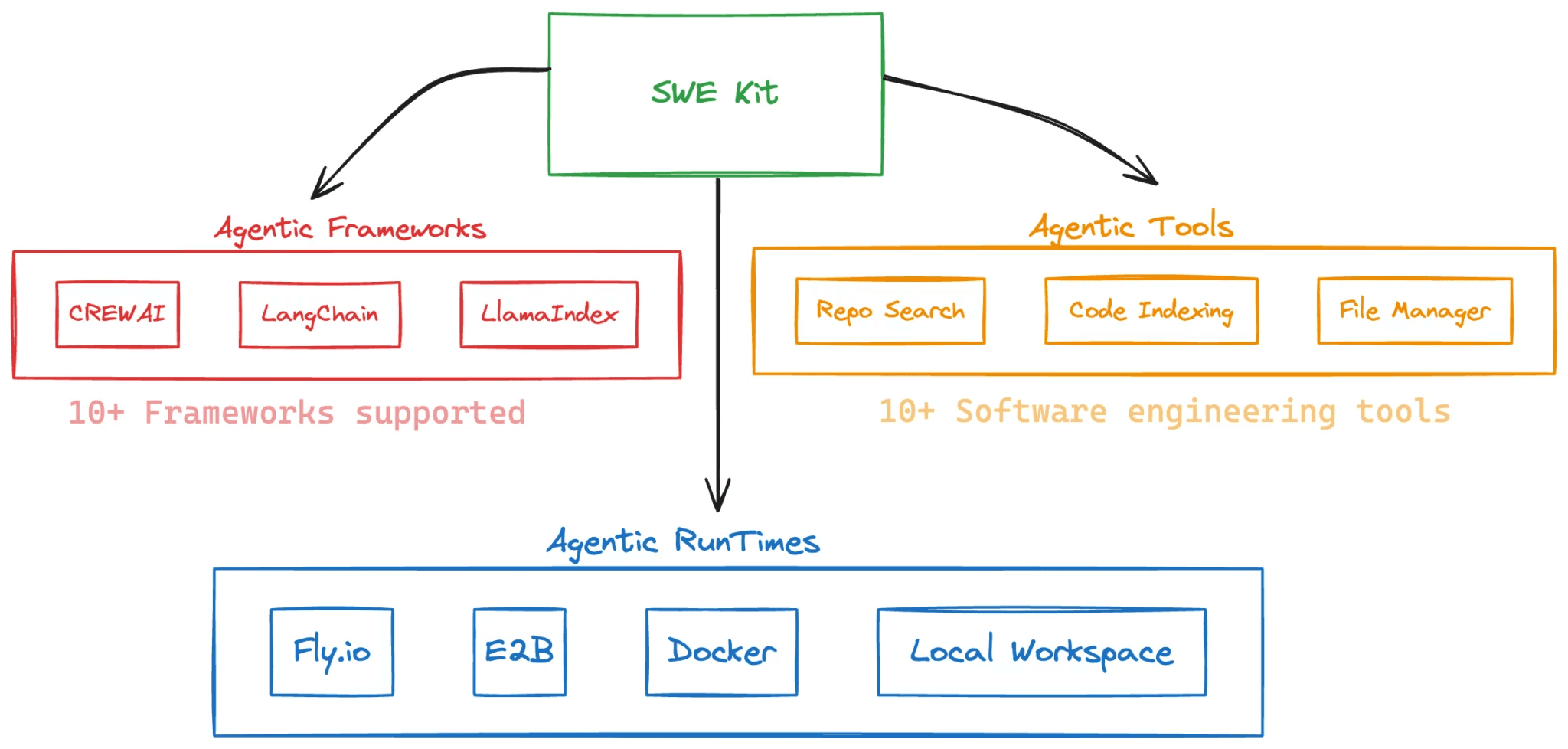
Fig: A schematic diagram of SWE agents built with Composio
Prerequisites for Building SWE Agent
These are requisites for completing this project.
Composio SDK and API key. To get one, create a user account with Composio and navigate to the Settings tab on the dashboard.
OpenAI SDK and API key.
Docker for code sandboxing.
Let’s Get Started
Installing Dependencies
Begin by installing dependencies using your favourite package manager. The recommended method is pnpm, but you can also use npm or yarn.
pnpm install -g composio-core
Defining Environment Variables
You will need a GITHUB_ACCESS_TOKEN, OPENAI_API_KEY, COMPOSIO_API_KEY, GITHUB_USERNAME, and GITHUB_USER_EMAIL to complete the project.
So, create a .env file and add the above variables.
GITHUB_ACCESS_TOKEN="your access token"
OPENAI_API_KEY="openai_key"
COMPOSIO_API_KEY="composio-api-key"
GITHUB_USER_NAME="GitHub username"
GITHUB_USER_EMAIL="GitHub user email"
Project Structure
The project is organized as follows:
src
├── agents
│   └── swe.ts
├── app.ts
├── prompts.ts
└── utils.ts
Here’s a brief description of the files.
agents/swe.ts: Contains the implementation of the SWE agent.
app.ts: The main entry point of the application.
prompts.ts: Defines the prompts used by the agents.
utils.ts: Utility functions used throughout the project.
To start quickly, clone this repository and install the rest of the dependencies.
swe-js cd swe-js && pnpm i " style="color:#d8dee9ff;display:none" aria-label="Copy">
git clone <https://github.com/ComposioHQ/swe-js-template.git> swe-js
cd swe-js && pnpm i
Now that you have finished with the whole set-up. Let’s code our AI agent.
Defining Prompts and Goals
We begin by defining the prompts and goals for the SWE agent. Explaining each step in detail is crucial, as these definitions significantly influence the agent's performance and execution.
So, create a prompts.ts file if you haven’t done so.
Now, define the role and goal of the agent.
export const ROLE = "Software Engineer";
export const GOAL = "Fix the coding issues given by the user, and finally generate a patch with the newly created files using `filetool_git_patch` tool";
Here, we defined the role as SWE, and the goal is to fix any coding issue and create a patch for the fix using filetool_git_patch. This is a Compsoio Action for the GitHub integration for creating patch files.
Now, define the backstory and a description of the Swe agent.
export const BACKSTORY = `You are an autonomous programmer; your task is to
solve the issue given in the task with the tools in hand. Your mentor gave you
the following tips.
  1. Please clone the github repo using the 'FILETOOL_GIT_CLONE' tool, and if it
     already exists - you can proceed with the rest of the instructions after
     going into the directory using \`cd\` shell command.
  2. PLEASE READ THE CODE AND UNDERSTAND THE FILE STRUCTURE OF THE CODEBASE
    USING GIT REPO TREE ACTION.
  3. POST THAT READ ALL THE RELEVANT READMES AND TRY TO LOOK AT THE FILES
    RELATED TO THE ISSUE.
  4. Form a thesis around the issue and the codebase. Think step by step.
    Form pseudocode in case of large problems.
  5. THEN TRY TO REPLICATE THE BUG THAT THE ISSUES DISCUSS.
     - If the issue includes code for reproducing the bug, we recommend that you
      re-implement that in your environment, and run it to make sure you can
      reproduce the bug.
     - Then start trying to fix it.
     - When you think you've fixed the bug, re-run the bug reproduction script
      to make sure that the bug has indeed been fixed.
     - If the bug reproduction script does not print anything when it is successfully
      runs, we recommend adding a print("Script completed successfully, no errors.")
      command at the end of the file so that you can be sure that the script
      indeed, it ran fine all the way through.
  6. If you run a command that doesn't work, try running a different one.
    A command that did not work once will not work the second time unless you
    modify it!
  7. If you open a file and need to get to an area around a specific line that
    is not in the first 100 lines, say line 583, don't just use the scroll_down
    command multiple times. Instead, use the goto 583 command. It's much quicker.
  8. If the bug reproduction script requires inputting/reading a specific file,
    such as buggy-input.png, and you'd like to understand how to input that file,
    conduct a search in the existing repo code to see whether someone else has
    I've already done that. Do this by running the command find_file "buggy-input.png"
    If that doesn't work, use the Linux 'find' command.
  9. Always make sure to look at the currently open file and the current working
    directory (which appears right after the currently open file). The currently
    open file might be in a different directory than the working directory! Some commands, such as 'create', open files, so they might change the
    currently open file.
  10. When editing files, it is easy to accidentally specify a wrong line number or write code with incorrect indentation. Always check the code after
    You issue an edit to ensure it reflects what you want to accomplish.
    If it didn't, issue another command to fix it.
  11. When you FINISH WORKING on the issue, USE THE 'filetool_git_patch' ACTION with the
      new files using the "new_file_paths" parameters created to create the final patch to be submitted to fix the issue. Example,
      if you add \`js/src/app.js\`, then pass \`new_file_paths\` for the action like below,
      {
        "new_file_paths": ["js/src/app.js"]
      }
`;
export const DESCRIPTION = `We're solving the following issue within our repository.
Here's the issue text:
  ISSUE: {issue}
  REPO: {repo}
Now, you're going to solve this issue on your own. When you're satisfied with all
your changes, you can submit them to the code base by simply
running the submit command. Note, however, that you cannot use any interactive
session commands (e.g. python, vim) in this environment, but you can write
scripts and run them. E.g. you can write a Python script and then run it
with \`python </path/to/script>.py\`.
If you face a "module not found error", you can install dependencies.
Example: in case the error is "pandas not found", install pandas like this \`pip install pandas\`
Respond to the human as helpfully and accurately as possible`;
In the above code block, we have carefully and clearly defined the steps the agent needs to undertake to accomplish the task. This is important to ensure the agent knows what to do when faced with common programming hurdles.
Defining Utility Functions
In this section, we will define two main functions from GitHub and getBranchNameFromIssue, which will be used to extract information regarding an issue.
import * as fs from 'fs';
import * as path from 'path';
import * as readline from 'readline';
import { ComposioToolSet } from "composio-core/lib/sdk/base.toolset";
import { nanoid } from "nanoid";
type InputType = any;
function readUserInput(
  prompt: string,
  metavar: string,
  validator: (value: string) => InputType
): InputType {
  const rl = readline.createInterface({
    input: process.stdin,
    output: process.stdout
  });
  return new Promise<InputType>((resolve, reject) => {
    rl.question(`${prompt} > `, (value) => {
      try {
        const validatedValue = validator(value);
        rl.close();
        resolve(validatedValue);
      } catch (e) {
        console.error(`Invalid value for \`${metavar}\` error parsing \`${value}\`; ${e}`);
        rl.close();
        reject(e);
      }
    });
  });
}
function createGithubIssueValidator(owner: string, name: string, toolset: ComposioToolSet) {
  return async function githubIssueValidator(value: string): Promise<string> {
    const resolvedPath = path.resolve(value);
    if (fs.existsSync(resolvedPath)) {
      return fs.readFileSync(resolvedPath, 'utf-8');
    }
    if (/^\d+$/.test(value)) {
      const responseData = await toolset.executeAction('github_issues_get', {
        owner,
        repo: name,
        issue_number: parseInt(value, 10),
      });
      return responseData.body as string;
    }
    return value;
  };
}
export async function fromGithub(toolset: ComposioToolSet): Promise<{ repo: string; issue: string }> {
  const owner = await readUserInput(
    'Enter github repository owner',
    'github repository owner',
    (value: string) => value
  );
  const name = await readUserInput(
    'Enter github repository name',
    'github repository name',
    (value: string) => value
  );
  const repo = `${owner}/${name.replace(",", "")}`;
  const issue = await readUserInput(
    'Enter the github issue ID or description or path to the file containing the description',
    'github issue',
    createGithubIssueValidator(owner, name, toolset)
  );
  return { repo, issue };
}
So, here is what is going on in the above code block.
readUserInput: This function reads the user inputs from the command line. We only need the GitHub user ID, repository name, and the issue number or description.createGithubIssueValidator: This function returns a validator for GitHub issues. It can handle input as a file path, a numeric issue ID, or a plain string description. If the input is a numeric issue ID, it fetches the issue details from GitHub using Composio’sgithub_issues_getaction.fromGitHub: This function combines these elements to gather and validate the necessary information about a GitHub repository and an issue.
Now, define the getBranchNameFromIssue to create a branch name from the issue description.
export function getBranchNameFromIssue(issue: string): string {
  return "swe/" + issue.toLowerCase().replace(/\s+/g, '-') + "-" + nanoid();
}
Defining the Swe Agent
This is the most important section, where you will define the Swe agent using the OpenAI assistants and Composio toolsets.
So, first, import the libraries and define the LLM and tools.
import { OpenAIToolSet, Workspace } from 'composio-core';
import { BACKSTORY, DESCRIPTION, GOAL } from '../prompts';
import OpenAI from 'openai';
// Initialize tool.
const llm = new OpenAI({
    apiKey: process.env.OPENAI_API_KEY,
});
const composioToolset = new OpenAIToolSet({
    workspaceConfig: Workspace.Docker({})
});
In the above code block,
We created an instance of OpenAI with the API key.
We also created an instance of
OpenAIToolSetwithworkspaceConfigset to Docker. This is to use Docker to sandbox the coding environment for the Swe agent. You can also use cloud code interpreters like E2B and FlyIo.
Now, we will define the Swe Agent.
export async function initSWEAgent(): Promise<{composioToolset: OpenAIToolSet; assistantThread: OpenAI.Beta.Thread; llm: OpenAI; tools: Array<any>}> {
    let tools = await composioToolset.getTools({
        apps: [
            "filetool",
            "fileedittool",
            "shelltool"
        ],
    });
    tools = tools.map((a) => {
        if (a.function?.description?.length || 0 > 1024) {
            a.function.description = a.function.description?.substring(0, 1024);
        }
        return a;
    });
    tools = tools.map((tool) => {
        const updateNullToEmptyArray = (obj) => {
            for (const key in obj) {
                if (obj[key] === null) {
                    obj[key] = [];
                } else if (typeof obj[key] === 'object' && !Array.isArray(obj[key])) {
                    updateNullToEmptyArray(obj[key]);
                }
            }
        };
        updateNullToEmptyArray(tool);
        return tool;
    });
    const assistantThread = await llm.beta.threads.create({
        messages: [
            {
                role: "assistant",
                content:`${BACKSTORY}\n\n${GOAL}\n\n${DESCRIPTION}`
            }
        ]
    });
    return { assistantThread, llm, tools, composioToolset };
}
Here is what is going on in the above code block.
Get Tools: Fetches tools from the Composio toolset for
filetool,file edit tool, andshelltool. As the name suggests, these will be used to access files, edit files, and use shell for executing commands.Trim Tool Descriptions: Limits tool descriptions to a maximum of 1024 characters.
Update Null Values: Replaces null values in tool configurations with empty arrays.
Create an Assistant Thread: Initiates an OpenAI assistant thread with predefined prompts.
Return Statement: Provides the initialized tools, assistant thread, OpenAI instance, and Composio toolset.
Defining the Entry-point to the Application
This is the final section, where we define the application's entry point. Therefore, load the environment variables and import the required modules.
import dotenv from "dotenv";
dotenv.config();
import { fromGithub, getBranchNameFromIssue } from './utils';
import { initSWEAgent } from './agents/swe';
import { GOAL } from './prompts';
The code block
Loads environment variables.
Imports the necessary utility functions.
Imports the Swe Agent and the agent Goal that we defined earlier.
Now, define the main function.
async function main() {
  /**Run the agent.**/
  const { assistantThread, llm, tools, composioToolset } = await initSWEAgent();
  const { repo, issue } = await fromGithub(composioToolset);
  const assistant = await llm.beta.assistants.create({
    name: "SWE agent",
    instructions: GOAL + `\nRepo is: ${repo} and your goal is to ${issue}`,
    model: "gpt-4o",
    tools: tools
  });
  await llm.beta.threads.messages.create(
    assistantThread.id,
    {
      role: "user",
      content: issue
    }
  );
  const stream = await llm.beta.threads.runs.createAndPoll(assistantThread.id, {
    assistant_id: assistant.id,
    instructions: `Repo is: ${repo} and your goal is to ${issue}`,
    tool_choice: "required"
  });
  await composioToolset.waitAndHandleAssistantToolCalls(llm as any, stream, assistantThread, "default");
  const response = await composioToolset.executeAction("filetool_git_patch", {
  });
  if (response.patch && response.patch?.length > 0) {
    console.log('=== Generated Patch ===\n' + response.patch, response);
    const branchName = getBranchNameFromIssue(issue);
    const output = await composioToolset.executeAction("SHELL_EXEC_COMMAND", {
      cmd: `cp -r ${response.current_working_directory} git_repo && cd git_repo && git config --global --add safe.directory '*' && git config --global user.name ${process.env.GITHUB_USER_NAME} && git config --global user.email ${process.env.GITHUB_USER_EMAIL} && git checkout -b ${branchName} && git commit -m 'feat: ${issue}' && git push origin ${branchName}`
    });
    // Wait for 2s
    await new Promise((resolve) => setTimeout(() => resolve(true), 2000));
    console.log("Have pushed the code changes to the repo. Let's create the PR now", output);
    await composioToolset.executeAction("GITHUB_PULLS_CREATE", {
      owner: repo.split("/")[0],
      repo: repo.split("/")[1],
      head: branchName,
      base: "master",
      title: `SWE: ${issue}`
    })
    console.log("Done! The PR has been created for this issue in " + repo);
  } else {
    console.log('No output available - no patch was generated :(');
  }
  await composioToolset.workspace.close();
}
main();
This is our complete app.ts file, which will be used to execute the agentic workflow.
So, here is what is happening in the above code.
Initialize SWE Agent: Calls
initSWEAgentto get the assistant thread, OpenAI instance, tools, and Composio toolset.Fetch Repository and Issue: Fetches repository and issue details from
fromGithub.Create Assistant: Initializes an OpenAI assistant with instructions, tools, and the language model.
Send Issue to Assistant: Sends the issue content as a message to the assistant thread.
Run Assistant and Poll: Runs the assistant and polls for tool call responses. For more information about polling responses, refer to the OpenAI SDK repository.
Execute Patch Action: Executes
filetool_git_patchto generate a patch.Handle Patch Response: If a patch is generated, log it, create a branch, commit, and push changes. Wait for 2 seconds before creating a pull request. Create a pull request on GitHub.
Close Workspace: Closes the Composio toolset workspace.
Run Main Function: Calls
main()to execute the above steps.
Now, run the application using. pnpm start.
This will prompt you to enter the GitHub user ID, repository name, and the issue ID or description of the issue you want to address.
Once completed, it will pull a Composio Docker container from the registry and start working on the issue.
Finally, the patch will be pushed to the remote repository when the workflow is completed. When you open your GitHub repository, you will see a new branch with the proposed fix for the issue. You can compare it with the main branch and create a pull request.
You can find the complete code here on GitHub.
Next Steps
The best thing about SweKit is you can extend the capabilities of the SWE agents using Composio tools and integrations. You can add Slack or Discord to your agent to notify you when the execution is completed. You can also connect Jira or Linear to automatically create and update tasks based on the agent's activities.

 Get started




