




TL;DR:
Tool
Primary AI feature
Best for
Motion
Algorithmic daily scheduling
Freelancers who need to organize their schedules
Notion AI
Doc-to-task generation
Document-heavy consulting projects
ClickUp Brain
Multi-step workflow automation
Teams centralizing multiple data sources
Asana AI
Smart workflow routing
Teams needing AI workflow automations
Taskade
Workspace generation from a brief
Fast prototyping and small teams
Reclaim
Calendar time-block protection
Focus-oriented individual contributors
Monday AI
Content and workflow automation
Teams already standardized on Monday.com's ecosystem
Wrike AI
Natural language reporting
Agencies and project-heavy teams
When you're signing up for AI project management tools, it's easy to get distracted by impressive AI features and long lists of automations. However, those features don't mean much if the platform can't reliably connect with the tools you already use every day. In the end, the best choice is usually the one that fits naturally into your existing workflow, syncs with your calendar, email, and communication apps without a manual reconnect step, and starts saving you time from your very first session instead of creating even more work.
What makes a project management tool 'AI-powered'?
In some cases, it simply means there’s a writing assistant built into your task list that can help polish updates or summarize notes. While that can be useful, it’s a different experience from a tool that can help manage your workload, whether that means adjusting your schedule or creating project briefs from meeting transcripts based on what’s happening across your team.
That difference is important because these tools are not all promising the same thing. Some are adding AI features on top of existing project management systems, while others are trying to become a layer that actively understands your work and helps make decisions for you.
A simple way to look at it is this:
A traditional task list is mainly a place to store information
A more advanced AI system works like a decision-making layer that sits on top of your existing tools. Your apps, whether that’s Linear, Notion, or Slack, don’t necessarily need to change.
The difference comes down to whether the AI can reliably understand the information inside those platforms and take useful action without creating more manual work.
How to evaluate new AI project management software
Before you commit time to a setup, run through these four requirements:
Does it connect to your actual work tools? Check whether it integrates natively with Slack, Notion, or Google Calendar, not just via a third-party bridge.
Can you get atleast one workflow running in one sitting? If you're non-technical and the setup guide asks you to type commands into a terminal or configure your own variables in code, you may want to skip it.
Does it offer a free tier or trial without a credit card? This gives you the space to try the tool and see if it works for you.
The table below compares native integration availability and setup requirements for each platform.
Best AI tools for project management
Motion
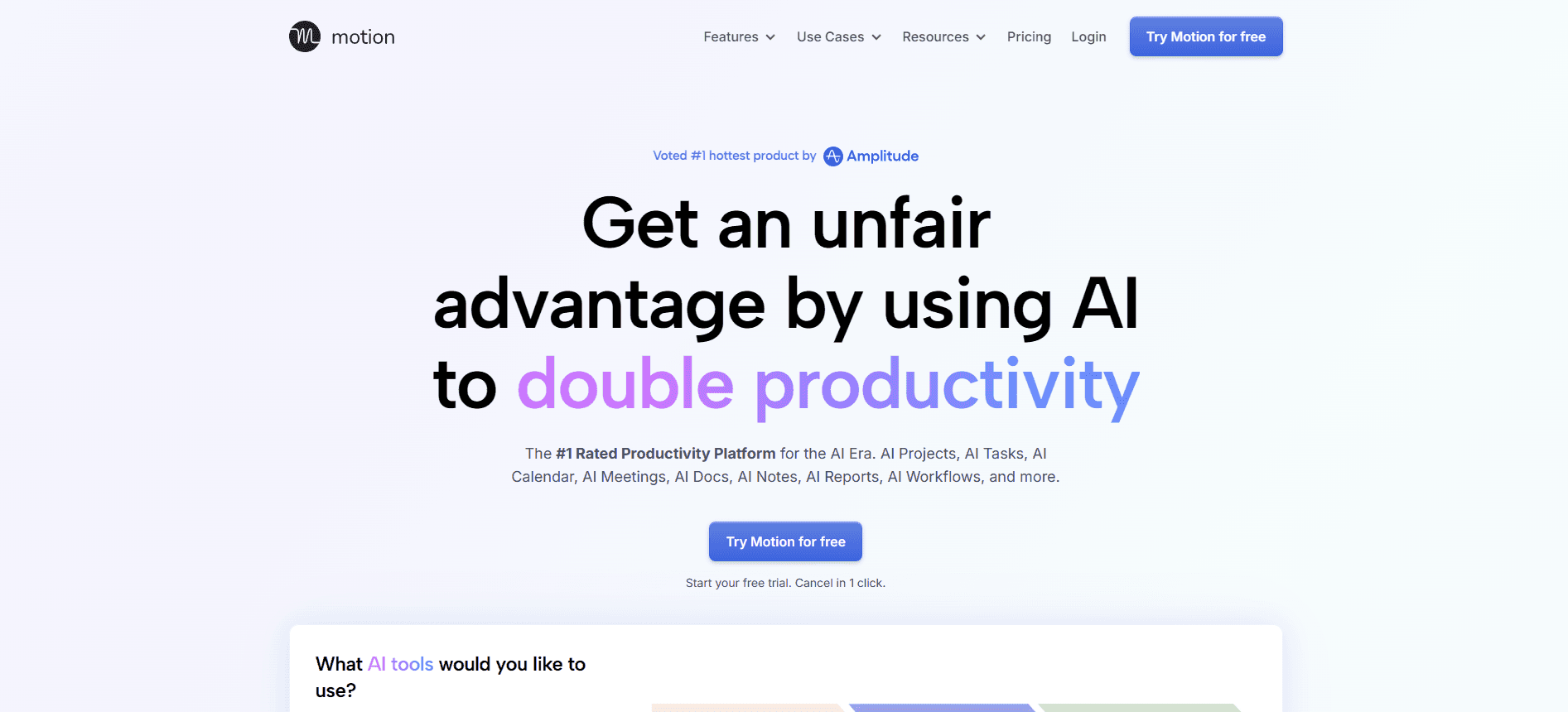
Best for: Constantly changing calendars
Pros
• The auto-scheduling genuinely helps with chaotic calendars: it's the single most-praised part of the product
• Removes manual calendar blocking entirely, which can save independent consultants several hours a week on planning alone
Cons
• Customer service is slow, and combined with the price, it's the top reason people cancel
• The auto-scheduler over-corrects: it will move a deep work block to 9pm because an unrelated meeting shifted, with little warning
• The recent push into AI "employees" has come at the expense of fixing basic, longstanding product gaps
• Only 9 native integrations; broader connectivity depends on Zapier
Pricing
• Pro AI: $19/seat/month (monthly) or ~$12.73/seat/month (annual)
• Business AI: $29/seat/month (monthly) or ~$19.43/seat/month (annual)
• Enterprise: custom, includes white-glove onboarding
My take: If your calendar is genuinely chaotic and you don't mind an AI making bold calls about your schedule, Motion's auto-scheduling is worth the $19-29/mo. But if the idea of your deep work block getting silently moved bothers you, skip it, that's the single biggest complaint about this tool. I'd only recommend it to someone who already trusts an assistant to rebuild their day without asking first, not someone who wants a scheduling co-pilot they can easily override.
Notion AI
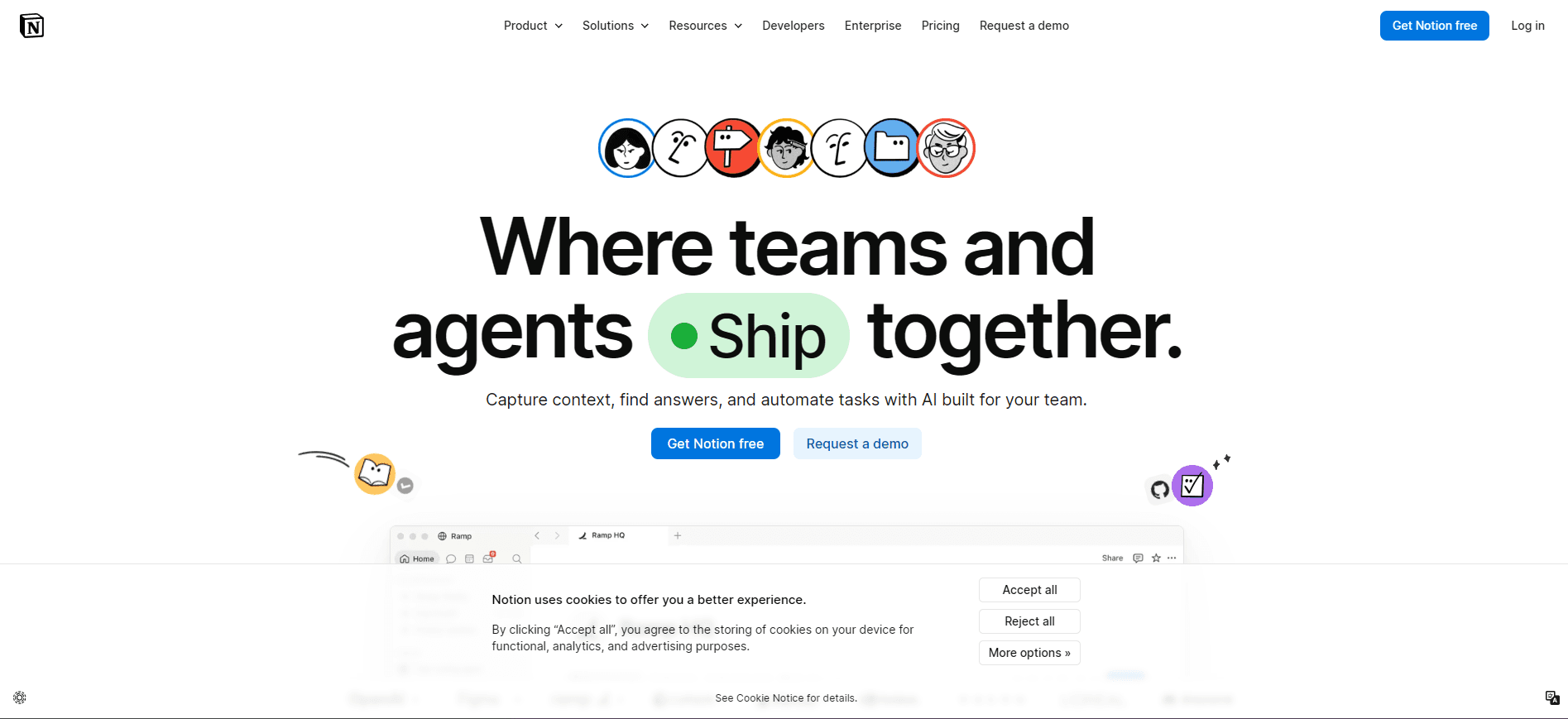
Best for: Teams who already use Notion daily
Pros
• Because it works directly against your own Notion docs and tasks, it summarizes and drafts without a copy-paste step in between
• Meeting Notes with automatic action-item extraction is the single feature people rely on most
Cons
• Full AI access sits entirely behind the $20/user/month Business plan
• Custom Agents run on a separate, non-rolling credit system that can quietly add $30+/month on top of the base plan
• Task and project features are noticeably lighter than purpose-built tools like Jira for sprint tracking or burndown charts
Pricing
• Free: $0
• Plus: $10/user/month (annual)
• Business: $20/user/month (annual)
• Enterprise: custom
• Custom Agents: $10 per 1,000 credits/month, separate from the plan price
My take: Notion AI makes the most sense if you're already living in Notion for docs and just want it to stop being dumb about your tasks. The $20/user/month Business gate is the real decision point. If your team is still on Plus, you're paying for a workspace that can't actually use its own AI yet. I'd only add Notion AI on top of an existing Notion habit, not as a reason to adopt Notion in the first place.
ClickUp Brain
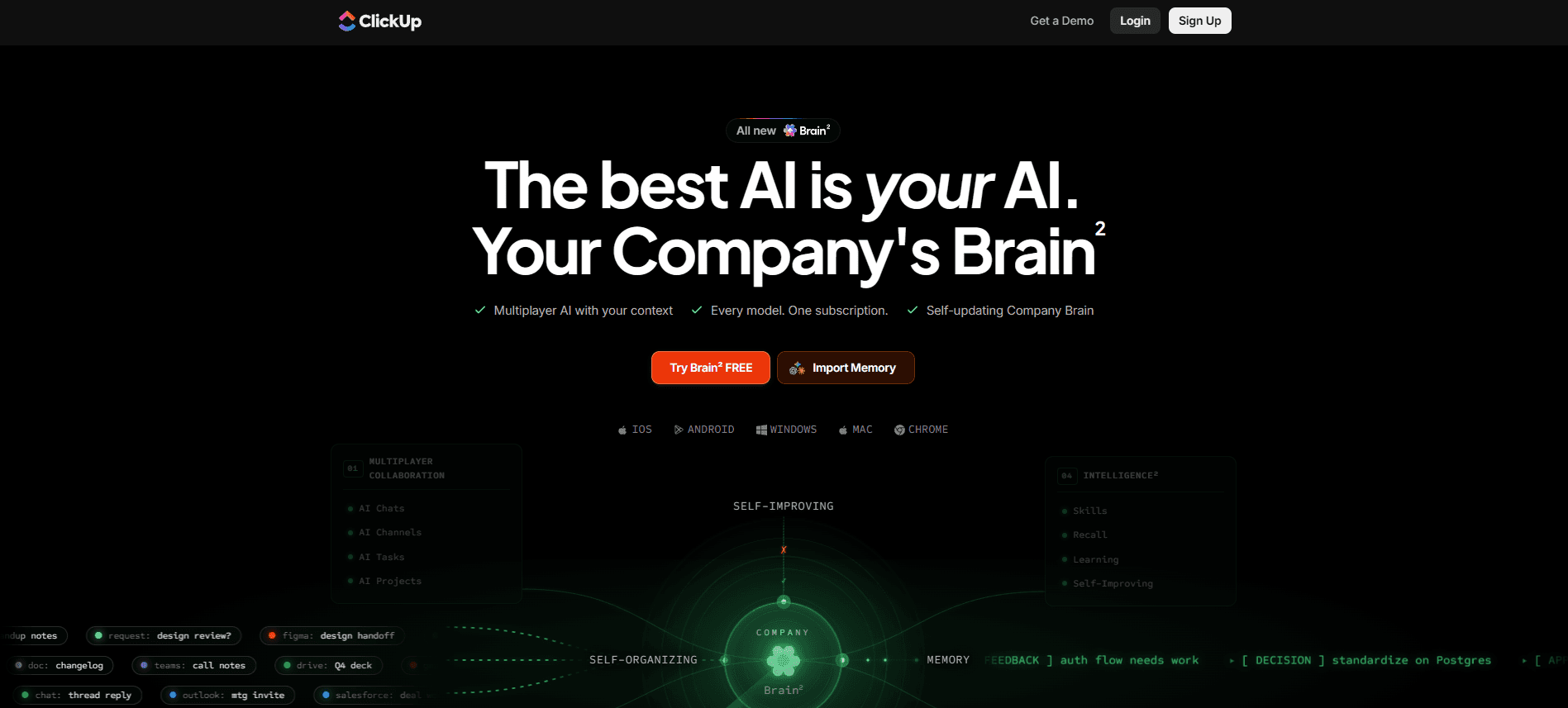
Best for: Turning messy briefs into structured tasks
Pros
• Feeds in a project brief and it generates milestones, tasks, subtasks, and dependencies in one pass: for teams buried in busywork, this alone can save hours every week
• Strong for rough drafts and getting a first pass of content moving when you're stuck
• Good at surfacing specific details buried inside long task descriptions
Cons
• Accuracy has real limits, expect roughly 1-5% error rates on complex tasks, so don't rely on it for anything client-facing without a spot check first
• Document search trails dedicated tools noticeably; it's not a real substitute for something like NotebookLM
• Pricing has climbed in steps over the past year, and the AI add-on now runs well beyond the base plan cost
• "Super Agent" tasks can burn through an entire credit allocation on a single request, and image attachments in Brain MAX are unreliable with no mobile app support
Pricing
• Base plans: Free, Unlimited $7/user/month, Business $12/user/month, Enterprise custom (all annual)
• Brain AI add-on: +$9/user/month
• Everything AI (Autopilot) add-on: +$28/user/month
• Add-ons bill every paid workspace member, not just active AI users
My take: ClickUp Brain is at its best for the boring, mechanical stuff, such as turning a messy brief into a task tree, or pulling a buried detail out of a long description. The accuracy is the thing to take seriously. So, if you're going to let Brain populate fields that feed a client-facing report, spot-check its output first. And budget for the add-on creep before you commit, because it adds up fast for a small team on top of a base plan that's already climbed more than once.
Asana AI
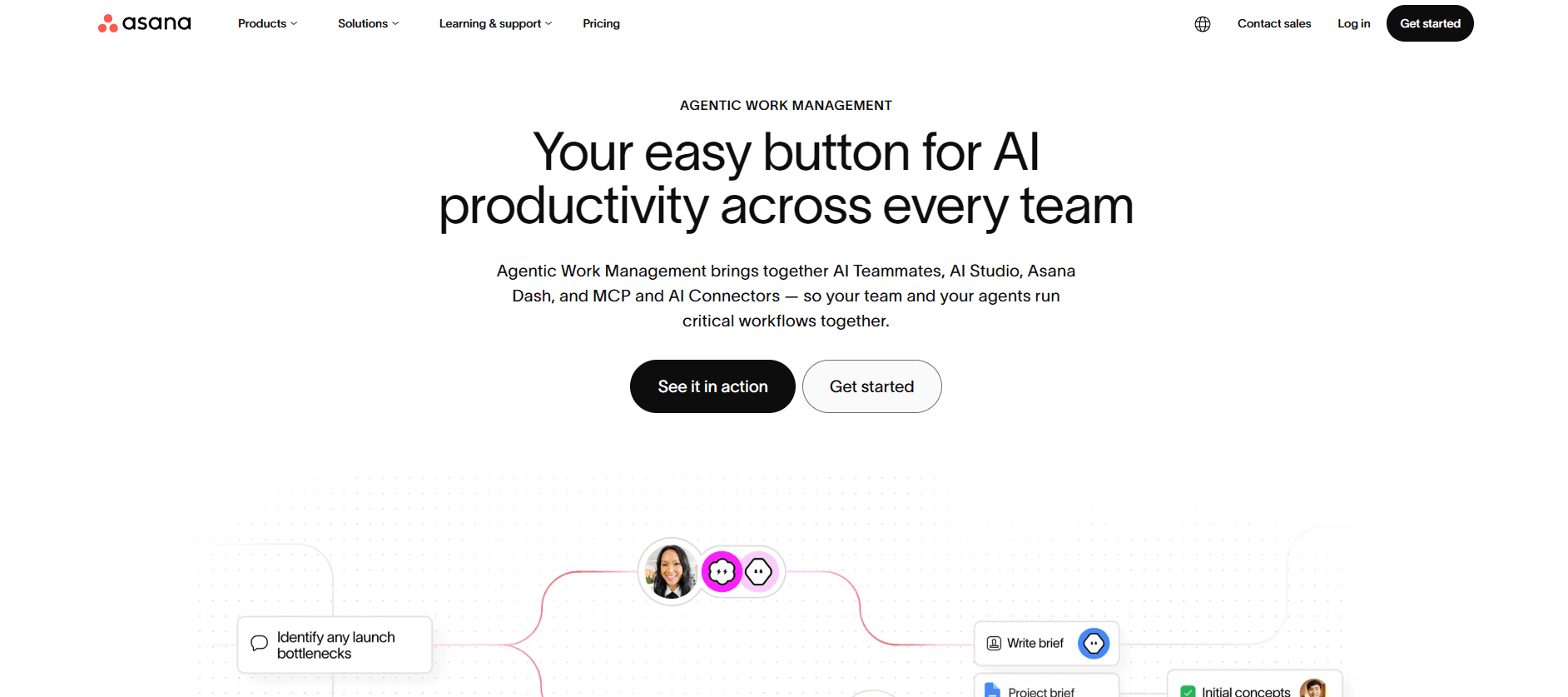
Best for: Teams that need automatic task routing
Pros
• The AI functionality is consistently the standout feature, keeping projects on track with minimal manual oversight
• AI Teammates genuinely save time on offloaded work like risk reports and multilingual searches
• "Words to Workflows" (natural-language rule creation) removes the intimidation factor for non-technical users who'd otherwise avoid the native rule builder entirely
Cons
• Pricing at scale is the recurring friction point: advanced AI Studio capability requires purchased credits stacked on top of the plan price
• Higher tiers get meaningfully more AI credit allocation. Enterprise gets 4x what Starter includes
Pricing
• Personal: Free
• Starter: $10.99/user/month (annual)
• Advanced: $24.99/user/month (annual)
• Enterprise: Custom
My take: Asana AI Studio is built for teams that already think in rules and routing, not individuals. If you're a solo consultant, the credit-gating makes this expensive for what you'd actually use. But if you're managing a team where "route this to the right person automatically" is a real recurring headache, Words to Workflows is worth testing on the Starter tier before you pay for Advanced credits you might not need yet.
Taskade
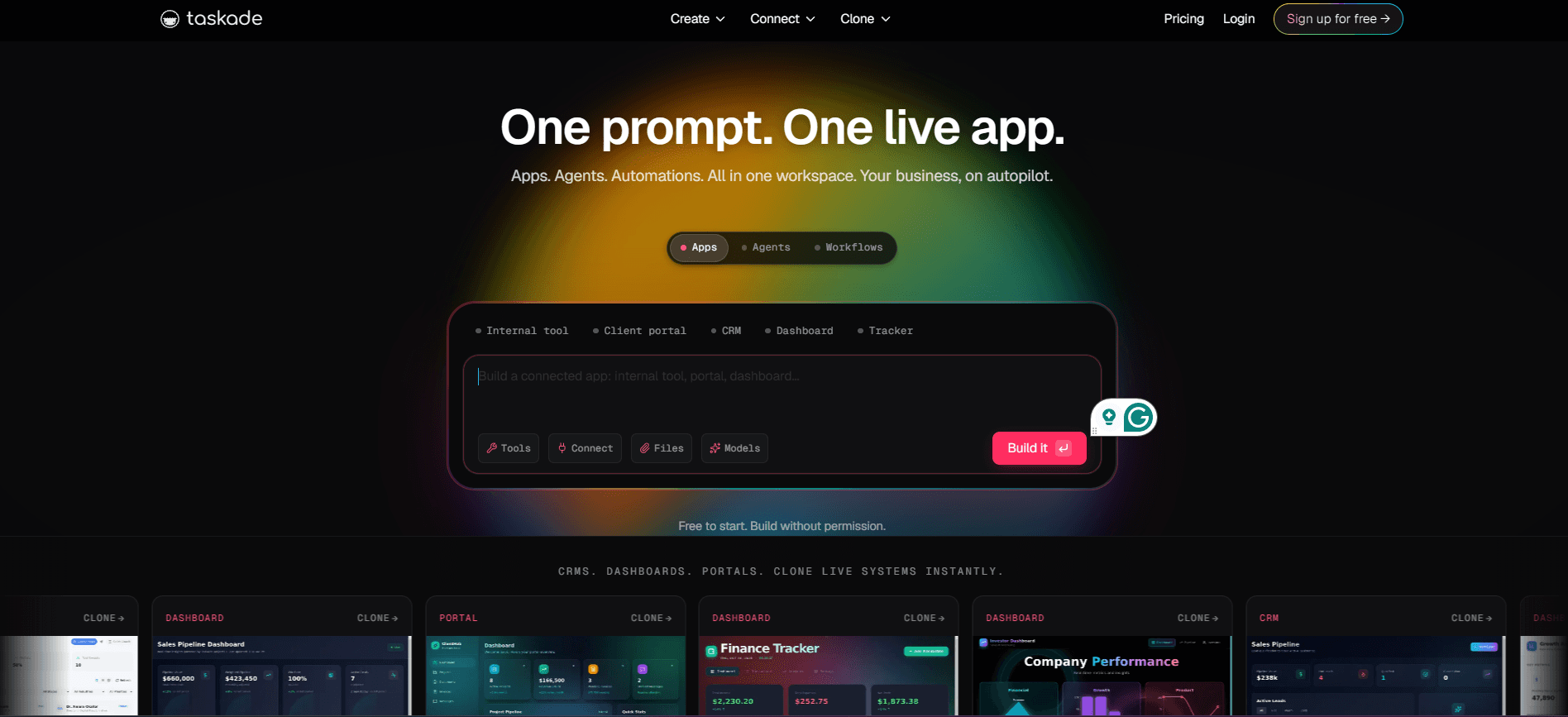
Best for: Prototyping a project idea fast
Pros
• Describing an outcome in plain language and getting a scaffolded project back is a genuinely different starting point than building from a blank template
• Genesis, its app builder, generates a working internal app from a text prompt in under a minute. Most competitors in this category don't have an equivalent
• Custom agents can run on different underlying models (Claude, GPT, Gemini) per task, without gating that capability to enterprise-only tiers
Cons
• AI credit consumption is unpredictable and can feel restrictive even on paid tiers
• The builder can stutter in-browser during heavier sessions
• The mobile experience got noticeably more complicated after the 2025 AI expansion; complex agent setup stays desktop-only
• Billing after a trial ends hasn't always come with clear notice, making it worth setting a calendar reminder before you commit
Pricing
• Free: $0
• Starter: $6/month (annual)
• Pro: $16/month (annual)
• Business: $40/month (annual)
• Max: $200/month
• Enterprise: $400/month
My take: Taskade is the one to reach for when you want to test an idea before you've committed to a heavier tool, because describing a project and getting a working structure back in seconds is a genuinely different starting point than building from a blank template. Read the fine print on your tier before you assume "unlimited agents" means unlimited usage.
Reclaim
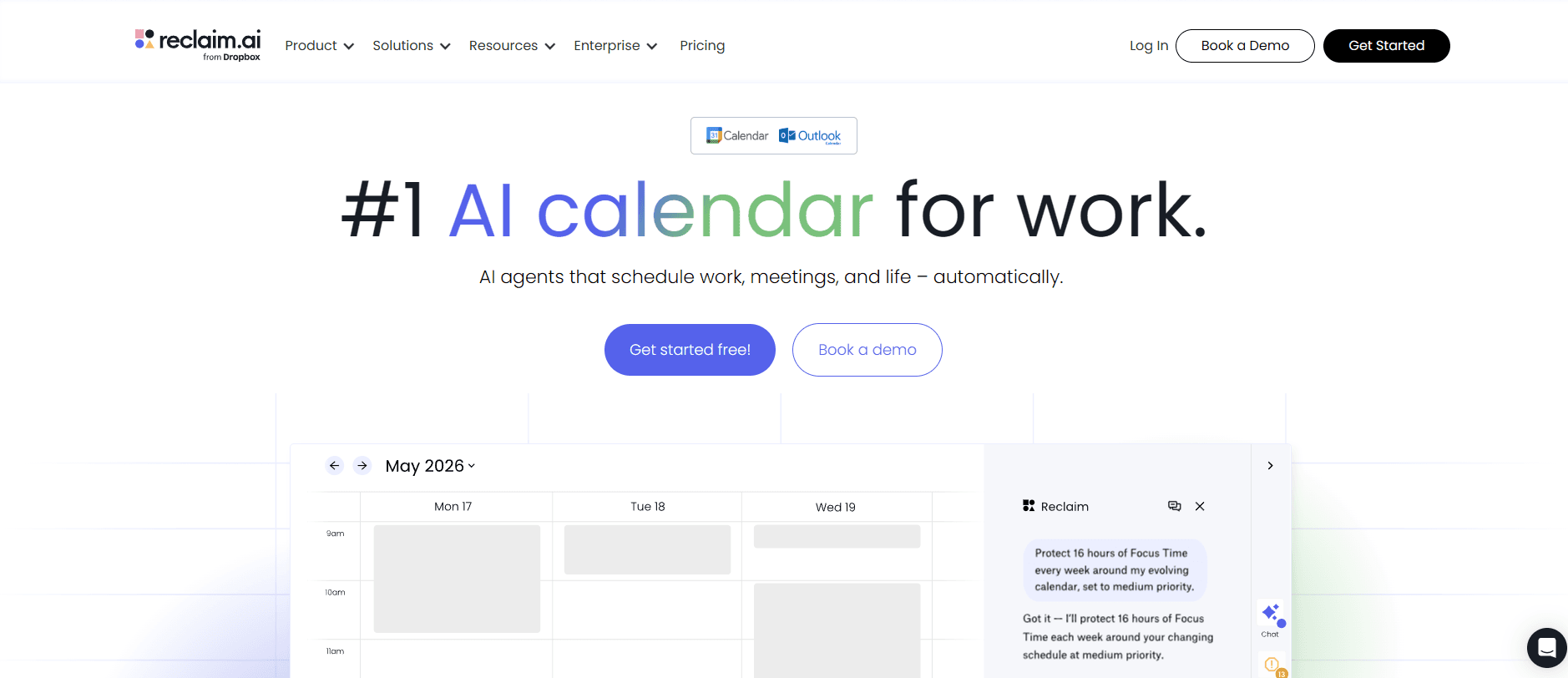
Best for: Protecting focus time without a fight
Pros
• Habit-blocking is the standout feature, flexible time blocks defend recurring routines without locking them rigidly in place
• It re-slots quietly around conflicts instead of constantly renegotiating your day, a real contrast to Motion's more aggressive rescheduling style
• The free tier is genuinely usable on its own, not just a trial funnel
Cons
• No native mobile app: this is the single most consistent complaint, and mobile access is browser/PWA only
• Outlook support only arrived around August 2025, so anything you read complaining about Google-Calendar-only support may already be outdated
• Webhooks sit behind the Business and Enterprise tiers, which limit automation and CRM integration for smaller teams
Pricing
• Lite: Free
• Starter: $10/seat/month (monthly) or $12/seat/month (annual)
• Business: $15/seat/month (monthly) or $18/seat/month (annual)
• Enterprise: $22/seat/month, annual only, sales-negotiated
My take: If Motion's aggressive rescheduling is what's putting you off this whole category, Reclaim is built around the opposite philosophy, defending your habits instead of constantly renegotiating them. The lack of a mobile app is the real trade-off. So, if you're the type who checks your calendar from your phone between meetings, that gap will bother you daily.
Monday AI
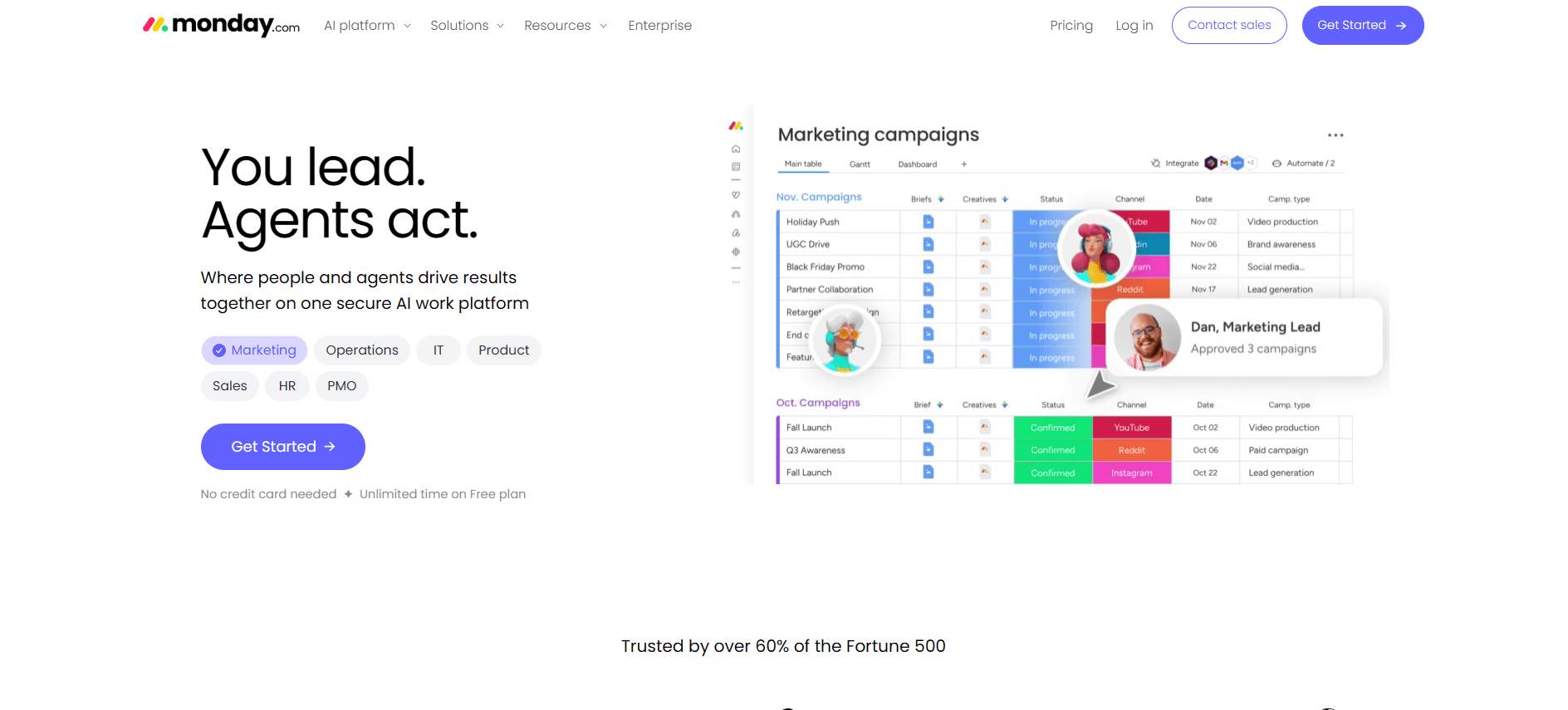
Best for: Automating repetitive data entry
Pros
• The categorization and info-extraction blocks are the highest-ROI features, auto-tagging support tickets and pulling data out of PDFs and emails reliably
• Sentiment and summary columns genuinely help with text-heavy workflows like support tickets and customer feedback
• Custom AI blocks are where the real power lives for teams with non-standard workflows
Cons
• The AI credit system has a steep step function
• The natural-language workflow builder sounds impressive but usually needs heavy manual editing before it's usable
• The AI notetaker is early-stage and still trails specialist tools like tl;dv, Fireflies, or Otter on transcript search and action items
• Custom agent-building (Agent Factory) remains in beta with rough execution and a real setup cost for uncertain payoff
My take: Monday AI is worth it for the narrow, high-frequency tasks and not yet worth it for the flashier stuff like the workflow builder or notetaker. If you're already on Monday for project tracking, turn on the AI columns and skip the newer beta agents until they've had more time to mature. The credit cliff is the number to model before you scale usage.
Pricing
• Free: up to 2 seats, no AI
• Basic: €9/seat/month (annual)
• Standard: €12/seat/month (annual)
• Pro: €19/seat/month (annual)
• Enterprise: custom, credits matched to usage
Wrike AI
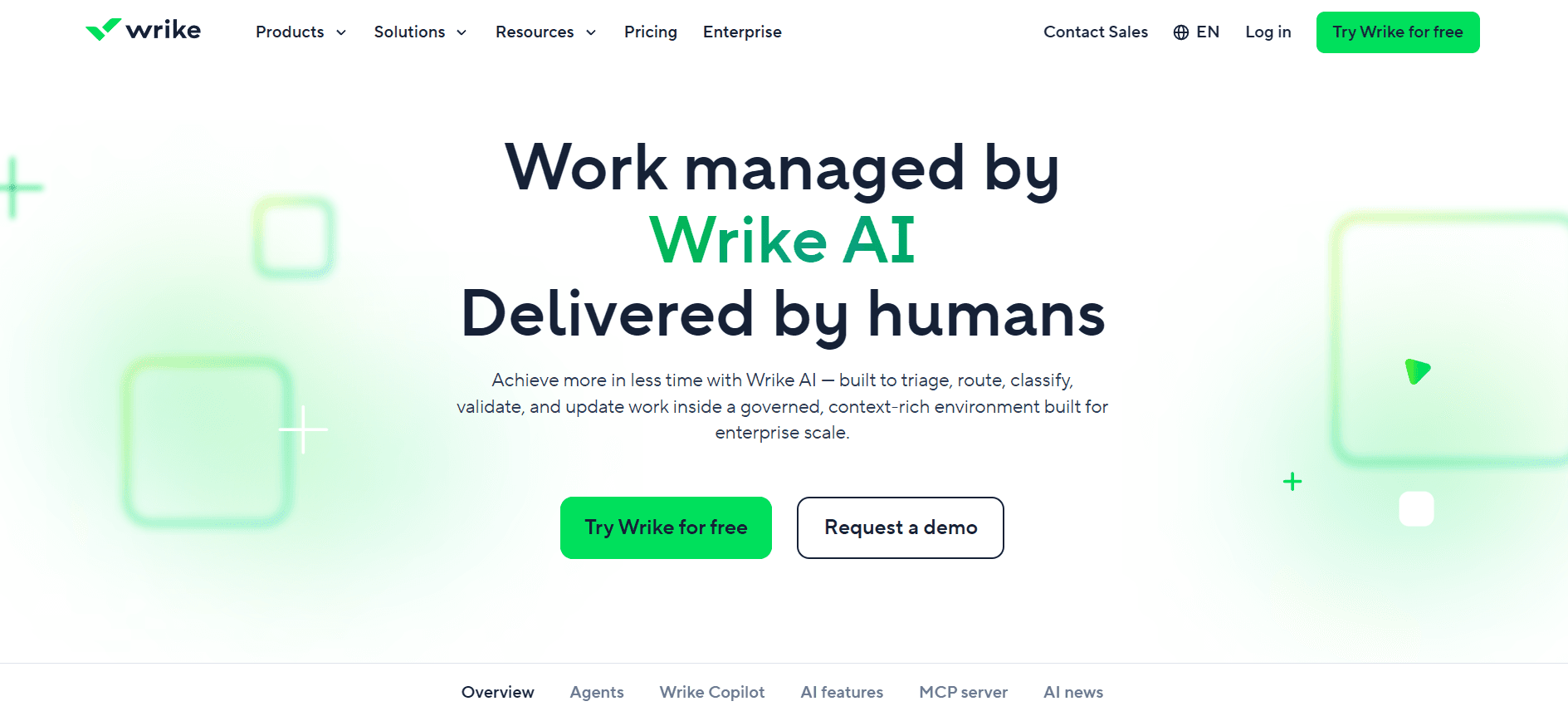
Best for: Agencies that want AI included at every tier
Pros
• Baseline AI ships free on every paid plan from the Team tier up
• The new conversational Agent Builder lets non-technical users create agents through guided chat instead of code
Cons
• AI updates are shipping faster than most users can find real value in them right now
• The AI push appears to be coming at the expense of core product maintenance, with missing updates to the regular product becoming a recurring complaint
• Meaningful AI capability is gated behind higher-cost tiers, which frustrates buyers who expected more out of the base plan
Pricing
• Free: $0
• Team: $10/seat/month
• Business: $25/seat/month
• Pinnacle: contact sales (third-party estimates: ~$40-55)
• Apex: contact sales (third-party estimates: ~$60-80)
My take: Wrike's AI is genuinely free at the Team tier, which is unusual in this list, most competitors charge extra. But the sentiment is consistent enough to take seriously: this is a company shipping AI faster than it's shipping core product fixes. If you're an agency evaluating Wrike specifically for its proofing and version control strengths, treat the AI layer as a bonus, not the reason to buy.
Connect Composio to Motion, Notion AI, ClickUp, Asana, Wrike & More
Composio connects your AI agent to project management tools such as Motion, Notion, ClickUp, Asana, and Wrike. It handles authentication, keeps connections active, and formats tool data so the agent can understand it and take actions such as creating tasks, updating projects, assigning work, and checking progress.
With Composio’s MCP server, you can connect compatible AI clients such as Claude, Cursor, or a custom MCP client to more than 1,000 applications through a single MCP URL. Authentication is handled in one flow, so you do not need to build or maintain a separate login system for each tool.
The free tier includes 20,000 tool calls per month with no credit card required. The $29-per-month plan includes 200,000 tool calls.
After trying these tools out, make sure to check for these three things
Use these four steps before you spend setup time on any new tool in this category.
Assess the setup time
Every tool in this guide claims fast setup. Test it literally: block 30 minutes, start from a fresh account, and measure how far you get before hitting a configuration step that requires documentation or a support ticket. If you cannot see a working result within that session, the tool is not optimized for your level of technical involvement.
How much time you'll save in the long-run
Set a baseline before you start. Track how many hours per week you currently spend on task updates, status reports, and calendar management. After two weeks with a new tool, run the same count. If the number has not dropped, the tool is shifting work rather than removing it. Most teams struggle to measure actual time savings and attribute productivity gains accurately.
Evaluate subscription and lock-in risks
Ask two questions before subscribing: Can you export all your data in a standard format (CSV, JSON, or markdown)? And does your AI layer depend on a proprietary runtime that breaks if you switch tools? Check whether the automations you build inside the platform are exportable or portable. If the tool shuts down or changes its pricing, you should be able to move your workflow logic without starting from scratch.
FAQs
What are the best AI project tools for solo consultants?
Motion is the strongest for scheduling-heavy workloads and Notion AI is the strongest for document-to-task workflows. If you find yourself doing the same manual update across multiple tools each week, our free tier lets you connect an AI assistant to Linear, Slack, or Notion without any technical setup, 20,000 tool calls per month, no credit card required.
Do I need to know how to code to get started with AI project management tools?
Motion, Reclaim, Asana AI, and Monday AI all offer no-code setup paths. If you need to connect any apps to those tools, Composio For You's platform requires no code to authorize your apps.
How do I troubleshoot failed AI tool syncs?
Failed syncs are almost always caused by expired OAuth tokens, scope mismatches after a user re-consents, or a provider changing its authentication behavior. Composio prevents this because our managed token refresh layer coordinates refresh cycles across concurrent tool calls.
Is Composio free?
Yes. We provide a free tier with 20,000 tool calls per month and no credit card required. Our $29 per month tier increases that to 200,000 tool calls with email support, and our $229 per month tier covers 2,000,000 tool calls with Slack support for high-volume workflows.
Key terms
OAuth: An authorization protocol that lets your AI agent access tools like Linear or Slack on your behalf without exposing your password. Tokens expire (typically after 60 minutes) and must be refreshed automatically to avoid breaking the connection mid-task.
MCP (Model Context Protocol): Think of MCP as a universal connector for AI. It is an open protocol introduced by Anthropic that lets an AI assistant plug into external tools and data sources, so it can read from and act on platforms like Notion, Slack, or Linear without a custom integration built for each one.
Token refresh: The background process that renews expired OAuth credentials so your agent can keep working without manual re-authentication. Poor token refresh handling is the most common reason integrations fail after the first session.
Webhook: A server endpoint that receives real-time notifications when something changes in an external tool (like a new Linear issue or Slack message), enabling event-driven automations without constant polling.
API (Application Programming Interface): The structured method your AI agent uses to read from and write to external tools programmatically. APIs define what actions are possible (create task, send message, update status) and what data format to use.
Agent: An AI system that can take multi-step actions on your behalf, like reading a Slack message, creating a Linear issue, and posting a status update, all without human input after the initial instruction.

 Get started



