




Enterprise teams today are expected to move faster, automate repetitive work, and handle more tasks without constantly increasing overhead.
That’s one of the main reasons AI agents are becoming popular across engineering, operations, research, support, and internal workflows. Companies are now using AI agents to debug code, manage workflows, search internal knowledge bases, automate repetitive tasks, and integrate with business tools with much less manual effort.
The number of AI agent platforms has also grown quickly. Certain tools are better for coding workflows. Others work better for enterprise search, automation, collaboration, or multi-step workflows. So, I spent time testing a range of AI agents across real workflows to see which ones actually work well for enterprise teams.
In this guide, I’ll break down some of the best AI agents for enterprise teams in 2026, where each one fits best, and the kinds of workflows they’re actually useful for.
TL;DR
Here’s a quick breakdown of the best AI agents for enterprise teams in 2026 based on the workflows they handled best during testing.
Claude Code — Repo-level coding agent that excels at long-context debugging and MCP-enabled workflows.
Devin — Autonomous engineering agent designed for longer-running, supervised implementation and debugging tasks.
Codex — Lightweight coding agent for fast iteration on smaller dev tasks and mixed reasoning.
Manus — Browser-first research agent that runs multi-step web workflows and produces structured findings.
NotebookLM — Document-grounded research agent for summarizing, synthesizing, and querying uploaded sources.
Glean — Enterprise search agent that retrieves and summarizes knowledge across workplace apps.
Kore.ai — Enterprise orchestration platform for deploying governed agents across business workflows.
Goose — Open-source local agent for terminal-first coding and automation with full execution control.
Cowork — Collaborative AI workspace for async, multi-agent coordination across ongoing tasks.
LangGraph — Developer framework for building stateful, production-grade multi-agent systems.
Comparison Table
Tool | Best For | Key Strength | Biggest Limitation | Pricing |
Claude Code | Repo-level coding workflows | Excellent long-context coding and MCP workflows | Expensive on longer workflows | Free, Pro starts at \$20/month |
Devin | Autonomous engineering workflows | Strong task persistence and async execution | Still needs supervision | Free, paid plans start at \$20/month |
Codex | Lightweight coding workflows | Fast iteration speed | Weaker repo-scale context handling | Free, Plus starts at \$20/month |
Manus | Browser-based research workflows | Strong autonomous browsing | Credits get consumed quickly | Free, Pro starts at \$20/month |
NotebookLM | Research and document workflows | Excellent source grounding | Limited automation support | Free, Google One AI Premium available |
Glean | Enterprise search and knowledge retrieval | Strong cross-app enterprise search | Expensive for smaller teams | Enterprise pricing |
Kore.ai | Enterprise AI orchestration | Strong workflow orchestration | Heavy enterprise setup | Enterprise pricing |
Goose | Open-source local AI workflows | Full local execution control | Technical setup | Free and open-source |
Cowork | Collaborative AI workflows | Good async collaboration | Longer workflows can become inconsistent | Free, Pro starts at \$20/month |
LangGraph | Custom multi-agent systems | Strong orchestration control | Higher learning curve | Free and open-source |
## What are AI agents?
AI agents are software systems that can reason, plan, and take autonomous action to complete goals, with little to no human intervention at each step.
Unlike a standard chatbot that responds to a single prompt and stops, an agent can break a high-level objective into subtasks, decide which tools to use, execute actions across external systems, evaluate the results, and keep going until the job is done.
Where a generative AI model might draft a marketing email, a chain of AI agents could draft the email, schedule its delivery via a CRM, and monitor performance, all without a human in the loop.
Why AI Agents matter (a lot) for future of work?
We’re seeing a massive shift in how we think about white collar jobs. Many silicon valley companies from Meta to Coinbase are restructuring their existing workforce around AIs.
It sounds like satire, but it's not, a Meta employee created a Claude Code leaderboard for coworkers with highest token usage.
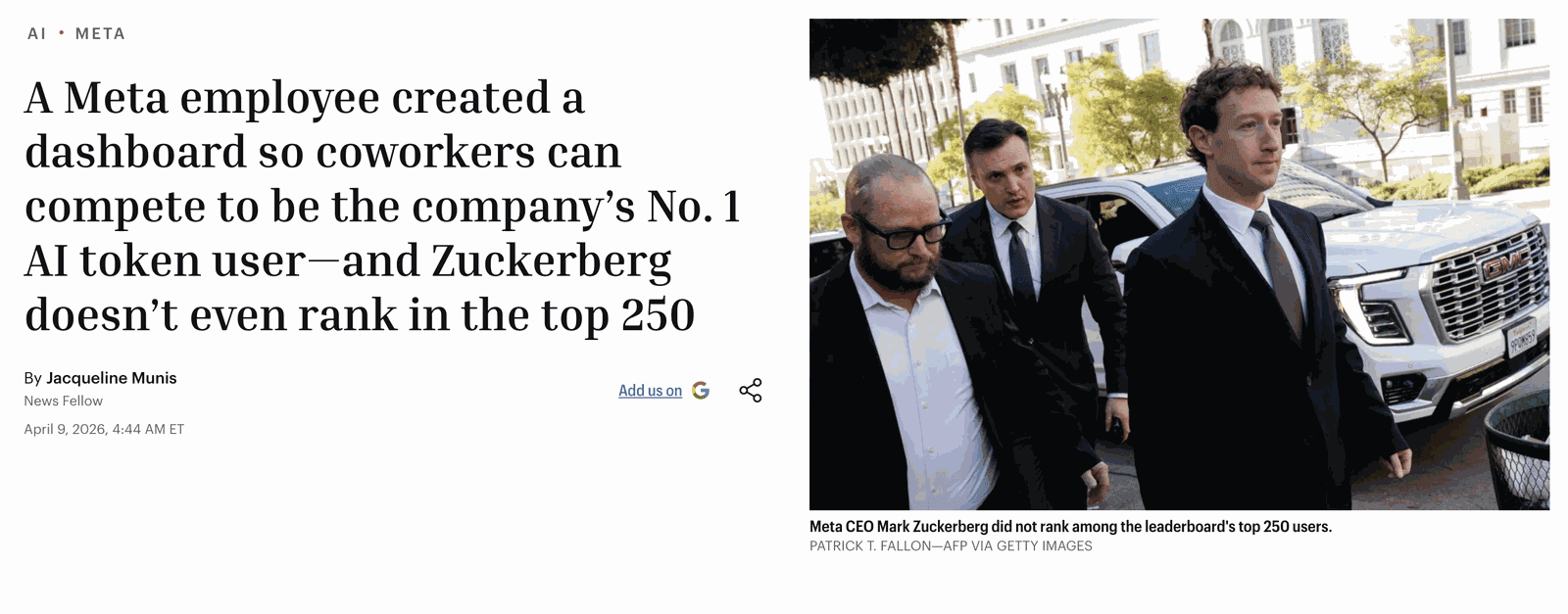
I’ve been to a bunch of hackathons and Claude Code and Codex are now norm. College kids, Juniors, Seniors, even leads, almost everyone is coding with coding agents.
Software engineers are the canary of the coal mine, what is happening now in software is gonna be in every place in the next few years.
As per the WEF by 2030, 92 million jobs will be displaced by agents and a 170 million new jobs will be created. Almost 41% of employers are planning to reduce head counts in favour of autonomous AI agents. The survey was conducted over 1000 employers representing more than 14 million white collar workers worldwide.
AI agents in workforce are inevitable but they come with caveats.
Agent security and governance
Even the most powerful AI agents become limited if they cannot interact with the tools and systems your team already uses. Most enterprise workflows rely heavily on platforms like GitHub, Slack, Notion, Jira, Gmail, databases, CRMs, and internal APIs. Getting AI agents to securely connect with all these systems is usually one of the hardest parts of building production-ready workflows.
But it doesn't stop just at connecting agent A to system B. Org admins must have clear visibility into which teams are using what integrations, enforced through role-based access controls (RBAC), SSO, and complete audit trails for compliance — with a security layer that lets teams define exactly what an agent can and cannot do, down to the individual action level.
This is where most DIY integration approaches break down. Stitching together OAuth flows, managing token refresh cycles, handling permission scopes, and logging every action across dozens of integrations is engineering work that has nothing to do with your actual product. It's infrastructure tax.
Platforms like Composio make this much easier by acting as a unified MCP gateway — giving your agents a single, governed interface to every tool and system they need to operate. Rather than building and maintaining bespoke connectors for each platform, your agents authenticate once and interact with any connected system through a standardized protocol.
It supports 1,000+ tools and works with popular agent frameworks, which makes it useful for teams building more reliable and scalable AI workflows. Admins get granular permission controls so each agent only accesses what it's explicitly authorized to use. Every action flows through a single chokepoint, logged, timestamped, and attributable, giving your compliance team the audit trails they need and your security team full visibility across every integration.
For developers, the payoff is equally significant: instead of wrestling with a different SDK, auth flow, and error model for every platform your agents touch, you write to one protocol. The result is agents that are genuinely capable in production — powerful enough to act across your entire stack, and governed tightly enough that your security and compliance teams can actually sleep at night.
Top 10 AI Agents for Enterprise Teams
Here are some of the best AI agents and agent frameworks that enterprise teams can use for coding, automation, orchestration, workflow management, and large-scale operational tasks.
1. Claude Code
Claude Code is probably the coding tool I used the most while working on this list.
The biggest difference I noticed is how well it handles larger codebases and longer workflows. A lot of coding copilots start becoming inconsistent once projects grow beyond a few files. Claude Code handled repo-level tasks much more reliably during testing.
I used it to debug React projects, trace dependency issues, understand unfamiliar repositories, and clean up messy components. It was especially useful for navigating larger codebases where understanding relationships between files mattered more than just generating snippets.
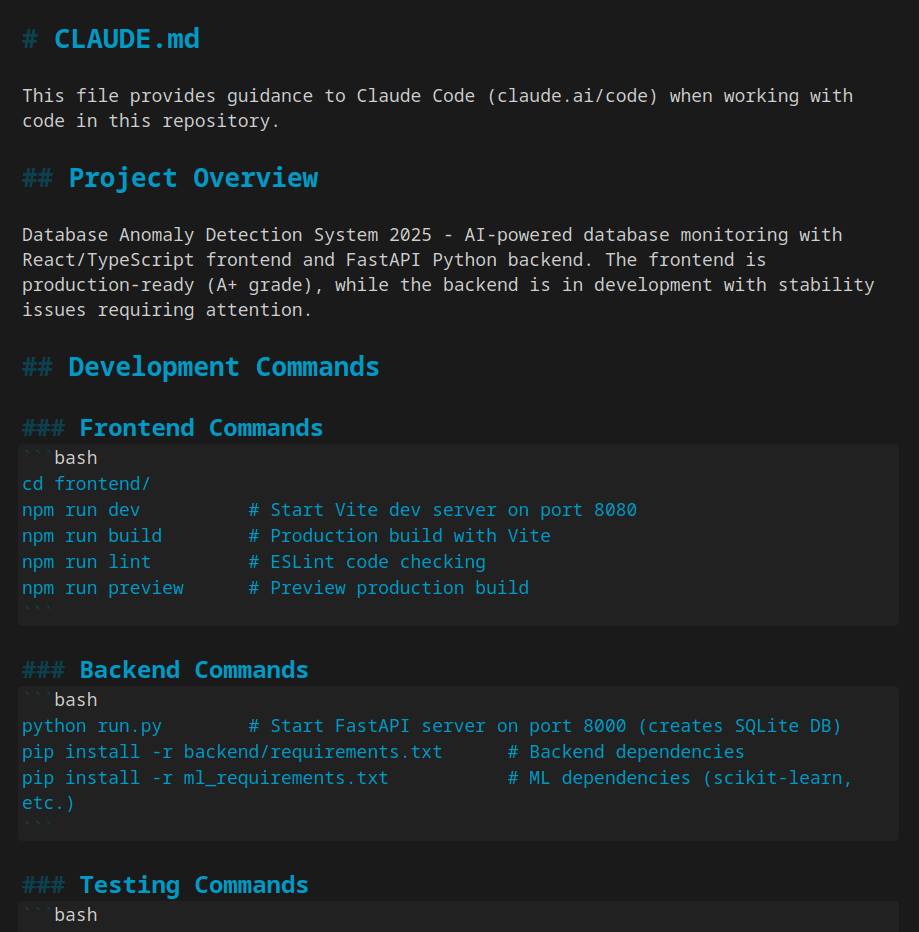
I also ended up using CLAUDE.md files regularly. They let you define project instructions, coding conventions, workflows, and architectural context that Claude remembers across sessions, which made outputs much more consistent during longer workflows.
What stood out during testing
The terminal workflow felt surprisingly natural after a while. Claude Code can inspect files, run commands, edit code, and iterate through tasks directly inside the environment you already work in. That makes the workflow feel much smoother than constantly switching between tabs and chat windows.
I also tested MCP connectors across multiple workflows. Once connected through MCP servers, Claude Code can work with external tools, documentation, databases, browsers, and internal apps directly inside the workflow.
I noticed it performs much better when given broader tasks. Asking it to investigate why a build keeps failing or to clean up an authentication flow worked much better than overly detailed prompts that try to control every step.
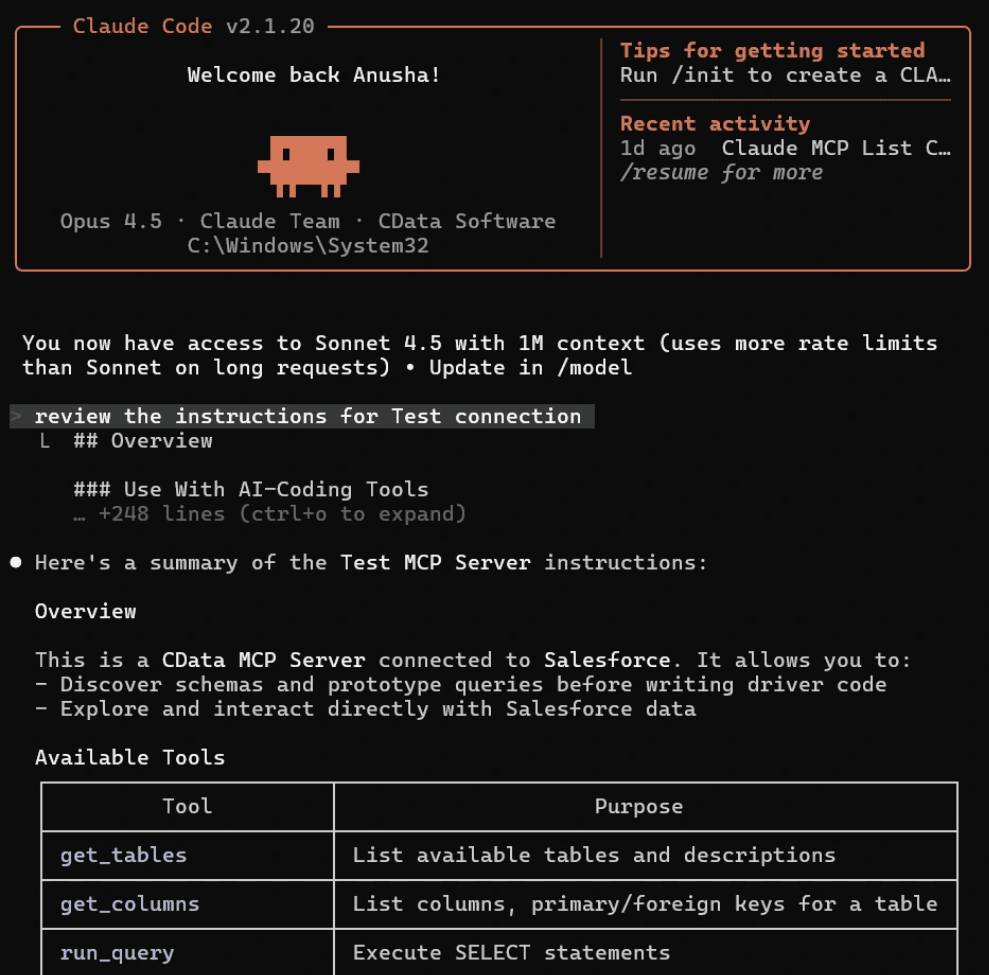
It also became very useful for repo exploration. I used it multiple times to understand unfamiliar codebases before making changes manually.
There were also situations where it overcomplicated simple fixes or pushed changes that still needed manual cleanup afterward. Long sessions can also become expensive once larger repositories and long context windows come into play.
Even with those limitations, this is one of the few coding agents I tested that actually became part of my regular workflow.
Claude Code pricing
Claude Code is included with Anthropic’s Claude plans.
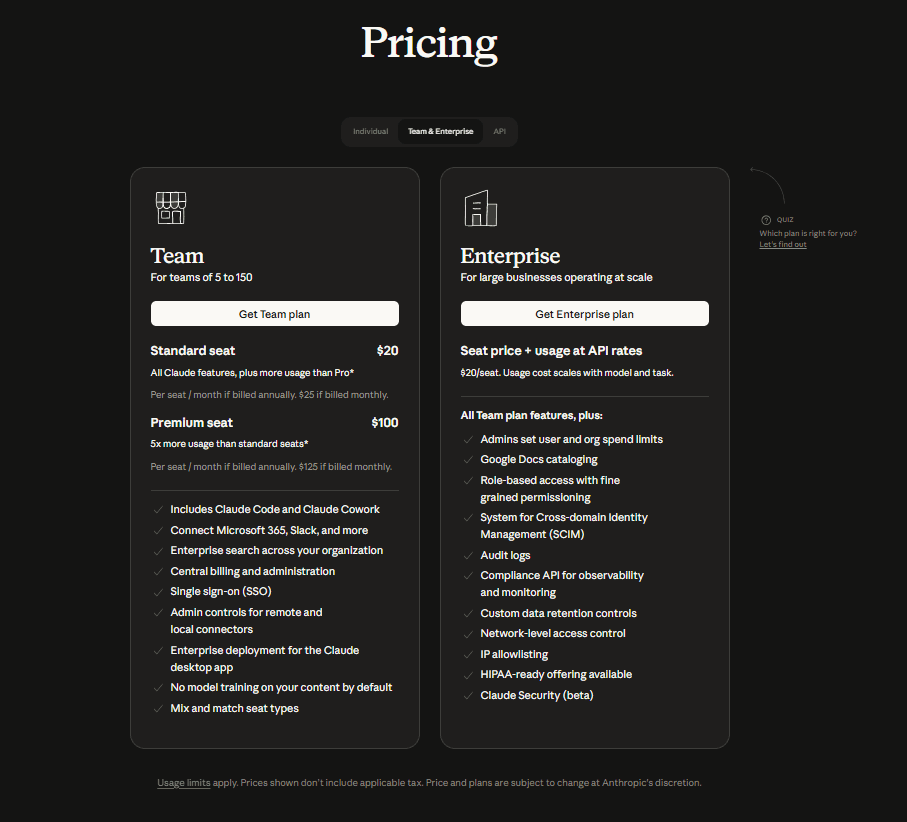
Free plan available with limited usage
Pro plan costs $17/month annually or $20/month billed monthly
Max plans start at $100/month and go up to $200/month for higher usage limits
API usage is priced separately for heavier agent workflows and MCP-based setups
One thing worth keeping in mind is that usage adds up fairly fast once workflows involve larger repositories, long-running sessions, MCP connectors, and heavier context usage.
Claude Code pros and cons
After using Claude Code across different coding workflows, these were the biggest strengths and limitations that consistently stood out.
Pros
Excellent long-context reasoning
Strong multi-file workflow handling
Very good for debugging and repo exploration
Terminal workflow feels smooth
MCP support adds powerful integrations
Cons
Can overcomplicate simple implementations sometimes
Usage limits show up for heavy users
Gets expensive with longer sessions and large repositories
2. Devin
Devin is probably the closest thing right now to the “AI software engineer” vision a lot of companies have been chasing. Unlike most coding assistants that mainly help inside a single session, Devin is designed to handle longer-running engineering tasks more independently.
You can assign it a task, let it plan steps, write code, run tests, debug issues, browse documentation, and continue iterating without constant intervention.
The biggest difference compared to most coding agents is that Devin feels much more workflow-oriented. It tries to approach tasks like an engineer working through a queue.
What stood out during testing
The planning and task persistence were probably the most interesting parts. Devin can break larger problems into smaller steps, revisit previous context, search documentation, and continue iterating across longer workflows without needing repeated instructions every few minutes.
I also noticed it performed much better on slower engineering tasks where context and persistence mattered more than raw coding speed. Things like investigating bugs, navigating unfamiliar repositories, or handling repetitive implementation work felt much more natural here.
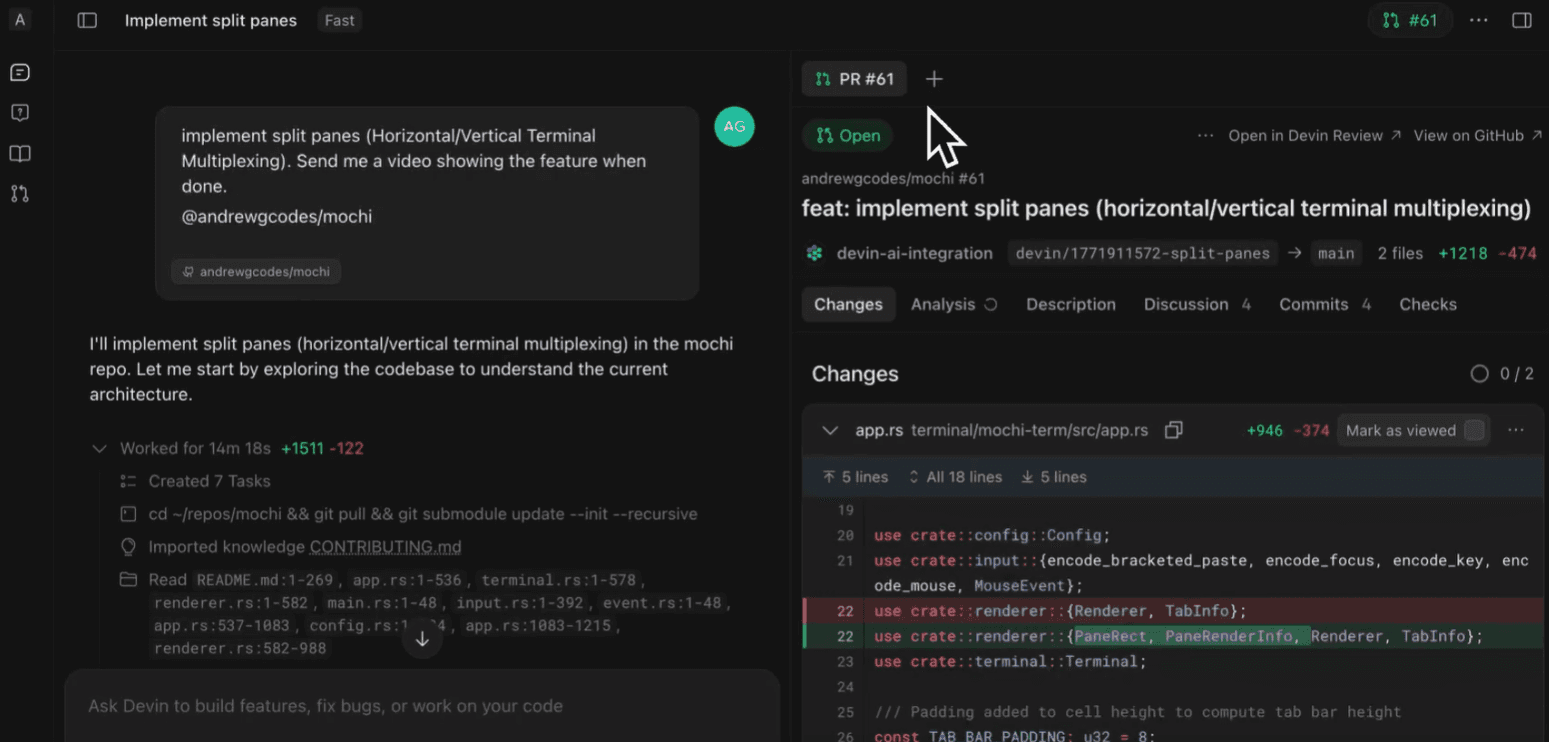
The workspace experience also felt very different from most AI coding tools. Devin keeps track of task progress, reasoning steps, terminal activity, browser sessions, and planning context inside a persistent workspace. That makes longer workflows feel much easier to follow because you can actually see how it’s approaching the task over time.
The browser + terminal combination also makes a huge difference. Devin can search documentation, inspect logs, edit files, run commands, and move across multiple environments inside the same workflow.
That said, the autonomy still feels inconsistent in certain situations.
There were workflows where Devin handled surprisingly large tasks with minimal guidance. Then there were moments where it got stuck in loops, misunderstood project structure, or spent too much time pursuing the wrong fix.
The hype around Devin also creates expectations that current agent systems still don’t fully meet yet. It’s powerful, but it still works best when treated as a supervised engineering assistant instead of a fully autonomous replacement for developers.
Who is Devin for?
Devin makes the most sense for engineering teams exploring autonomous development workflows, async implementation tasks, and longer-running coding agents.
It’s especially useful for repetitive engineering work, debugging workflows, and tasks that benefit from persistent execution across longer sessions.
Devin pricing
Devin originally launched with a much more expensive team-focused pricing model, but Cognition later introduced lower-cost self-serve plans as adoption grew.
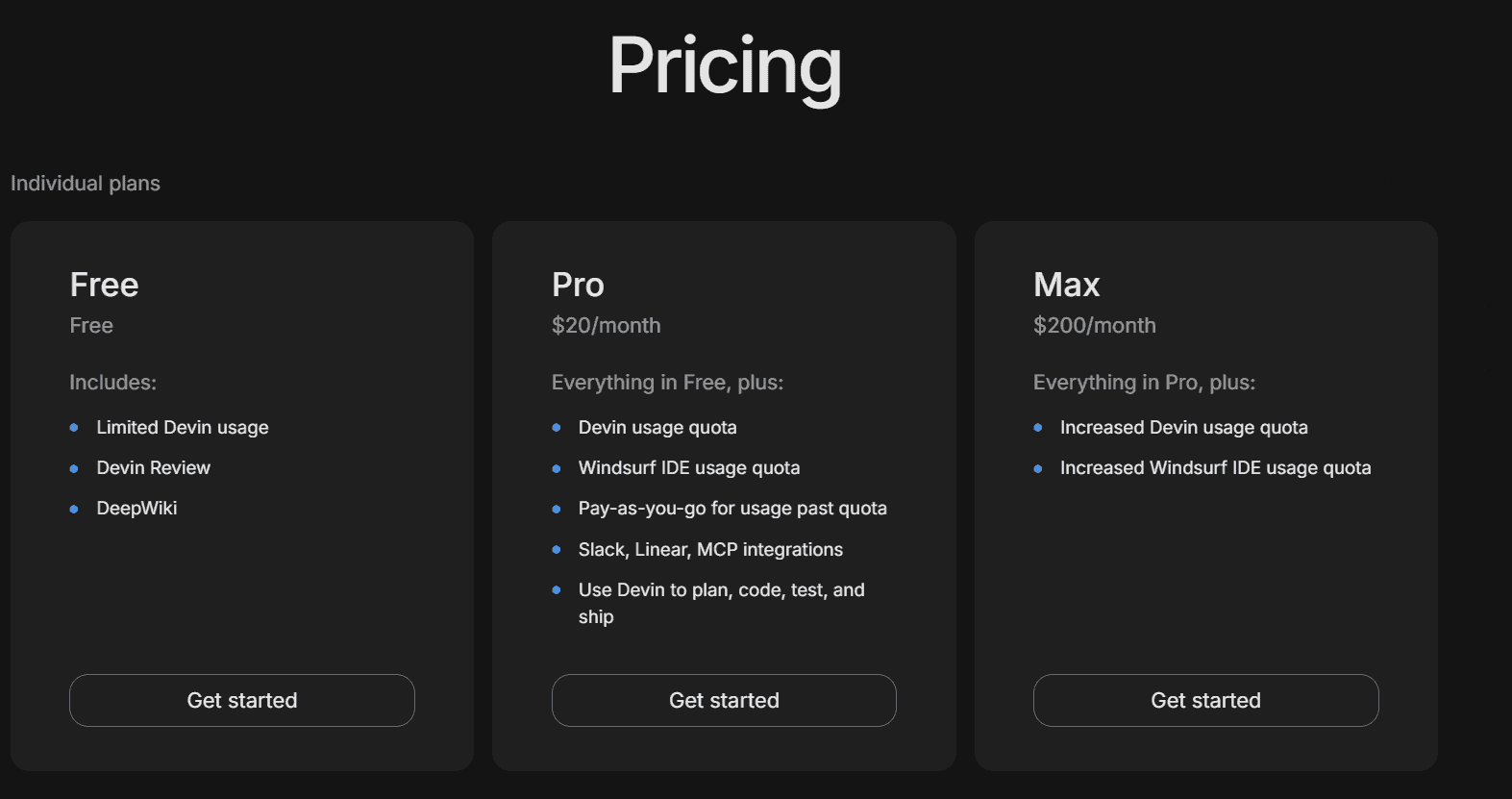
Current pricing includes:
Free plan with limited usage
Core plan starts at $20/month
Enterprise pricing is custom based on deployment and usage requirements
Devin also uses an ACU-based usage system (Agent Compute Units), so costs can increase depending on how long tasks run and how much compute the workflows consume. Longer debugging sessions, large repositories, and autonomous workflows can add up pretty fast.
Devin pros and cons
After testing Devin across different engineering workflows, these were the biggest strengths and limitations that consistently stood out.
Pros
Strong multi-step task execution
Good workflow persistence across longer sessions
Browser + terminal workflow feels powerful
Useful for repetitive engineering tasks
Handles async workflows better than most coding agents
Cons
Still needs supervision for important tasks
Expensive and enterprise-focused
3. Codex
OpenAI Codex feels much more lightweight compared to tools like Claude Code or Devin. During testing, I ended up using it more for shorter workflows, quick debugging tasks, utility scripts, and smaller development work where speed mattered more than long-running autonomous execution.
The experience also feels very familiar if you already spend a lot of time inside the OpenAI ecosystem. Moving from ChatGPT into Codex workflows feels pretty natural.
What stood out during testing
The speed was probably the biggest thing I noticed.
For smaller coding tasks, Codex felt very responsive and easy to work with. You can move through prompts, test ideas, generate snippets, and iterate without much friction.
I also liked how well it handled mixed workflows. There were many situations where I used it partly for coding and partly for reasoning through architectural ideas, debugging approaches, regex generation, SQL queries, or API explanations.
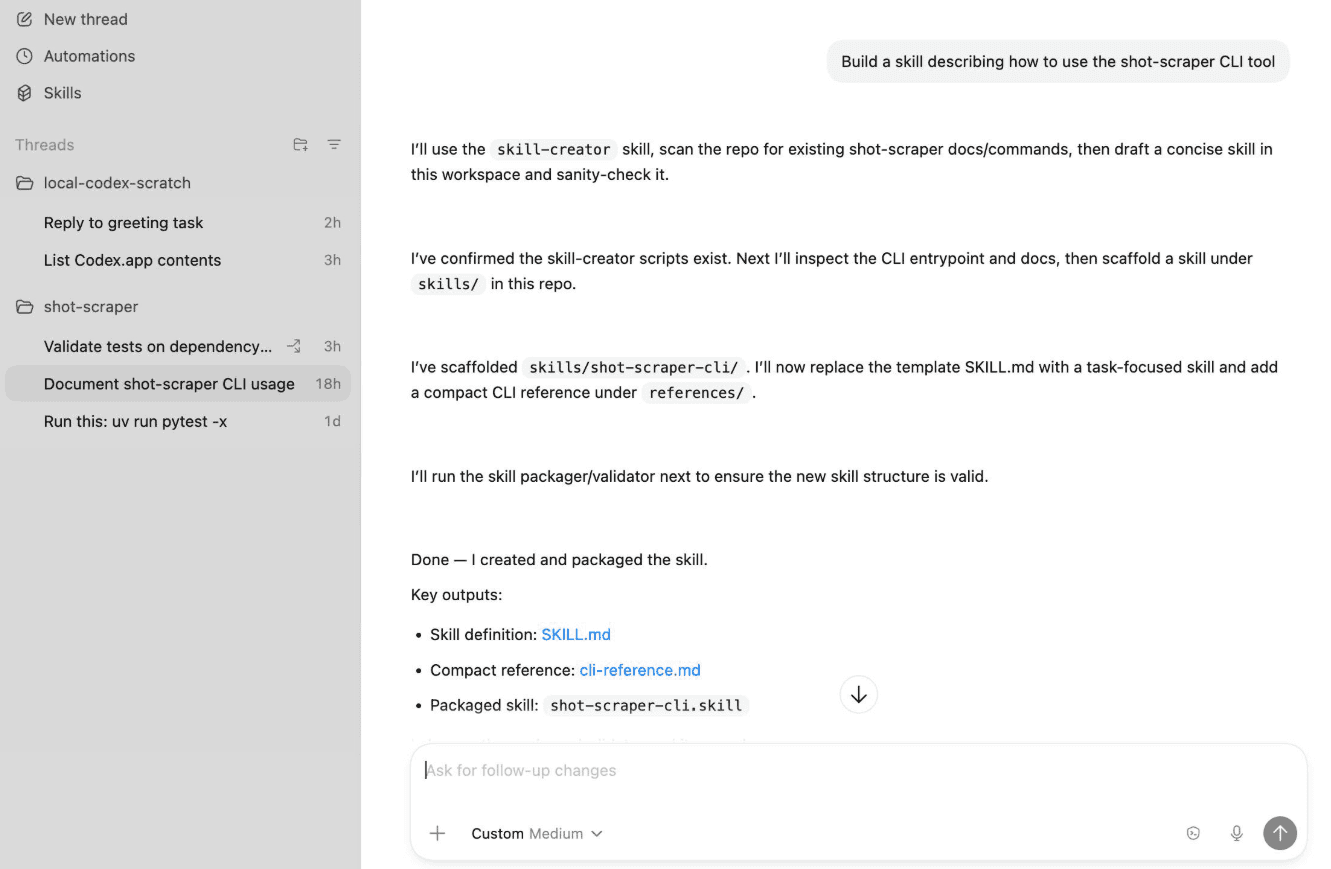
Another thing that stood out is how much better modern Codex workflows feel compared to the earlier versions people remember from a few years ago. The reasoning quality, code understanding, and multi-step handling feel much stronger now.
At the same time, it still feels less workflow-oriented than tools like Claude Code or Devin.
Once workflows became heavily multi-file, repo-scale, or context-dependent, the limitations became much more noticeable. I also found myself having to re-explain context more often during longer sessions.
Codex pricing
Codex is included across multiple ChatGPT plans, and OpenAI currently uses a mix of subscription limits and usage-based pricing depending on how heavily you use it.
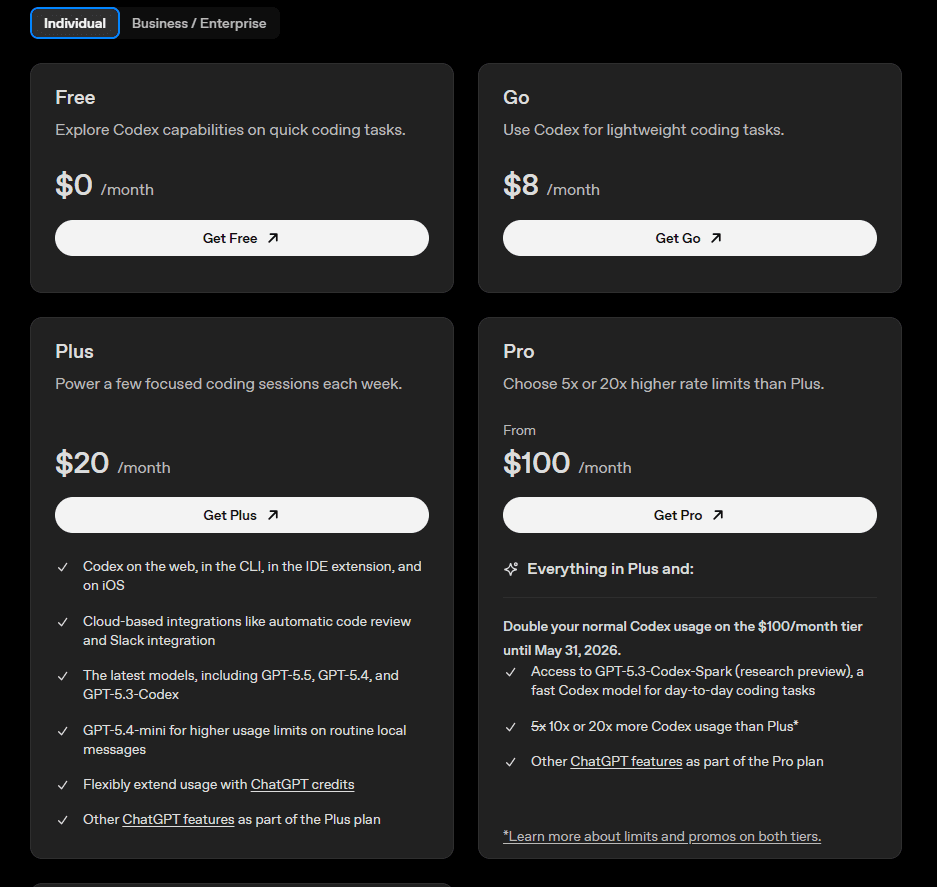
Current pricing includes:
Free plan with limited Codex access
Plus plan at $20/month
Pro plans at $100/month and $200/month with much higher usage limits
Business and Enterprise plans for team usage
API pricing available separately for heavier workflows and integrations
For API usage, pricing depends on token consumption and model usage.
One thing I noticed during testing is that costs can increase quickly once workflows become more agentic or span longer sessions.
Codex pros and cons
After testing Codex across different development workflows, these were the biggest strengths and limitations that consistently stood out. Read: Claude Code vs. Codex
Pros
Fast and responsive workflow
Good for lightweight coding tasks
Useful for mixed reasoning and coding workflows
Easy to use if you already use ChatGPT
Strong code explanation capabilities
Cons
Less effective for repo-scale workflows
Context handling weakens in longer sessions
Needs more manual steering during complex tasks
Less autonomous than tools like Claude Code or Devin
4. Manus
Manus was one of the more interesting agentic tools I tested because it feels much closer to an AI operator working across the browser than a traditional chatbot.
A lot of the workflows I used it for involved research, browsing, collecting information, comparing products, summarizing sources, and generating structured outputs. Manus handled those kinds of workflows much better than I expected.
What stood out during testing
The workspace experience is probably what made Manus feel different from most other AI agents I tested.
During longer workflows, you can actually watch Manus move through tasks step by step. It browses sources, reads repositories, opens documentation, creates notes, synthesizes findings, and tracks progress inside the same workspace.
In one of the workflows I tested, Manus was cloning GitHub repositories, analyzing research files, extracting context-engineering patterns, creating synthesis documents, and building structured findings, almost like a research assistant working through a task queue.
Task tracking also helps a lot with longer workflows. You can see what the agent is currently doing, which sources it has already explored, which files it created, and how it is reasoning through the workflow.
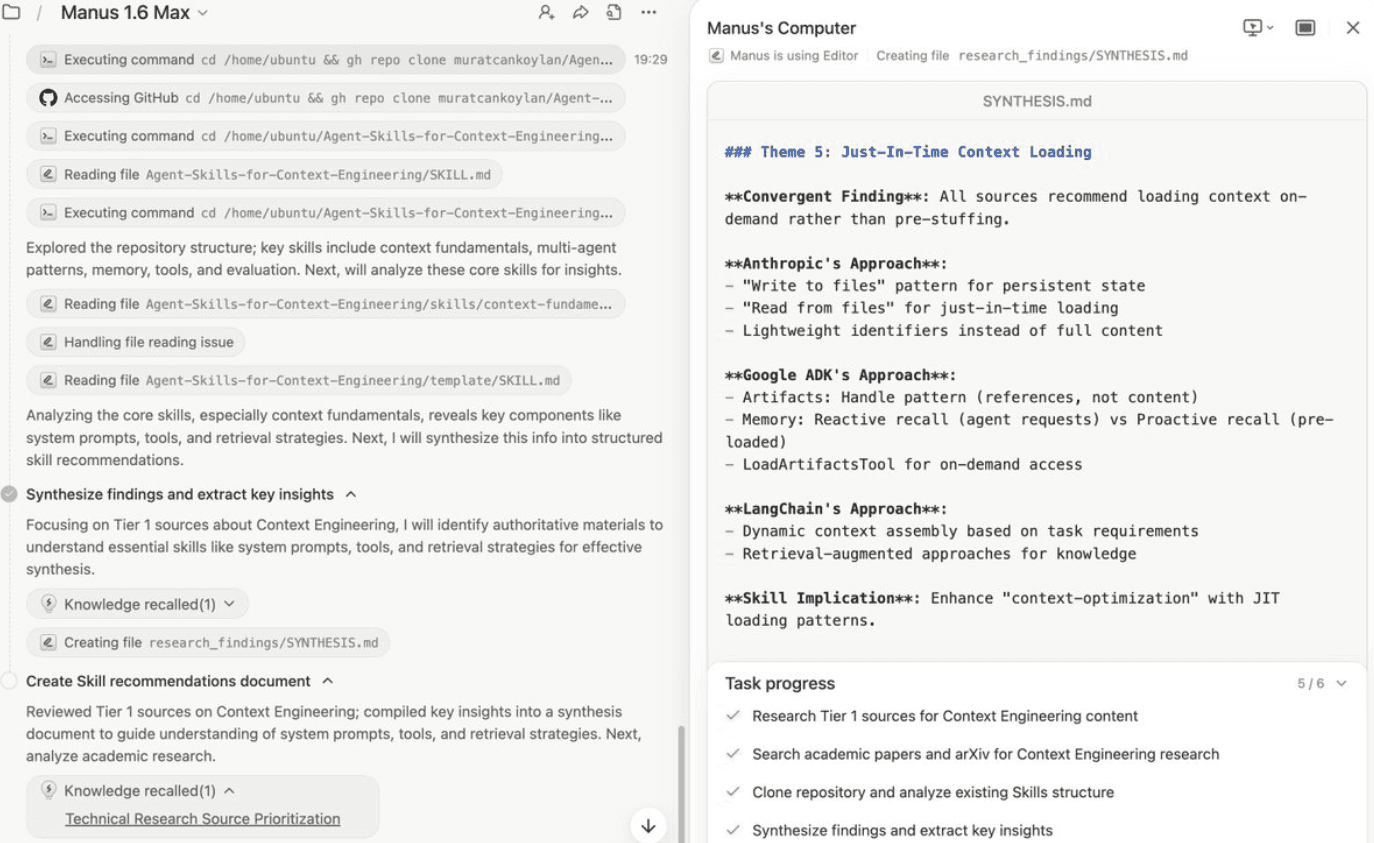
That visibility made the workflow feel much more reliable during testing, especially for research-heavy tasks involving multiple steps and sources.
The browser execution workflow also makes a noticeable difference. Manus can move across websites, documentation, repositories, terminals, and generated outputs inside the same workflow with very little manual input.
At the same time, there were still situations where browser sessions became inconsistent, pages loaded incorrectly, or the agent focused too much on less relevant information. Longer workflows can also consume credits pretty quickly, depending on how much browsing, research, and execution is involved.
Manus pricing
Manus currently uses a credit-based pricing system.
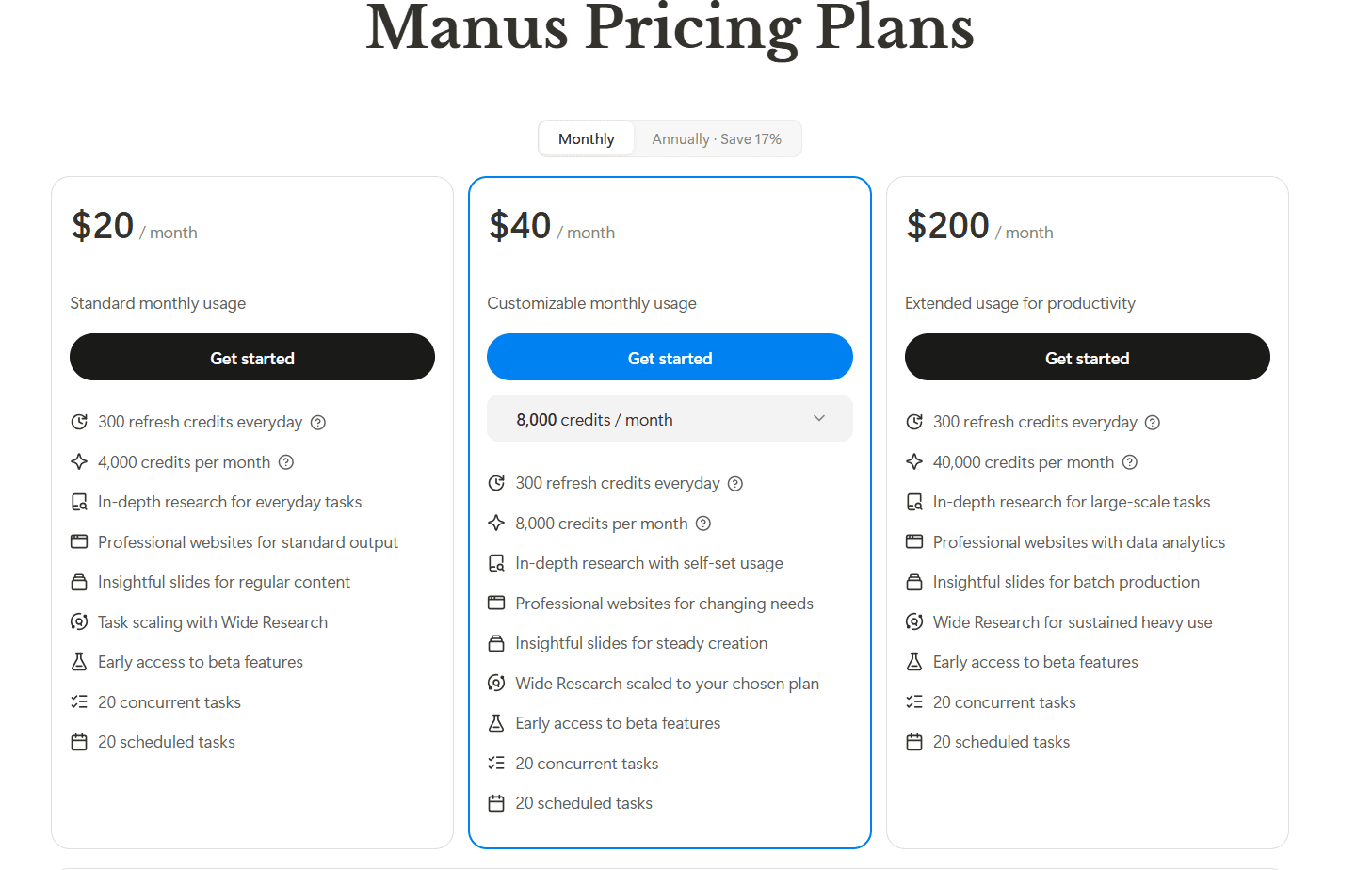
Free plan available with daily refresh credits
Pro plans start at $20/month with 4,000 monthly credits
Higher Pro tiers start at $40/month and $200/month
Team plans start around $20 per seat/month
Annual billing discounts are available
One thing worth keeping in mind is that longer workflows can consume credits surprisingly fast, especially when tasks involve heavy browsing, research, file generation, or multi-step execution.
Manus pros and cons
After testing Manus across different workflows, these were the biggest strengths and limitations that consistently stood out.
Pros
Strong browser-based task execution
Very useful for research workflows
Good report and summary generation
Handles multi-step browsing tasks well
Workspace visibility makes longer workflows easier to follow
Cons
Browser workflows can become inconsistent
Slower on longer tasks with heavy browsing
Credit usage adds up fast on larger workflows
Still needs supervision for important research tasks
5. NotebookLM
NotebookLM ended up becoming one of the most useful tools I tested for research-heavy workflows.
Unlike most AI chatbots that mainly rely on general model knowledge, NotebookLM works much better when you give it actual source material to work with. You can upload PDFs, research papers, Google Docs, websites, notes, transcripts, and other documents, then ask questions directly against that context. That changes the workflow quite a lot because the responses feel much more grounded in your actual materials.
What stood out during testing
NotebookLM became much more useful once I started treating it like a research workspace and knowledge hub.
One of the workflows I tested involved uploading technical papers around prompt caching and paged attention, then using NotebookLM to break down concepts, connect ideas, generate summaries, and build visual mind maps directly from the source material.
The source grounding makes a huge difference here. Since the responses are tied to uploaded documents, the outputs feel much more reliable for research-heavy workflows than general AI chats that rely mostly on model memory.
The mind map and studio features also proved more useful than I expected. For larger research topics, they made it much easier to organize concepts, trace relationships between ideas, and navigate dense technical material without constantly switching between documents.
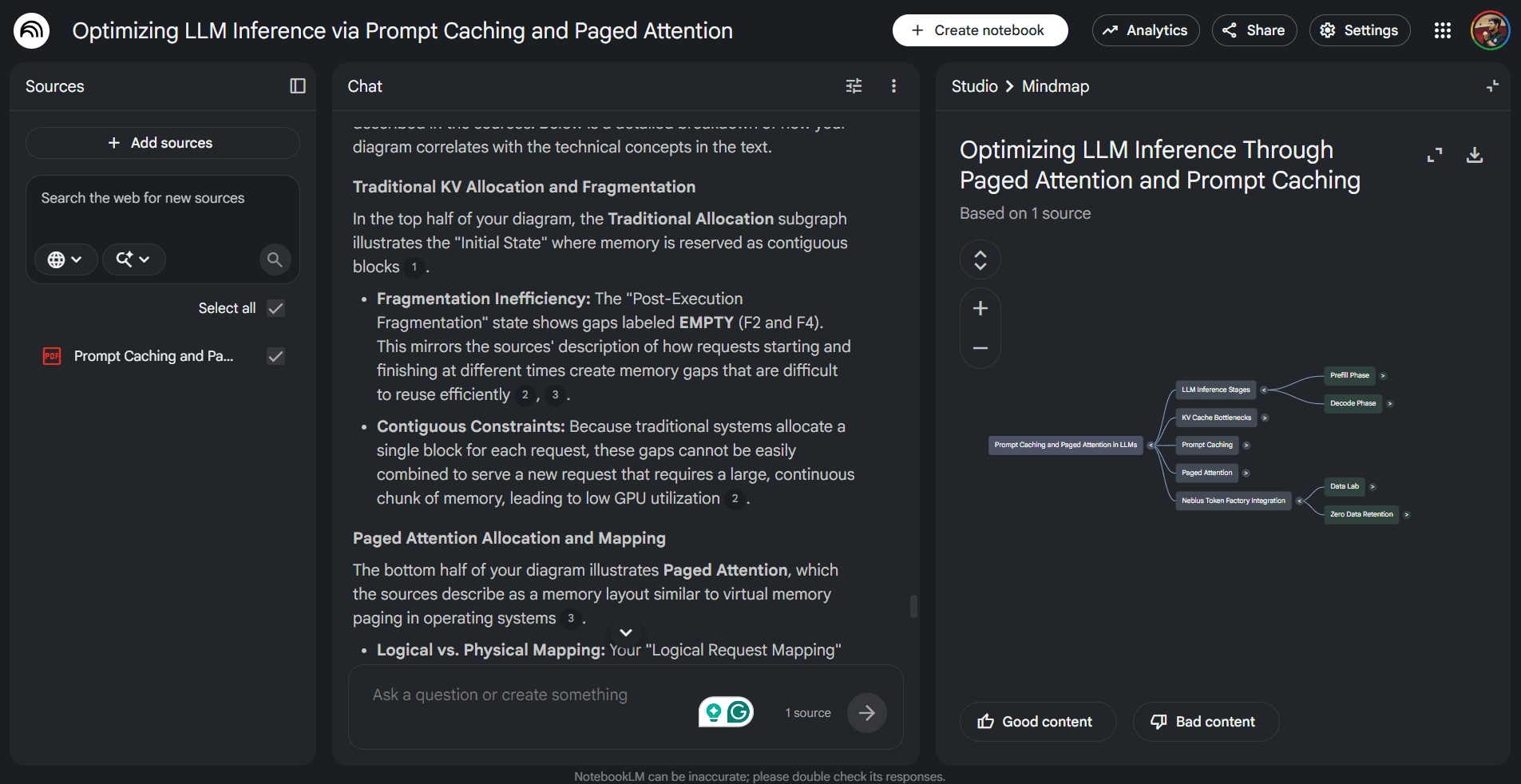
I also used it for going through transcripts, documentation, long PDFs, and article drafts. It handled large context windows very well and made summarization workflows much easier to manage.
One feature I ended up using more than expected was Audio Overviews.
NotebookLM can turn research material into podcast-style conversations between AI hosts. It sounds gimmicky initially, but it became surprisingly useful for reviewing long reports and research-heavy documents while multitasking.
It’s still much more research-focused than execution-focused, though. The workflows are centered around documents, synthesis, and understanding information. It’s less useful for automation-heavy tasks or multi-app execution workflows.
Who is NotebookLM for?
NotebookLM works best for researchers, students, analysts, writers, and teams handling large amounts of documentation or research material.
It’s especially useful for summarization, source analysis, knowledge extraction, and faster understanding of long documents.
NotebookLM pricing
NotebookLM currently offers a generous free tier through Google.
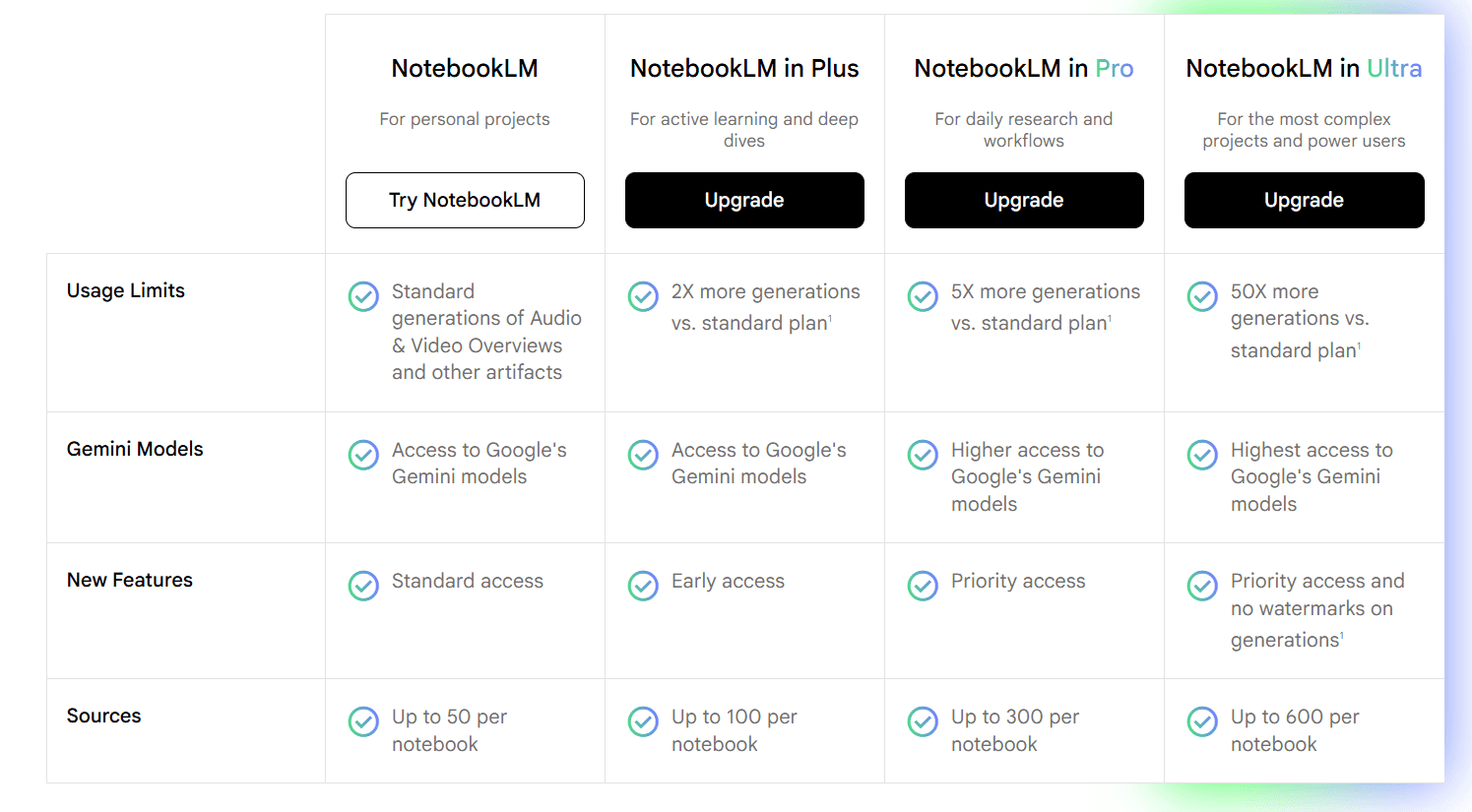
Free plan available
NotebookLM Plus is included with Google One AI Premium
Google One AI Premium starts around $20/month
Enterprise access available through Google Workspace plans
Most casual users can get a lot out of the free plan before needing to pay for limits.
NotebookLM pros and cons
After testing NotebookLM across different research workflows, these were the biggest strengths and limitations that consistently stood out.
Pros
Excellent long-document handling
Very strong source grounding and citations
Mind maps are genuinely useful for research workflows
Audio Overviews work surprisingly well
Great for summarization and synthesis
Cons
Less useful for execution-heavy workflows
Limited automation and integrations
Works best with uploaded sources
Not designed for autonomous task execution
6. Glean
Glean felt very different from most tools on this list because the focus is much more on workplace knowledge and internal information retrieval.
Many AI tools work well when the information already exists in the chat. Glean becomes useful when the knowledge is scattered across Slack, Google Drive, Jira, Notion, Confluence, GitHub, email, and dozens of other internal systems.
During testing, the biggest thing that stood out was how much time it saves when trying to locate information spread across multiple workplace tools.
What stood out during testing
The search experience was probably the biggest thing that stood out while testing Glean.
I used it across internal documentation, meeting notes, tickets, Slack conversations, product docs, and company knowledge spread across multiple connected apps. The cross-app retrieval felt much better than the traditional workplace search tools I’ve used before.
One workflow I tested involved searching for a company vision document spread across Google Drive, Confluence, Slack, GitHub, Notion, and internal discussions. Glean surfaced relevant files, related conversations, associated people, and AI-generated summaries within the same search workflow, making it much easier to navigate internal knowledge.
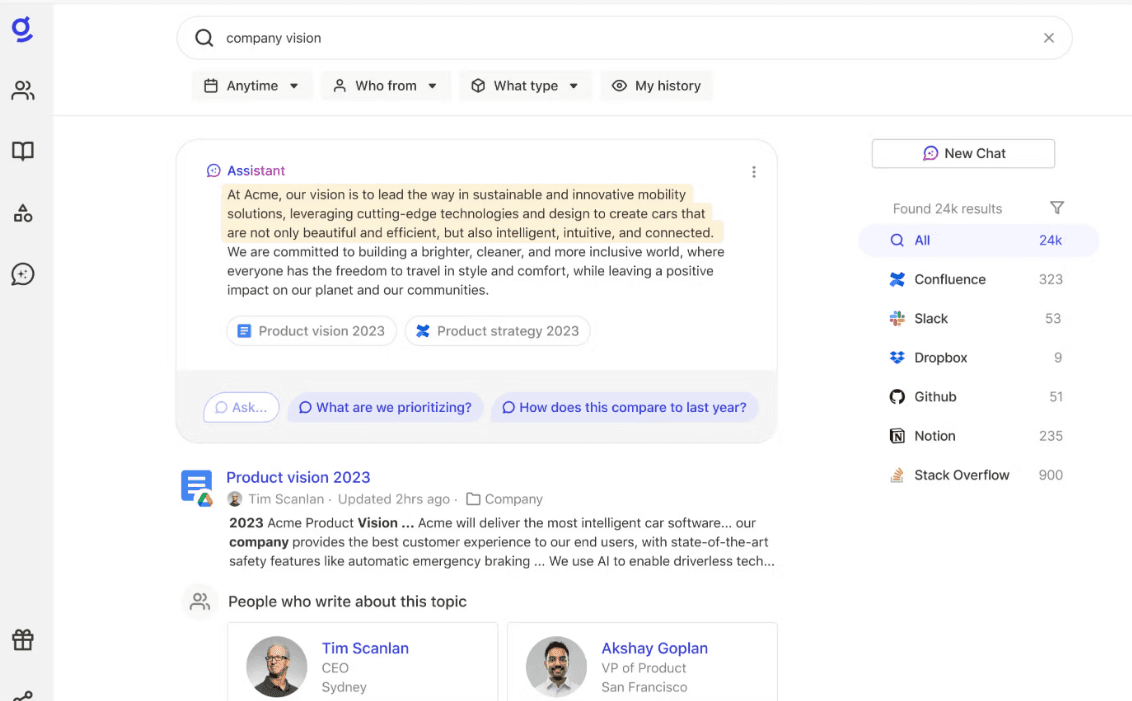
The AI assistant layer also helps a lot here. Glean can summarize information, answer questions using company context, and connect information across multiple systems without needing to manually search through dozens of tabs.
I also liked how much organizational context it retains. Permissions, roles, conversations, and document access all influence the results, making the outputs feel much more relevant within larger teams and enterprise environments.
Glean pricing
Glean mainly uses enterprise-focused custom pricing.
Pricing reportedly starts around $45–$50 per user/month
AI assistant features can increase costs further
Many deployments involve annual enterprise contracts
Pricing also depends on integrations, deployment size, and support requirements
Glean also introduced a newer flexible pricing model combining seat-based pricing with usage-based AI credits for heavier AI workflows.
For smaller teams, the pricing can feel expensive compared to simpler workplace AI tools. The platform makes much more sense once internal knowledge starts spreading across a large number of systems and employees.
Glean pros and cons
After testing Glean across different workplace workflows, these were the biggest strengths and limitations that consistently stood out.
Pros
Excellent enterprise search experience
Strong cross-app knowledge retrieval
AI summaries feel genuinely useful
Handles organizational context well
Integrations make workflows much smoother
Cons
Primarily built for enterprises
Pricing is expensive for smaller teams
Less useful for individual users
Setup value depends heavily on connected systems
7. Kore.ai
Kore.ai felt much more enterprise-focused compared to most tools on this list.
Much of the platform is built around deploying AI agents across customer support, employee workflows, IT operations, HR systems, banking, healthcare, and enterprise automation. During testing, the biggest thing that stood out was the emphasis it places on orchestration, governance, and enterprise deployment workflows.
What stood out during testing
The workflow builder was one of the more interesting parts of the platform. I tested Kore.ai with conversational automation flows that included flight search, entity extraction, validation logic, API calls, weather lookups, confirmation steps, and multi-step workflow branching.
The visual workflow system makes it much easier to understand how conversations, integrations, and backend actions connect together inside larger enterprise automations.
What stood out during testing was how much control the platform gives over workflow behavior. You can define entities, validations, branching logic, service calls, custom scripts, API integrations, and conversational flows inside the same workspace.
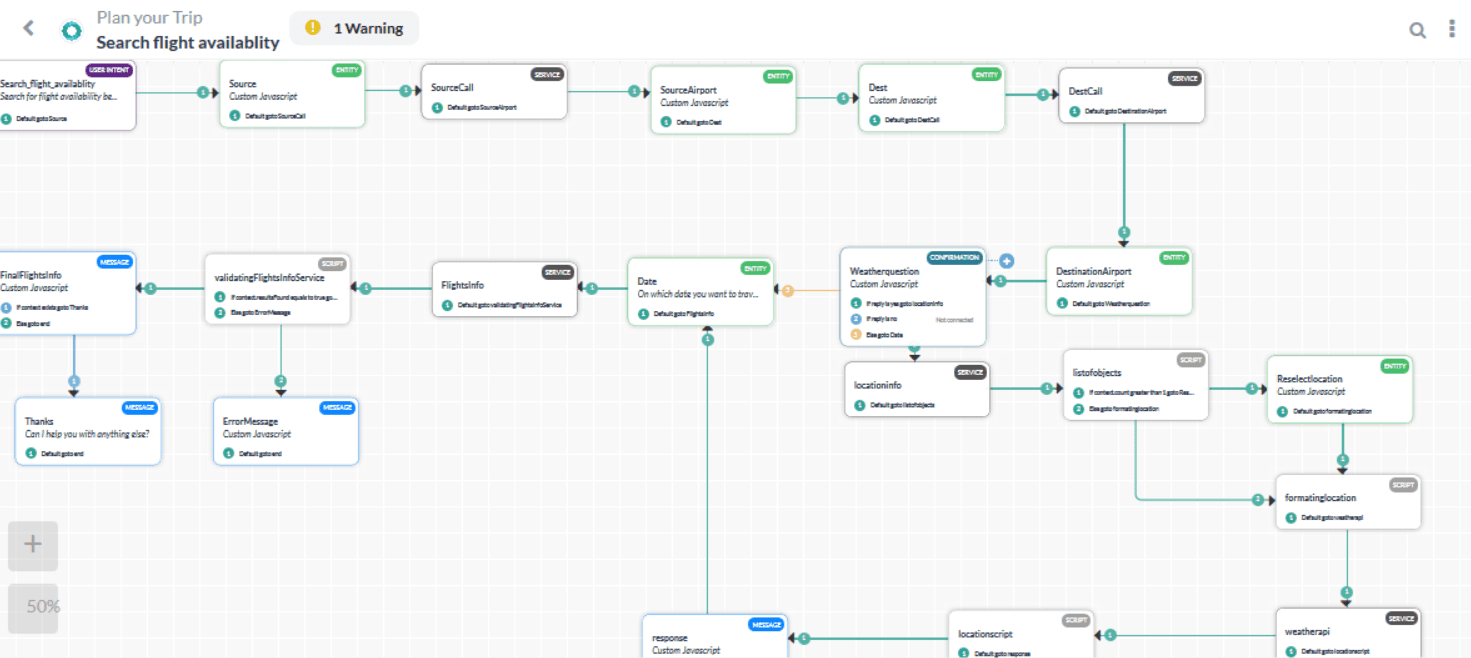
The platform also handles multi-step workflows reasonably well once conversations start becoming more dynamic. Instead of only responding to prompts, the agents can navigate structured flows that involve confirmations, service lookups, validations, and backend actions.
The integrations also play a huge role here. Kore.ai connects with CRMs, ticketing systems, enterprise databases, communication tools, and internal applications, which makes it much more practical for organizations already running large software stacks.
At the same time, the platform clearly targets enterprise teams more than individual users or smaller startups. The setup, deployment process, and workflow design all feel heavier compared to simpler AI agent tools designed for experimentation.
Who is Kore.ai for?
Kore.ai works best for enterprises building customer support agents, employee assistants, internal AI systems, and larger business automation workflows.
It’s especially useful for organizations that need stronger governance, workflow orchestration, and enterprise integrations around AI deployments.
Kore.ai pricing
Kore.ai mainly uses enterprise-focused custom pricing.
Starter pricing reportedly begins around $50/month
Advanced plans are estimated at around $150/month
Enterprise deployments can range from $50K to $300K+ annually
Pricing depends on integrations, deployment size, usage, and support requirements
The platform also uses a mix of usage-based, session-based, and enterprise contract pricing depending on deployment type.
For smaller teams, the pricing and setup can feel difficult to justify. Kore.ai makes much more sense for larger enterprise environments with complex workflows and multiple business systems.
Kore.ai pros and cons
After testing Kore.ai across different enterprise workflows, these were the biggest strengths and limitations that consistently stood out.
Pros
Strong enterprise workflow orchestration
Very good integration ecosystem
Flexible visual workflow builder
Useful governance and compliance controls
Good support for multi-step conversational flows
Cons
Enterprise-focused setup. May not be ideal for start ups.
Not ideal for smaller teams or solo users
Pricing becomes expensive at scale
8. Goose
Goose felt very different from most tools on this list because it focuses much more on local execution and developer control.
Many agentic coding tools are tightly tied to cloud platforms and managed workflows. Goose feels much more like a developer-first agent framework where you can control how the agent behaves, what tools it can access, and how workflows are executed locally.
What stood out during testing
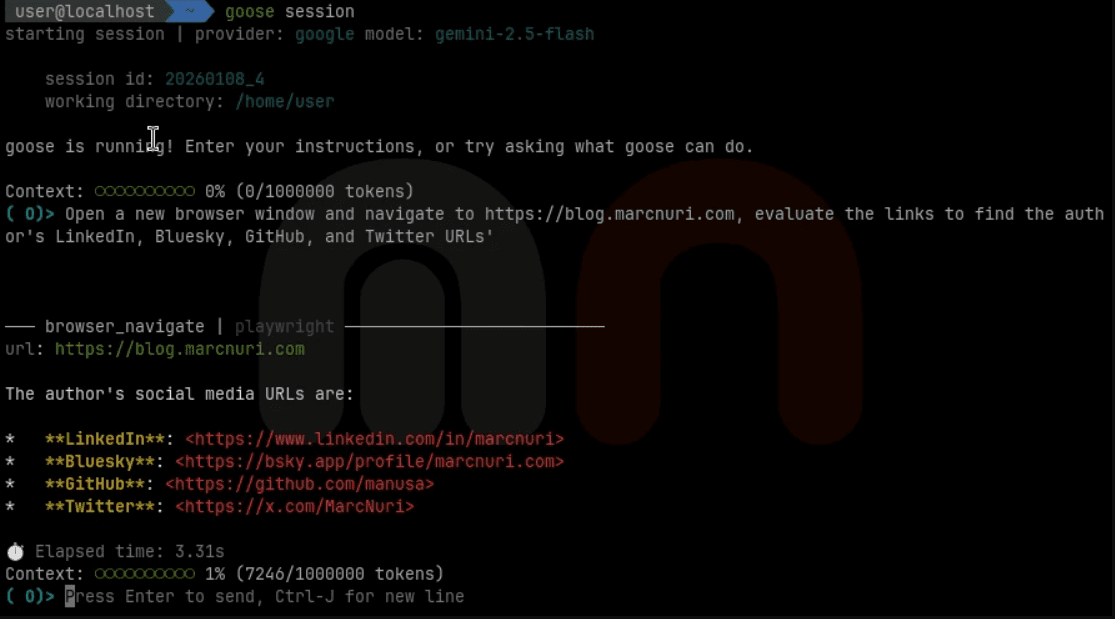
The local workflow experience was probably the biggest thing. Goose can interact with terminals, edit files, inspect repositories, run commands, and work through coding workflows directly on your machine. That makes experimentation feel much more flexible because you’re not limited to a hosted environment.
.png%22%2C%22permissionRecord%22%3A%7B%22table%22%3A%22block%22%2C%22id%22%3A%22365f261a-6dfe-80aa-80ba-d768b5e15a98%22%2C%22spaceId%22%3A%2235adec70-dbef-4f42-9214-62ac8cdc4d75%22%7D%7D)
I also liked how transparent the workflows felt during testing. You can actually see what the agent is doing, what commands it runs, and how it approaches tasks step by step.
The open-source aspect also makes a noticeable difference. You get much more flexibility with tooling, integrations, models, and workflow customization than with more locked-down agent platforms.
It also worked well for local agent experimentation. I tested it across debugging workflows, scripting tasks, file manipulation, and smaller automation flows where having direct local access was useful.
That said, Goose still feels more developer-oriented than beginner-friendly.
Who is Goose for?
Goose works best for developers who want more control over agent workflows, local execution, and open-source customization.
It’s especially useful for local coding workflows, terminal-heavy tasks, and experimentation around autonomous agents.
Goose pricing
Goose is completely free and open-source under the Apache 2.0 license.
No subscription fees
No locked usage tiers
Runs locally on your machine
Supports self-hosted workflows
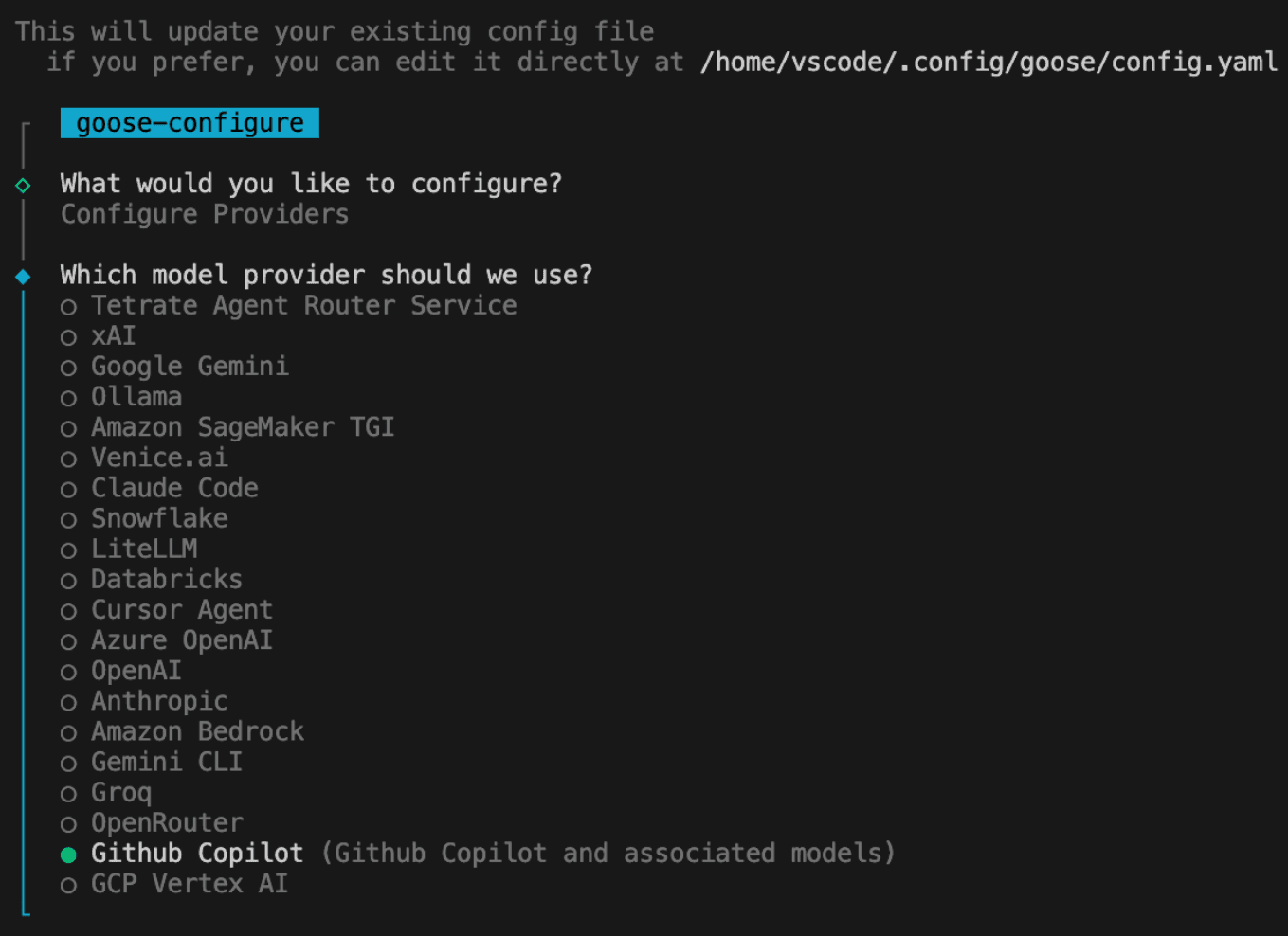
Works with multiple model providers and local LLMs
The actual cost mostly depends on which models and infrastructure you connect to Goose.
For example:
Running local models through Ollama can make workflows nearly free
Using API providers like Anthropic or OpenAI will still incur token costs
Heavier autonomous workflows can increase API usage significantly
Goose pros and cons
After testing Goose across different workflows, these were the biggest strengths and limitations that consistently stood out.
Pros
Free and open-source
Strong local workflow support
Good developer control and transparency
Works well for terminal-heavy workflows
Flexible model and tooling setup
Cons
Setup is more technical
Less polished than hosted platforms
Requires more manual configuration
Better suited for developers than general users
9. Cowork
Cowork is like a shared AI workspace built around tasks and collaboration. Many agent tools focus heavily on isolated prompts. Cowork feels much more centered on ongoing workflows, where multiple agents, tools, and tasks interact within the same environment.
What stood out during testing
Cowork organizes workflows in a way that feels much closer to managing ongoing projects than running isolated prompts. Tasks, outputs, conversations, and agent activity stay connected inside the same workspace, which makes longer workflows much easier to manage.
I also liked the collaborative aspect. Different agents can contribute to separate parts of the workflow while still sharing context across the workspace. That became useful for workflows involving research, summarization, planning, documentation, and task coordination.
The async workflow handling also felt smoother than many agent tools I tested. You can leave workflows running, revisit outputs later, and continue building on previous context without constantly restarting conversations.
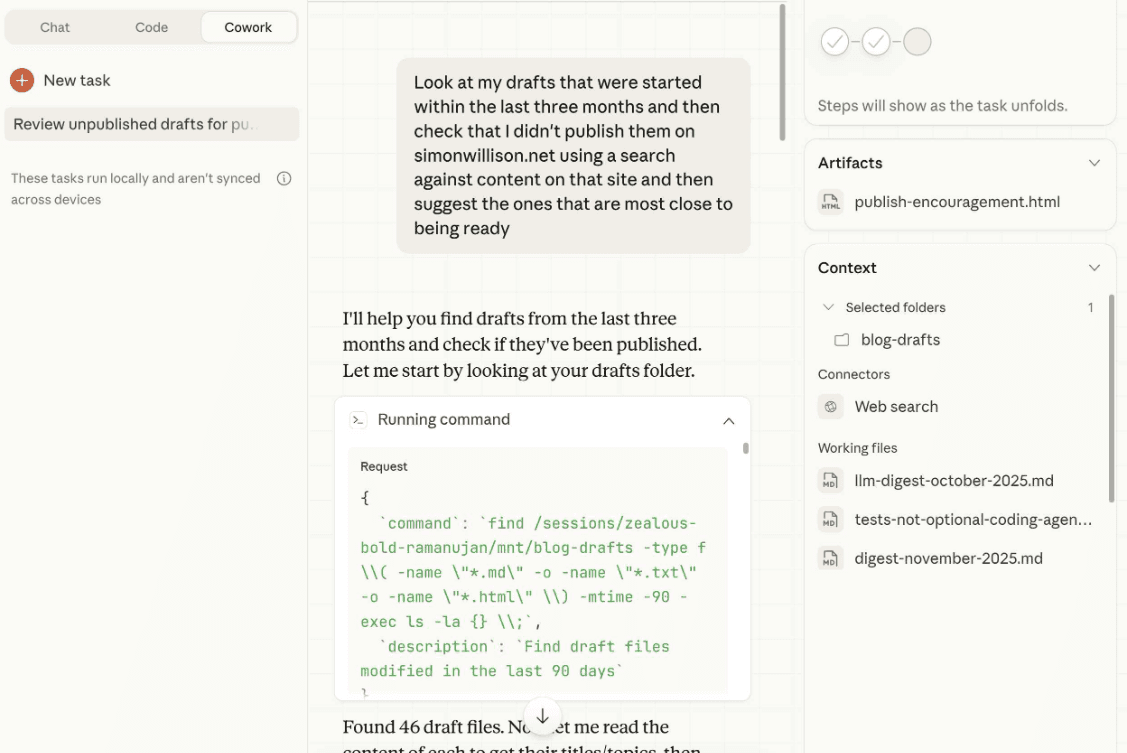
Another thing I noticed is that Cowork feels less engineering-heavy compared to coding-focused agents like Devin or Claude Code. The workflows are more focused on coordination, collaboration, and information handling.
Some workflows became inconsistent during longer sessions, and certain automations still required manual intervention more often than I expected.
Who is Cowork for?
Co-work works best for teams handling collaborative AI workflows, ongoing research, planning, documentation, and multi-step coordination tasks.
It’s especially useful for workflows where multiple people or agents need to contribute to the same workspace.
Cowork pricing
Cowork is included inside Anthropic’s Claude ecosystem and follows Claude’s subscription pricing structure.
Free plan available with limited usage
Pro plan starts at $20/month
Max plans start at $100/month and go up to $200/month for higher usage limits
Team plans start around $30/user/month with collaboration features
One thing to keep in mind is that multi-step workflows consume usage limits much faster than regular chat sessions, especially when they involve file handling, browsing, MCP integrations, or long-running agent tasks.
Cowork pros and cons
After testing Cowork across different workflows, these were the biggest strengths and limitations that consistently stood out.
Pros
Good collaborative workspace experience
Useful async workflow handling
Multi-agent coordination feels natural
Context persists well across workflows
Good fit for research and planning tasks
Cons
Still feels early in some areas
Longer workflows can become inconsistent
Requires manual intervention in some automations
10. LangGraph
LangGraph was probably the most technical tool I tested on this list. Unlike tools focused on ready-to-use AI agents, LangGraph is more about building and orchestrating your own agent systems. It gives developers much more control over how workflows behave, how agents maintain state, and how different steps connect together across longer executions.
What stood out during testing
The workflow control is probably the biggest reason people use LangGraph. You can define how agents move through tasks, when workflows branch, how memory is handled, what tools get called, and how state persists across execution steps. That level of control becomes really useful once workflows become too complex for simpler prompt-based systems.
I also liked how transparent the orchestration layer feels.
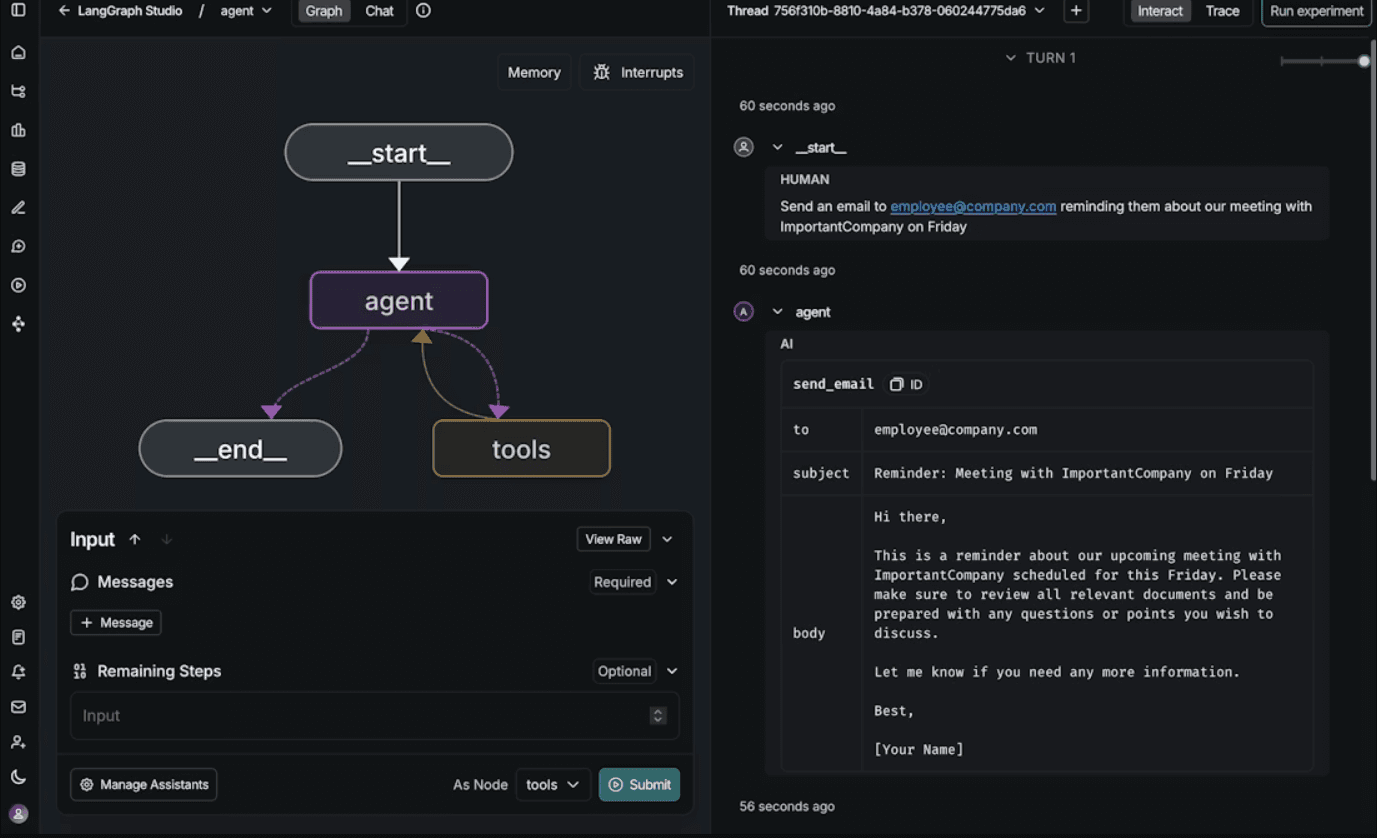
During testing, it became much easier to debug workflows because you can inspect graph execution, state transitions, intermediate outputs, and agent behavior step by step. That visibility matters a lot once workflows start becoming more autonomous.
Another thing that stood out is how heavily LangGraph is being adopted inside the broader agent ecosystem right now. Many developers building custom AI agents, research systems, and multi-agent workflows use it as the orchestration layer beneath their applications.
The learning curve is noticeably higher, and getting production workflows running properly still requires a solid understanding of agent architecture, orchestration patterns, memory handling, and workflow design.
Who is LangGraph for?
LangGraph works best for developers and teams building custom AI agents, orchestration systems, and stateful multi-agent workflows.
It’s especially useful once workflows become too complex for simpler no-code agent builders.
LangGraph pricing
LangGraph itself is open-source and free to use.
Free and open-source framework
Self-hosting supported
LangGraph Cloud available for hosted deployments
Cloud pricing depends on execution, storage, and workflow usage
The actual cost mostly depends on the models, infrastructure, and cloud services connected to the workflows.
LangGraph pros and cons
After testing LangGraph across different agent workflows, these were the biggest strengths and limitations that consistently stood out.
Pros
Excellent workflow orchestration control
Strong state and memory handling
Very flexible for custom agent systems
Good debugging and workflow visibility
Large adoption across the agent ecosystem
Cons
Higher learning curve
Requires solid engineering knowledge
More setup compared to hosted agent platforms
Not beginner-friendly for casual users
Closing
AI agents are becoming a major part of how enterprise teams handle engineering workflows, automation, internal operations, and large-scale business processes. But choosing the right platform is not just about picking the most popular framework or model. Different tools are built for different workflows, infrastructure requirements, and levels of automation.
The best choice usually depends on your existing stack, integrations, workflow complexity, and the level of control your team needs over agent behavior and execution.
As more companies continue to build production-ready AI systems, orchestration, integrations, memory management, and workflow reliability will become just as important as the models powering the agents themselves.
If you are building AI agents that need access to external tools, APIs, and SaaS platforms, solutions like Composio can simplify integrations, authentication, and tool-execution workflows across 1000+ applications.

 Get started



