


Connect YouTube to Composio using Composio Managed authentication or Your Own Credentials. Managed authentication uses Composio's OAuth app. Your own credentials let you control the app name users see during authorization and the permissions your integration requests.
Before you start, you need the Google account associated with the YouTube channel you want to connect and access to your Composio project.
Part 1: Create a YouTube auth config
In your Composio project, select Auth Configs in the sidebar.

Select Create, search for YouTube, and select the toolkit.

Select the YouTube toolkit labeled OAuth 2.0.

Part 2: Choose your authentication method
Option 1: Use Composio-managed authentication
Choose OAuth 2.0 and select Composio Managed. You do not need to create a Google Cloud project, enable APIs in your own project, or supply a Client ID and Client Secret for this option.

Keep the default scopes, or adjust them to match your integration's requirements. The screenshot shows an example selection. Select Create Auth Config, then connect your account below.
Connect your Google account
Open the saved auth config and select Connect Account. Sign in with the Google account associated with your YouTube channel. If prompted, select the channel you want to connect. Review Composio's requested permissions and select Allow.

Confirm the connection is Active
Return to the auth config and open Accounts. Confirm that the connected account shows Active. The separate Enabled label applies to the auth config, not the connected account.

The screenshot illustrates the Accounts tab of a custom config. For this managed flow, Management shows Managed; the account status should still be Active.
Your managed connection is ready to use with YouTube tools. You can skip the custom setup below. The data-deletion and access-revocation instructions at the end of this guide apply to both authentication methods.
Option 2: Use your own OAuth credentials
You need access to a Google Cloud project. Select Your Own Credentials in the Composio form and copy its Redirect URI. Keep the form open while you complete the Google Cloud steps in another tab.
If you already have a configured Google OAuth client, verify its API access, scopes, and redirect URI, then continue to Step 5.
Step 1: Enable the YouTube APIs
In Google Cloud Console, select or create a project. Open APIs & Services → Library and search for YouTube.

For this setup, enable all three APIs in the same Google Cloud project:
YouTube Data API v3
YouTube Analytics API
YouTube Reporting API
Open each API and select Enable. Repeat until all three are enabled. Enabling these APIs prepares your project for data operations, analytics queries, and bulk reporting; each operation still needs the appropriate OAuth scopes.

Step 2: Configure the consent screen
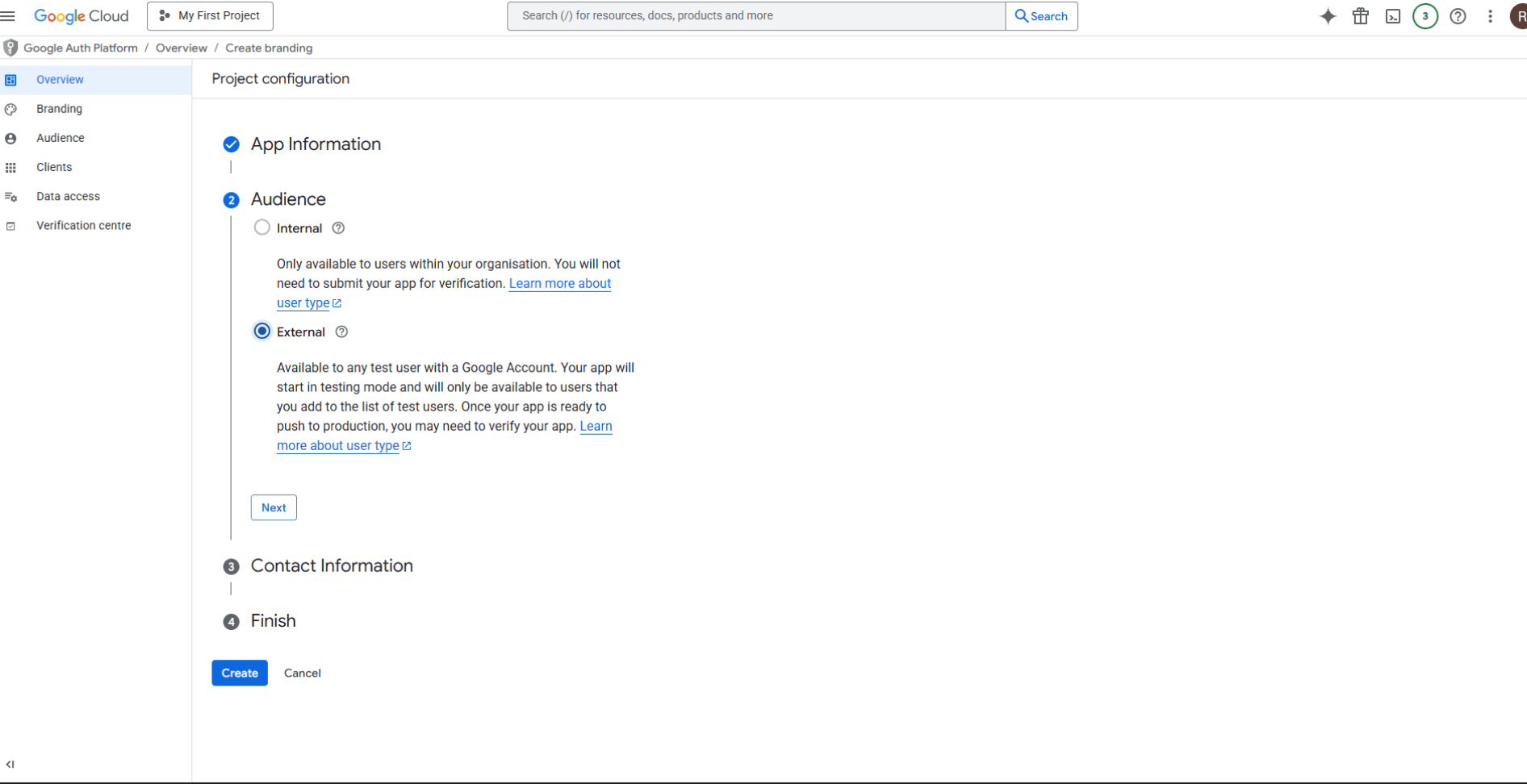
Open Google Auth platform → Branding. If setup has not started, select Get started. Enter your app name, user support email, audience, and contact information, then complete the setup.

Choose External if people outside your Google Workspace organisation will connect. Use Internal only when available and appropriate for an organisation-only app.
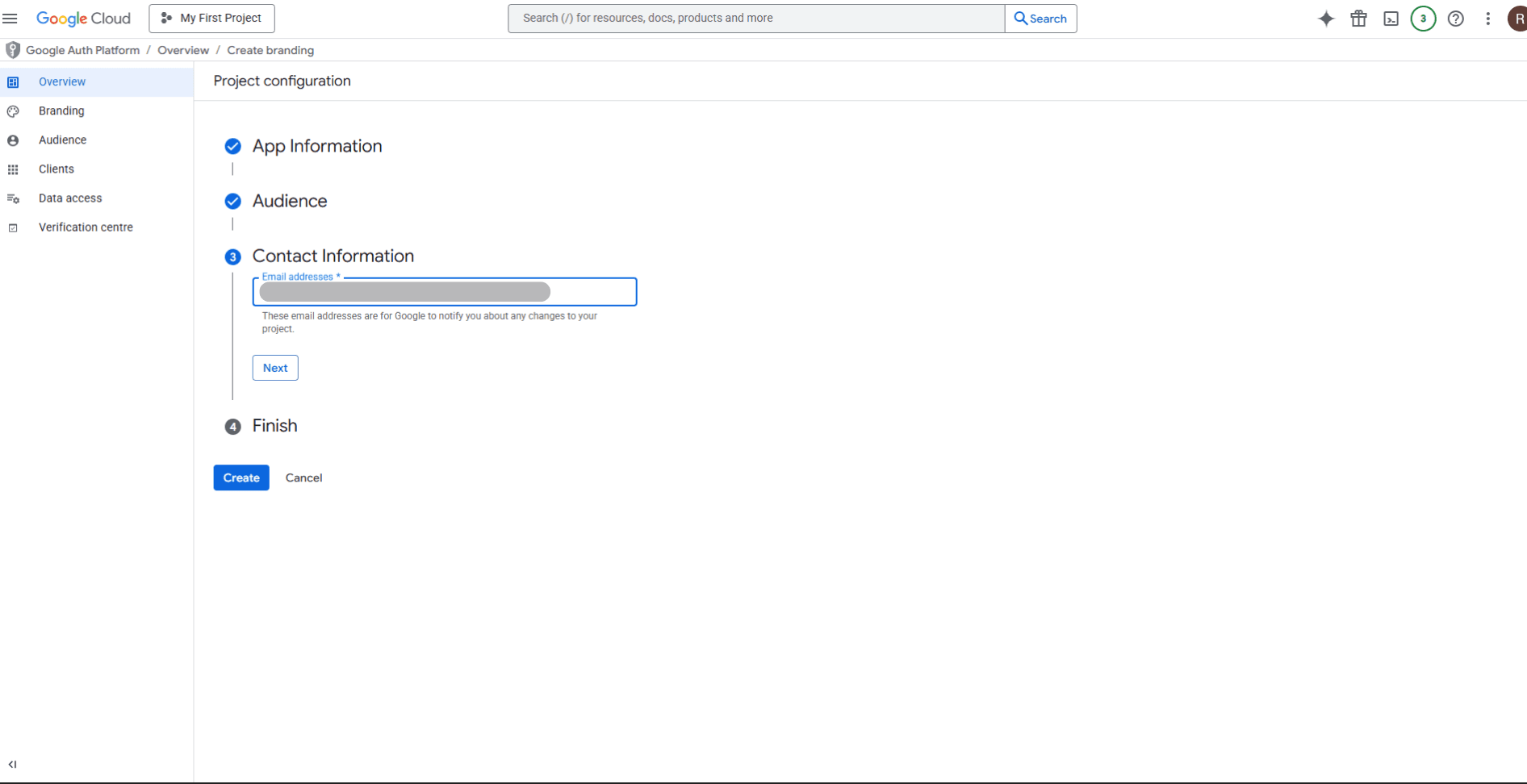
Enter your contact information and complete the remaining setup steps.
For an external app in testing, open Audience → Test users and add the Google accounts that will test the connection.
Step 3: Choose your scopes
Open Data Access → Add or remove scopes and choose the permissions your workflow requires. For example, https://www.googleapis.com/auth/youtube.readonly provides read-only YouTube account access, while https://www.googleapis.com/auth/youtube.upload supports video uploads. Other operations require different scopes.
Use the scope requirements for each operation in YouTube's OAuth documentation. Configure the corresponding scopes in Composio too.
Analytics and Reporting: For activity reports, request https://www.googleapis.com/auth/yt-analytics.readonly. For revenue and ad-performance reports, use https://www.googleapis.com/auth/yt-analytics-monetary.readonly as required by the report. YouTube Analytics report queries also require https://www.googleapis.com/auth/youtube.readonly. See Google's Analytics scope requirements and Reporting authorization guide.
Enabling an API does not grant these permissions. Configure the required scopes in Google Auth platform and your Composio auth config. If you add scopes after connecting an account, reconnect it so the user can authorize the additional access.
Step 4: Create your OAuth client
Open Google Auth platform → Clients → Create client. Choose Web application and name the client.
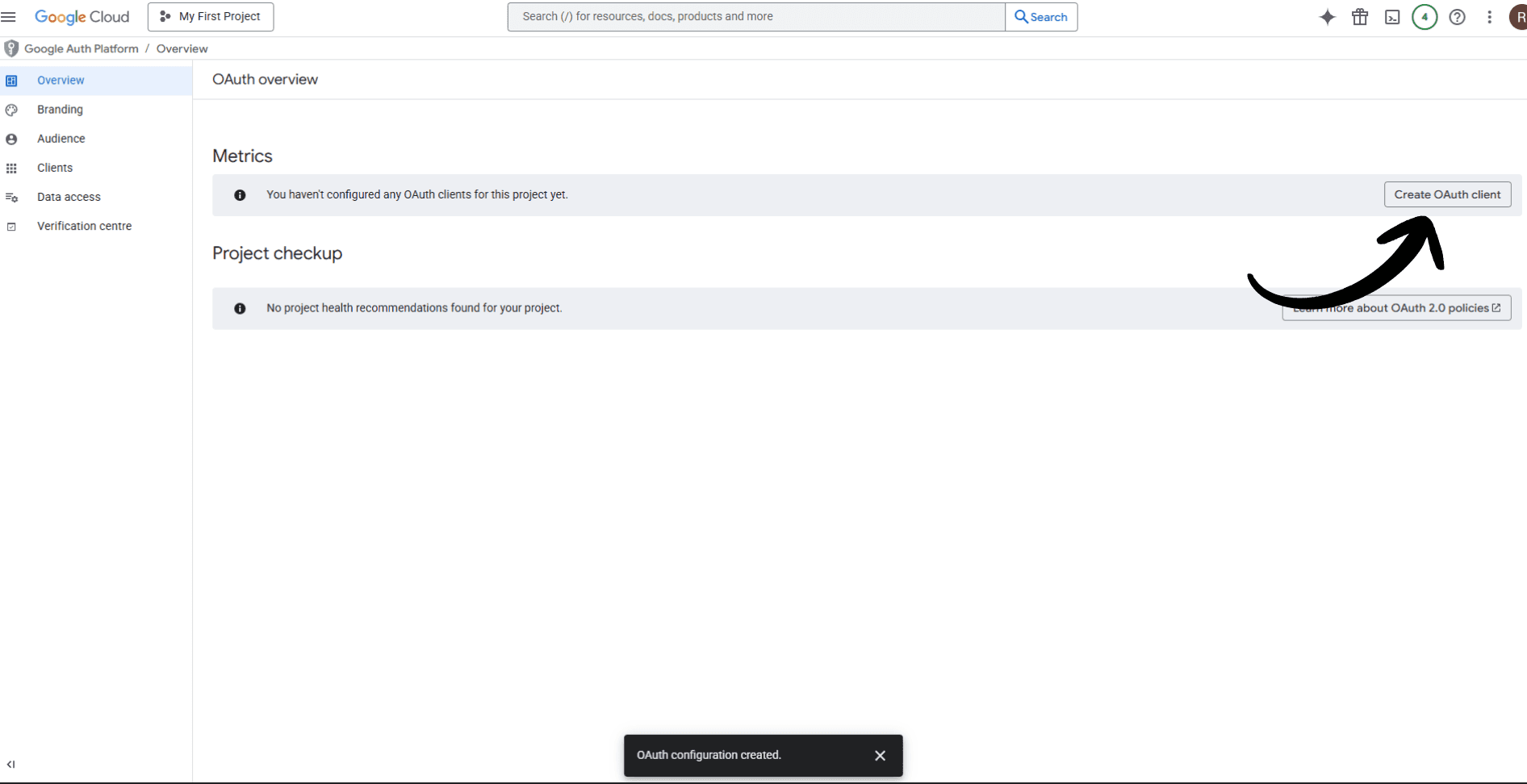
Under Authorized redirect URIs, add the exact Redirect URI displayed in the Composio YouTube auth config form under Your Own Credentials. Create the client, then copy its Client ID and Client Secret. Store the secret privately.
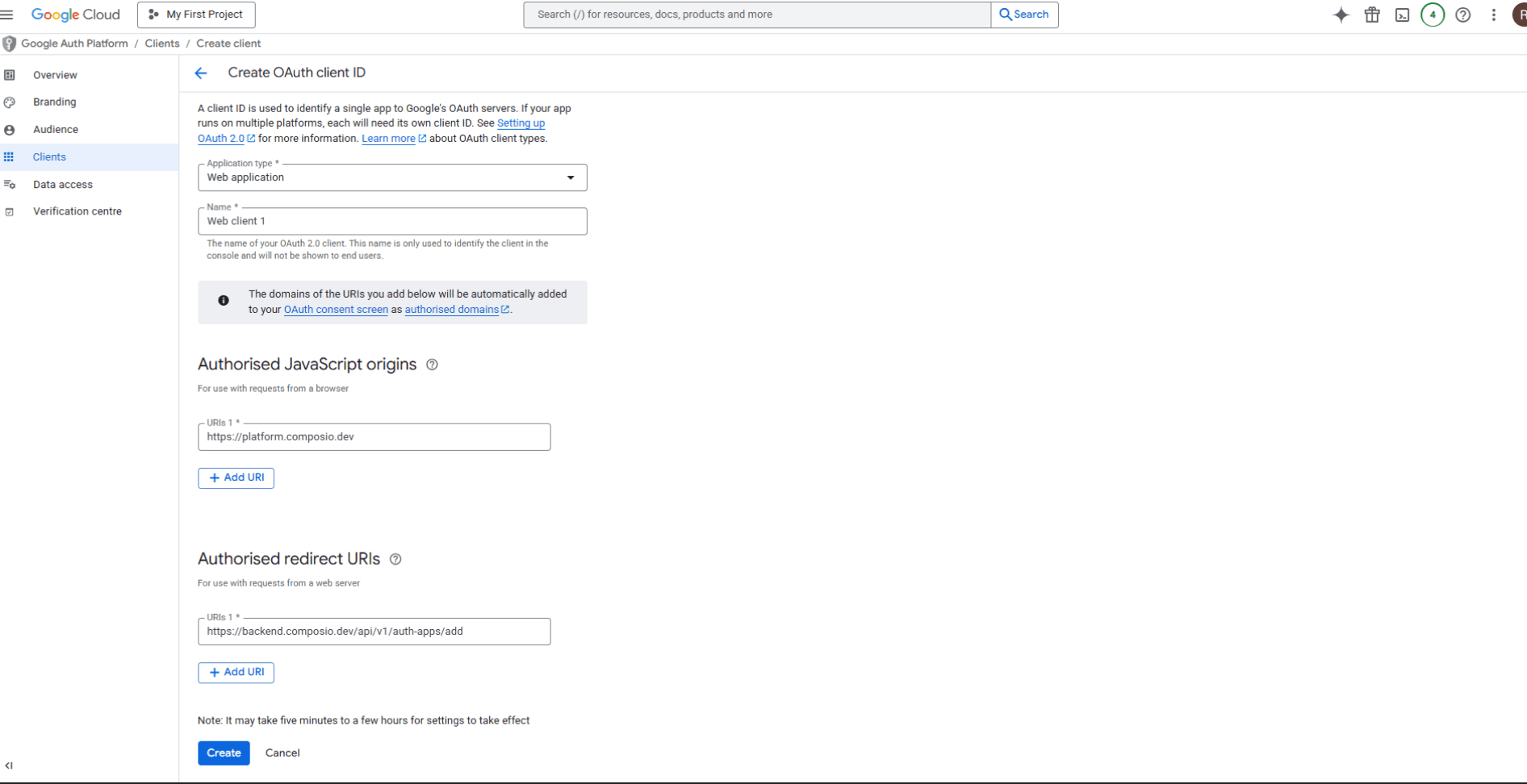
Screenshot note: This example comes from the Google Apps guide and shows older Composio URLs. Use the current Composio dashboard and copy the exact Redirect URI from your YouTube auth config.
Step 5: Add your credentials in Composio
Choose OAuth 2.0 and Your Own Credentials. Paste your Google OAuth Client ID and Client Secret into the corresponding fields.
Confirm that the Redirect URI exactly matches the one registered in Google Cloud. Select the scopes needed for your workflow, then save the auth config.

The screenshot shows an example scope selection. Request only the permissions your workflow needs.
Part 3: Authorize and confirm your connection
Step 1: Authorize your Google account
Open the saved auth config and select Connect Account. Sign in with the Google account associated with your YouTube channel. If prompted, select the channel you intend to connect. Review the app name and requested permissions, then approve access.
This consent example uses Composio-managed authorization. With your own OAuth app, the app name and requested permissions can differ.
Step 2: Confirm the connection is Active
Return to the auth config and open Accounts. Confirm that the connected account shows Active. The auth config's separate Enabled label does not confirm that an account is connected.
The screenshot shows a custom auth config. For Composio-managed authentication, the Management label is Managed; the connected account should still show Active. Once connected, you can use the account with YouTube tools in Composio.
Before opening your own OAuth app to other users
Review Google's verification requirements for your audience and scopes. Moving an app out of testing does not replace any required verification. See Google's consent configuration guidance.
External apps in Testing that request YouTube scopes receive refresh tokens that expire after seven days. Reconnect during testing as needed. See Google's token expiration guidance.
Manage your YouTube data and revoke access
How Composio uses YouTube data
This service uses YouTube API Services. Composio processes YouTube data, such as video metadata, channel information, playlists, and analytics, to provide its YouTube integration functionality. Composio does not use YouTube data for advertising or sell or share it without authorization. Google user data is not used to train AI or machine learning models.
Under Composio's Privacy Policy, stored YouTube API data is retained for no more than 30 calendar days before it is refreshed from YouTube or permanently deleted. YouTube features are also subject to Google's Privacy Policy.
Request deletion of stored YouTube data
Email support@composio.dev to request deletion of your YouTube-related data stored by Composio. You can request immediate deletion at any time.
Identify the Composio account and YouTube connection concerned, and state which data you want deleted. Do not include passwords, client secrets, or access tokens.
If an application built with Composio stores additional copies of your YouTube data, contact that application's operator to request deletion of those copies too.
Revoke access through your Google Account
Open Google Account connections and sign in to the Google account you connected.
Select the app you authorized. For custom OAuth, look for your own app's name. If you used Composio-managed authorization, select Composio.
Open the details for the app's access to your Google Account, select Remove access, and confirm.
Revoking access stops the app from accessing your Google Account through that authorization. Features that depend on it may stop working until you reconnect. Revoking access does not itself delete data the app previously stored; use the deletion procedure above for data held by Composio and contact the application operator for any other stored copies. See Google's instructions for managing app access.