How to create Twitter/X OAuth2 credentials and configure it in Composio
In this guide, I will walk you through the process of customising the auth config for Twitter/X in Composio. So, let's begin.
Step 1: Create an X developer account
Go to https://console.x.com/ and log in to the Twitter/X account you want to associate with the developer app.
Step 2: Create an App
Once your developer account is ready, you can create an app and generate the OAuth Client ID and Client Secret.
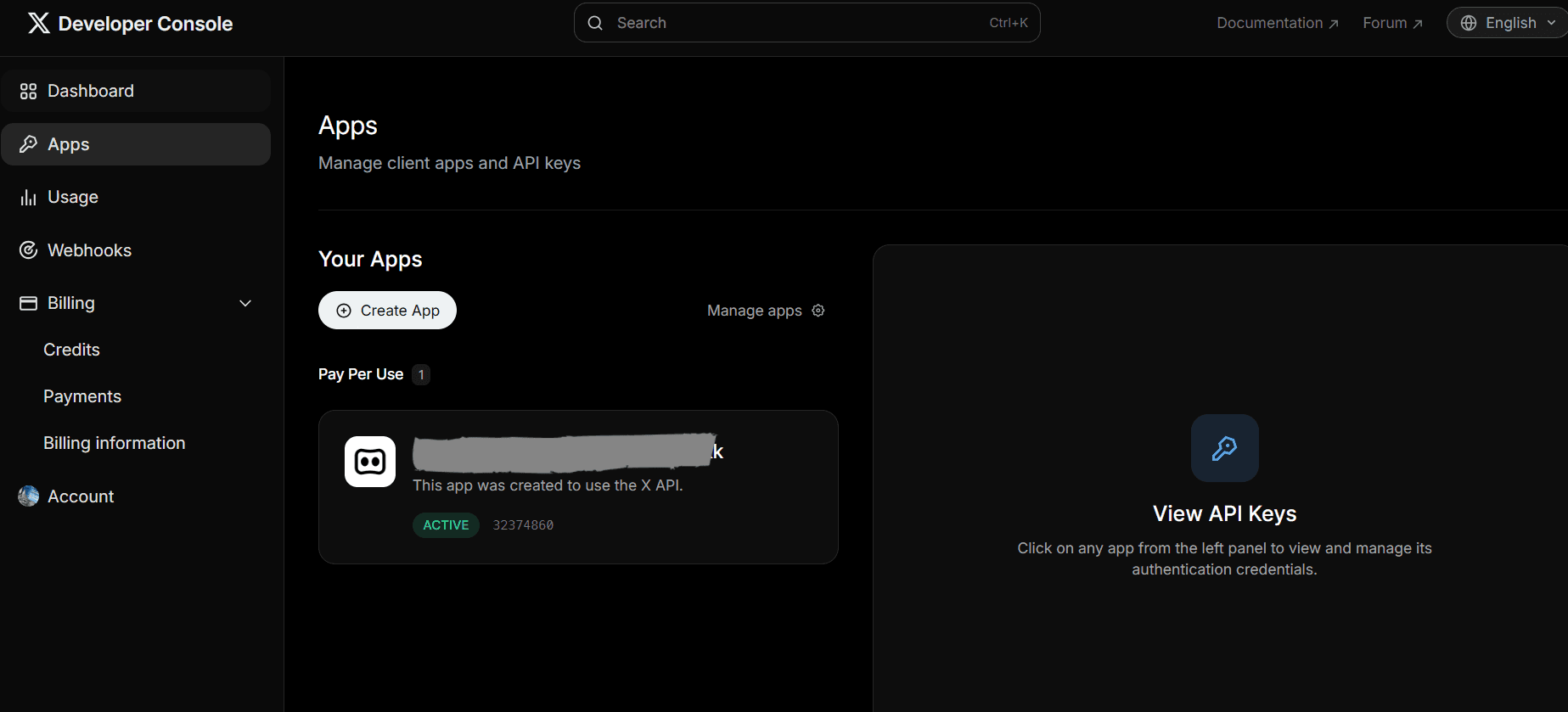
Click Apps in the left panel
Again, click on Create App
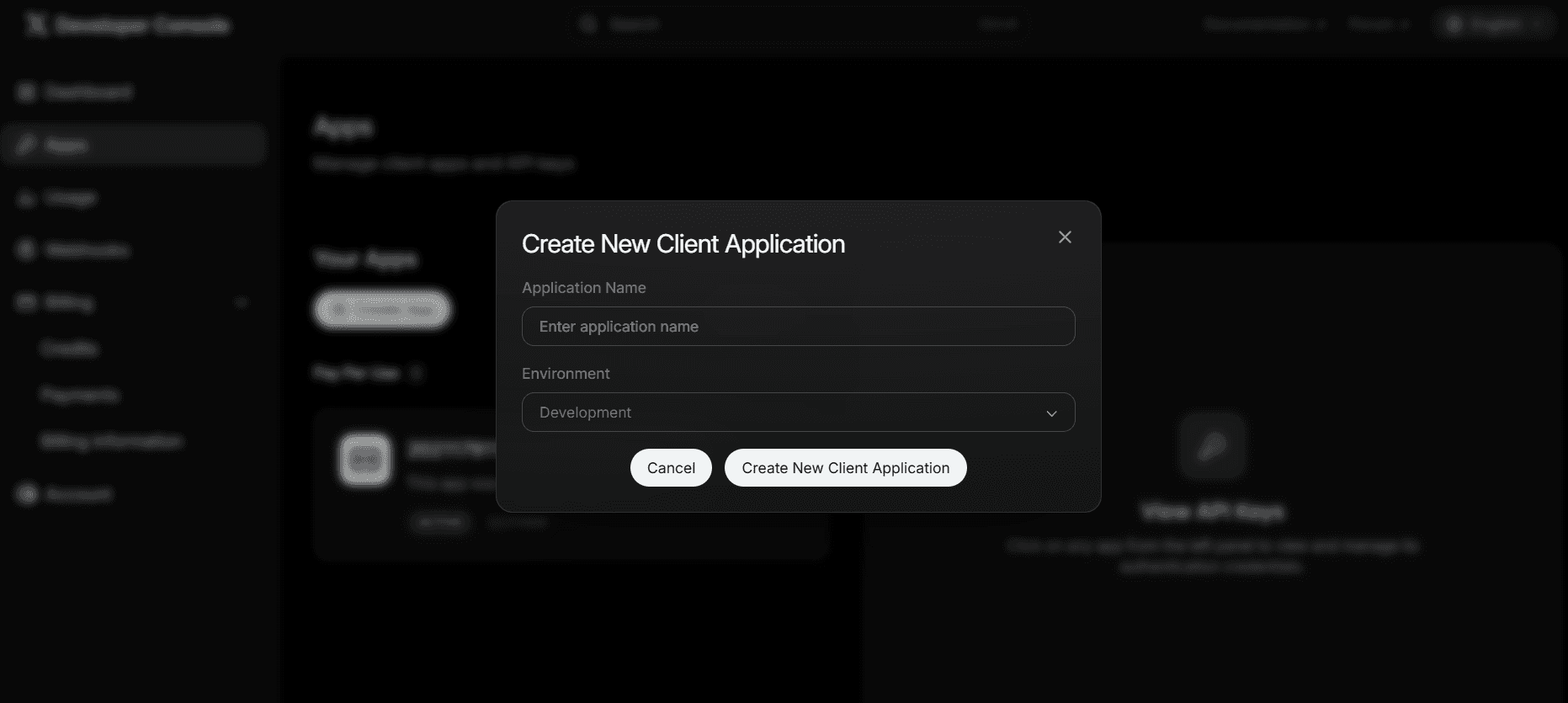
Fill in the forms with your app details and the new client application
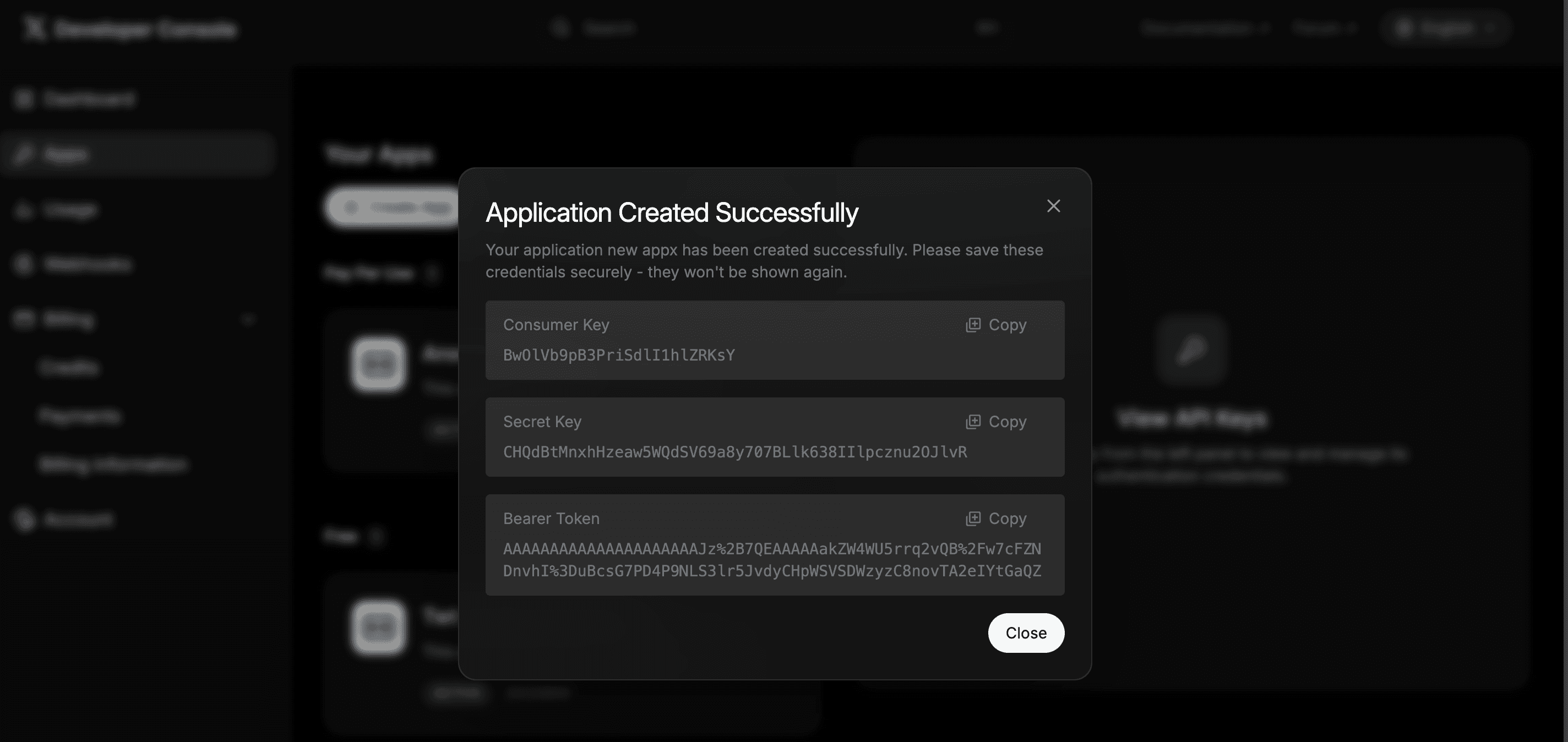
Copy the credentials shown on the screen and keep them in a secure place
Step 3: Create Oauth 2.0 Client ID and secret
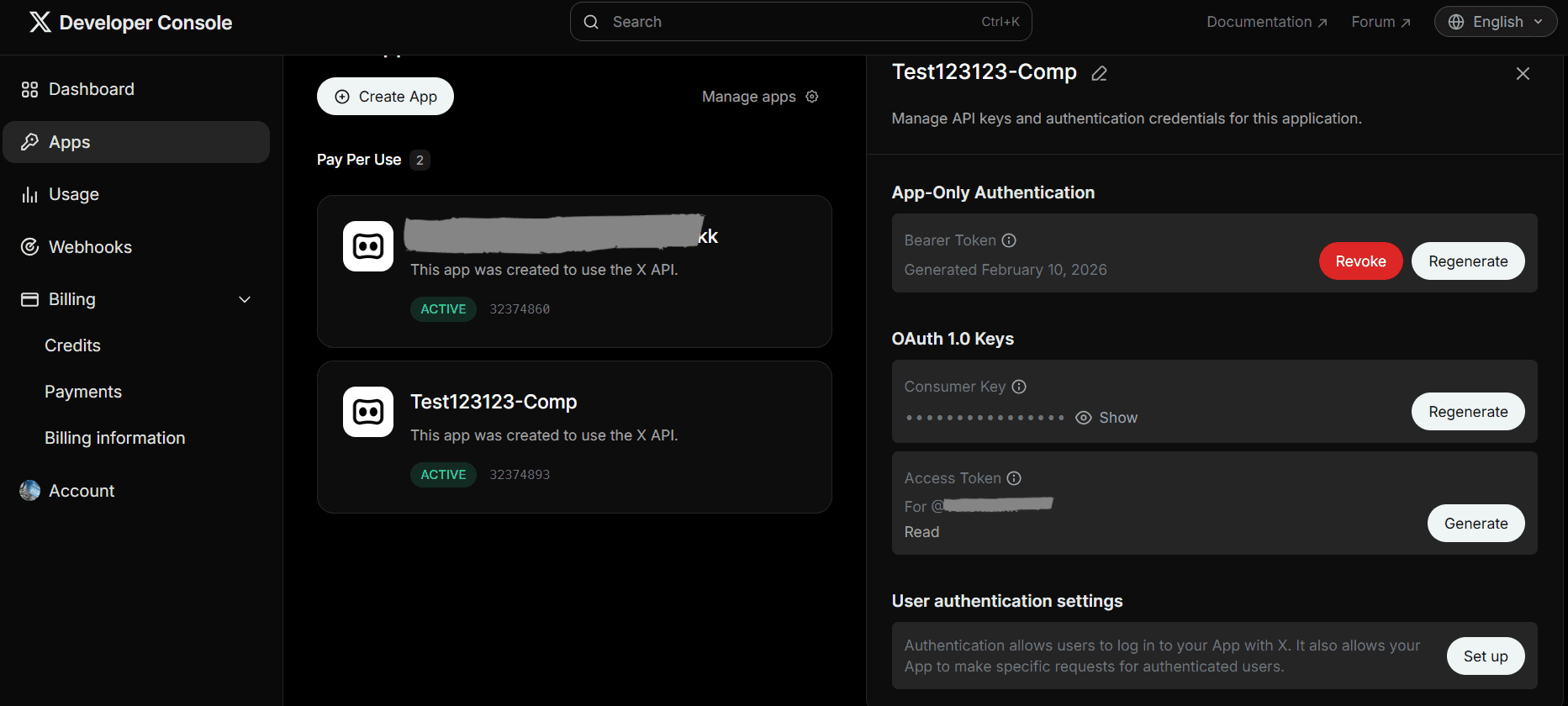
Now, refresh the page and click on the app you just created.
Click User authentication settings in the bottom-right corner.
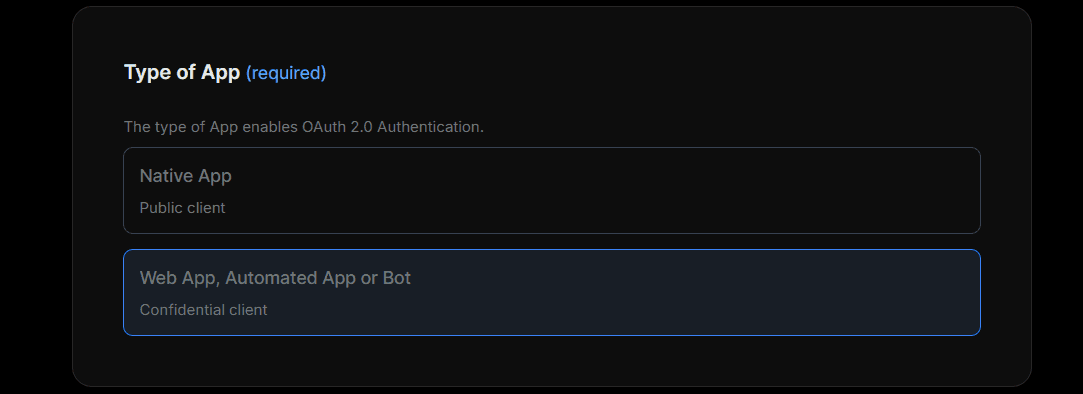
Select the type of app for Oauth 2.0 Authentication.
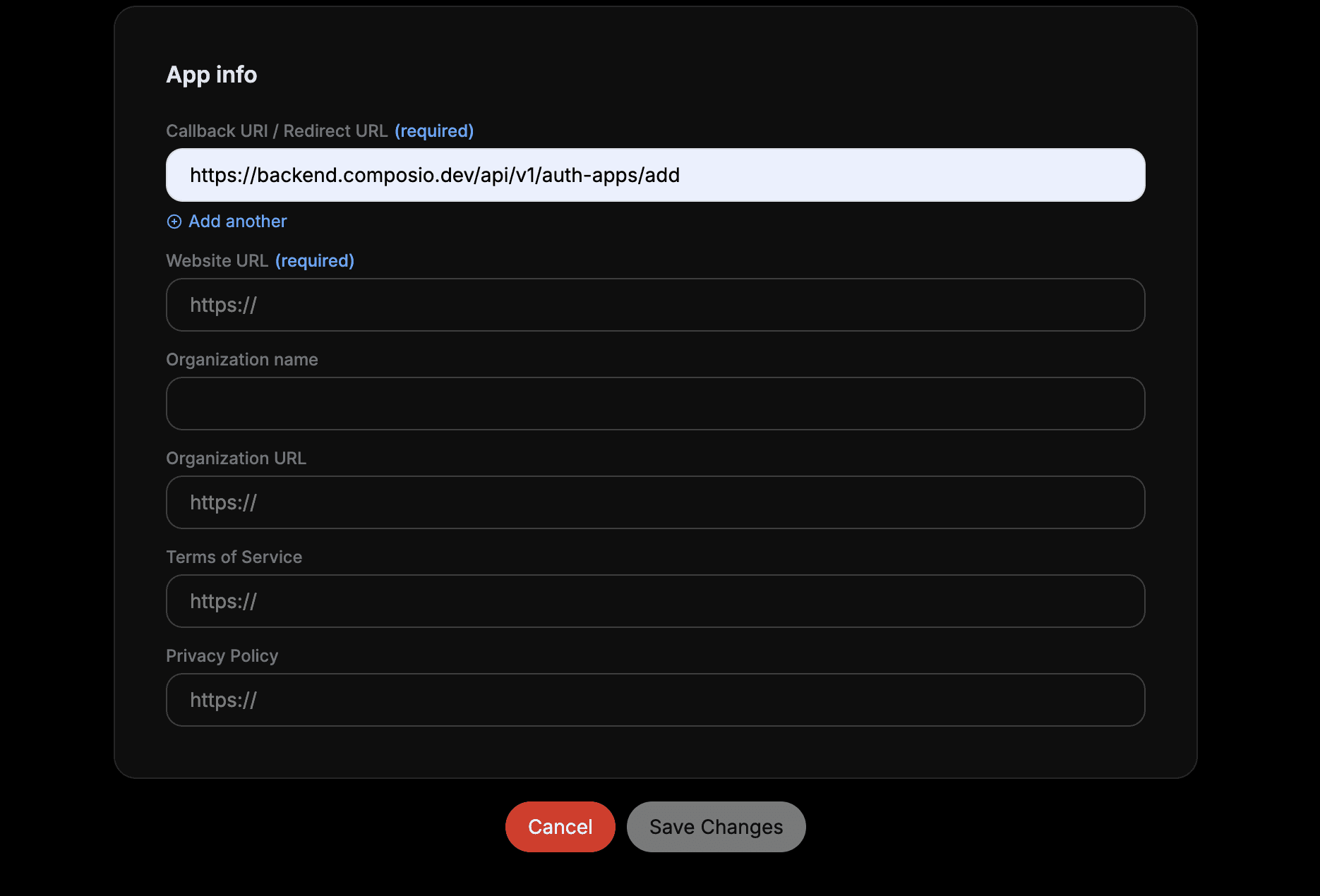
Add Composio callback URL

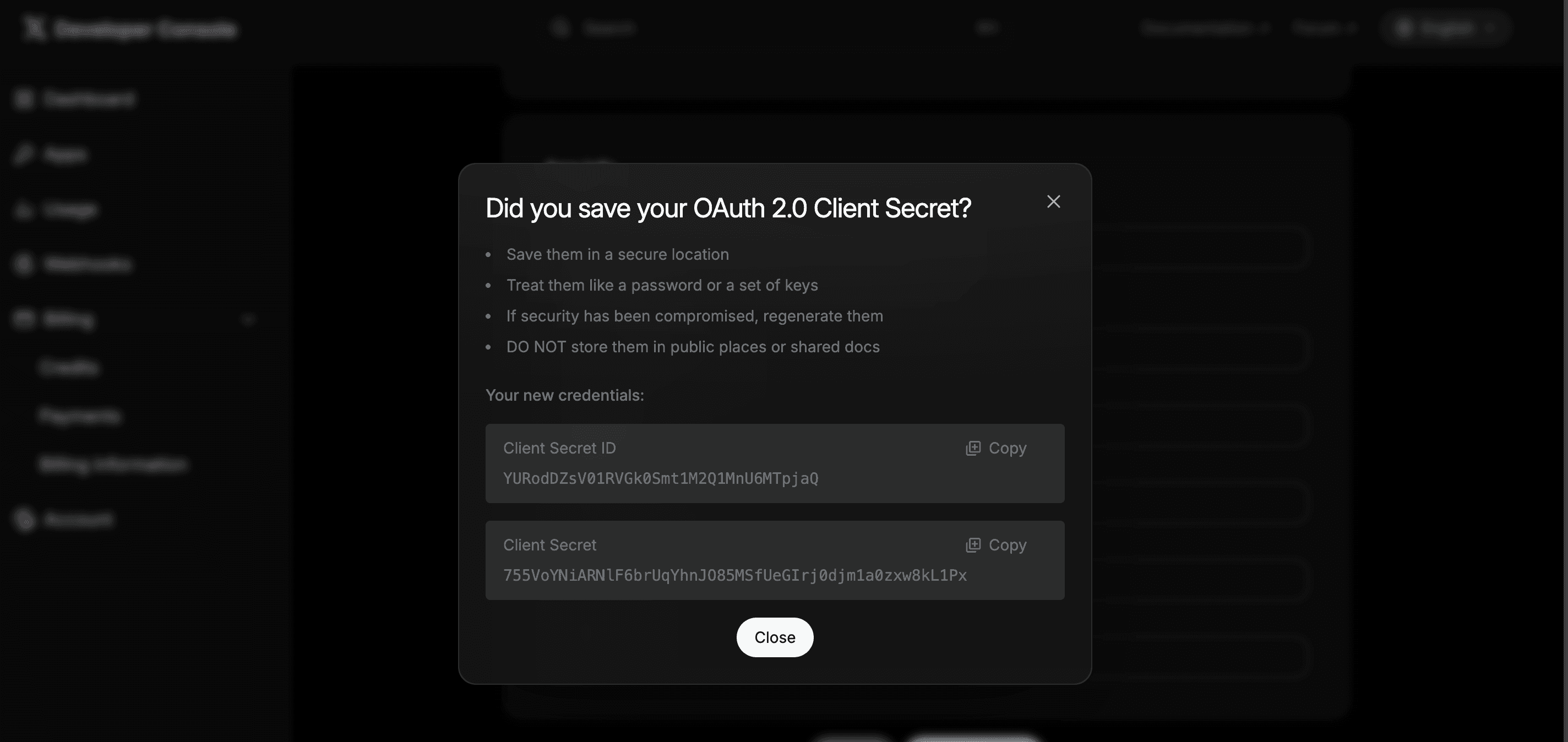
Click save changes and store the client ID and secret
Creating the Auth Config in Composio
With your OAuth credentials ready, navigate to the Composio dashboard for your project to configure Facebook authentication settings.
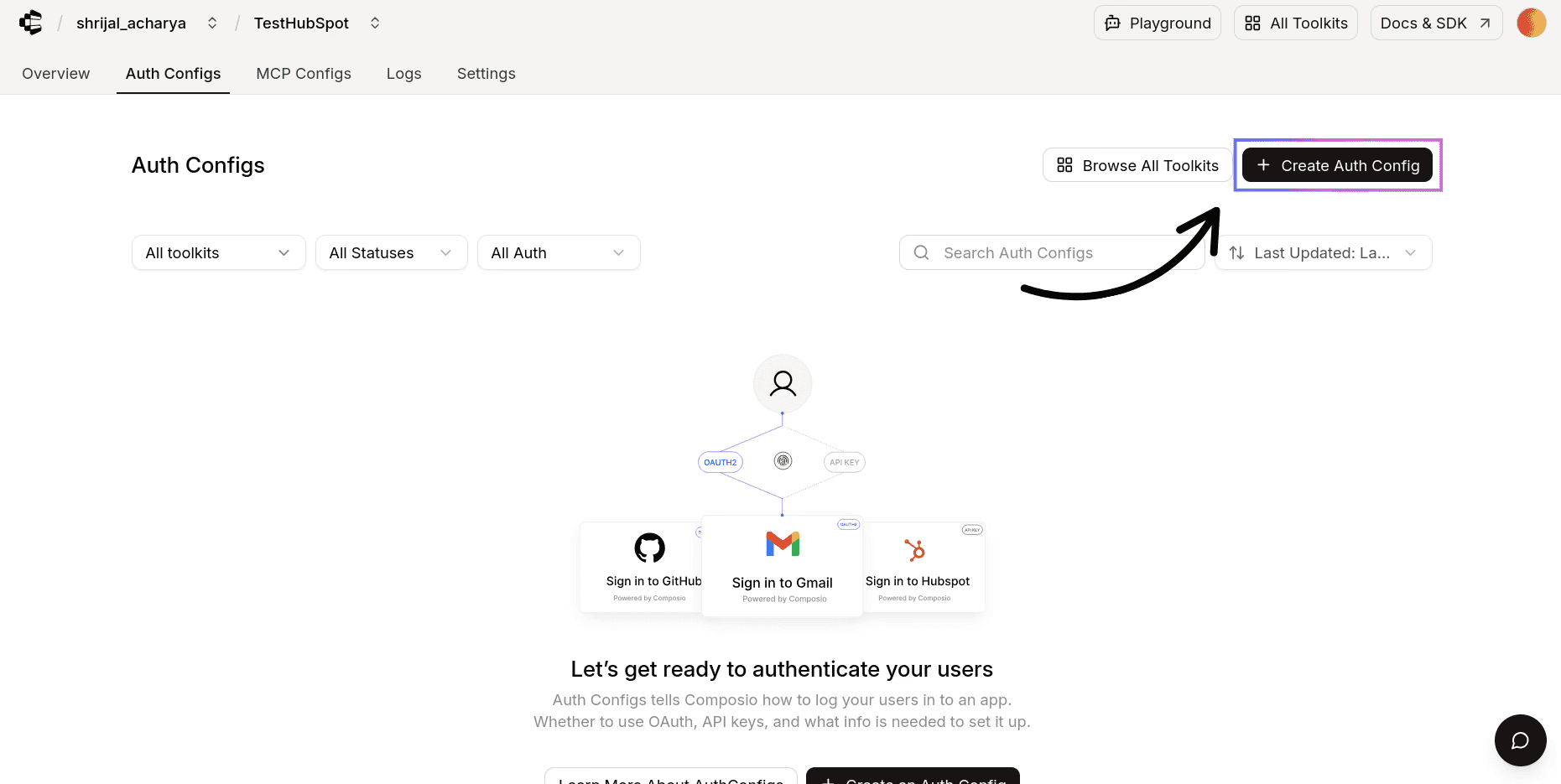
Click the Create Auth Config button to view a list of all available toolkits
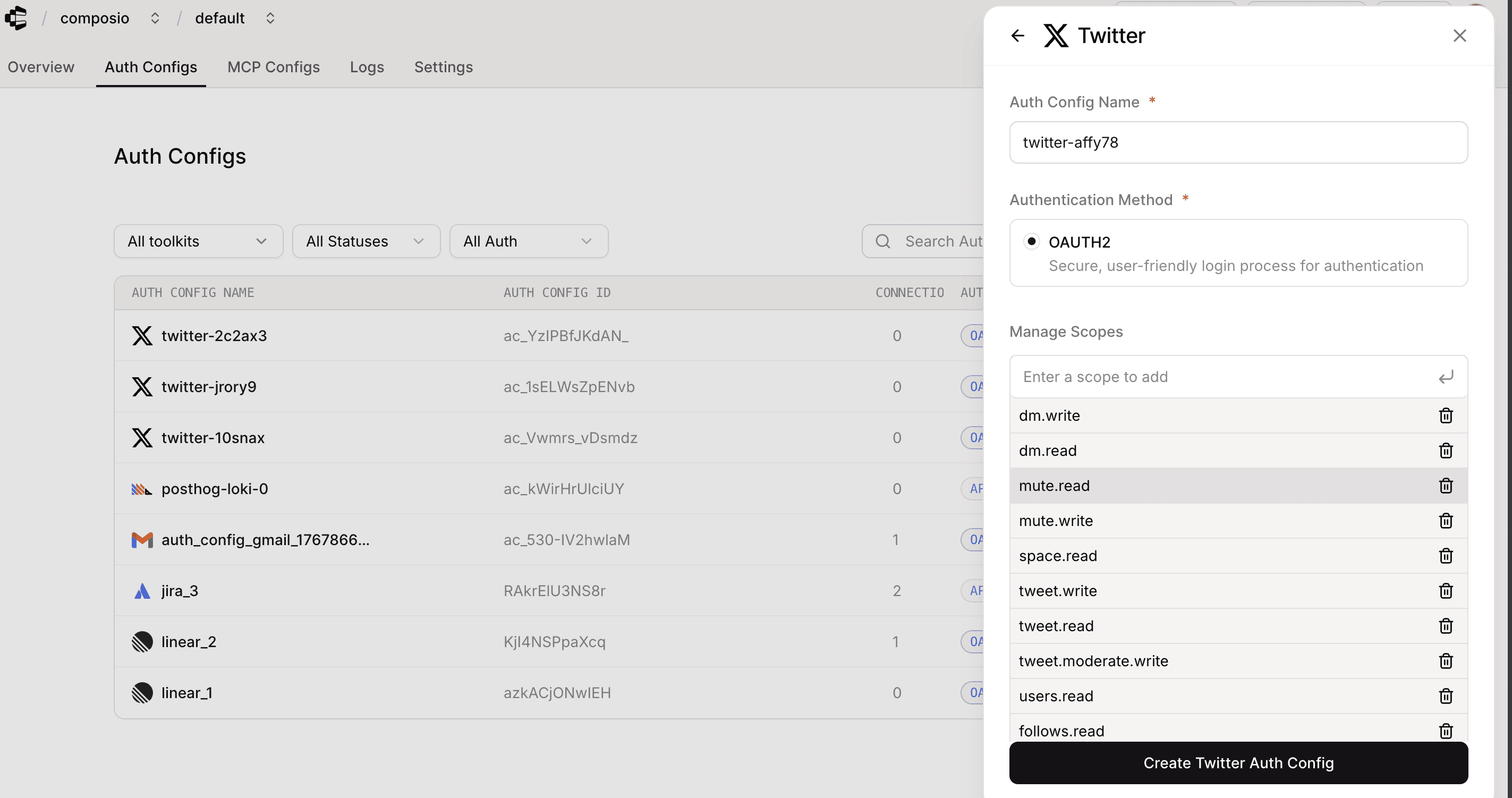
In the sidebar, type Twitter. The authentication is already set to OAuth2 with prefilled scopes. You can remove scopes you don’t need.
Scroll down and toggle to use your own developer credentials.
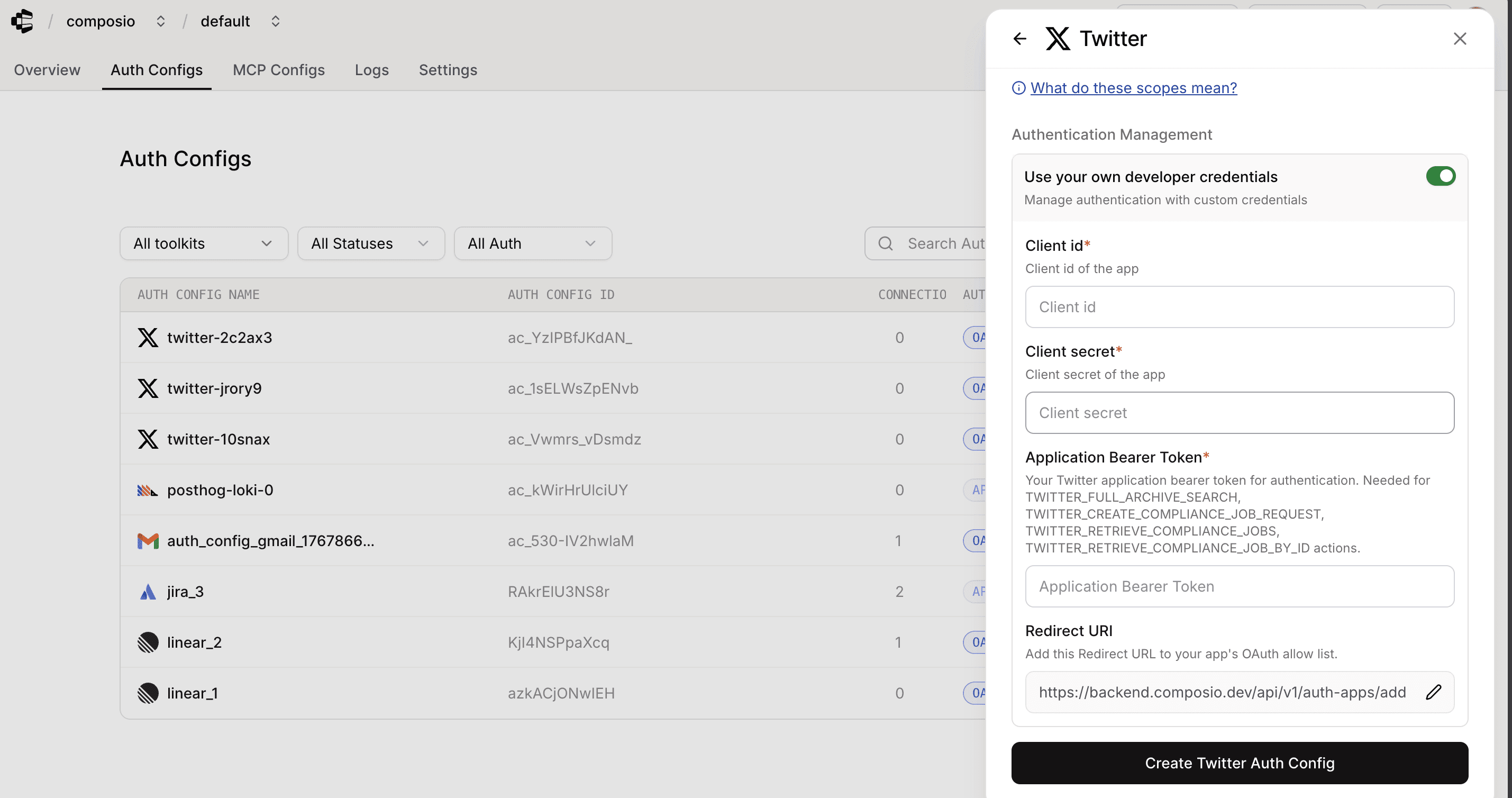
Fill in with the Client ID, Client Secret from the last step, and the Bearer token from the first step and create the Twitter Auth Config.
Once you have set up the auth config for Twitter, you can go to the Manage Auth Config tab to make changes to any auth config fields. Here, you can also customise the auth scopes if needed. Default scopes are already pre-filled for most apps.
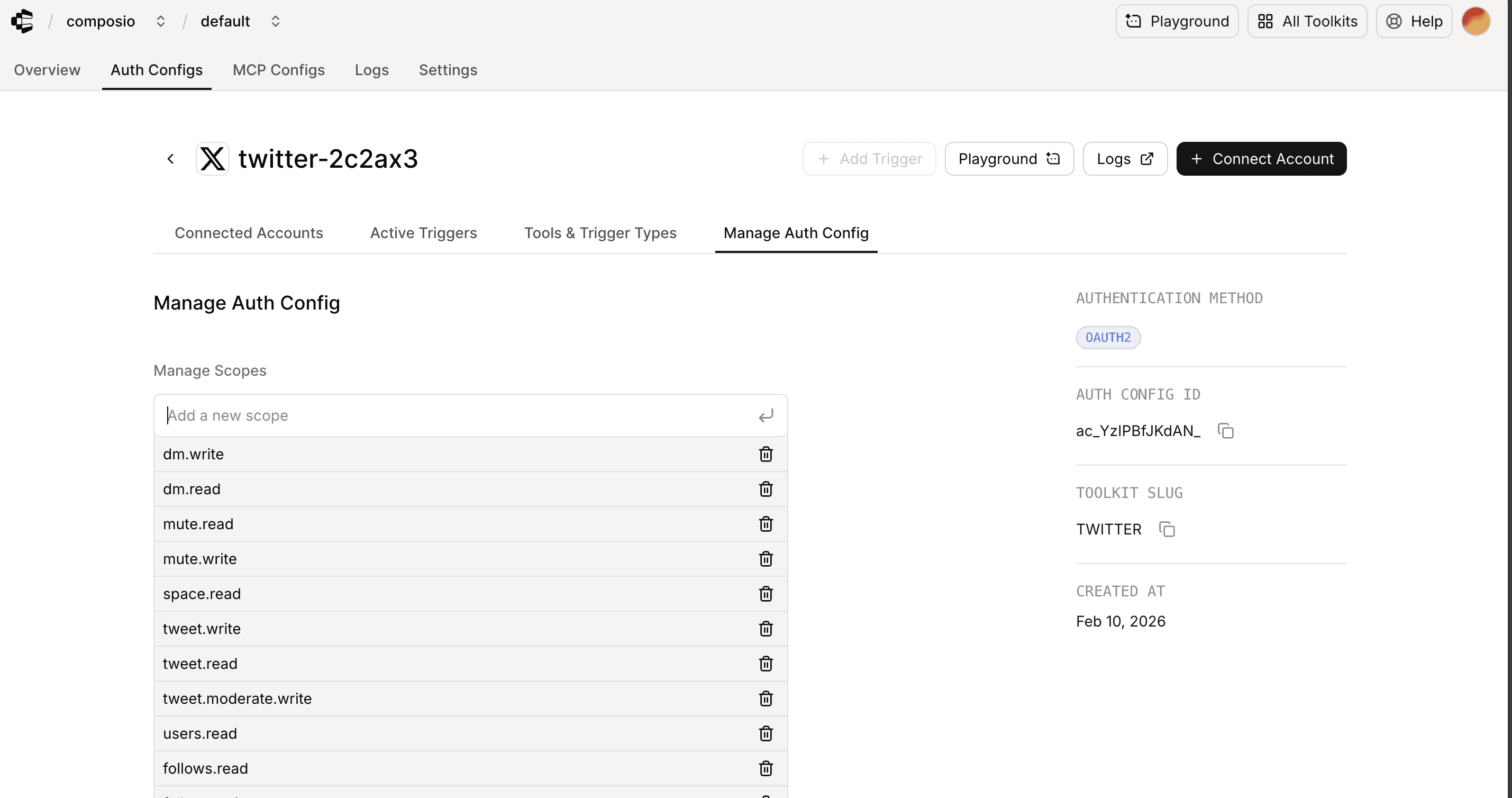
Once done, copy the auth config ID (which starts with ac_) and use it in your application code via a secret manager.
You are all set with the new custom Twitter/X integration.
In this guide, I will walk you through the process of customising the auth config for Twitter/X in Composio. So, let's begin.
Step 1: Create an X developer account
Go to https://console.x.com/ and log in to the Twitter/X account you want to associate with the developer app.
Step 2: Create an App
Once your developer account is ready, you can create an app and generate the OAuth Client ID and Client Secret.
Click Apps in the left panel
Again, click on Create App

Fill in the forms with your app details and the new client application

Copy the credentials shown on the screen and keep them in a secure place

Step 3: Create Oauth 2.0 Client ID and secret
Now, refresh the page and click on the app you just created.
Click User authentication settings in the bottom-right corner.

Select the type of app for Oauth 2.0 Authentication.

Add Composio callback URL

Click save changes and store the client ID and secret

Creating the Auth Config in Composio
With your OAuth credentials ready, navigate to the Composio dashboard for your project to configure Facebook authentication settings.
Click the Create Auth Config button to view a list of all available toolkits

In the sidebar, type Twitter. The authentication is already set to OAuth2 with prefilled scopes. You can remove scopes you don’t need.

Scroll down and toggle to use your own developer credentials.

Fill in with the Client ID, Client Secret from the last step, and the Bearer token from the first step and create the Twitter Auth Config.
Once you have set up the auth config for Twitter, you can go to the Manage Auth Config tab to make changes to any auth config fields. Here, you can also customise the auth scopes if needed. Default scopes are already pre-filled for most apps.

Once done, copy the auth config ID (which starts with ac_) and use it in your application code via a secret manager.
You are all set with the new custom Twitter/X integration.