




Trello is one of the leading ticketing services. It allows teams to organise work as boards, lists, and cards—great for lightweight project tracking, support queues, and internal workflows.
If you’re building an integration (or just automating your own workspace) for some product or AI Agents, you’ll need Trello API credentials: an API Key (identifies your app) and an Access Token (authorises actions on an account).
This guide walks you through getting both in a few minutes.
Note: The old
https://trello.com/app-keypage is deprecated and now redirects to the Power-Ups admin portal. Usehttps://trello.com/power-ups/admindirectly.
Step 1: Open the Power-Ups Admin Portal
Log in to your Trello account or create one if it’s your first time.
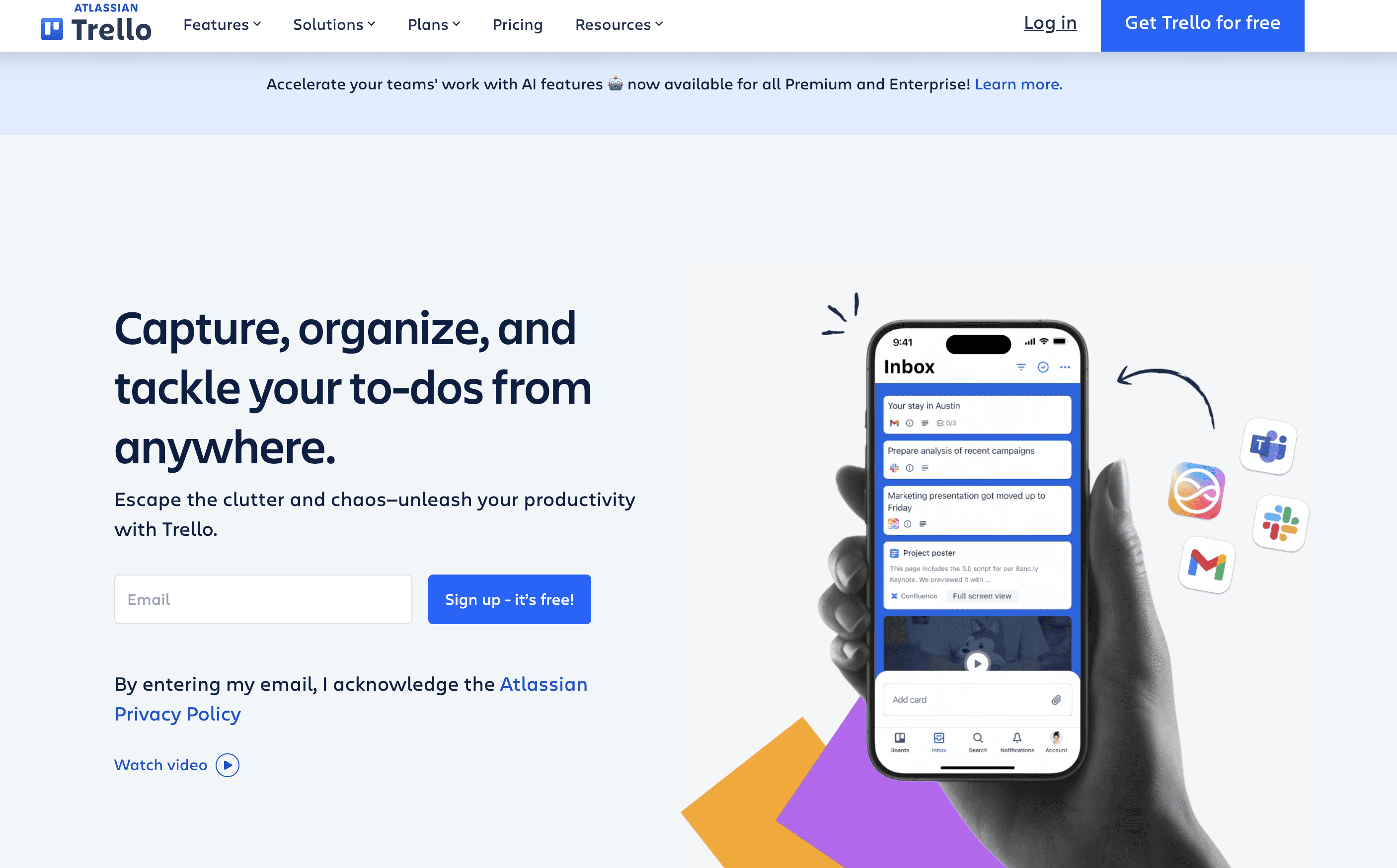
Go to the Power-Ups admin portal: https://trello.com/power-ups/admin
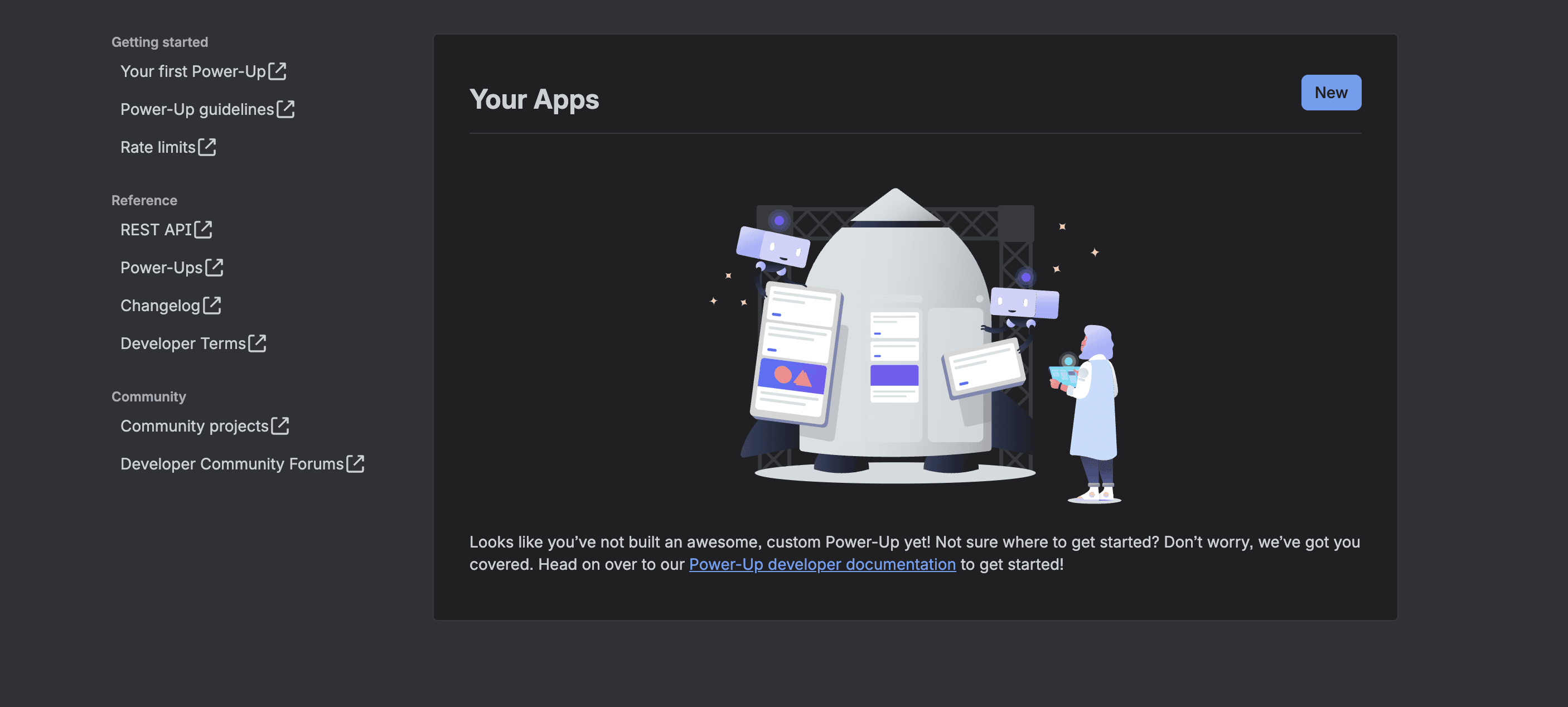
Step 2: Create a New Power-Up
Click New in the top right.
Fill in the form with valid but minimal information:
Field
What to enter
App / Power-Up name
e.g.
My-Trello-AppWorkspace
Any workspace you belong to (a personal one is fine)
Email
your-email@company.comSupport contact
your-email@company.comAuthor
Your name or company name
Iframe connector URL
https://example.com(a placeholder is fine if you aren't building a real Power-Up UI)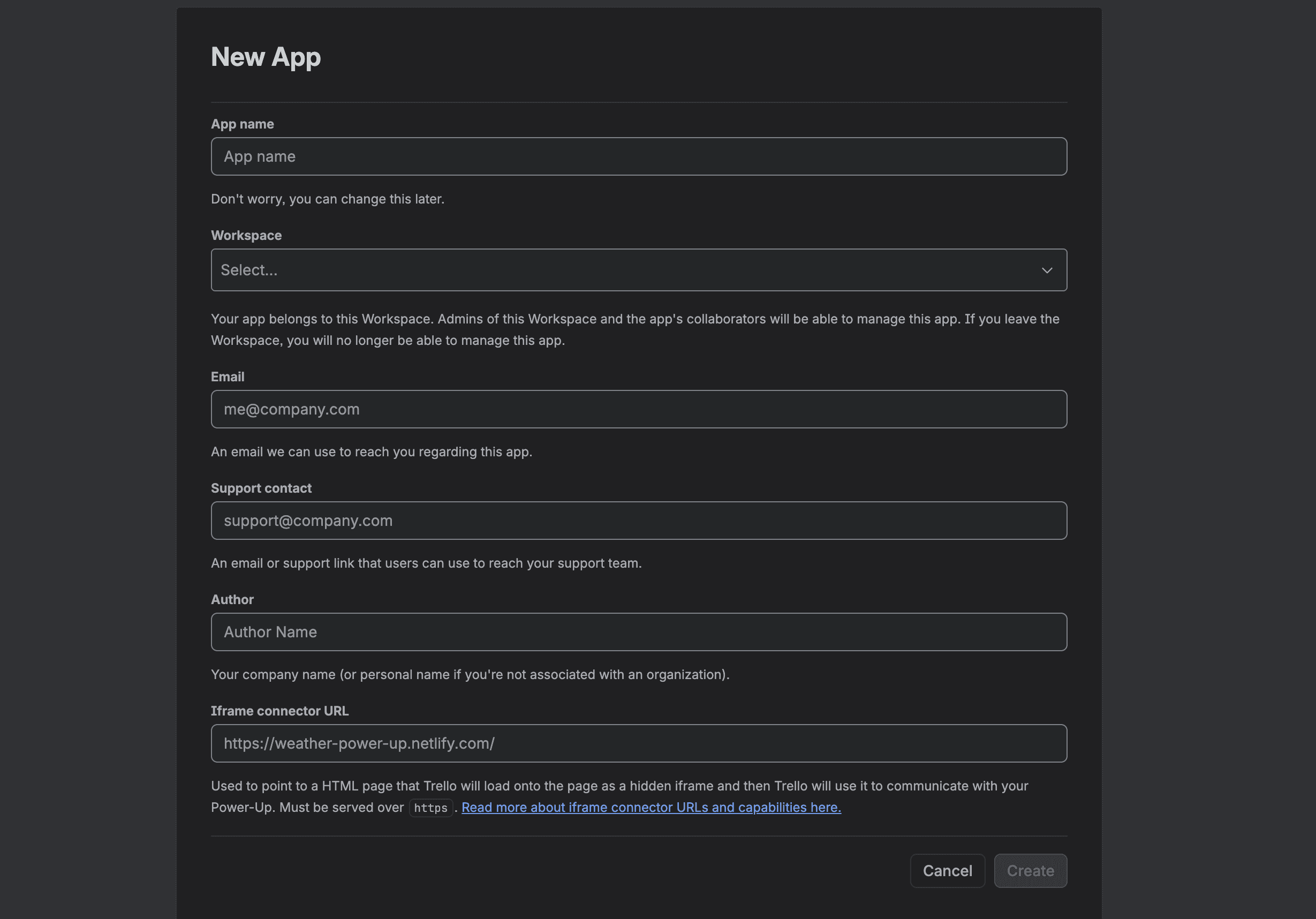
Click Create once all required fields are filled.
Step 3: Generate the API Key and Secret
After the Power-Up is created:
Open the Power-Up you just created.
Navigate to the API Key tab.
Click Generate a new API Key.
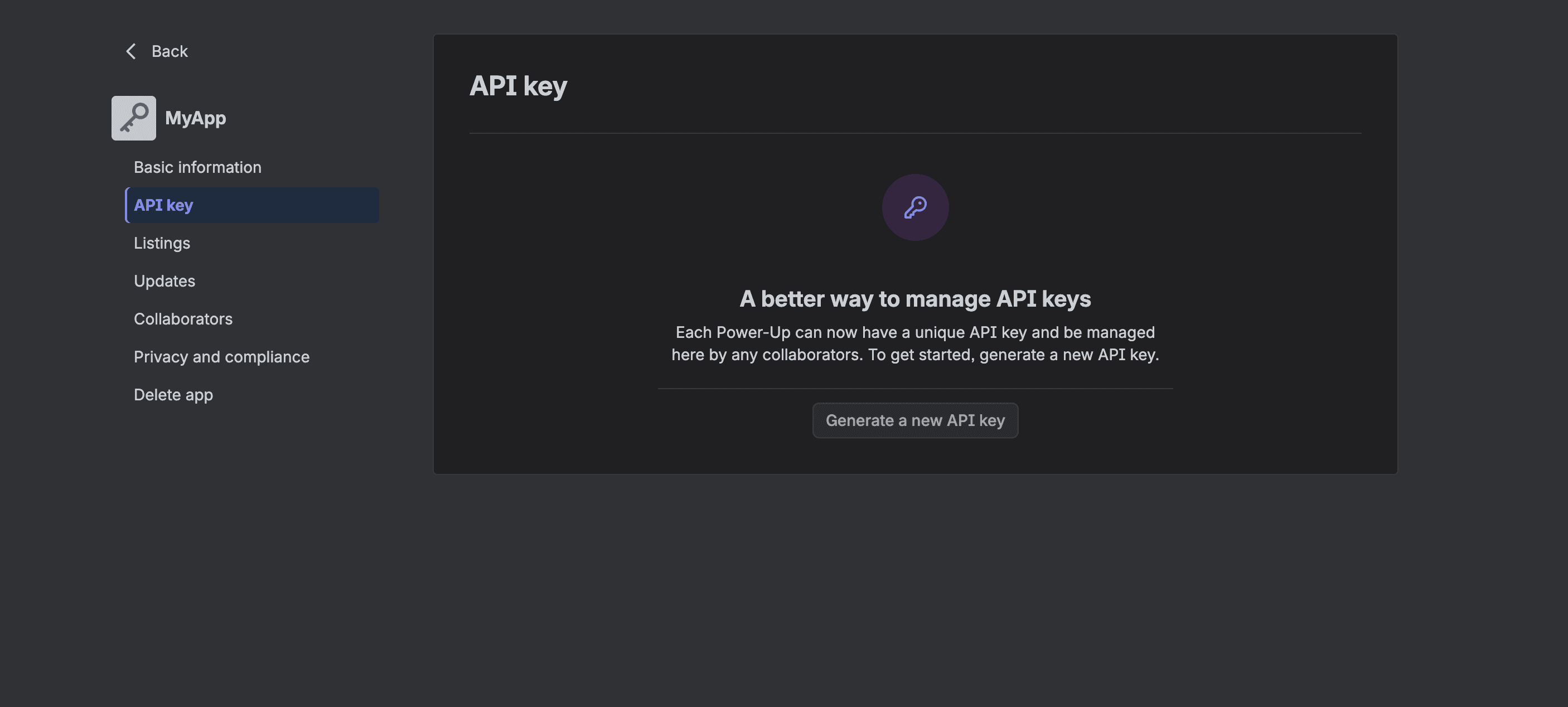
Copy the API Key, then reveal and copy the Secret.
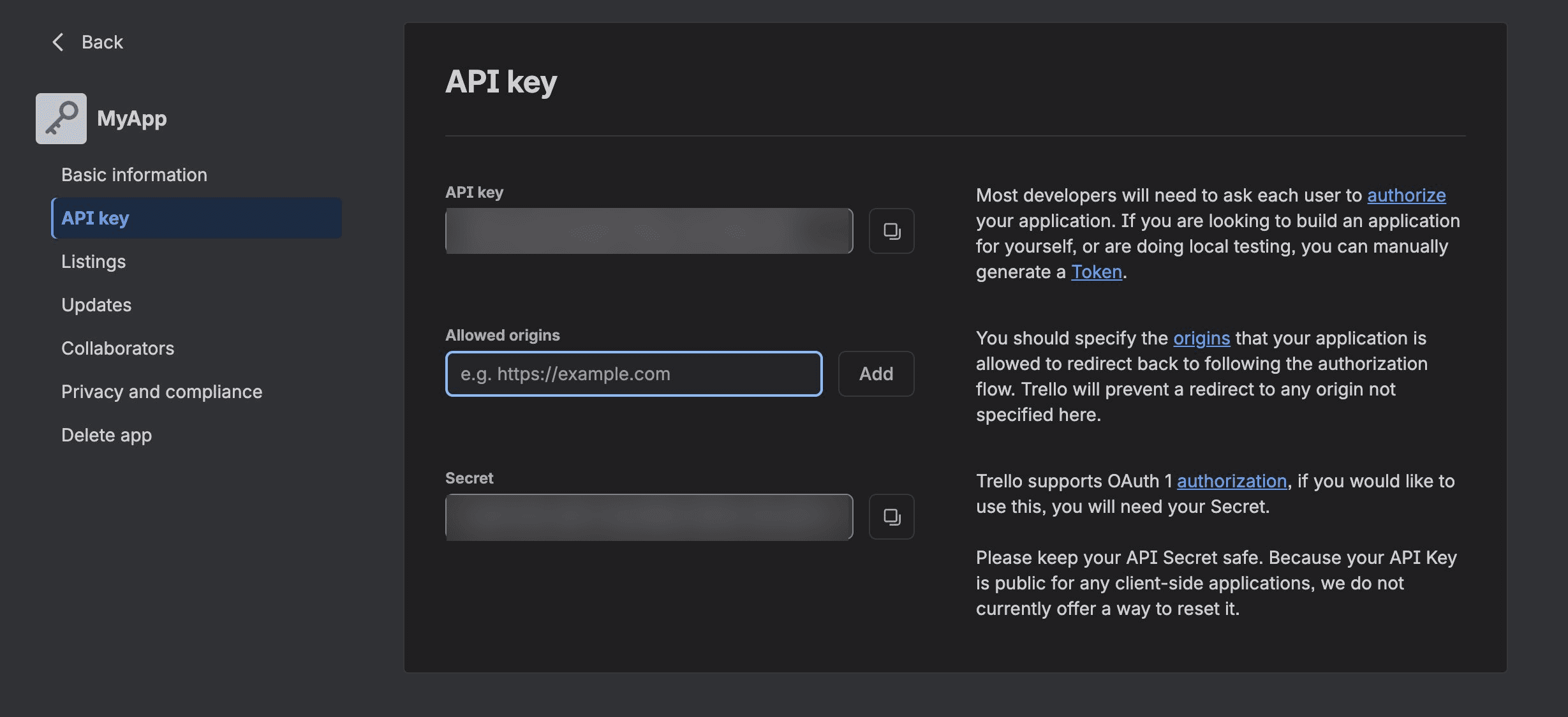
That's it. You now have your Trello API Key and Secret.
You can also set Allowed origins and Secret. The former allows you to whitelist the URLs Trello is permitted to redirect users back to after they authorize your application.
Trello will block any redirect to an origin not listed here. The latter (Secret) is used for OAuth 1.0 authorization, so you only need it if you're signing requests with OAuth rather than a simple key-and-token pair.
Security note: The API Key on its own is meant to be publicly accessible and doesn't grant access to anyone's data. The Secret and any user token, however, do grant access, keep them private and never commit them to source control.
Related:
Step 4: Generate an Access Token
The API Key identifies your application; a token is what authorizes access to a specific account's data. For testing or personal use, you can generate one yourself by visiting the URL below in a browser (substitute your own key):
https://trello.com/1/authorize?expiration=never&scope=read,write&response_type=token&name=My-Trello-App&key=YOUR_API_KEY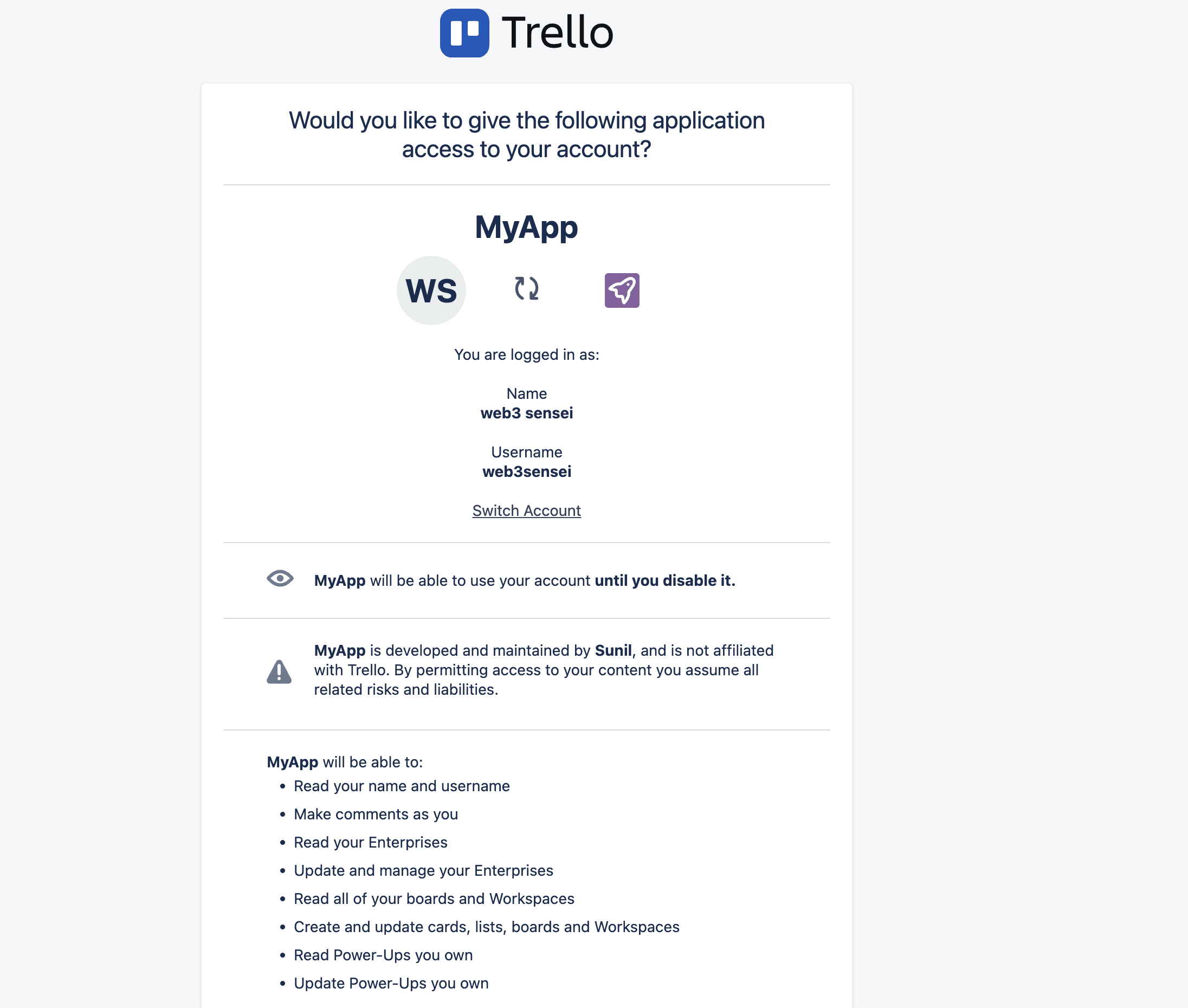
Click Allow, and Trello returns a 64-character token. Copy it and store it securely.
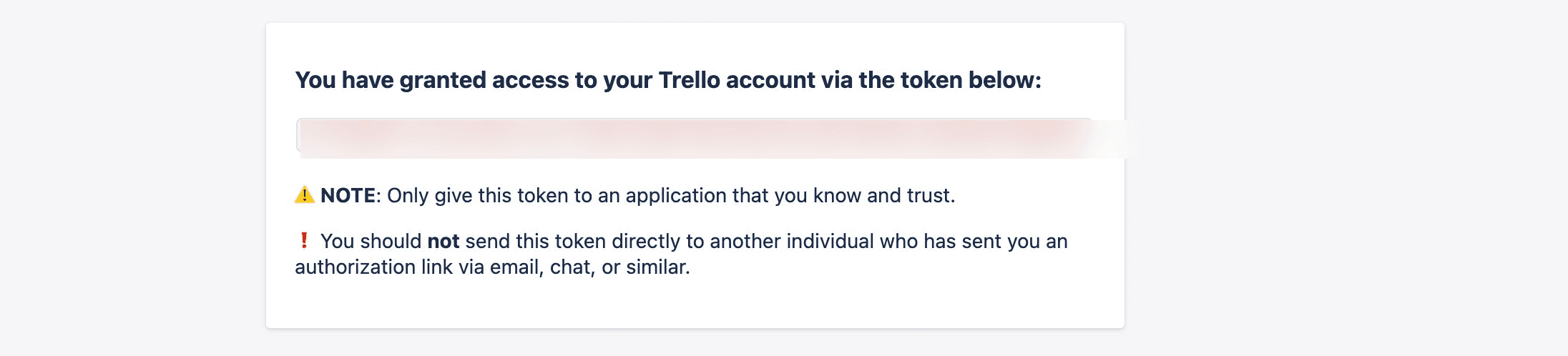
You can tune two things in the URL:
expiration—1hour,1day,30days, ornever(30 days is the default if omitted).scope— the permissions granted to the token. Common values:Scope
Grants
readRead boards, lists, and cards
writeCreate, update, and move cards
accountRead basic account information
Request only the scopes you actually need — e.g. use scope=read for read-only access.
Step 5: Verify Your Credentials
Confirm the Key + Token work before building anything on top of them:
curl "https://api.trello.com/1/members/me?key=YOUR_API_KEY&token=YOUR_TOKEN"This should return a JSON object with your Trello user details. If it does, your credentials are valid. All Trello API requests use the base URL https://api.trello.com/1.
Revoking a token: you can view and revoke any token you've granted at
https://trello.com/u/{username}/accountunder the Applications heading. Note that Trello does not offer a way to reset the API Key itself, if it's ever exposed, rotate the Secret and revoke affected tokens.
Additional Consideration for building with Trello API
Pricing
The Trello REST API is free**.** There's no separate charge for API access and no per-request fees. Anyone with a Trello account (the Free plan included) can generate an API Key and Token and start making requests. The only usage constraints are the rate limits described above.
What your Trello plan affects is the underlying account your API calls act on — the number of boards, automation runs, available views, and admin controls — not access to the API itself.
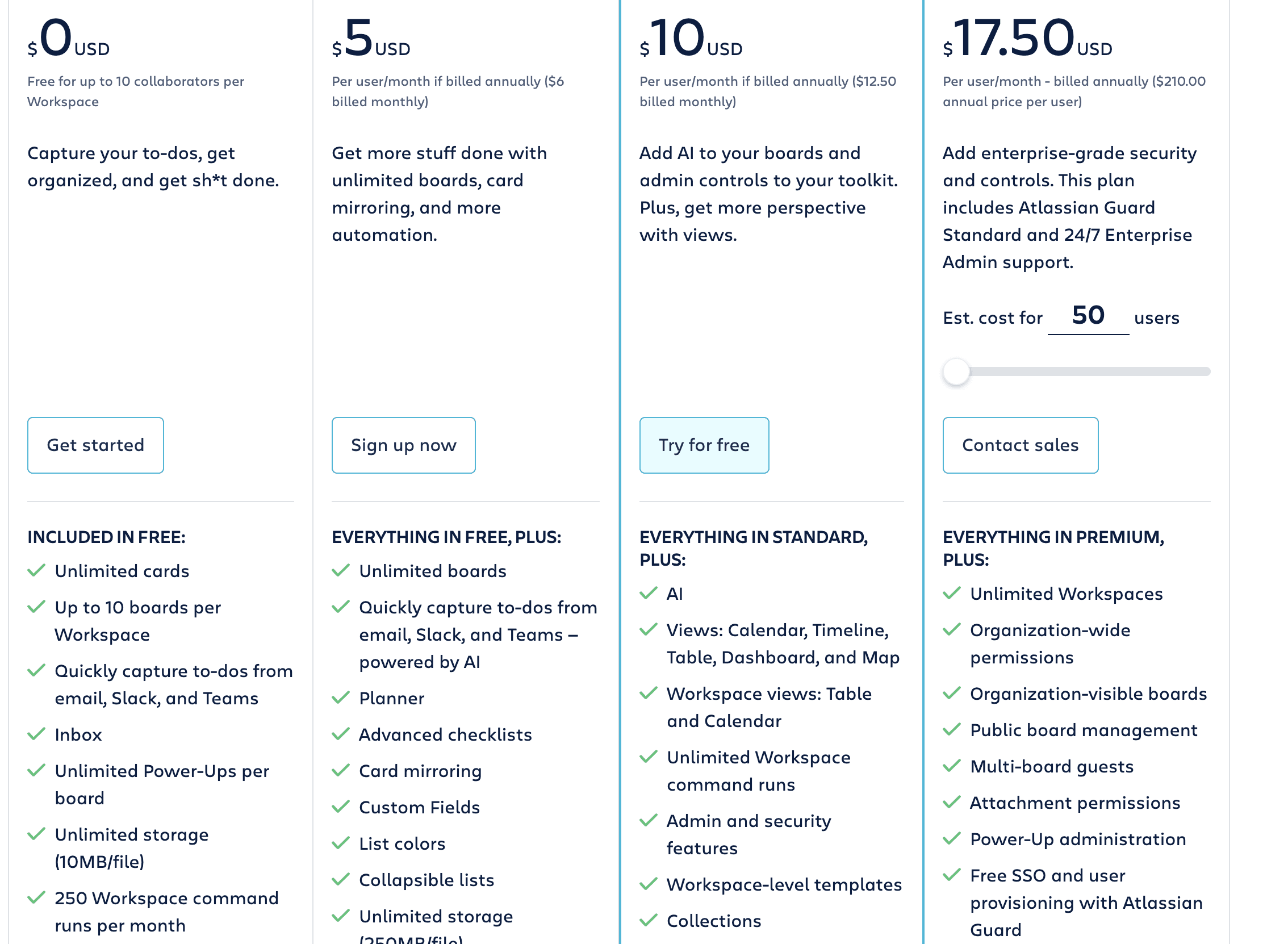
Check official pricing for Trello API.
Error Codes
Status | Error message | Likely cause | Fix |
|---|---|---|---|
401 |
| API key mistyped or incomplete | Recopy it from the API Key tab |
401 |
| Token missing, expired, or revoked | Generate a new user token (Step 4) |
401 |
| Token lacks the needed scope | Regenerate the token with |
400 |
| A board/list/card ID is wrong | Verify the ID in your request |
404 |
| Resource doesn't exist or the token can't see it | Check the ID and the token's permissions |
429 |
| Too many requests | Back off and retry (see below) |
Learn about Trello’s error codes on their official guide.
Rate limits:
Trello allows 300 requests per 10 seconds per API key, and 100 requests per 10 seconds per token. On a 429, the response includes a Retry-After header indicating how long to wait before retrying.
For full details, see Trello's official documentation: