How to create Telegram auth credentials and configure it in Composio
In this guide, we’ll walk through how to configure Telegram authentication using Bot Token–based authentication with Composio.
Telegram does not support OAuth.
All access is handled using a Bot Token generated via BotFather.
Setting Up Telegram
In this section, we’ll create a Telegram bot and generate the API token required for Composio.
Step 1: Create a Telegram Bot
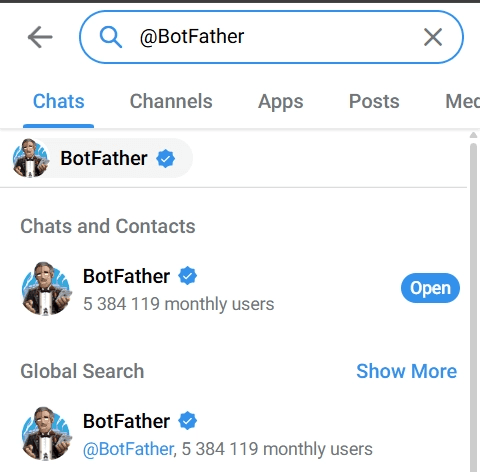
Open Telegram and search for @BotFather
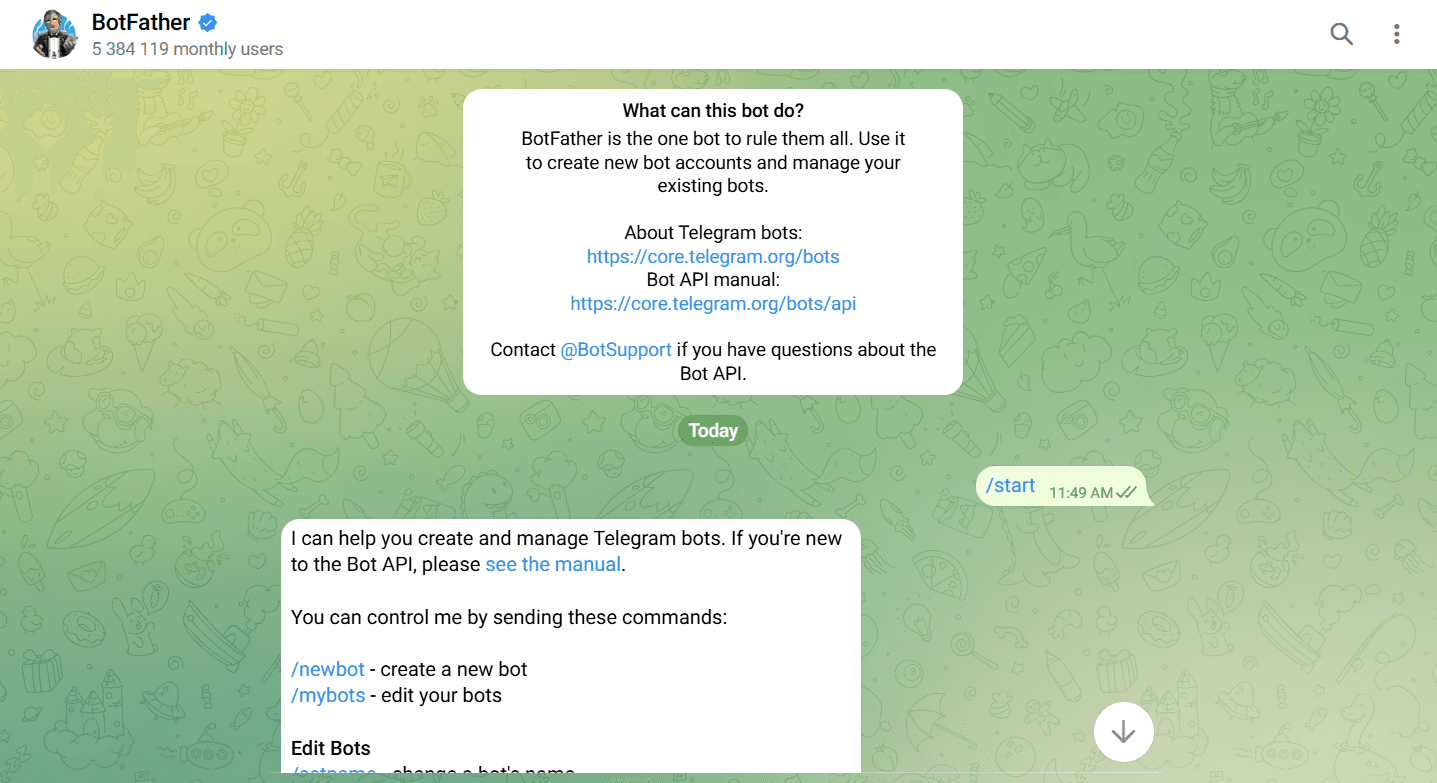
Start a chat and type:
/start
Create a new bot:
/newbot
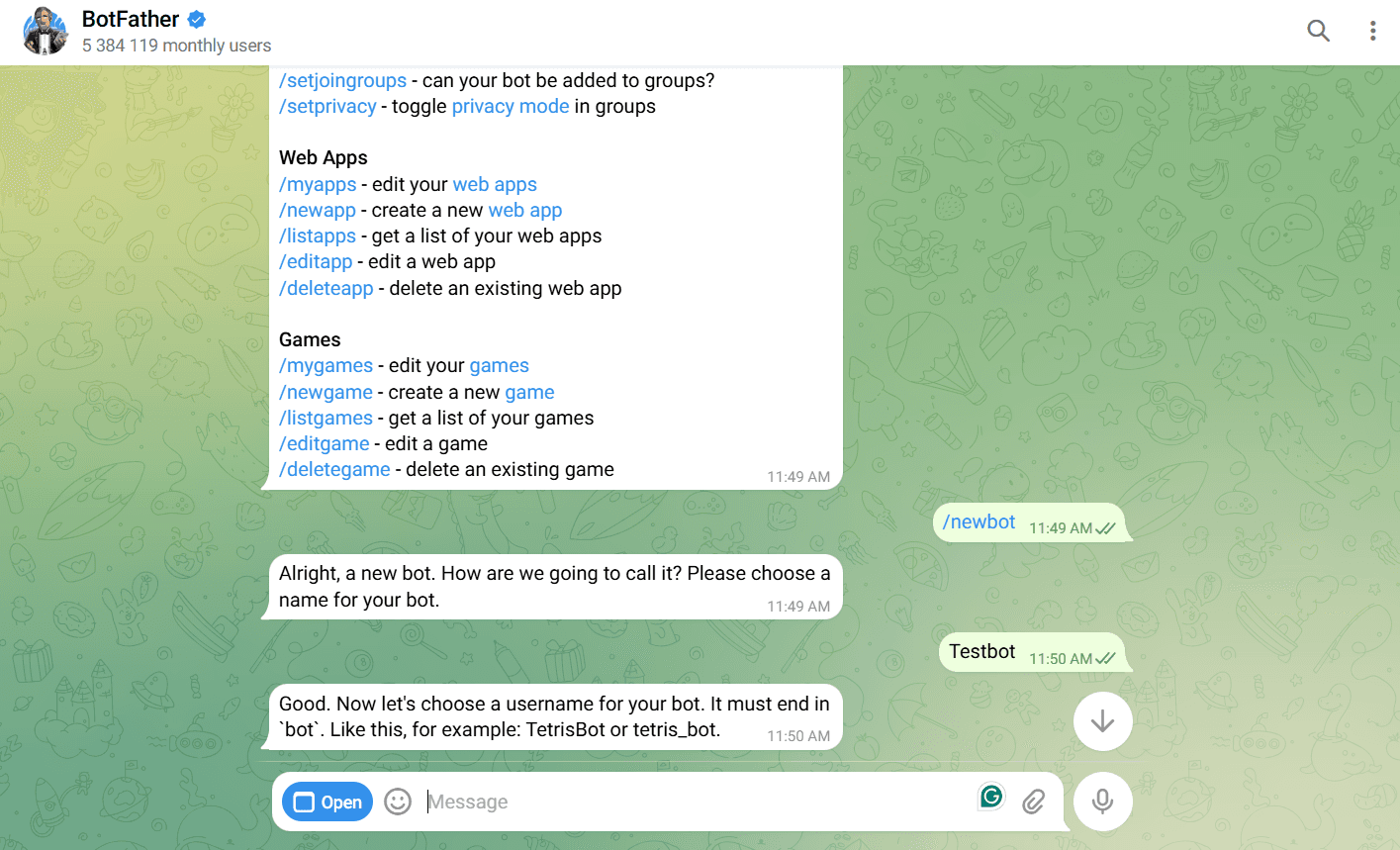
Enter:
Bot name (display name)
Bot username (must end with
bot, e.g.composio_test_bot)
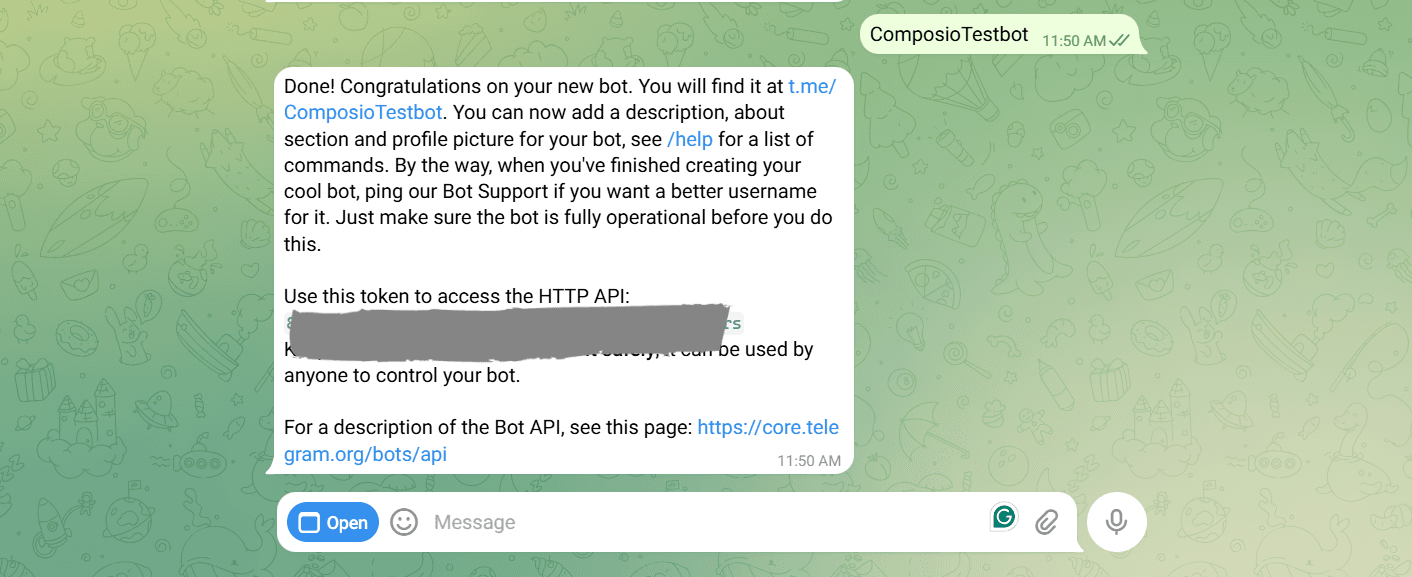
Once created, BotFather will return a Bot Token:
1234567890:AAxxxxxxxxxxxxxxxxxxxxxxxxxxxx
Important:
Save this token securely; it grants full control over your bot.
Telegram Bot Permissions
Telegram bots do not use scopes.
Instead:
Permissions are implicitly granted via the bot token
What the bot can do depends on:
Whether it’s added to a chat/group
Admin permissions (for groups/channels)
Creating the Auth Config in Composio
Once you have the Telegram Bot Token, configure it in Composio.
Step 1: Create a New Auth Config
Go to the Composio Dashboard
With your OAuth credentials ready, navigate to the Composio dashboard:
https://platform.composio.dev/
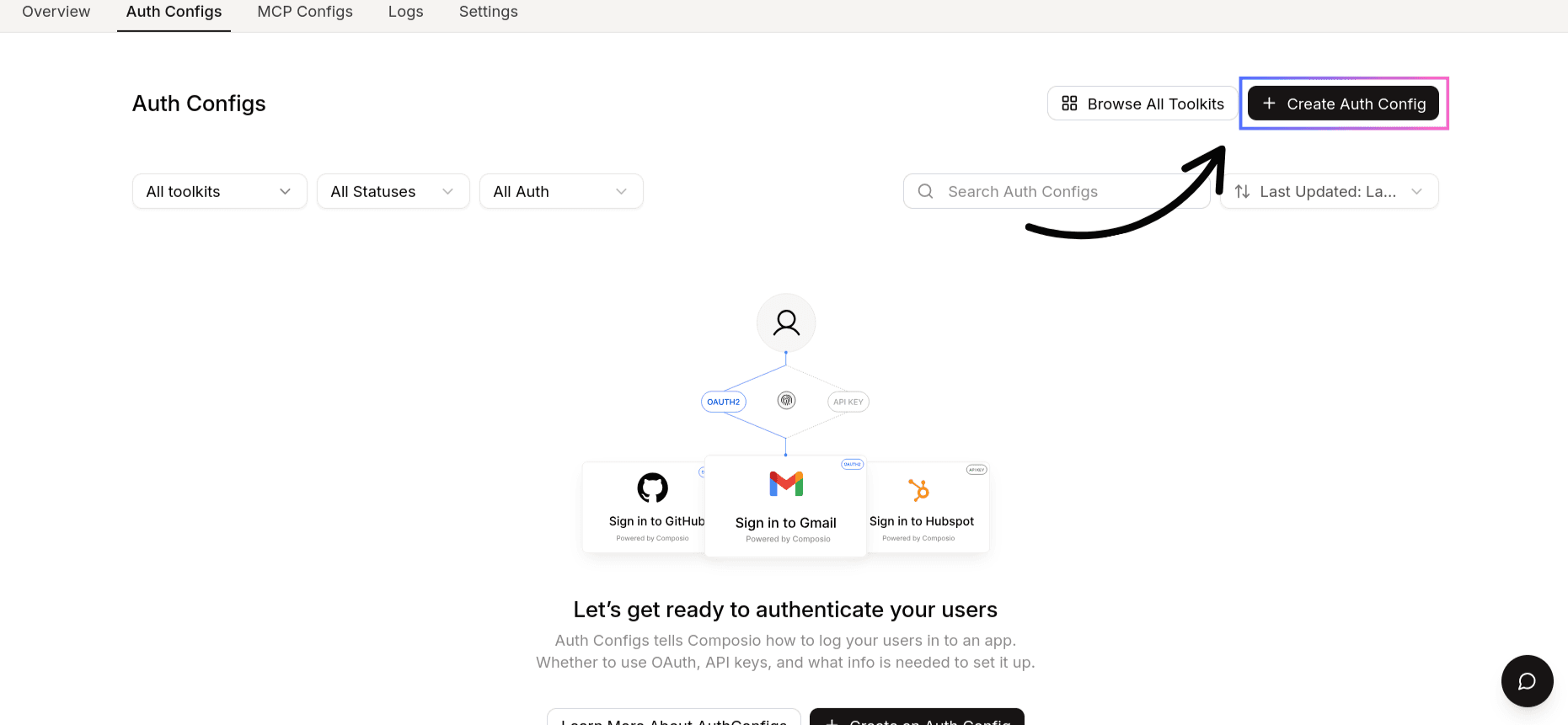
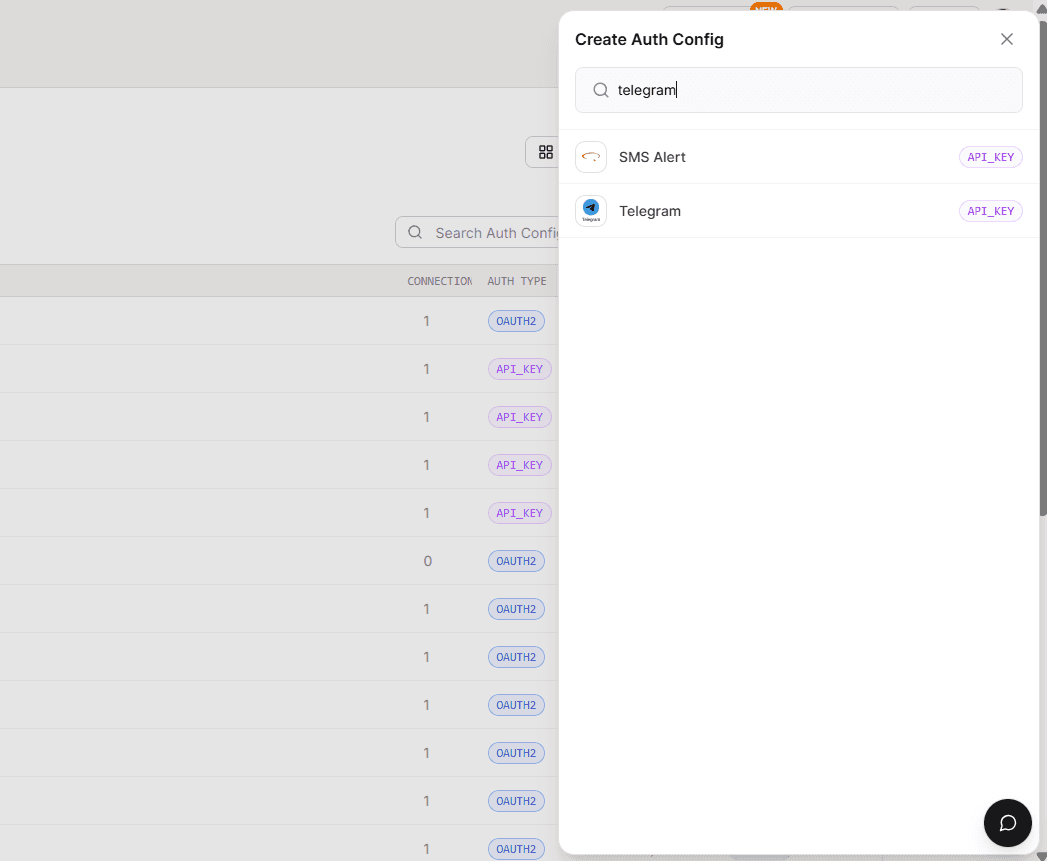
Click Create Auth Config

Select **Telegram **from the list of available toolkits
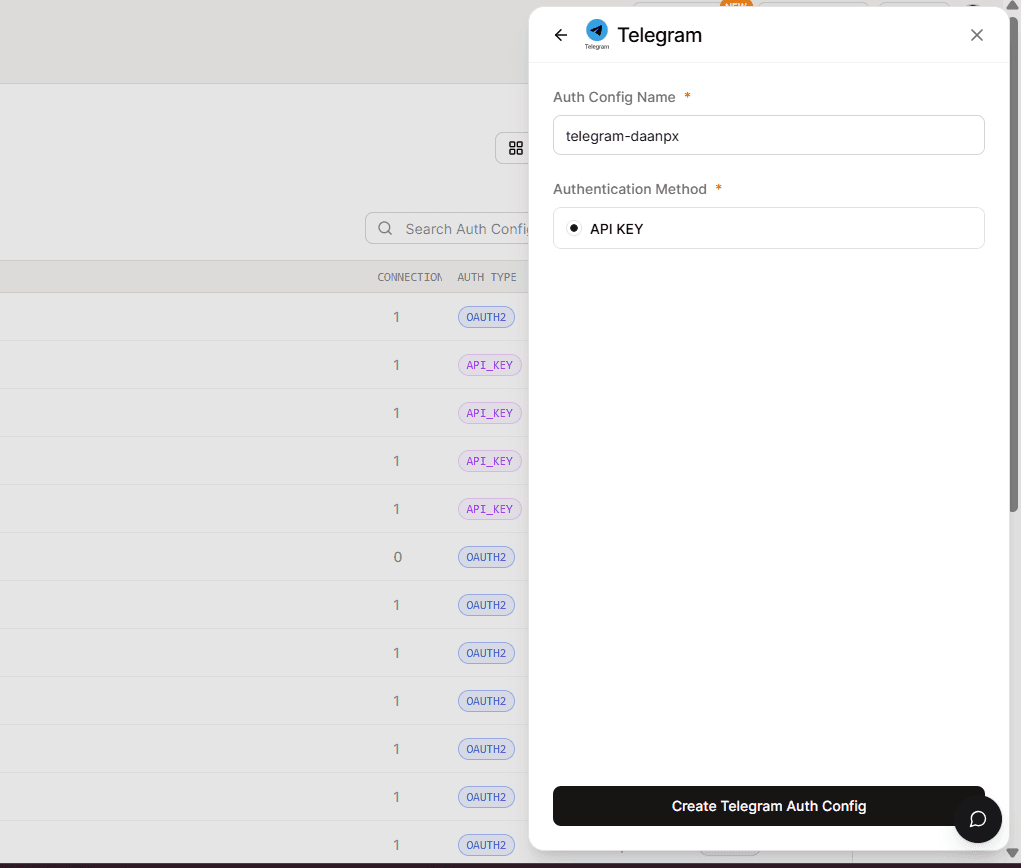
Ensure authentication is set to API KEY
Step 2: Configure Authentication
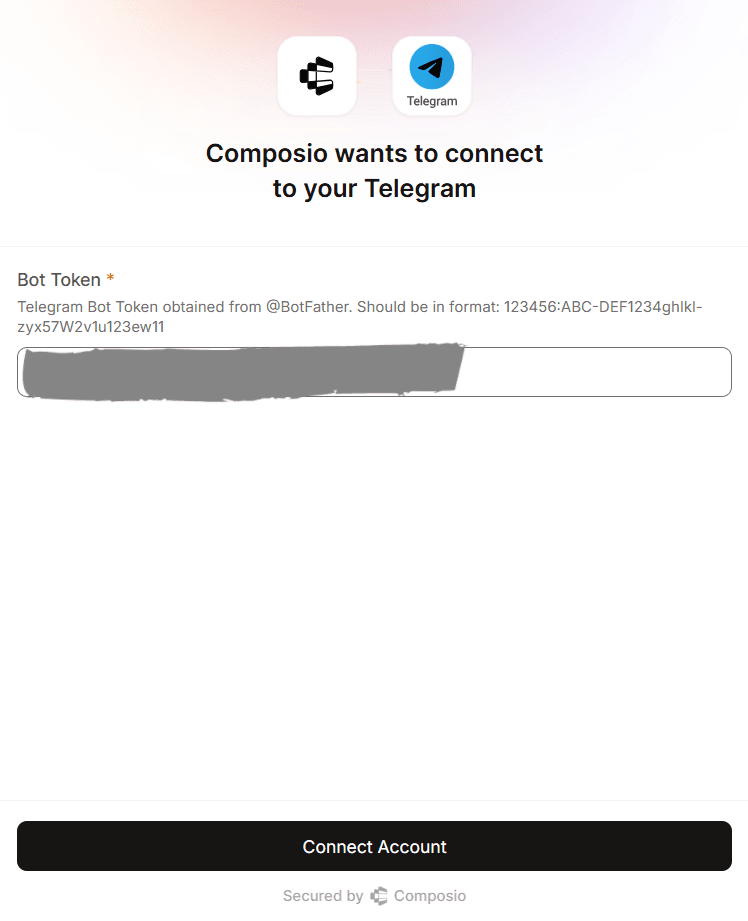
Click Connect Account
Set Authentication Type to Bearer Token
Paste your Telegram Bot Token
Telegram does not require:
Client ID
Client Secret
Redirect URLs
OAuth consent
Scopes Supported by Composio for Telegram
Telegram does not use OAuth scopes.
Access is controlled entirely by the bot token
Composio forwards the token in API requests automatically
Example Authorization header:
Authorization: Bearer <TELEGRAM_BOT_TOKEN
Base URL for Telegram API
All Telegram API requests are sent to:
https://api.telegram.org
How Authentication Works
When using Telegram with Composio:
The bot token is stored securely in the Auth Config
Composio injects the token in every API request
No user login or OAuth flow is involved
The bot acts as the authenticated entity
This makes Telegram a very simple and reliable integration.
Test Telegram Connection (Optional)
You can verify the setup using Composio Playground.
Open your Telegram Auth Config
Navigate to Playground
Try a simple prompt like:
“Send a message to my Telegram bot”
or
“Get recent updates from Telegram”
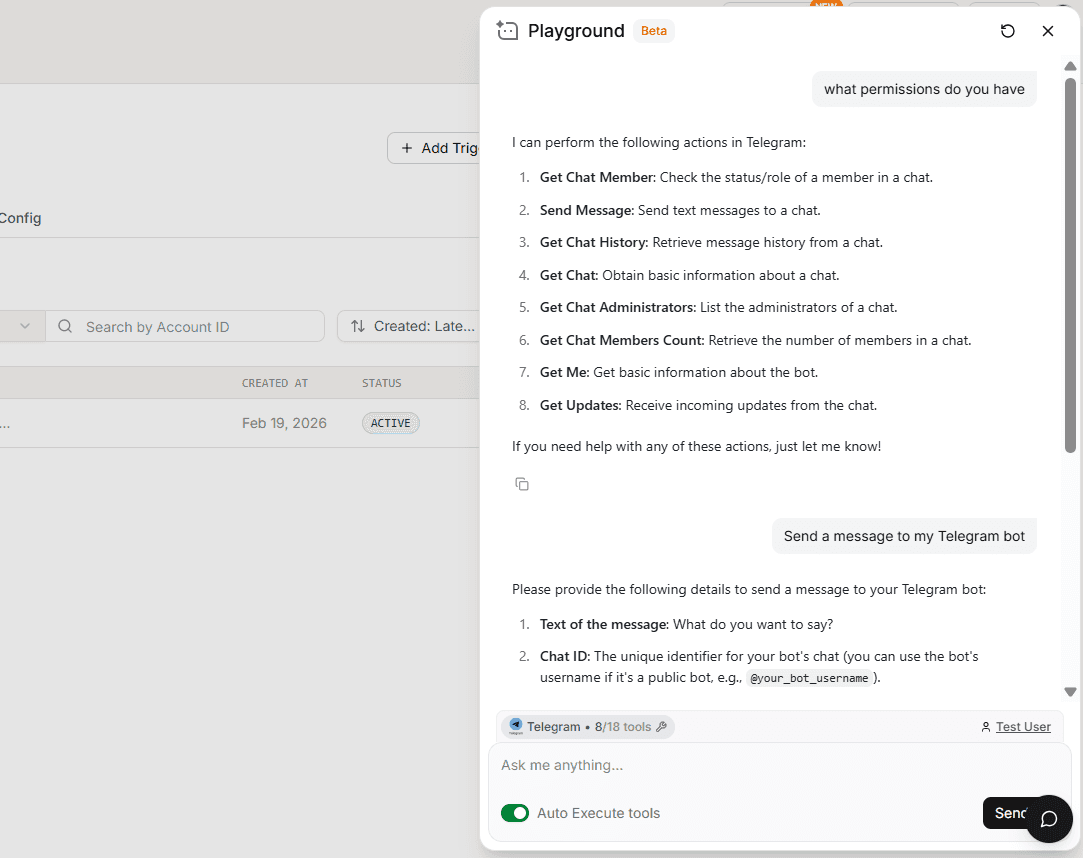
If the bot token is valid, Composio will successfully interact with Telegram.
Final Step
Once everything is set up:
Copy the Auth Config ID (starts with
ac_)
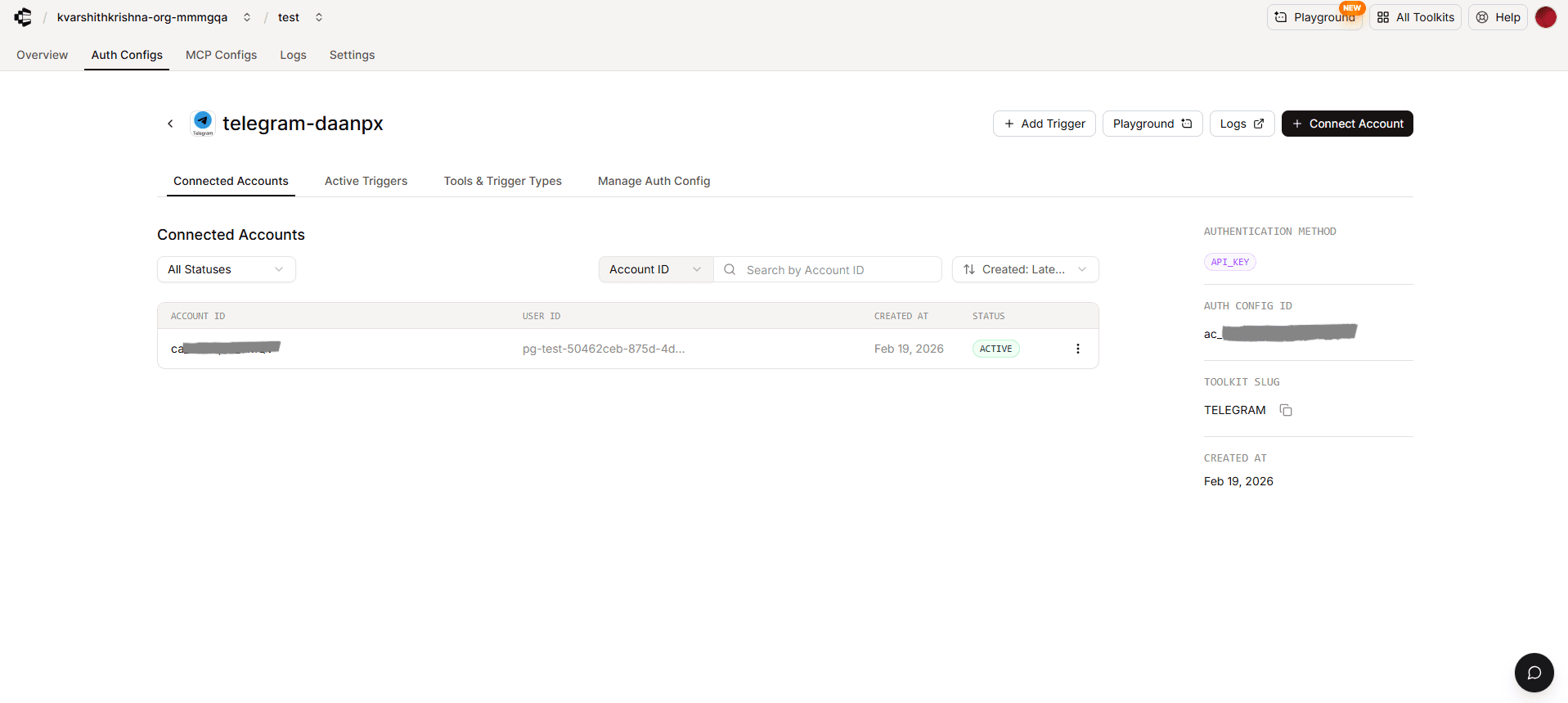
Store it securely using a secret manager
Use it in your application code to authenticate Telegram via Composio
Your Telegram integration is now ready to use!
In this guide, we’ll walk through how to configure Telegram authentication using Bot Token–based authentication with Composio.
Telegram does not support OAuth.
All access is handled using a Bot Token generated via BotFather.
Setting Up Telegram
In this section, we’ll create a Telegram bot and generate the API token required for Composio.
Step 1: Create a Telegram Bot
Open Telegram and search for @BotFather

Start a chat and type:
/start
Create a new bot:
/newbot
Enter:
Bot name (display name)
Bot username (must end with
bot, e.g.composio_test_bot)
Once created, BotFather will return a Bot Token:
1234567890:AAxxxxxxxxxxxxxxxxxxxxxxxxxxxx
Important:
Save this token securely; it grants full control over your bot.

Telegram Bot Permissions
Telegram bots do not use scopes.
Instead:
Permissions are implicitly granted via the bot token
What the bot can do depends on:
Whether it’s added to a chat/group
Admin permissions (for groups/channels)
Creating the Auth Config in Composio
Once you have the Telegram Bot Token, configure it in Composio.
Step 1: Create a New Auth Config
Go to the Composio Dashboard
With your OAuth credentials ready, navigate to the Composio dashboard:
https://platform.composio.dev/
Click Create Auth Config

Select **Telegram **from the list of available toolkits

Ensure authentication is set to API KEY

Step 2: Configure Authentication
Click Connect Account
Set Authentication Type to Bearer Token
Paste your Telegram Bot Token

Telegram does not require:
Client ID
Client Secret
Redirect URLs
OAuth consent
Scopes Supported by Composio for Telegram
Telegram does not use OAuth scopes.
Access is controlled entirely by the bot token
Composio forwards the token in API requests automatically
Example Authorization header:
Authorization: Bearer <TELEGRAM_BOT_TOKEN
Base URL for Telegram API
All Telegram API requests are sent to:
https://api.telegram.org
How Authentication Works
When using Telegram with Composio:
The bot token is stored securely in the Auth Config
Composio injects the token in every API request
No user login or OAuth flow is involved
The bot acts as the authenticated entity
This makes Telegram a very simple and reliable integration.
Test Telegram Connection (Optional)
You can verify the setup using Composio Playground.
Open your Telegram Auth Config
Navigate to Playground
Try a simple prompt like:
“Send a message to my Telegram bot”
or
“Get recent updates from Telegram”

If the bot token is valid, Composio will successfully interact with Telegram.
Final Step
Once everything is set up:
Copy the Auth Config ID (starts with
ac_)

Store it securely using a secret manager
Use it in your application code to authenticate Telegram via Composio
Your Telegram integration is now ready to use!