




Composio connects AI agents to ServiceM8 so they can work with jobs, clients, and other data their account can access.
You can use Composio-managed OAuth, or follow this guide to connect through your own ServiceM8 OAuth app.
Before you start, you need a ServiceM8 developer account and access to your Composio project.
Part 1: Create your ServiceM8 OAuth app
Step 1: Open the Developer page
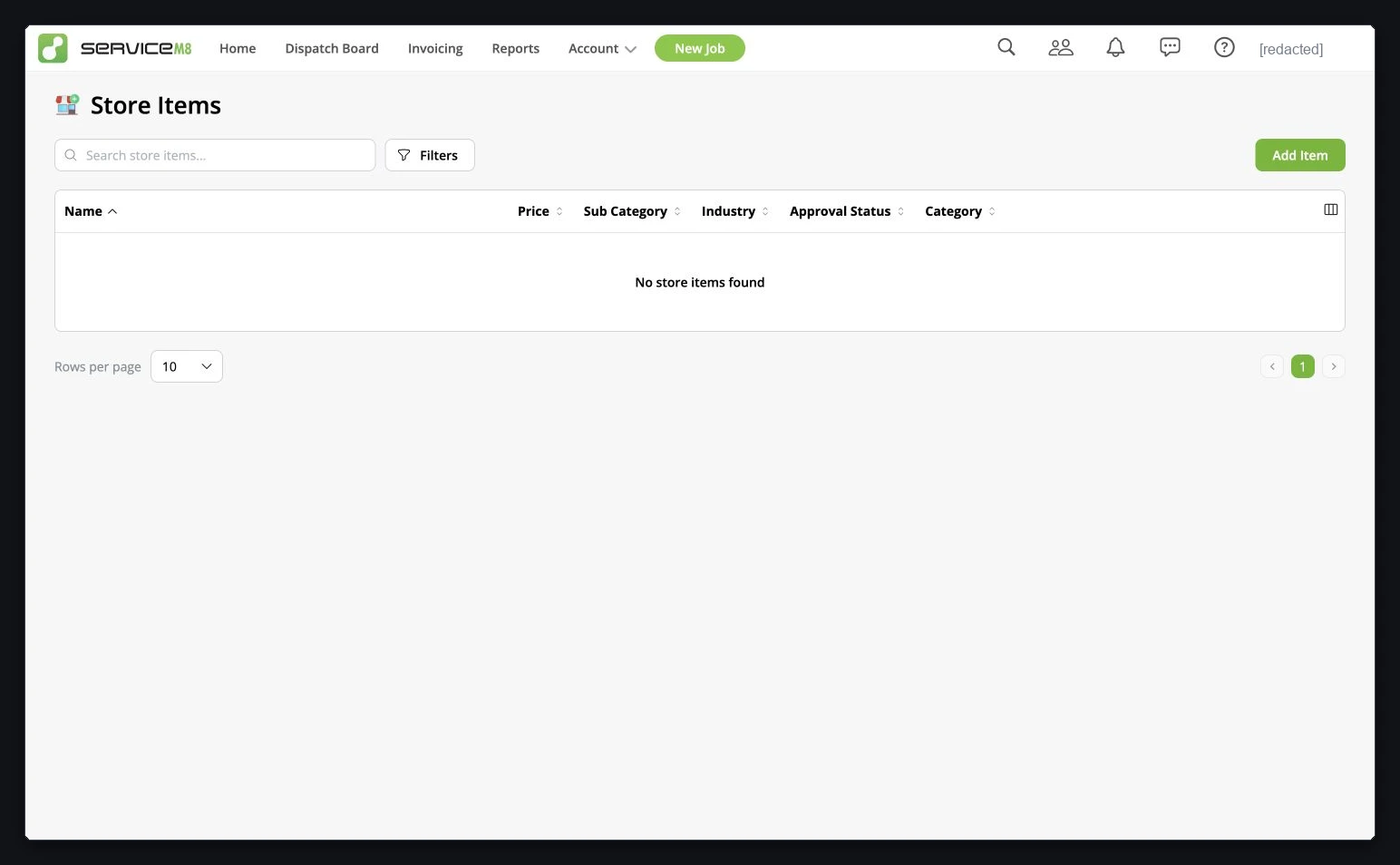
1. Sign in to ServiceM8 and open Developer from the main menu. On the Store Items page, select Add Item.
Step 2: Create an add-on
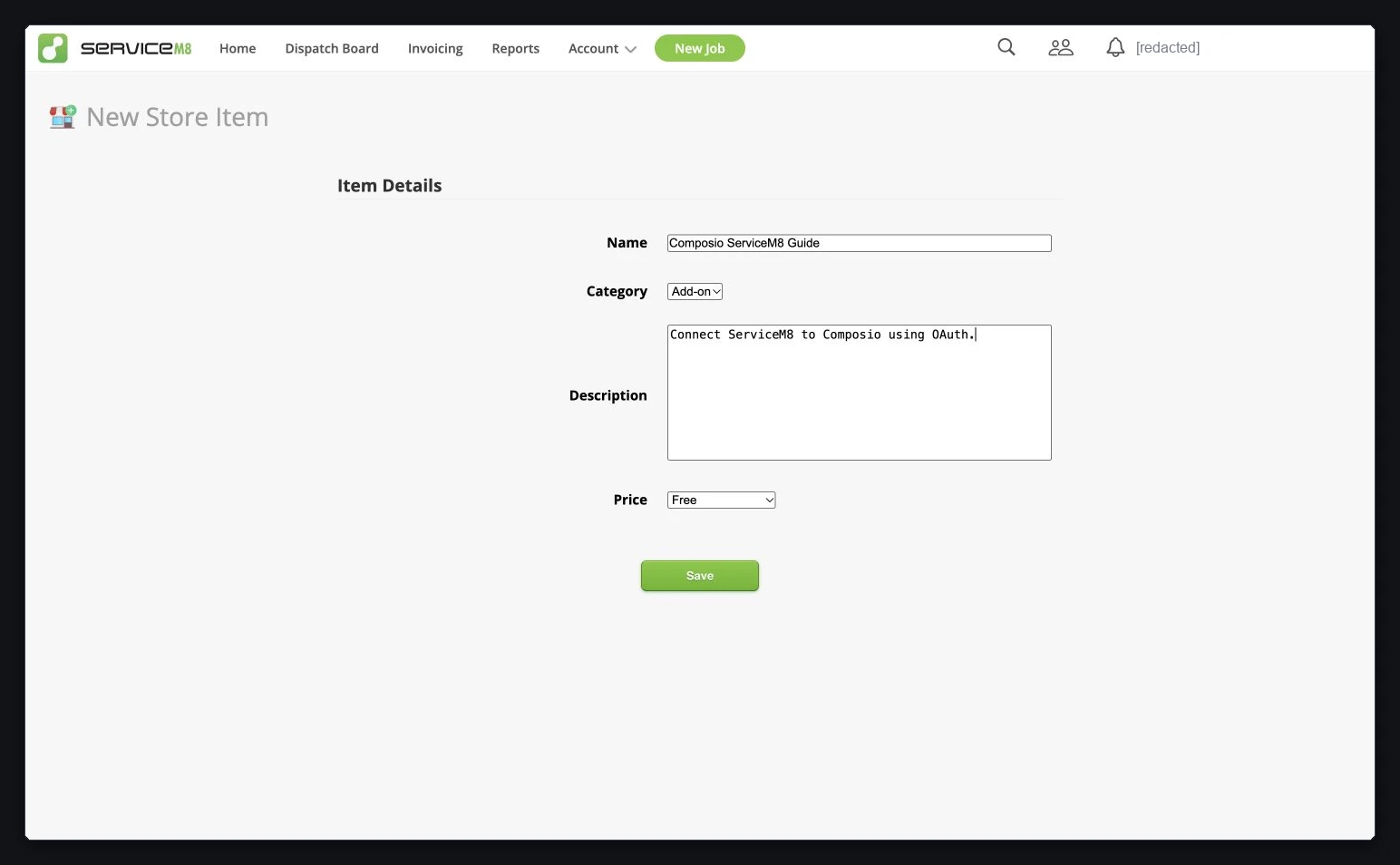
1. Enter a Name and Description for your app. Keep Category set to Add-on. The example uses Free for the price.
2. Select Save. ServiceM8 opens the saved add-on's settings.
Step 3: Copy your OAuth credentials
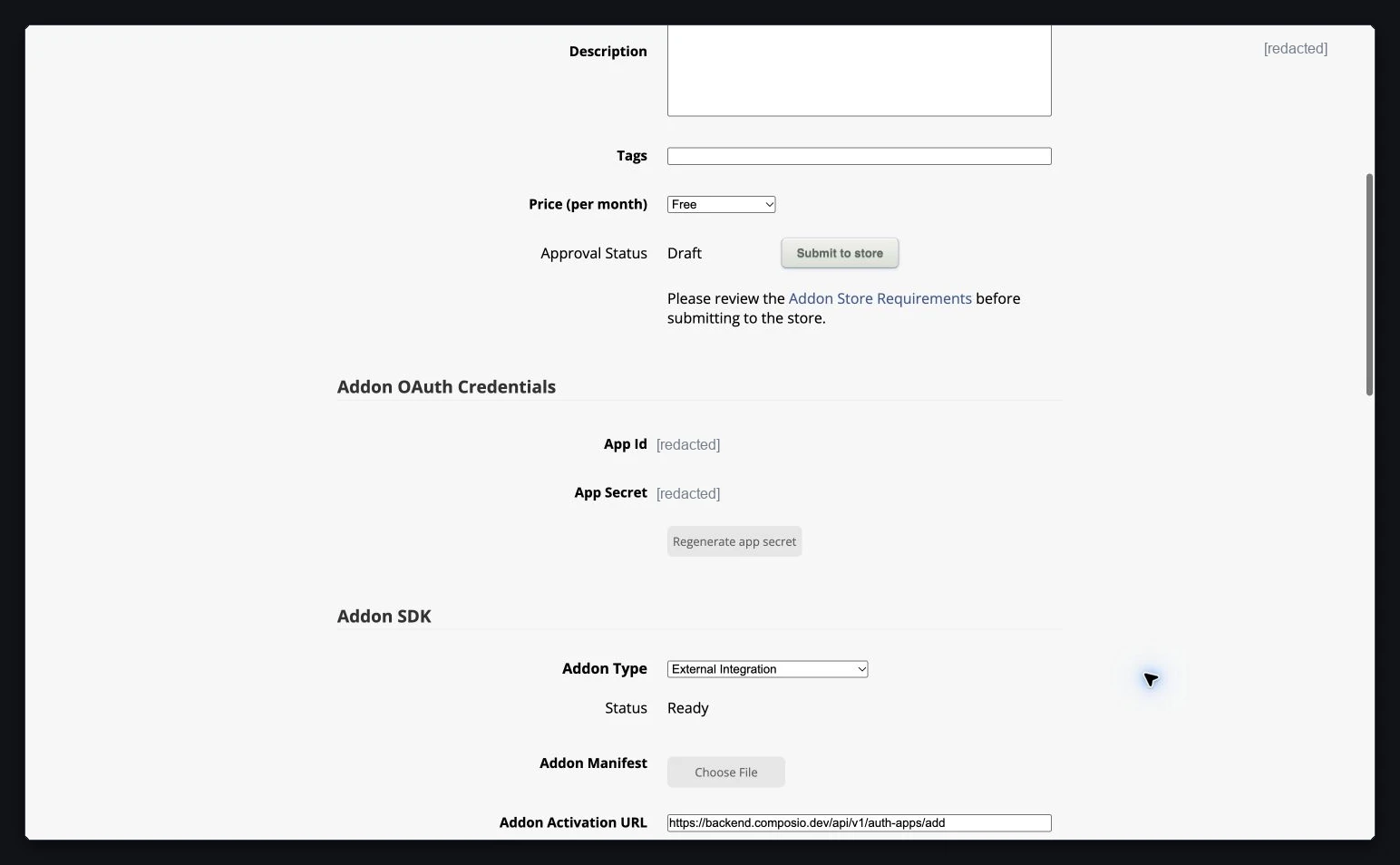
1. Scroll to Addon OAuth Credentials. Copy the App Id and App Secret and store the secret privately.
In Composio, use App Id as the Client id and App Secret as the Client secret.
Step 4: Configure the external integration
1. Under Addon SDK, set Addon Type to External Integration.
2. For this connection started in Composio, enter the following callback in Addon Activation URL, then select Save.
https://backend.composio.dev/api/v1/auth-apps/add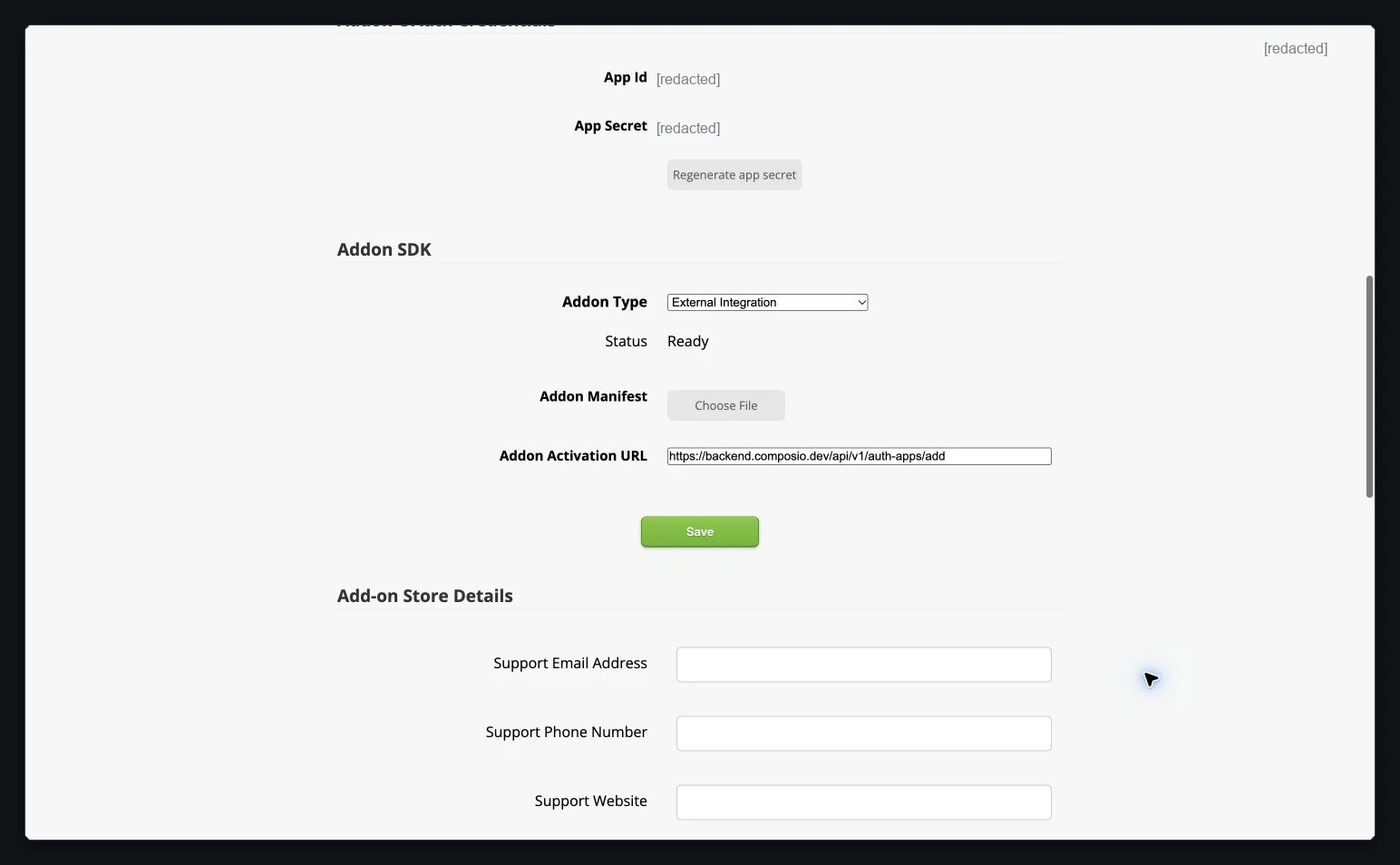
ServiceM8 validates the OAuth redirect host against the URL configured on the add-on. Keep the Redirect URI in Composio unchanged. See ServiceM8's authentication documentation and its External Integration URL guidance.
Part 2: Connect ServiceM8 in Composio
Step 1: Create an auth config
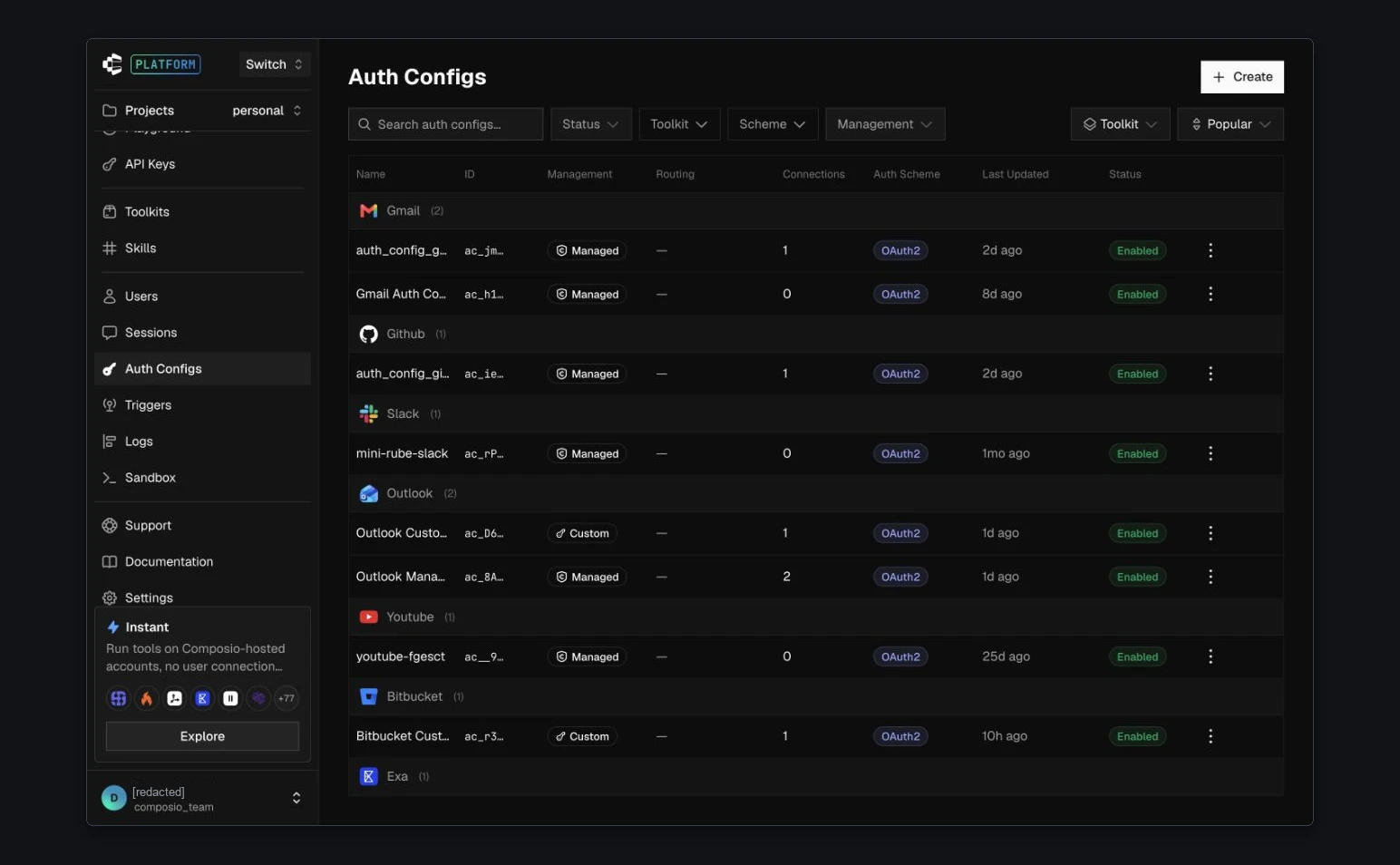
1. In the Composio dashboard, open Auth Configs and select Create.
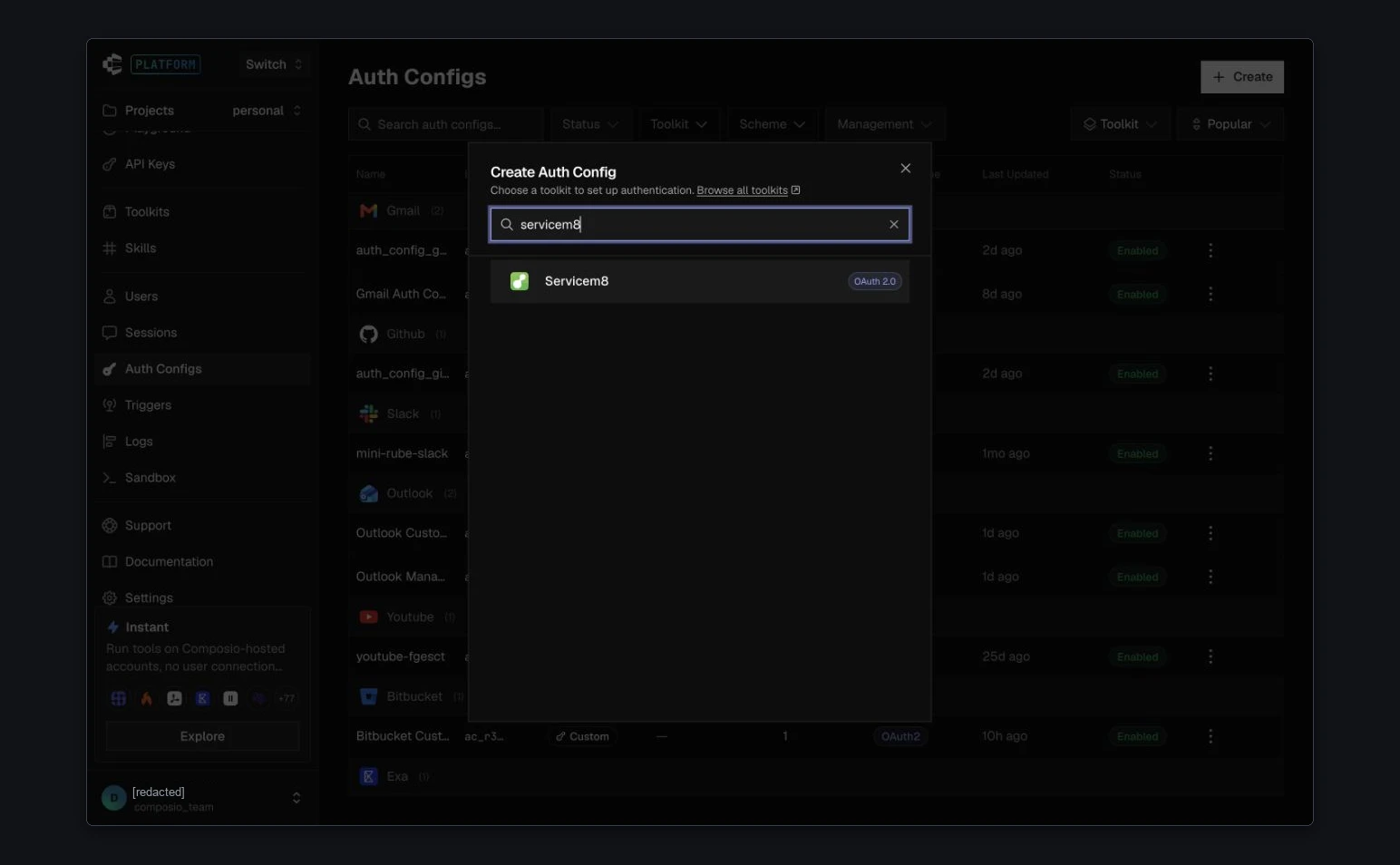
2. Search for ServiceM8 and select the toolkit.
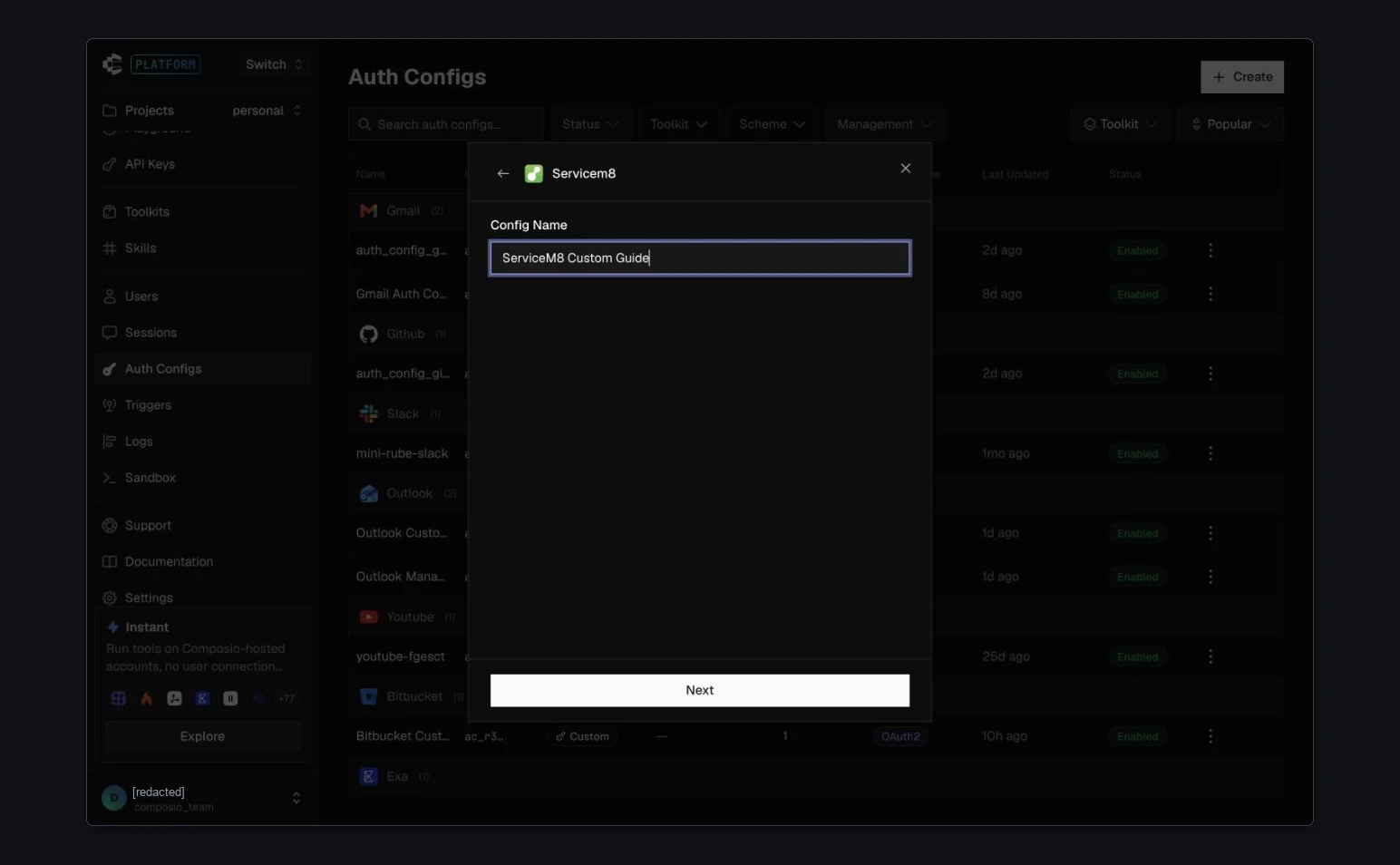
3. Enter a Config Name and select Next.
Step 2: Add your credentials and permissions
1. Choose OAuth 2.0 and Your Own Credentials.
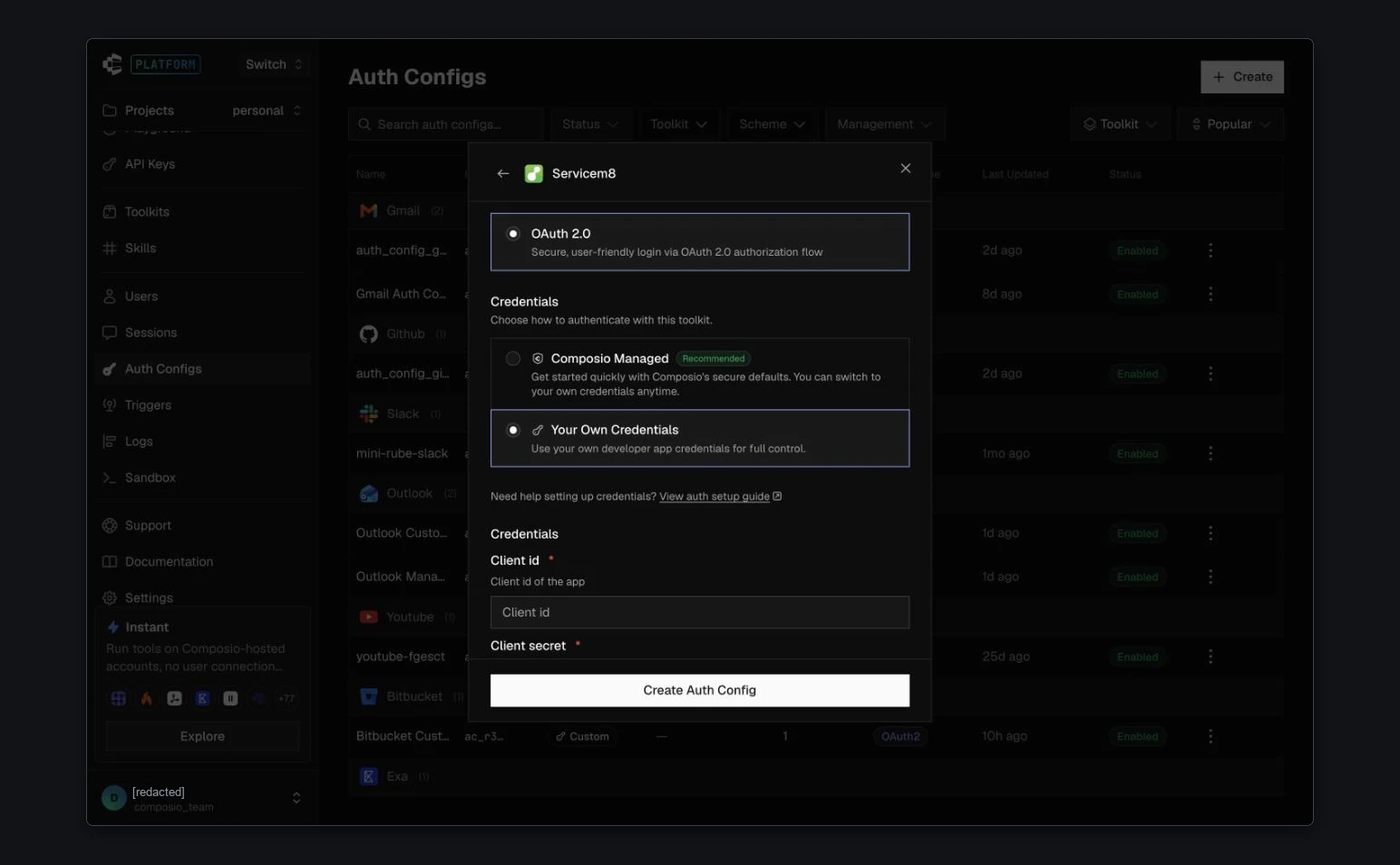
2. Enter your ServiceM8 App Id in Client id and App Secret in Client secret. Keep the original Redirect URI.
3. Under Scopes, choose the permissions your integration needs. Select Create Auth Config.
Permission reference. The read-only jobs example uses read_jobs. Other operations need their own permissions; this is not a scope set for every ServiceM8 tool. Choose for your workflow using ServiceM8's scope descriptions.
4. Open the saved auth config's settings to check its credentials, callback and selected scopes.
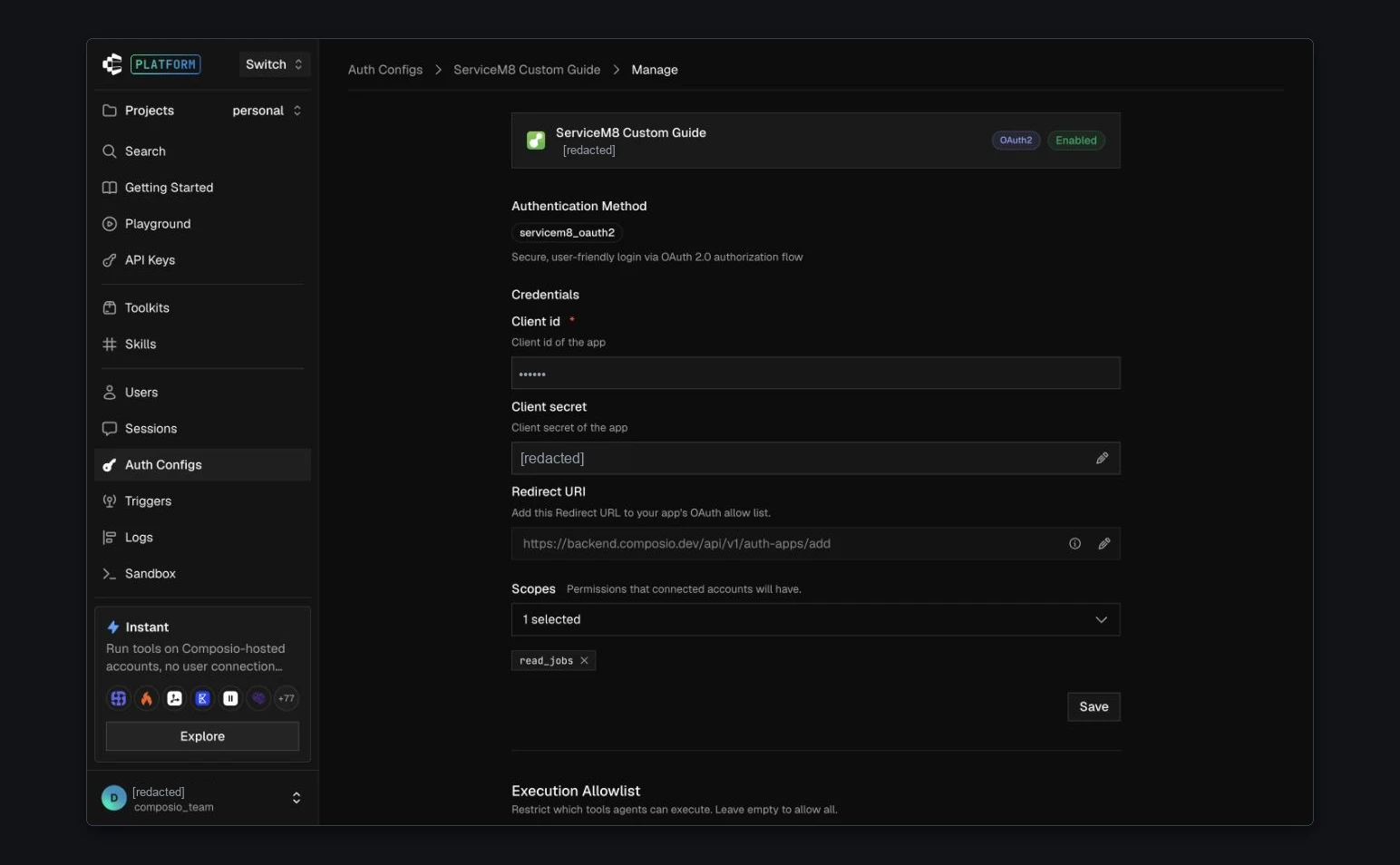
Step 3: Authorize your ServiceM8 account
1. Open the auth config and select Connect Account. Sign in to the ServiceM8 account you want to connect if prompted.
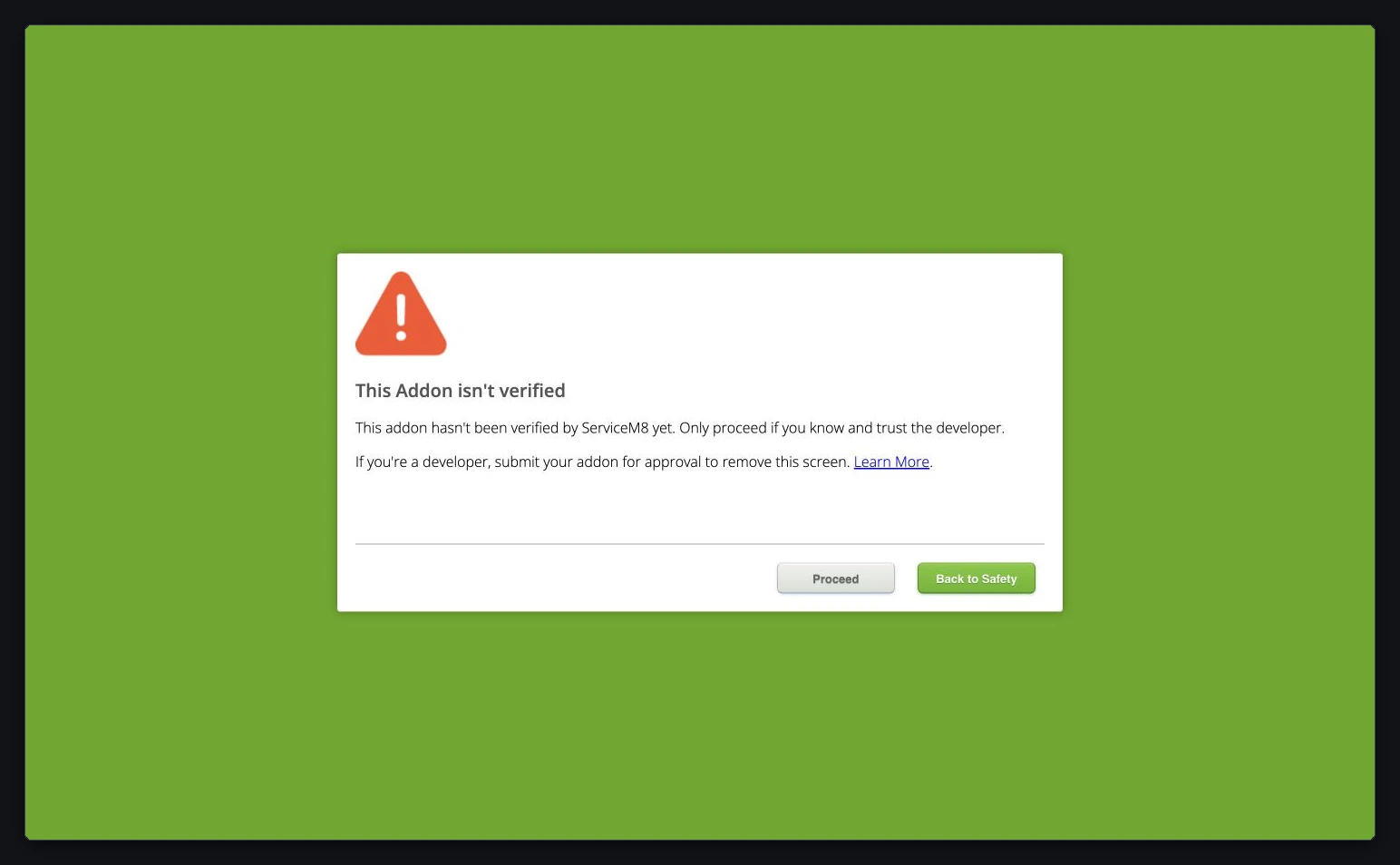
2. A new draft add-on can show This Addon isn't verified. Confirm that it is the app you created before selecting Proceed. ServiceM8's warning explains how to submit an app for review to remove this screen.
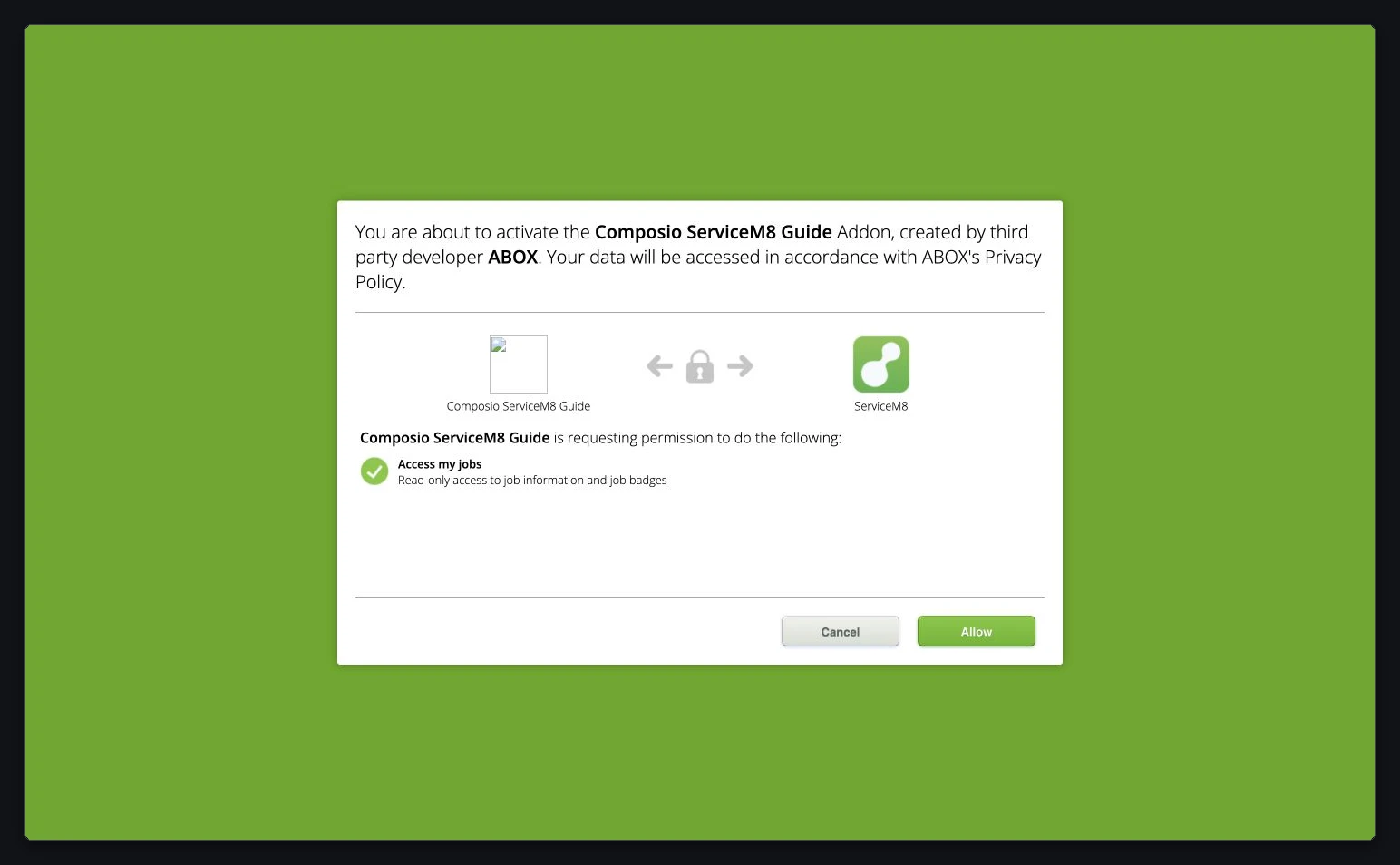
3. Check the app name and requested permissions. Select Allow only if they match the access you intend to grant. The screenshot shows the read-only jobs example.
Step 4: Confirm the connection is Active
1. Wait for Composio's connection confirmation.
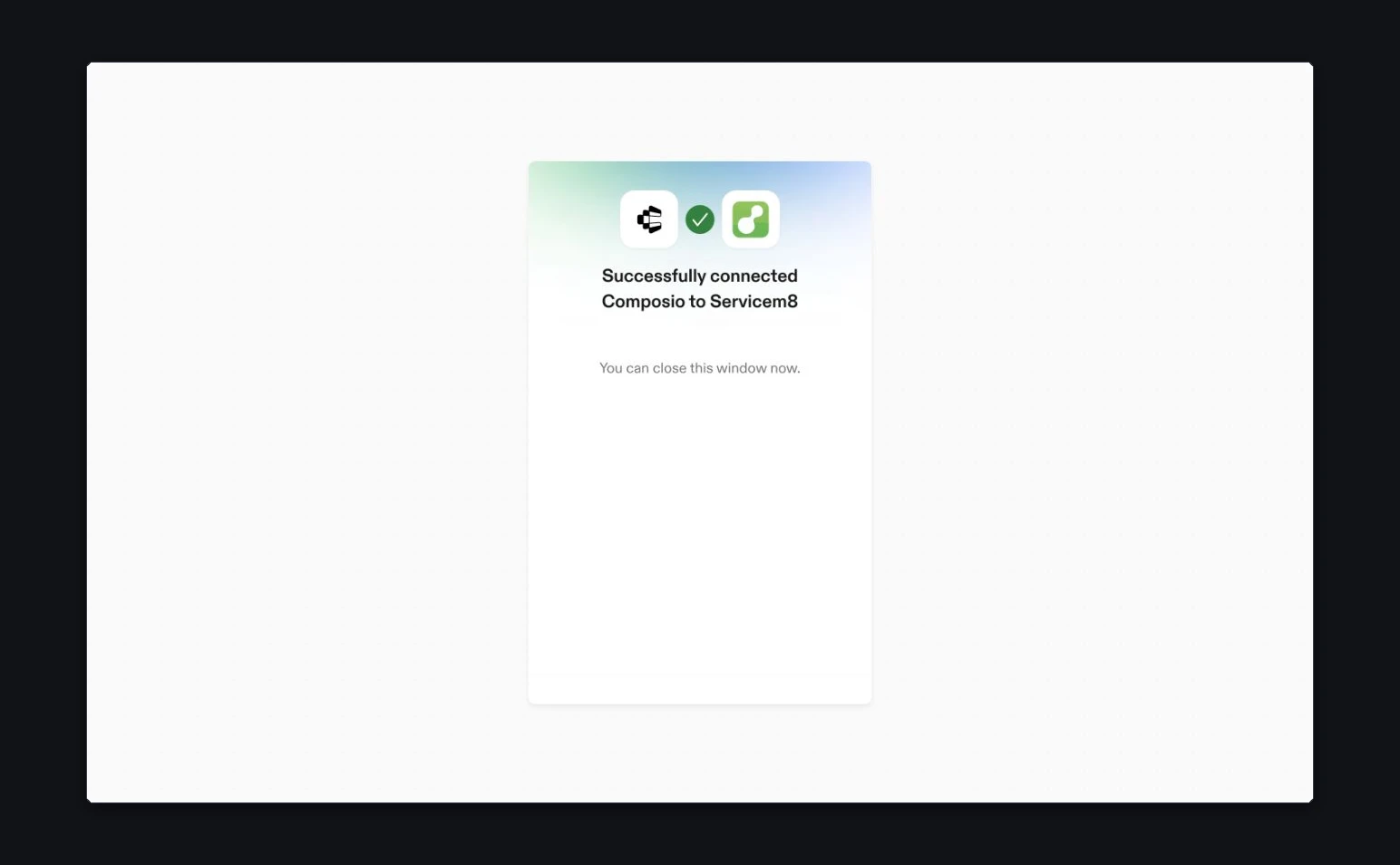
2. Return to the auth config and open Accounts. Confirm that the connected account shows Active. The config's separate Enabled label does not confirm that an account is connected.
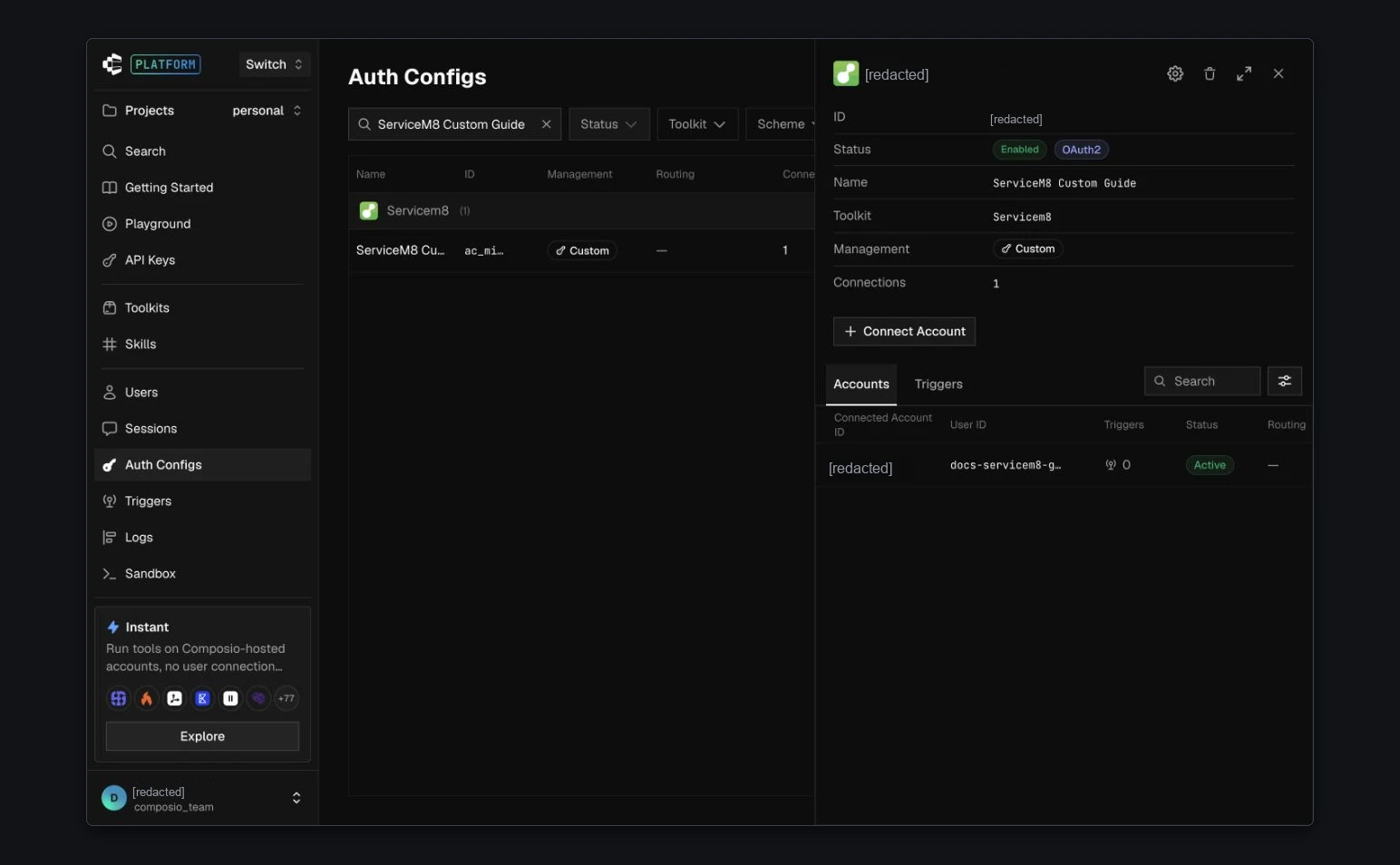
Your ServiceM8 account is connected. Use this auth config in your application. The example add-on remains a draft; publishing a ServiceM8 directory listing is a separate process.