




Composio connects AI agents to Microsoft OneNote, helping teams turn notes into action. With Composio, developers can build agents that read, create, and organize notebooks, sections, and pages as part of automated workflows.
Access is always limited to the permissions approved during sign-in, so users stay in full control of their data.
This guide walks you through registering your own app in Microsoft Entra ID (Azure), generating OAuth credentials, and using them to set up a custom auth config for OneNote in Composio.
Part 1: Register your app in Microsoft Azure
In this section, we’ll register an application in the Azure portal and get the credentials Composio needs.
NOTE: If you already have an Azure app registration with OneNote permissions and access to its Client ID and Client Secret, you can skip this section.
Step 1: Create an App Registration
1. Sign in to the Azure portal. From the home page, open Microsoft Entra ID or search for App registrations.

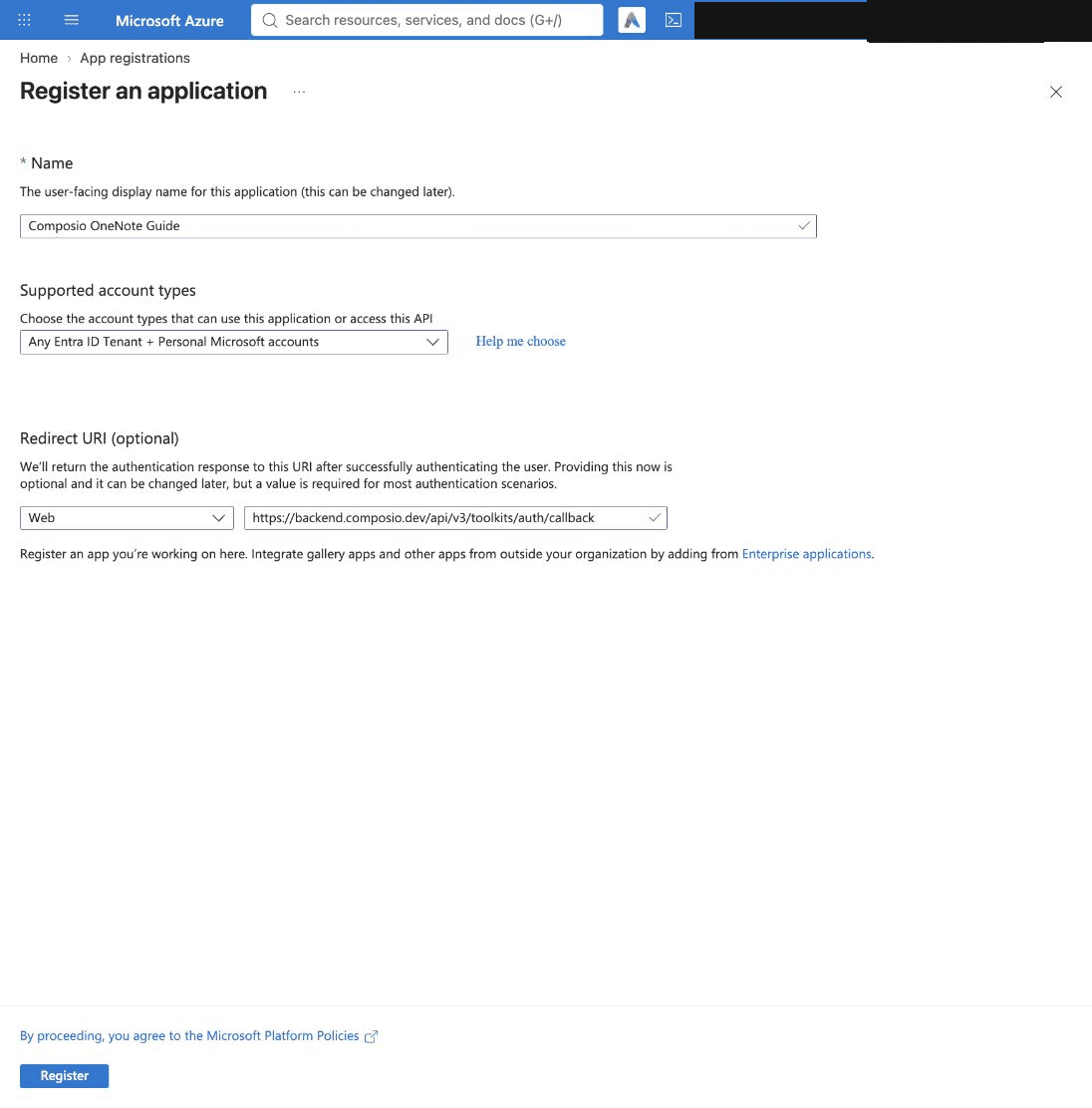
2. Click New registration.

3. Enter a Name for your app, choose Any Entra ID Tenant + Personal Microsoft accounts under Supported account types, set the Redirect URI platform to Web, and click Register.
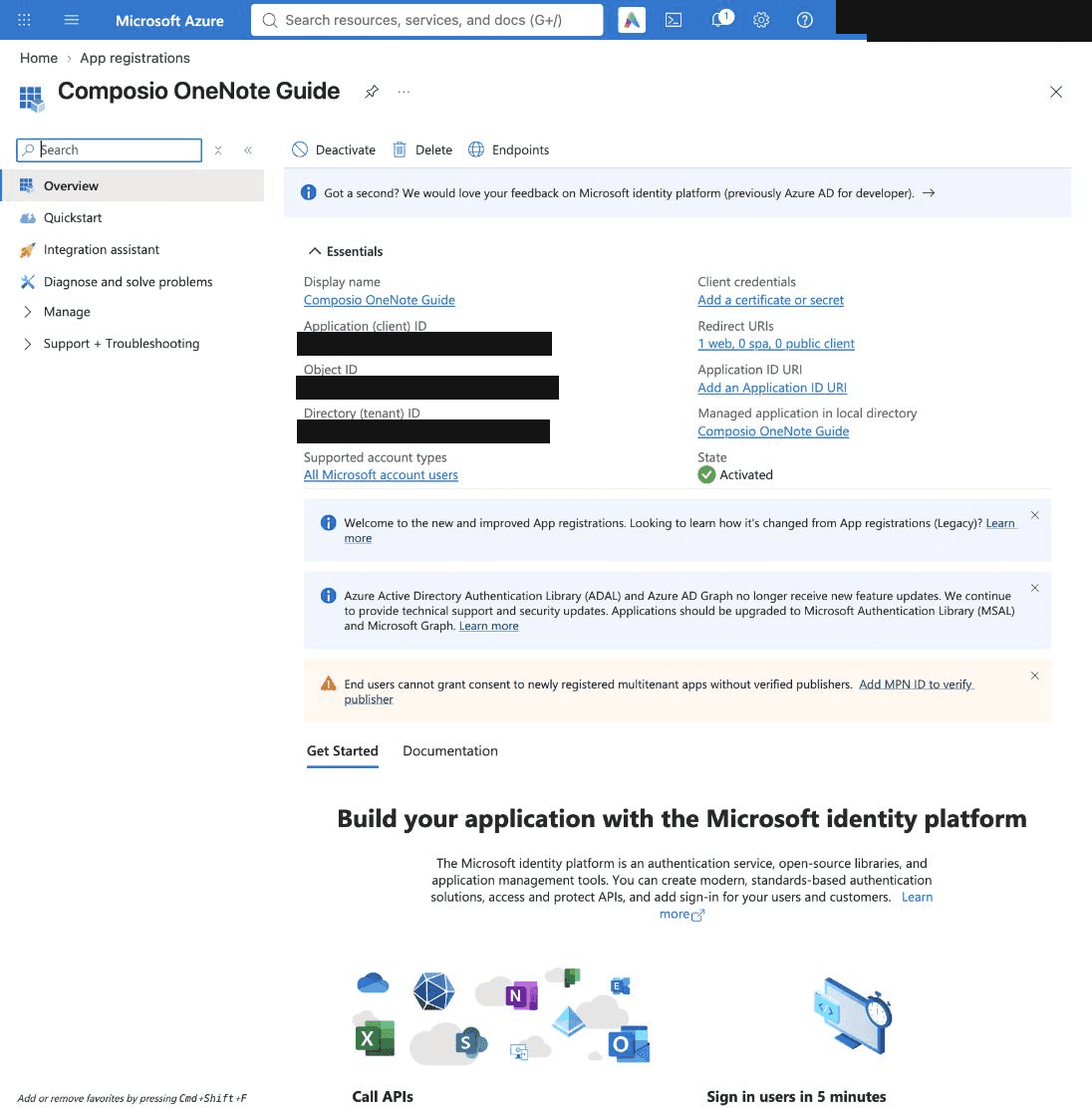
4. Your app is created. On the Overview page, copy the Application (client) ID. This is your Client ID.
Step 2: Add the Redirect URI
Open Authentication in the left sidebar and make sure a Web redirect URI is added with Composio’s callback URL. You’ll set the same URL in your Composio auth config in Step 6.
https://backend.composio.dev/api/v3/toolkits/auth/callback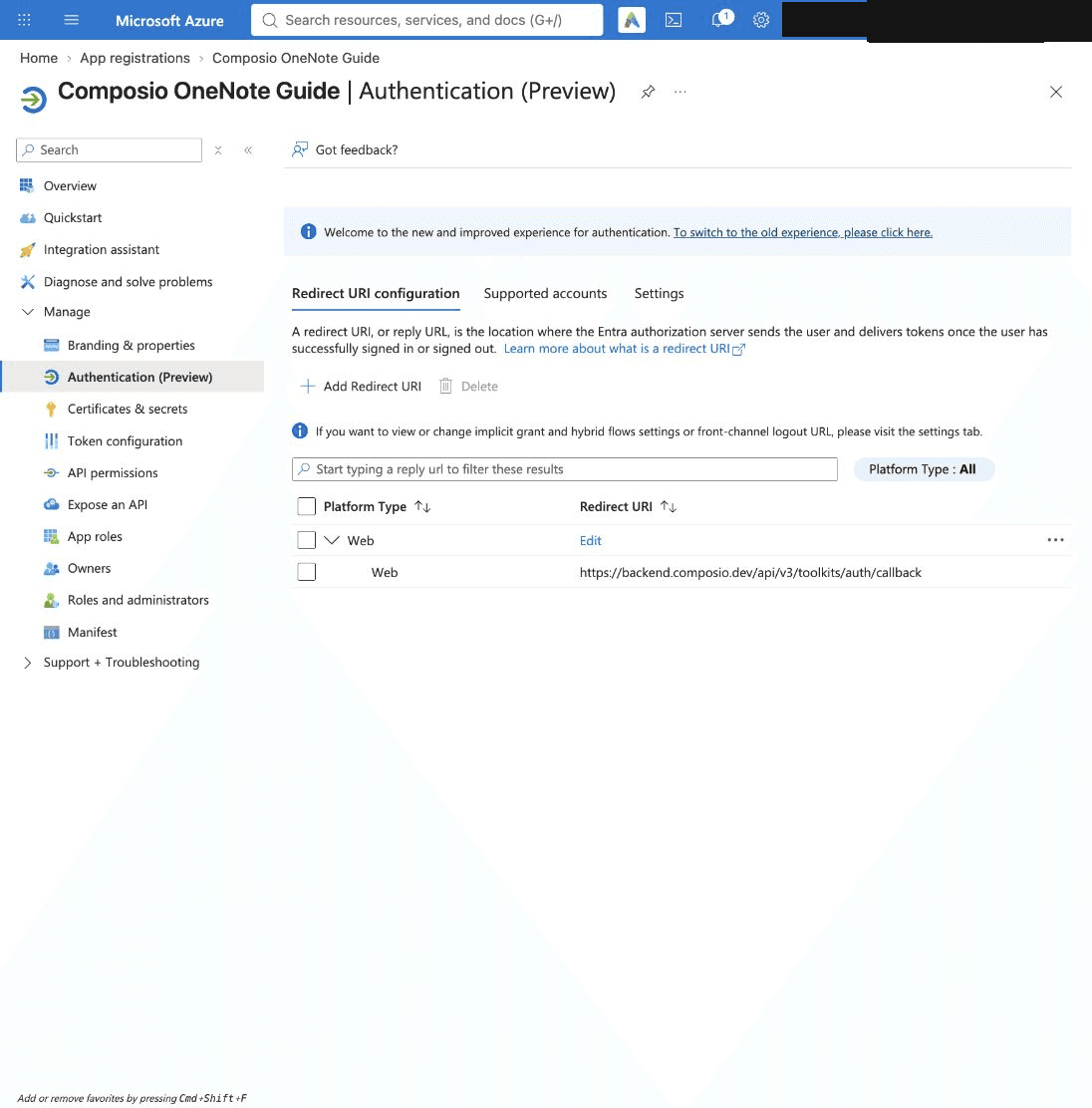
Step 3: Add OneNote API Permissions
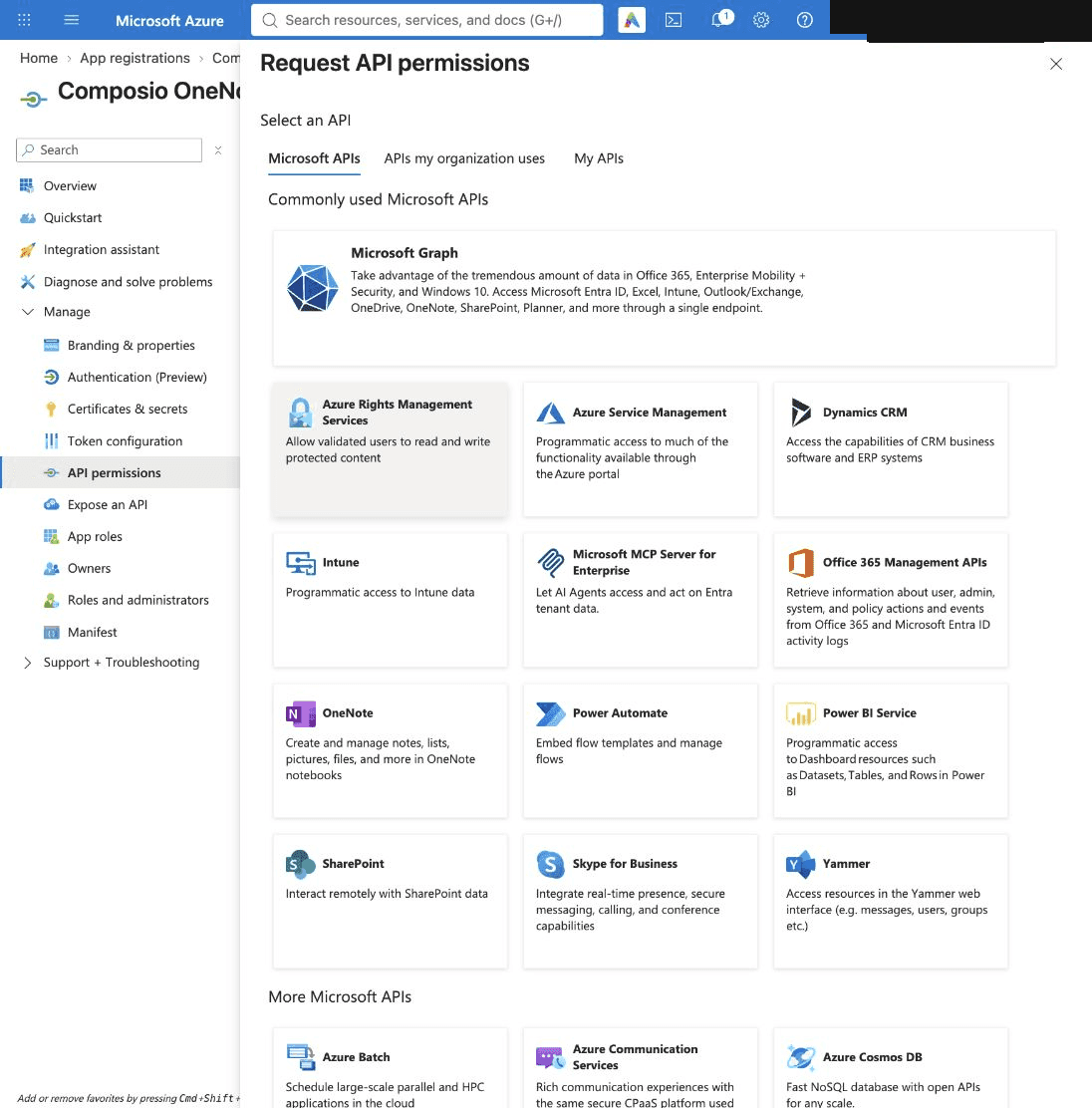
1. Open API permissions and click Add a permission.
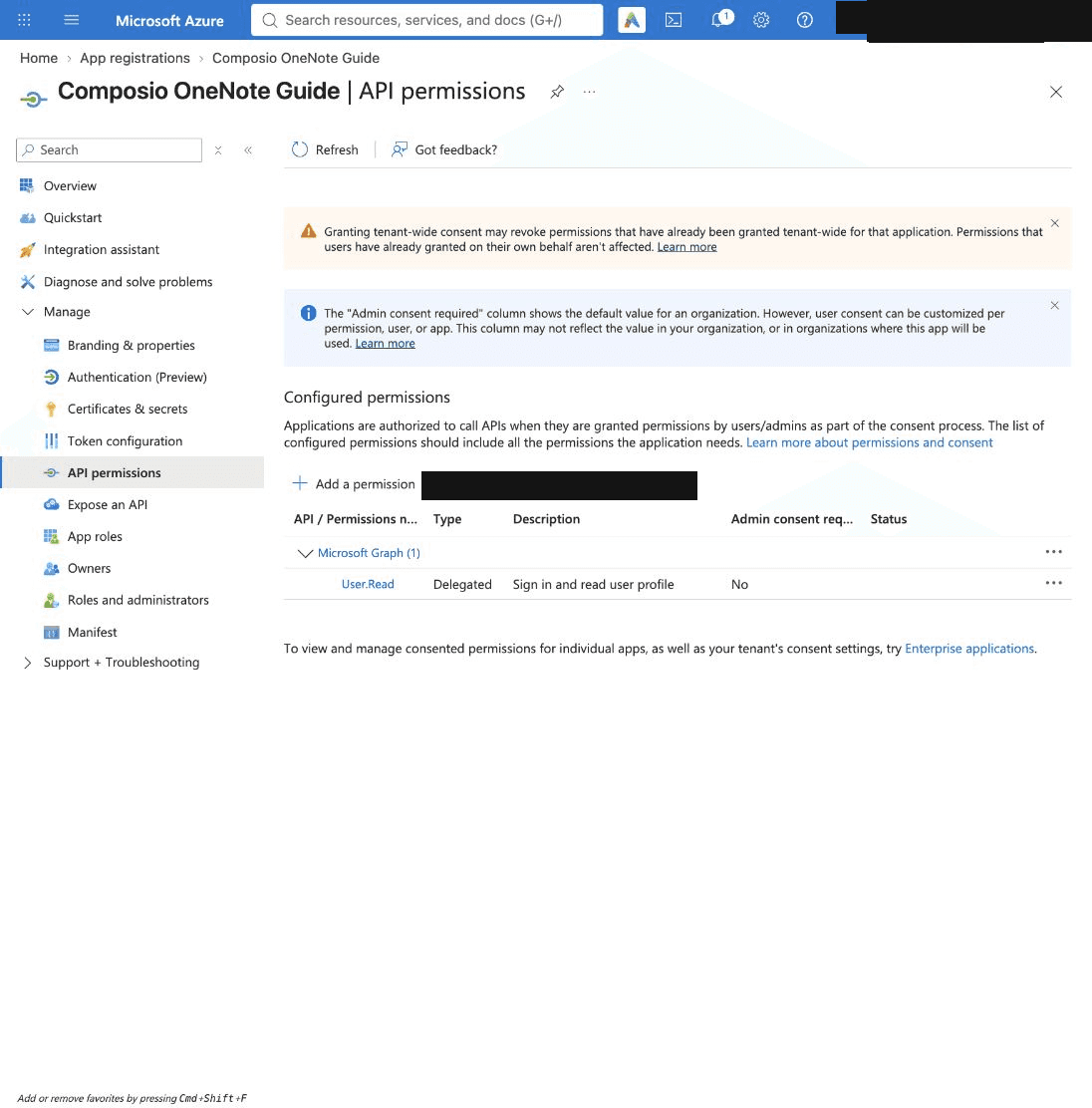
2. Select Microsoft Graph.
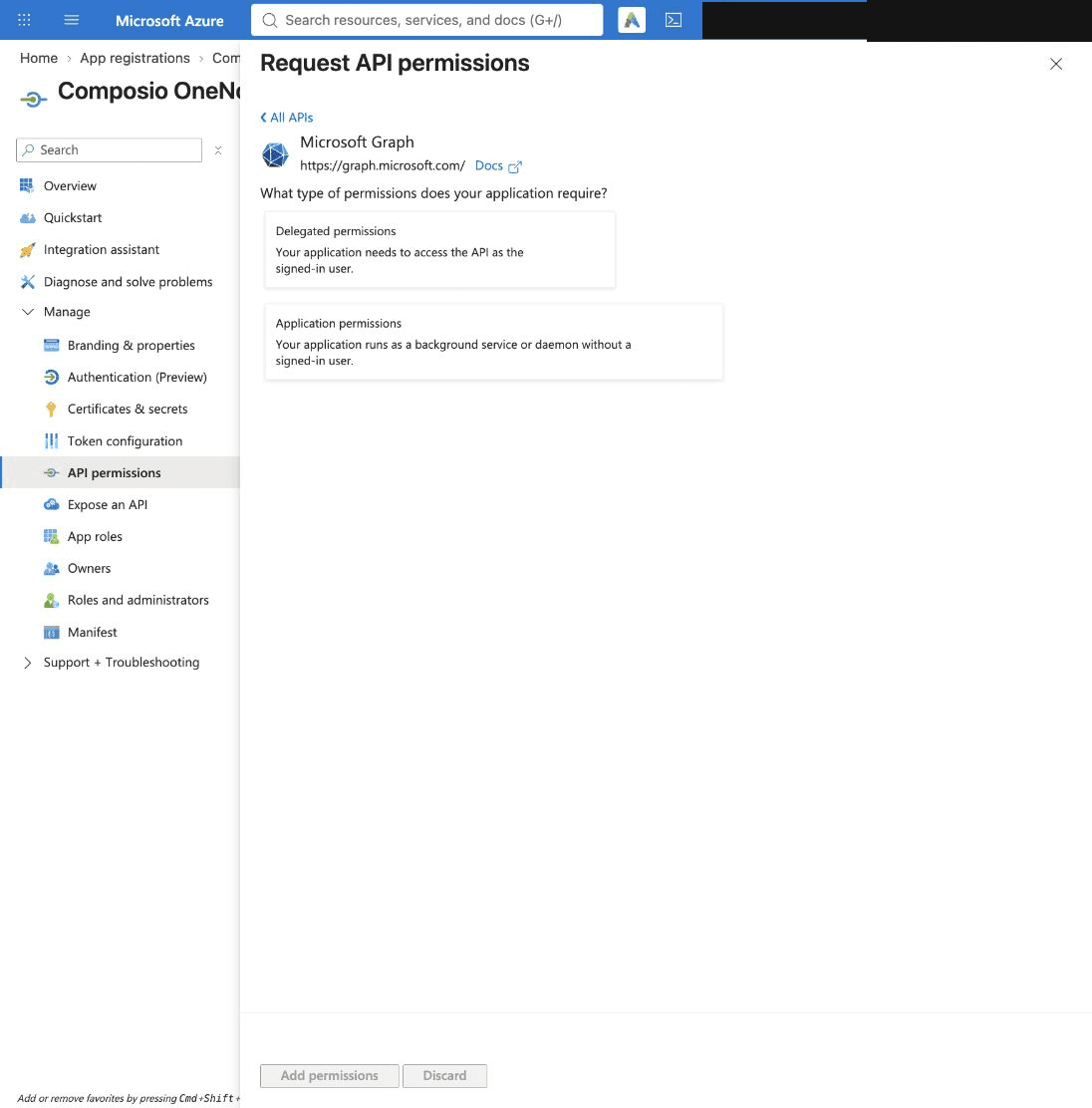
3. Choose Delegated permissions, so the app acts on behalf of the signed-in user.
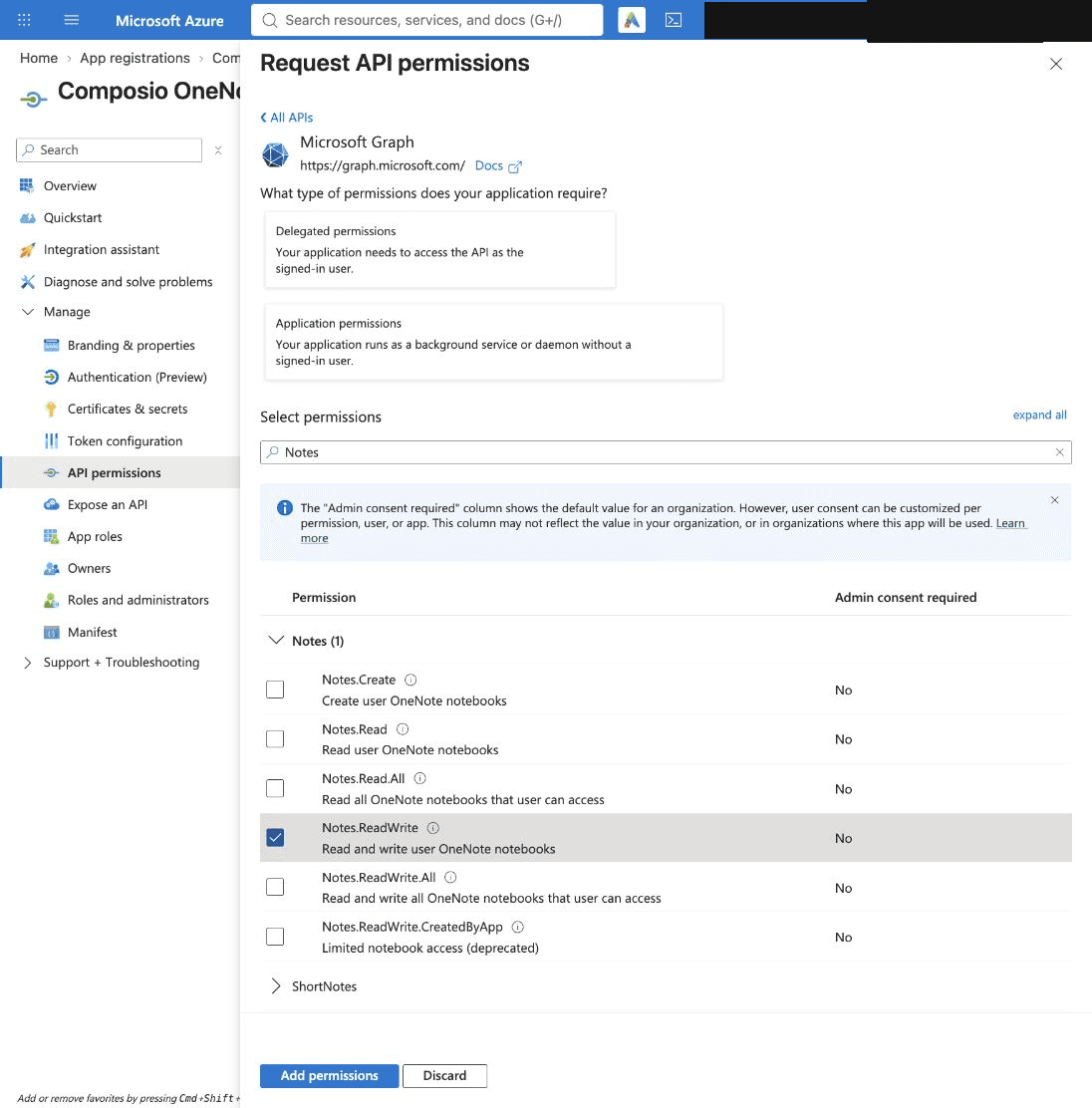
4. Search for and select Notes.ReadWrite.
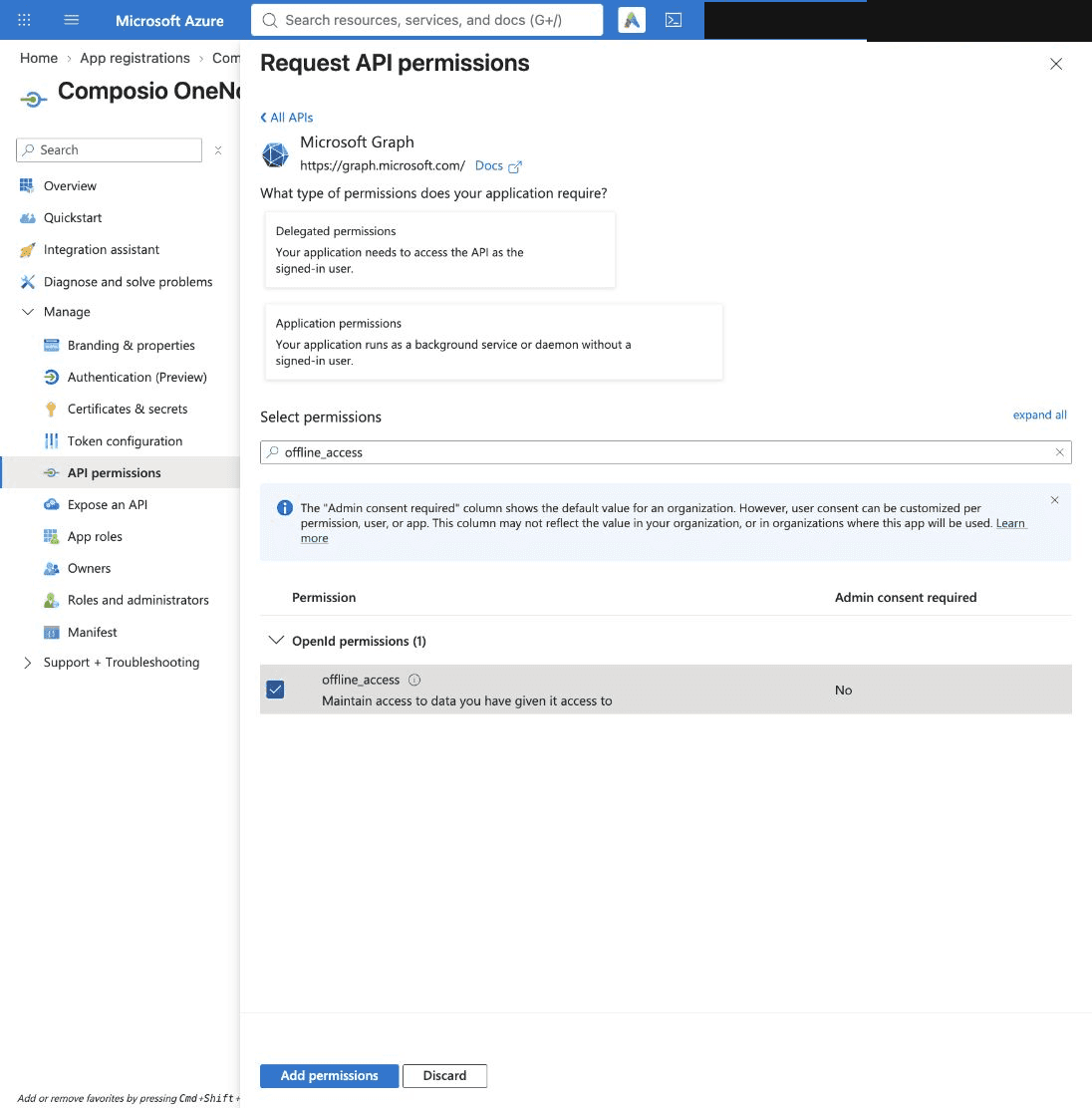
5. Also select offline_access so Composio can refresh tokens, then click Add permissions.
6. Your configured permissions should now include Notes.ReadWrite, offline_access, and User.Read.

Always include only the permissions your workflow needs. For example, if your agent only reads notes, Notes.Read is enough.
Step 4: Create a Client Secret
1. Open Certificates & secrets and click New client secret.
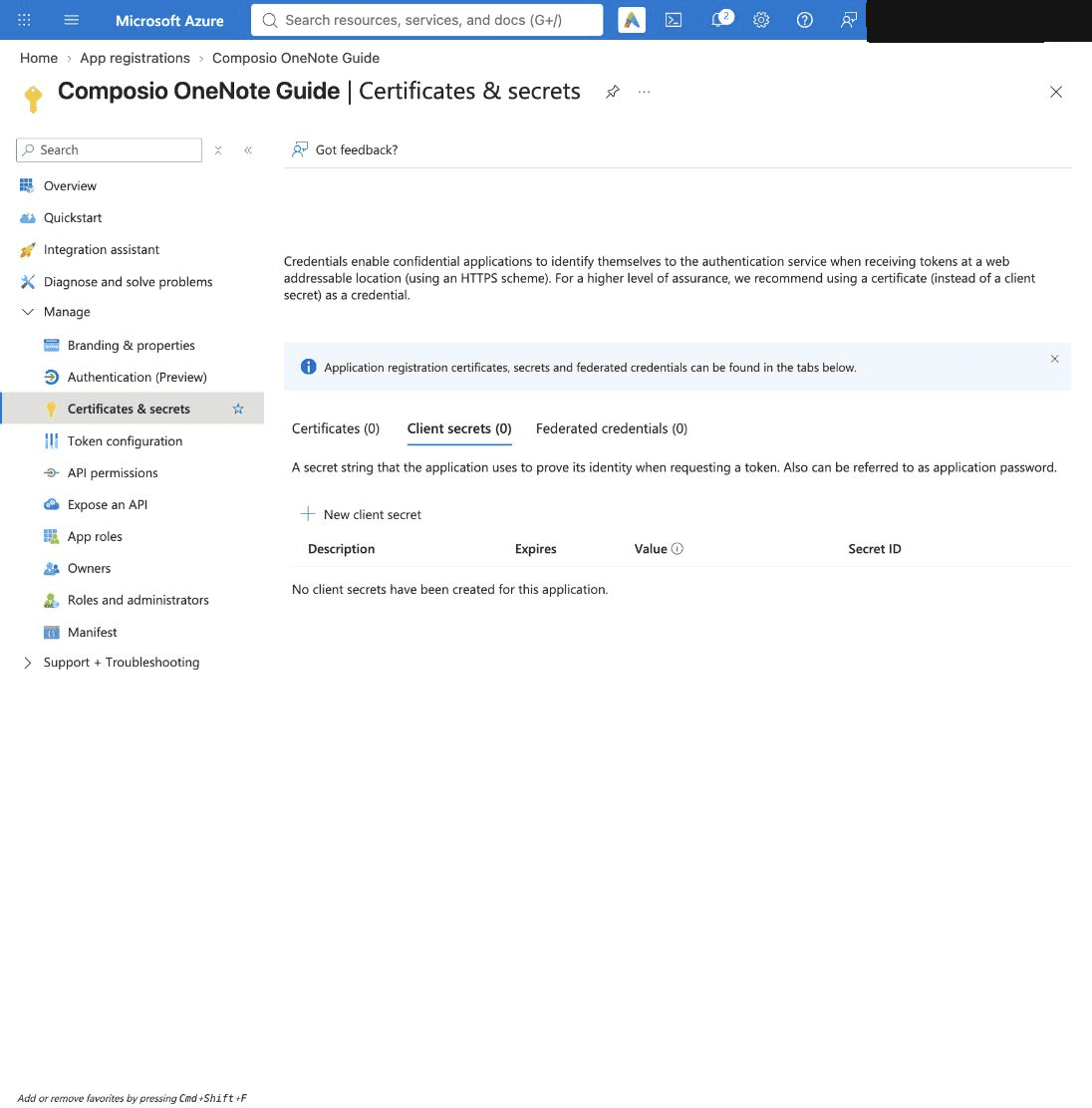
2. Add a description, choose an expiry, and click Add.

3. Copy the secret Value right away. This is your Client Secret, and Azure only shows it once.

Part 2: Create the auth config in Composio
With your OneNote credentials ready, navigate to the Composio Dashboard.
Step 5: Create a OneNote Auth Config
1. Go to Auth Configs in the Composio Dashboard and click Create.

2. Search for OneNote and select it from the results.

3. Enter a Config Name for your auth config and click Next.

Step 6: Enter Your Own Credentials
1. Under Authentication Method, select OAuth 2.0.
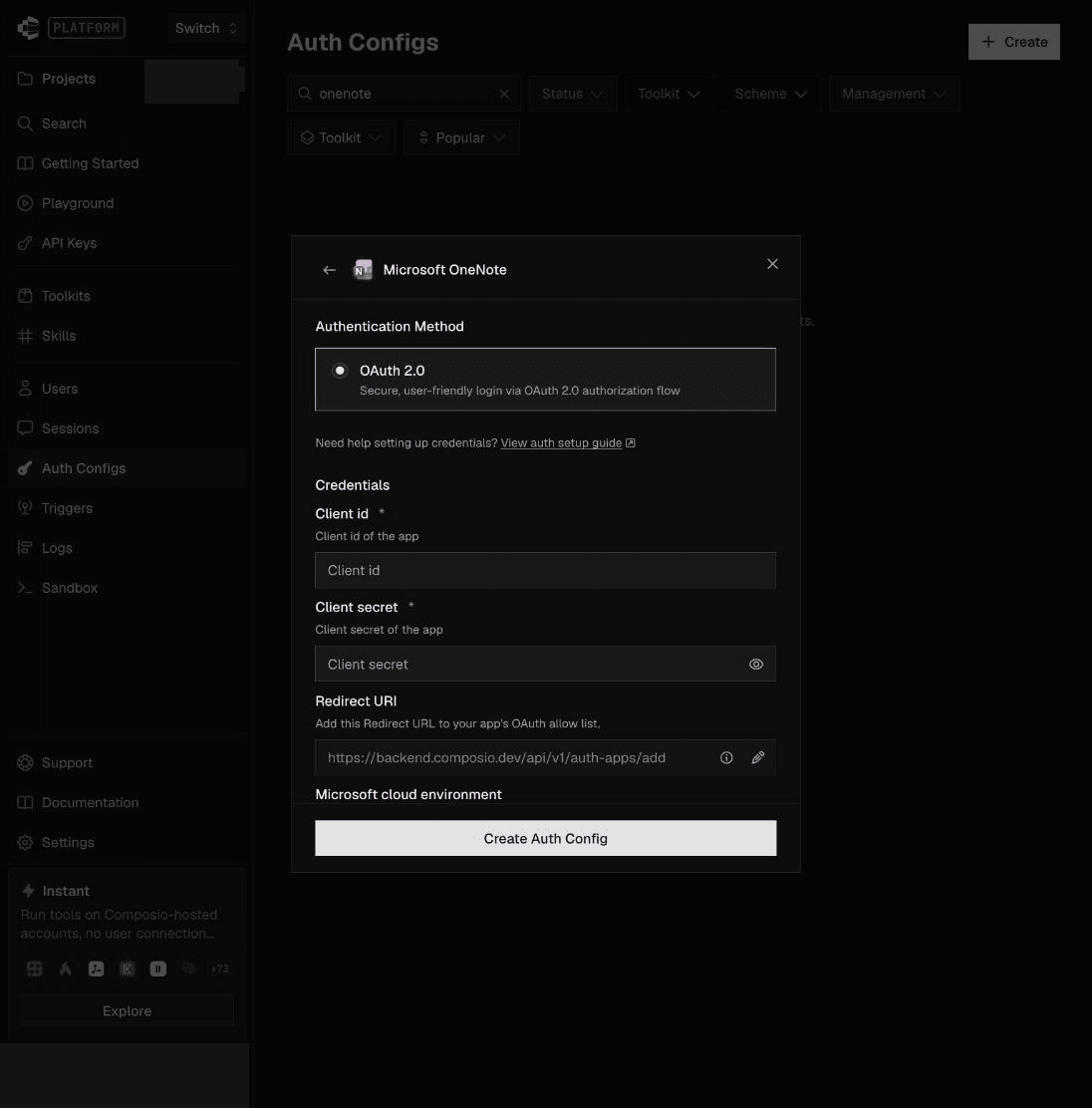
2. Paste the Client ID and Client Secret from your Azure app. Then click the edit icon next to Redirect URI, replace the default with the same callback URL you added in Azure (https://backend.composio.dev/api/v3/toolkits/auth/callback), and click Create Auth Config.

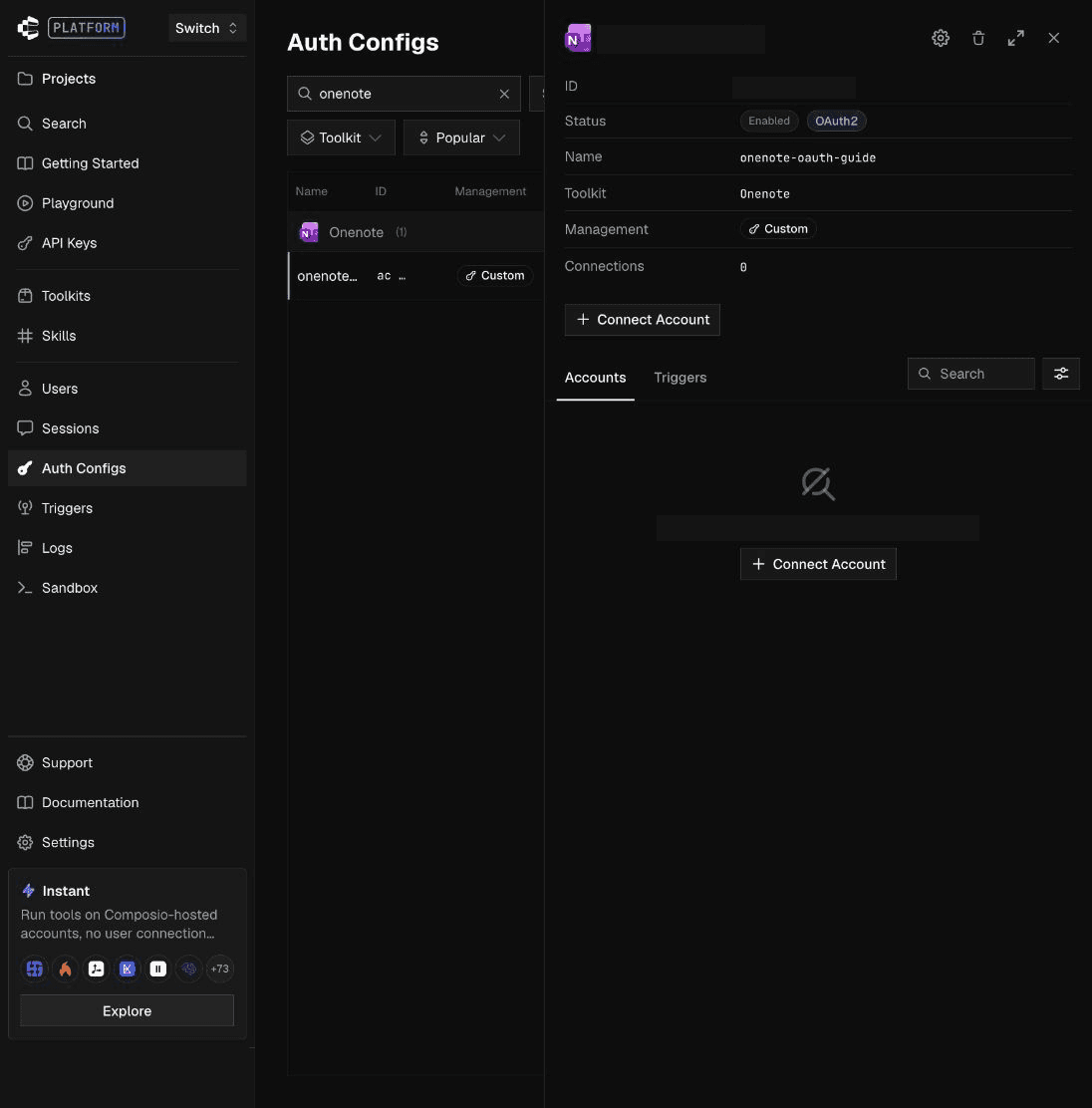
3. Your auth config is created.
Step 7: Connect Your OneNote Account
1. Open the auth config and click Connect Account. Then open the generated link.
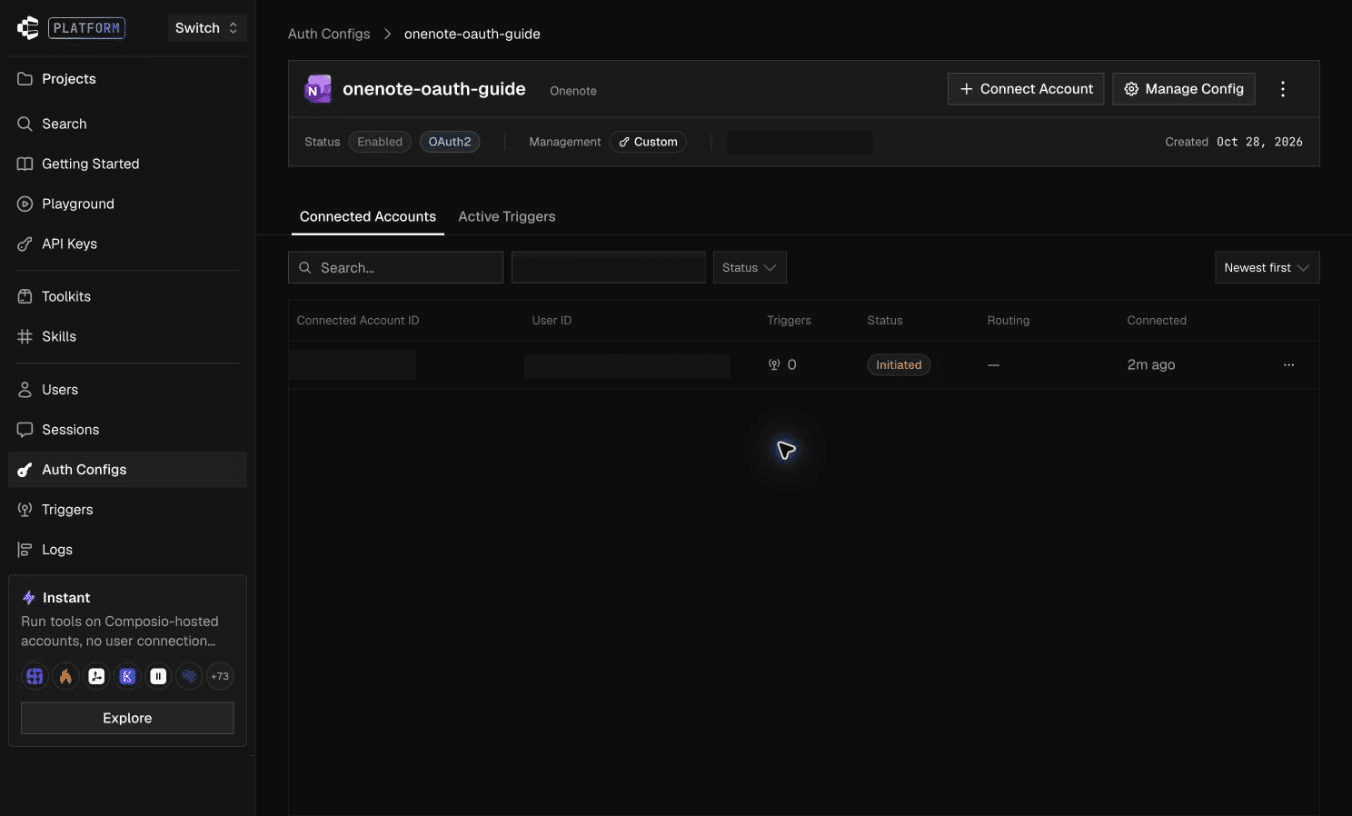
2. Choose the Microsoft account you want to connect and sign in.

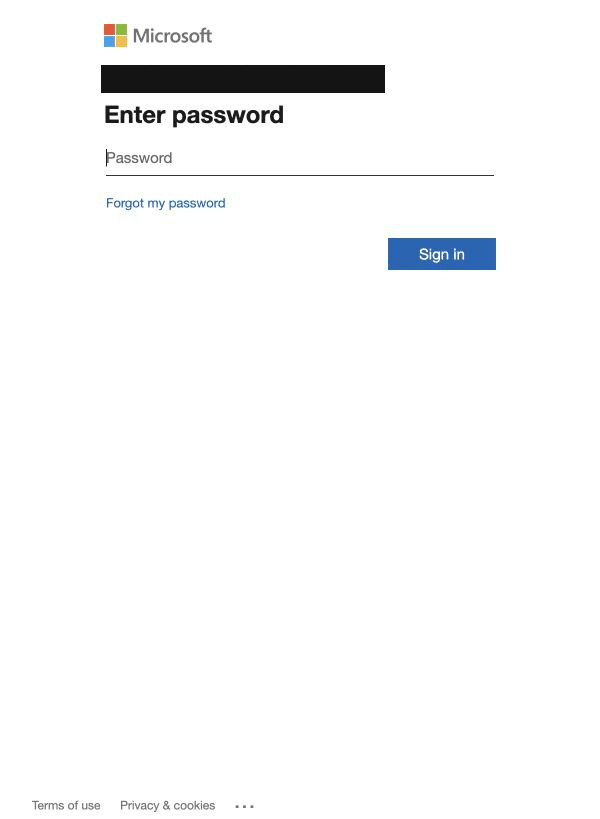
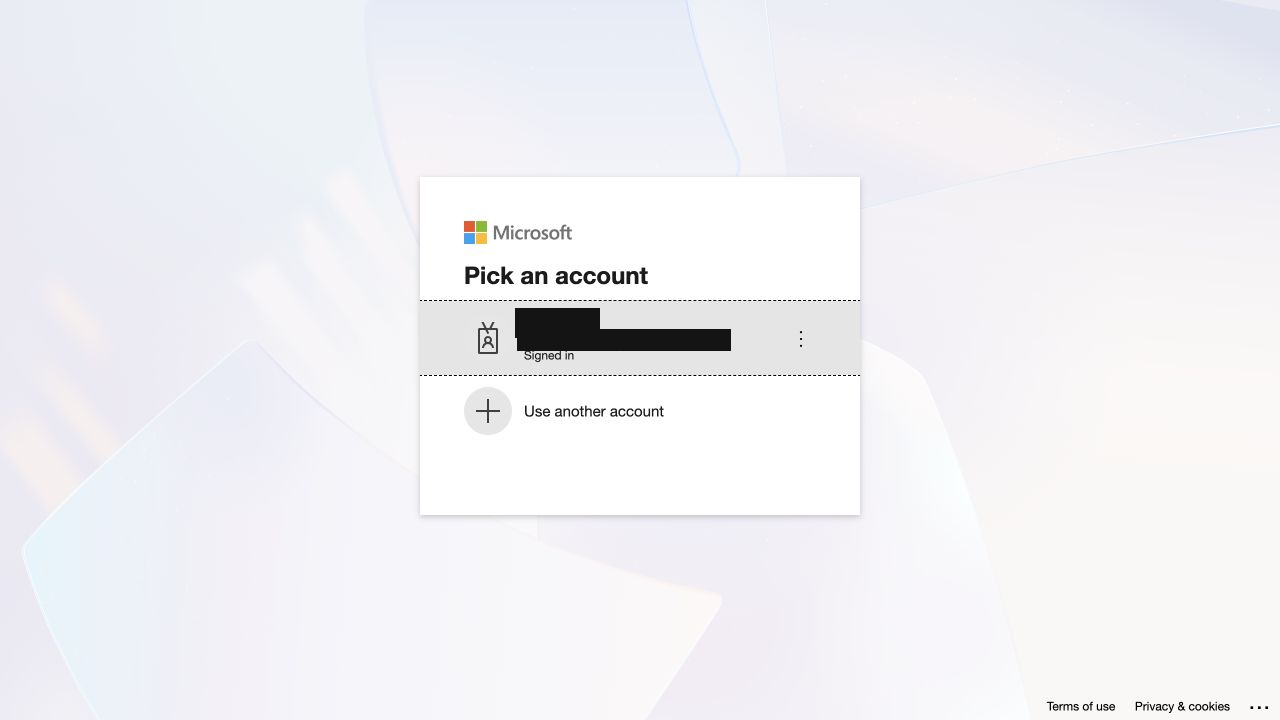
3. Review the requested permissions and click Accept.
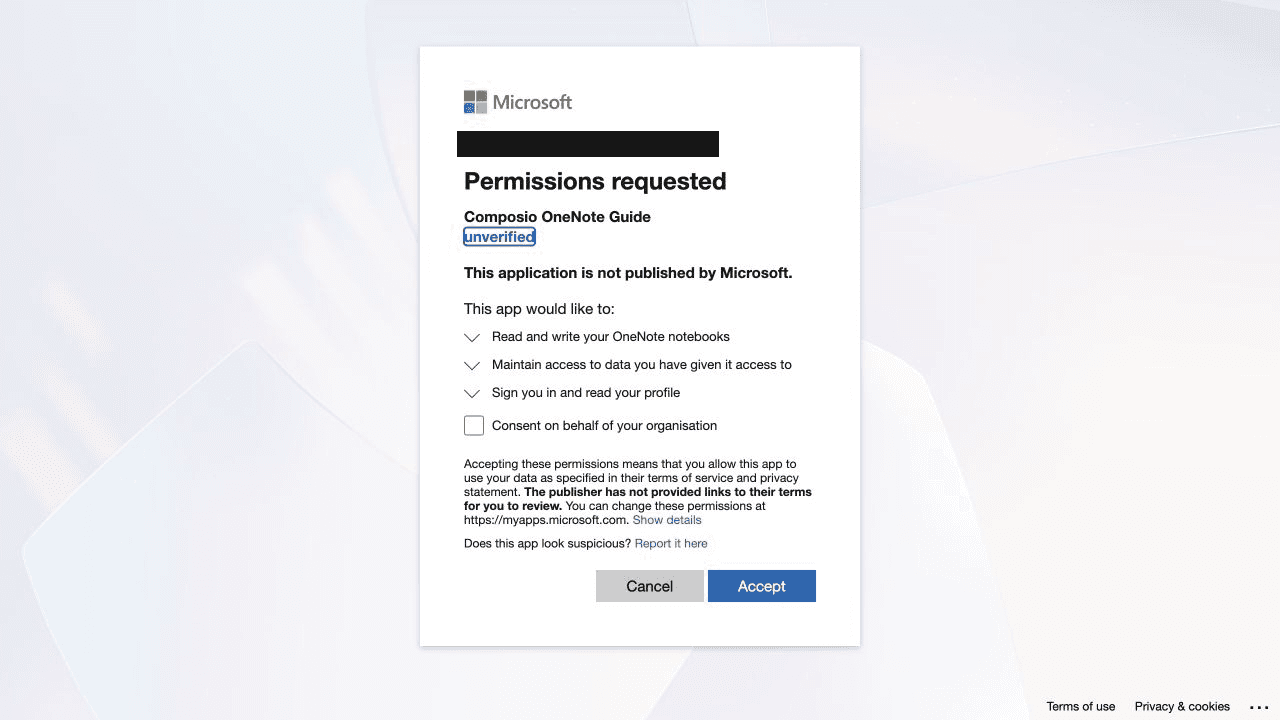
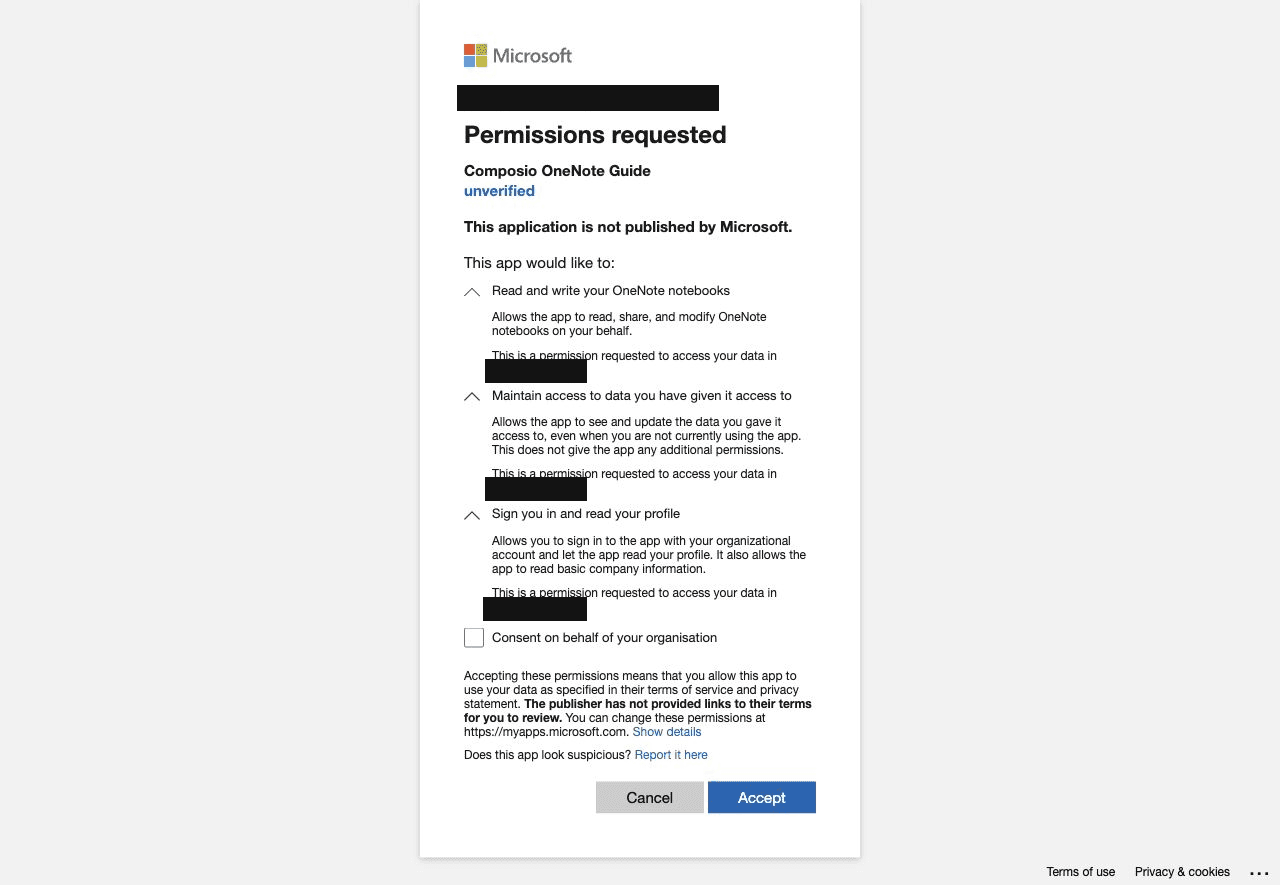
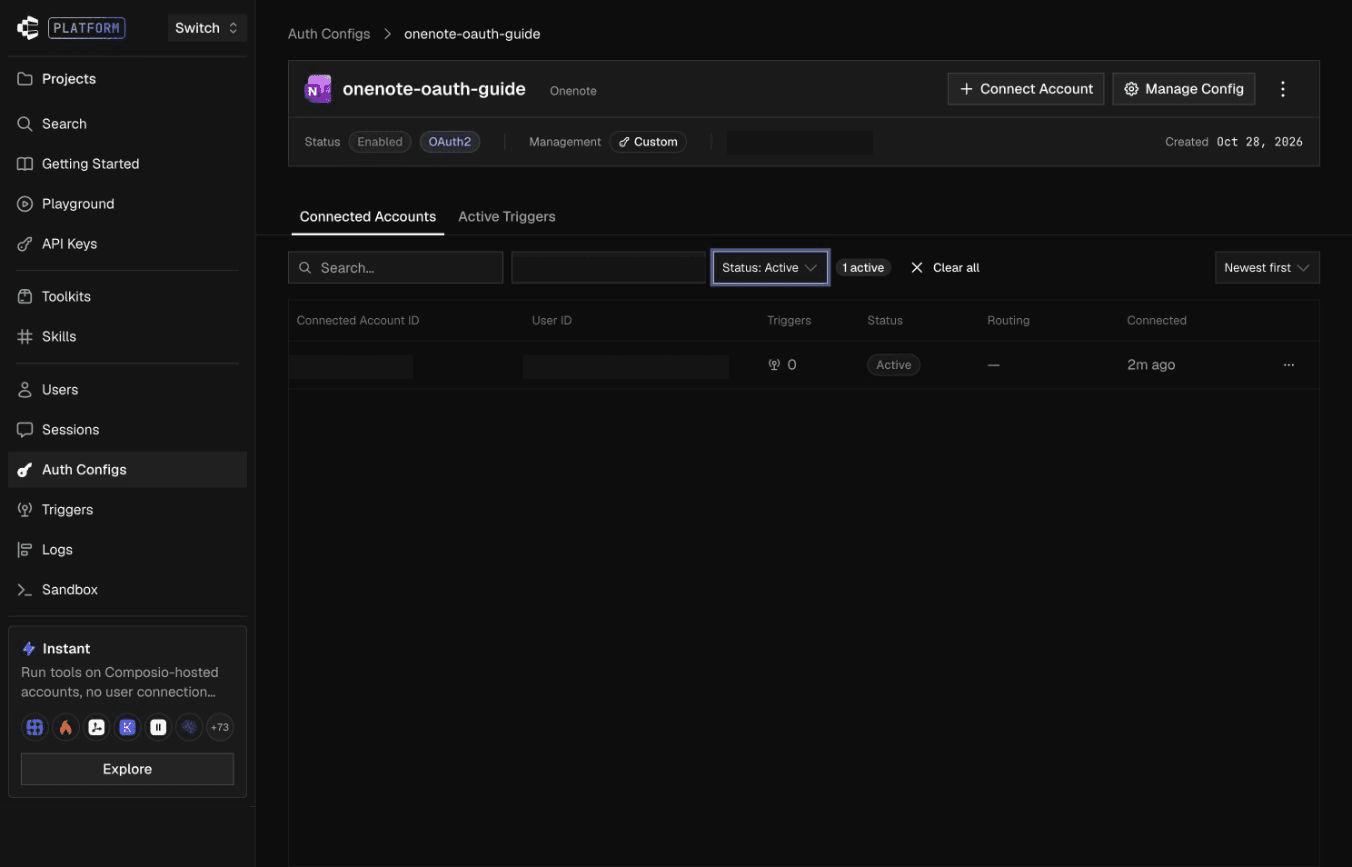
4. Your connected account now appears under Connected Accounts with an Active status.
Base URL for the OneNote API
All OneNote API calls are made via Microsoft Graph:
https://graph.microsoft.com/v1.0/me/onenote/That’s it! Your OneNote + Composio OAuth integration is ready.
You can now copy the Auth Config ID (ac_...) and use it inside your code or secret manager.
Revoking Access
You can disconnect OneNote at any time:
In Composio: open the auth config under Auth Configs and delete the connected account, or disable the auth config.
In Microsoft: the user can remove the app from myapps.microsoft.com or their Microsoft account privacy settings, which revokes its access.
Disclaimer: Composio uses AI and may make mistakes, so please review important outputs and confirm sensitive actions.