




Composio connects AI agents to Microsoft Advertising so they can work with advertising account, campaign, and reporting data. Access is limited by the permissions you approve and your account’s existing access.
This guide shows you how to set up OAuth credentials and connect Microsoft Advertising to Composio.
Part 1: Get Your OAuth Credentials and Developer Token
Step 1: Register an App in Microsoft Entra ID
1. In the Azure portal, open App registrations and choose New registration. Enter a descriptive app name. Microsoft’s Advertising registration guide specifies Any Entra ID Tenant + Personal Microsoft accounts for supported account types.
2. Select the Web platform and register Composio’s original callback exactly, then click Register.
https://backend.composio.dev/api/v1/auth-apps/add
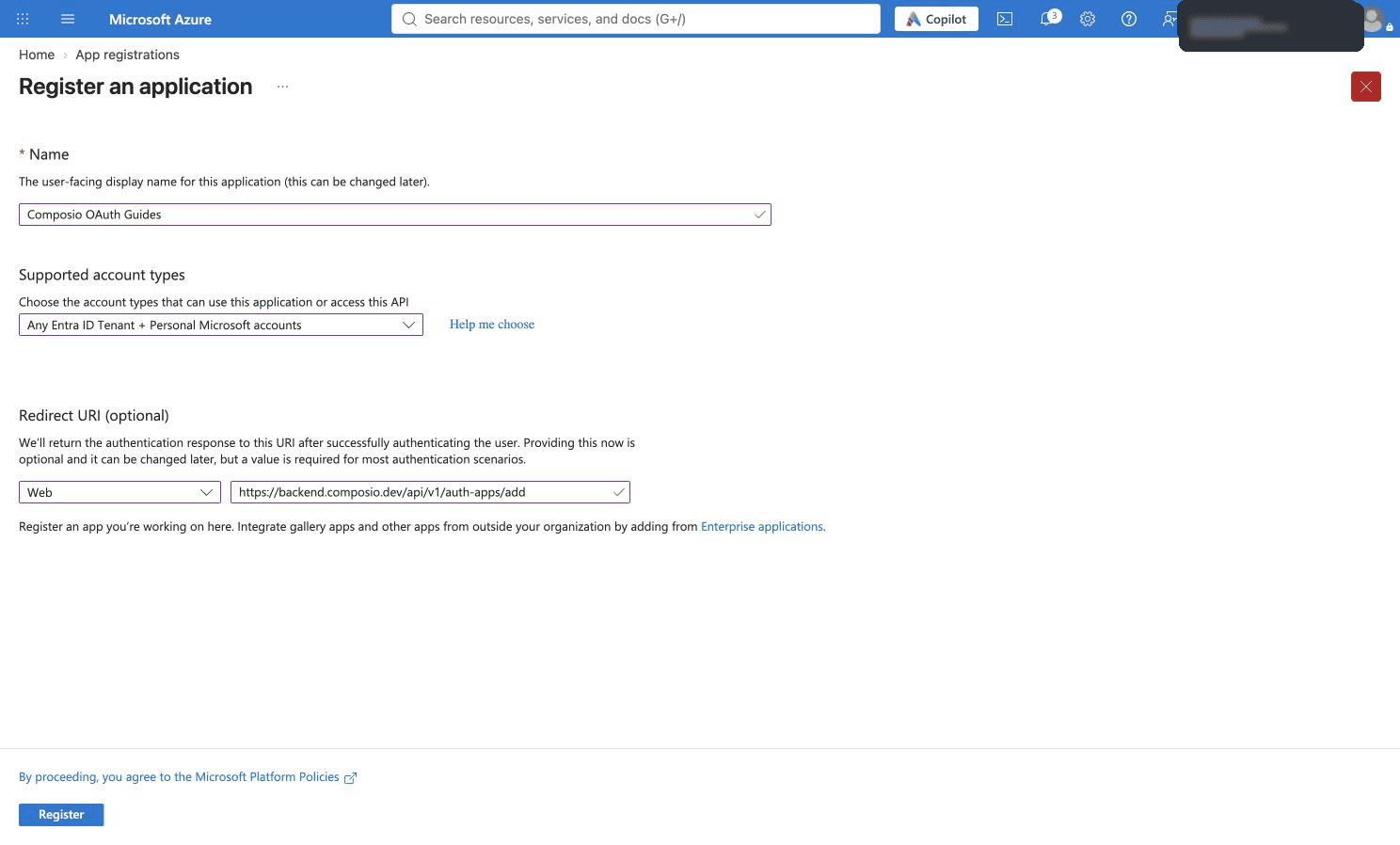
Step 2: Copy the Client ID and Create a Client Secret
1. On Overview, copy the Application (client) ID.

2. Open Certificates & secrets and click New client secret.
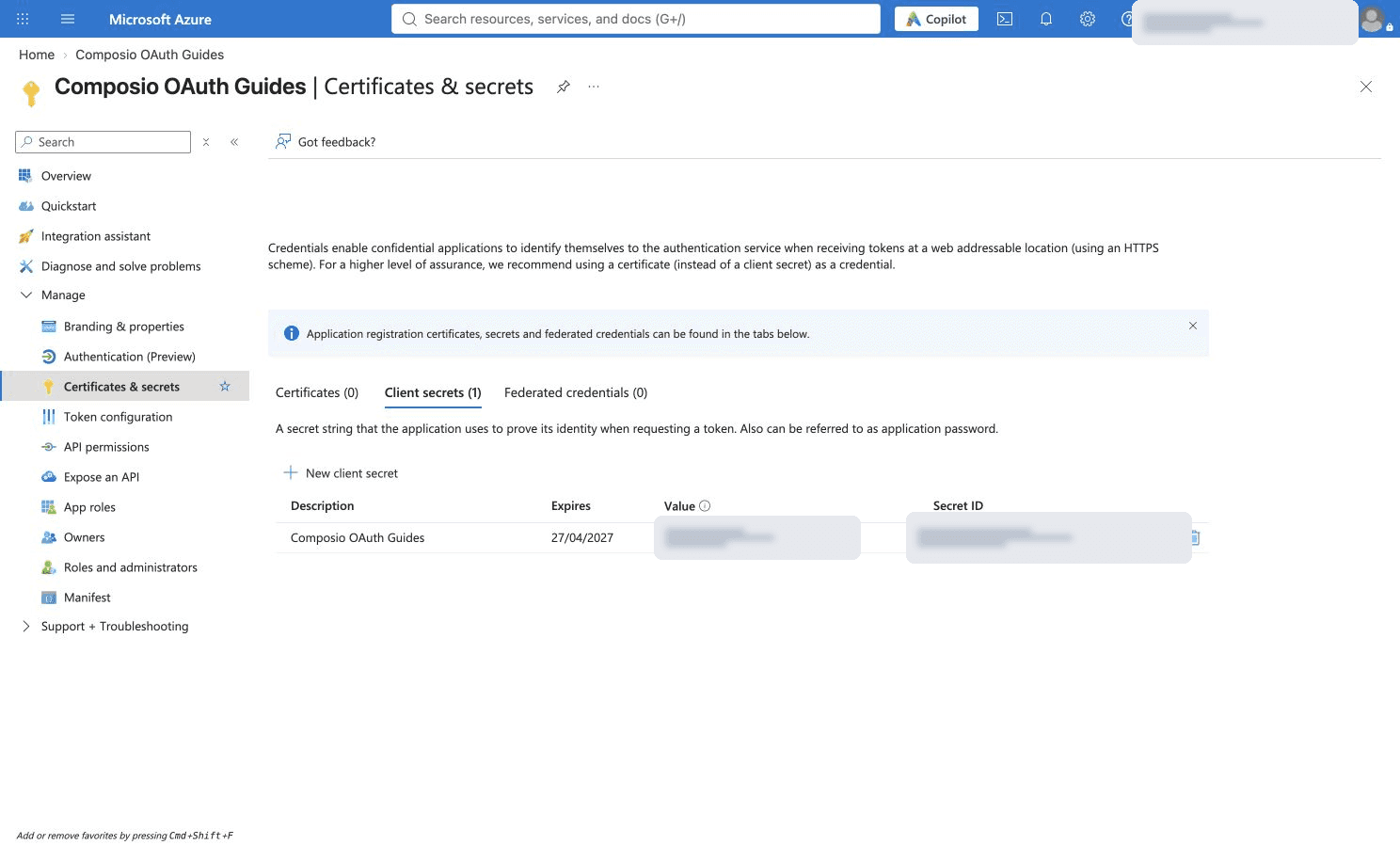
3. Add a description, choose an expiry matching your rotation policy and click Add. The example uses 180 days. Rotate the secret before expiry.
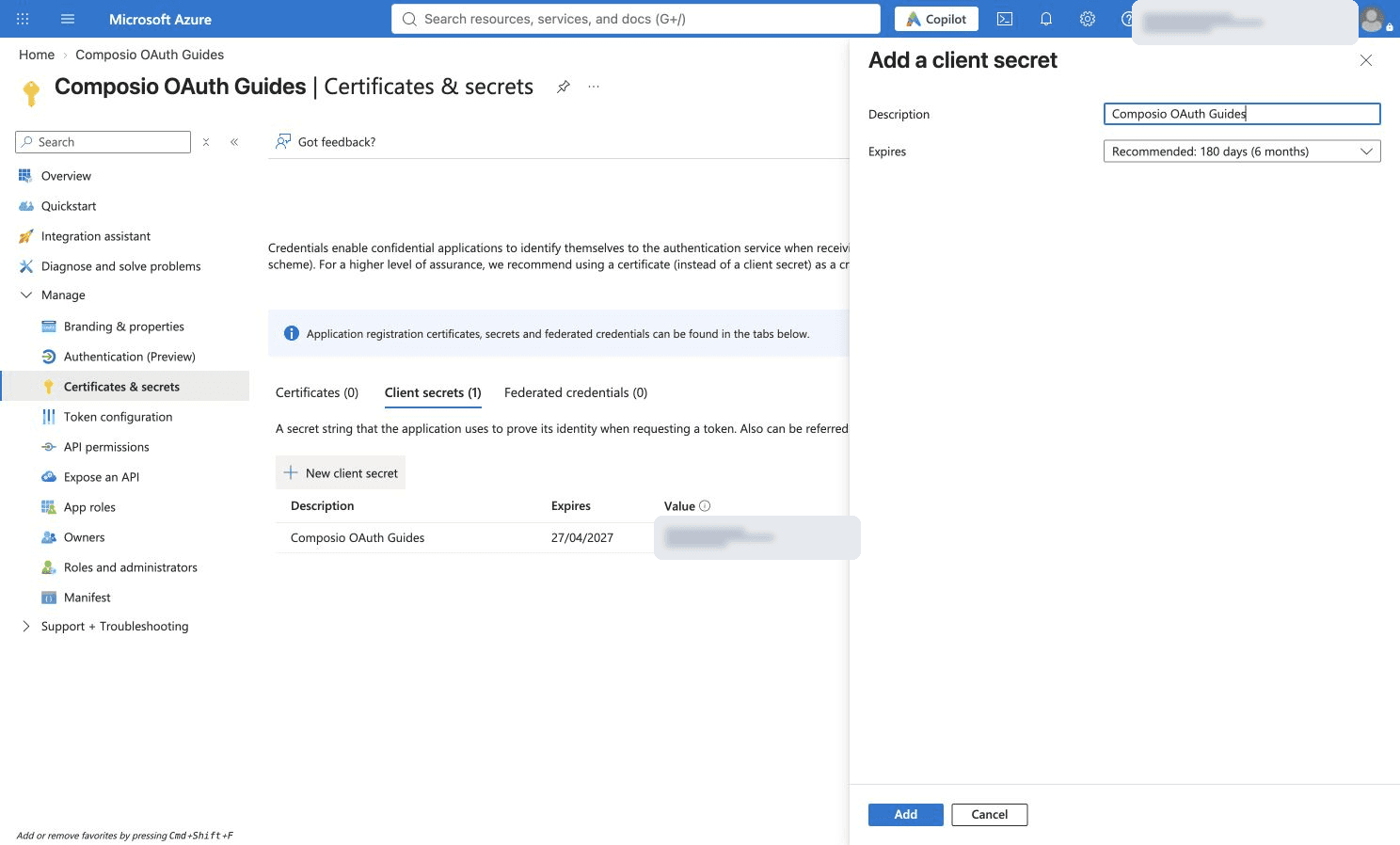
4. Copy the secret Value immediately and store it privately. Use the Value, not the Secret ID. Azure does not reveal the full Value on later visits. Keep public client flows disabled for this confidential Web client.

Step 3: Copy the Existing Production Developer Token
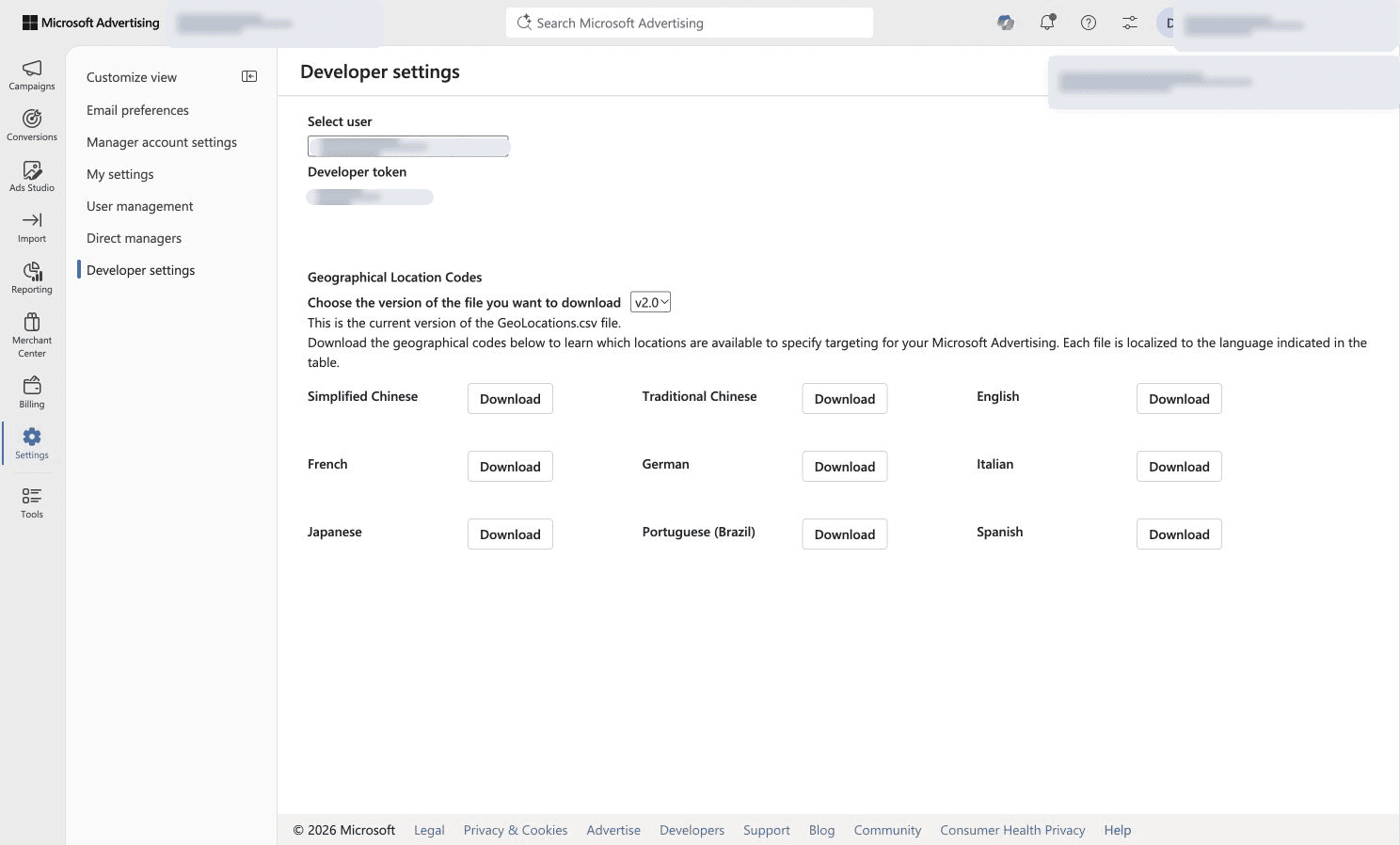
1. Sign in to Microsoft Advertising Developer settings with an account permitted to view the token. The toolkit’s setup instructions specify a Super Admin account for requesting or copying the production universal token.
2. Copy the existing Developer token and store it privately. It is different from the Entra client secret. Use a production token for this production toolkit; a sandbox token will not work. If you need a token, have the authorized account administrator obtain one. Do not regenerate a working token just for another connection.
Part 2: Connect Microsoft Advertising in Composio
Step 1: Create an Auth Config
1. Open the Composio platform, go to Auth Configs and click Create.
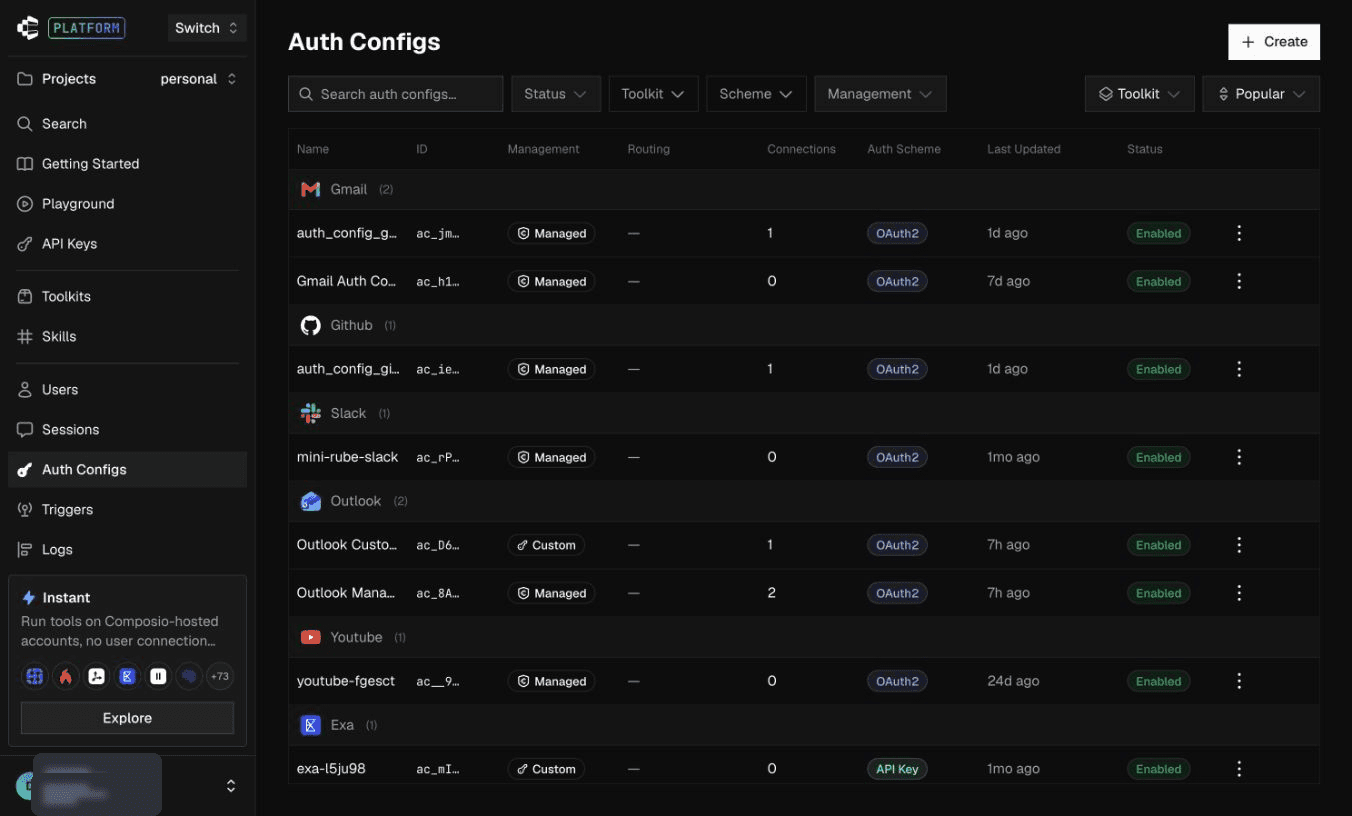
2. Search for and select Microsoft Advertising.

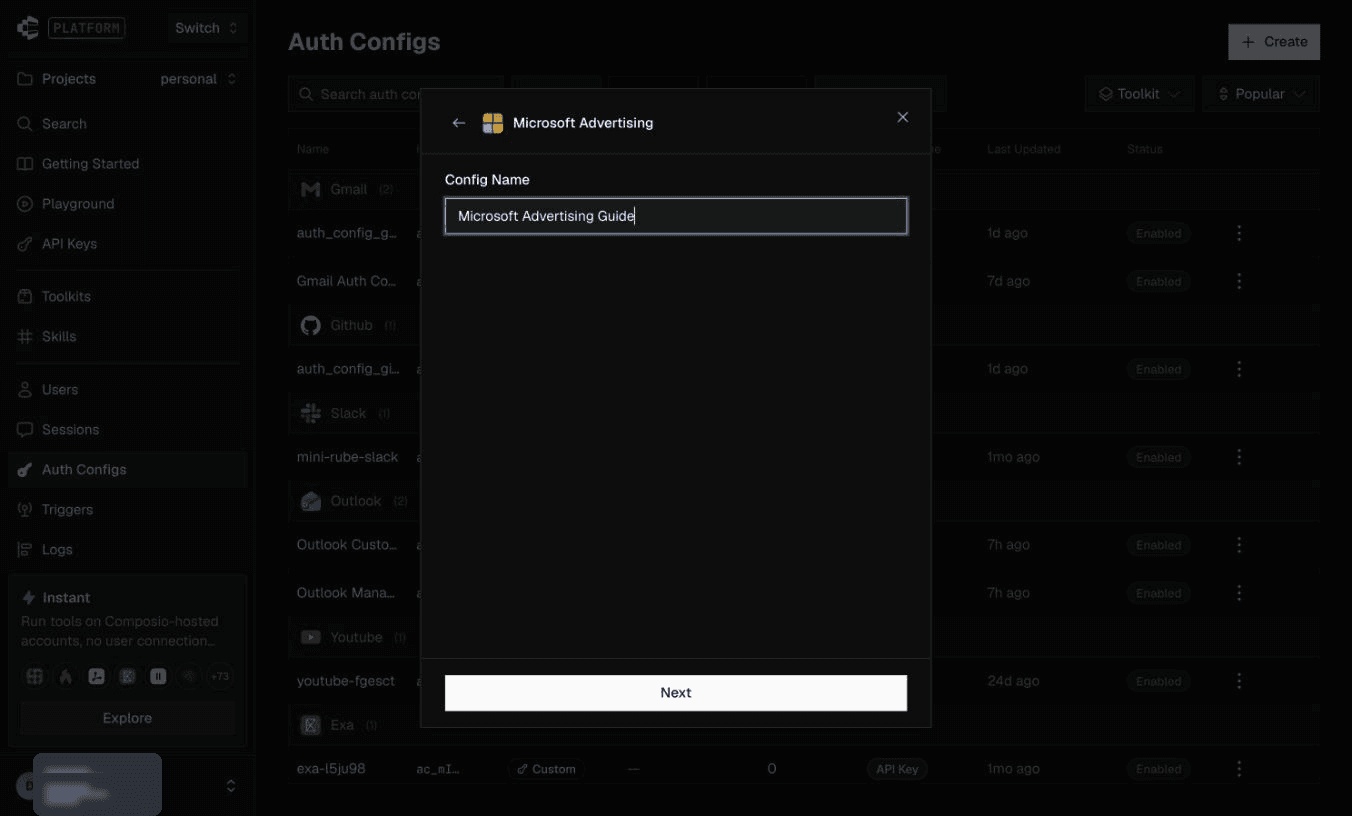
3. Enter a Config Name, such as Microsoft Advertising Guide, and click Next.
Step 2: Enter the App Credentials and Review Scopes
1. Select OAuth 2.0 and enter the app’s Client id and client-secret Value. The screenshot leaves credential inputs empty for privacy.
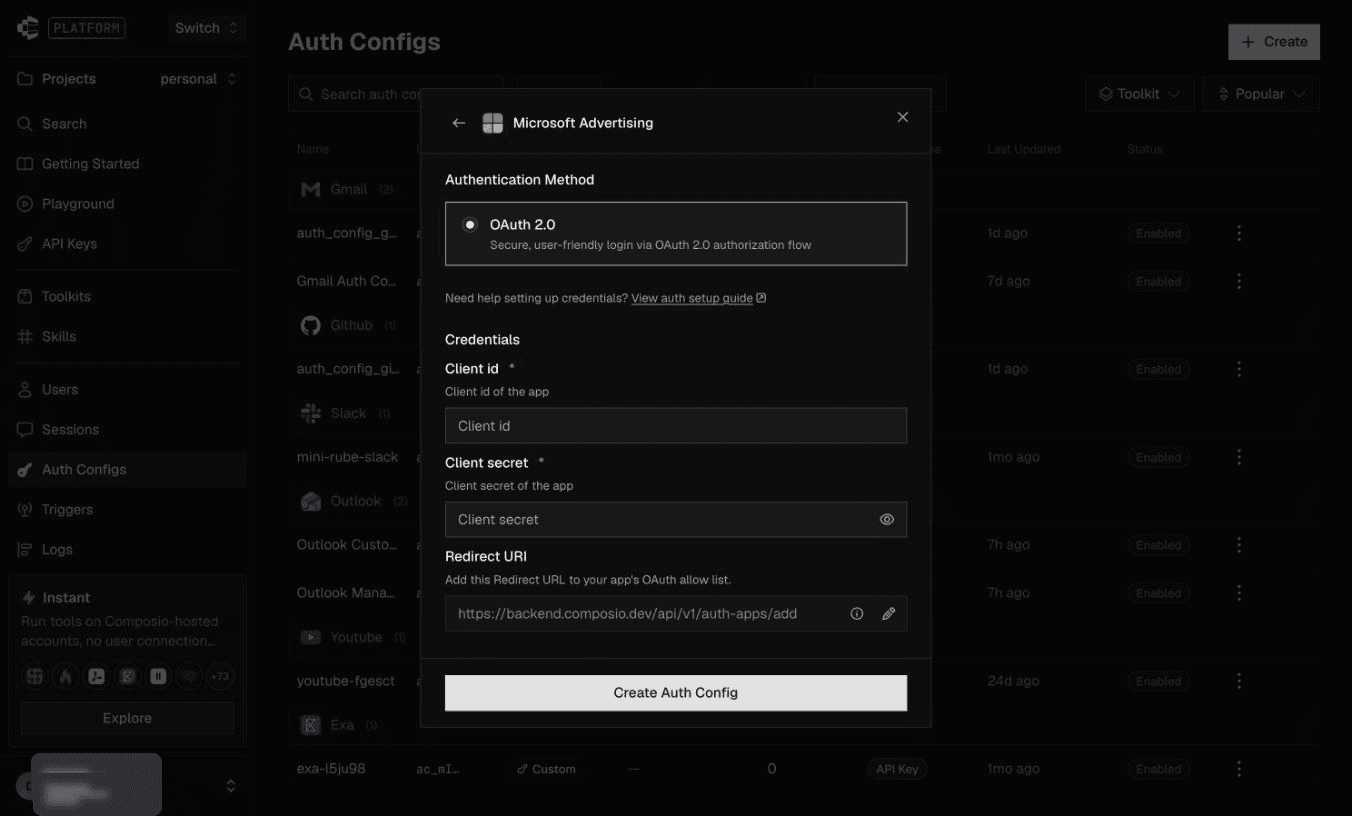
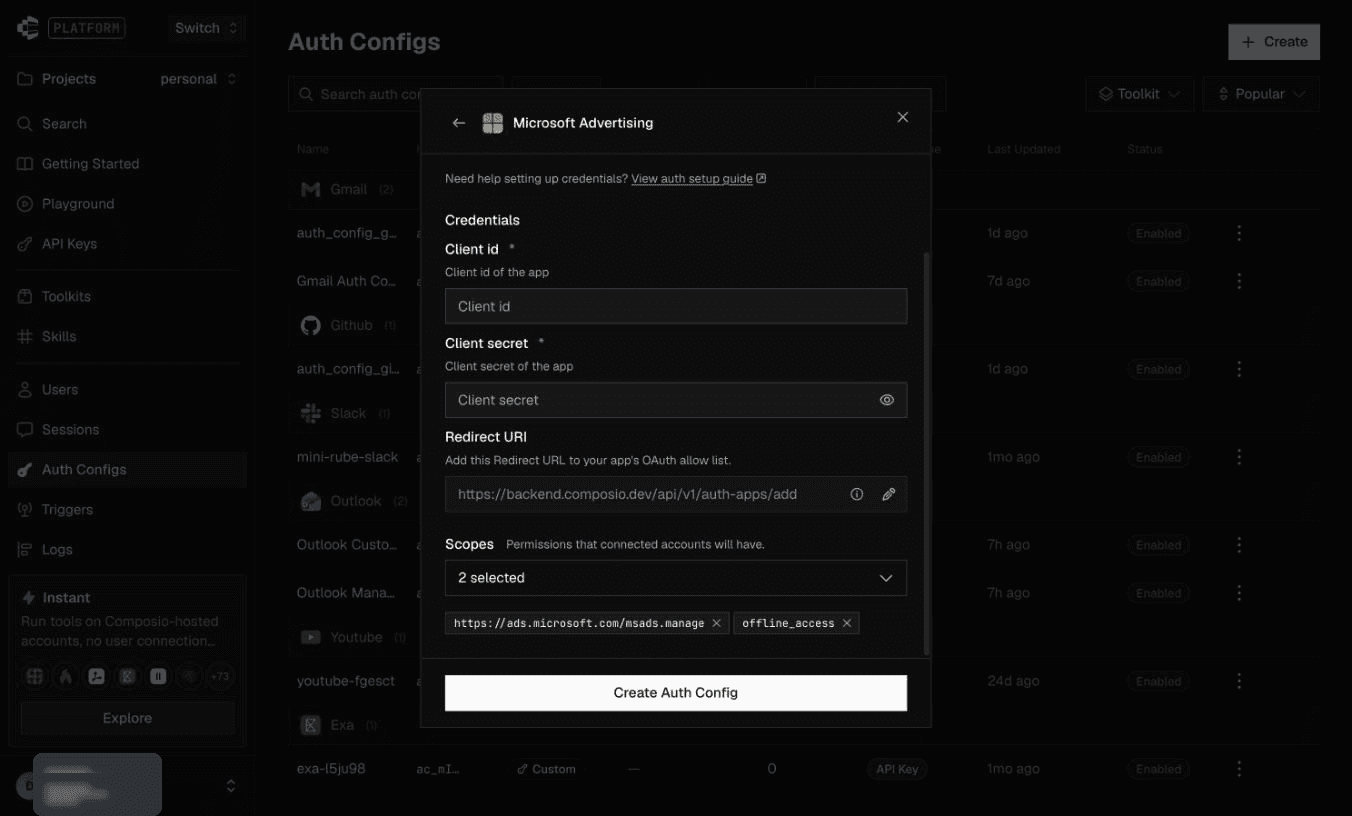
2. Keep the Redirect URI identical to the registered Web callback. Under Scopes, choose permissions required by your integration and supported by your app registration. Click Create Auth Config.
Permission reference. Microsoft Advertising API access uses https://ads.microsoft.com/msads.manage; offline_access provides continued access. A production developer token and access to the advertising account are also required. Review permissions for your integration; the screenshot shows an example. Microsoft permission reference.
Step 3: Supply the Developer Token
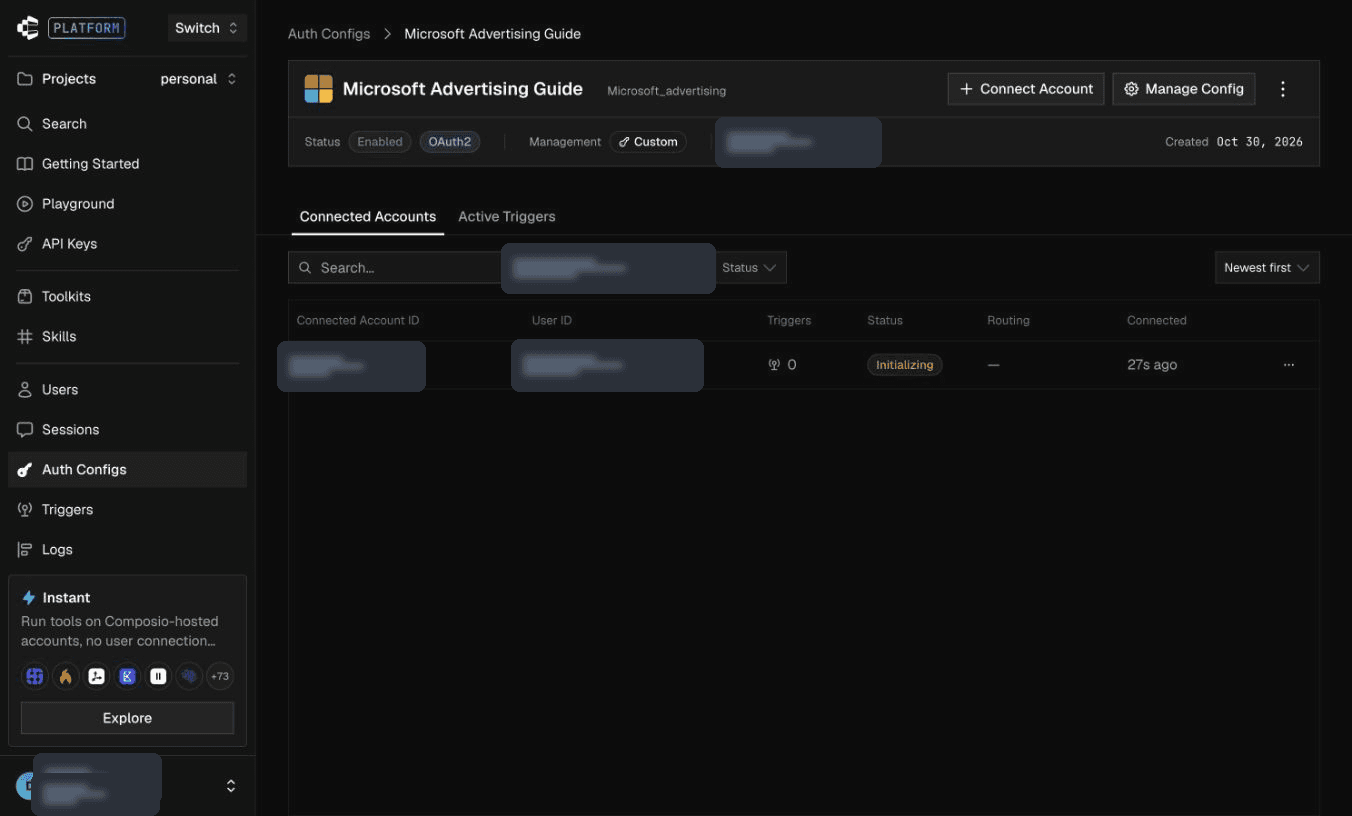
1. Open the auth config and click Connect Account.
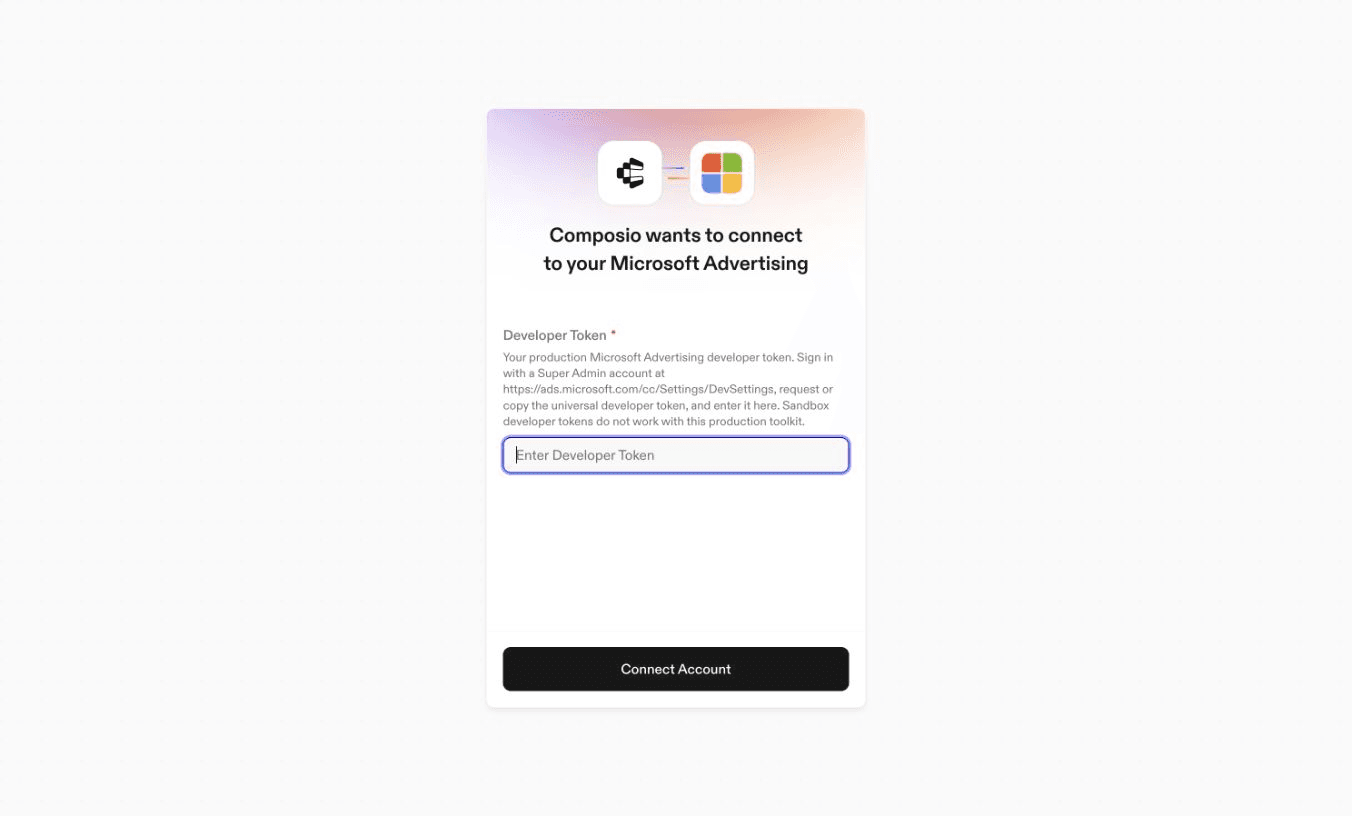
2. Enter the existing production Developer Token, then click Connect Account. Do not paste the Entra client secret into this field. The screenshot leaves the token empty for privacy.
Step 4: Select the Advertising Identity and Review Consent
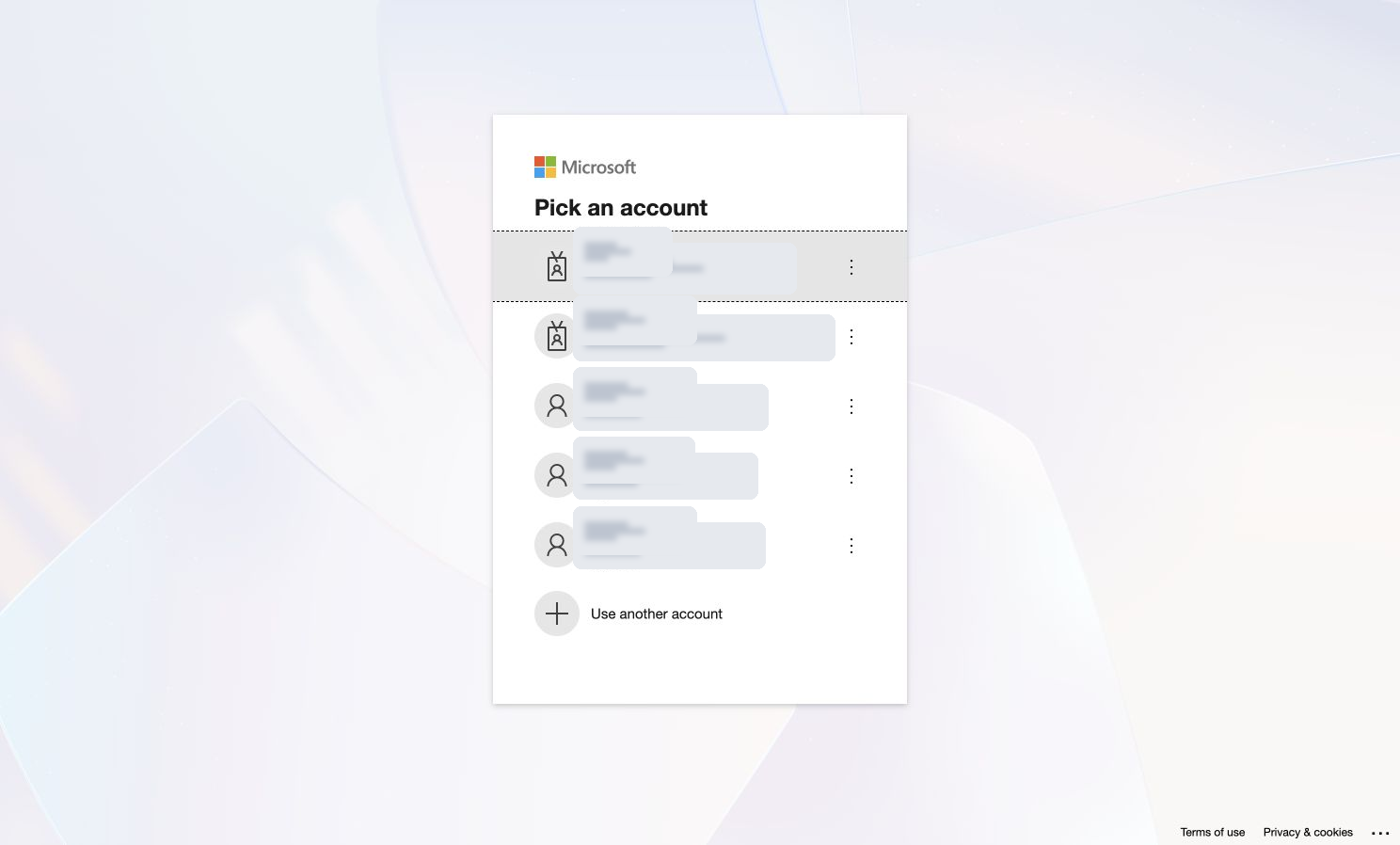
1. Select the Microsoft identity that is already a user of the advertising account. Work/school and personal Microsoft identities are supported by the provider. Use the existing Advertising identity rather than assuming an unrelated Microsoft tenant has ad-account access. Complete any required Microsoft verification or MFA.
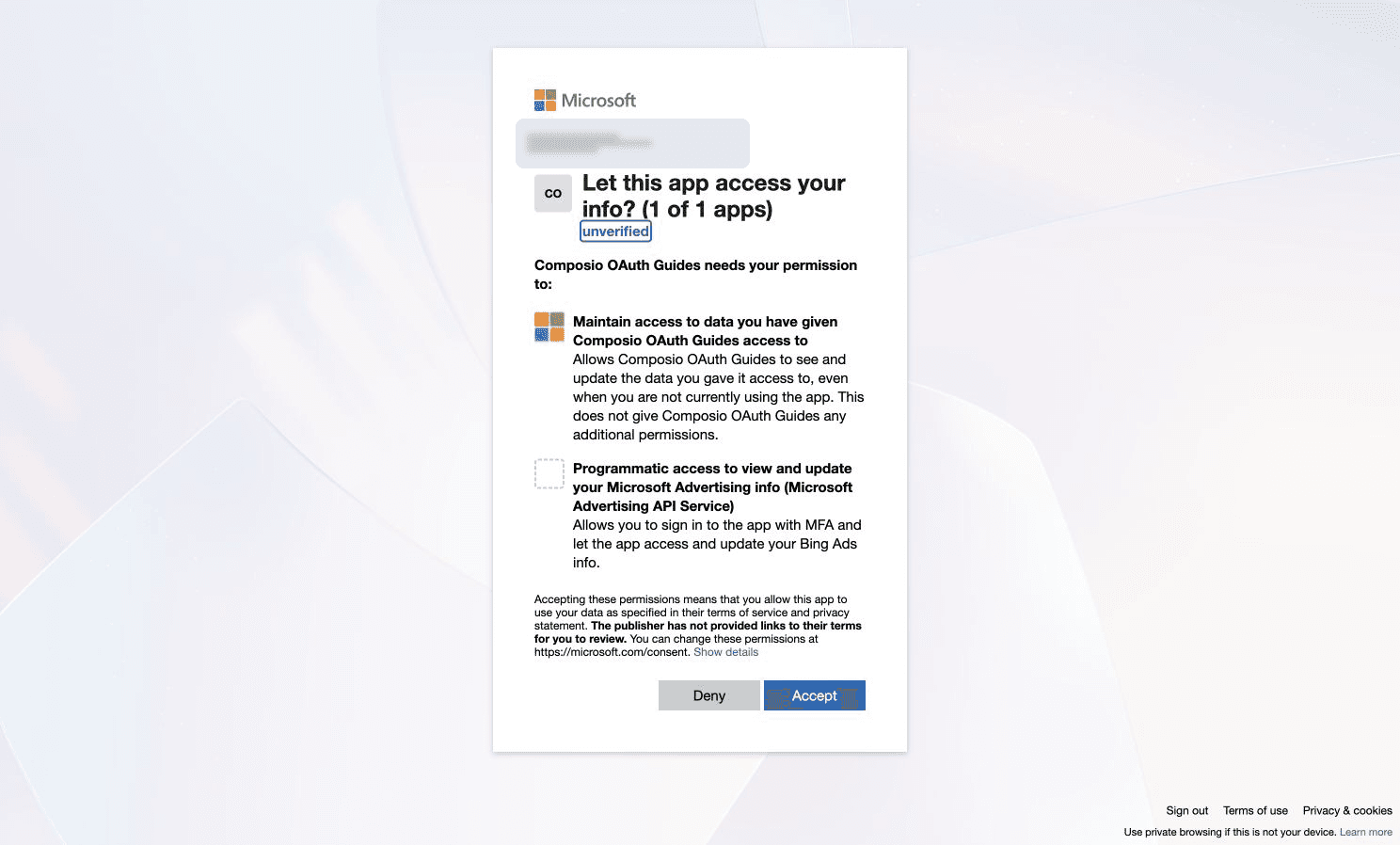
2. Confirm that the app name matches your Entra registration and review the requested access before accepting. The request includes continued access and programmatic access to view and update Microsoft Advertising info. Approve only when that access matches the intended integration.
For an organizational identity, Microsoft can require tenant-administrator setup before Advertising authorization works. If Microsoft returns AADSTS650052, ask the tenant administrator to review the Application behavior section of Microsoft’s registration guide. Keep any tenant-admin changes separate from campaign or payment setup.
Step 5: Confirm the Connected Account Is Active
1. After approval, return to the auth config’s Connected Accounts tab and check Active on the account row. The auth config’s Enabled state is separate. Advertising account roles continue to govern what the connected identity can access or change.
Copy the Auth Config ID from Composio and use it in your application’s integration setup.
