




Composio connects AI agents to HighLevel, helping agencies and businesses automate their CRM. With Composio, developers can build agents that work with contacts, conversations, calendars, opportunities, and other sub-account data as part of automated workflows.
Access is always limited to the scopes approved during installation, so each sub-account stays in full control of its data.
This guide walks you through creating your own app in the HighLevel Marketplace, generating OAuth credentials, and using them to set up a custom auth config for the HighLevel Location toolkit in Composio. The Location toolkit connects at the sub-account (location) level.
Part 1: Create your HighLevel Marketplace app
In this section, we’ll create a Marketplace app in HighLevel and get the credentials Composio needs.
NOTE: If you already have a HighLevel Marketplace app targeting sub-accounts, with access to its Client ID and Client Secret, you can skip this section.
Step 1: Create a Marketplace App
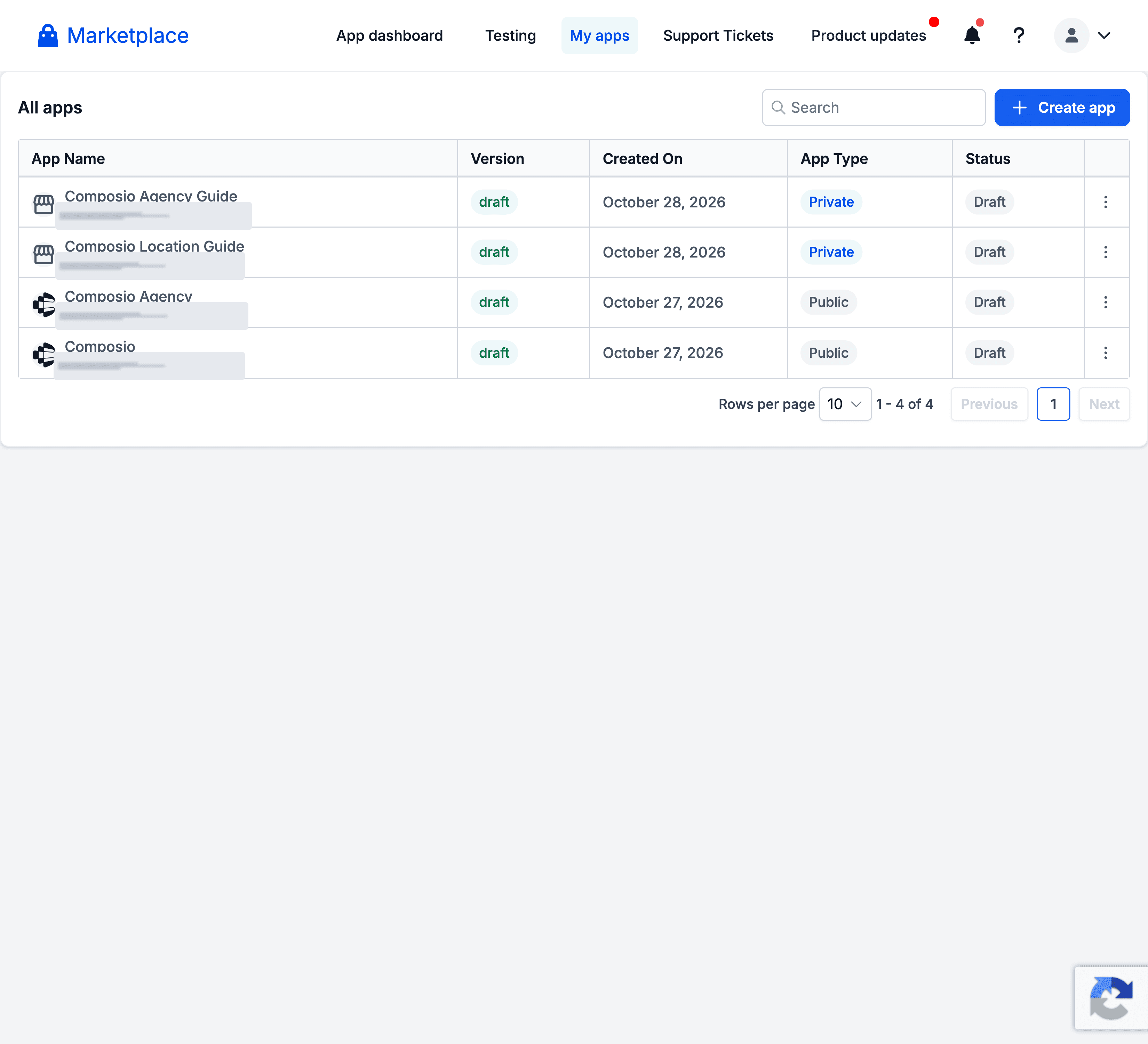
1. Sign in to the HighLevel Marketplace, open My apps, and click Create app.
2. Fill in the app details and click Create app:
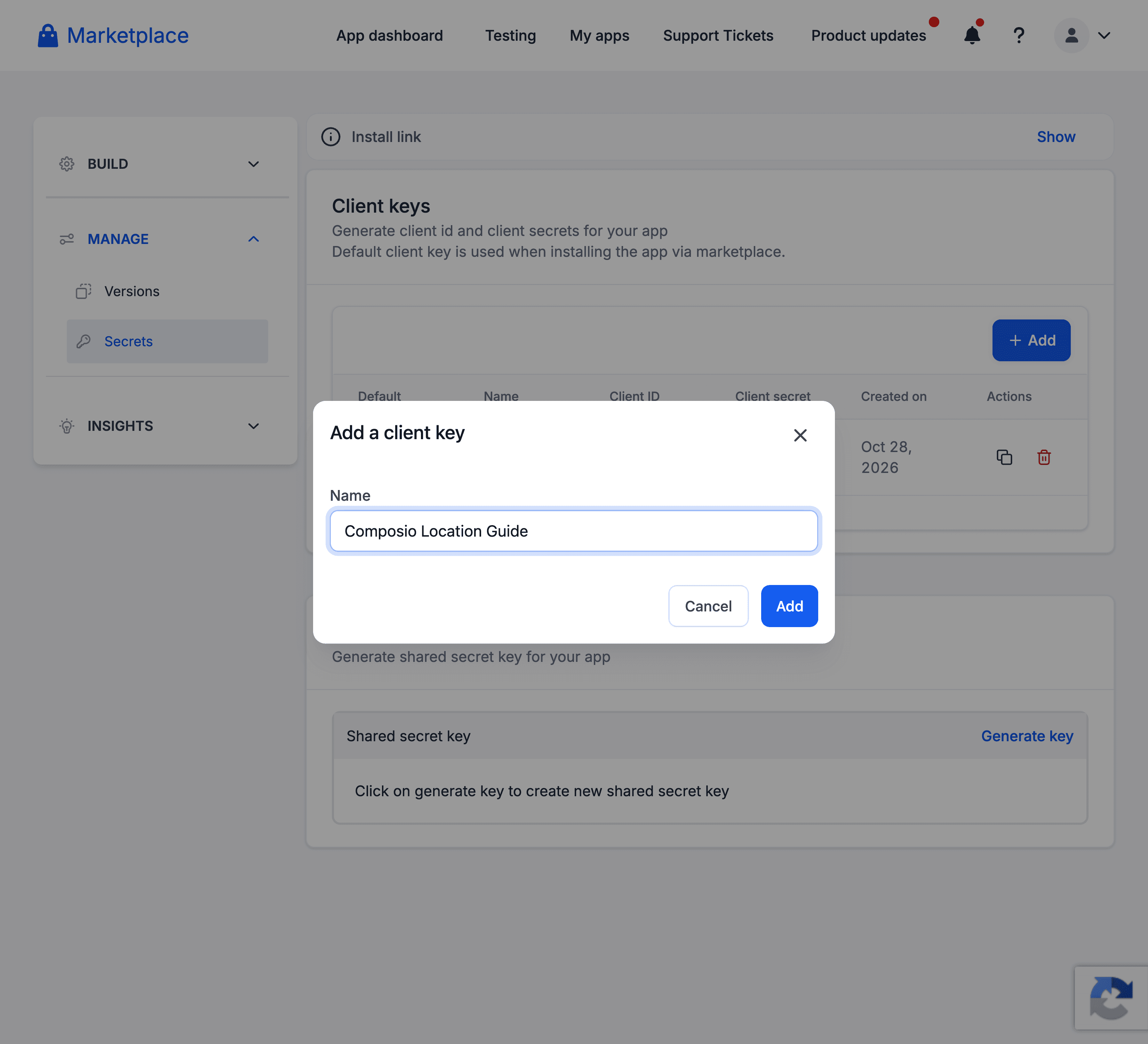
App name: any name, for example Composio Location Guide.
App type: Private (fine for testing and small pilots) or Public.
Target user: Sub-Account. This is required for the Location toolkit.
Who can install: Everyone.
Listing type: White-label (recommended).
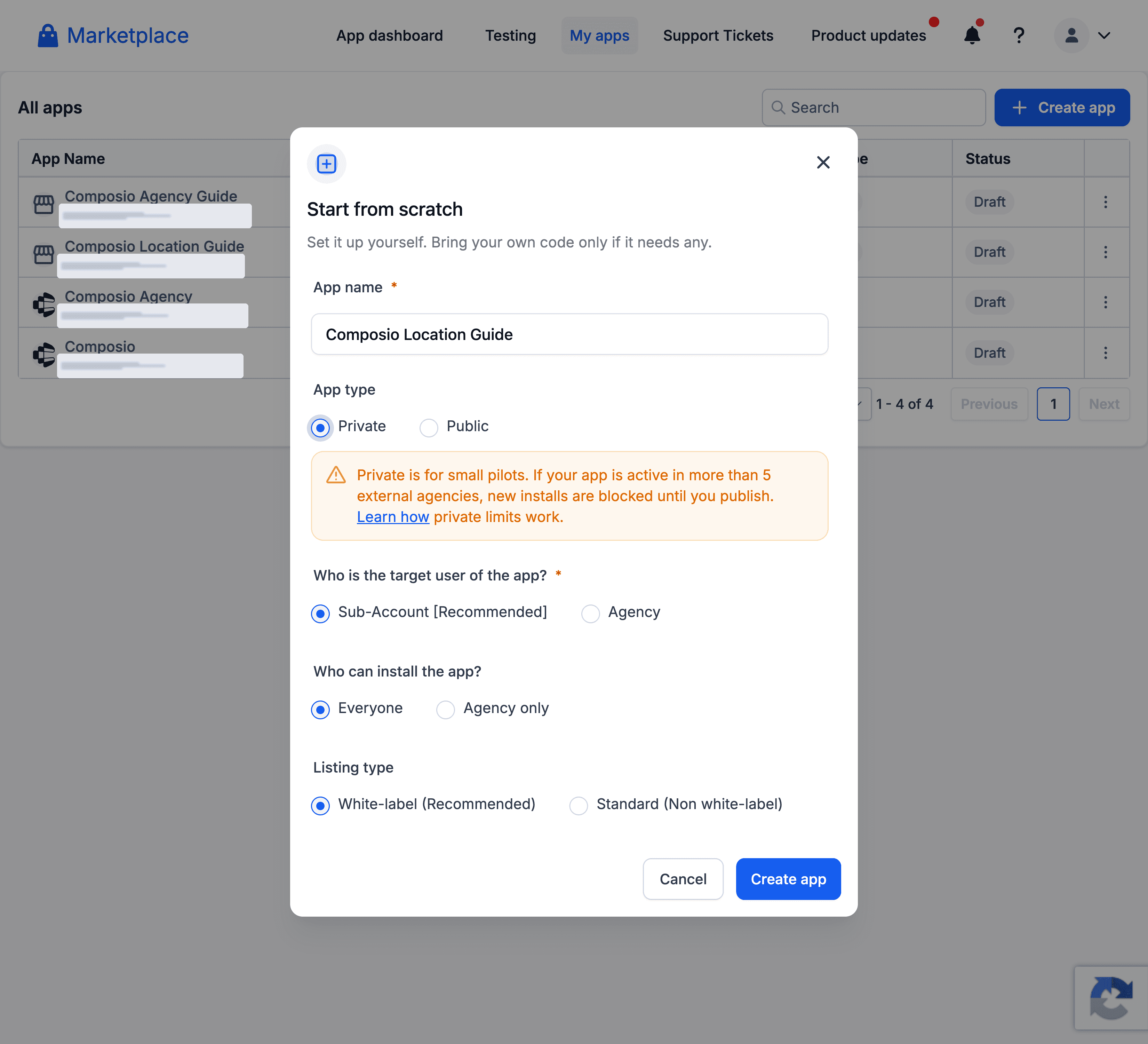
NOTE: Private apps are meant for small pilots. If a private app is active in more than 5 external agencies, new installs are blocked until you publish it.
Step 2: Add the Redirect URL
In your app, go to Advanced Settings → Auth. Under Redirect URLs, paste the Composio callback URL below and click Add:
https://backend.composio.dev/api/v1/auth-apps/add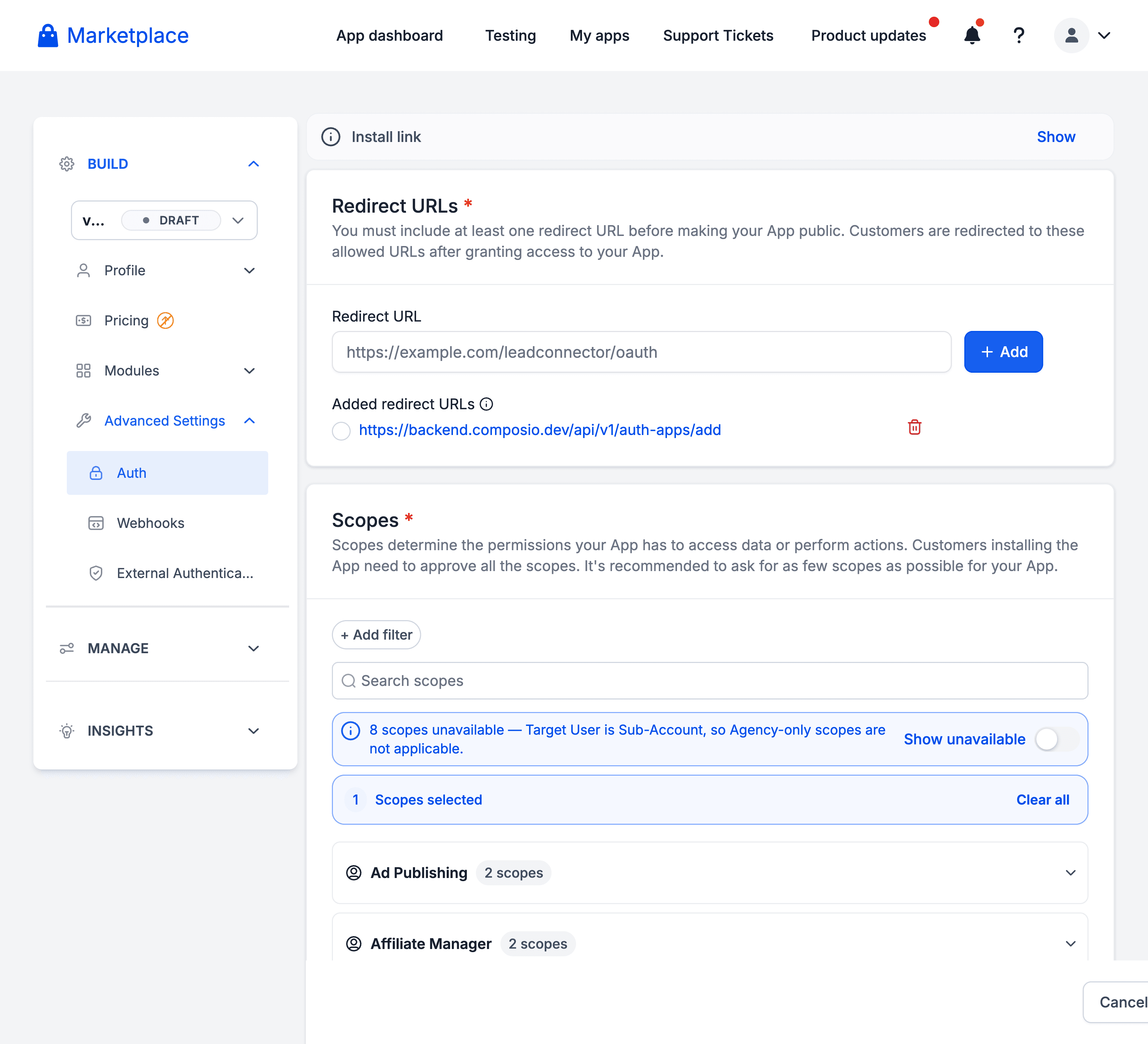
This URL must exactly match the Redirect URI shown in your Composio auth config in Step 5.
Step 3: Add Scopes
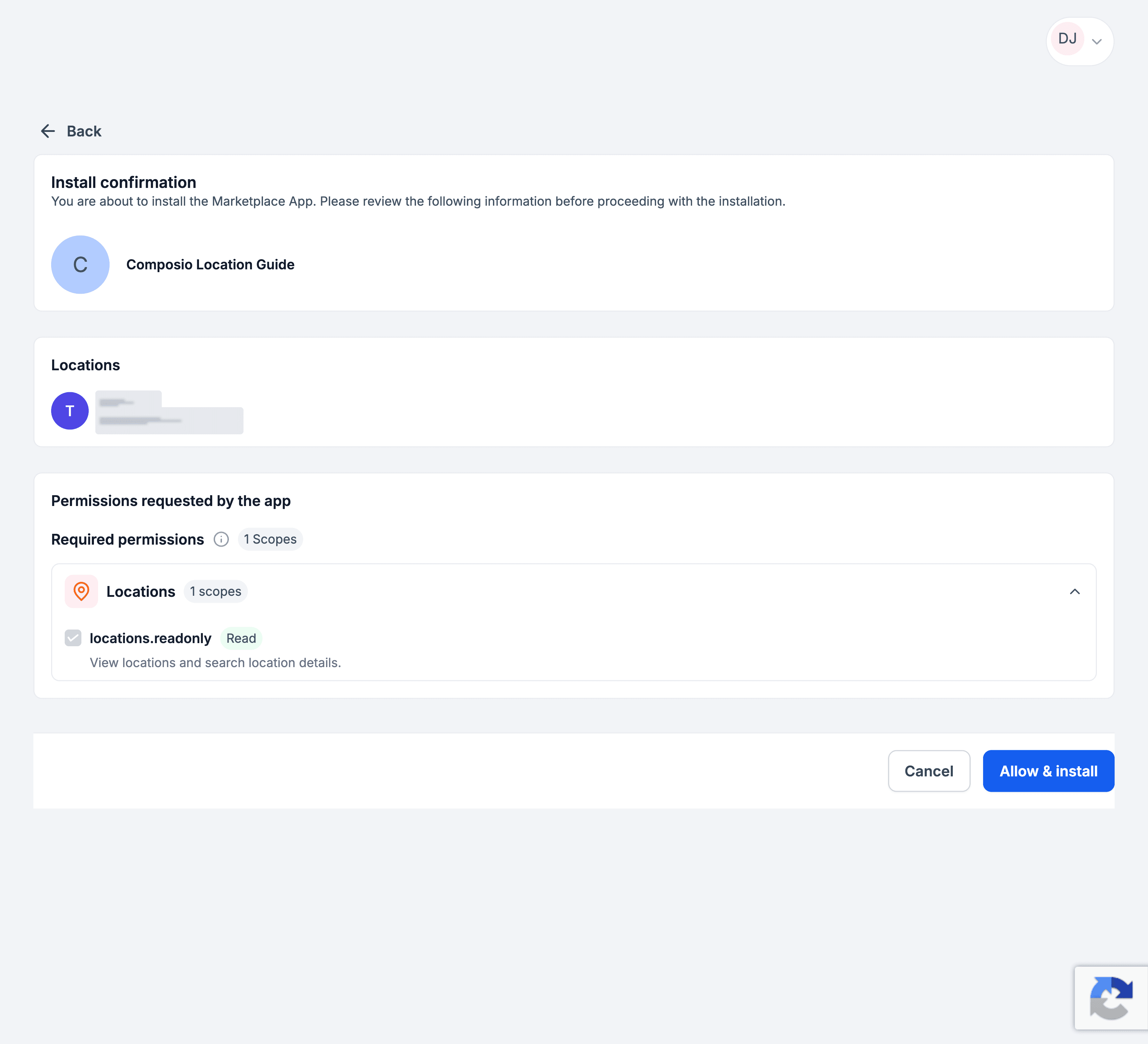
On the same Auth page, scroll to Scopes, search for the scopes your integration needs, and select them. For example, locations.readonly lets the app view locations and search location details.
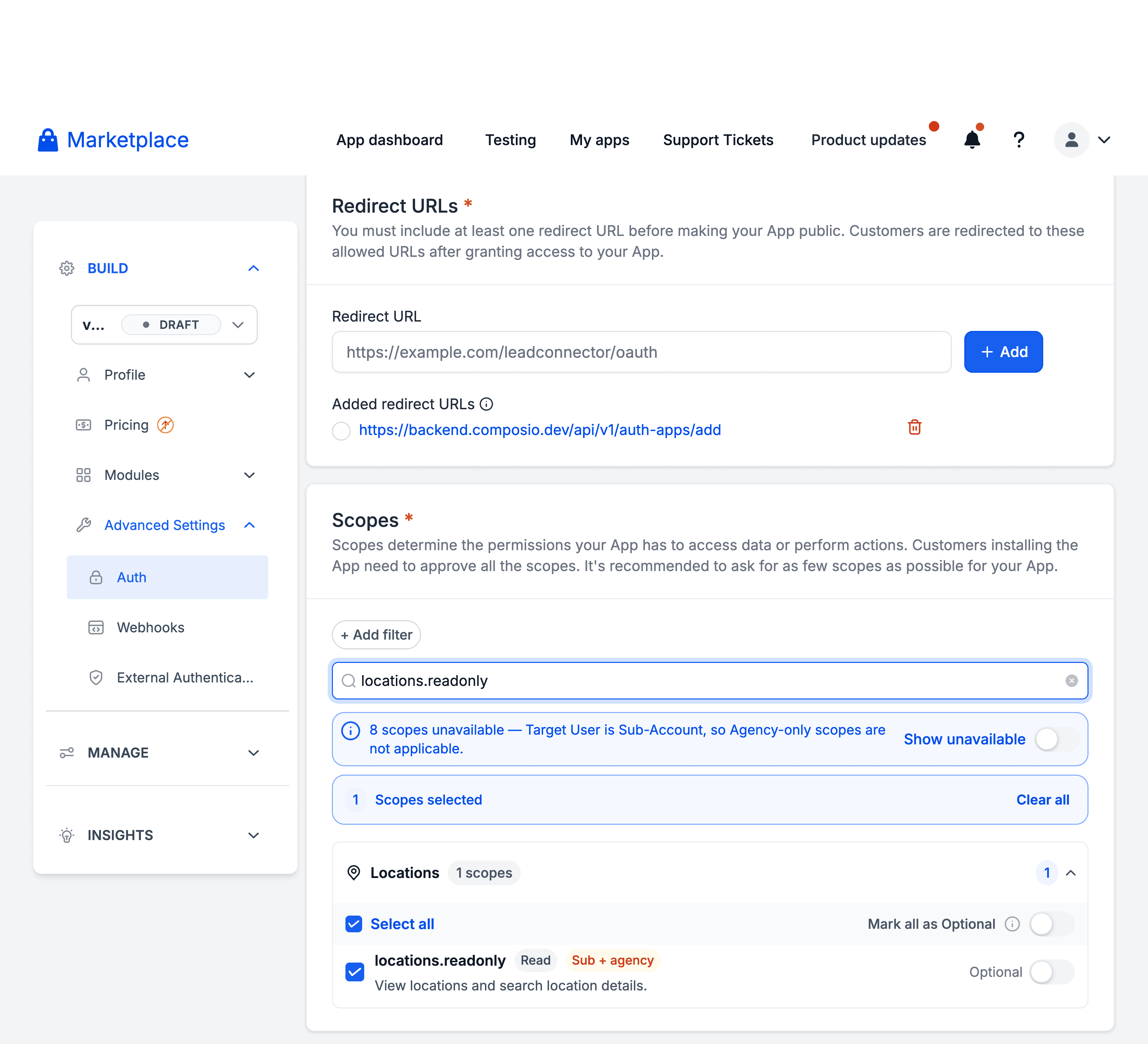
Because the target user is Sub-Account, Agency-only scopes are hidden. Always request only the scopes your workflow needs. Customers must approve every scope when they install the app.
Step 4: Generate Your Client Keys
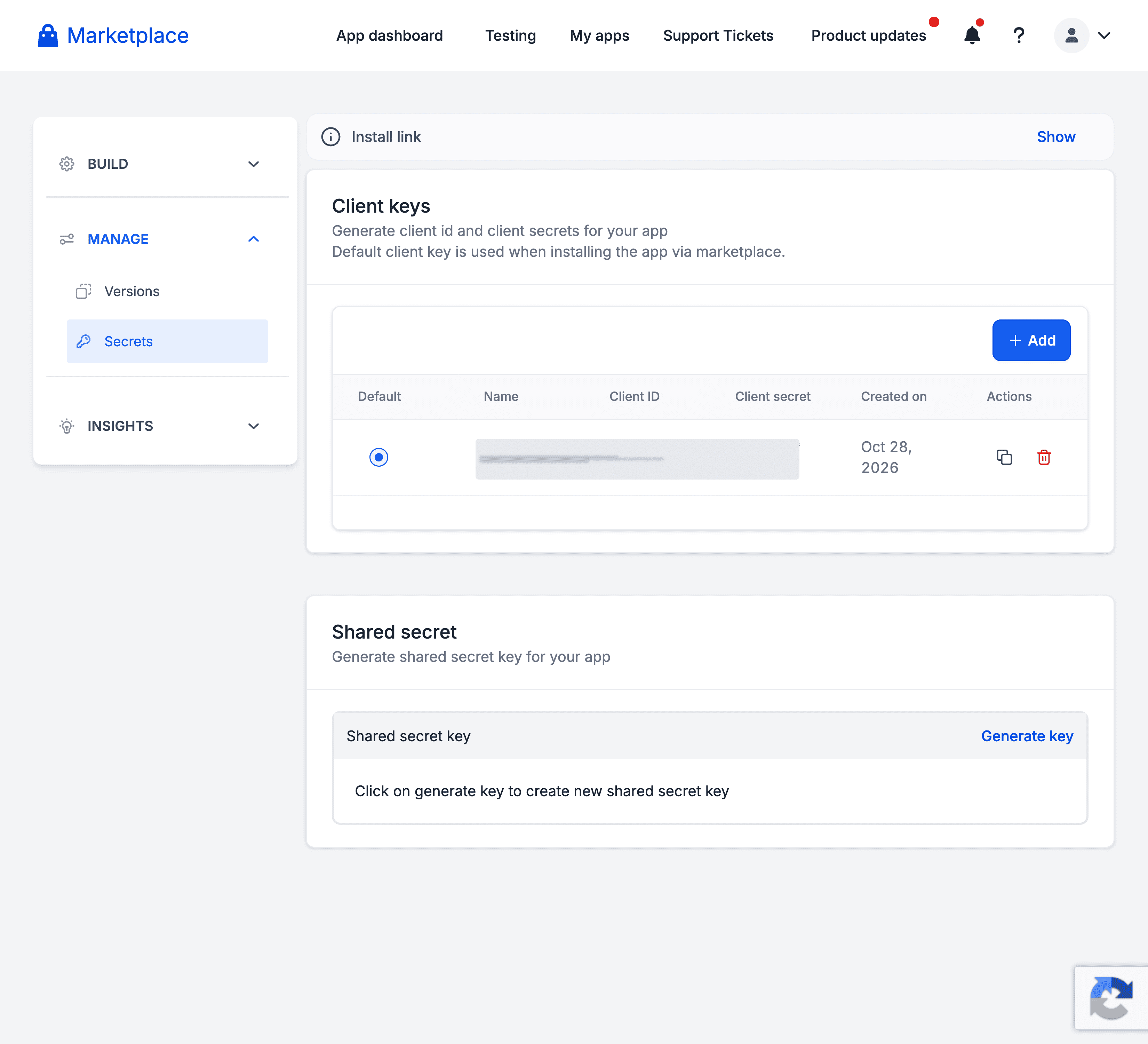
1. In the left sidebar, go to Manage → Secrets. Under Client keys, click Add.
2. Give the client key a name and click Add. Copy the Client ID and Client Secret, and store the secret somewhere safe.
Part 2: Create the auth config in Composio
With your HighLevel credentials ready, navigate to the Composio Dashboard.
Step 5: Create a HighLevel Location Auth Config
1. Go to Auth Configs in the Composio Dashboard and click Create.
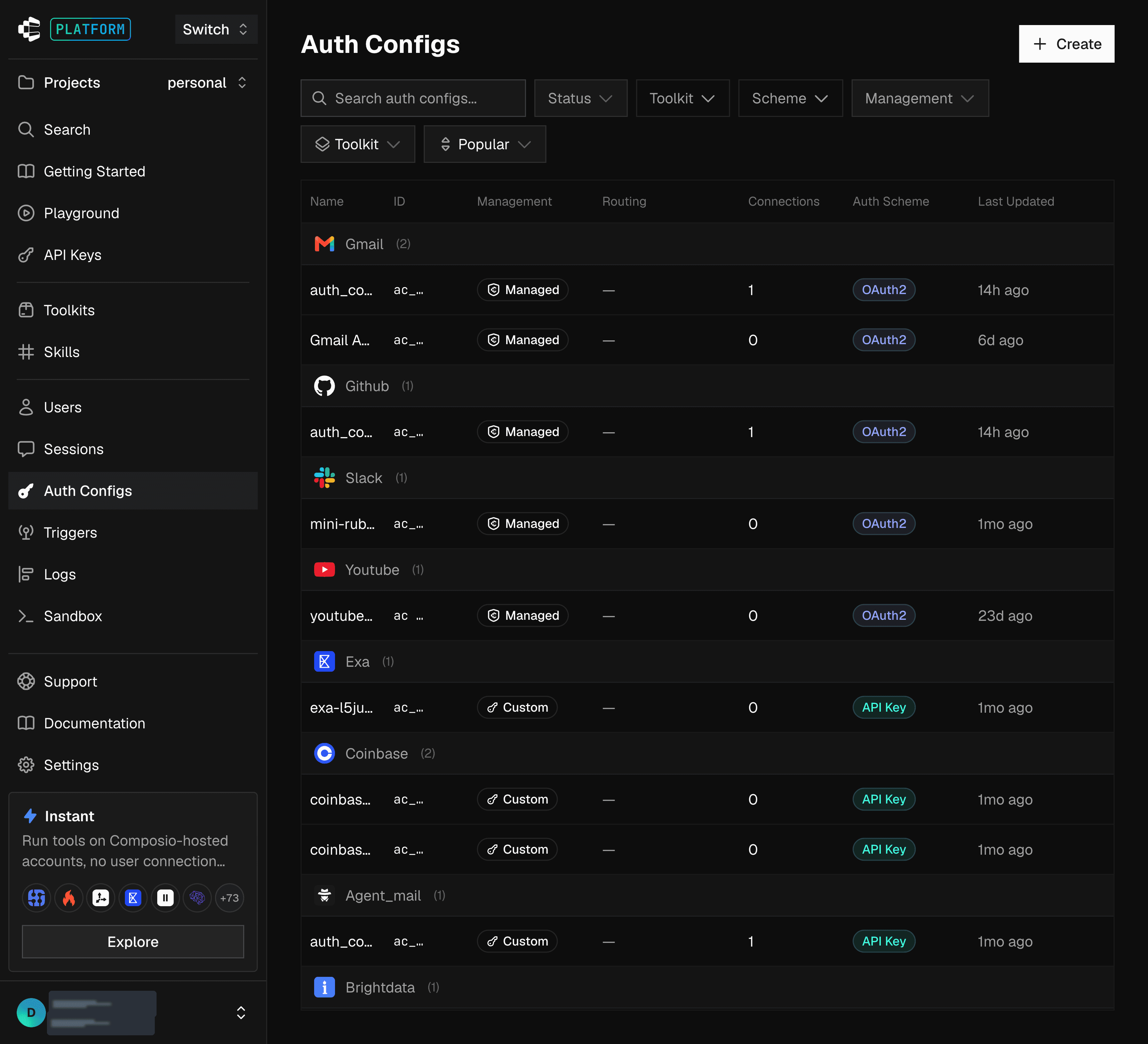
2. Search for HighLevel Location and select it from the results.

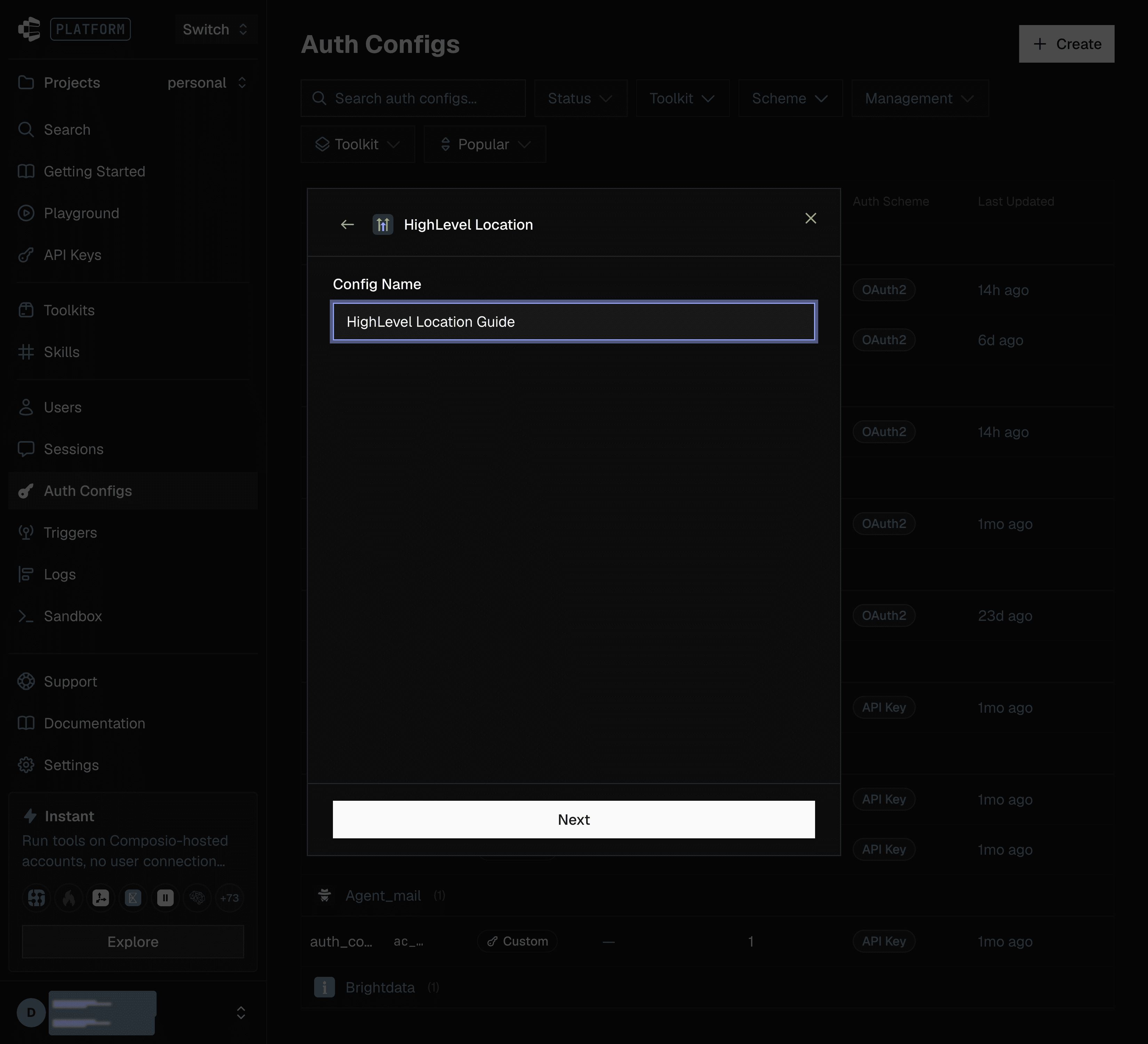
3. Enter a Config Name for your auth config and click Next.
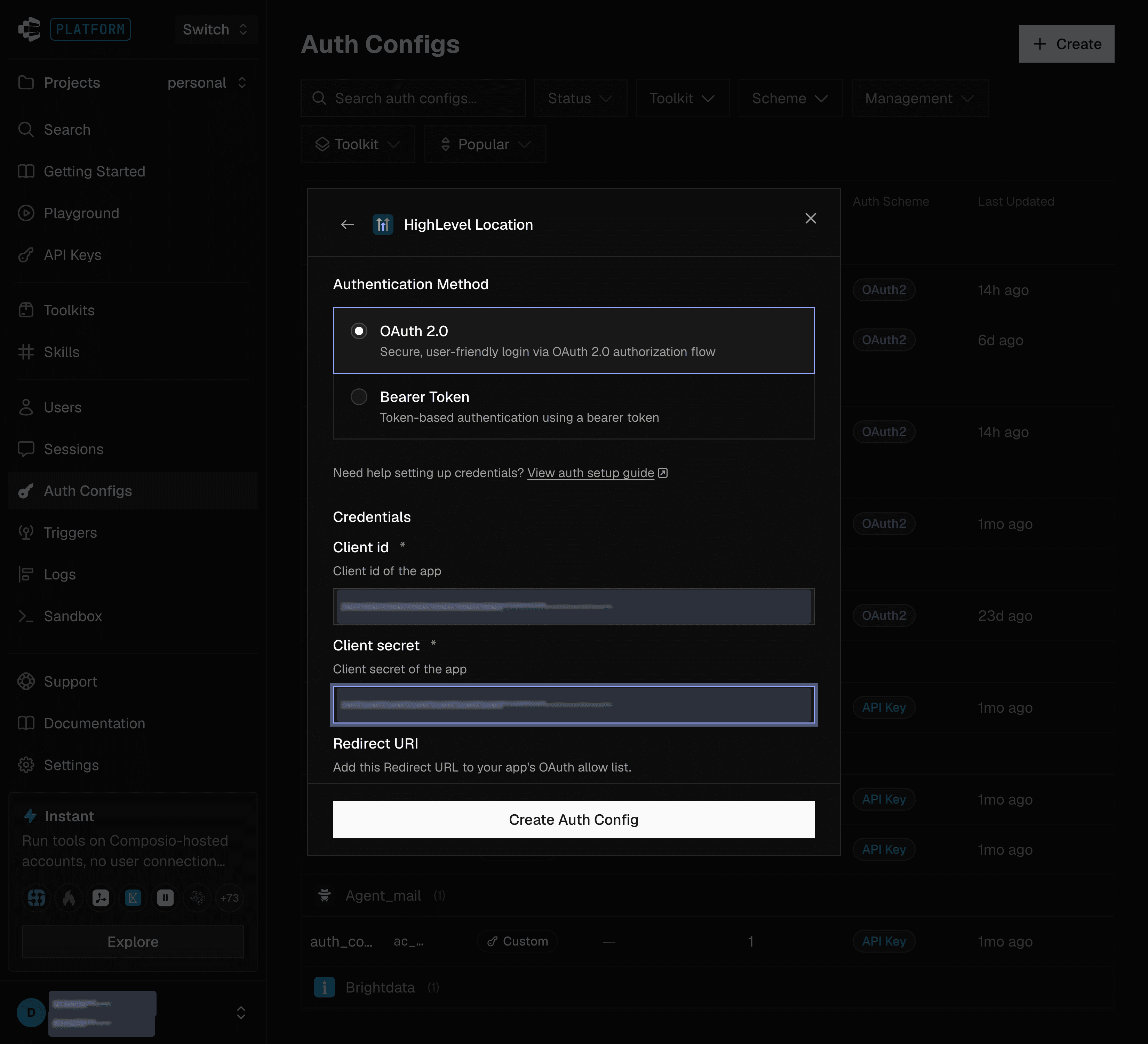
4. Under Authentication Method, select OAuth 2.0, then paste the Client ID and Client Secret from your Marketplace app.
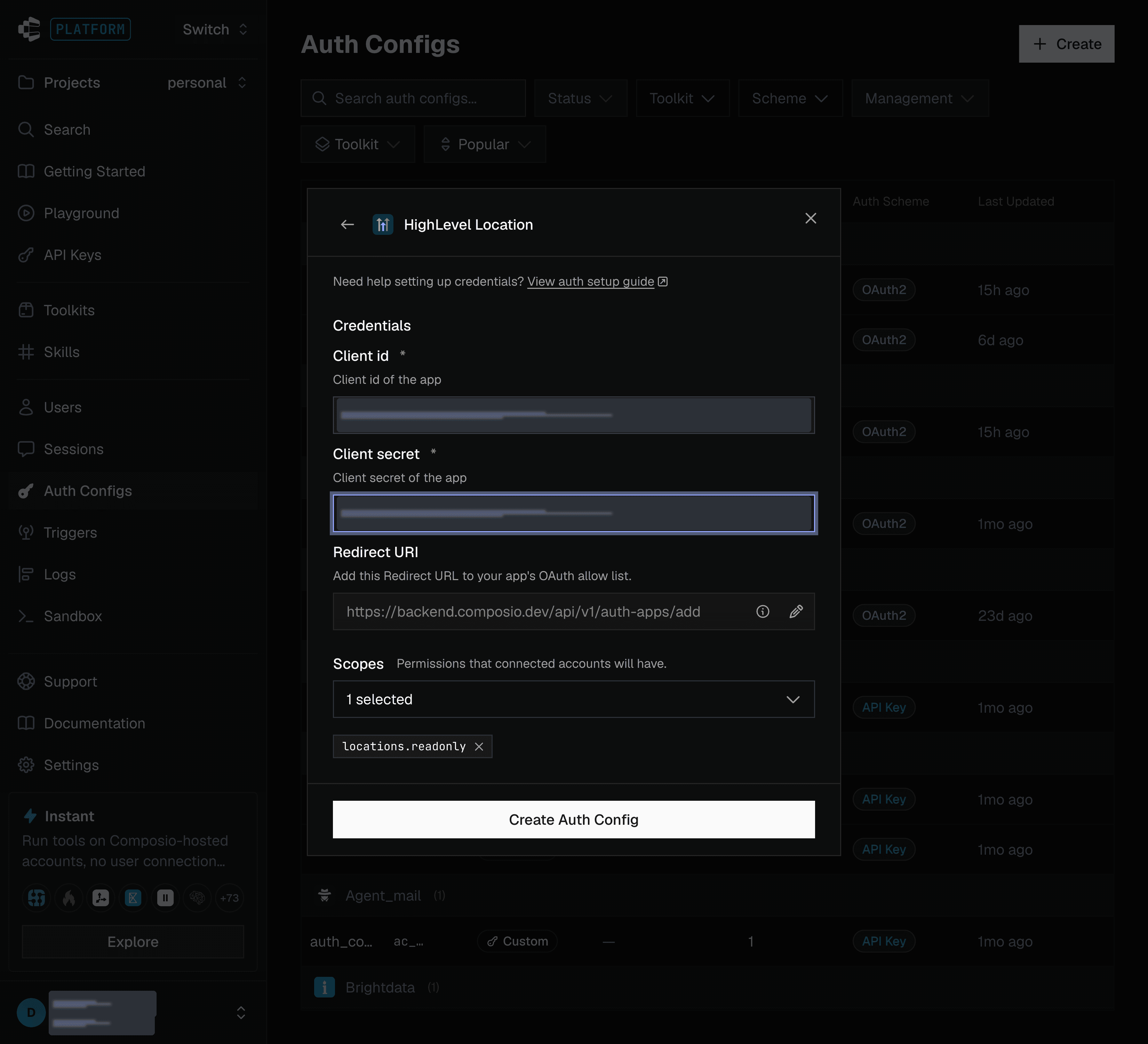
5. Check that the Redirect URI matches the one you added in HighLevel, select the same Scopes you chose in Step 3, and click Create Auth Config.
Step 6: Connect Your HighLevel Sub-Account
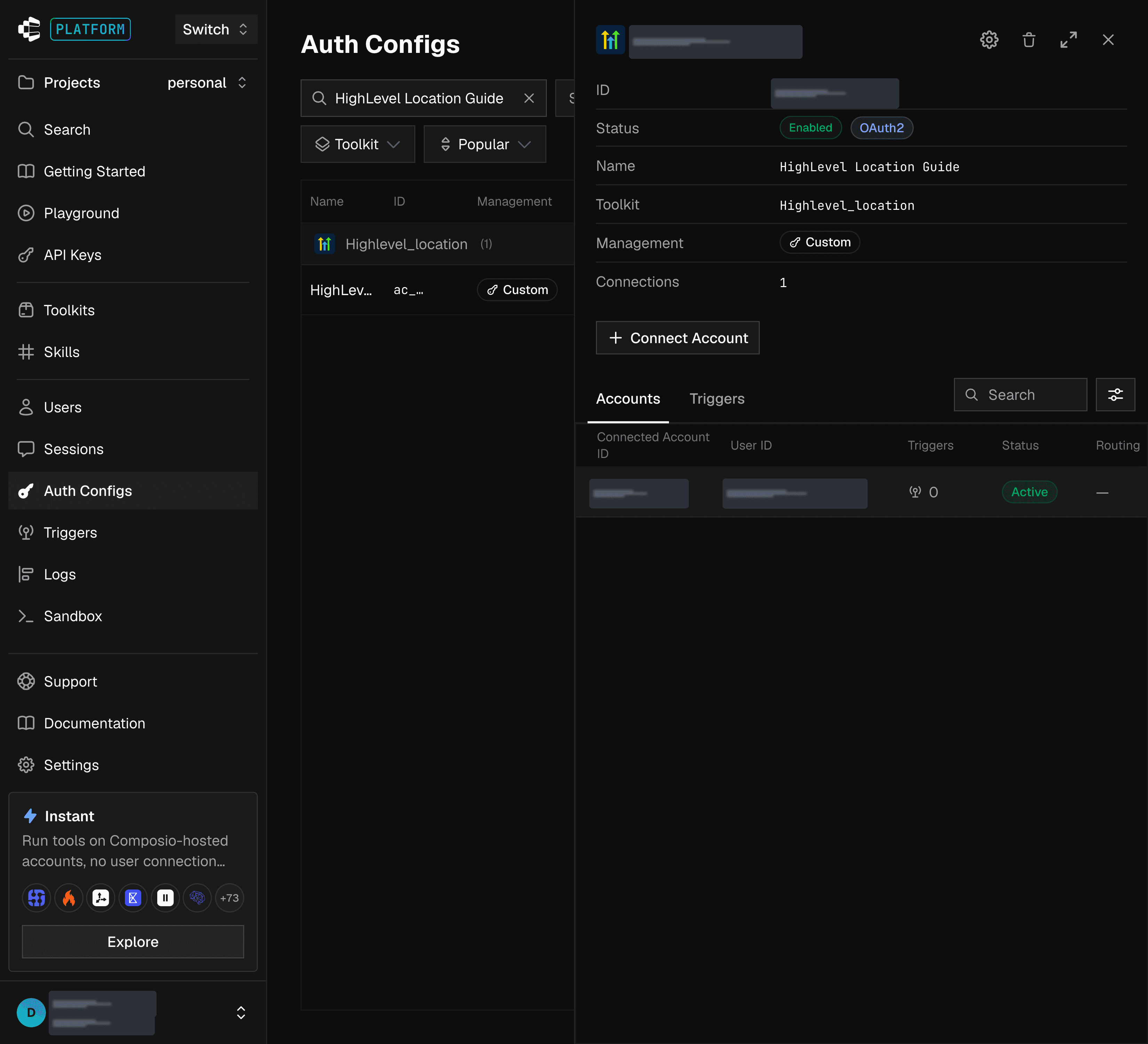
1. Open the new auth config and click Connect Account. Then open the generated link.

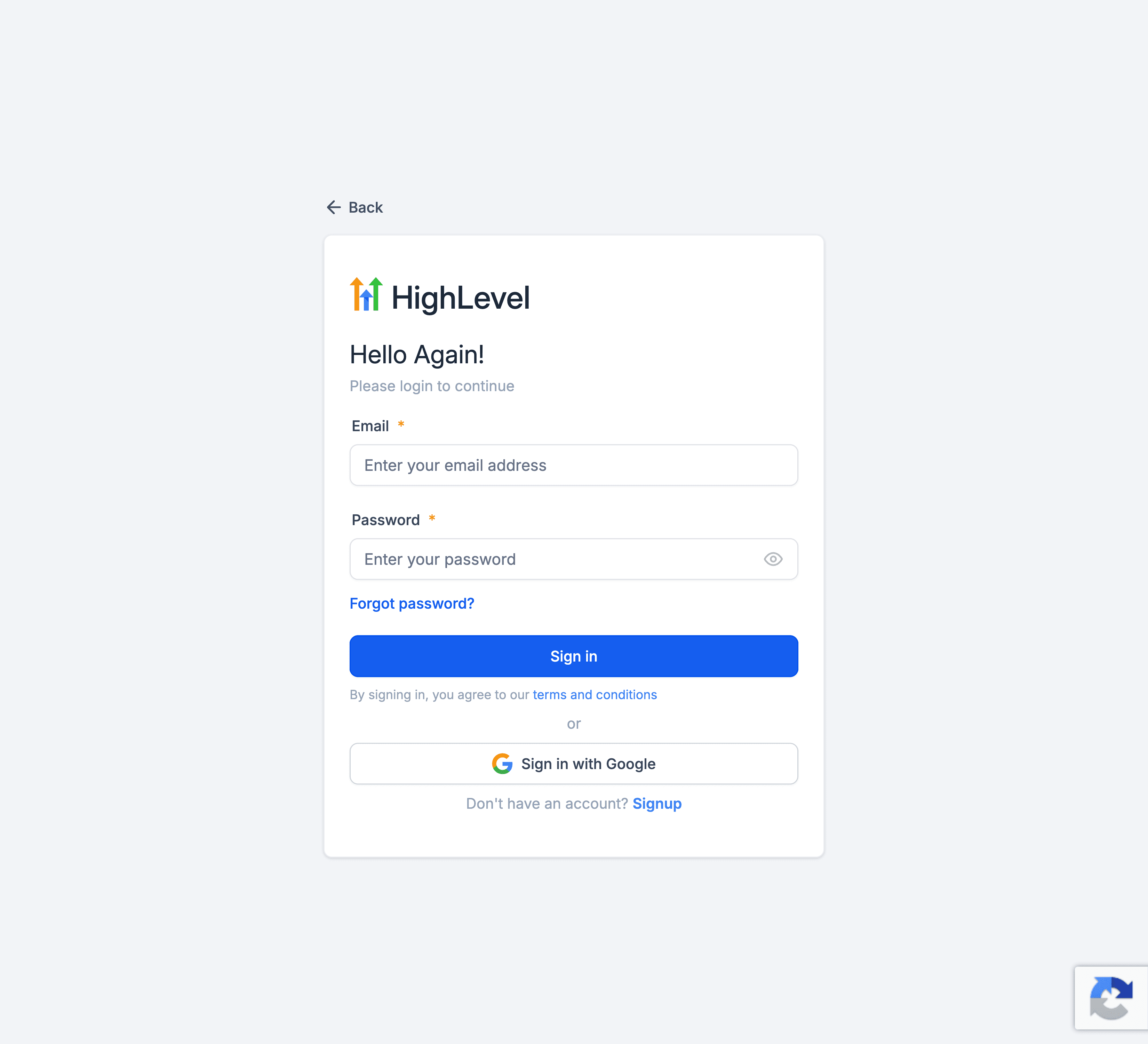
2. Sign in to HighLevel.
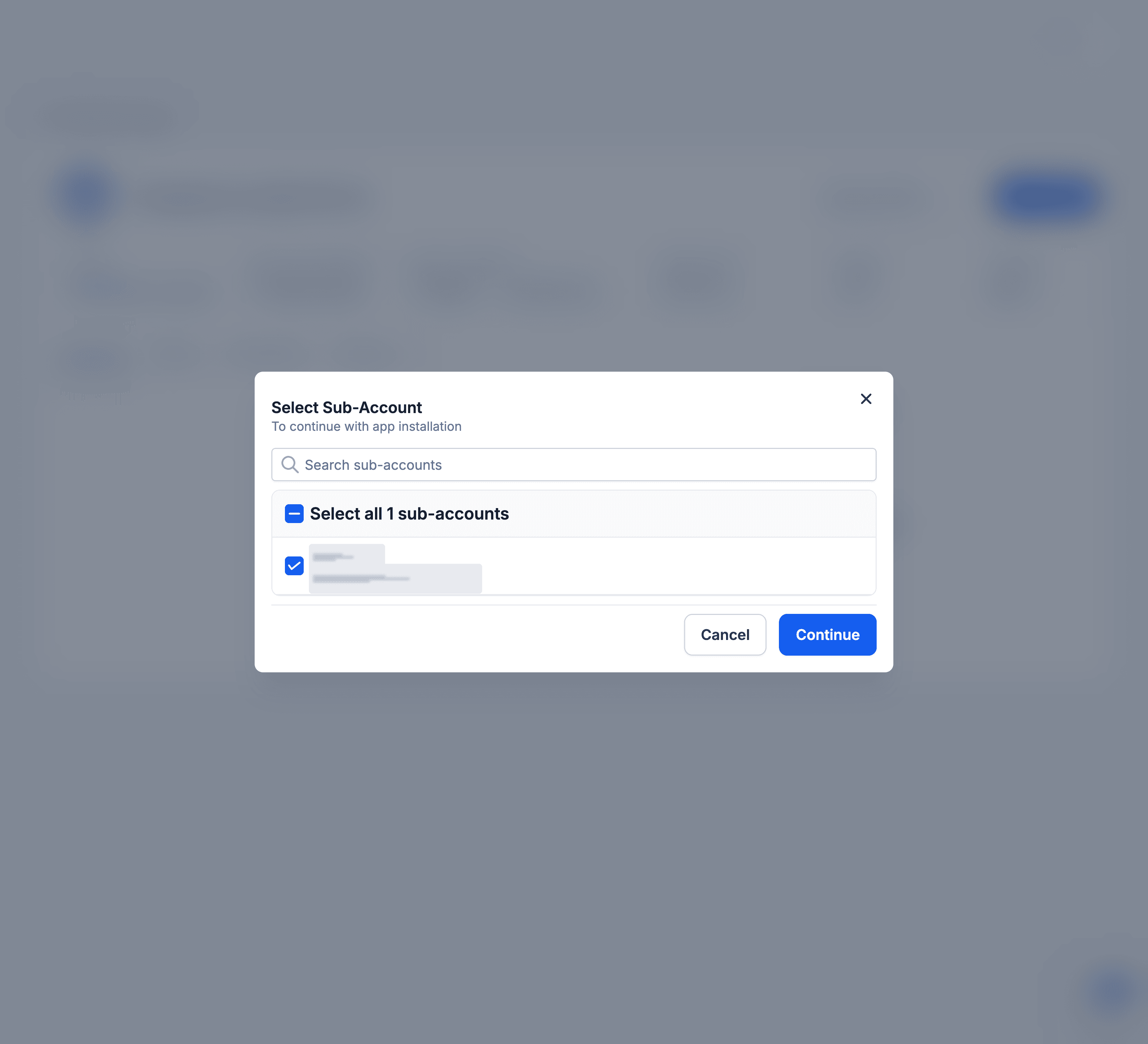
3. Select the sub-account you want to connect and click Continue.

4. Review the requested permissions and click Allow & install.
5. Your connected account now appears under Connected Accounts with an Active status.
Base URL for the HighLevel API
All HighLevel API calls are made via:
https://services.leadconnectorhq.com/That’s it! Your HighLevel Location + Composio OAuth integration is ready.
You can now copy the Auth Config ID (ac_...) and use it inside your code or secret manager.
Revoking Access
You can disconnect HighLevel at any time:
In Composio: open the auth config under Auth Configs and delete the connected account, or disable the auth config.
In HighLevel: uninstall the app from the sub-account’s installed Marketplace apps, which revokes its access.
Disclaimer: Composio uses AI and may make mistakes, so please review important outputs and confirm sensitive actions.