




Use this guide to connect your Fathom account to Composio with OAuth 2.0. Follow the steps below to create an auth config, authorize access, and confirm your connection.
Connect with Composio-managed OAuth
NOTE: This guide uses Composio-managed credentials. You do not need to create your own Fathom OAuth app or generate an API key for this flow.
Step 1: Sign in to Fathom
Open Fathom and click Log In. Sign in to the account you want to connect.
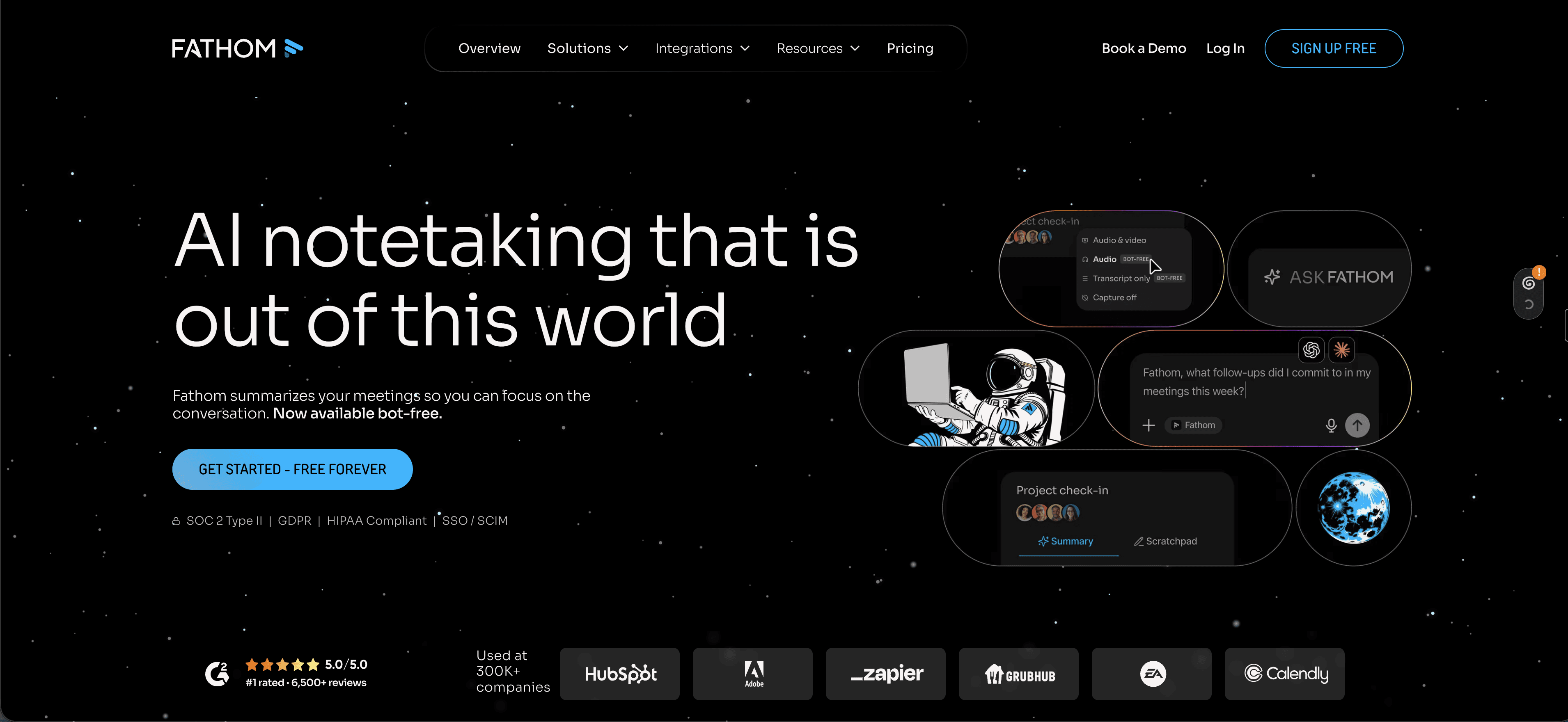
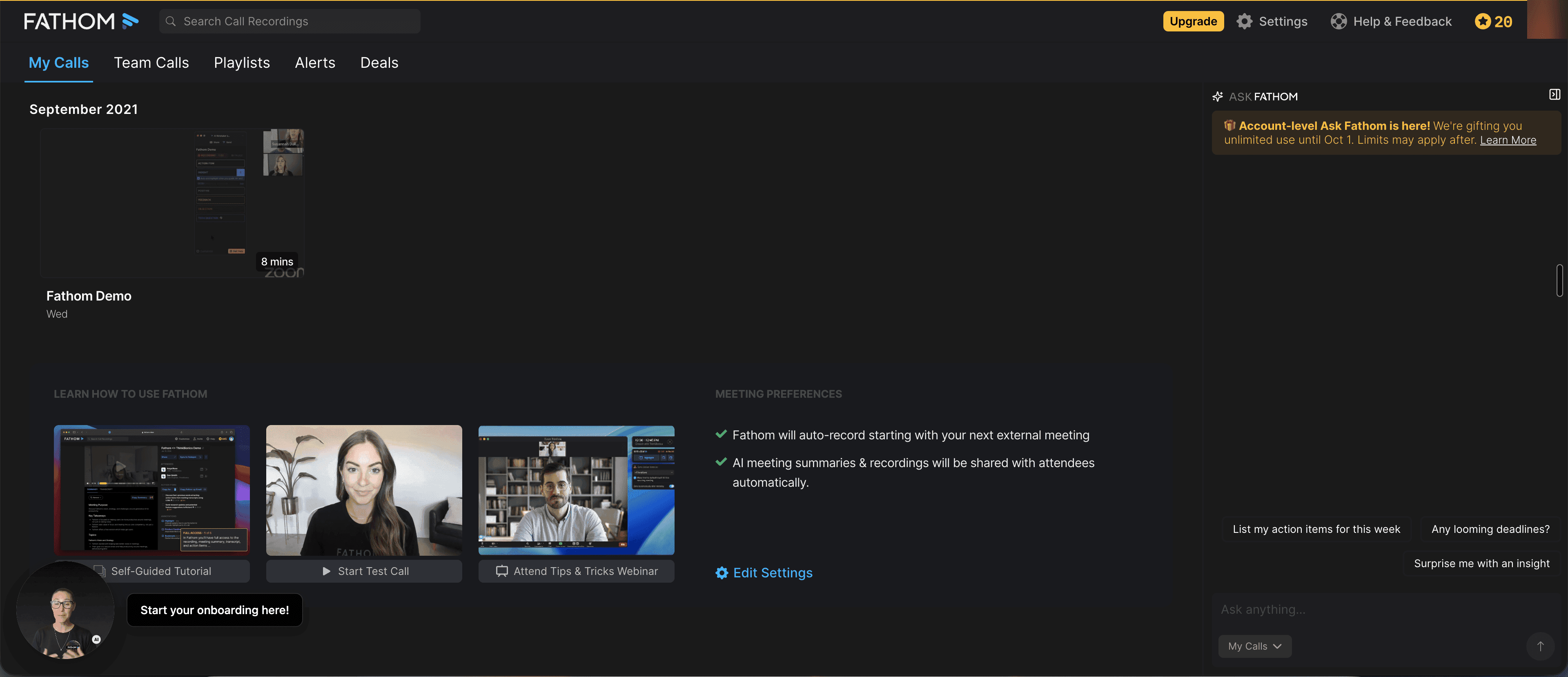
After signing in, you will see your Fathom dashboard.
Step 2: Open Composio
Go to Composio and sign in to the Composio Dashboard.
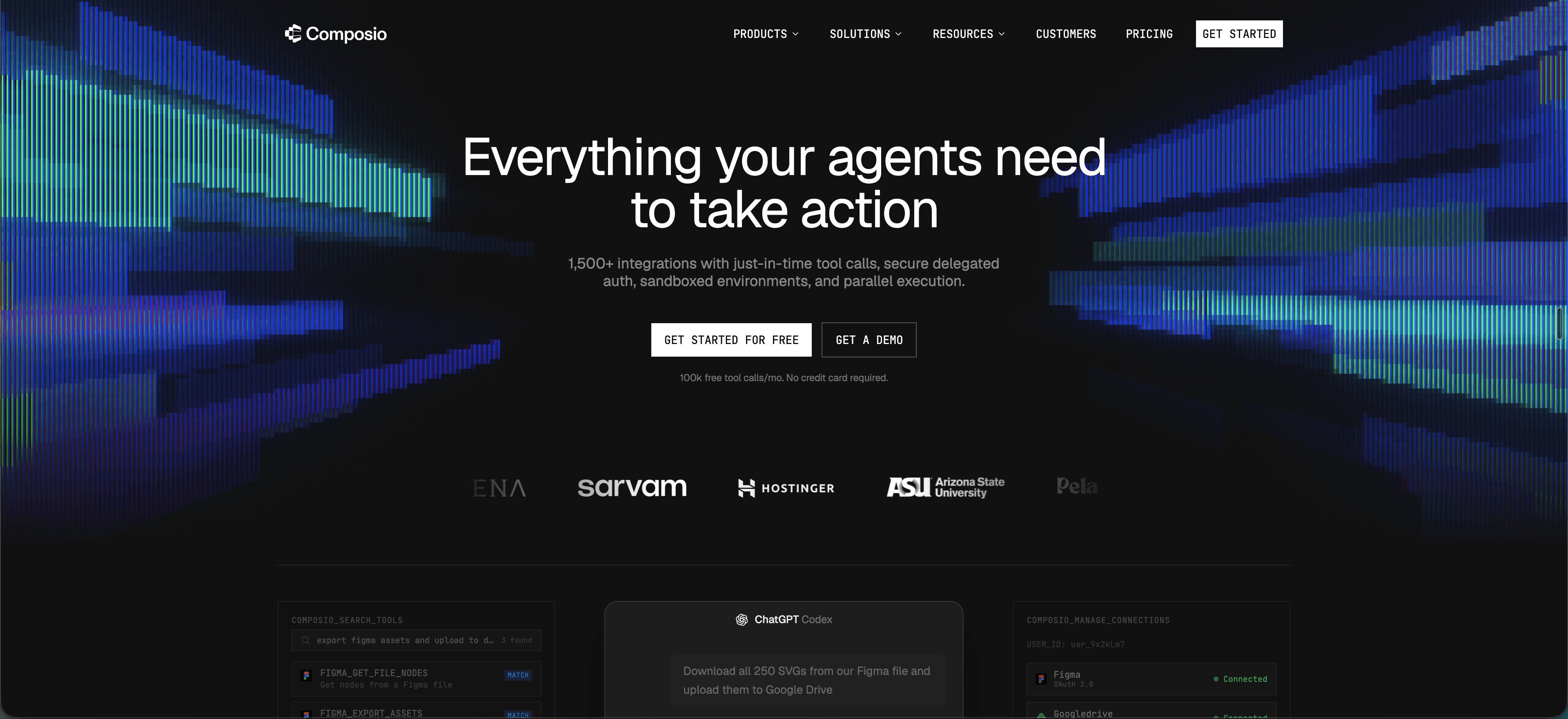
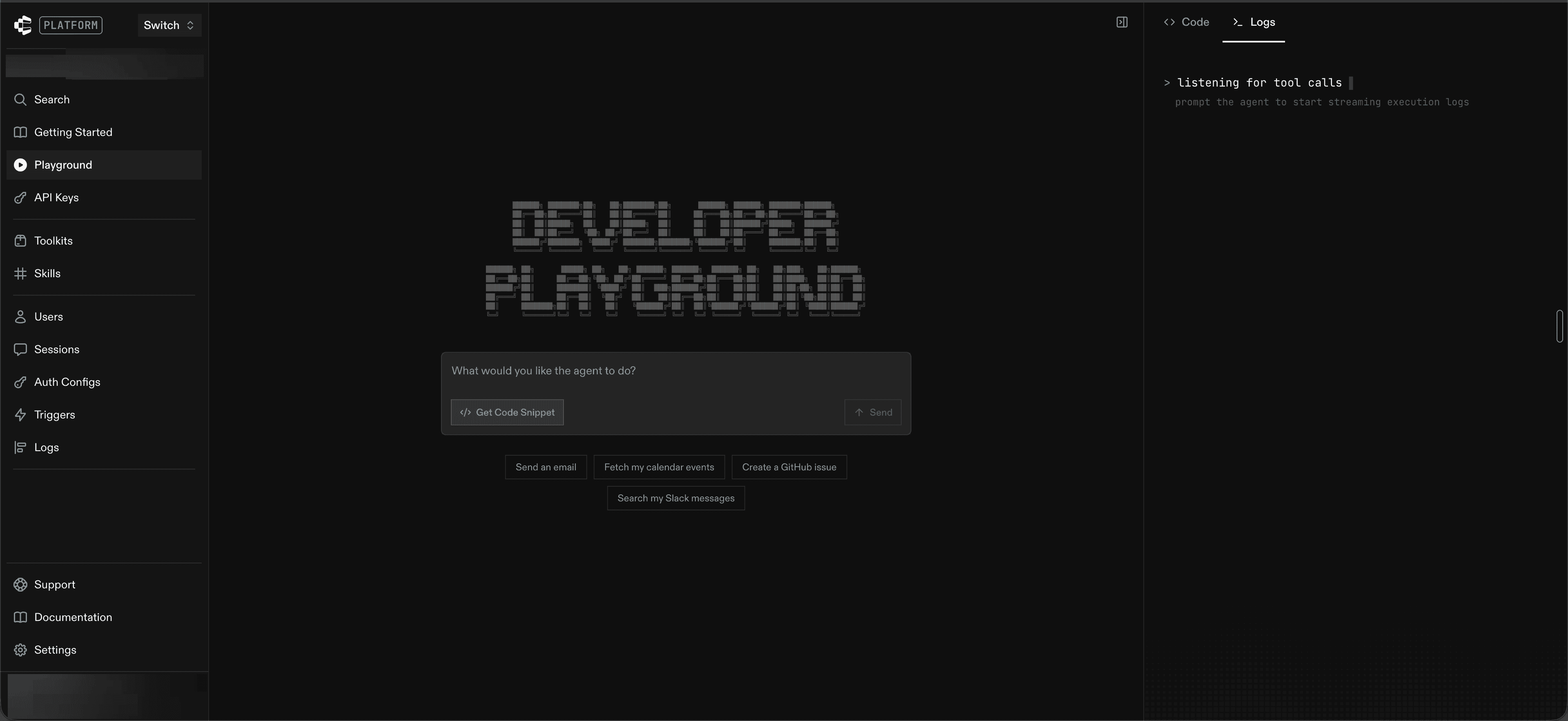
Select Platform and choose the project you want to use.
Step 3: Find the Fathom toolkit
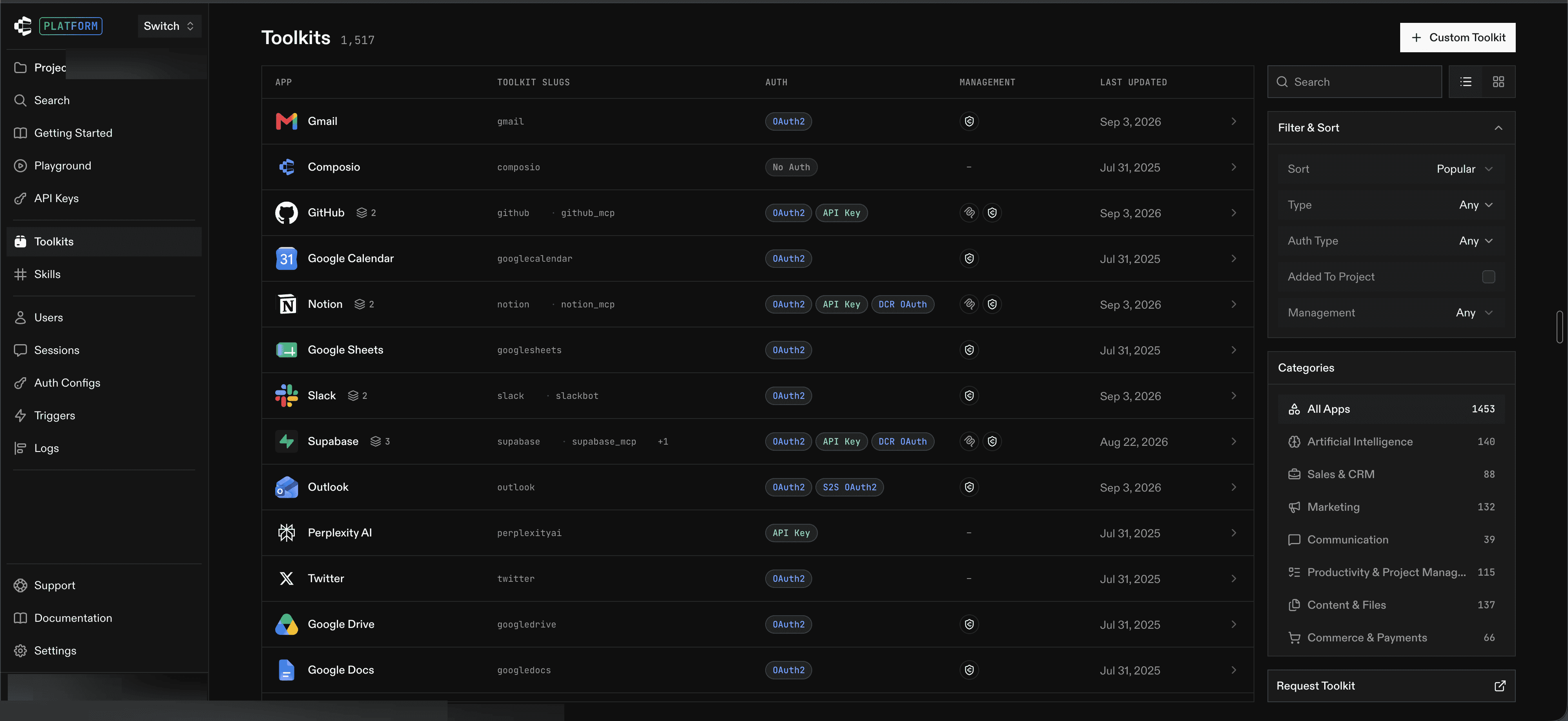
Open Toolkits from the sidebar.
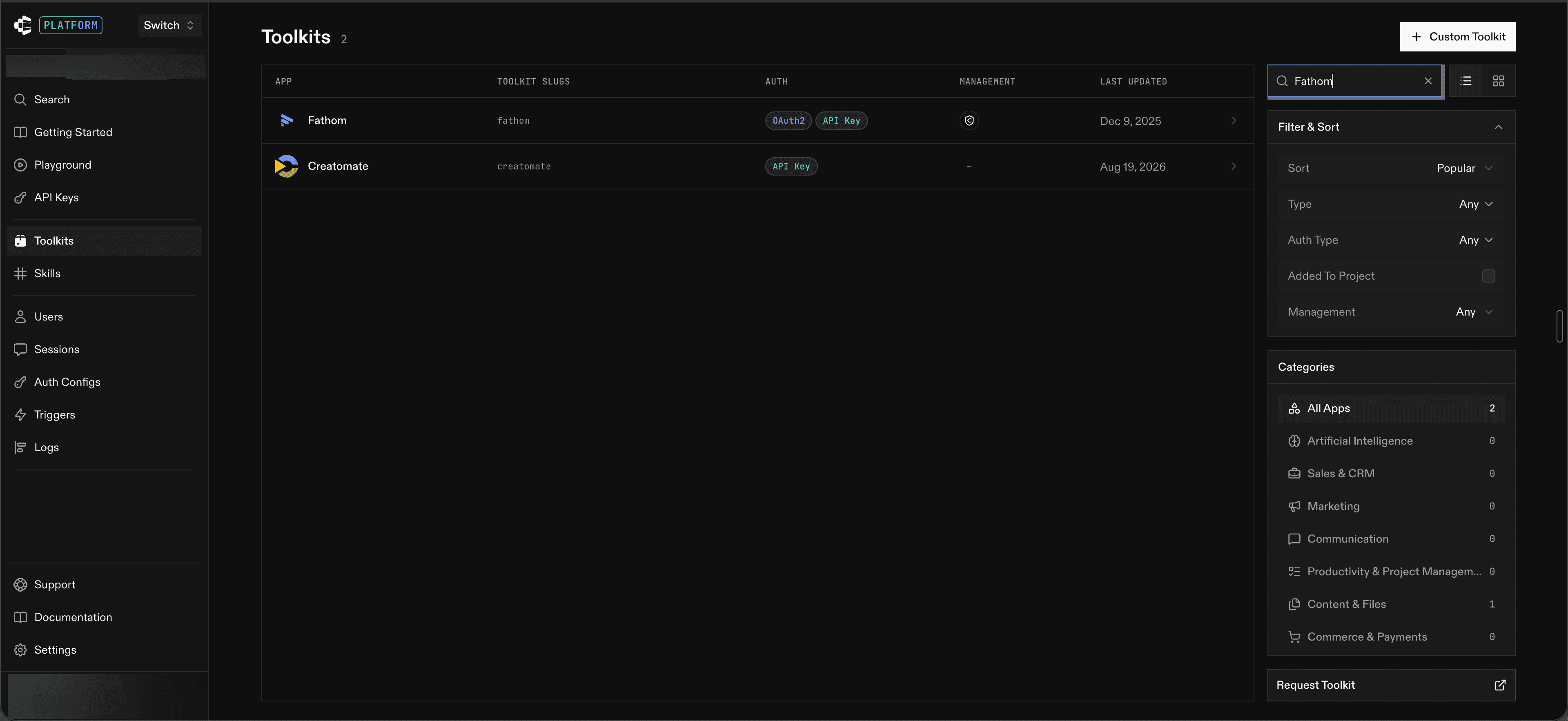
Search for Fathom, then select it from the results.
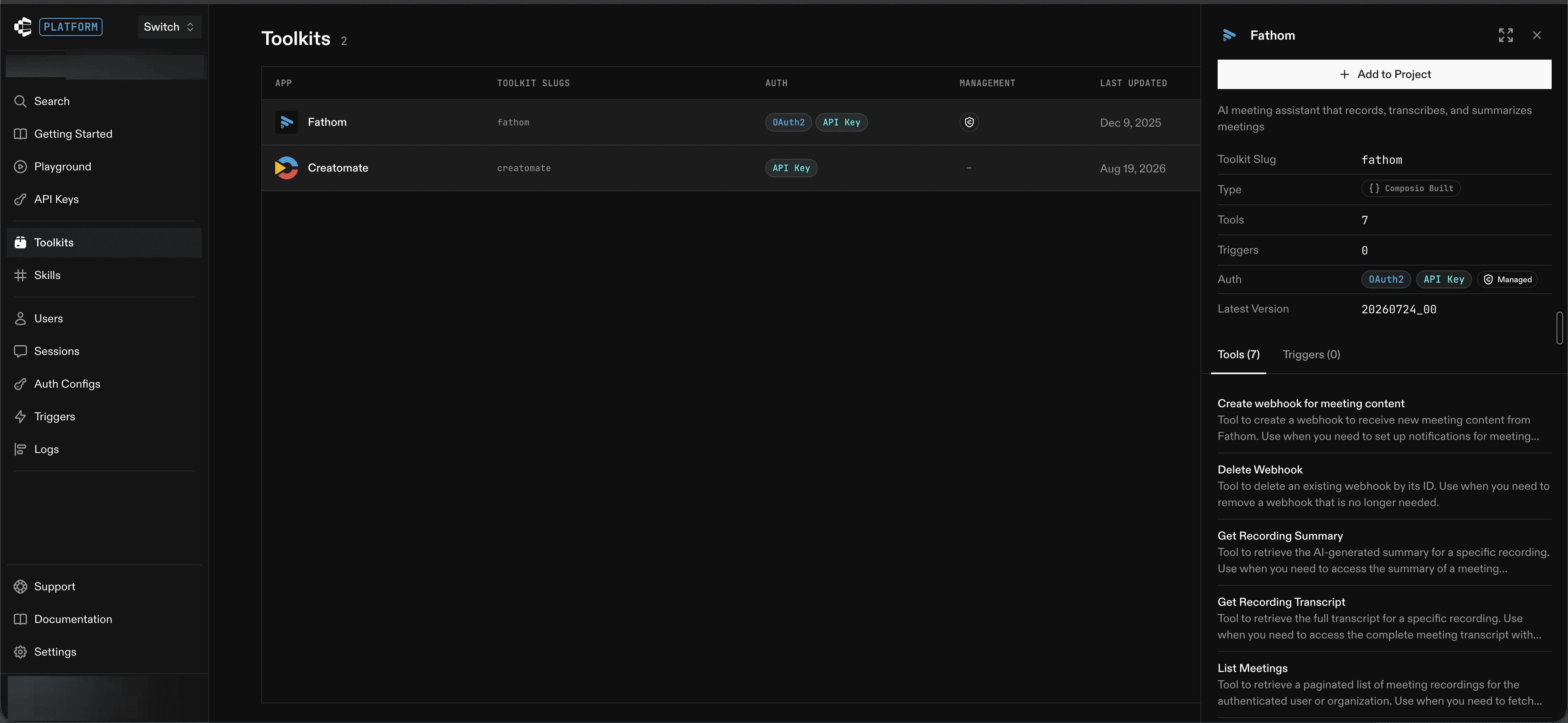
Step 4: Add Fathom to your project
In the Fathom panel, click Add to Project.
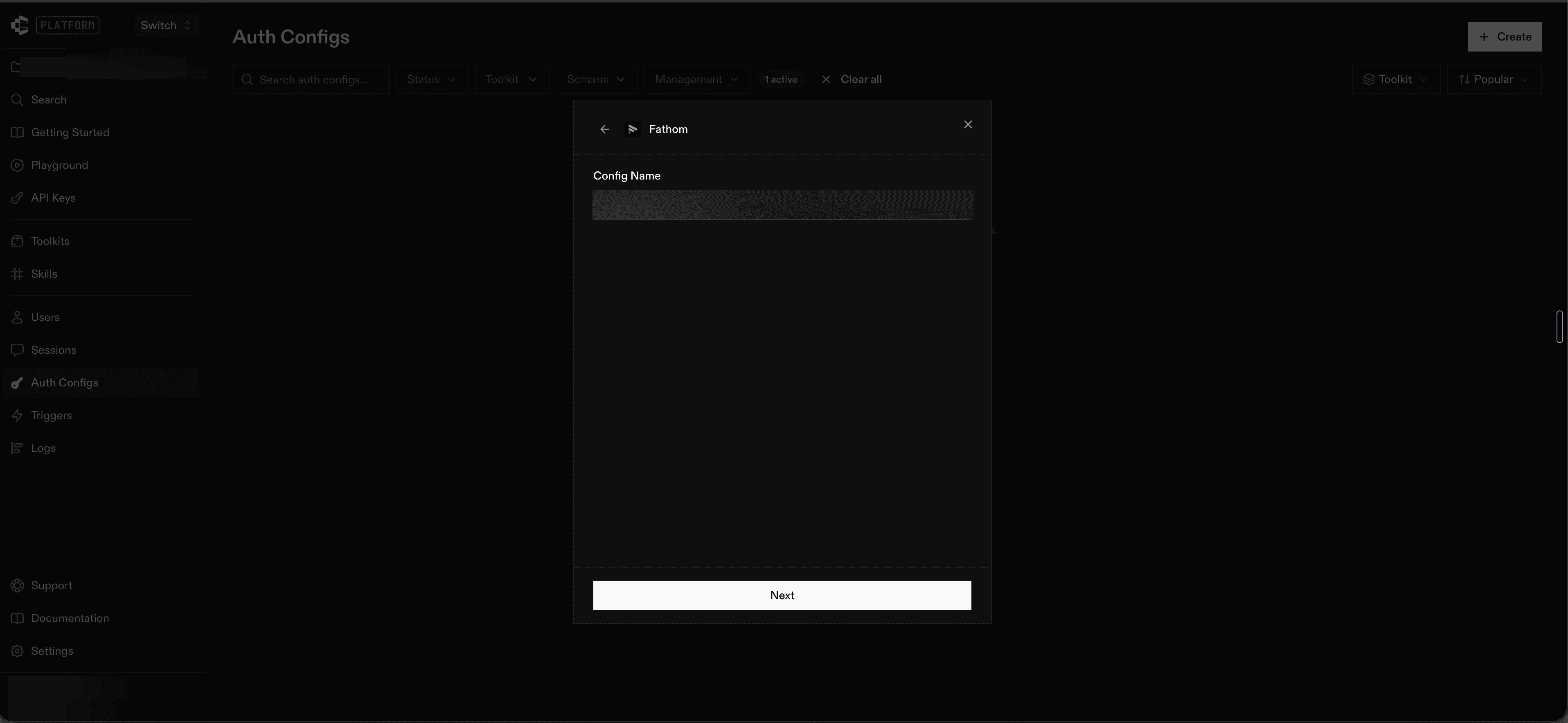
Step 5: Name your auth config
Enter a descriptive name in Config Name, then click Next.
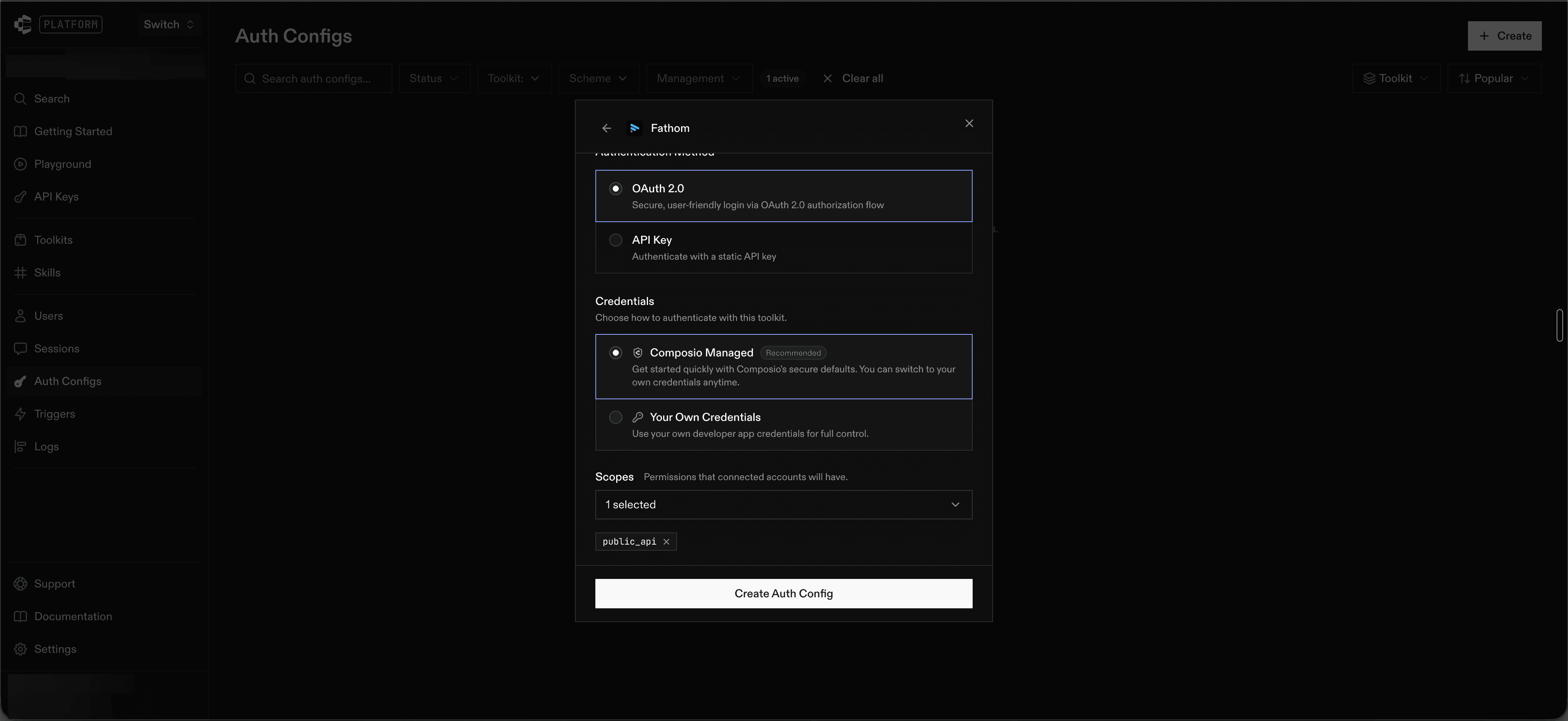
Step 6: Choose Composio-managed OAuth
Select OAuth 2.0 as the authentication method.
Under Credentials, select Composio Managed.
Keep the
public_apiscope shown in the form selected, then click Create Auth Config.
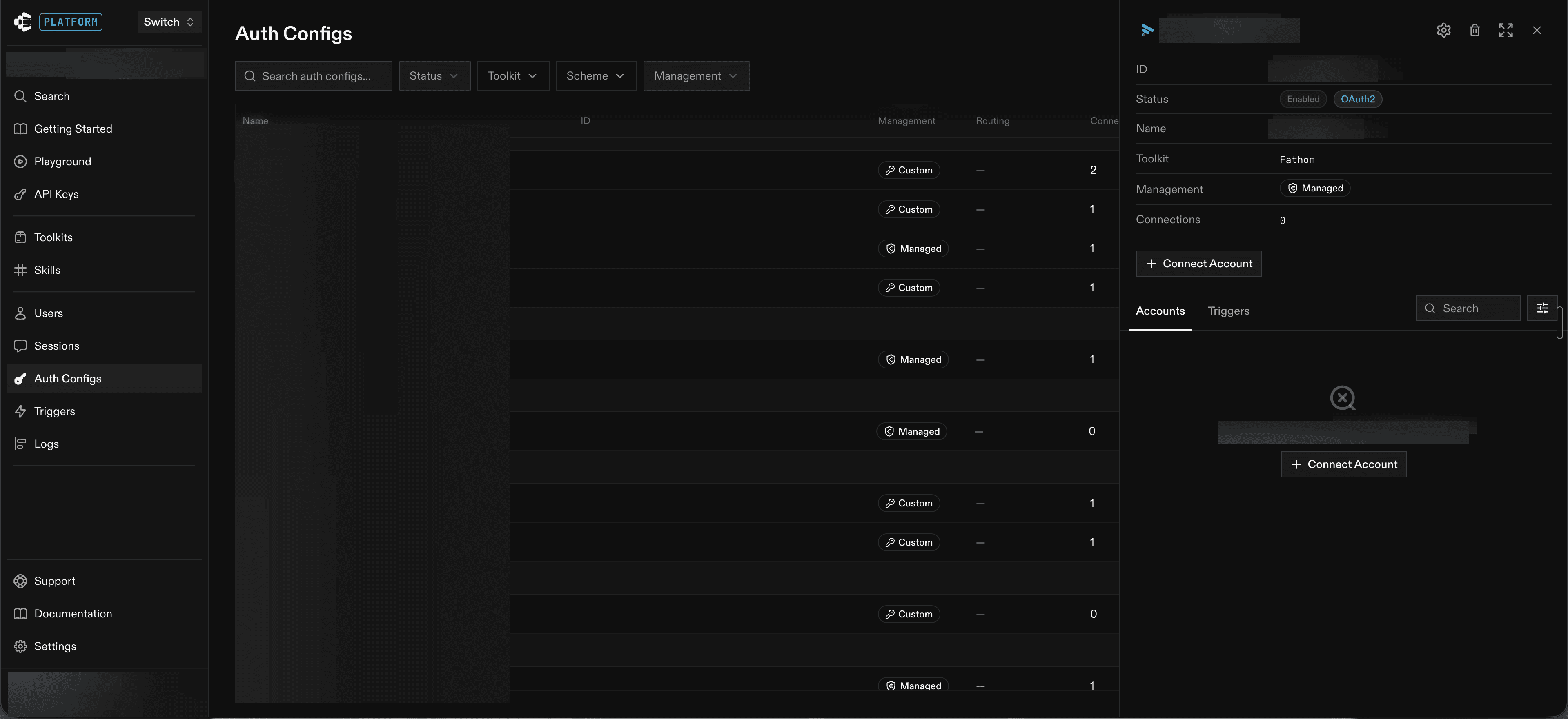
Step 7: Connect your Fathom account
Open the new auth config and click Connect Account.
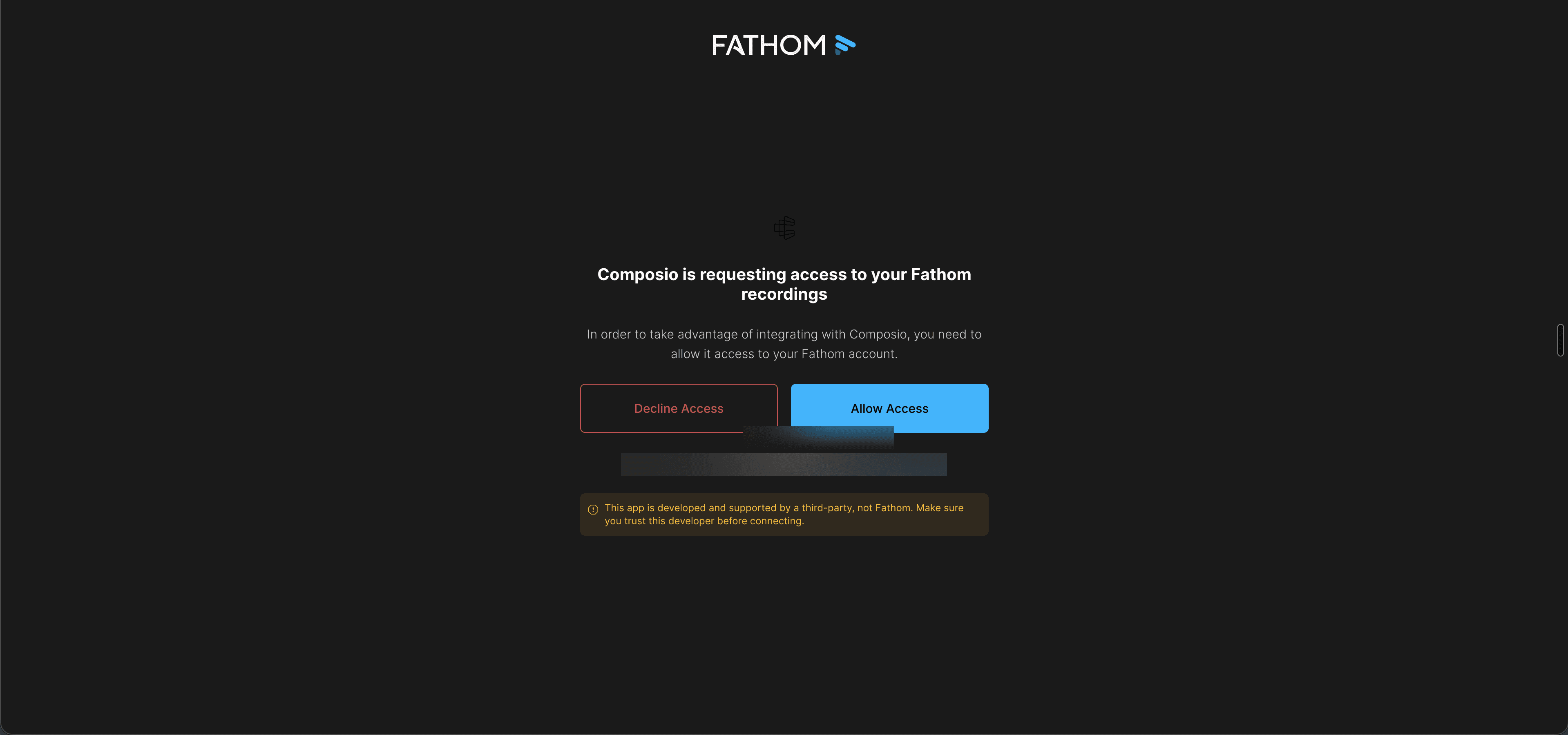
Step 8: Authorize Composio in Fathom
Review the access request and confirm that the correct Fathom account is signed in. Use Change if you need a different account.
Click Allow Access to authorize Composio.
Step 9: Confirm the connection
Return to the Fathom auth config in Composio.
Under Accounts, confirm that your connected account has an Active status.
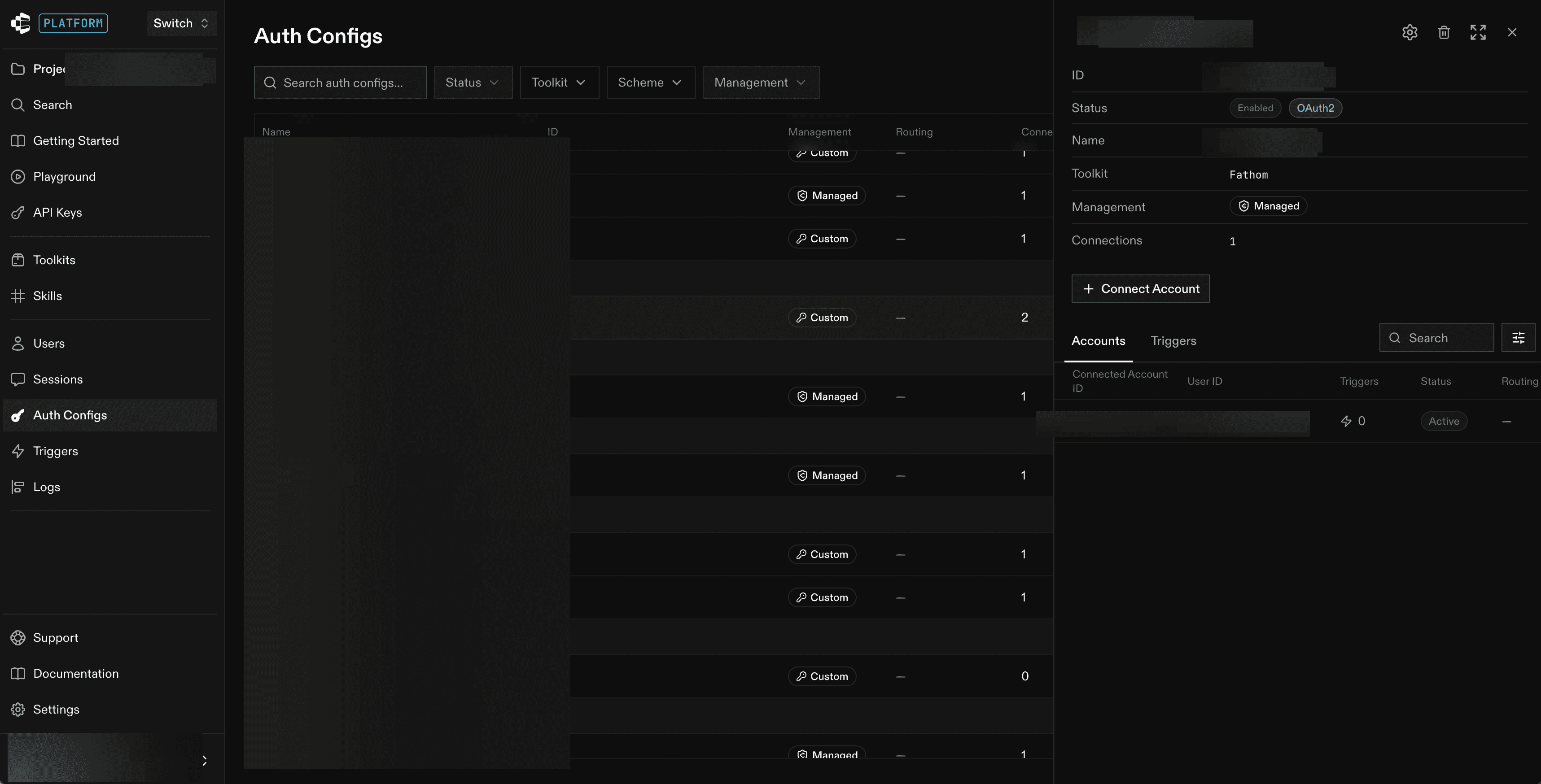
Your Fathom account is now connected to Composio.
NOTE: Check the connected account's Active status under Accounts. The auth config's Enabled status alone does not confirm an account connection.
Optional: Find Fathom API settings
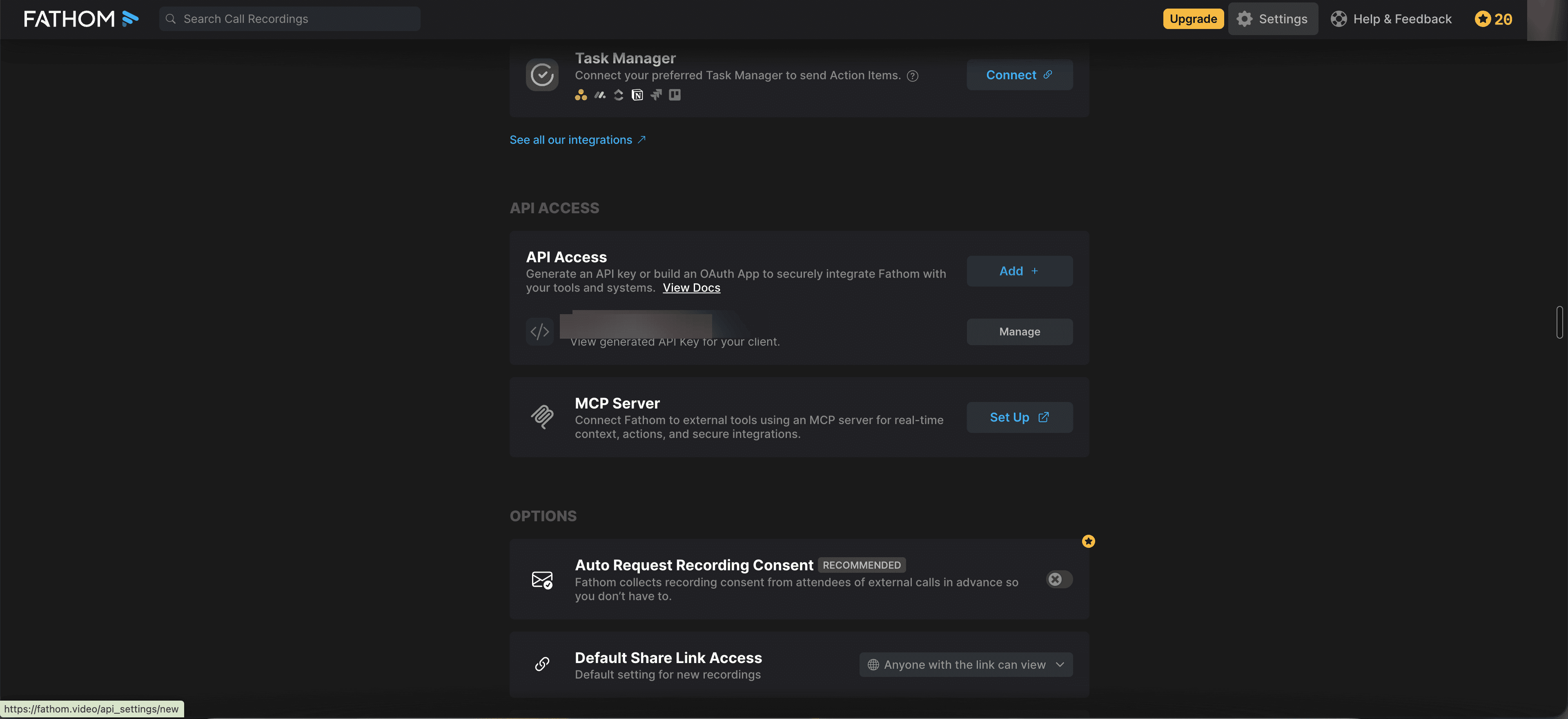
In Fathom, open Settings and scroll to API Access. This is where Fathom provides API-key and OAuth-app setup options. You do not need to create credentials here if you followed the Composio-managed flow above.
For details about these options, see the Fathom developer documentation.