Composio connects AI agents to Excel so they can read and update workbooks stored in OneDrive and SharePoint. Access is limited by the permissions you approve and your account’s existing access.
This guide shows you how to set up OAuth credentials and connect Excel to Composio.
Part 1: Connect Excel with Composio Managed OAuth
Step 1: Create an Auth Config and Select Excel
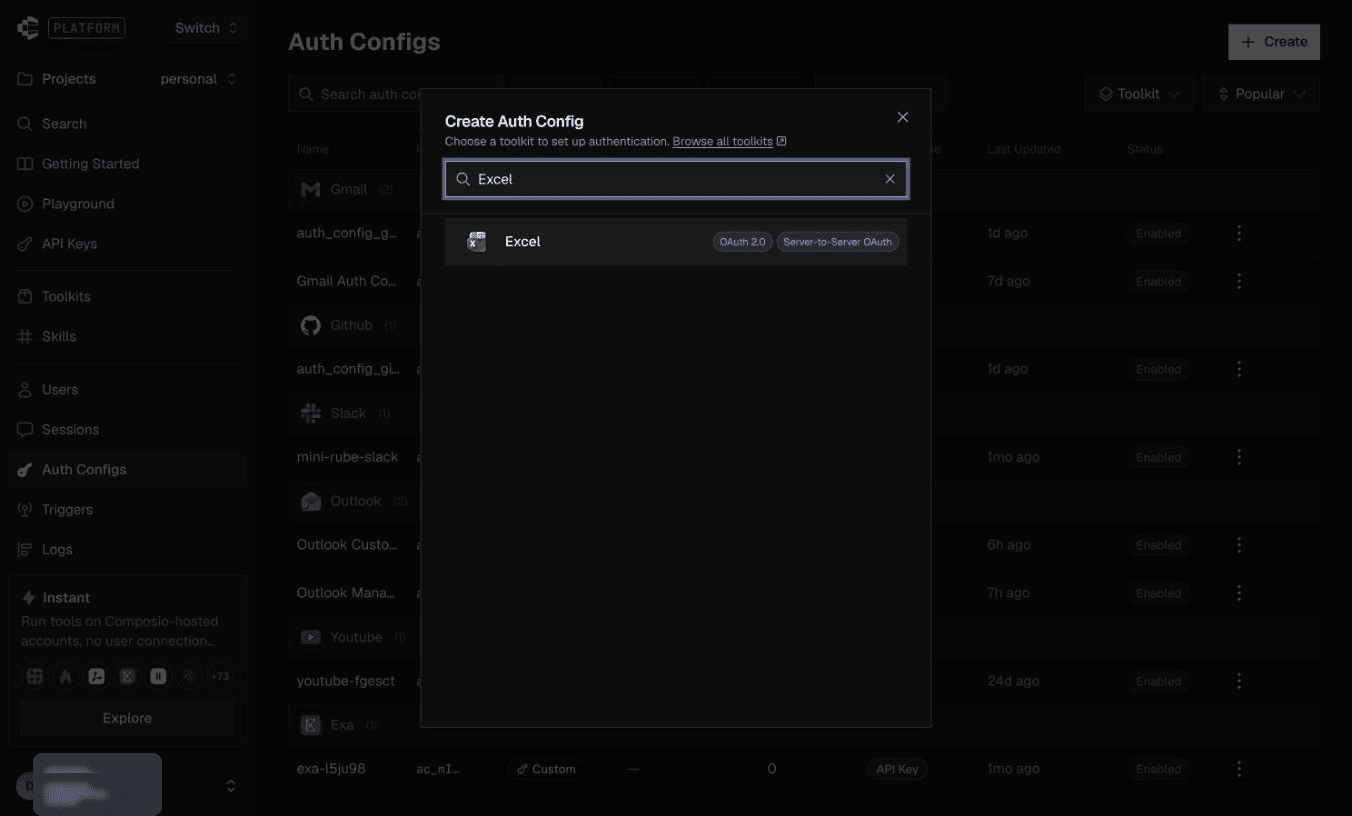
1. Open the Composio platform, go to Auth Configs and click Create.

2. Search for and select Excel.
Step 2: Choose Composio Managed OAuth
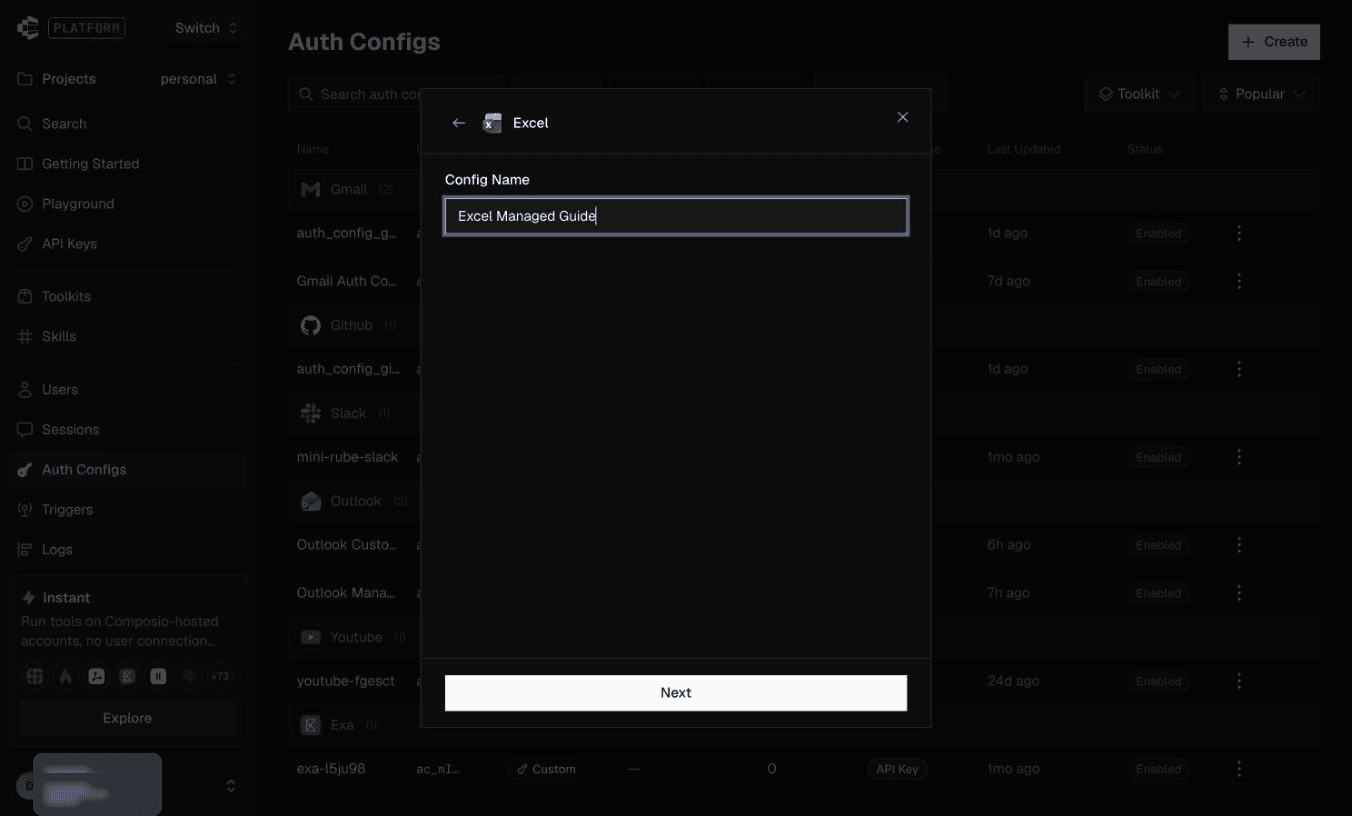
1. Enter a Config Name, such as Excel Managed Guide, and click Next.
2. Choose OAuth 2.0 and Composio Managed.
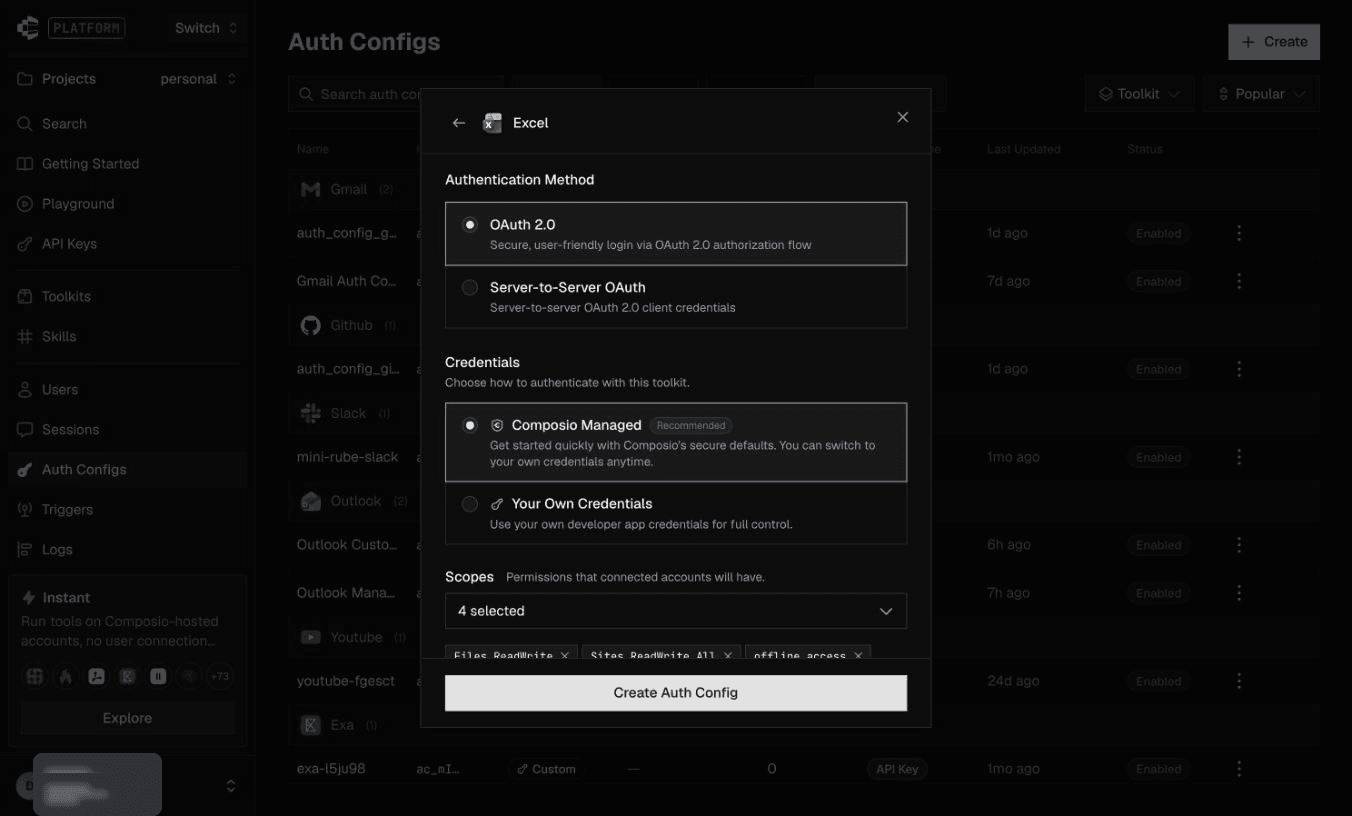
3. Under Scopes, choose permissions required by your integration and supported by your app registration. Click Create Auth Config.
Permission reference. For workbook operations such as listing worksheets, Microsoft requires Files.ReadWrite, even for that read operation. User.Read supports profile access and offline_access continued access. Other workflows can need additional permissions. Choose for your own workflow; the screenshots are examples. Microsoft permission reference.

Step 3: Connect Your Microsoft Account
1. Open the auth config and click Connect Account.
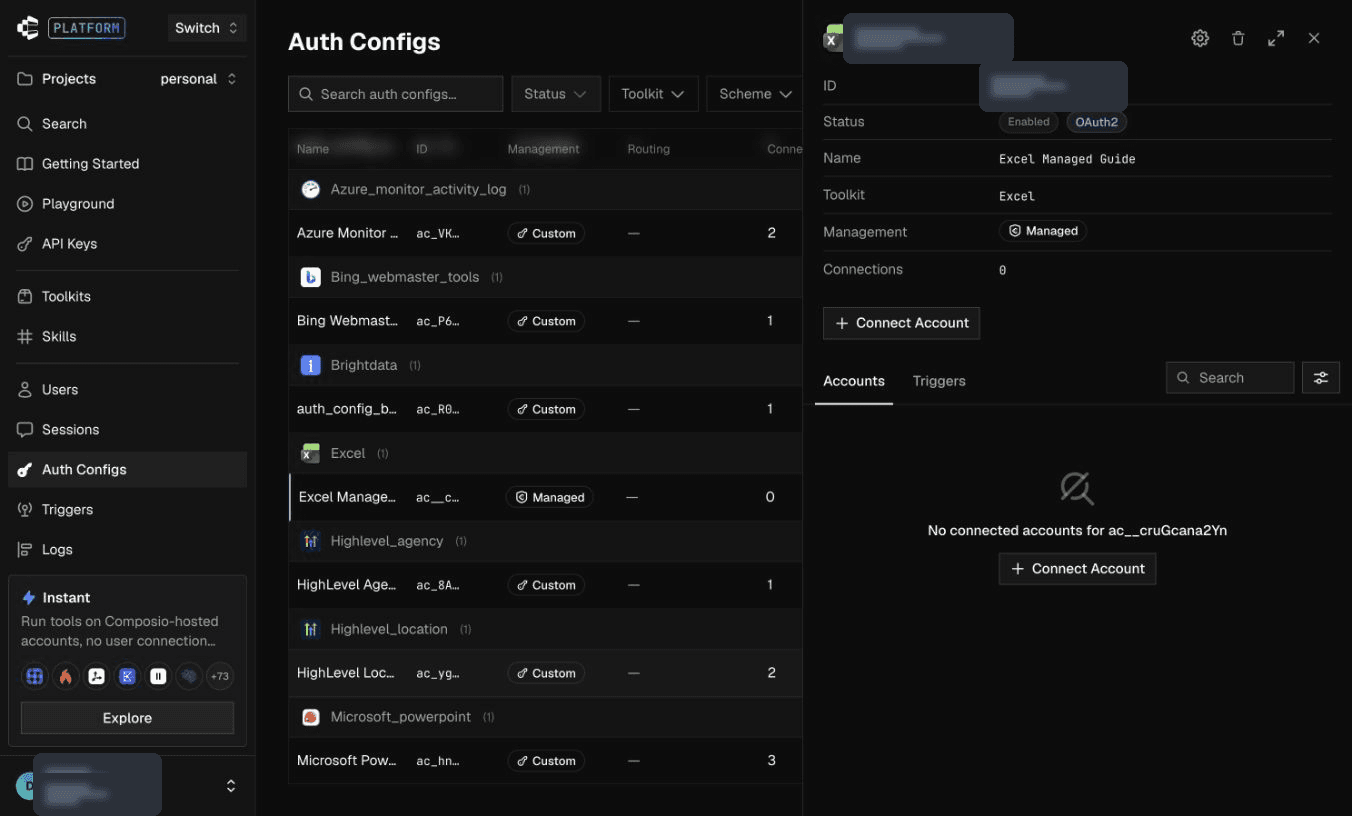
2. Select the Microsoft account that can access your workbook and sign in.
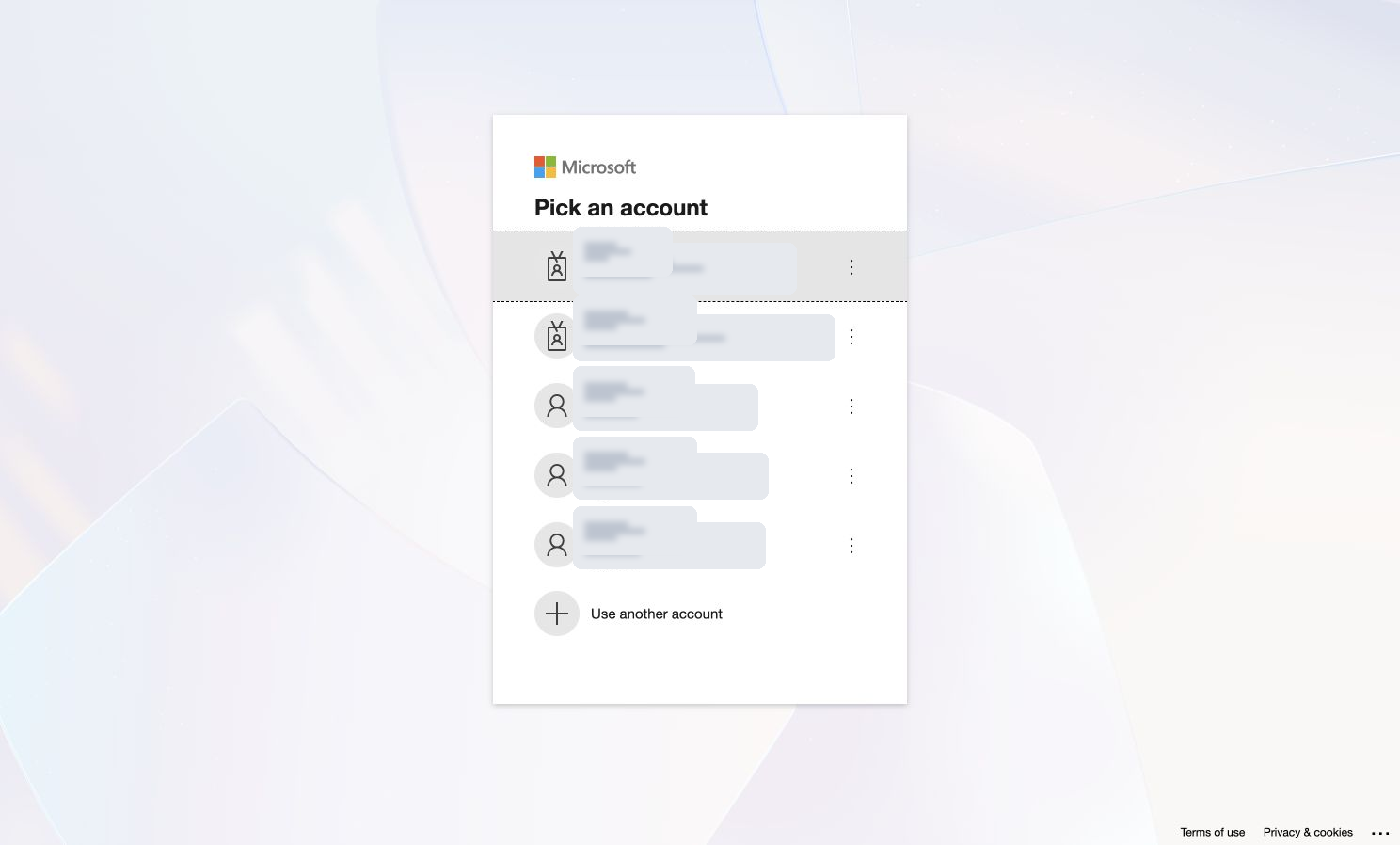
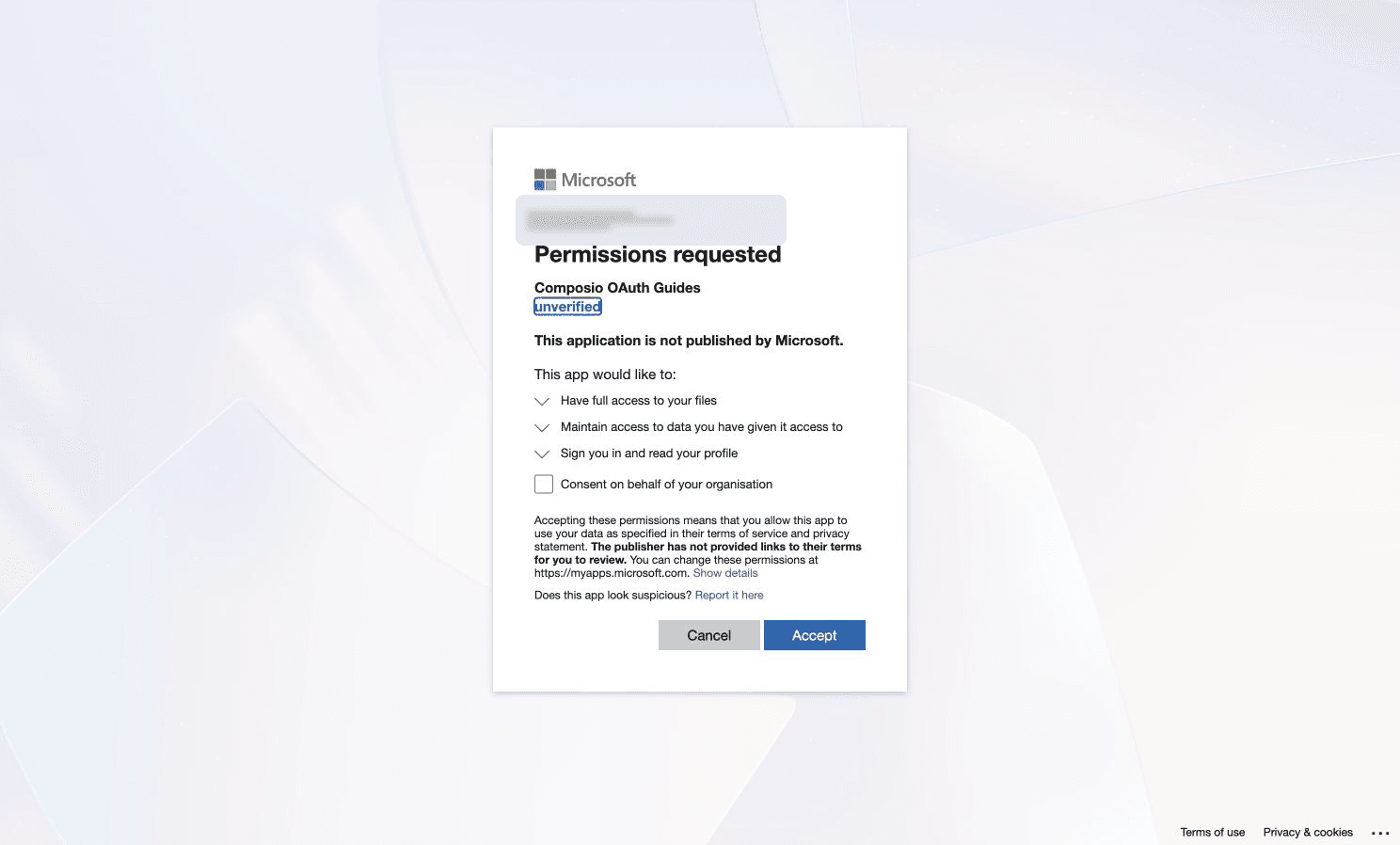
3. If Microsoft requests permissions, review them before accepting. Tenant policy may require administrator approval. Existing authorization can skip the permissions prompt. Wait for the successful Composio connection page.
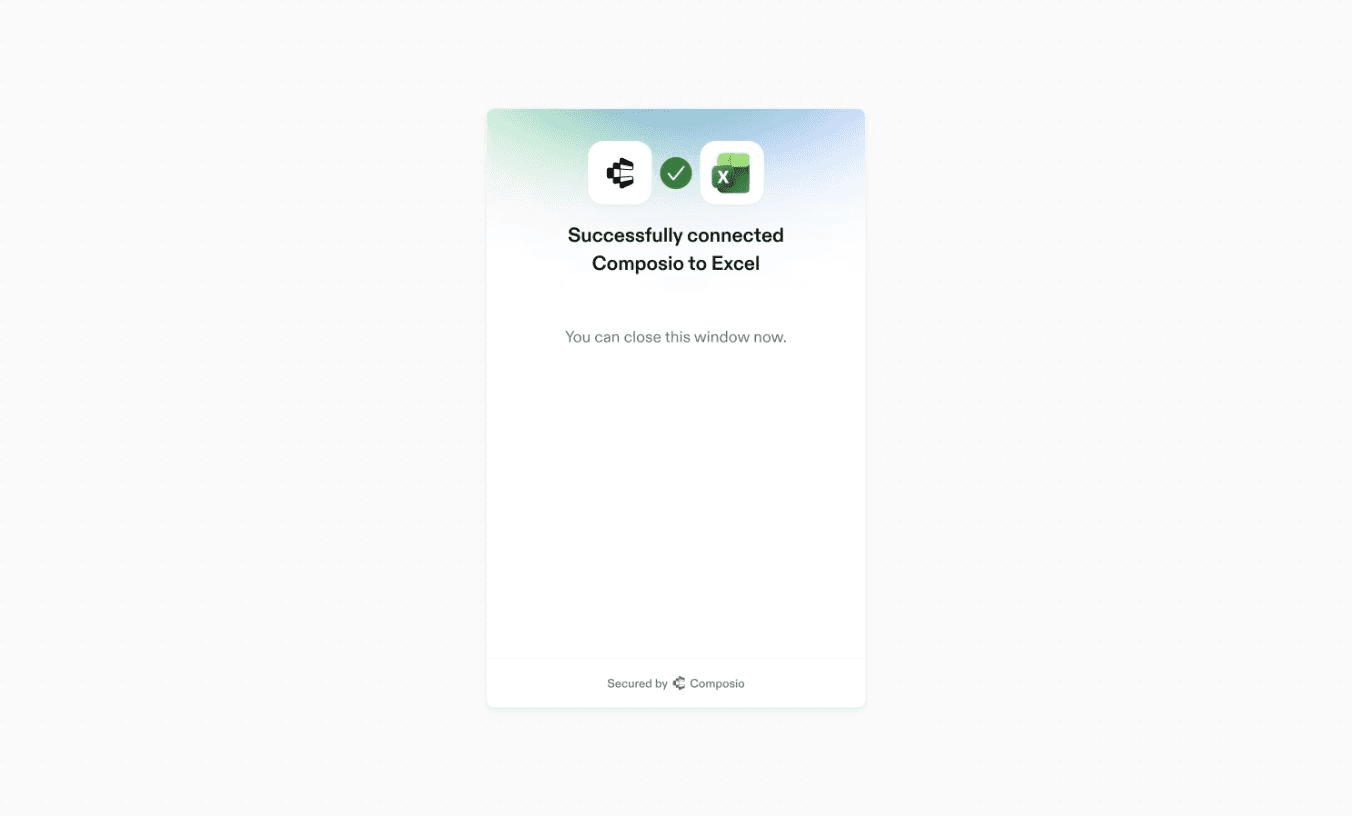
Step 4: Confirm the Connected Account Is Active
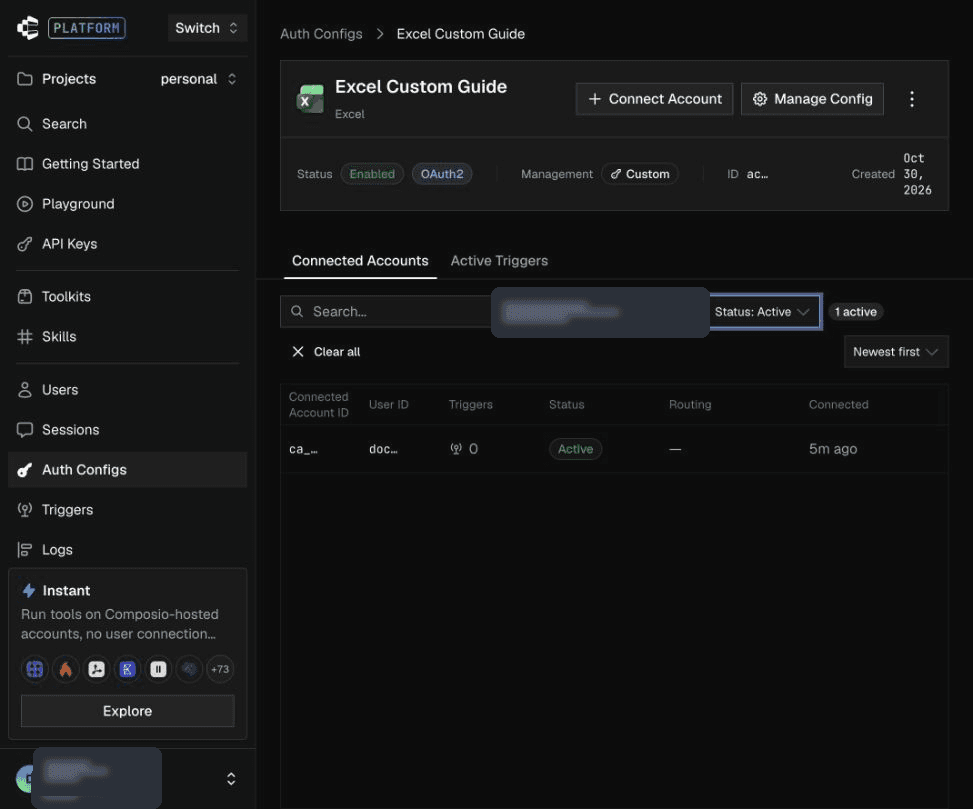
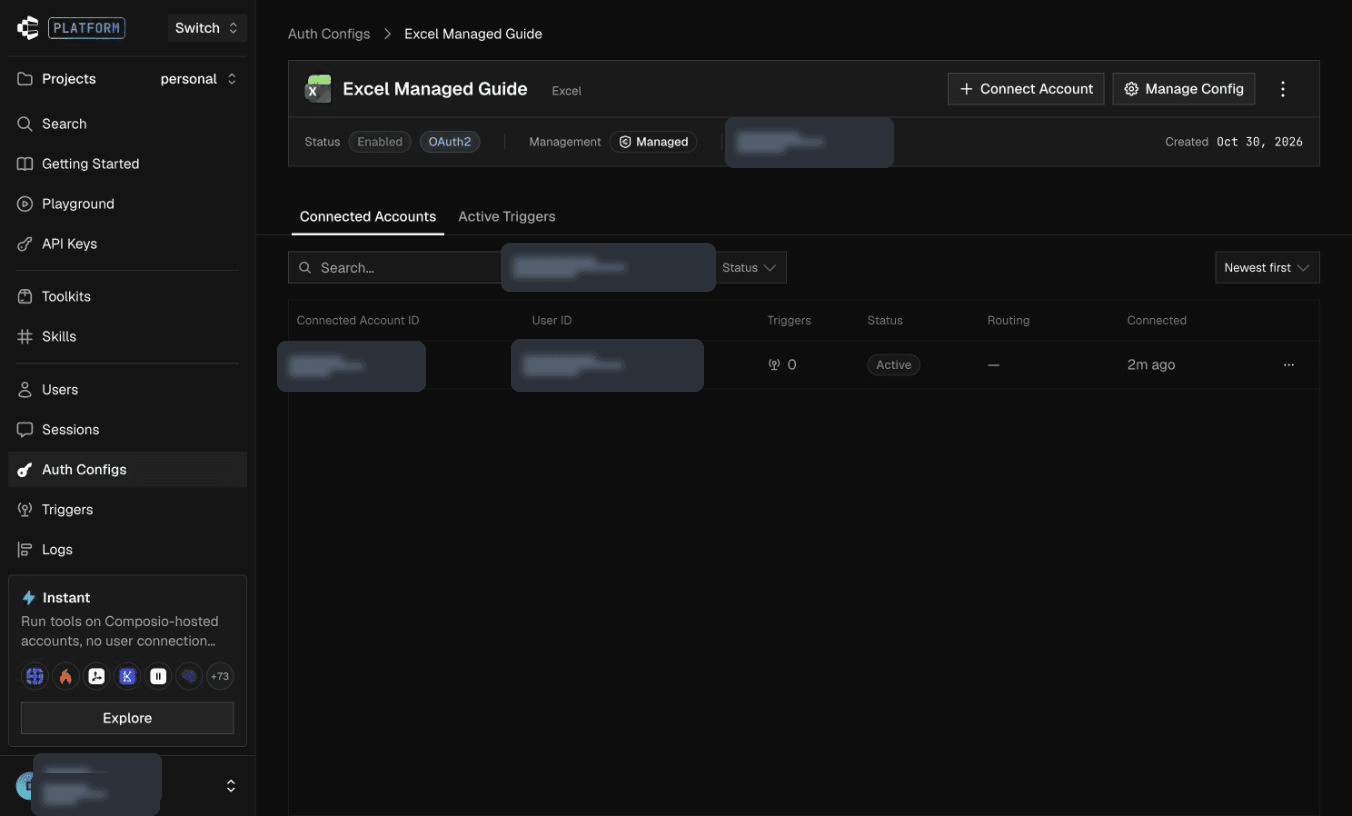
1. Return to the auth config’s Connected Accounts tab and check Active on the account row. The auth config’s Enabled state is separate from the connected-account status.
Part 2: Use your own OAuth credentials
Step 1: Register an App in Microsoft Entra ID
1. In the Azure portal, open App registrations and choose New registration. Give the app a descriptive name and choose supported account types for your deployment. The screenshot allows organizational and personal Microsoft accounts for reuse across Microsoft services. With Composio’s default common sign-in endpoint, use an audience that allows the accounts you intend to connect.
2. Select Web and register Composio’s original callback exactly, then click Register.
https://backend.composio.dev/api/v1/auth-apps/add
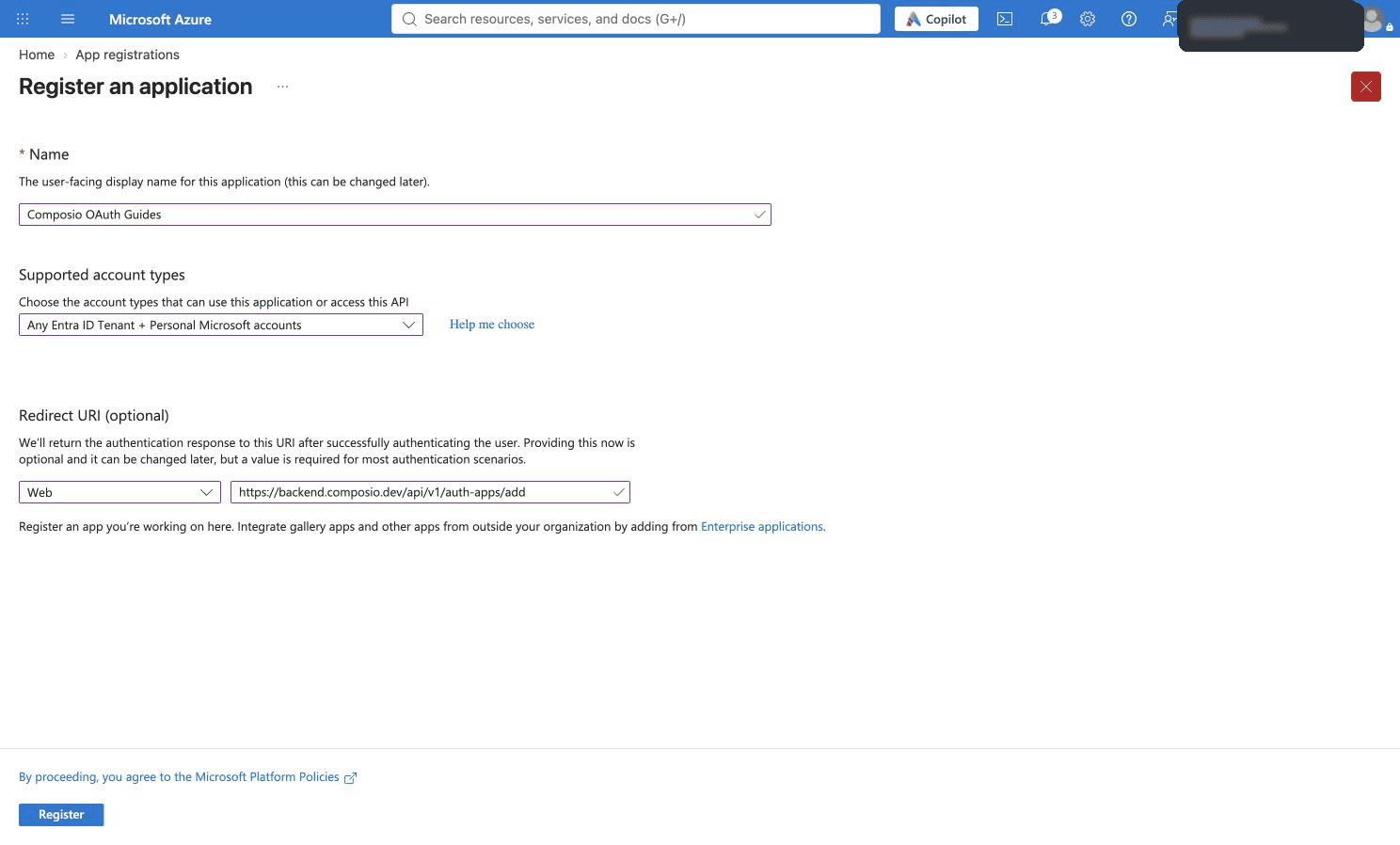
Step 2: Copy the Client ID and Create a Client Secret
1. On Overview, copy the Application (client) ID.

2. Open Certificates & secrets and click New client secret.
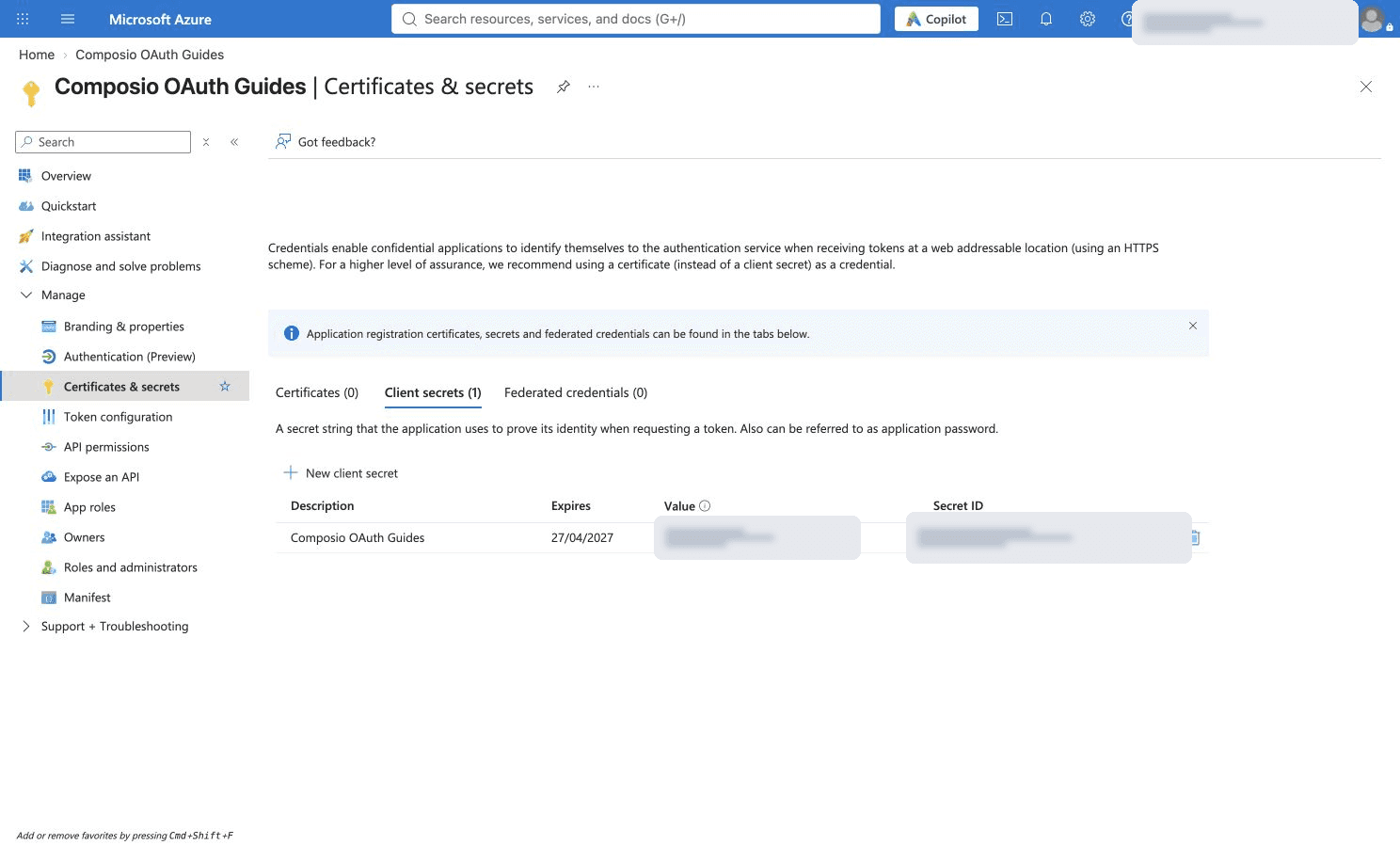
3. Add a description, choose an expiry matching your rotation policy and click Add. The example uses 180 days. Rotate before expiry.
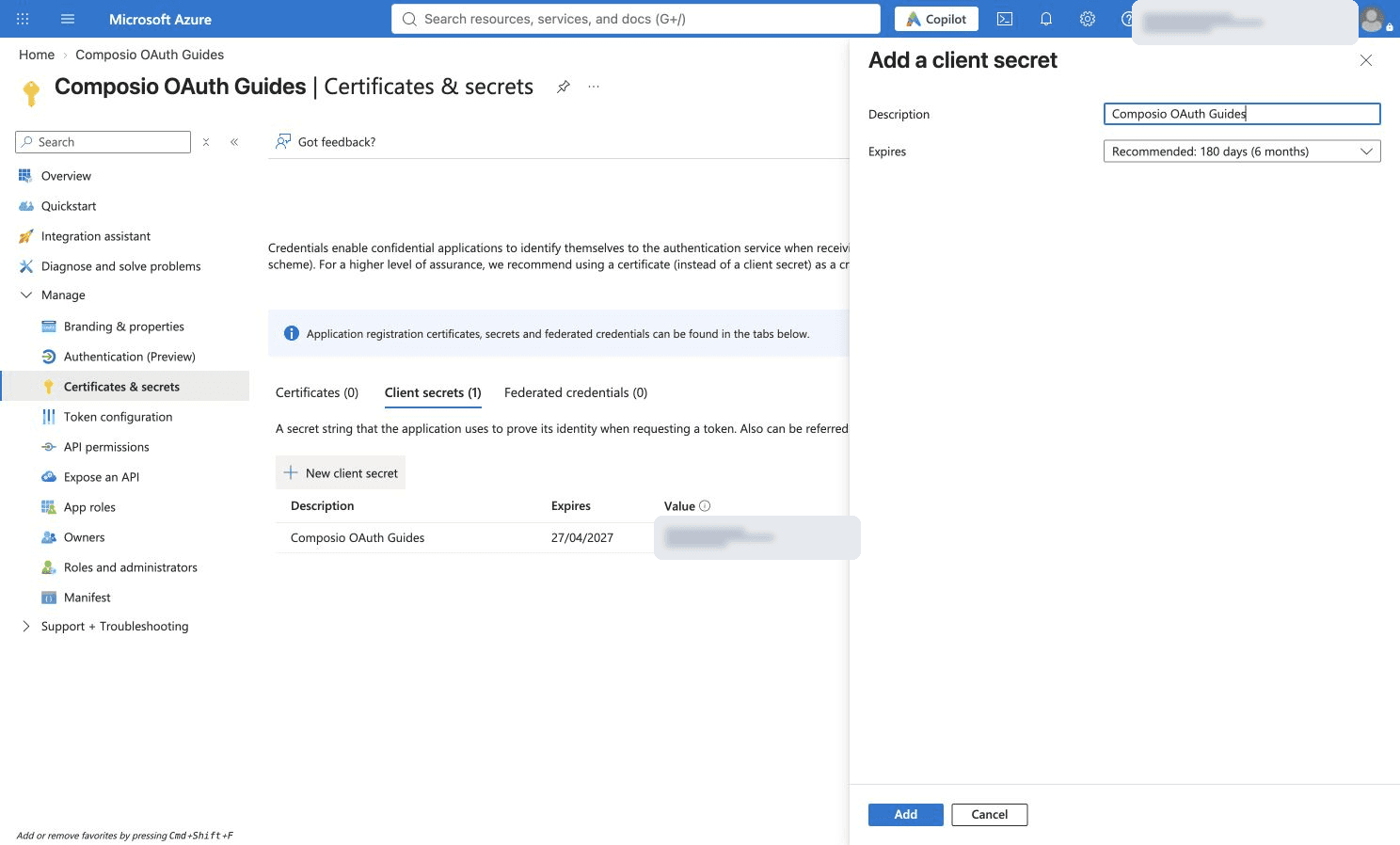
4. Copy the secret Value immediately and store it privately. Use the Value, not the Secret ID. Azure does not reveal the full Value on later visits. Keep public client flows disabled for this confidential Web client.

Step 3: Add Microsoft Graph Delegated Permissions
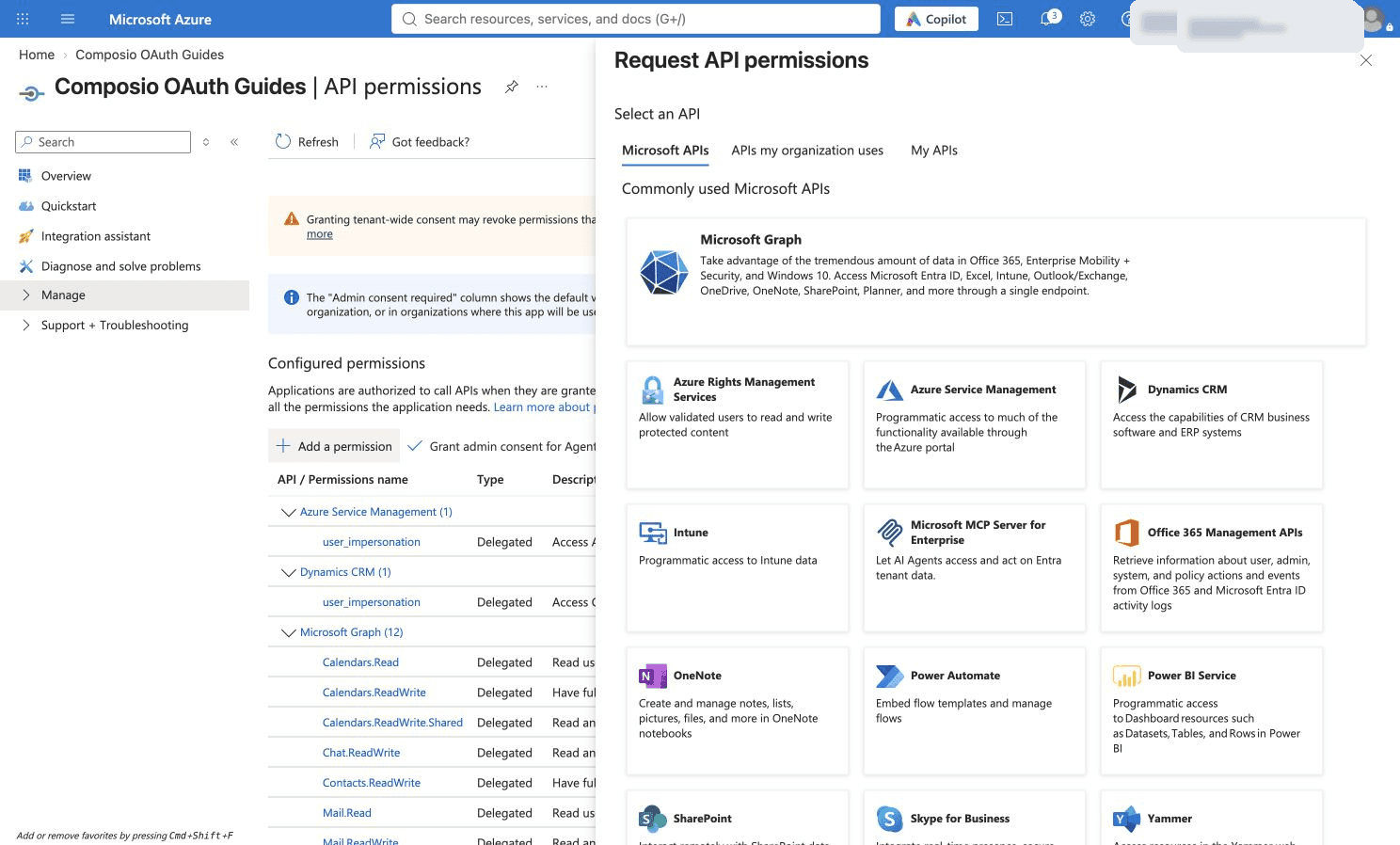
1. Open API permissions and click Add a permission.
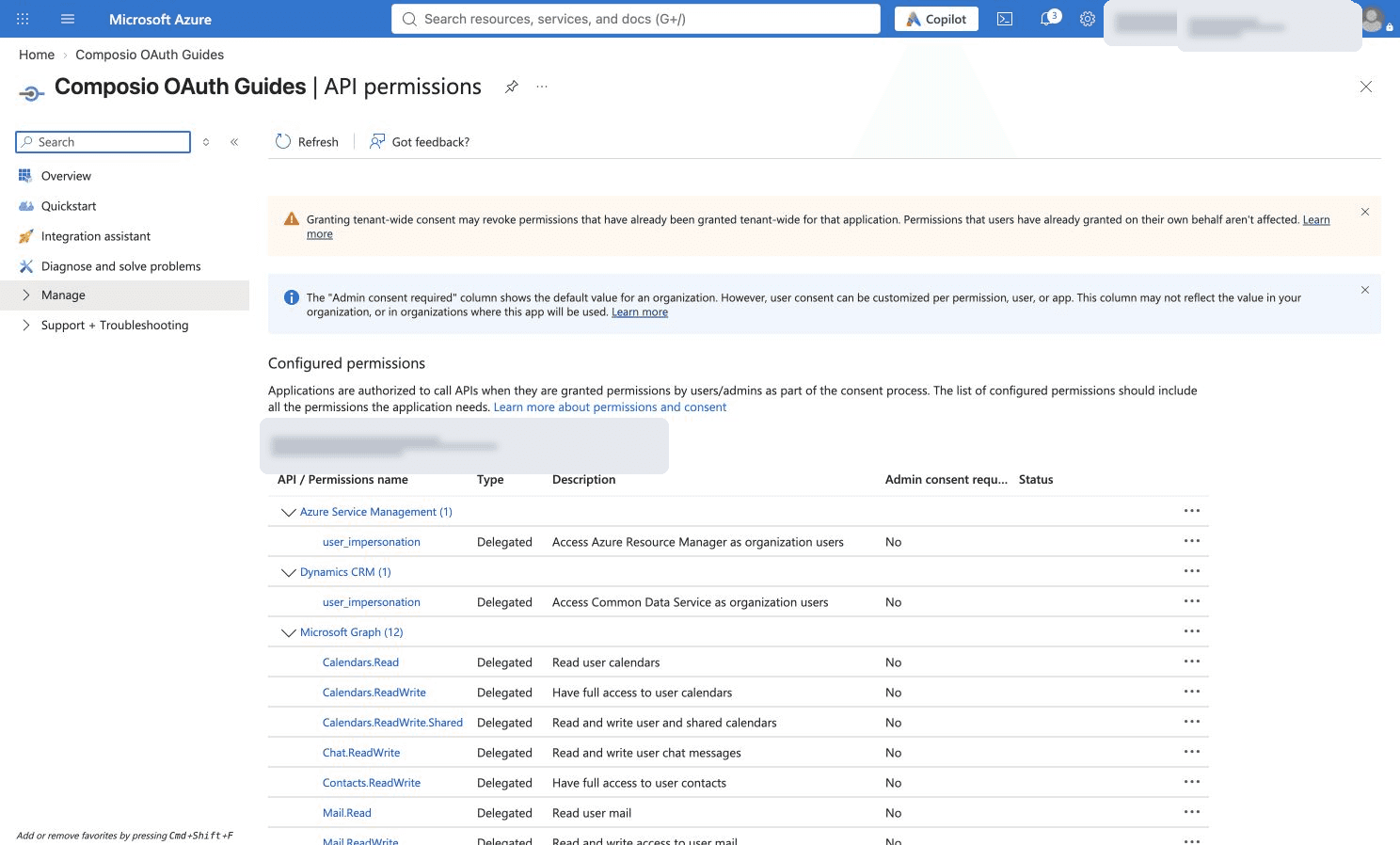
2. Select Microsoft Graph.
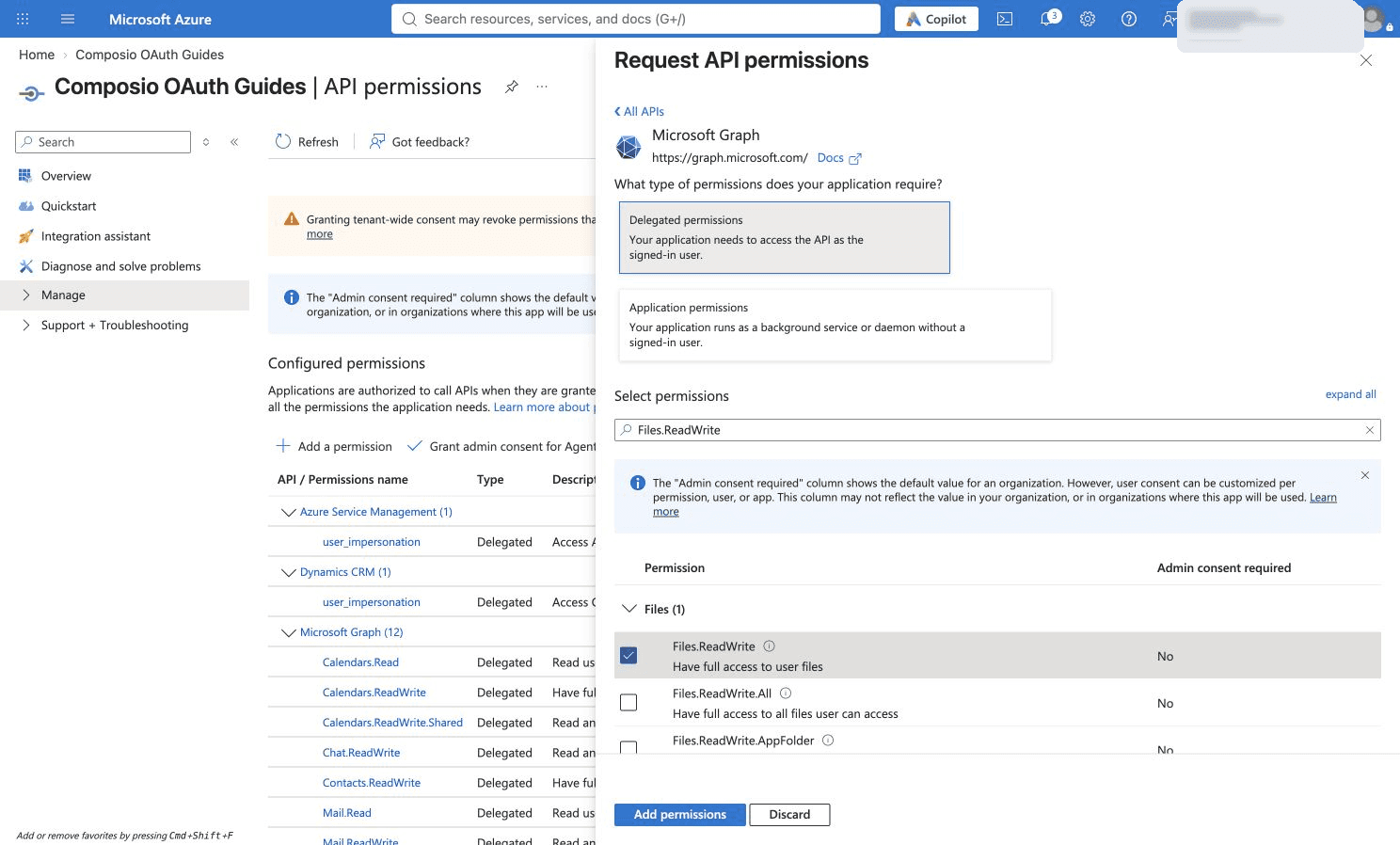
3. Choose Delegated permissions, so the app acts for the signed-in user.

4. Choose the delegated permissions needed for the operations your integration will use. Then click Add permissions.
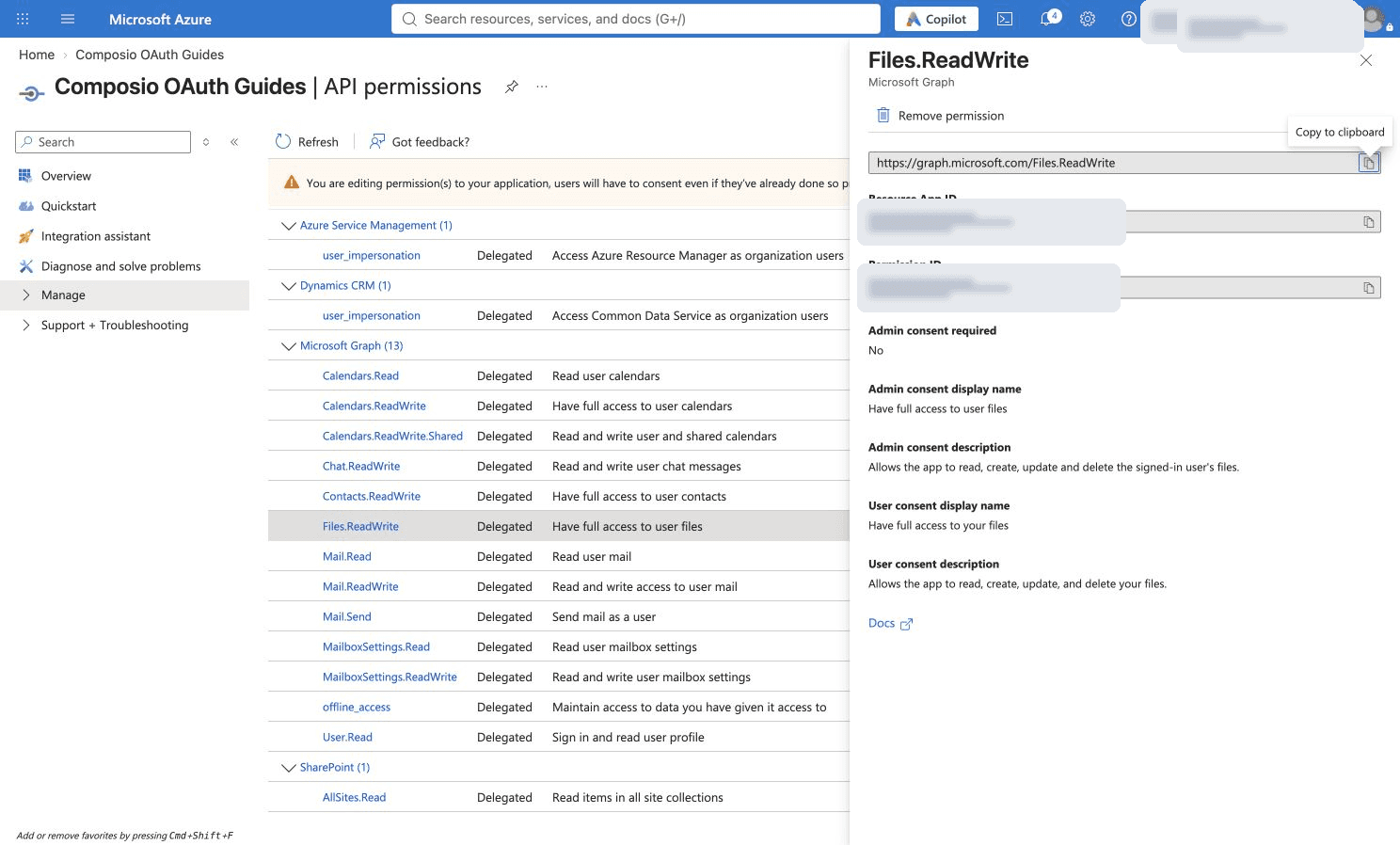
5. Review your configured permissions. If you reuse an app, preserve permissions relied on by its other integrations and align the Composio selection with your own workflow.
Step 4: Create the Auth Config with Your Own Credentials
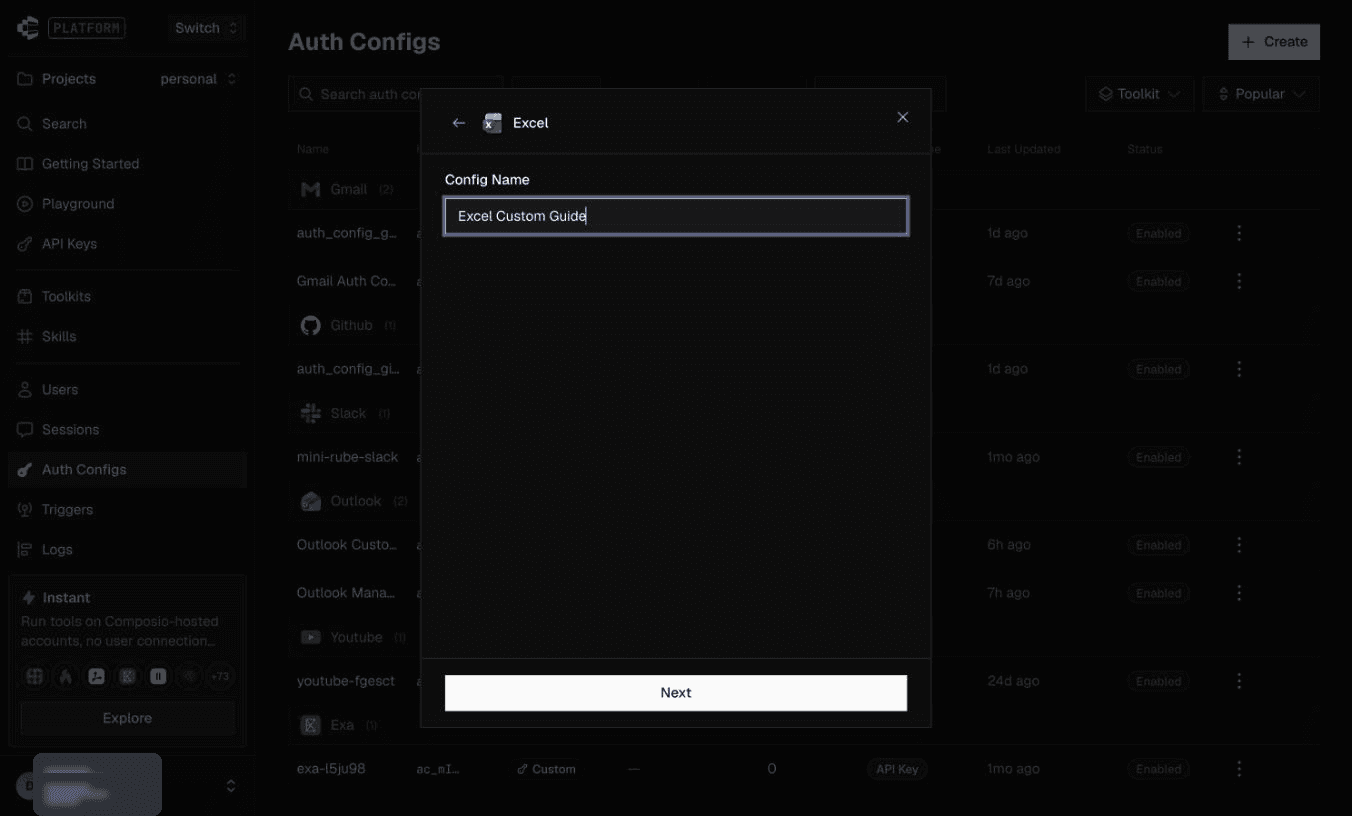
1. In Composio, create an auth config for Excel. Enter a name, such as Excel Custom Guide, and click Next.
2. Choose OAuth 2.0 and Your Own Credentials. Enter the app’s Client id and client-secret Value. The screenshot leaves those inputs empty for privacy.
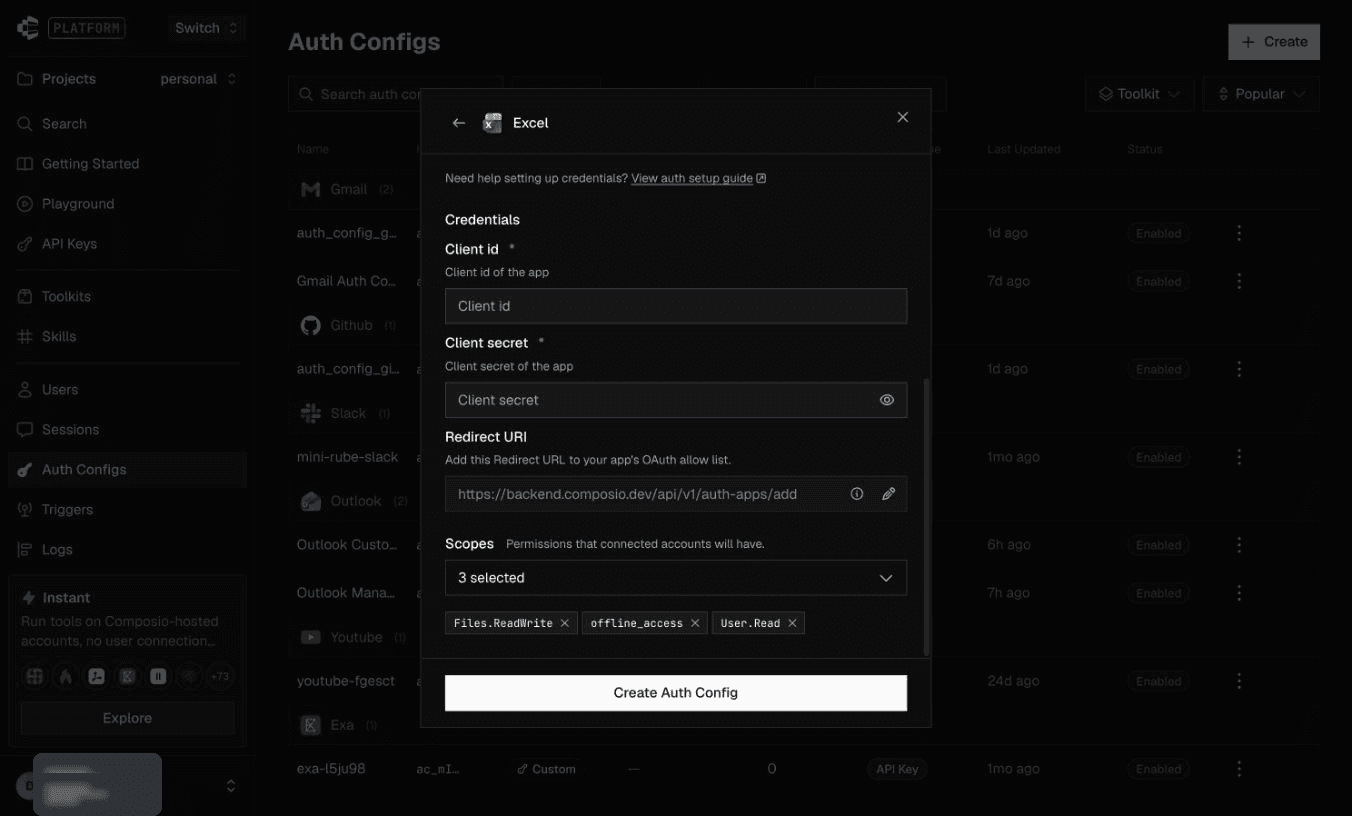
3. Keep the Redirect URI identical to the registered Web callback. Under Scopes, choose permissions required by your integration and supported by your app registration. Click Create Auth Config.

Step 5: Connect and Review the Requested Access
1. Open the custom auth config and click Connect Account.
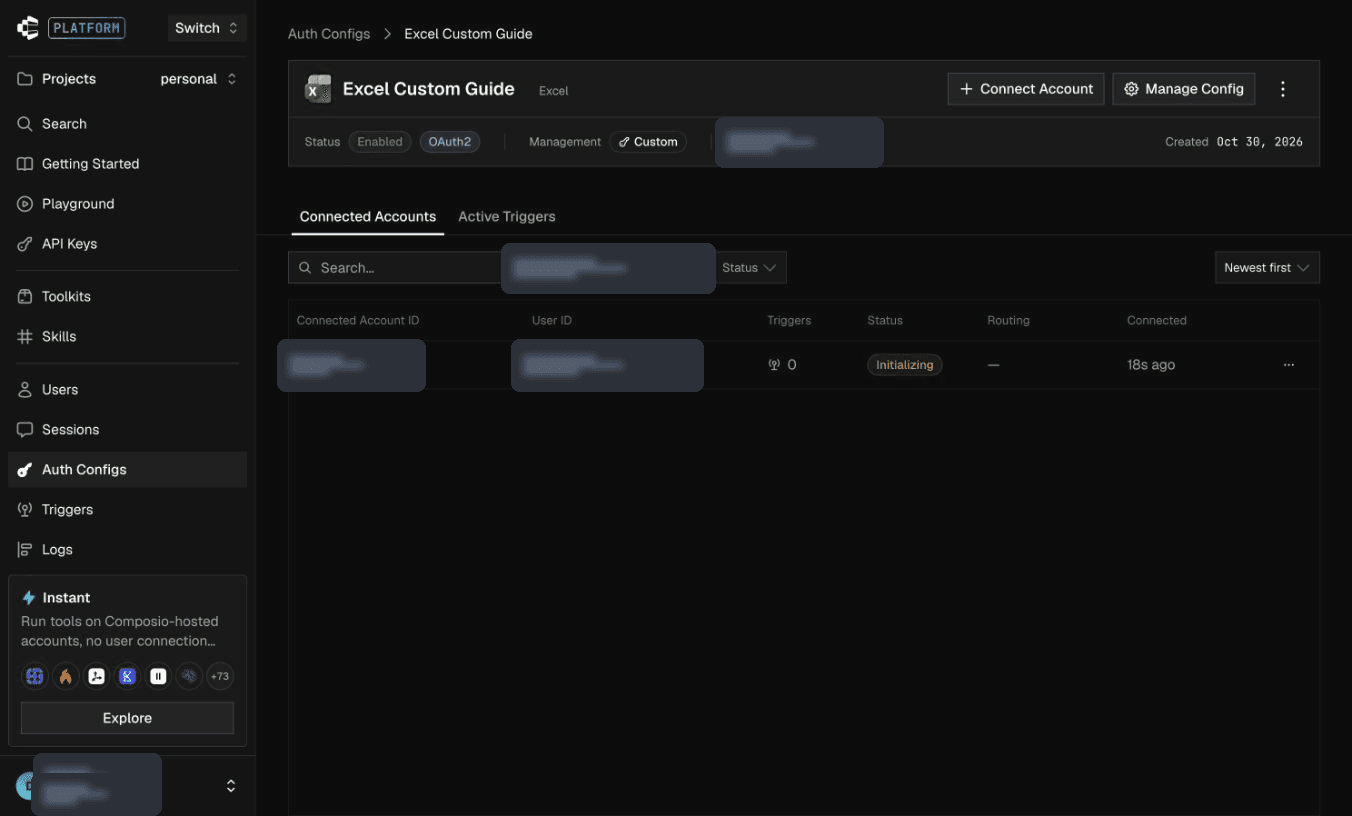
2. Choose the Microsoft account that can access the workbook and sign in.
3. Review the app name and requested file access before accepting. Confirm that the app is your own registration. The request grants file read/write access and continued access; it is not a read-only workbook permission. Leave Consent on behalf of your organisation unchecked unless an administrator intends tenant-wide approval.
Step 6: Confirm the Custom Connected Account Is Active
1. After approval, return to Composio and check Active on the custom auth config’s Connected Accounts tab. The account’s workbook/file permissions continue to apply. Use additional scopes only when the intended Excel tools need them.
Copy the Auth Config ID from Composio and use it in your application’s integration setup.