




Composio connects AI agents to Dynamics 365 so they can work with CRM records and business data. Access is limited by the permissions you approve and your account’s existing access.
This guide shows you how to set up OAuth credentials and connect Dynamics 365 to Composio.
Part 1: Create your Microsoft Entra OAuth app
Step 1: Register the app
1. Open Azure portal → App registrations → New registration. Name the app and choose the organizational accounts you want to support.
2. Select Web, register the callback below and click Register.
https://backend.composio.dev/api/v1/auth-apps/add
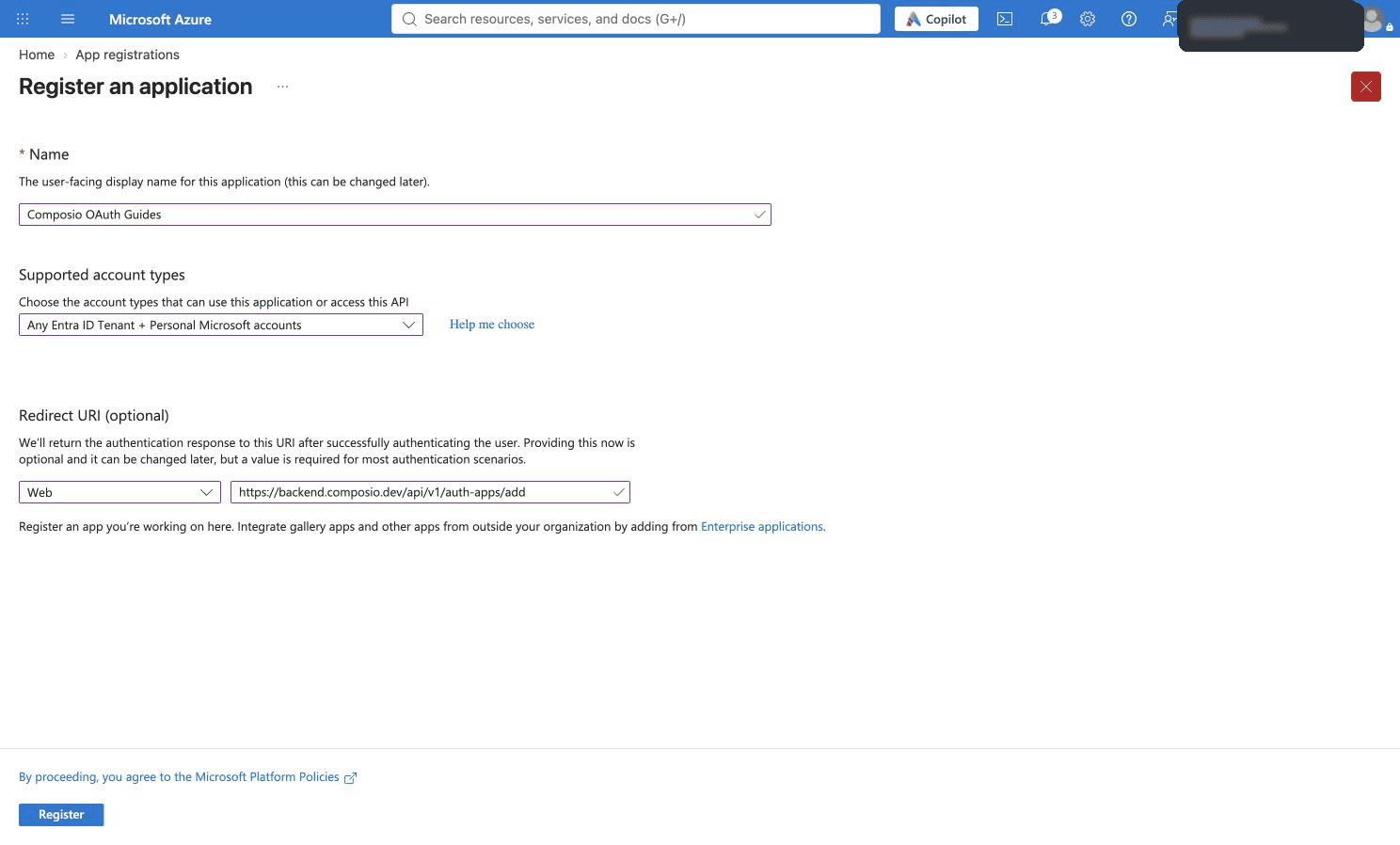
Step 2: Copy the client ID and create a secret
1. Copy the Application (client) ID from Overview.

2. Open Certificates & secrets → New client secret.
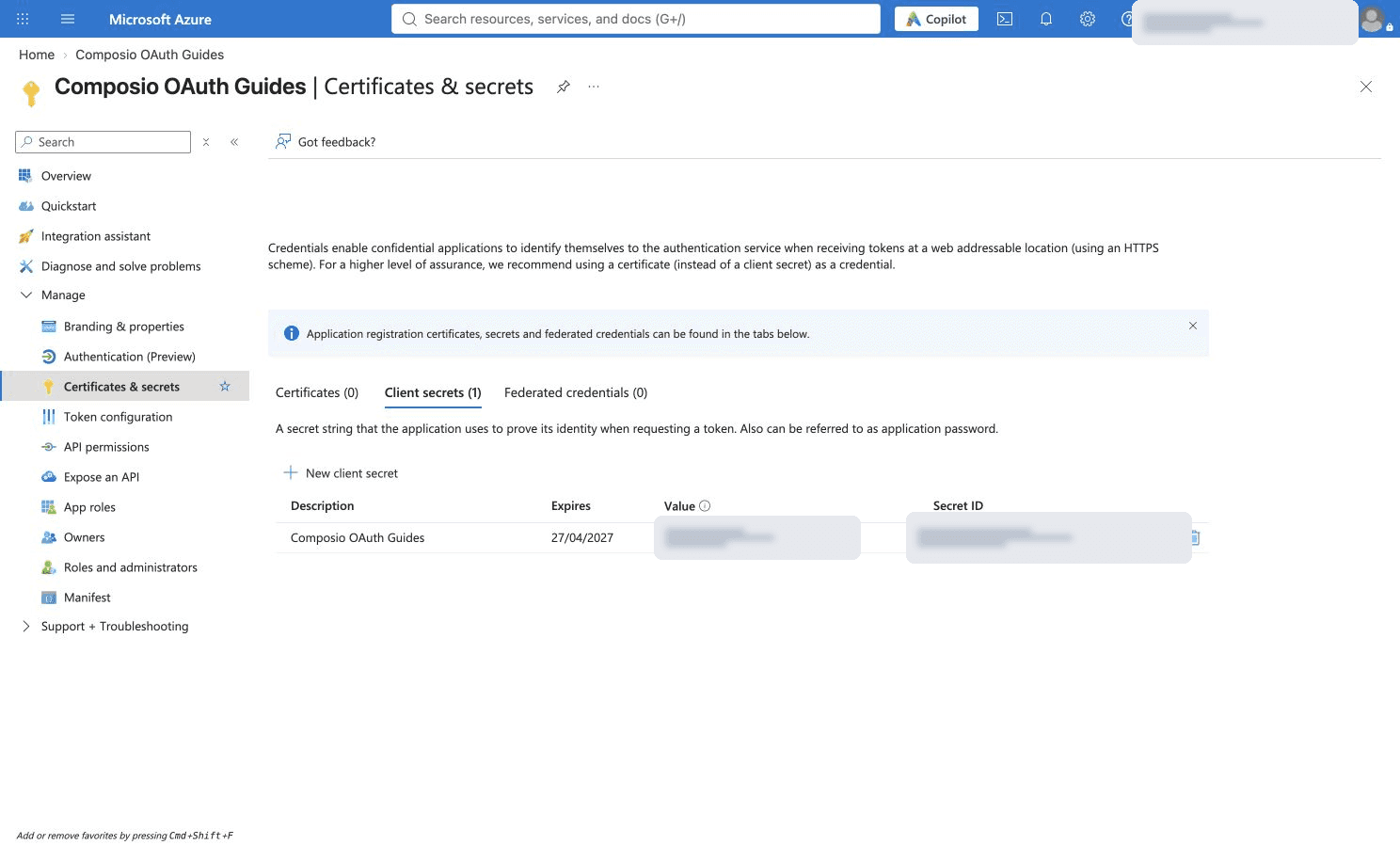
3. Enter a description, choose an expiry and click Add.
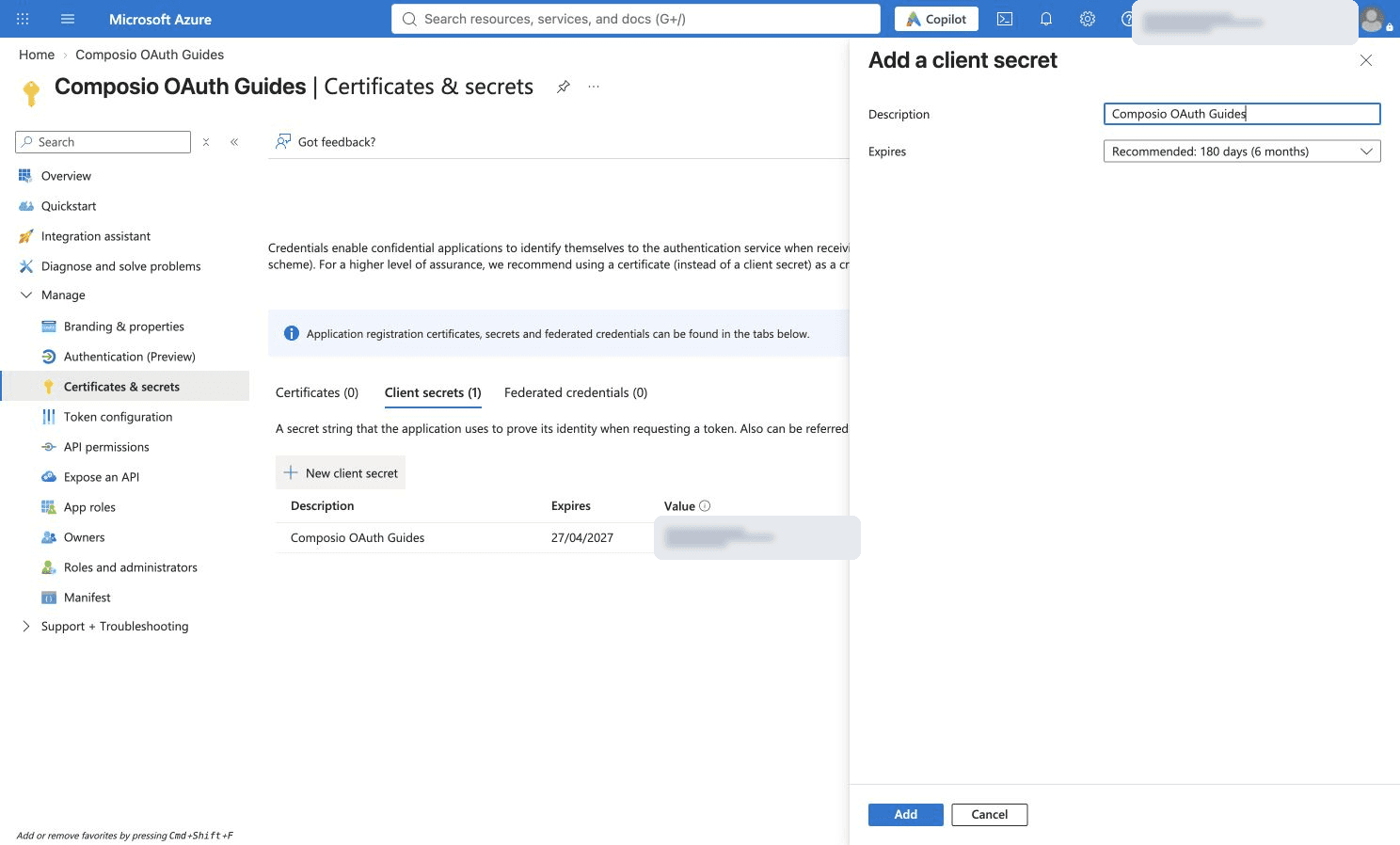
4. Copy and securely store the secret Value. Use the Value, not the Secret ID. Rotate it before expiry.

Step 3: Add the Dynamics delegated permission
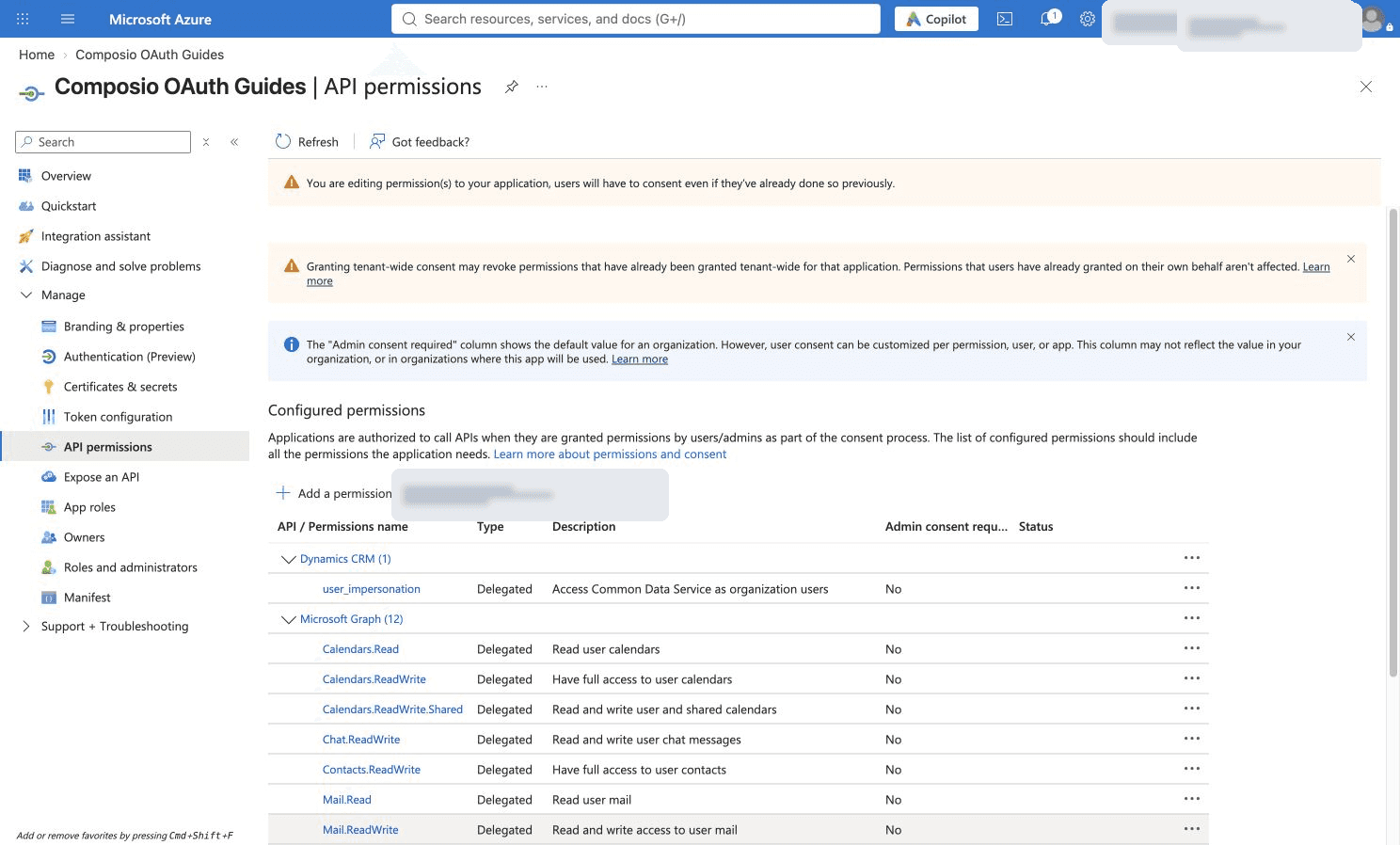
1. Open API permissions → Add a permission.

2. Select Dynamics CRM.
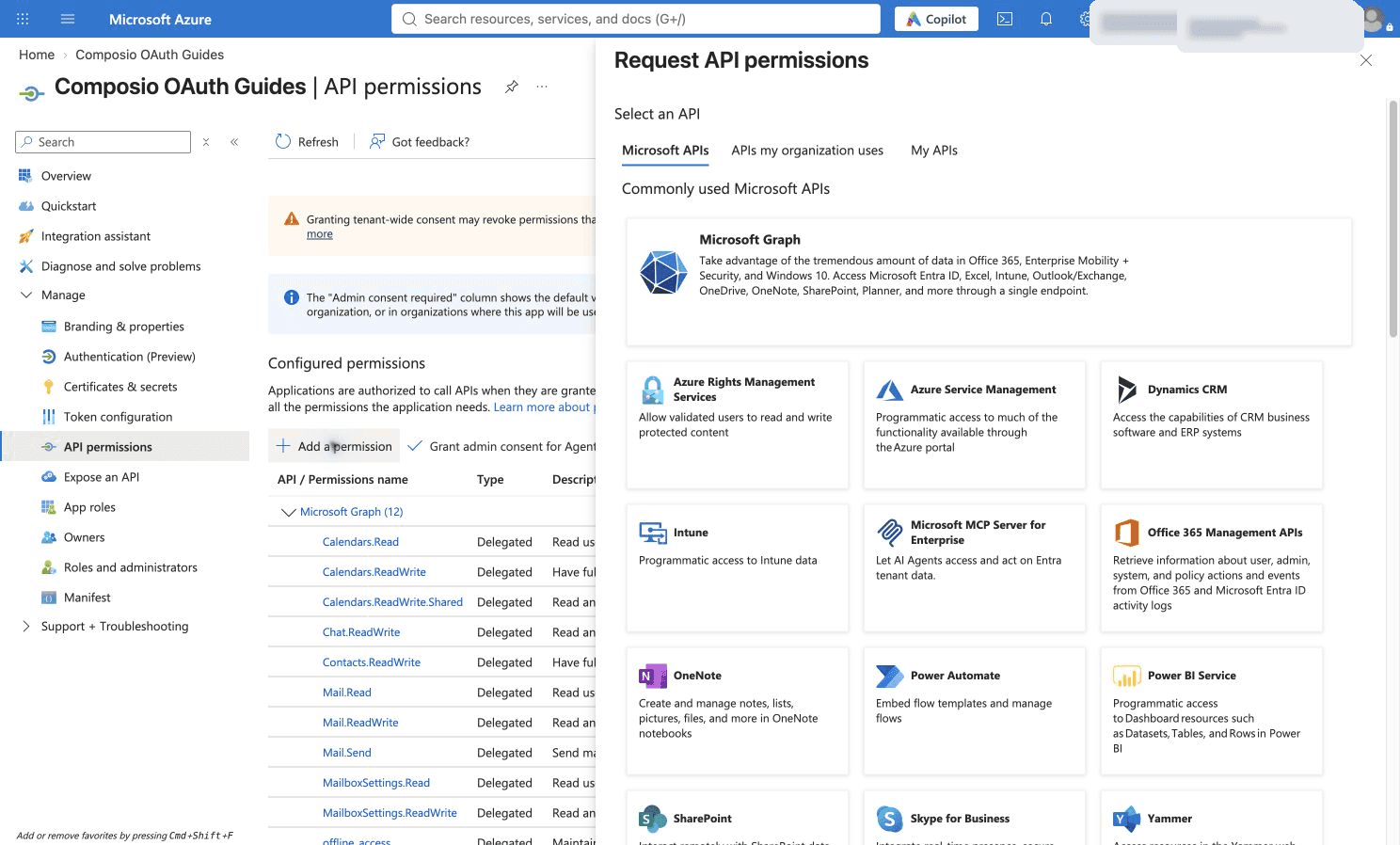
3. Choose Delegated permissions. Choose the delegated permissions needed for the operations your integration will use. Then click Add permissions.
Permission reference. The delegated Dynamics data permission is user_impersonation, scoped to your environment. offline_access supports continued access. The signed-in user's Dynamics security roles still determine record access. Choose permissions for your own workflow; the screenshots are examples. Microsoft permission reference.

4. Review the configured Dynamics permission. The connected user’s Dynamics security roles still control access to records.
Part 2: Connect Dynamics 365 in Composio
Step 1: Create a custom auth config
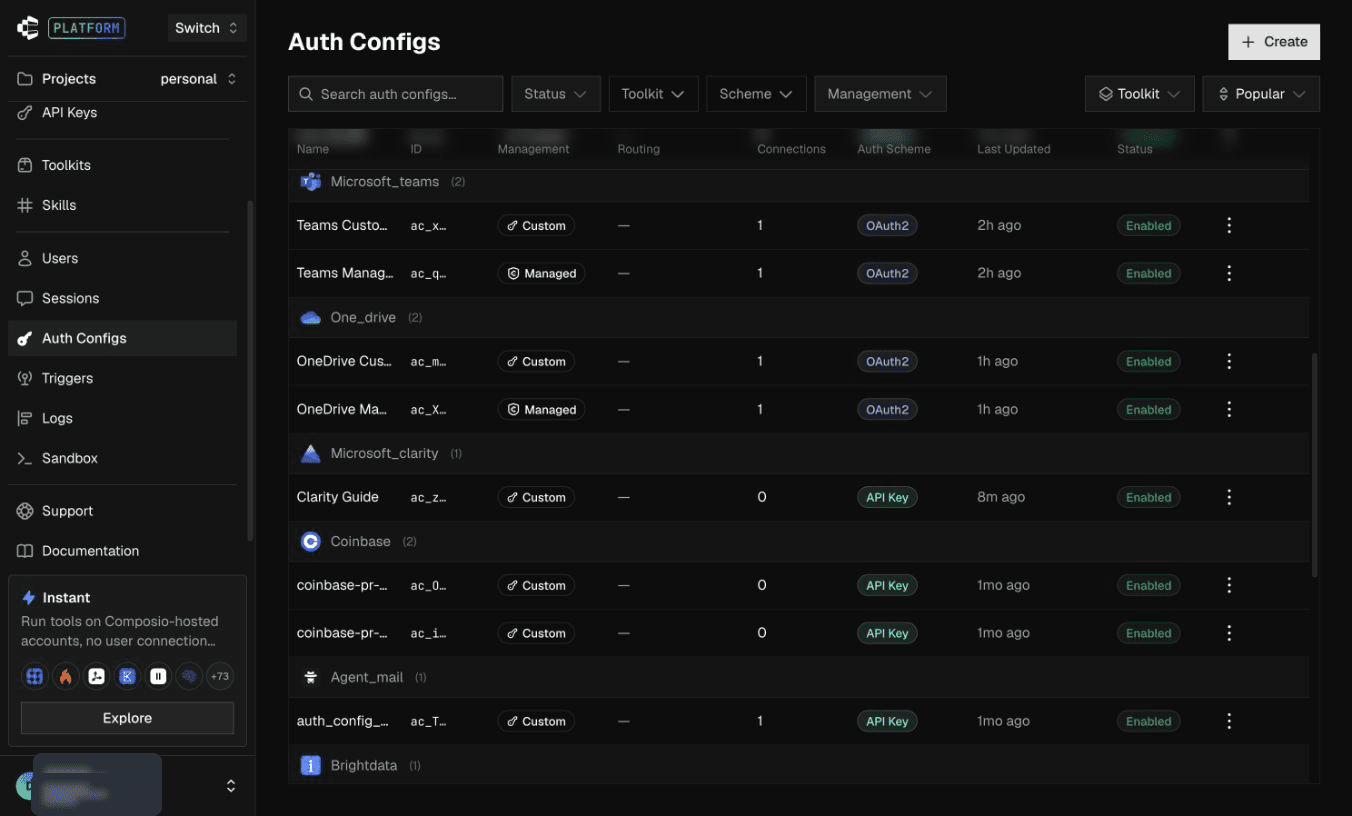
1. In Composio, open Auth Configs and click Create.
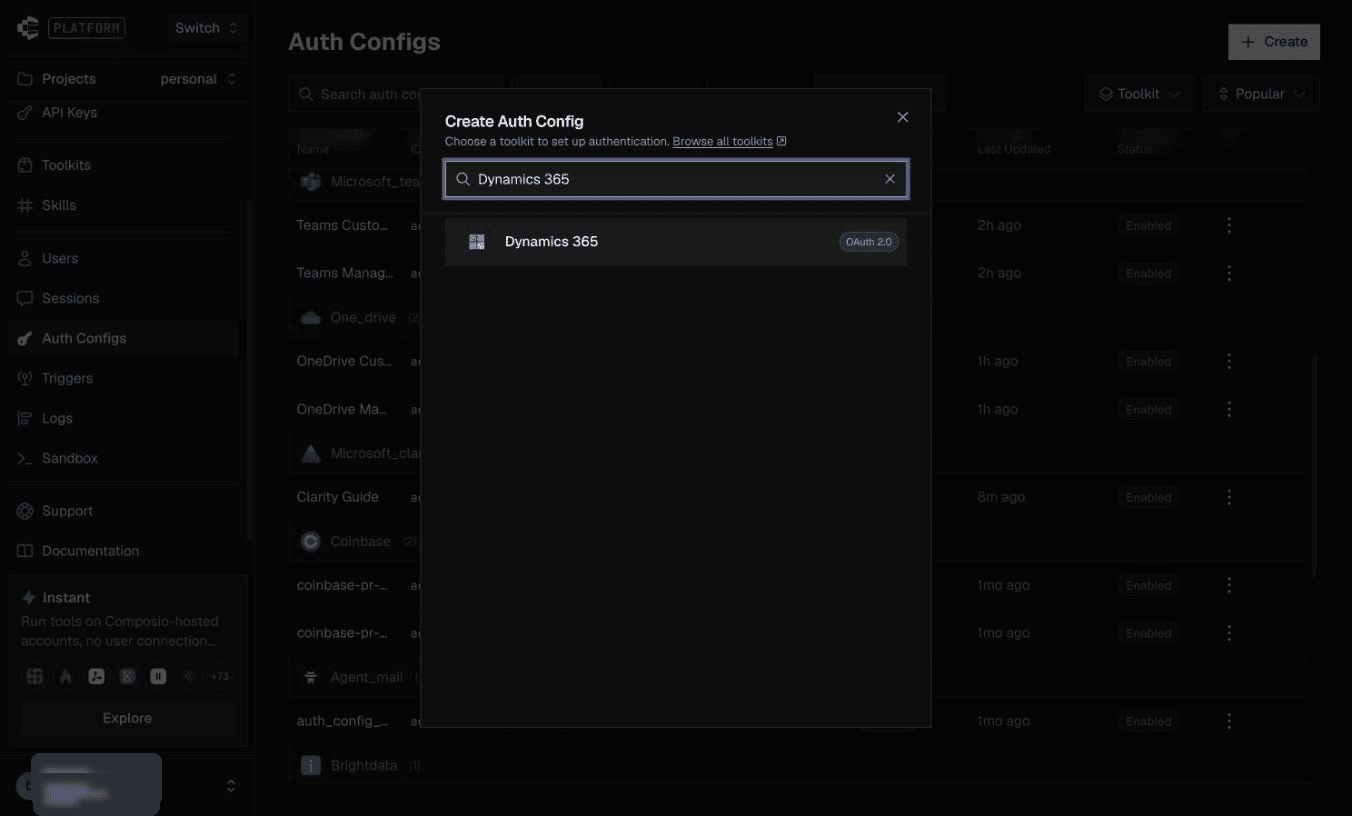
2. Search for and select Dynamics 365.
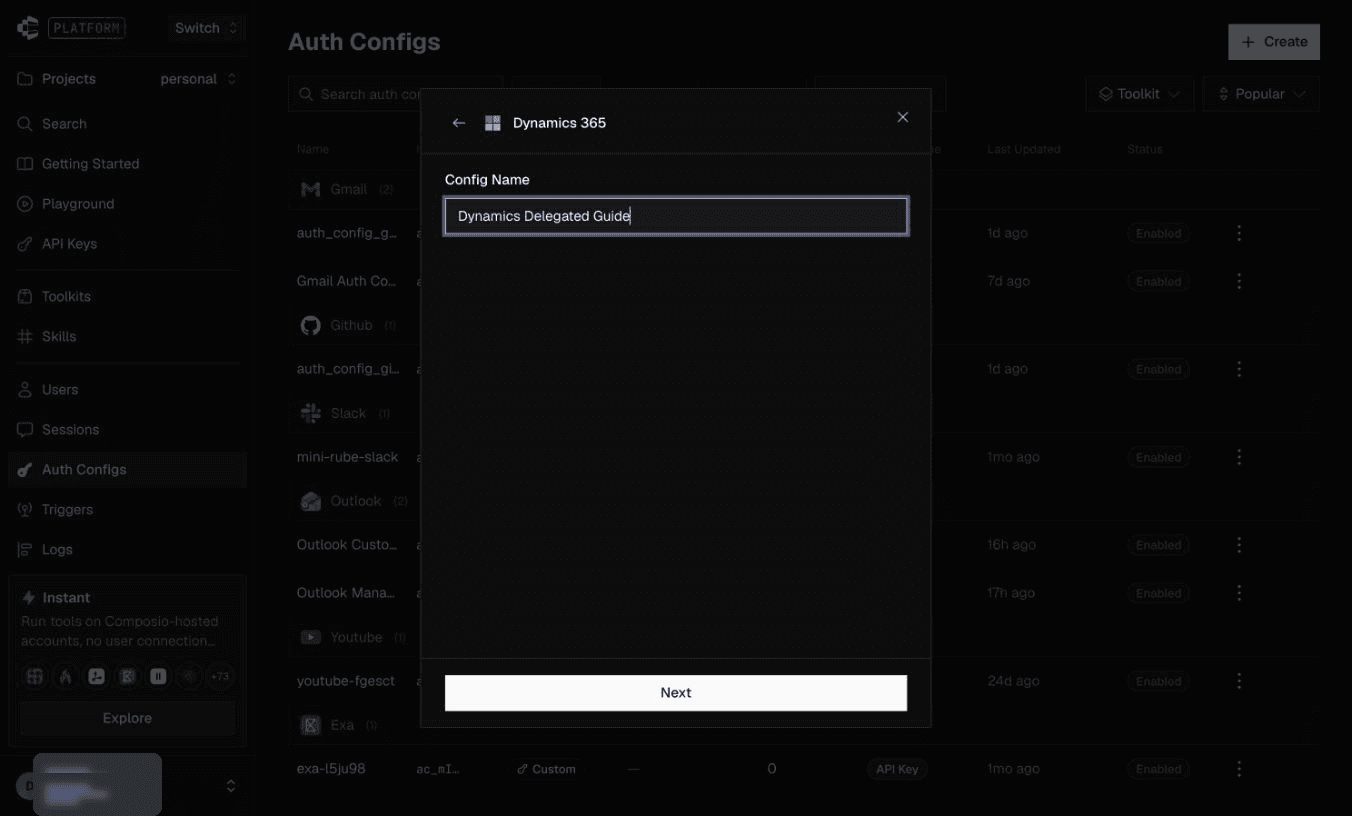
3. Enter a config name and click Next.
Step 2: Enter credentials and the environment permission
1. Choose OAuth 2.0 and Your Own Credentials. Enter your app’s Client id and client-secret Value. Keep the original redirect URI.

2. Choose scopes for your Dynamics operations. Environment-specific scope values use the full Dynamics environment URL; the scope picker supports Add scope.
3. Click Create Auth Config. This is the delegated Dynamics permission for this signed-in-user flow.

Step 3: Connect the Dynamics account
1. Open the auth config and click Connect Account. Enter the organization name and environment host from your Dynamics URL. For https://yourorg.crm8.dynamics.com, use yourorg and crm8.dynamics.com.
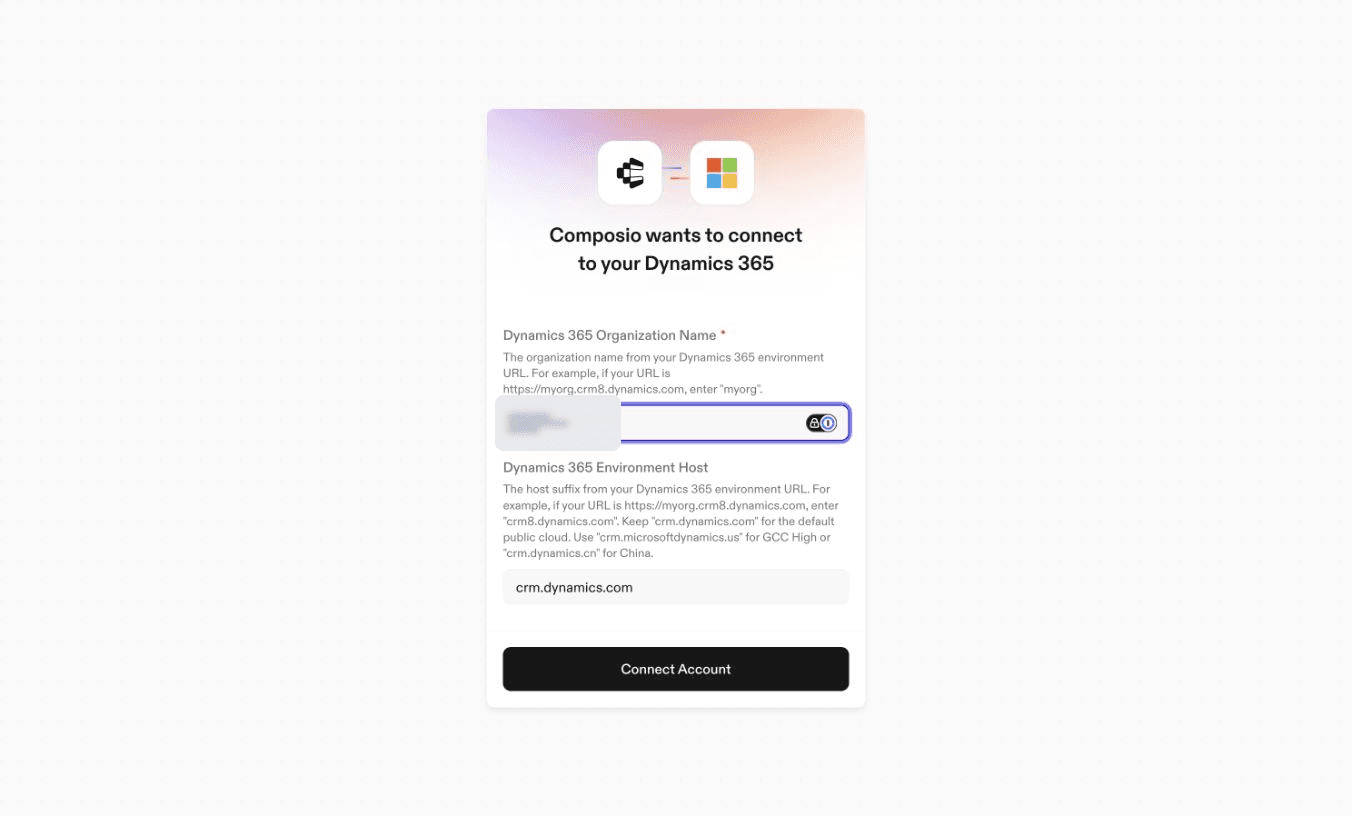
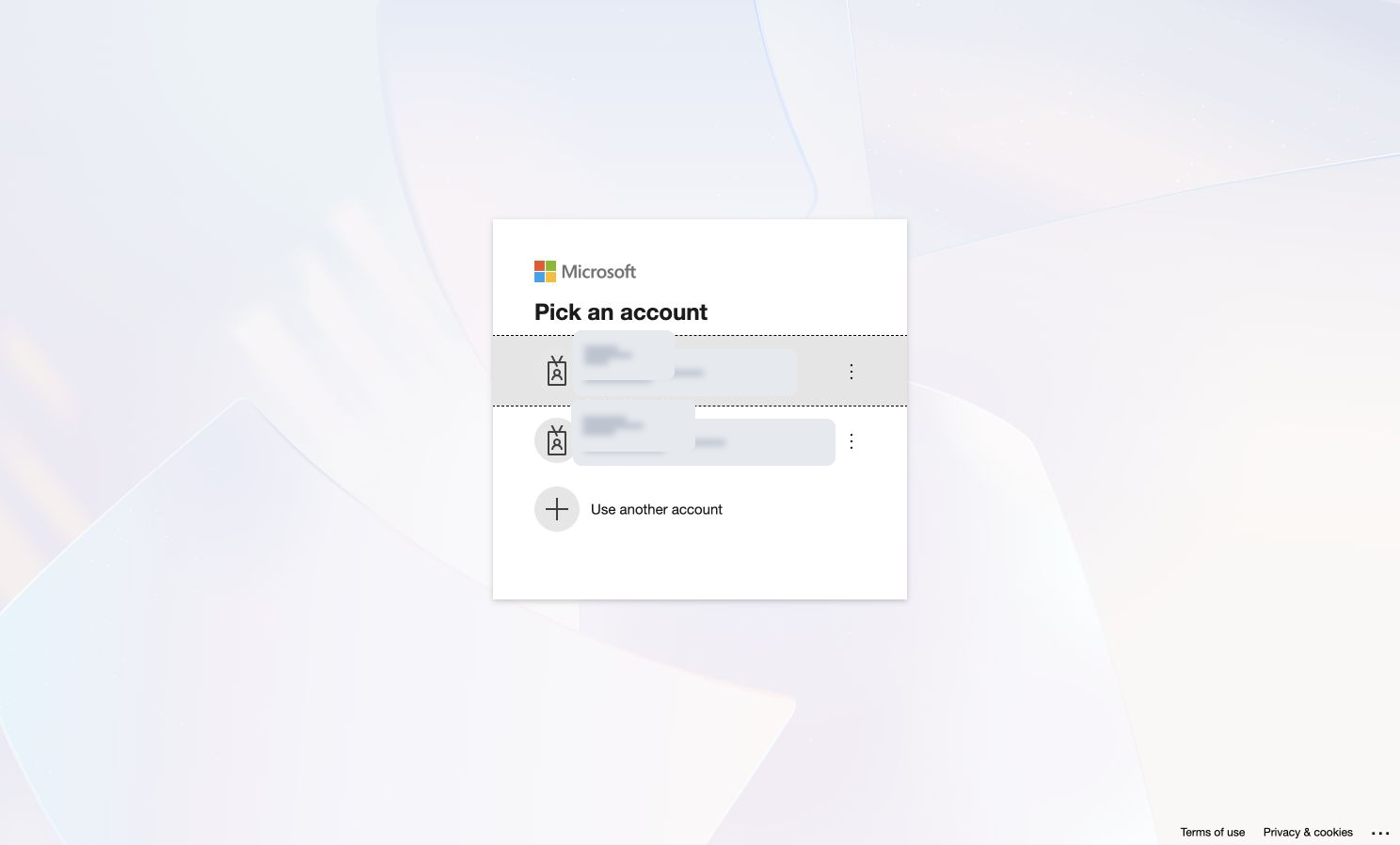
2. Sign in with a work or school account that has access to that environment.
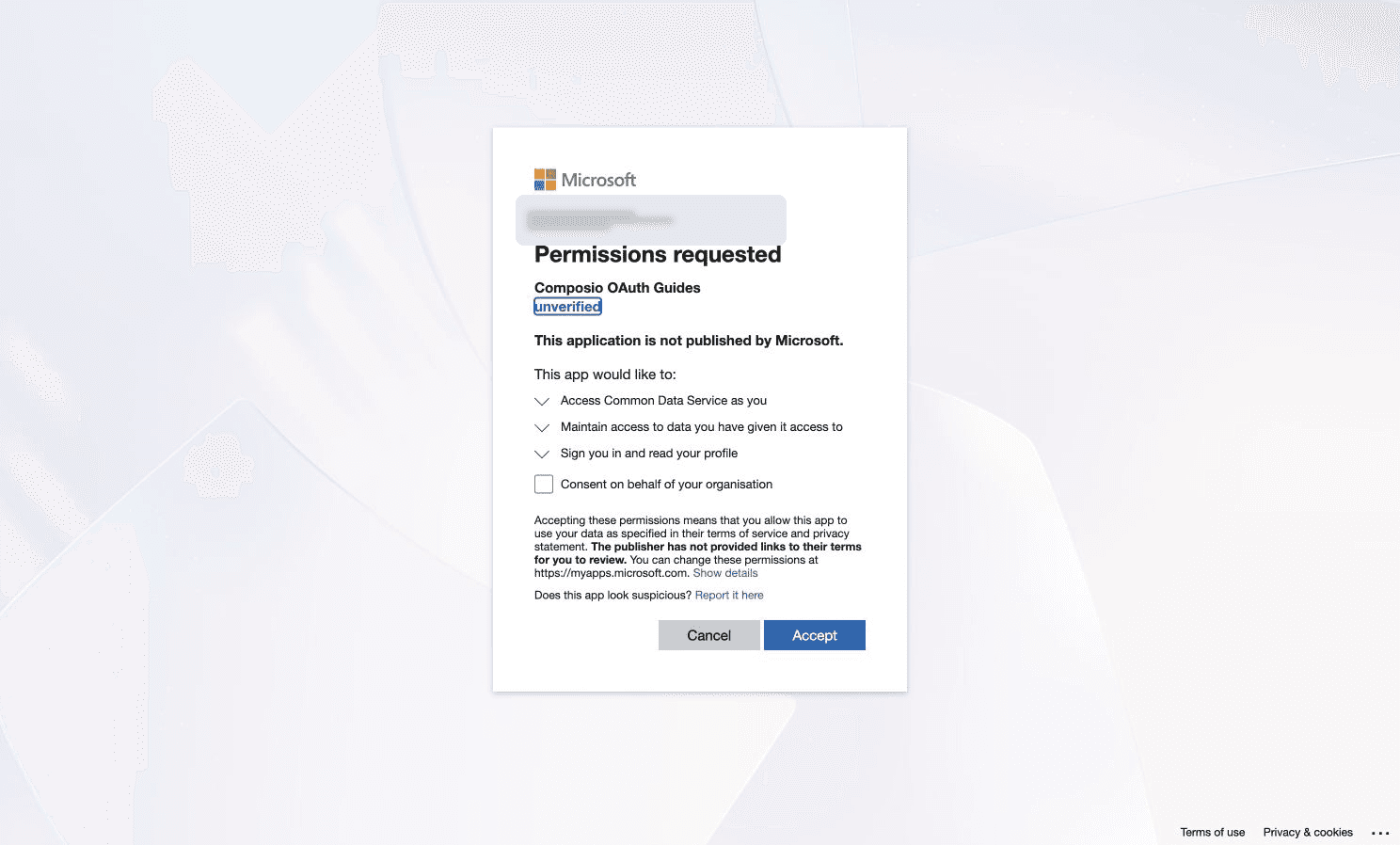
3. Review the app and Access Common Data Service as you permission, then click Accept. Leave organization-wide consent unchecked unless your administrator intends tenant-wide approval.
Step 4: Confirm the connection is Active
1. Return to the auth config’s Connected Accounts tab and check Active on the account row. Copy the Auth Config ID for your application.
