




In this guide, I will share the process for setting up the auth config for Daytona using an API key. So, let's begin.
NOTE: Daytona issues API keys from the dashboard; its OAuth runs through Auth0 with no self-serve client credentials, so use the API key path.
Step 1: Get your Daytona API key
Sign in and open Daytona's API keys page.
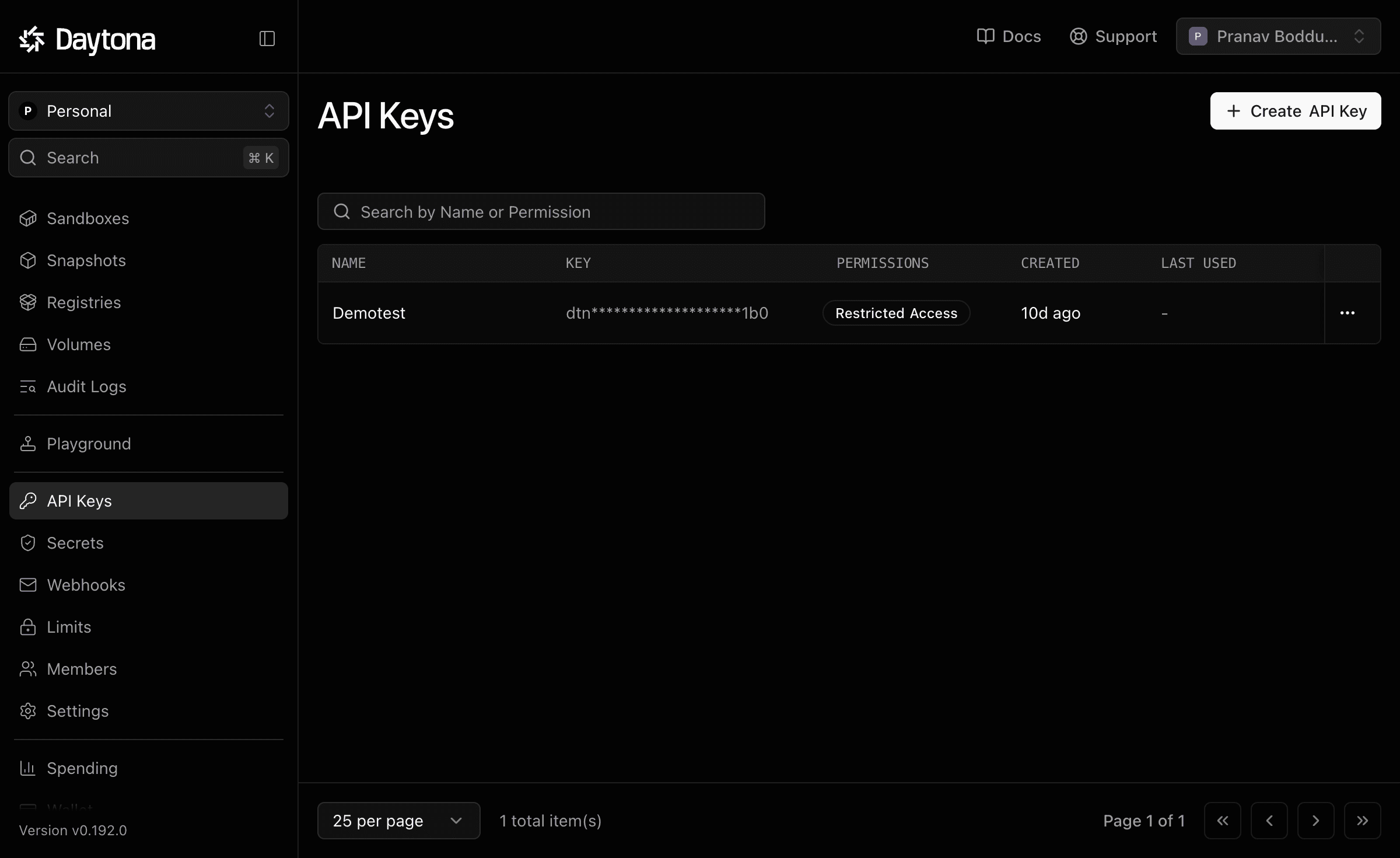
Create a new API key (give it a name; set permissions/expiry if offered).
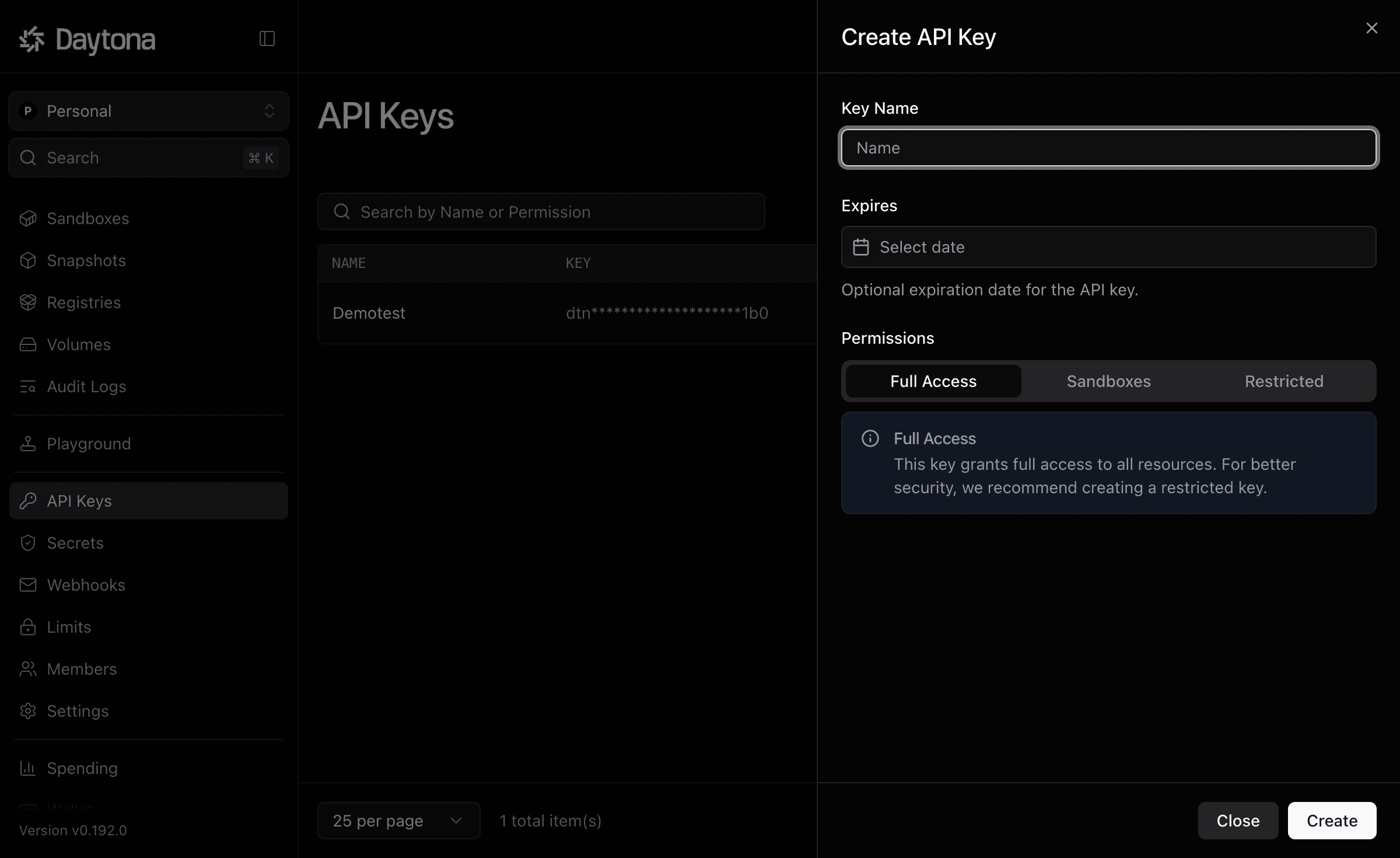
Copy the key and store it safely — it is usually shown only once.
Step 2: Create the Auth Config in Composio
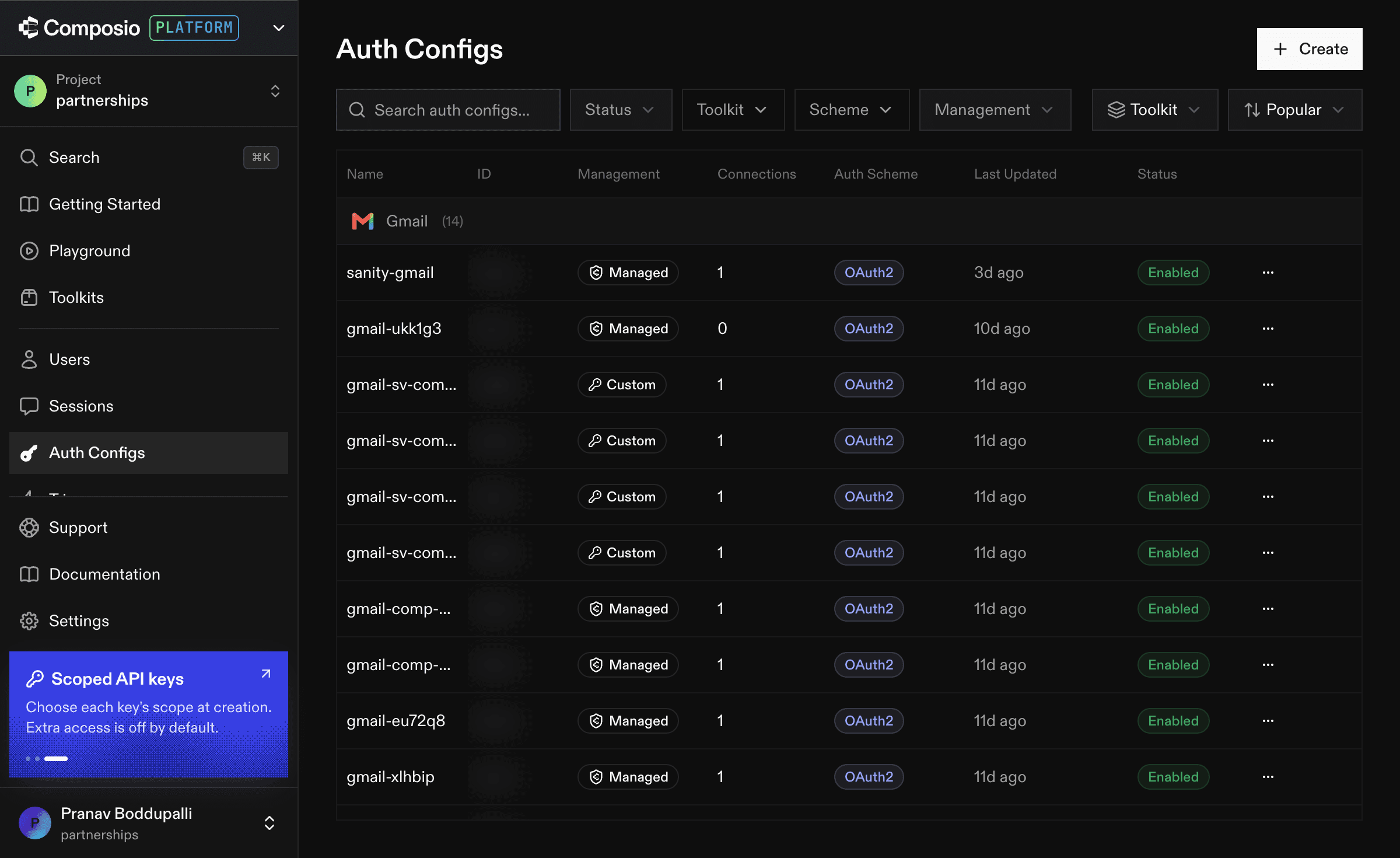
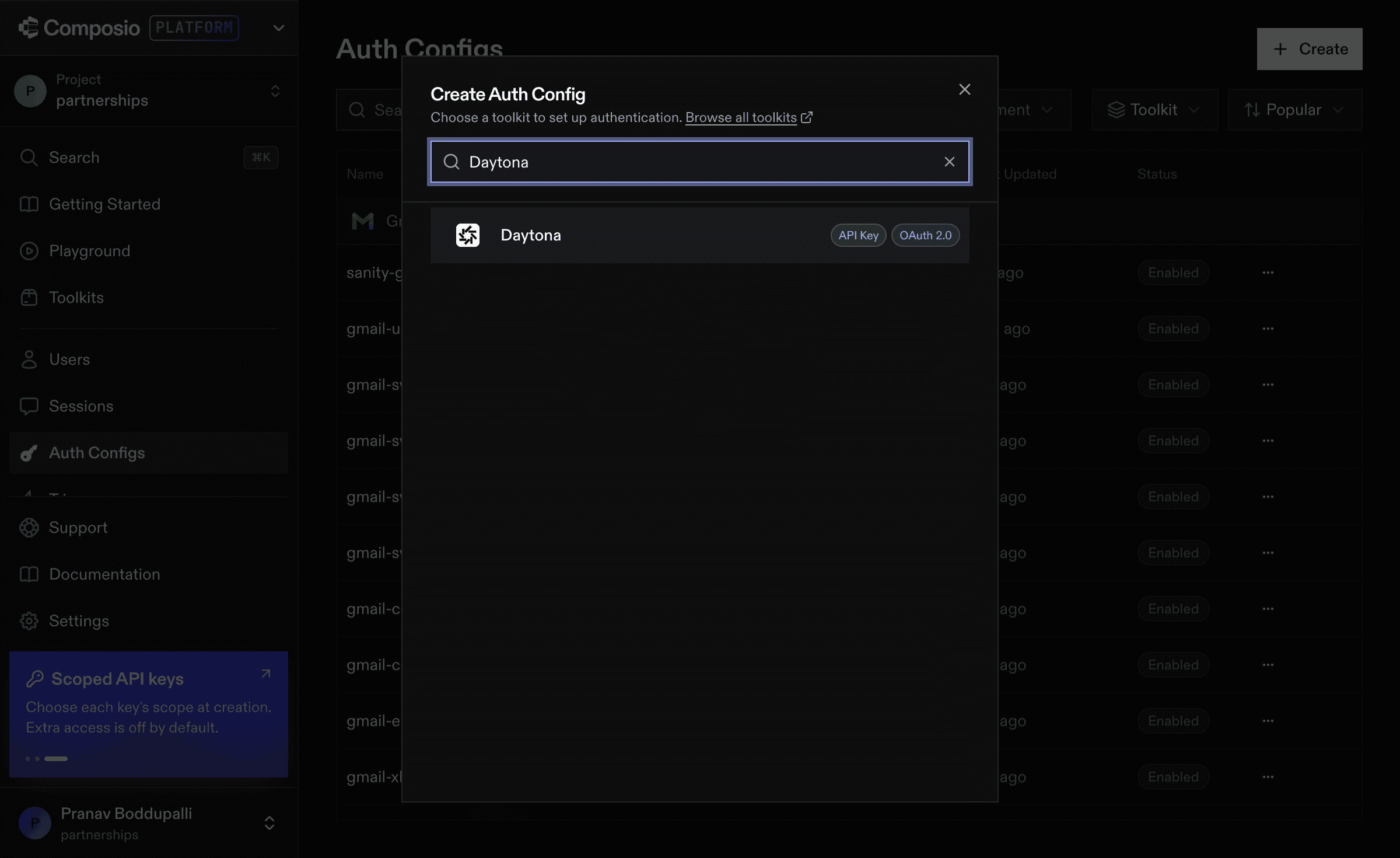
Go to the Composio Dashboard and click Create Auth Config.
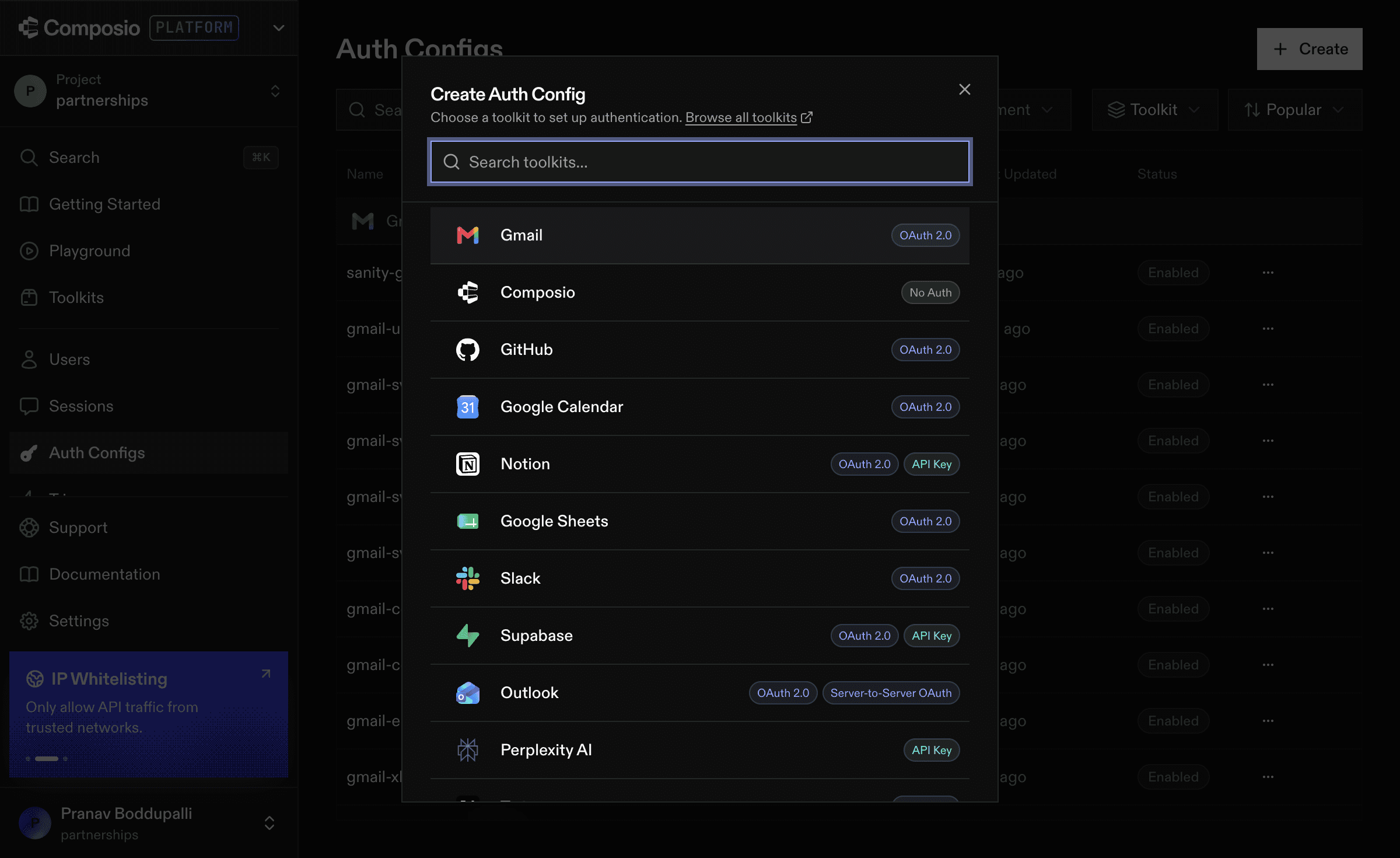
Select Daytona from the toolkit list.
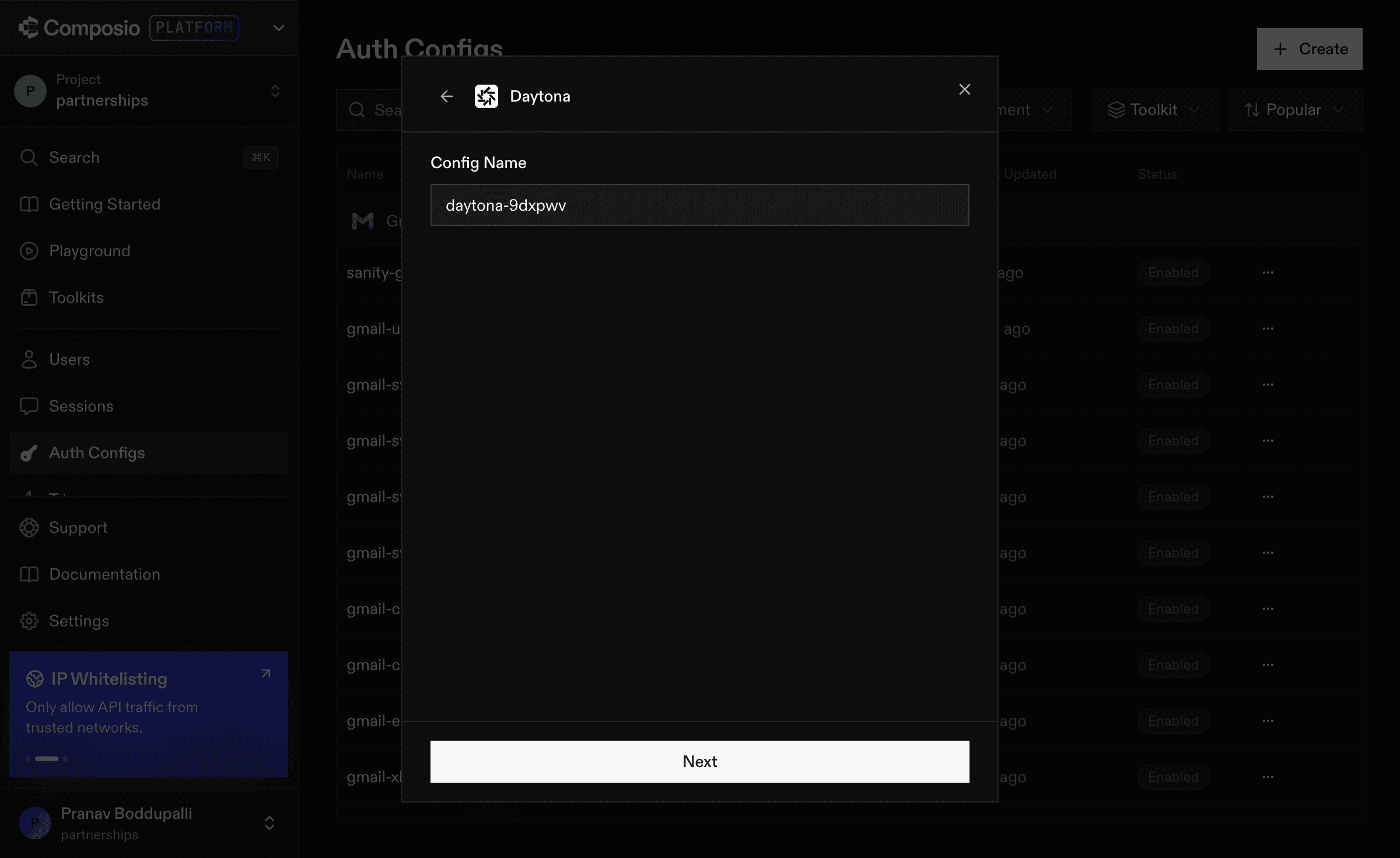
Choose the API Key authentication type.
Paste your API key and click Create Daytona Auth Config.
Click "Connect Account" to create the connection.
Base URL for Daytona API
https://app.daytona.io/api/That's it! Copy the Auth Config ID (ac_...) and use it in your code or a secret manager.