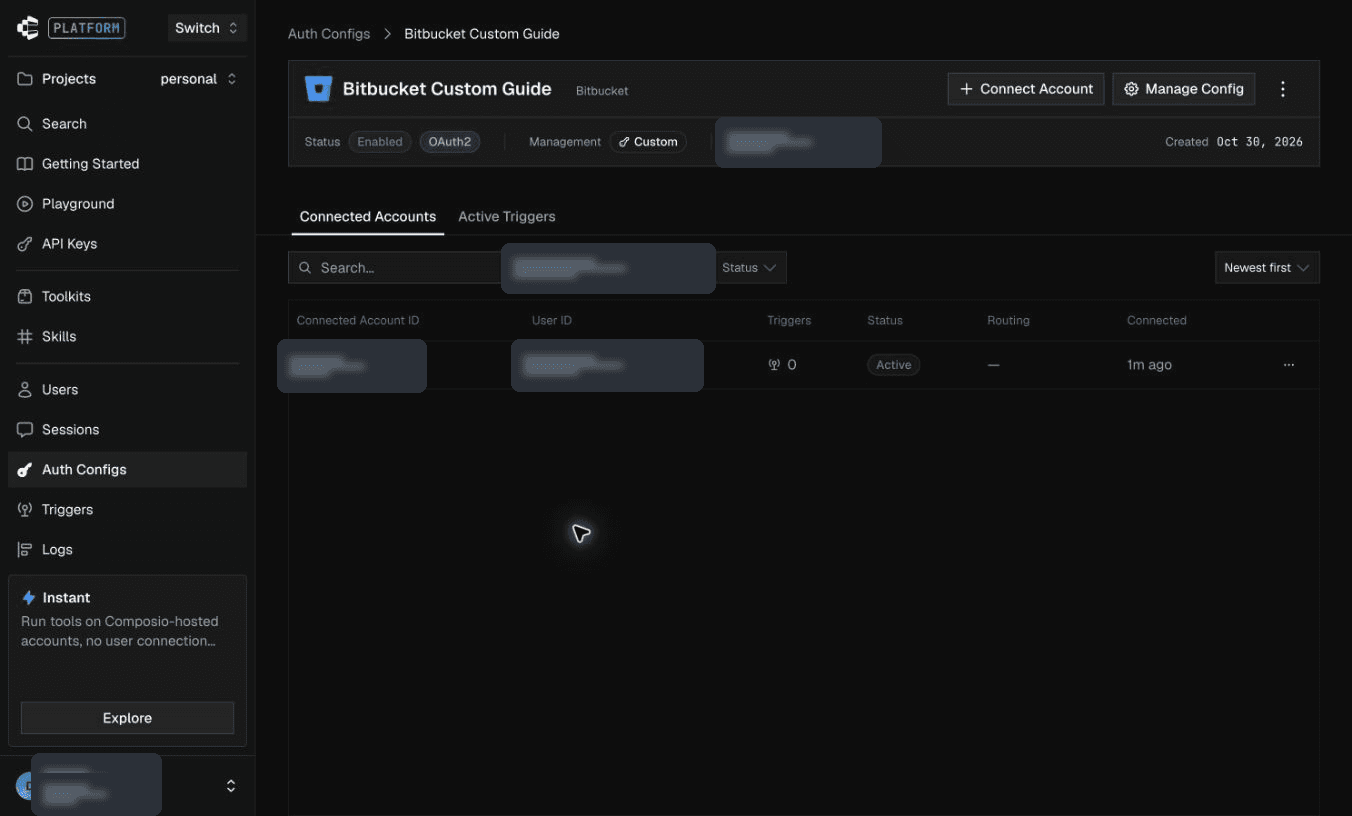
Composio connects AI agents to Bitbucket so they can work with repositories and pull requests. Access follows the permissions granted to your OAuth client and account.
This guide shows you how to create a Bitbucket OAuth client and connect it to Composio.
Part 1: Create a Bitbucket OAuth client
Step 1: Open your workspace settings
1. Sign in to Bitbucket Cloud and open the workspace you want to use. From the settings menu, select Workspace settings.

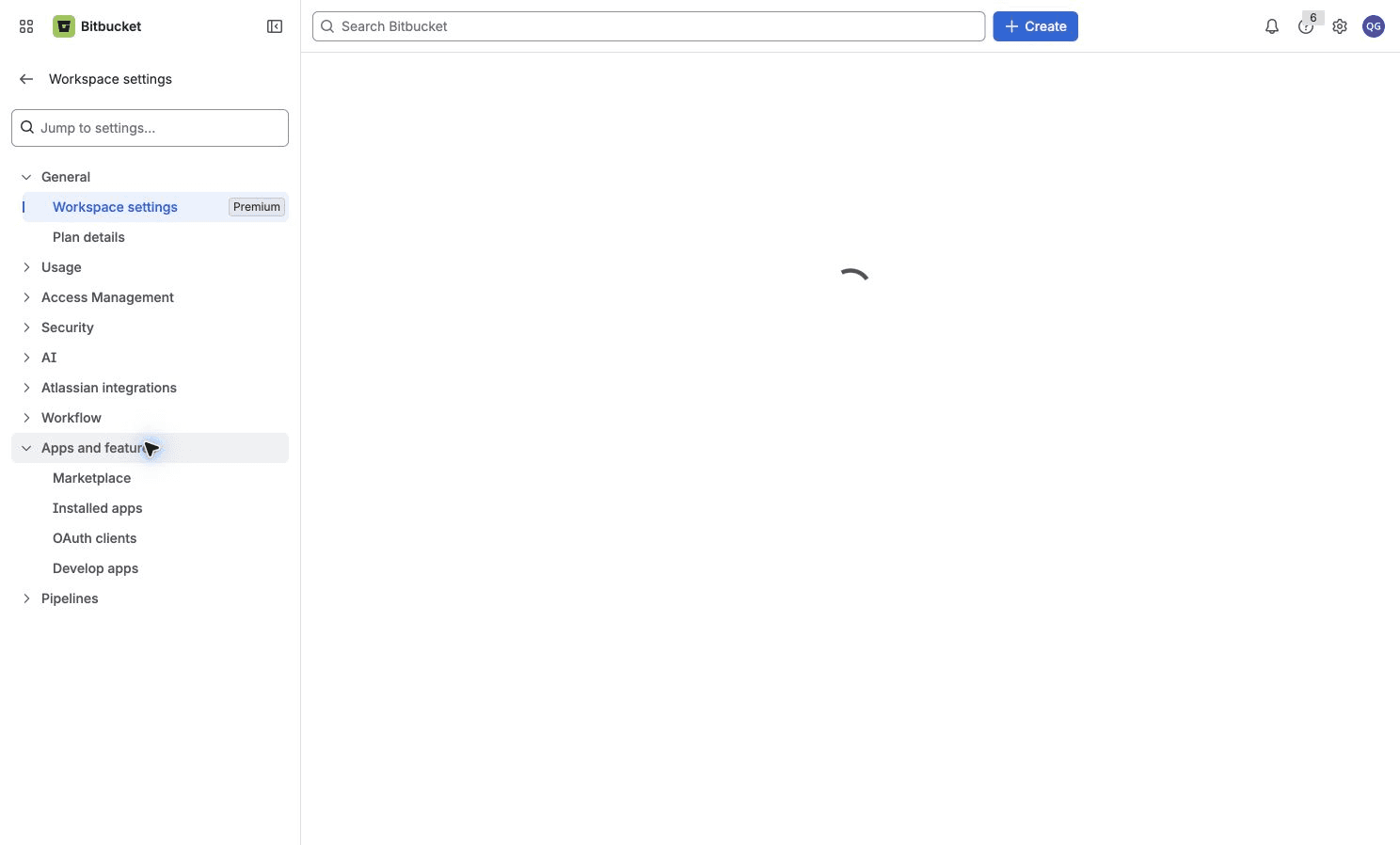
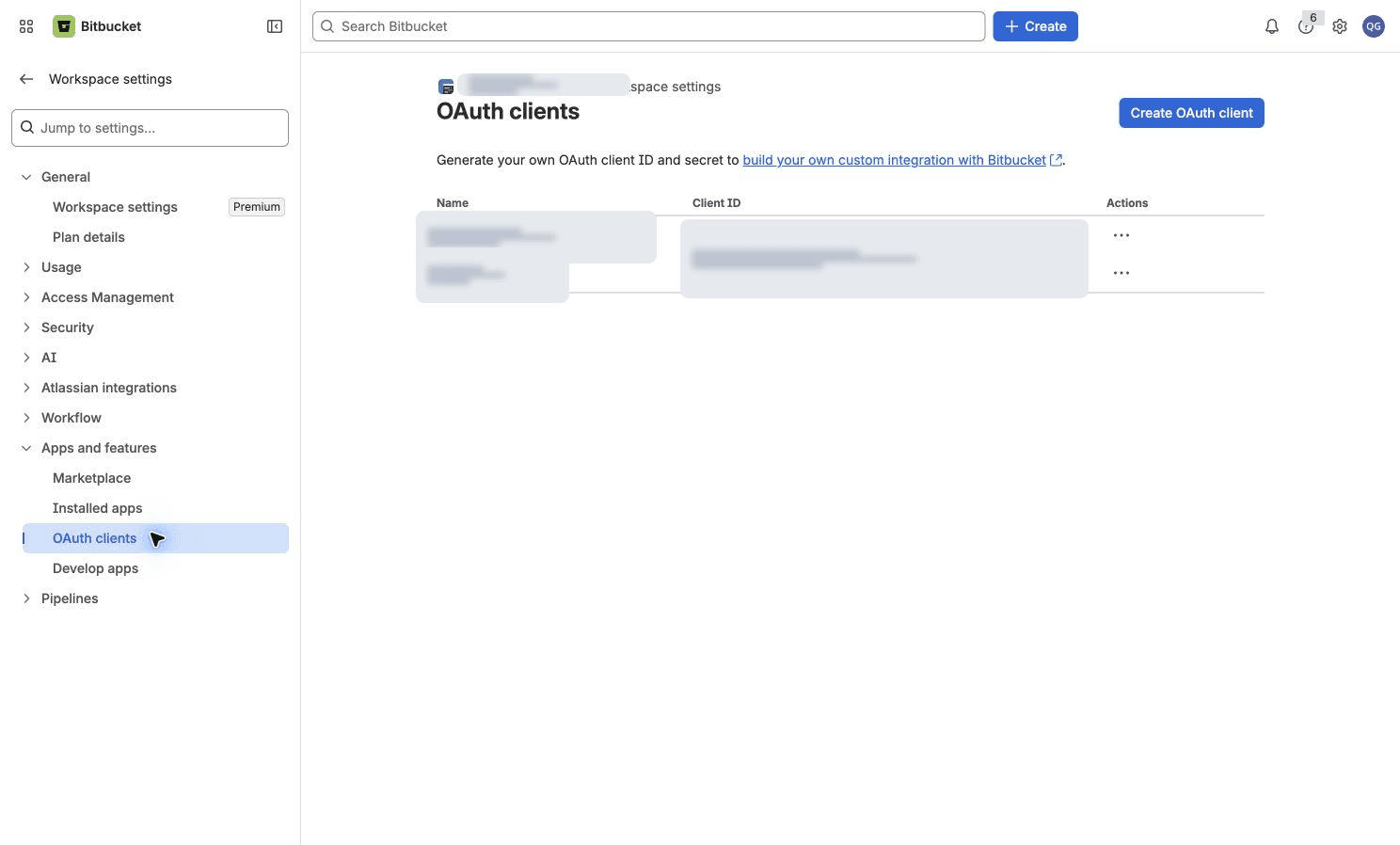
2. Expand Apps and features and select OAuth clients. Older Bitbucket screens call these OAuth consumers.
Step 2: Create the OAuth client
1. Click Create OAuth client.
2. On Details, enter a name and description. Fill in the optional application URLs if required for your deployment.

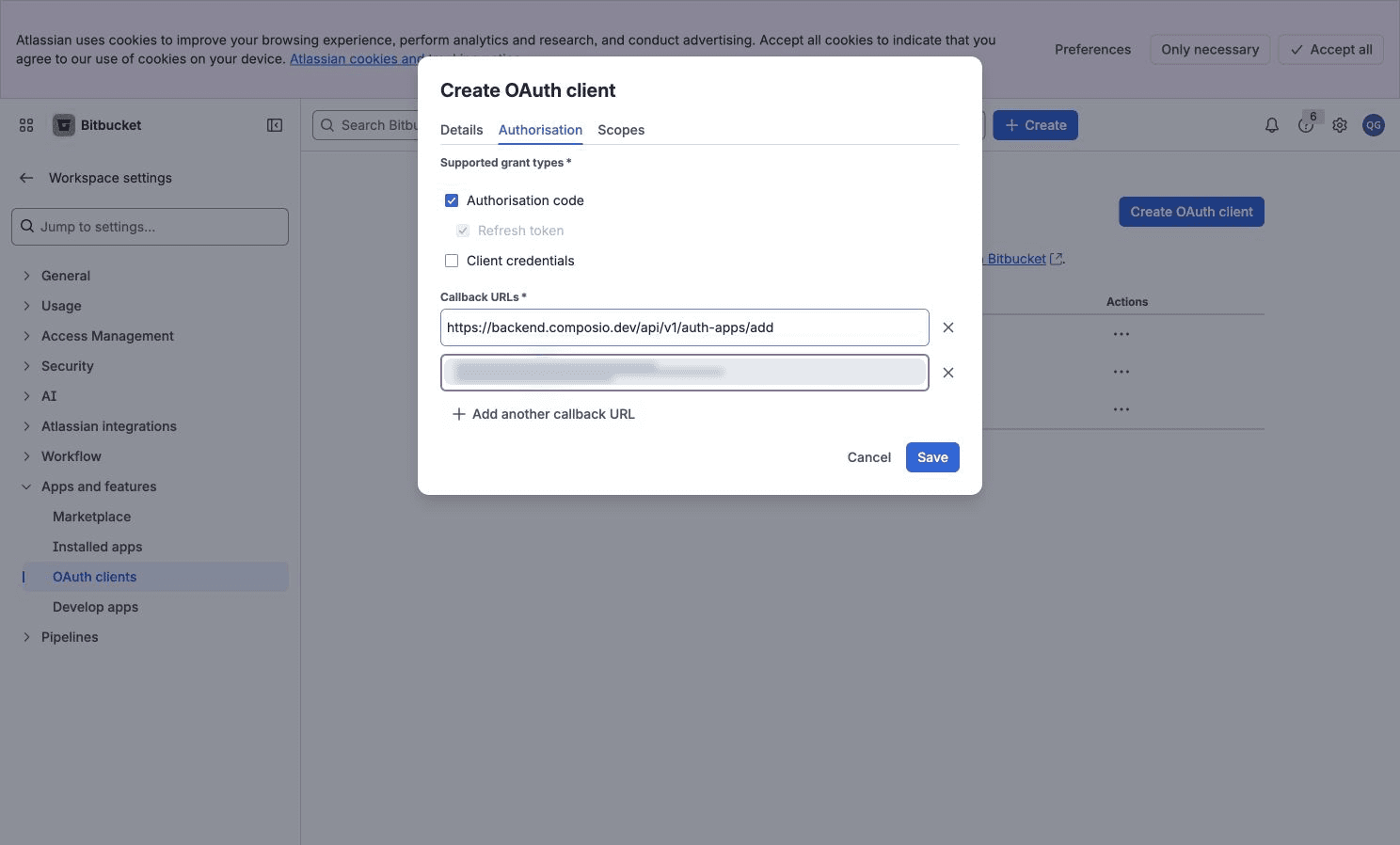
3. Open Authorisation and enable Authorisation code. Bitbucket also enables refresh tokens. Register the callback URL below:
https://backend.composio.dev/api/v1/auth-apps/add
Step 3: Choose scopes for your integration
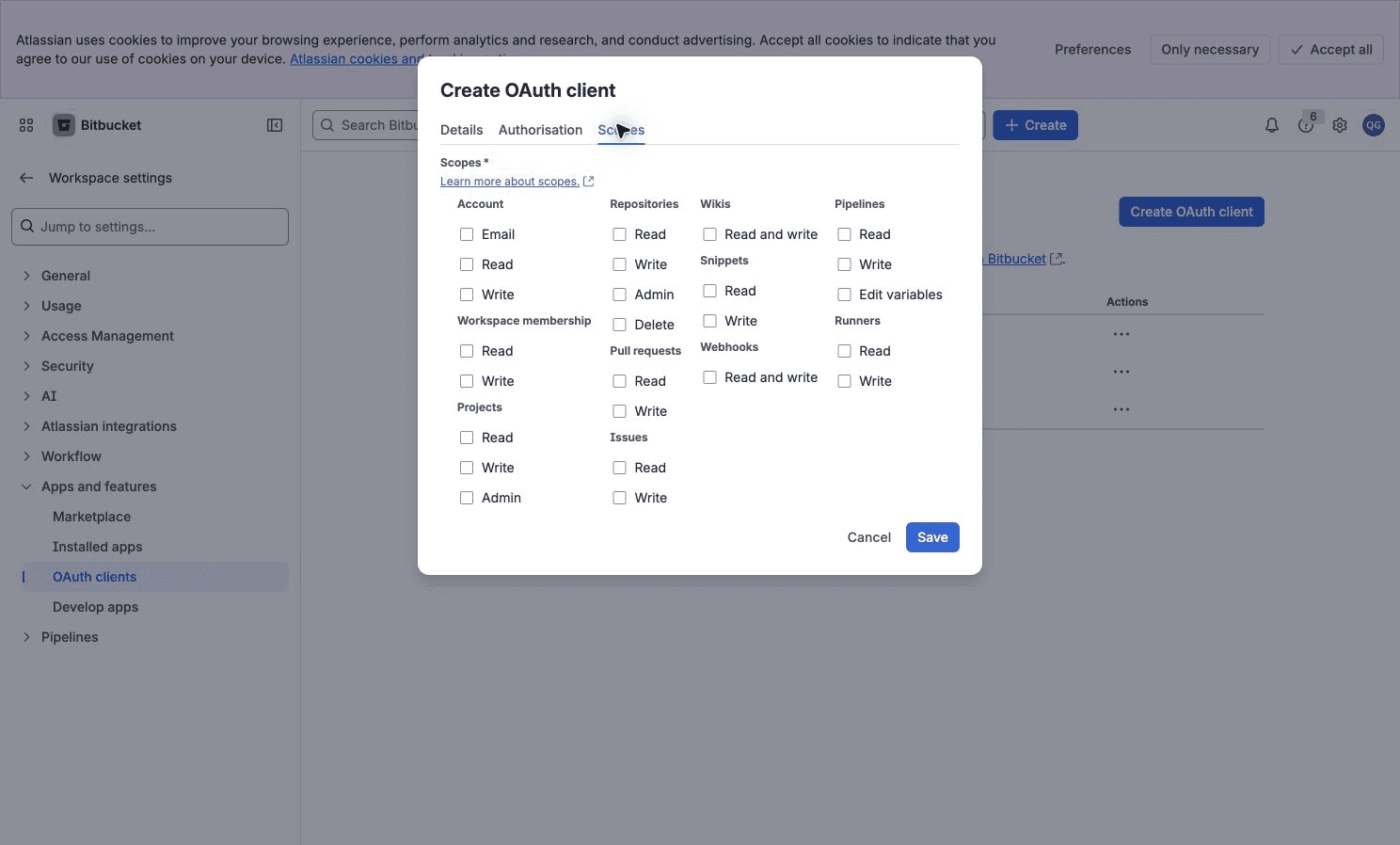
1. Open Scopes and choose the permissions your integration needs. Then click Save.
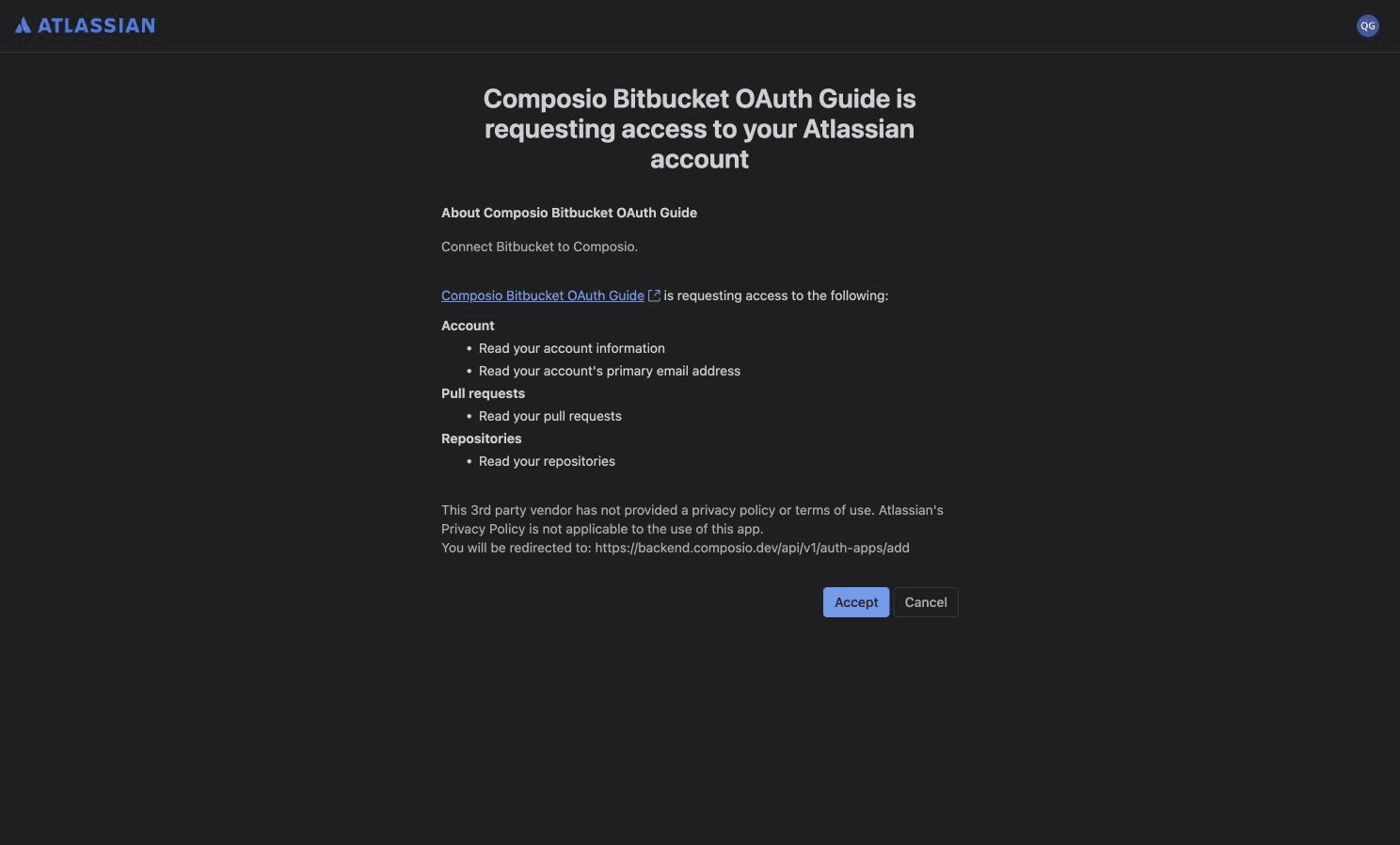
For reference, account covers account/profile access, repository covers repository reads, and pullrequest covers pull-request reads. Write, admin and delete operations require their corresponding permissions. Choose scopes for the operations your integration uses.
Step 4: Store the client credentials
1. Copy the generated Client ID and Client secret and store them securely. Keep the secret out of screenshots and frontend code.

Part 2: Connect Bitbucket in Composio
Step 1: Create an auth config
1. In Composio, open Auth Configs and click Create.
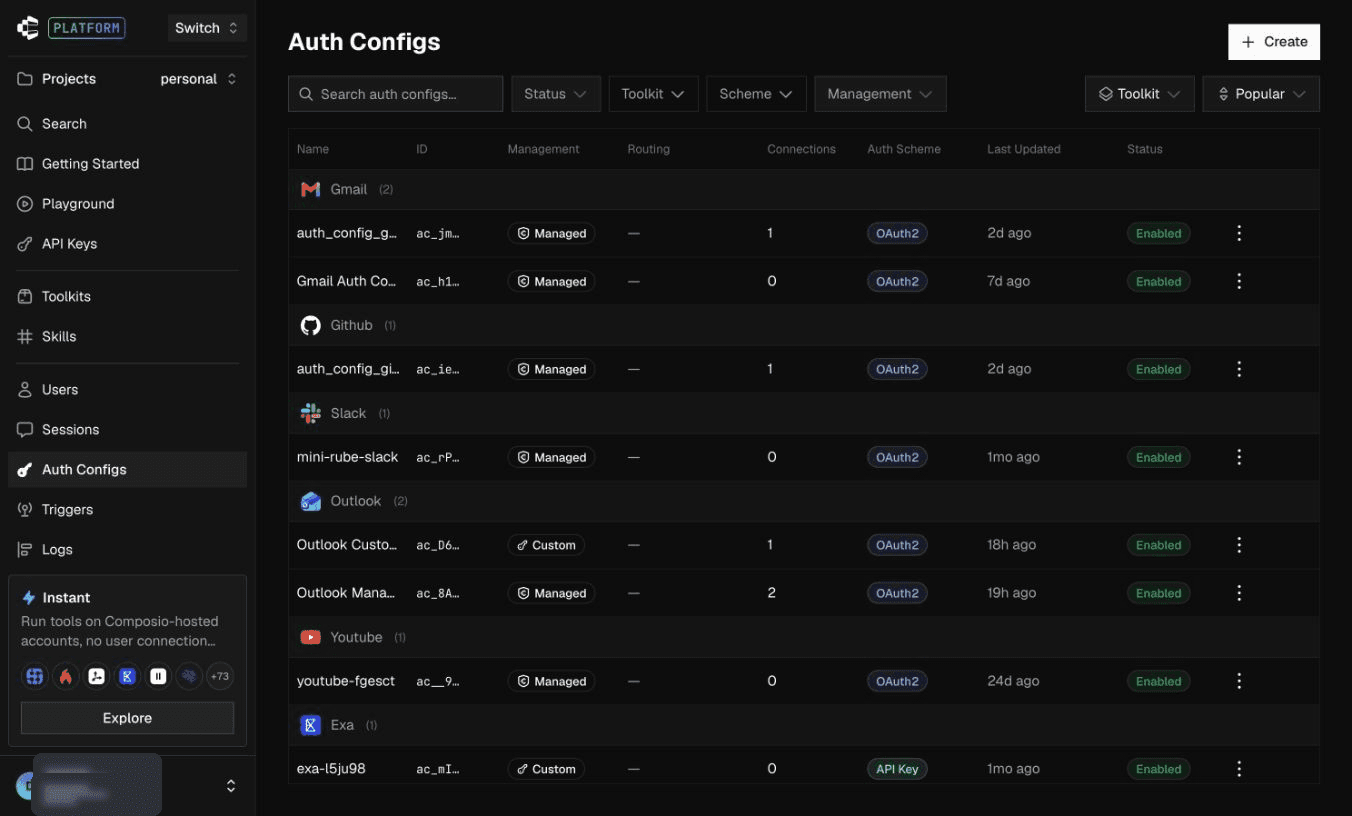
2. Search for and select Bitbucket.

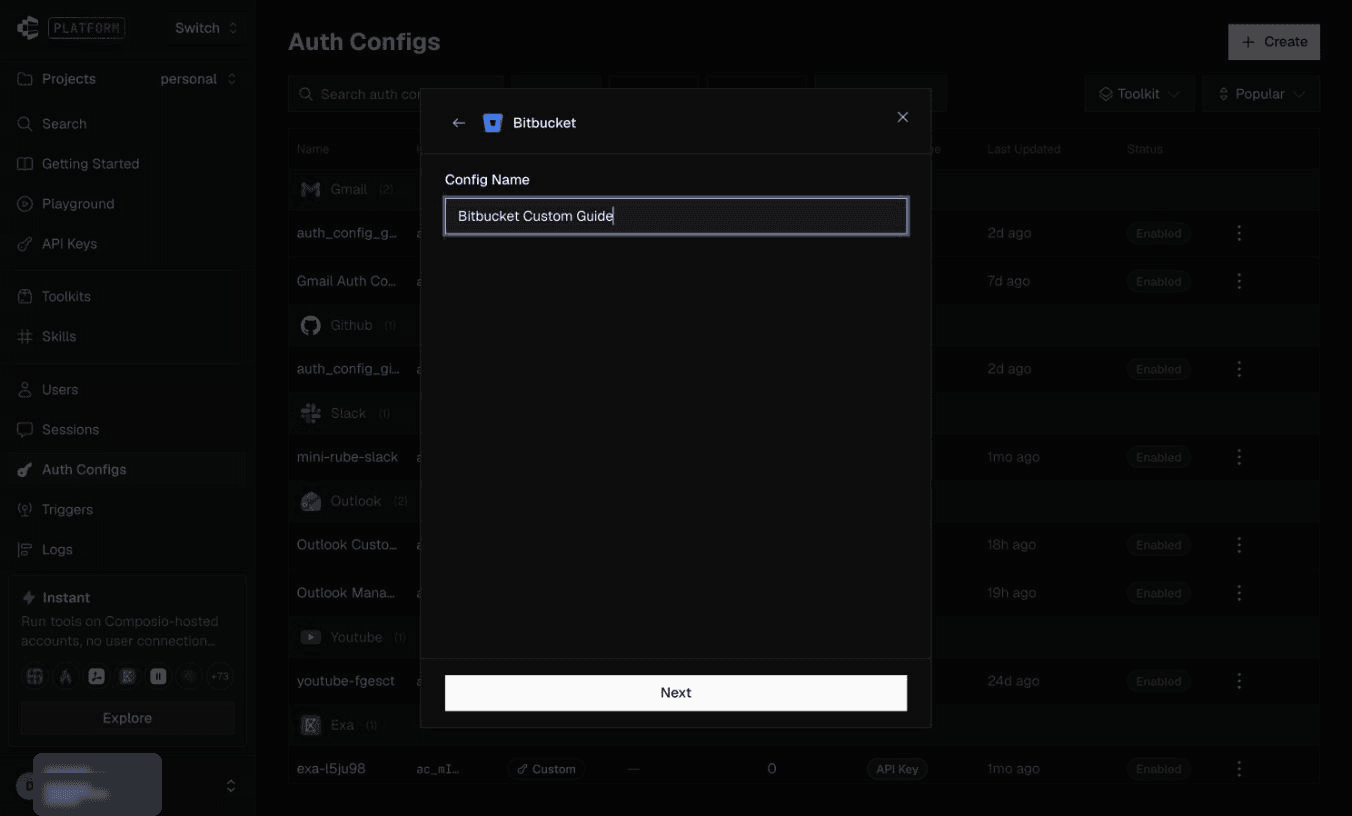
3. Enter a config name and click Next.
Step 2: Use your OAuth client credentials
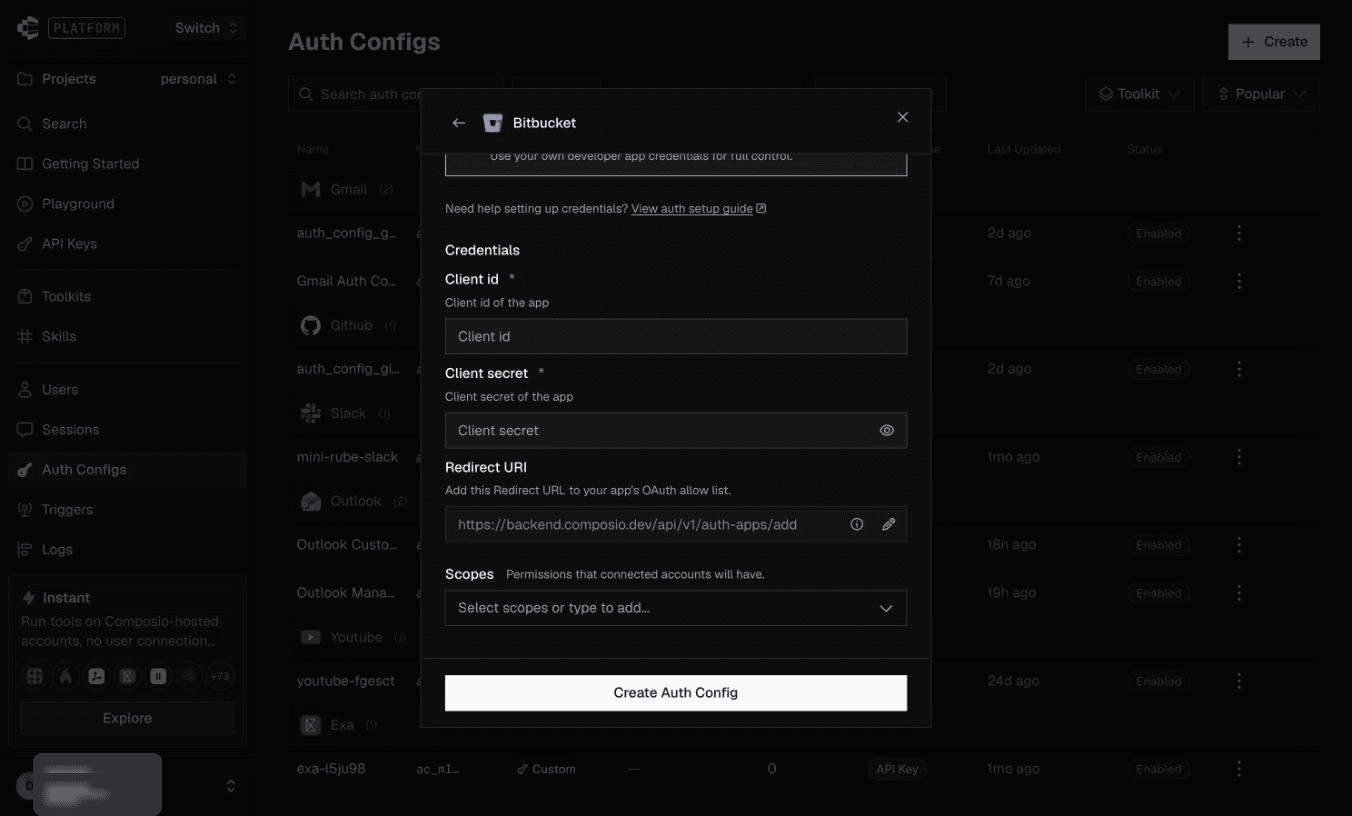
1. Choose OAuth 2.0 and Your Own Credentials. Enter the Bitbucket Client ID and Client secret.

2. Keep the redirect URI that matches the callback registered in Bitbucket. Choose scopes that your OAuth client permits, then click Create Auth Config.
Bitbucket assigns permissions on the OAuth client. Requesting fewer scopes in Composio does not reduce the token’s permissions; change the client’s scopes when you need less access.
Step 3: Connect your Bitbucket account
1. Open the auth config and click Connect Account.
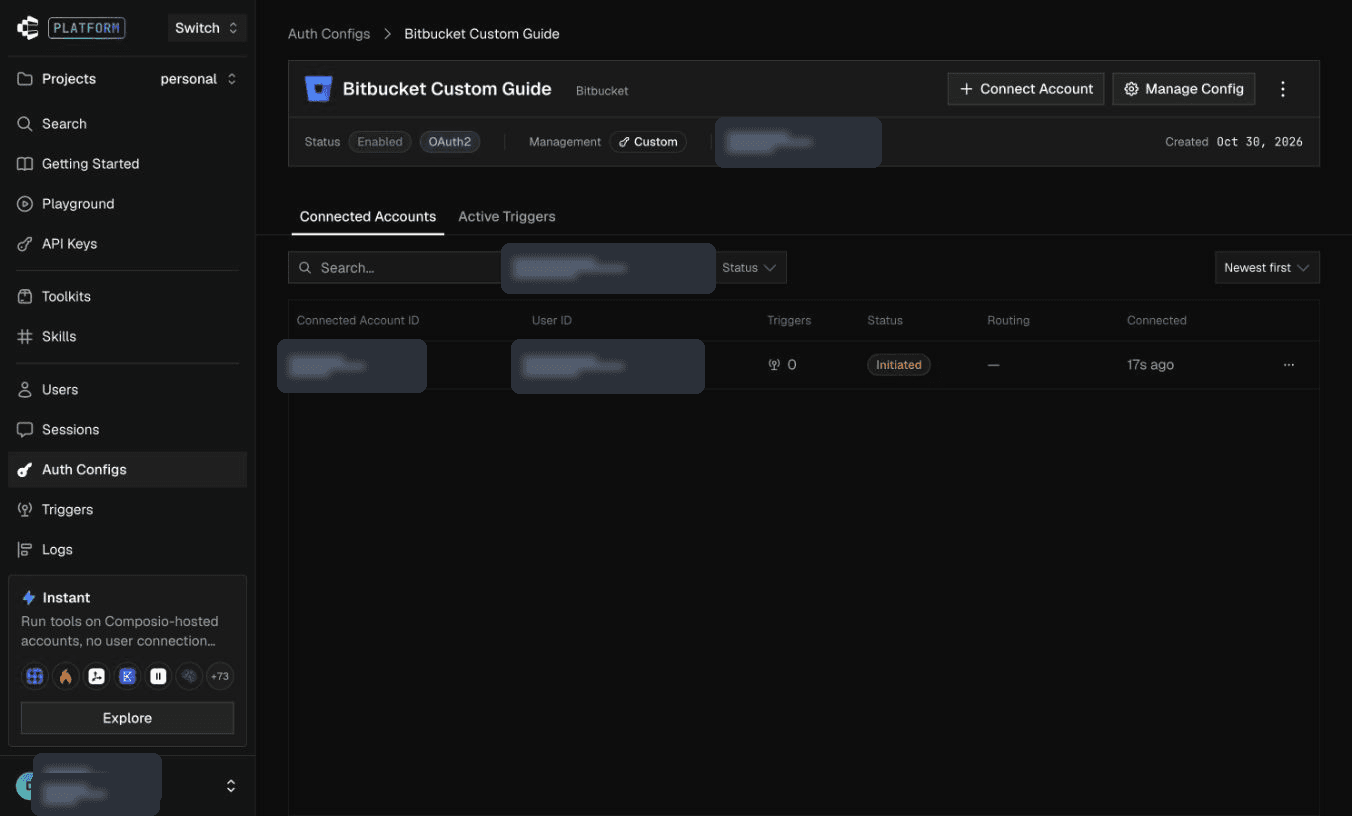
2. Sign in if prompted. Review the application name and requested permissions, then approve access.
Step 4: Confirm the connection is Active
1. Return to the auth config’s Connected Accounts tab and confirm the account shows Active. Copy the Auth Config ID for your application.