




This is a guest post by Anmol Baranwal
Over the past year, I have used ChatGPT for everything from drafting emails to debugging code, and it’s wildly useful.
But I kept finding myself doing the tedious glue work. That repetitive work never felt like a good use of time, so I started looking for something that would close the loop.
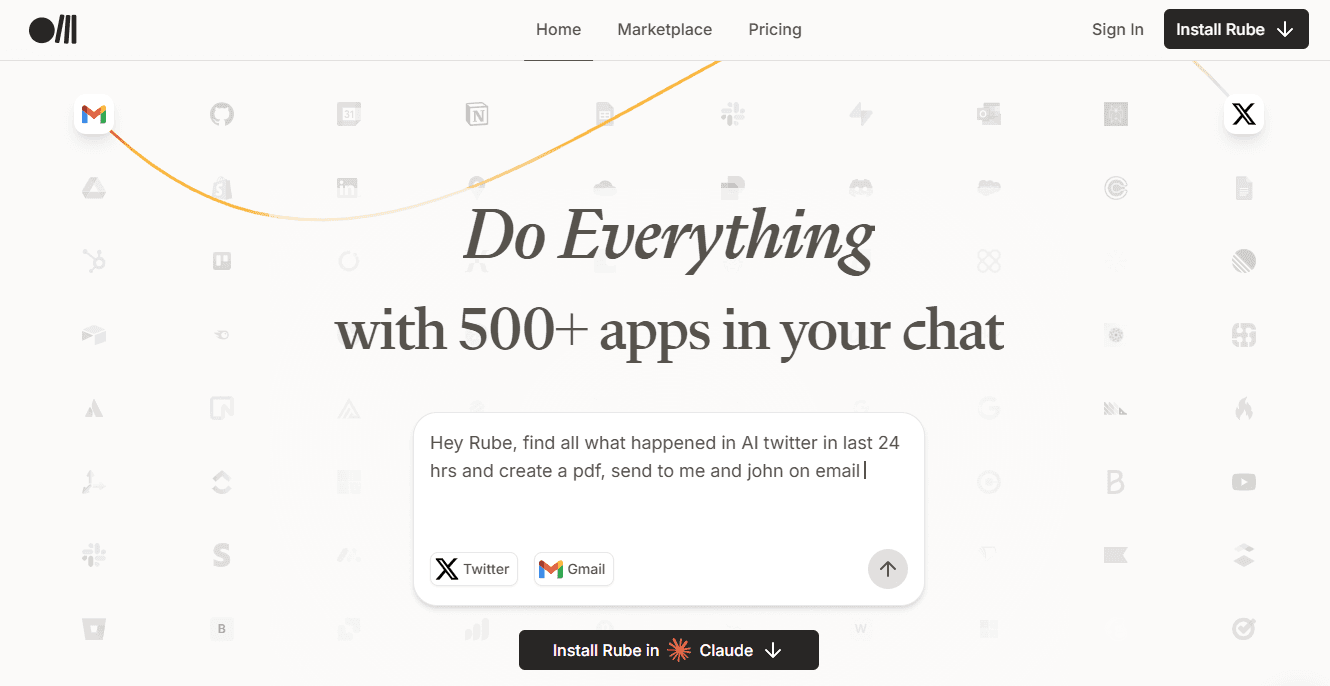
I recently found Rube MCP, a Model Context Protocol (MCP) server that connects ChatGPT and other AI assistants to 500+ apps (such as Gmail, Slack, Notion, GitHub, Supabase, Stripe, Reddit).
For the last few weeks, I have been testing it out & trying to understand how it thinks and works. This post covers everything I picked up.
What is covered?
What is MCP? (Brief Intro)
What is Rube MCP & and how does it help?
How Rube Thinks: Meta Tools, Planning & Execution
How does it work under the hood?
Connecting Rube to ChatGPT
Three practical examples with demos.
What’s Still Missing.
We will be covering a lot, so let's get started.
What is MCP?
MCP (Model Context Protocol) is Anthropic's attempt at standardizing how applications provide context and tools to LLMs. Think of it like HTTP for AI models - a standardized protocol for AI models to “plug in” to data sources and tools.
Instead of writing custom integrations (GitHub, Slack, databases, file systems), MCP lets a host dynamically discover available tools (tools/list), invoke them (tools/call) and get back structured results.
This mimics function-calling APIs but works across platforms and services. If you are interested in reading more, here are a couple of good reads:

credit: ByteByteGo
Now that you understand MCP, here’s where Rube MCP comes in.
What is Rube MCP & why does it matter?
MCP provides a standardised “tool directory” so AI can discover and call services using JSON-RPC, without each model having to memorise all the API details.
Rube is a universal MCP server built by Composio. It acts as a bridge between AI assistants and a large ecosystem of tools.
It implements the MCP standard for you, serving as middleware: the AI assistants talk to Rube via MCP and Rube talks to all your apps via pre-built connectors.
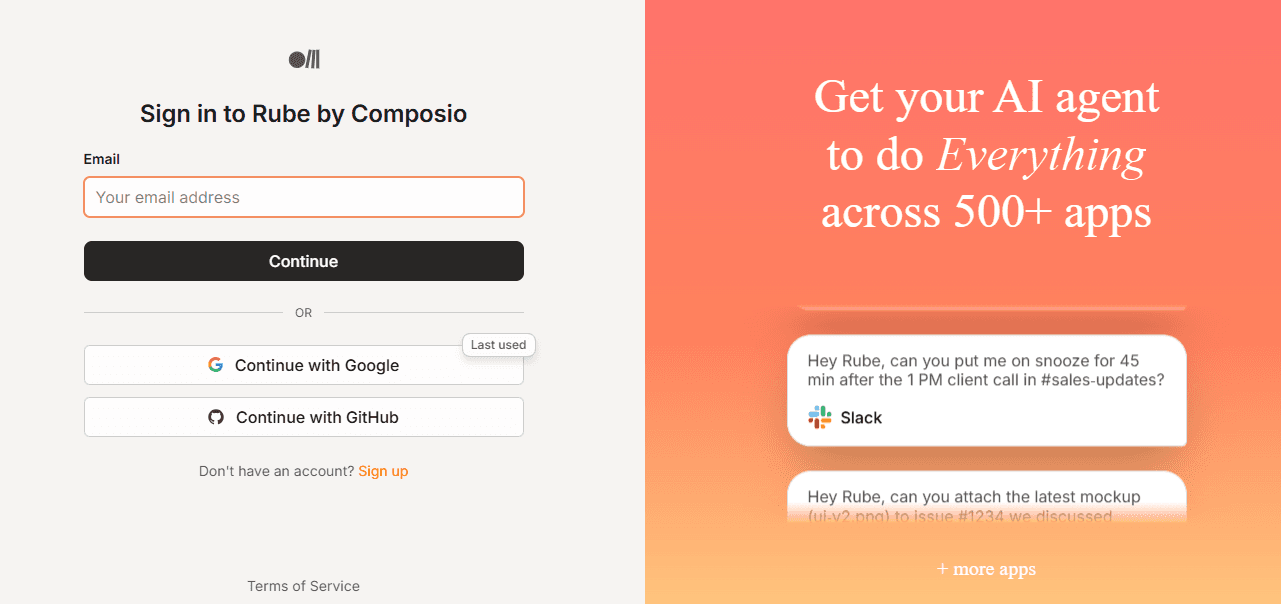
You get a single MCP endpoint (like https://rube.app/mcp) to plug into your AI client, while Composio manages everything (adapters, authentication, versioning and connector updates) behind the scenes. Check it out here: rube.app
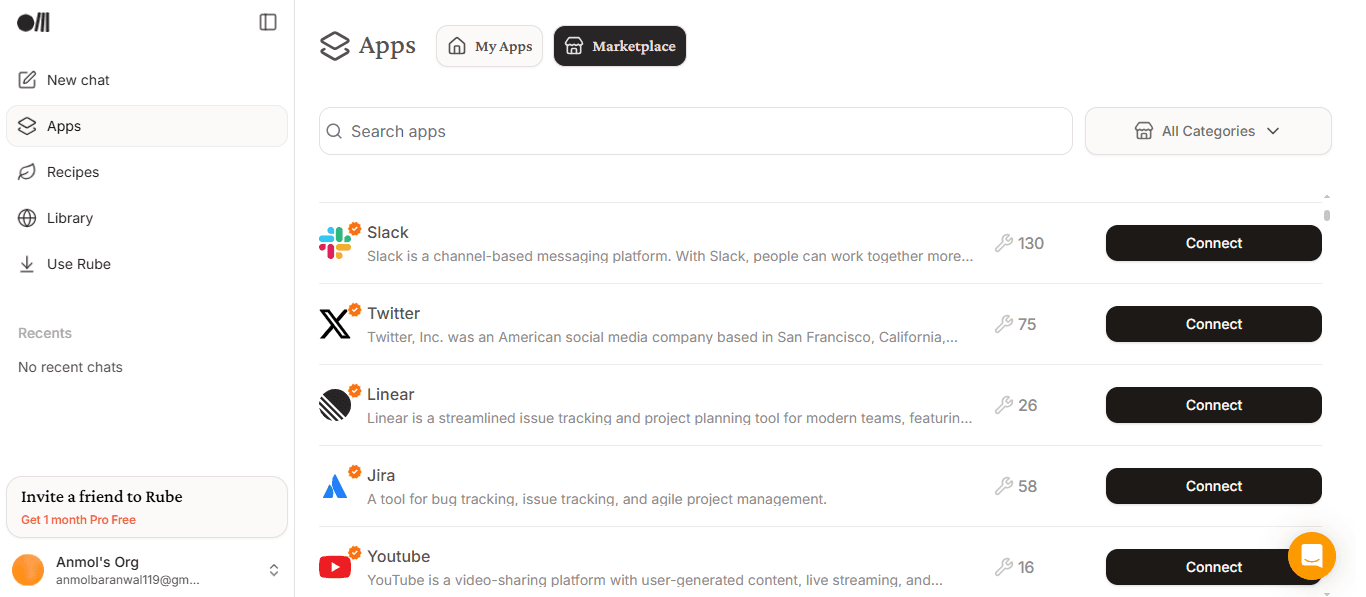
Once you sign up on the website, you can check recent chats, connect/remove apps at any time and find/enable any supported app in the marketplace.
You can integrate Rube with:
ChatGPT (Developer Mode or Custom GPT)
Agent Builder (OpenAI)
Claude Desktop
Claude Code
Cursor/VS Code
Any generic MCP-compatible client via HTTP / SSE transport (you point it to
https://rube.app/mcp)
You can also do it for systems like N8N, custom apps or automation platforms using Auth Headers (signed tokens or API keys) with HTTP requests.
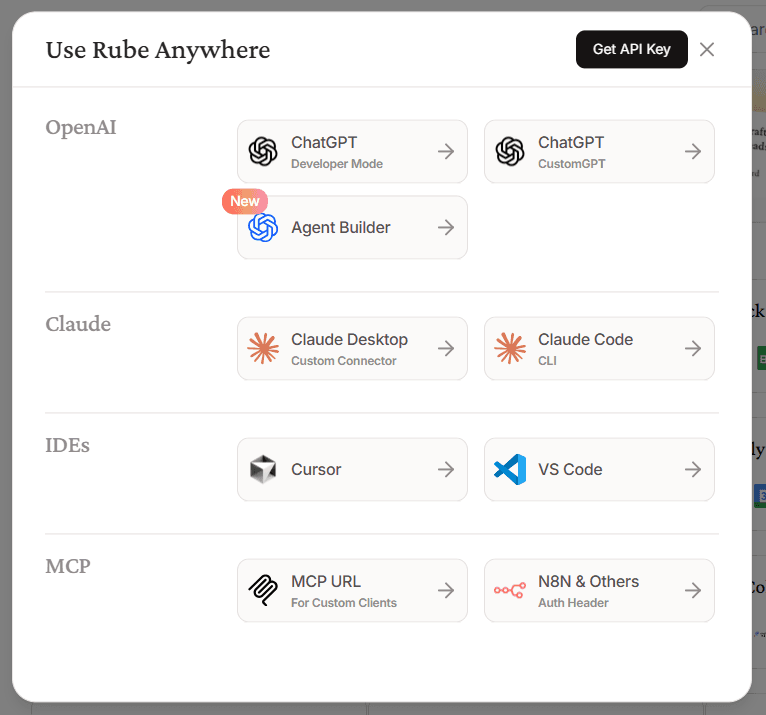
We will be covering how to set it up later, but you can find the detailed instructions on the website.
Where it helps
Sure, AI Assistants can write beautiful code, explain complex concepts and even help you debug, but when it comes to actually doing anything in your workflow, they are not really useful.
Rube solves this major problem. Instead of the model guessing which API to use or dealing with OAuth, Rube translates your plain-English request into the correct API calls.
For example, Rube can parse:
“Send a welcome email to the latest sign-up”into Gmail API calls“Create a Linear ticket titled ‘Bug in checkout flow”into the right Linear endpoint
Because Rube standardizes these integrations, you don’t have to update prompts every time an API changes.
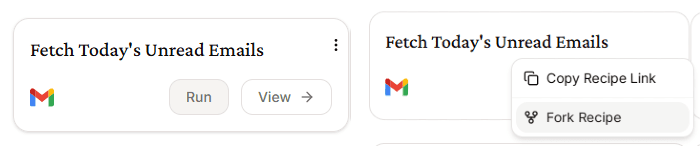
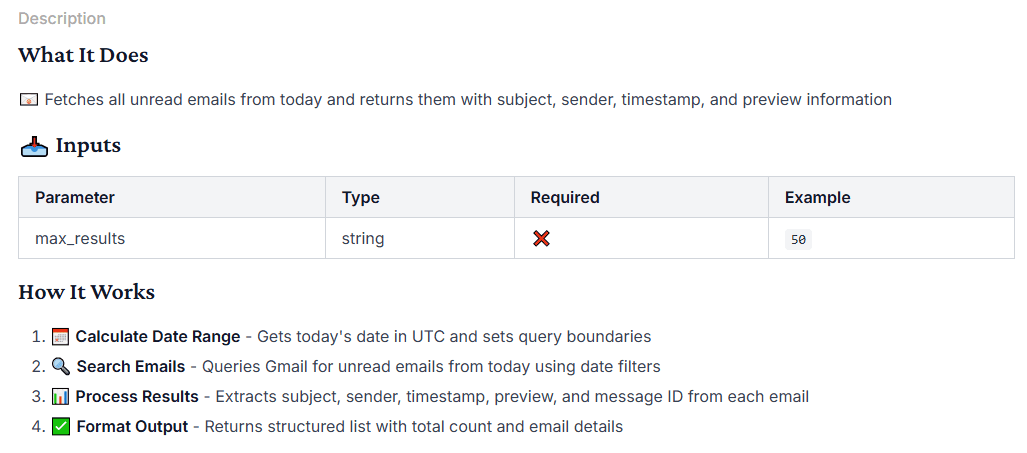
In the dashboard, you will also find a library of recipes. They are basically a list of shortcuts that turn your complex tasks into instant automations.
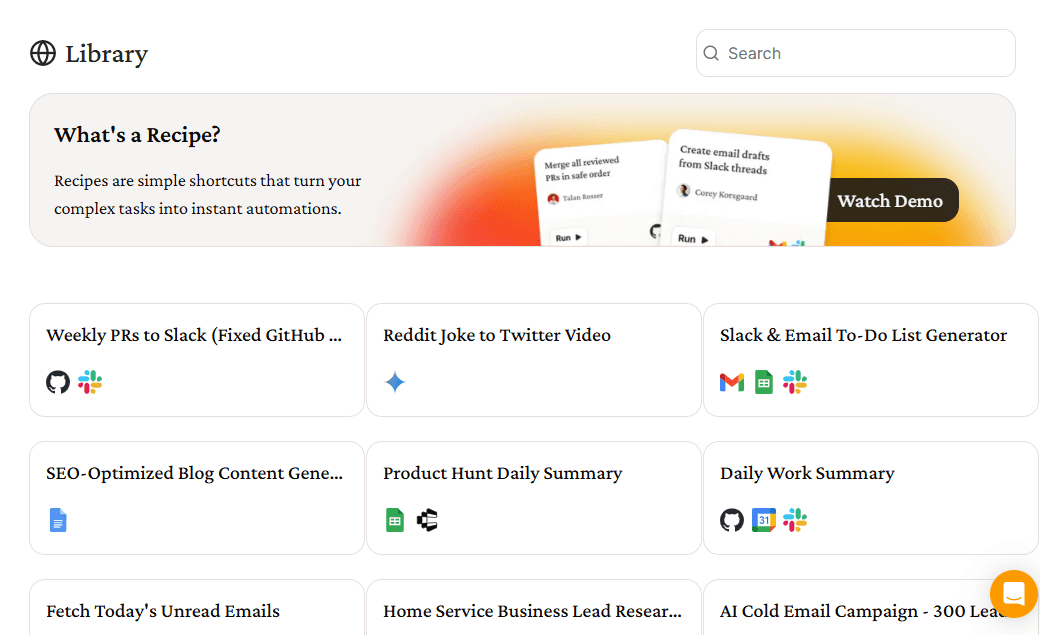
You can view the workflow in detail, run it directly, or even fork it to modify based on your needs.
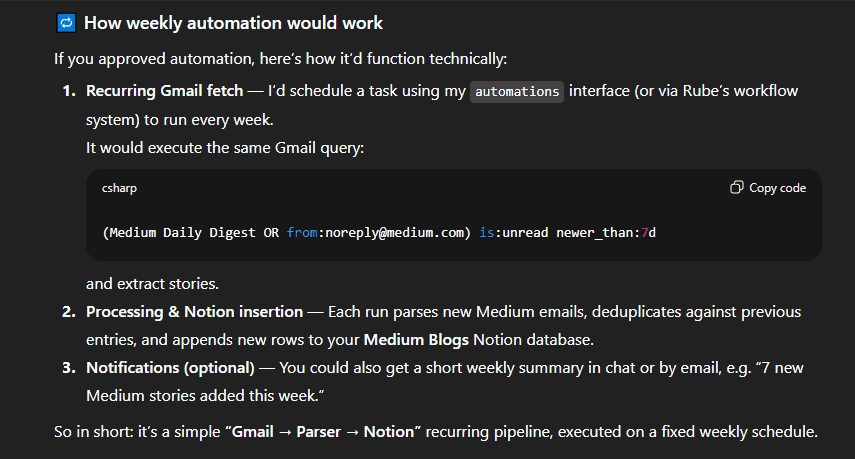
If you are wondering how automation would actually work, you can try asking Rube itself. In my case, it would be as follows.
Security & Privacy
Rube is designed with privacy-first principles. Credentials flow directly between you and the app (via OAuth 2.1).
Rube (Composio) never sees your raw passwords. All tokens are end-to-end encrypted.
You choose which apps to connect and which permissions each has. You can remove an app from the Rube dashboard at any time.
For teams, Rube supports shared connection, which means one person can connect Gmail for the team, and everyone’s ChatGPT can use it (without re-authenticating).
How Rube Thinks: Meta Tools, Planning & Execution
Rube thinks through your requests using built-in meta tools. The smart layer (planning, workbench) handles the complex parts automatically.
These meta tools run on top of Rube's MCP protocol.
✅ RUBE_SEARCH_TOOLS is a meta tool that inspects your task description and returns the best tools, toolkits and connection status to use for that task.
For example, to check Medium emails in Gmail and write summaries into a Notion page, you can call:
RUBE_SEARCH_TOOLS({
  session: { id: "vast" },
  use_case: "Fetch unread Gmail messages from last 30 days that mention Medium Daily Digest or are from [noreply@medium.com](mailto:noreply@medium.com), then add rows to a Notion database page titled Medium Blogs with columns for Title, Summary and Priority",
  known_fields: "sender:noreply@medium.com, query_keyword:Medium Daily Digest, days:30, notion_page_title:Medium Blogs"
})
A successful response for this task looks like (trimmed to the most important fields):
{
  "data": {
    "main_tool_slugs": [
      "NOTION_SEARCH_NOTION_PAGE",
      "NOTION_CREATE_NOTION_PAGE",
      "NOTION_ADD_MULTIPLE_PAGE_CONTENT"
    ],
    "related_tool_slugs": [
      "NOTION_FETCH_DATA",
      "NOTION_GET_ABOUT_ME",
      "NOTION_UPDATE_PAGE",
      "NOTION_APPEND_BLOCK_CHILDREN",
      "NOTION_QUERY_DATABASE"
    ],
    "toolkits": [
      { "toolkit": "NOTION", "description": "NOTION toolkit" }
    ],
    "connection_statuses": [
      {
        "toolkit": "notion",
        "active_connection": true,
        "message": "Connection is active and ready to use"
      }
    ],
    "memory": {
      "all": [
        "Medium Blogs page has ID 287a763a-b038-802e-b22f-f8d853f591a0",
        "User is fetching unread emails from last 30 days from noreply@medium.com or with subject containing Medium Daily Digest"
      ]
    },
    "query_type": "search",
    "reasoning": "NOTION is required to create the new page titled \"Medium Blogs\" and to add formatted text blocks. GMAIL is needed to retrieve the email titles, summaries, and priority information that will populate those text blocks.",
    "session": { "id": "vast" },
    "time_info": {
      "current_time": "2025-10-10T16:15:36.452Z"
    }
  },
  "successful": true
}
✅ RUBE_CREATE_PLAN is a planning meta tool that takes your task description and returns a structured, multi‑step workflow: tools to call, ordering, parallelization, edge‑case handling and user‑confirmation rules.
For the same Gmail→Notion workflow, you can call:
RUBE_CREATE_PLAN({
  session: { id: "vast" },
  use_case: "Fetch unread Gmail messages from last 30 days that mention Medium Daily Digest or are from noreply@medium.com, summarize them with an LLM, and insert one row per email into the Medium Blogs Notion database with Title, Summary and Priority columns.",
  difficulty: "medium",
  known_fields: "sender:noreply@medium.com, query_keyword:Medium Daily Digest, days:30, notion_database:Medium Blogs"
})
A successful response for this task looks like (trimmed to the most important fields):
{
  "data": {
    "workflow_instructions": {
      "plan": {
        "workflow_steps": [
          {
            "step_id": "S1",
            "tool": "GMAIL_FETCH_EMAILS",
            "intent": "Fetch IDs of unread Gmail messages from the last 30 days that are either from noreply@medium.com or mention 'Medium Daily Digest' in subject/body.",
            "parallelizable": true,
            "output": "List of message IDs with minimal metadata.",
            "notes": "Paginate with nextPageToken until all results are fetched."
          },
          {
            "step_id": "S2",
            "tool": "GMAIL_FETCH_MESSAGE_BY_MESSAGE_ID",
            "intent": "...",
            "parallelizable": true,
            "output": "...",
            "notes": "..."
          },
          {
            "step_id": "S3",
            "tool": "COMPOSIO_REMOTE_WORKBENCH",
            "intent": "...",
            "parallelizable": true,
            "output": "..."
          },
          {
            "step_id": "S4",
            "tool": "NOTION_SEARCH_NOTION_PAGE",
            "intent": "...",
            "parallelizable": false,
            "output": "..."
          },
          {
            "step_id": "S5",
            "tool": "NOTION_FETCH_DATABASE",
            "intent": "...",
            "parallelizable": false,
            "output": "..."
          },
          {
            "step_id": "S6",
            "tool": "USER_CONFIRMATION",
            "intent": "...",
            "parallelizable": false,
            "output": "..."
          },
          {
            "step_id": "S7",
            "tool": "COMPOSIO_MULTI_EXECUTE_TOOL",
            "intent": "...",
            "parallelizable": true,
            "output": "..."
          }
        ],
        "complexity_assessment": {
          "overall_classification": "Complex multi-step workflow",
          "data_volume": "...",
          "time_sensitivity": "..."
        },
        "decision_matrix": {
          "tool_order_priority": [
            "GMAIL_FETCH_EMAILS (S1)",
            "GMAIL_FETCH_MESSAGE_BY_MESSAGE_ID (S2)",
            "COMPOSIO_REMOTE_WORKBENCH (S3)",
            "NOTION_SEARCH_NOTION_PAGE (S4)",
            "NOTION_FETCH_DATABASE (S5)",
            "USER_CONFIRMATION (S6)",
            "COMPOSIO_MULTI_EXECUTE_TOOL (S7)"
          ],
          "edge_case_strategies": [
            "If S1 yields no IDs, skip S2–S7 and return an empty result.",
            "If the Notion database cannot be found, prompt the user for an alternate target.",
            "If the user denies confirmation in S6, stop before any Notion inserts."
          ]
        },
        "failure_handling": {
          "gmail_fetch_failure": ["..."],
          "notion_discovery_failure": ["..."],
          "insertion_failure": ["..."]
        },
        "user_confirmation": {
          "requirement": true,
          "prompt_template": "...",
          "post_confirmation_action": "..."
        },
        "output_format": {
          "final_delivery": "...",
          "links_and_references": "..."
        }
      },
      "critical_instructions": "Use pagination correctly, respect time-awareness, and always get explicit user approval before irreversible actions.",
      "time_info": {
        "current_date": "...",
        "current_time_epoch_in_seconds": 1760112500
      }
    },
    "session": {
      "id": "vast",
      "instructions": "..."
    }
  },
  "successful": true
}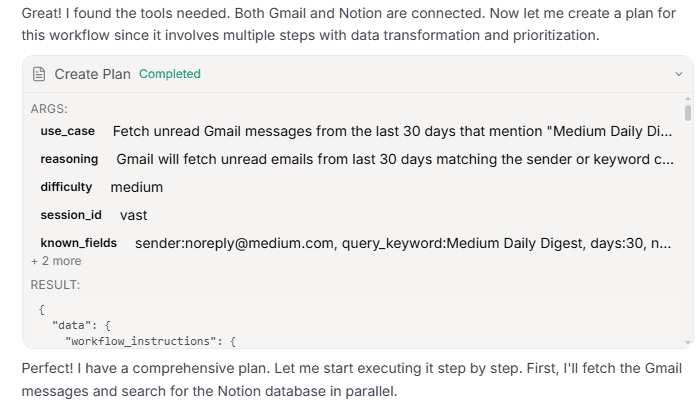
If you are using Rube through another assistant, such as ChatGPT, you will still be able to inspect all calls.
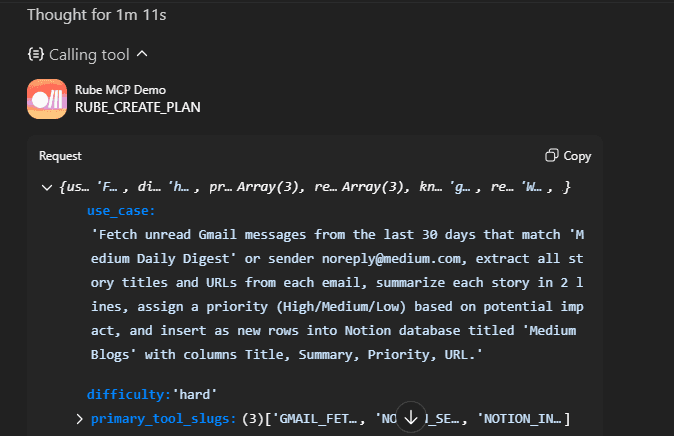
✅ RUBE_MULTI_EXECUTE_TOOL is a high‑level orchestrator that runs multiple tools in parallel, using the plan from RUBE_CREATE_PLAN to batch calls like Gmail fetches or Notion inserts into a single step.
RUBE_MULTI_EXECUTE_TOOL({
  session_id: "vast",
  tools: [ /* up to 20 prepared tool calls, e.g. NOTION_INSERT_ROW_DATABASE for each email */ ],
  sync_response_to_workbench: true
})
Here tools is the list of concrete tool invocations generated from the plan and sync_response_to_workbench: true streams the results into the Remote Workbench so the agent can post‑process outputs or handle failures across the whole batch.
If you have been following the examples, the final “execution engine” in S7 of the last plan used this step.
After the emails are summarized and the user confirms, COMPOSIO_MULTI_EXECUTE_TOOL fires many NOTION_INSERT_ROW_DATABASE (and similar) calls concurrently so each Medium email becomes a Notion row without the agent manually looping over tools.
{
  "step_id": "S7",
  "tool": "COMPOSIO_MULTI_EXECUTE_TOOL",
  "intent": "After user confirmation, insert rows into Notion for all summarized emails by leveraging the discovered database schema, in parallel batches.",
  "parallelizable": true,
  "output": "Created Notion rows and returned row identifiers/links.",
  "notes": "Use NOTION_INSERT_ROW_DATABASE per email. If there are many emails, batch in parallel calls (up to tool limits). Reference: Notion insert API usage [Notion API — Create a page in a database](https://developers.notion.com/docs/working-with-dilters#create-a-page-in-a-database)."
}
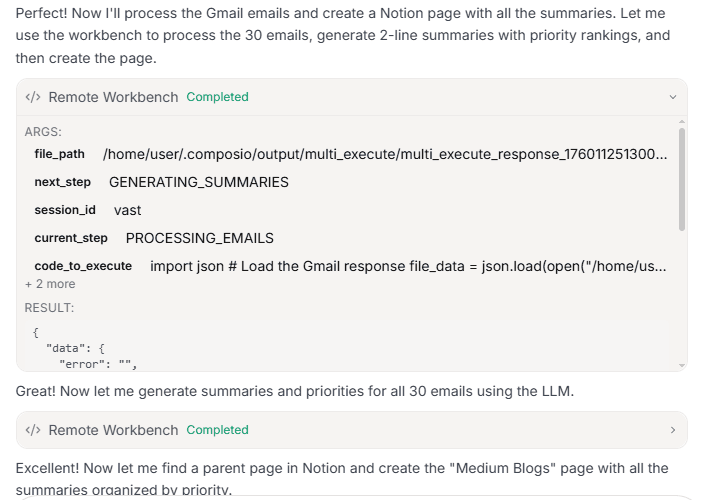
✅ RUBE_REMOTE_WORKBENCH is a cloud sandbox for running arbitrary Python between tool calls, perfect for parsing raw API responses, batching LLM calls and preparing data for Notion or other apps (such as parsing email HTML → format for Notion).
For this workflow, it was first called like this:
RUBE_REMOTE_WORKBENCH({
  session_id: "vast",
  current_step: "PROCESSING_EMAILS",
  next_step: "GENERATING_SUMMARIES",
  file_path: "/home/user/.composio/output/multi_execute/multi_execute_response_1760112513002_akfm55.json",
  code_to_execute: "import json\n# Load the Gmail response file\ndata = json.load(open('/home/user/.composio/output/multi_execute/multi_execute_response_1760112513002_akfm55.json'))\n# Extract Medium emails, print counts and a few subjects for debugging..."
})
Inside the sandbox, the script loads the multi‑execute Gmail response JSON from disk, filters out the Medium emails and prints diagnostics, stdout such as “Found 30 Medium emails”, “Extracted 30 emails”, plus the first three subjects.
Basically, to confirm that upstream Gmail calls worked and give the agent something human‑readable to reason about.
The corresponding (trimmed) result looks like:
{
  "data": {
    "stdout": "Found 30 Medium emails\nExtracted 30 emails\n\nFirst 3 email subjects:\n1. ...\n2. ...\n3. ...\n",
    "stderr": "",
    "results_file_path": null,
    "session": { "id": "vast" }
  },
  "successful": true
}
The agent then reuses the same workbench in later steps (with different current_step/next_step and code_to_execute) to batch LLM calls and write cleaned summaries to a file that the Notion tools consume. But the calling pattern is always the same.
The next section goes deep on how it works under the hood, which is the MCP transport layer (JSON-RPC, connectors).
How Rube MCP Works (Under the Hood)
At a high level, Rube is an MCP server that implements the MCP spec on the server side. Your AI client communicates with Rube over HTTP/JSON-RPC.
Whenever you ask the AI to “send a message” or “create a ticket,” here’s what happens behind the scenes:
✅ 1. AI Client → Rube MCP Server
It first requests a tool catalog, a machine-readable list of everything Rube can do. When you trigger a command, the client sends a tool call (a JSON-RPC request) to Rube with parameters like:
{ "method": "send_email", "params": { "to": "user@example.com" } }Rube returns structured JSON responses. The ChatGPT and other AI interfaces have built-in support for this MCP format, so they handle the conversation around it.
✅ 2. Rube MCP Server → Composio Platform
Rube runs on Composio’s infrastructure, which manages a massive library of pre-built tools (connectors).
When Rube receives a tool call from your AI client (say send_slack_message), it looks up the right connector and hands off the request to Composio. It then routes it to the appropriate adapter.
Think of Rube as a universal translator: it takes structured MCP requests from your AI and turns them into actionable API calls using Composio’s connector ecosystem.
✅ 3. Connector / Adapter Layer
Each app has its own connector or adapter that knows how to talk to that app’s API.
The adapter knows how to handle:
API routes and parameters
Pagination, rate limits, and retries
Response formatting and error handling
return structured JSON back to Rube
This design makes Rube easily extensible: when Composio adds a new connector, it becomes instantly available in Rube without any code changes.
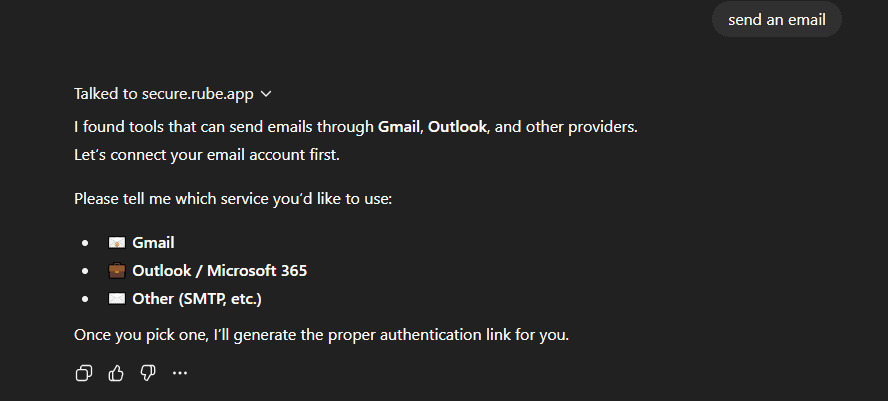
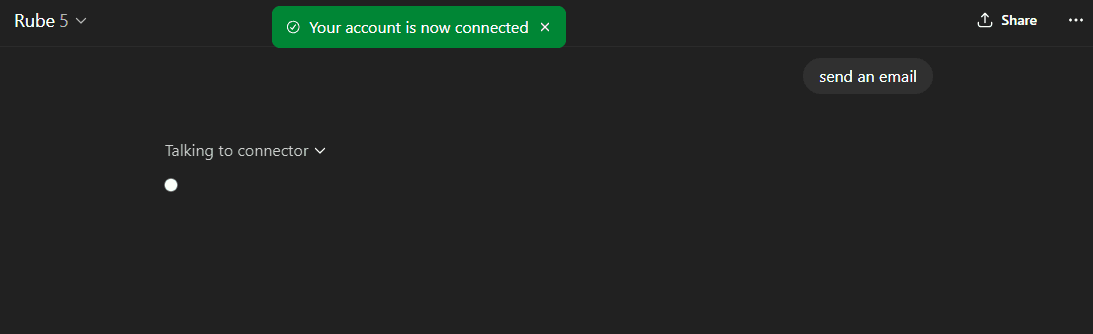
✅ 4. OAuth Flow
When you first connect an app, Rube triggers an OAuth flow. For example, saying “send an email” will prompt you to sign in to Gmail and grant access.
Composio then encrypts and stores your tokens securely, which you can always view, revoke or reauthorise in the dashboard.
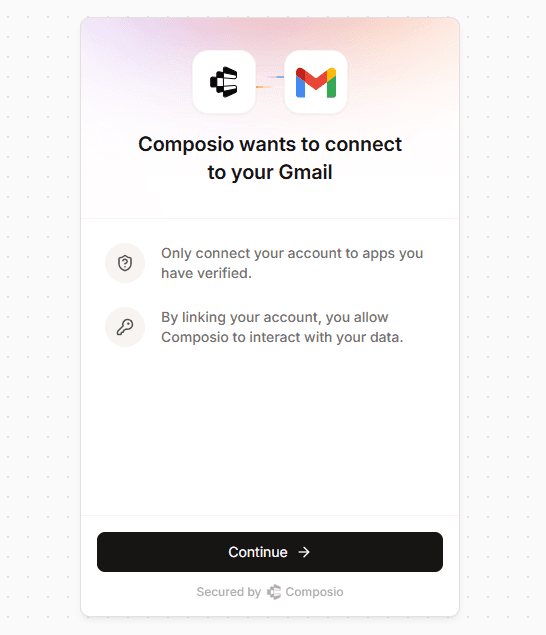
✅ 5. Response & Chaining
Once the connector completes the API call, it returns a structured JSON response back to Rube, which then sends it to your AI client.
The AI can use that data in the next step, like summarising results, creating follow-up actions or chaining multiple tools together in one flow.
A simple example can be: Hey Rube -- check our shared Sales inbox for unread messages from the last 48h. Summarize each in 2 bullets, draft polite replies for high-priority pricing requests and post a summary to #sales-updates on Slack.
So that’s the magic under the hood. Let’s set it up with ChatGPT and see it in action.
Connecting Rube to ChatGPT
There are a few ways to start using Rube: the simplest is to chat directly from the dashboard.
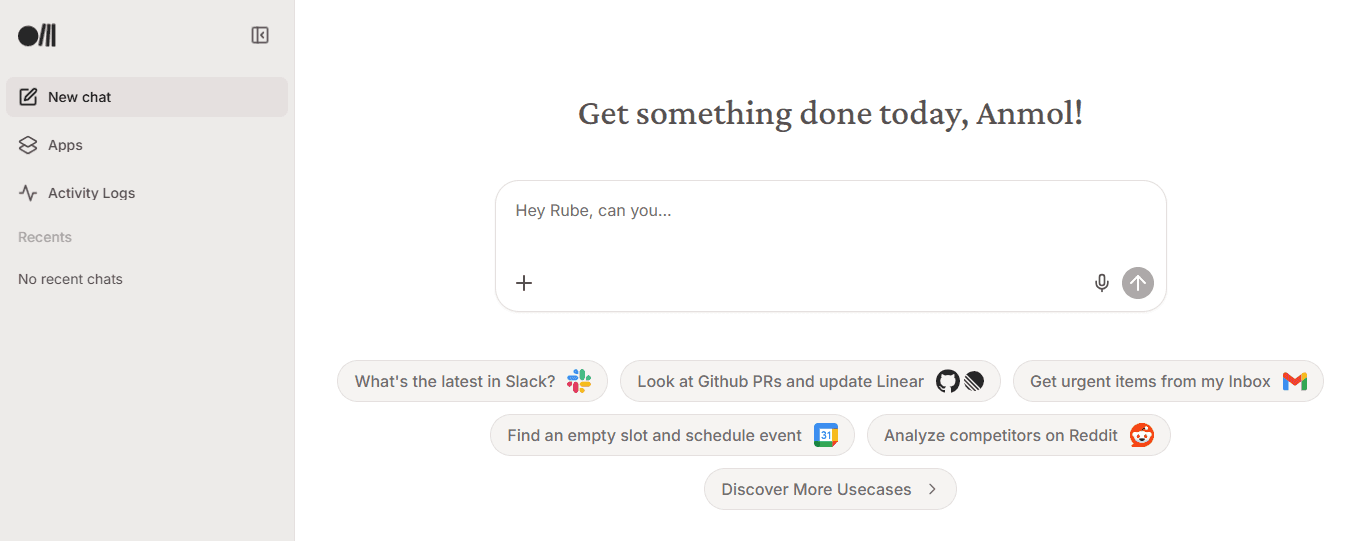
But since we will be using ChatGPT for the demo later, let’s start there.
You can use Rube inside ChatGPT in two ways:
Custom Rube Custom GPT: Just open Custom GPT, connect your apps, and start running Rube-powered actions directly in chat. No setup needed.
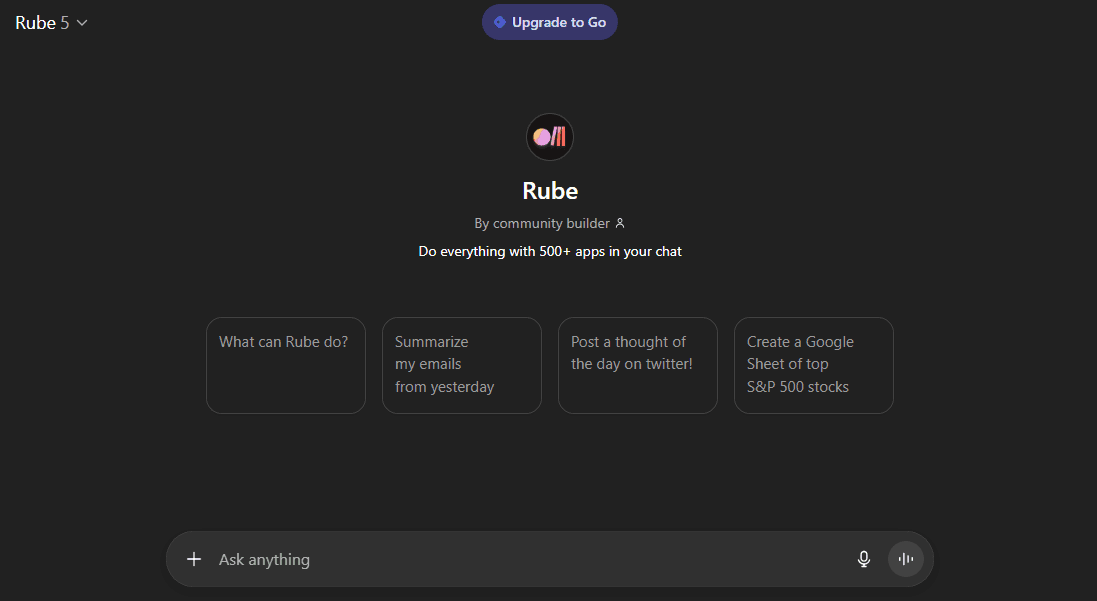
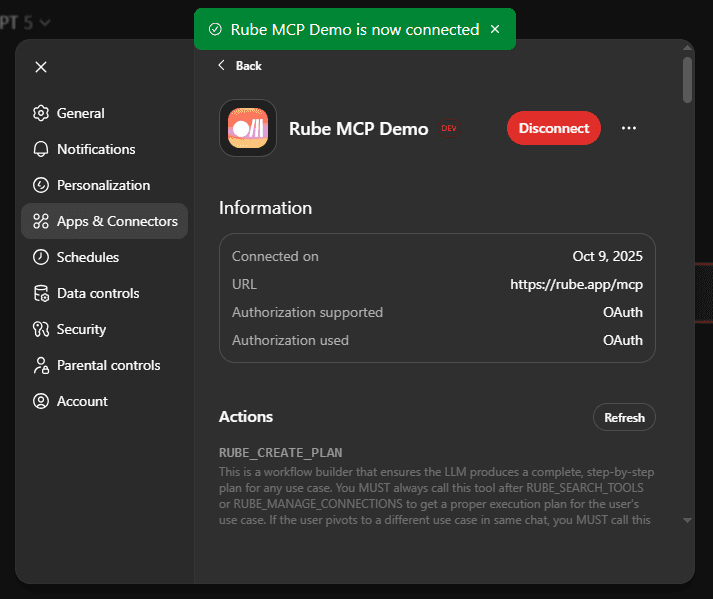
Developer Mode: for advanced users who want to add Rube as an MCP server manually. You will need a ChatGPT Pro plan for this, but it only takes a few minutes to set up. Let’s walk through it step-by-step:
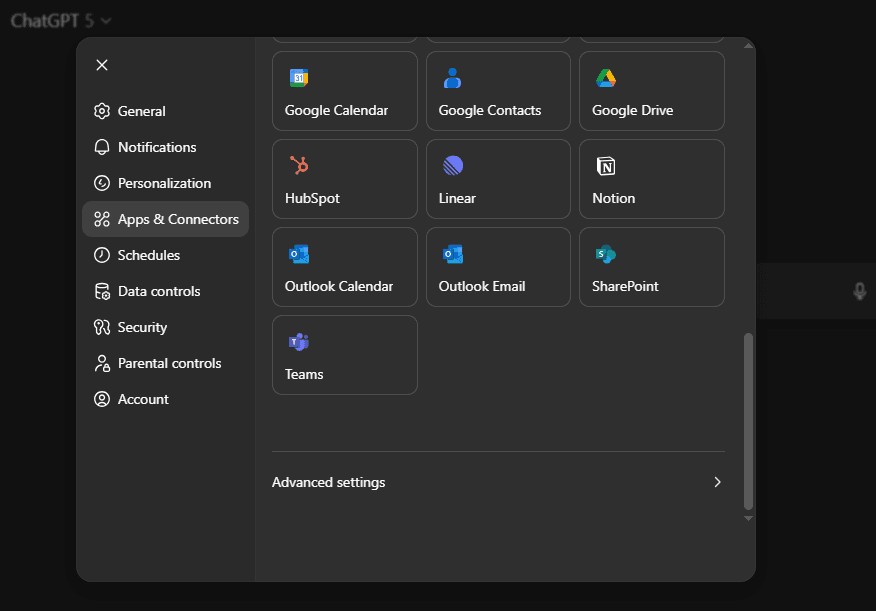
Start by opening ChatGPT Settings, navigating to Apps & Connectors, and then clicking Advanced Settings.
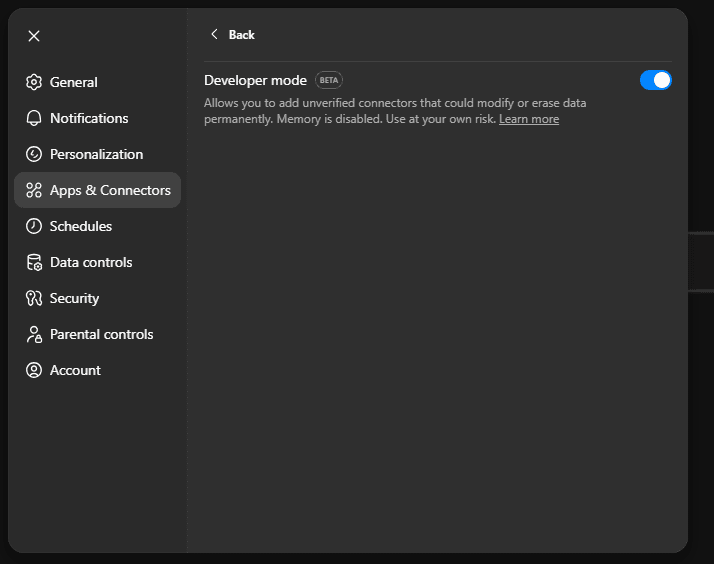
Next, enable Developer Mode to access advanced connector features.
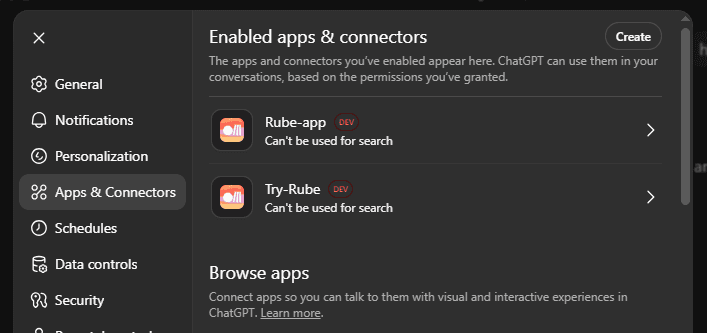
Once enabled, copy the MCP URL (https://rube.app/mcp). You will now see a Create option on the top-right under Connectors.
Click Create, enter the details, including the MCP URL you copied and save.
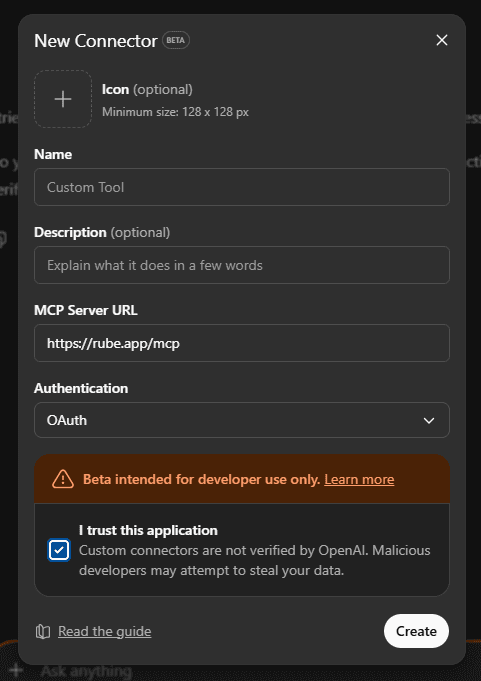
You will have to sign up for Rube to complete the OAuth flow.
After this, Rube will be fully connected and ready to use inside ChatGPT.
I will also show how you can plug Rube into other assistants like Claude and Cursor in case you use those too.
Rube with Cursor
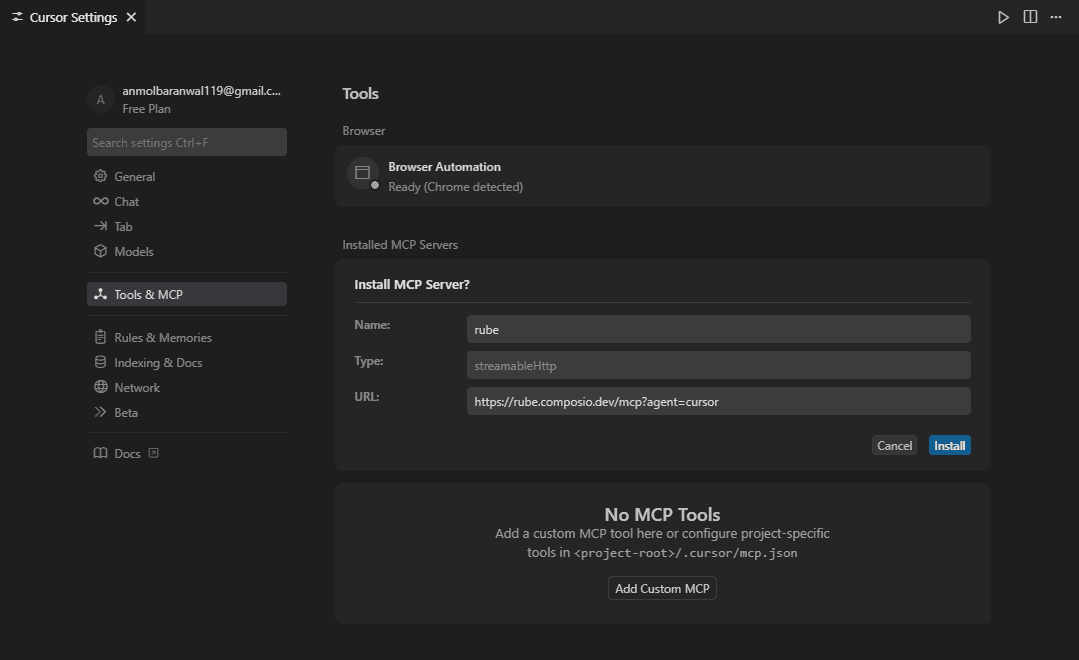
You can also connect Rube with Cursor using this link. It will take you straight to the settings, with the MCP URL already filled in so you can get started right away.
Rube with Claude Code (CLI)
Start by running the following command in your terminal:
claude mcp add --transport http rube -s user "https://rube.app/mcp"This registers Rube as an MCP server in Claude Code. Next, open Claude Code and run the /mcp command to list available MCP servers. You should see Rube in the list.
Claude Code will then prompt you to authenticate. A browser window will open where you can complete the OAuth login. Once authentication is finished, you can use Rube inside Claude Code.

Rube with Claude Desktop
If you are on the Pro plan, you can simply use the Add Custom Connector option in Claude Desktop and paste the MCP URL.
For free plan users, you can set it up via the terminal by running:
npx @composio/mcp@latest setup "https://rube.app/mcp" "rube" --client claudeThis will register Rube as an MCP server, and you will be ready to start using it with Claude Desktop.
If you want to connect to any other platforms that need an Authorization header, you can generate a signed token from the official website.
Practical examples
Seeing Rube in action is always better than just reading about it. Here, we will go through five real-world workflows. The first one will show the full flow, so you can see how Rube saves time and links multiple apps together.
Before you start, make sure your apps are enabled in the marketplace from the dashboard.
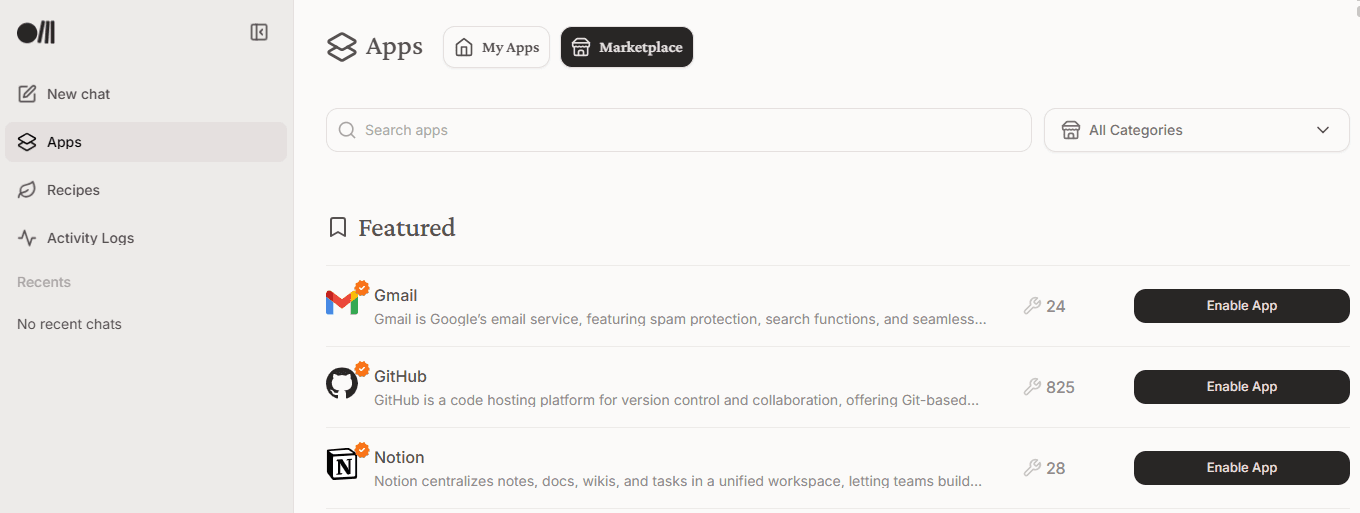
You can easily disconnect and modify scopes depending on your use case.
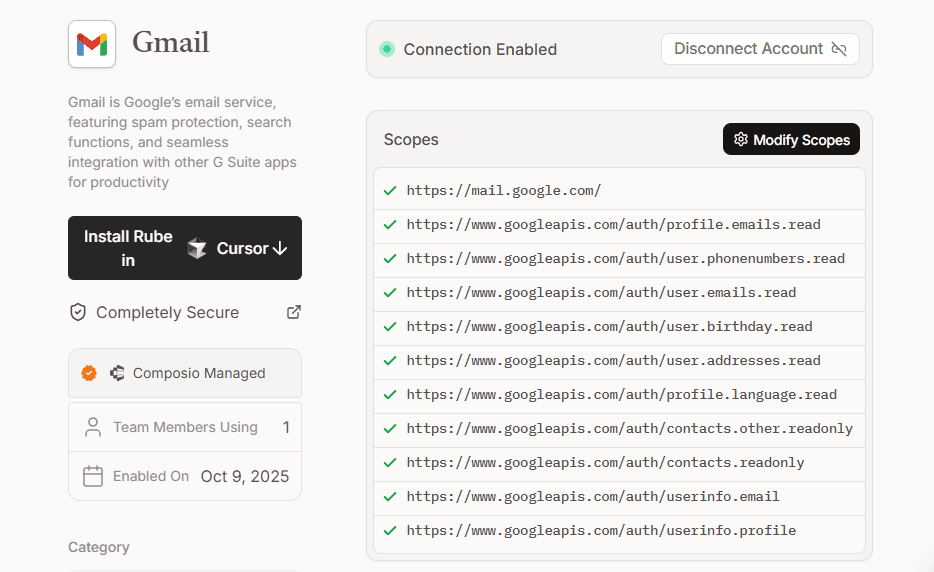
✅ 1. Gmail to Notion Workflow
Let’s start with a simple yet incredibly useful example: automatically turning important emails into Notion tasks.
Every day, Medium sends a “Daily Digest” email (usually from noreply@medium.com) full of trending stories and recommendations.
Rube can automatically fetch the unread Daily Digest emails, pick the most relevant stories and organise them neatly in Notion so you get a clean reading list ready to go.
Here is the prompt:
Hey Rube -- check my Gmail inbox for unread messages from the last 30 days that mention “Medium Daily Digest” or are from noreply@medium.com.

<p>Extract all story titles and links. Summarize each story in 2 lines, assign a priority (High, Medium, Low) based on potential impact,  </p>
<p>and add them as new rows in my Notion page titled “Medium Blogs”<br />with columns: Title, Summary, Priority and URL.</p>
As you can see, this isn’t a simple task. I intentionally made it quite challenging since it:
has to find unread emails
extract links from messy, HTML-heavy content
generate meaningful summaries
and decide what’s actually “relevant” or “high impact”
The overall flow looks like this:
Finding unread emails → Filtering only “Medium Daily Digest” ones → Parsing stories and summaries from HTML → Prioritising by relevance or impact → Creating a structured format in Notion
Here are the snapshots of the flow.
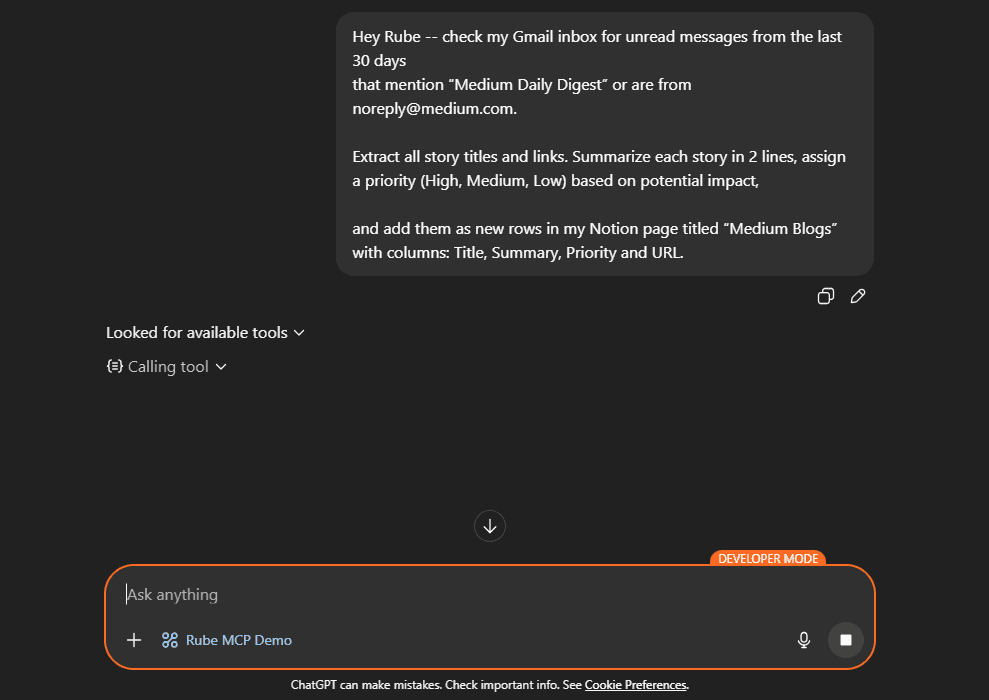
Rube automatically calls the right tools, and you can see everything that happens before approving the actions.
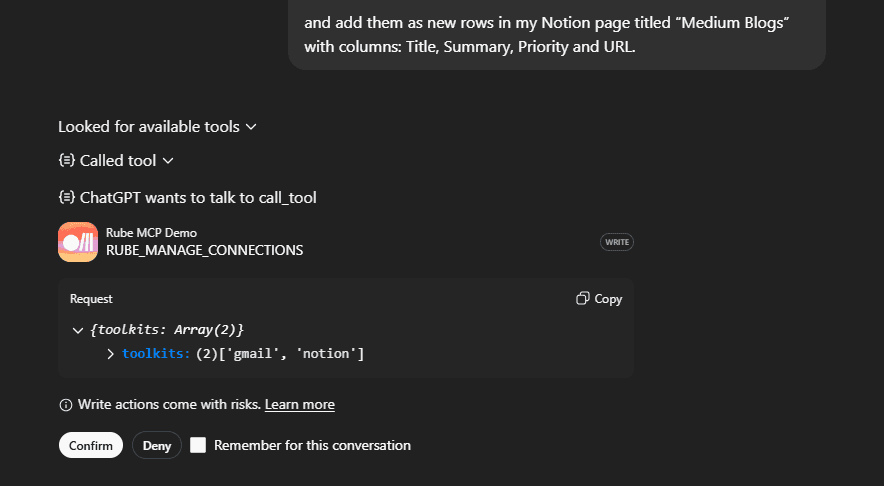
You will also see the full breakdown of tool calls and step-by-step progress:




And the best part: it solved everything automatically and completed the task cleanly.
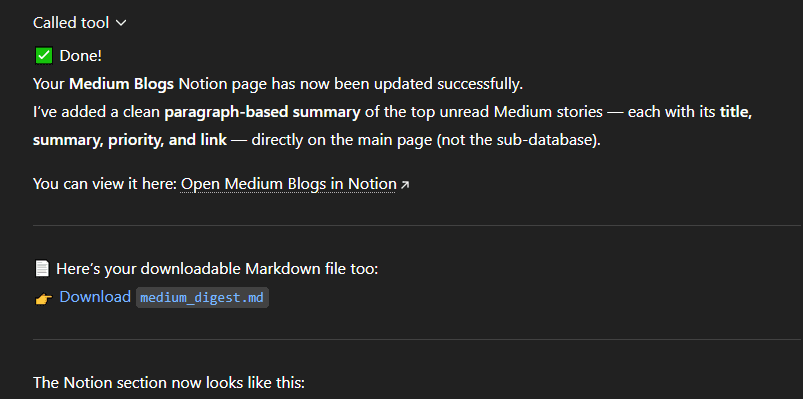
Here is the output notion page after all the entries were added. The links are accurate and clickable.
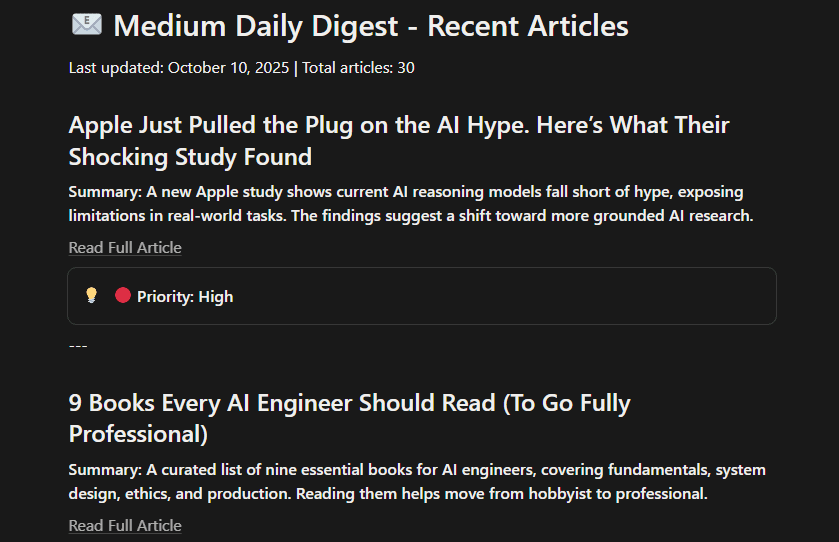
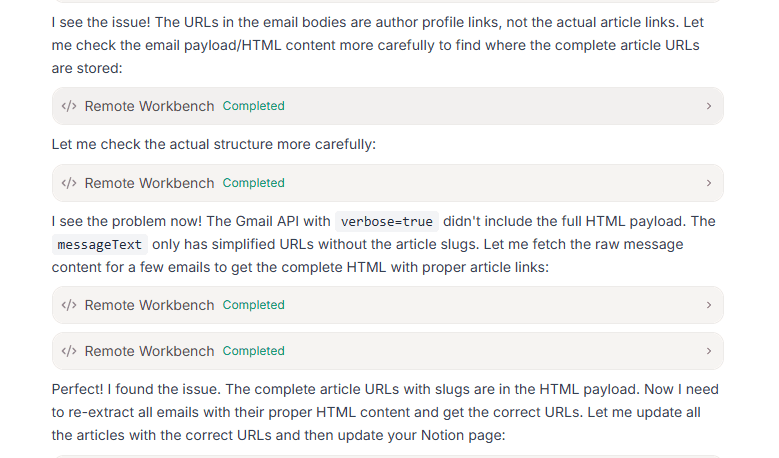
I tried this through multiple ways (ChatGPT with Developer mode, Rube Custom ChatGPT, Rube dashboard Chat), and they all worked equally well.
Here are a couple of snapshots from the dashboard chat:

✅ 2. GitHub → Slack (Developer Notifications)
Let’s say your dev team wants to stay synced after every code change, without having to update each other manually.
Here is the prompt:
Hey Rube -- monitor my GitHub repo “acme/auth-service” for new pull requests or merges.  <p></p>
<p>When a PR is merged, post a message in Slack channel #dev-updates<br />with the PR title, author, link.</p>
✅ 3. Customer Support → GitHub
Support teams often have to bridge the gap between customer tickets and dev work.
Rube can quietly handle most of that coordination for you.
Checks for new or updated Zendesk tickets
Looks up each customer’s record in Salesforce
Finds tickets that mention technical bugs
Creates matching GitHub issues for the dev team
Here is the prompt:
Hey Rube -- check for new Zendesk tickets, pull the customer's order history from Salesforce and create github issues for any technical problems mentionedA simple message, but it connects three different systems end to end.
✅ 4. Research → Notion (Idea Board)
Let’s say you want to brainstorm ideas and need to see what people are talking about online. Rube can search Hacker News and Reddit, pick out the most relevant posts, summarise them quickly and add everything neatly to your Notion page.
This way, your research board stays up-to-date without you having to comb through dozens of links yourself.
Here is the prompt:
Hey Rube -- search Hacker News and Reddit for "MCP server" mentions in the last 14 days  <p></p>
<p>Extract the top 10 posts, summarize each in 3 bullet points and add them to my Notion page "MCP Research Board"  </p>
<p>with: Source, Title, Summary, Link.</p>
✅ 5. Gmail → Draft Replies
Let's say you have got a bunch of emails to respond to, but you don’t want to spend hours drafting them. Rube can check your inbox for recent “Sales” emails, summarise each one and draft polite replies for the high-priority threads.
You can instruct to save them as drafts to review before sending.
Here is the prompt:
Hey Rube -- check my Gmail inbox for unread messages from the last 48 hours labeled "Sales"<p></p>
<p>Summarize each email in 2 bullet points and for high-priority messages asking for pricing or proposals </p>
<p>draft a polite reply and save it as a Gmail draft under the label "Rube-Drafts"</p>
Think about what this means for productivity. Tasks that once required switching between 5+ apps can now happen in a single conversation with Rube.
I personally don't see a learning curve, since you can start using it with a single click.
This is the closest I have seen to a real “AI that gets things done”.
If you have ever wished ChatGPT could take care of the boring stuff, Rube is as close as it gets right now.
Frequently Asked Questions
Do I need to write code or build integrations to use it?
No, with Composio Rube, it’s mostly “connect apps, then chat.” If you use Developer Mode, you add the MCP URL once, and then you can start calling tools from natural language prompts.
What’s the security story with my accounts and data?
You connect apps via OAuth, and you control which apps and permissions are enabled. You can revoke access or remove connections from the Rube dashboard at any time. The idea is that you never hand over raw passwords, and access is scoped to what you approve.
What kinds of workflows does it handle well, and where does it still struggle?
It shines at cross-app glue work: fetch things (emails, tickets, PRs), transform them (summaries, structured fields), then write them somewhere (Notion rows, Slack updates, GitHub issues). It can still struggle with messy real-world inputs (HTML email parsing, fuzzy “priority” judgments), edge cases in APIs, and anything that needs strong human review before an irreversible action.
What happens if an app API changes or a tool fails midway?
Rube has a healing mode. When a workflow fails, the healing loop starts, and most tool misconfiguration is handled. As for API changes, Composio handles maintenance, so even if there's an error, an integrator agent fixes it, or the awesome team comes to the rescue for major changes.

 Get started



