How to create Zendesk OAuth2 credentials and configure it in Composio

How to create Zendesk OAuth2 credentials and configure it in Composio

In this guide, I’ll walk you through the process of customizing the auth config for Zendesk. So, let’s begin.

Setting up Zendesk

In this section, we’ll go through the process of setting up Zendesk and creating an OAuth client.

NOTE: If you already have a Zendesk OAuth client and access to the Client ID and Client Secret, you can skip this section.

Step 1: Create a Zendesk OAuth Client

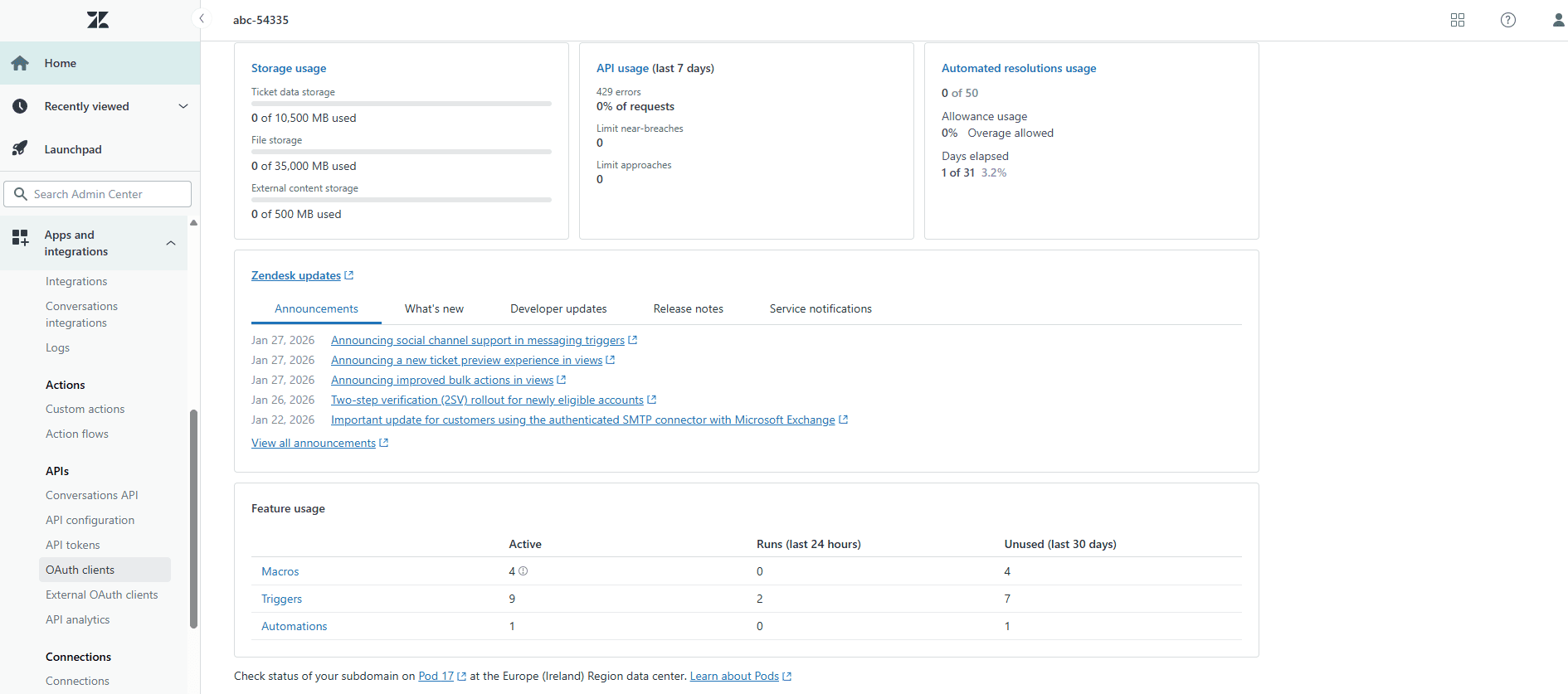
  1. Log in to your Zendesk Admin Center.

  2. In the left sidebar, click Apps and integrations.

  3. Select APIs.

  4. Open the OAuth clients tab.

Image 1
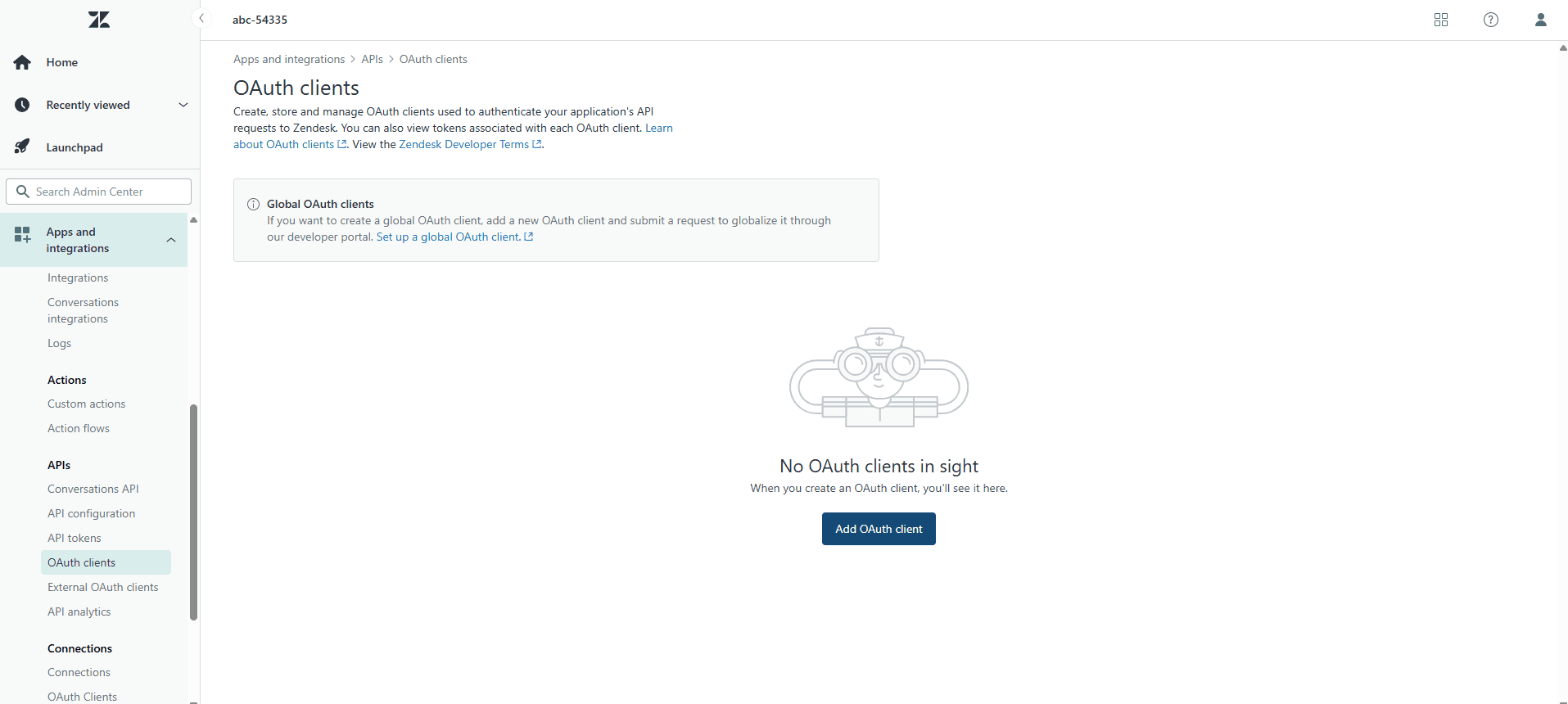
  1. Click Add OAuth client.

Image 2

Step 2: Register Your OAuth Client and Generate Credentials

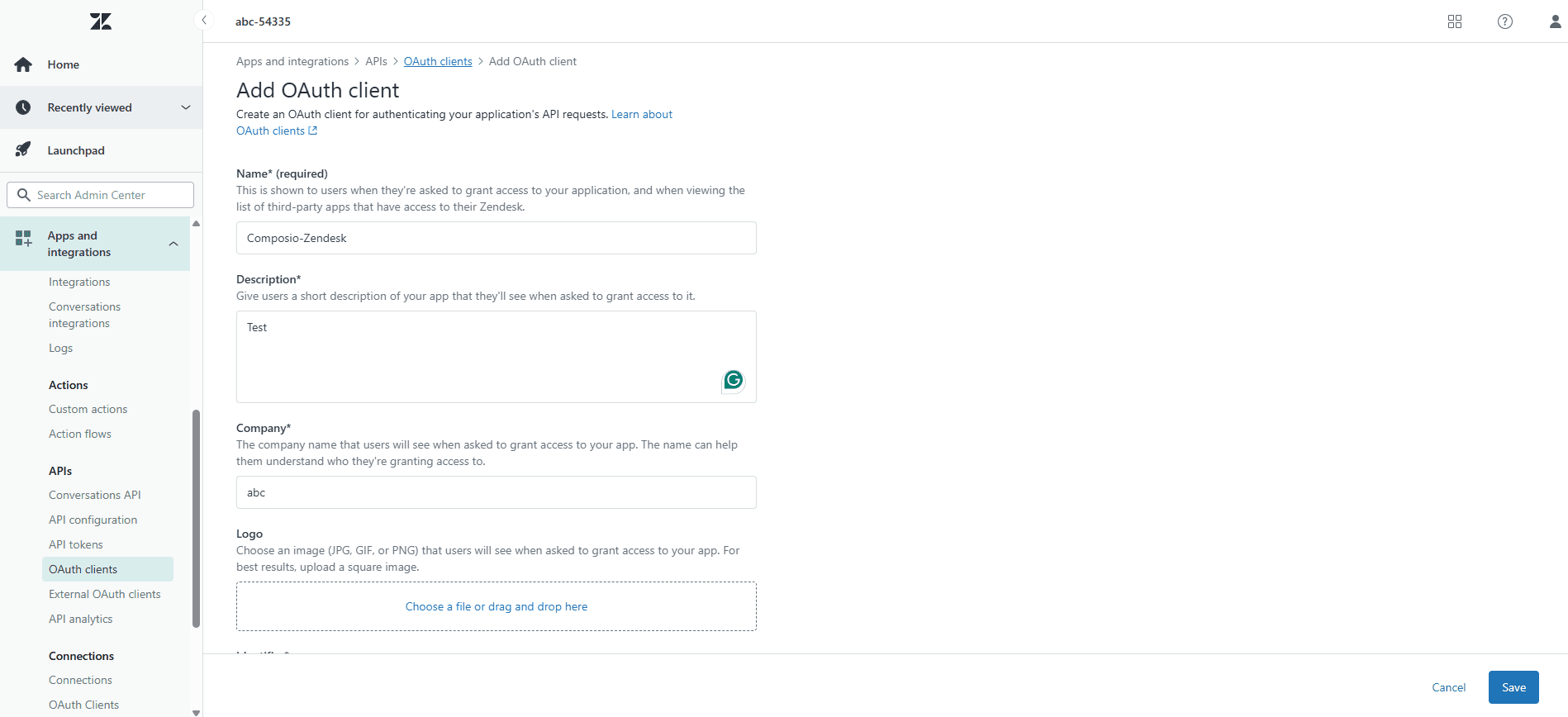
After clicking Add OAuth client, you’ll see the OAuth client creation form.

  1. Fill in the required fields:

  • Client Name:

    Example: Composio-Zendesk

Image 3
  • Description:

    Optional description for your integration

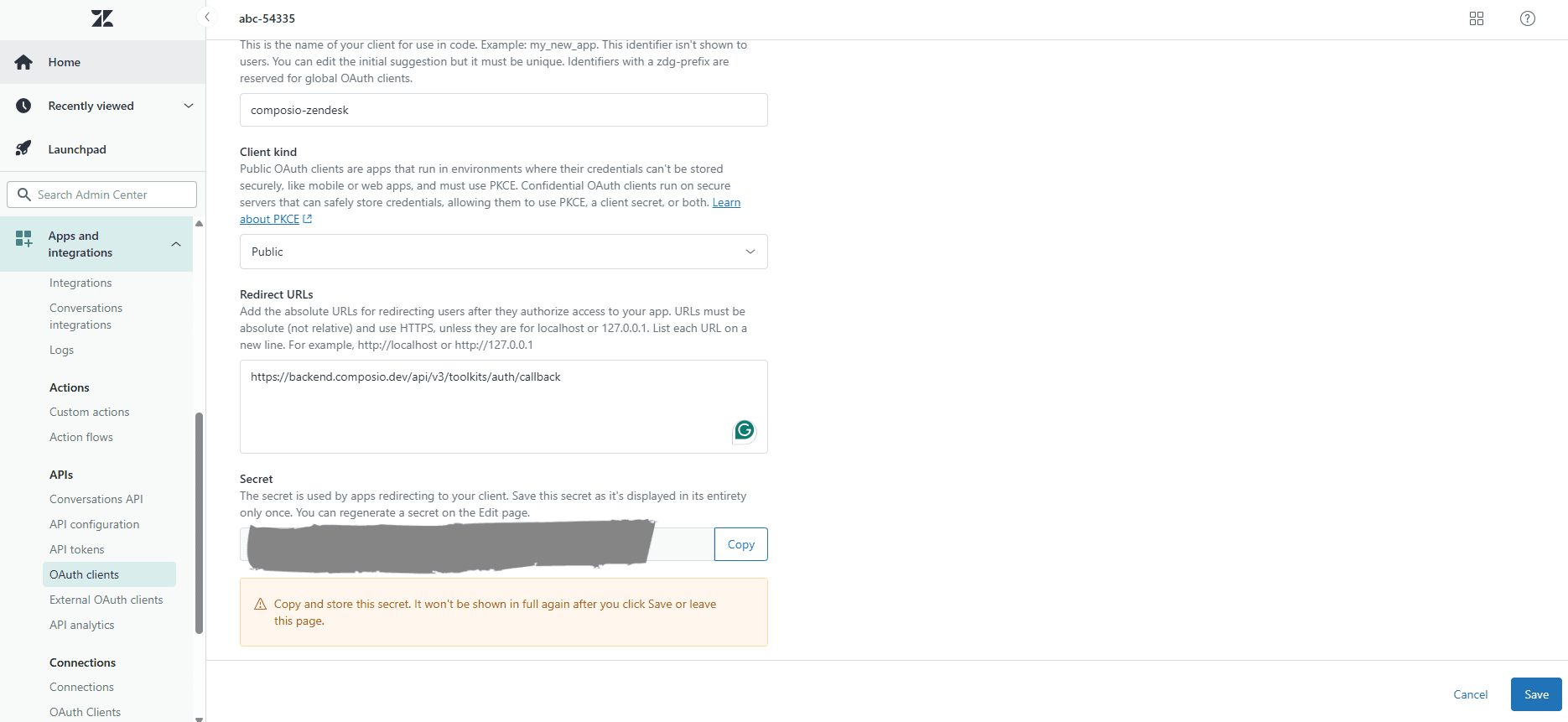
  • Redirect URLs:

https://backend.composio.dev/api/v3/toolkits/auth/callback
Image 4
  1. Once saved, Zendesk will immediately generate:

  • Client ID(Identifier)

  • Client Secret

Copy these values and store them securely, you’ll need them shortly.

Step 3: Configure Redirect URI

Ensure the following Redirect URL is present in your OAuth client configuration:

https://backend.composio.dev/api/v3/toolkits/auth/callback

Important:

  • No trailing slash

  • Must use https

Step 4: OAuth Scopes

Zendesk does not provide a UI to configure OAuth scopes in the Admin Center.

Instead, OAuth scopes are requested at authorization time as part of the OAuth flow.

Zendesk supports the following OAuth scopes:

  • read → Read access to Zendesk resources

  • write → Create and update Zendesk resources

  • delete → Delete Zendesk resources

When using Composio:

  • You do not select scopes in Zendesk

  • You define scopes in Composio’s Auth Config

  • Composio automatically includes the selected scopes in the OAuth authorization request

Example scopes configuration in Composio:

read write

Here’s the actual Composio supported Zendesk scope list:

tickets.read
tickets.write
users.read
users.write
organizations.read
organizations.write
groups.read
groups.write
views.read
views.write
macros.read
macros.write
triggers.read
triggers.write
automations.read
automations.write
webhooks.read
webhooks.write

Note: Zendesk permissions are also constrained by the user’s role (agent, admin, etc.), even if broader OAuth scopes are requested.

Creating the Auth Config in Composio

With your OAuth credentials ready, navigate to the Composio dashboard to configure Zendesk authentication.

  1. Click Create Auth Config to view all available toolkits.
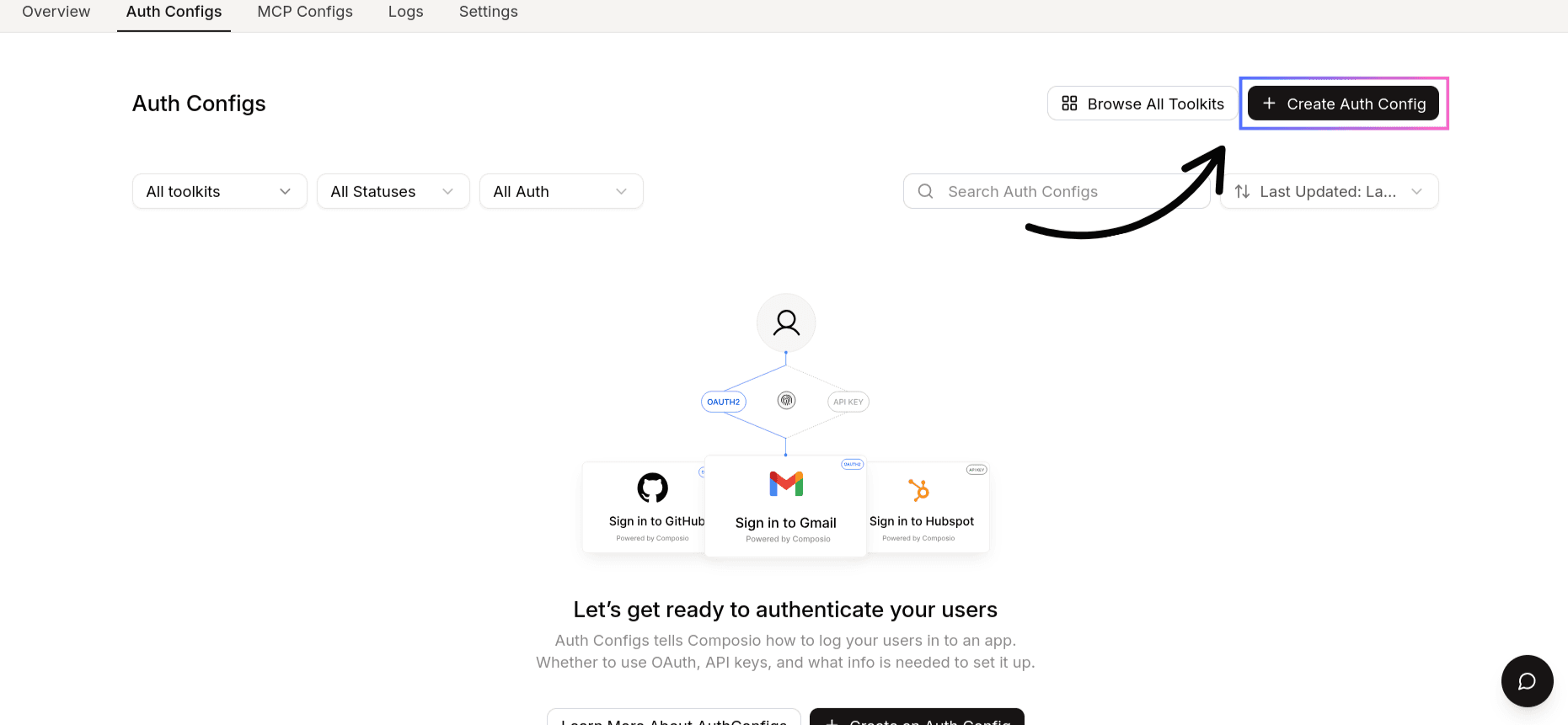
Image 5
  1. In the sidebar that opens, choose Xero for the toolkit. Stick with all the default settings for now, as we'll configure it shortly.
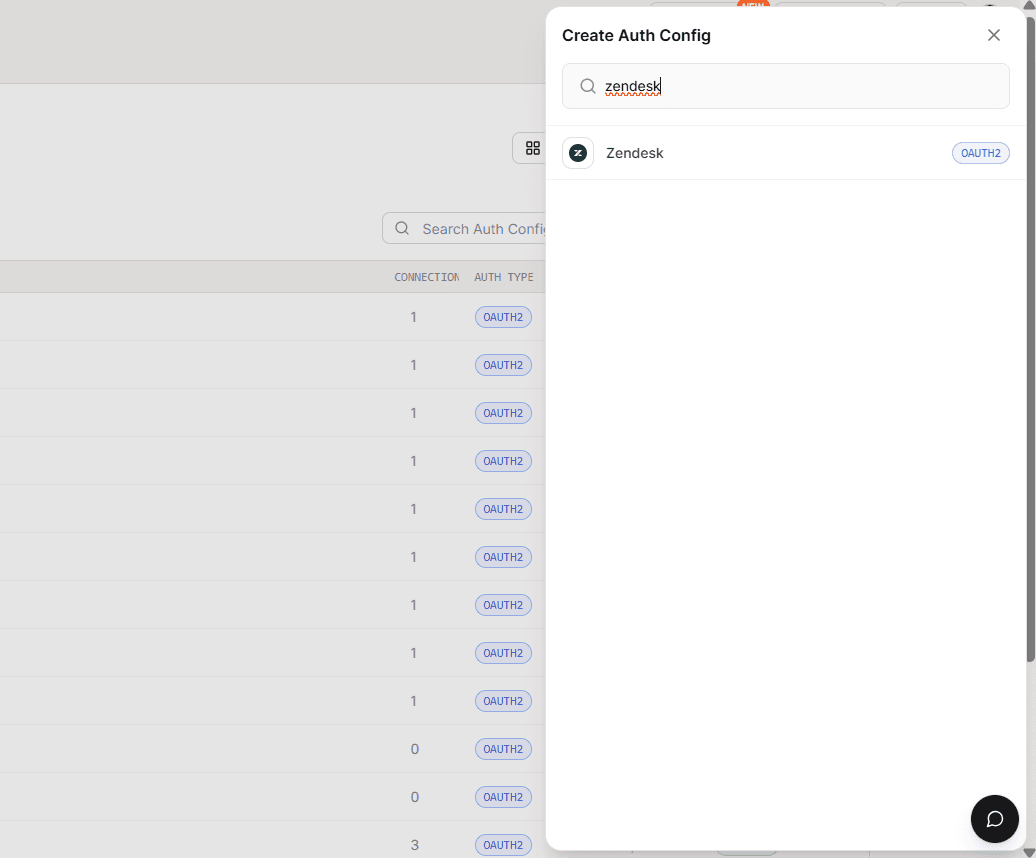
Image 6
  1. Ensure authentication is set to OAuth2 (not Bearer Token).
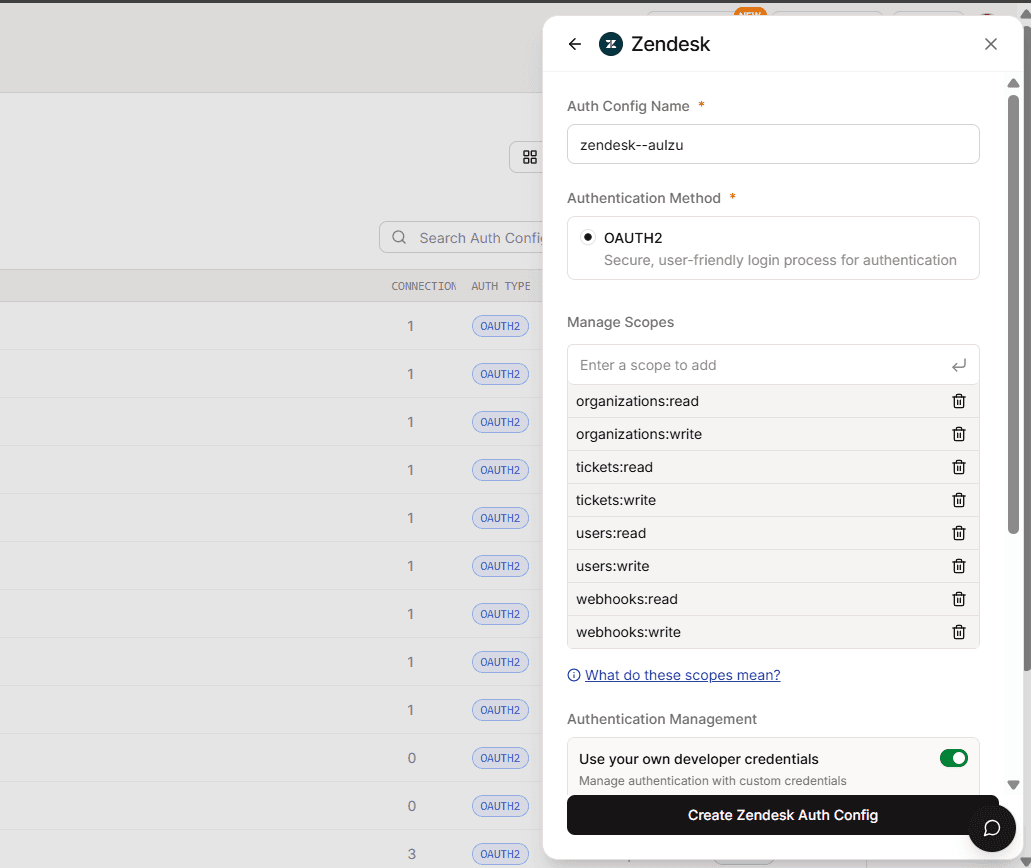
Image 7
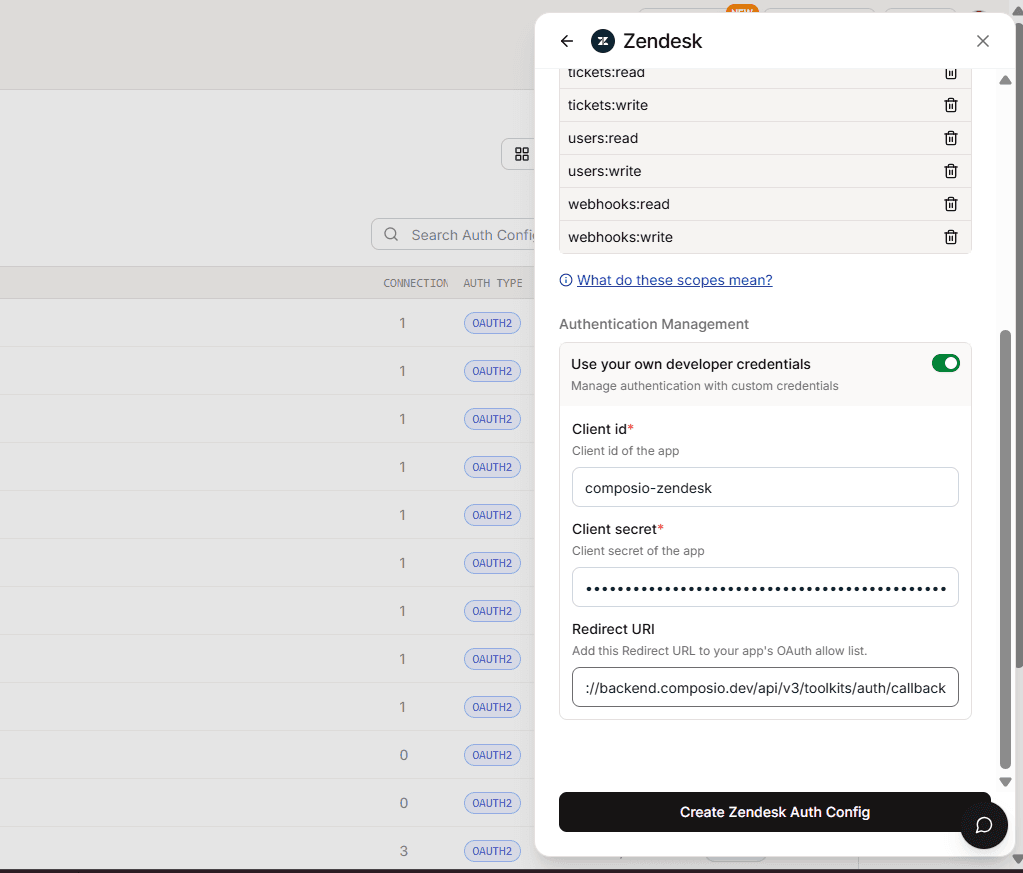
  1. Enable Use your own developer authentication.

Image 8
  1. Click Create Zendesk Auth Config.

Image 9

Configure the Auth Config

  1. Open the Manage Auth Config tab.

  2. Paste the Client ID and Client Secret you copied from Zendesk.

Scopes Supported by Composio

Below are the scopes supported by Composio for Zendesk. Add scopes based on your integration requirements:

Again Composio Zendesk scope list:

tickets.read
tickets.write
users.read
users.write
organizations.read
organizations.write
groups.read
groups.write
views.read
views.write
macros.read
macros.write
triggers.read
triggers.write
automations.read
automations.write
webhooks.read
webhooks.write

Base URL for Zendesk

All Zendesk API requests go through:

https://{your_subdomain}.zendesk.com/api/v2/

Replace {your_subdomain} with your Zendesk account subdomain.

How Scopes Are Applied

When a user connects their Zendesk account, scopes are included in the OAuth authorisation process.

While using Composio:

  • Composio automatically manages the authorization URL

  • You define scopes inside the Auth Config → Scopes field

  • Composio exposes fine-grained, resource-level scopes

  • Internally, Composio maps them to Zendesk’s coarse scopes:

    • *:readread

    • *:writewrite

    • destructive actions → delete (if required)

For Zendesk, Composio provides fine-grained resource-level scopes that map internally to Zendesk’s coarse OAuth scopes. These are the scopes you can select inside Composio’s Auth Config, even though Zendesk itself only recognizes the broad read, write, delete scopes.

Final Step

Once everything is set up:

  1. Copy the Auth Config ID (starts with ac_)
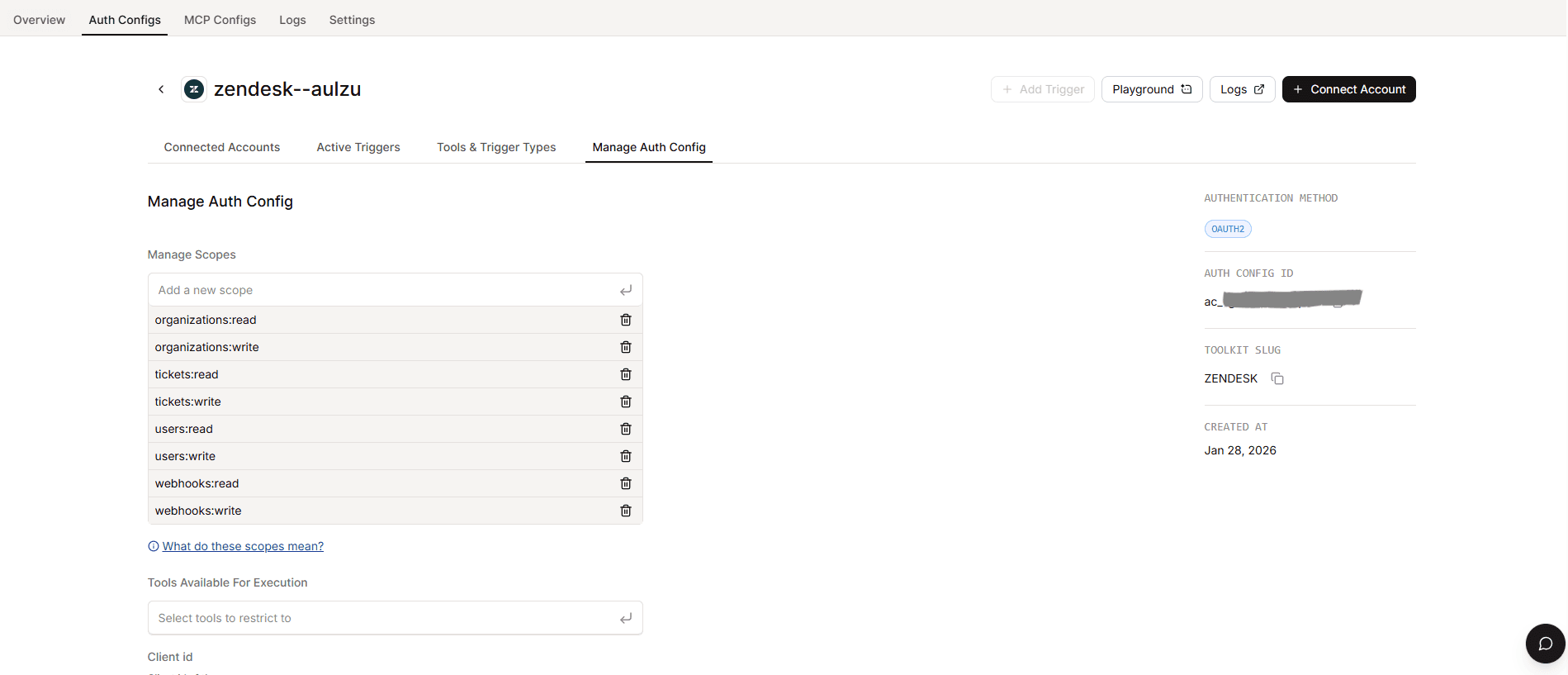
Image 10
  1. Store it securely using your secret manager

  2. Use it in your application code to authenticate Zendesk via Composio

Your custom Zendesk auth config is now ready to go

In this guide, I’ll walk you through the process of customizing the auth config for Zendesk. So, let’s begin.

Setting up Zendesk

In this section, we’ll go through the process of setting up Zendesk and creating an OAuth client.

NOTE: If you already have a Zendesk OAuth client and access to the Client ID and Client Secret, you can skip this section.

Step 1: Create a Zendesk OAuth Client

  1. Log in to your Zendesk Admin Center.

  2. In the left sidebar, click Apps and integrations.

  3. Select APIs.

  4. Open the OAuth clients tab.

Image 1
  1. Click Add OAuth client.

Image 2

Step 2: Register Your OAuth Client and Generate Credentials

After clicking Add OAuth client, you’ll see the OAuth client creation form.

  1. Fill in the required fields:

  • Client Name:

    Example: Composio-Zendesk

Image 3
  • Description:

    Optional description for your integration

  • Redirect URLs:

https://backend.composio.dev/api/v3/toolkits/auth/callback
Image 4
  1. Once saved, Zendesk will immediately generate:

  • Client ID(Identifier)

  • Client Secret

Copy these values and store them securely, you’ll need them shortly.

Step 3: Configure Redirect URI

Ensure the following Redirect URL is present in your OAuth client configuration:

https://backend.composio.dev/api/v3/toolkits/auth/callback

Important:

  • No trailing slash

  • Must use https

Step 4: OAuth Scopes

Zendesk does not provide a UI to configure OAuth scopes in the Admin Center.

Instead, OAuth scopes are requested at authorization time as part of the OAuth flow.

Zendesk supports the following OAuth scopes:

  • read → Read access to Zendesk resources

  • write → Create and update Zendesk resources

  • delete → Delete Zendesk resources

When using Composio:

  • You do not select scopes in Zendesk

  • You define scopes in Composio’s Auth Config

  • Composio automatically includes the selected scopes in the OAuth authorization request

Example scopes configuration in Composio:

read write

Here’s the actual Composio supported Zendesk scope list:

tickets.read
tickets.write
users.read
users.write
organizations.read
organizations.write
groups.read
groups.write
views.read
views.write
macros.read
macros.write
triggers.read
triggers.write
automations.read
automations.write
webhooks.read
webhooks.write

Note: Zendesk permissions are also constrained by the user’s role (agent, admin, etc.), even if broader OAuth scopes are requested.

Creating the Auth Config in Composio

With your OAuth credentials ready, navigate to the Composio dashboard to configure Zendesk authentication.

  1. Click Create Auth Config to view all available toolkits.

Image 5
  1. In the sidebar that opens, choose Xero for the toolkit. Stick with all the default settings for now, as we'll configure it shortly.

Image 6
  1. Ensure authentication is set to OAuth2 (not Bearer Token).

Image 7
  1. Enable Use your own developer authentication.

Image 8
  1. Click Create Zendesk Auth Config.

Image 9

Configure the Auth Config

  1. Open the Manage Auth Config tab.

  2. Paste the Client ID and Client Secret you copied from Zendesk.

Scopes Supported by Composio

Below are the scopes supported by Composio for Zendesk. Add scopes based on your integration requirements:

Again Composio Zendesk scope list:

tickets.read
tickets.write
users.read
users.write
organizations.read
organizations.write
groups.read
groups.write
views.read
views.write
macros.read
macros.write
triggers.read
triggers.write
automations.read
automations.write
webhooks.read
webhooks.write

Base URL for Zendesk

All Zendesk API requests go through:

https://{your_subdomain}.zendesk.com/api/v2/

Replace {your_subdomain} with your Zendesk account subdomain.

How Scopes Are Applied

When a user connects their Zendesk account, scopes are included in the OAuth authorisation process.

While using Composio:

  • Composio automatically manages the authorization URL

  • You define scopes inside the Auth Config → Scopes field

  • Composio exposes fine-grained, resource-level scopes

  • Internally, Composio maps them to Zendesk’s coarse scopes:

    • *:readread

    • *:writewrite

    • destructive actions → delete (if required)

For Zendesk, Composio provides fine-grained resource-level scopes that map internally to Zendesk’s coarse OAuth scopes. These are the scopes you can select inside Composio’s Auth Config, even though Zendesk itself only recognizes the broad read, write, delete scopes.

Final Step

Once everything is set up:

  1. Copy the Auth Config ID (starts with ac_)

Image 10
  1. Store it securely using your secret manager

  2. Use it in your application code to authenticate Zendesk via Composio

Your custom Zendesk auth config is now ready to go