How to create TickTick OAuth2 credentials and configure it in Composio

How to create TickTick OAuth2 credentials and configure it in Composio

In this guide, I’ll walk you through the process of customizing the auth config for TickTick. Let’s get started.

Setting up TickTick

In this section, we’ll go through the process of creating a TickTick OAuth application.

NOTE:

If you already have a TickTick OAuth app and access to the Client ID and Client Secret, you can skip this section.

Step 1: Create a TickTick Developer App

  1. Log in to your TickTick account.

  2. Open the TickTick Developer Console:

https://developer.ticktick.com/
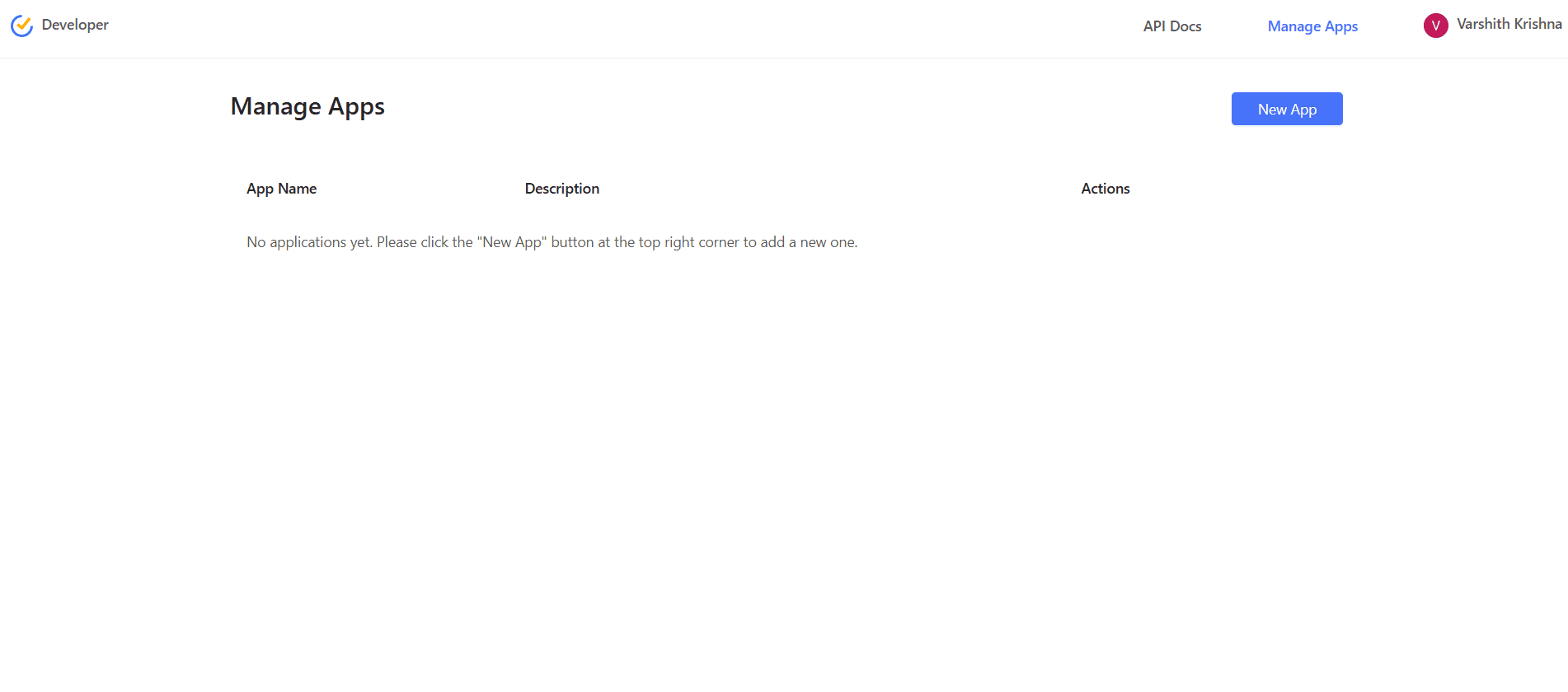
Image 1
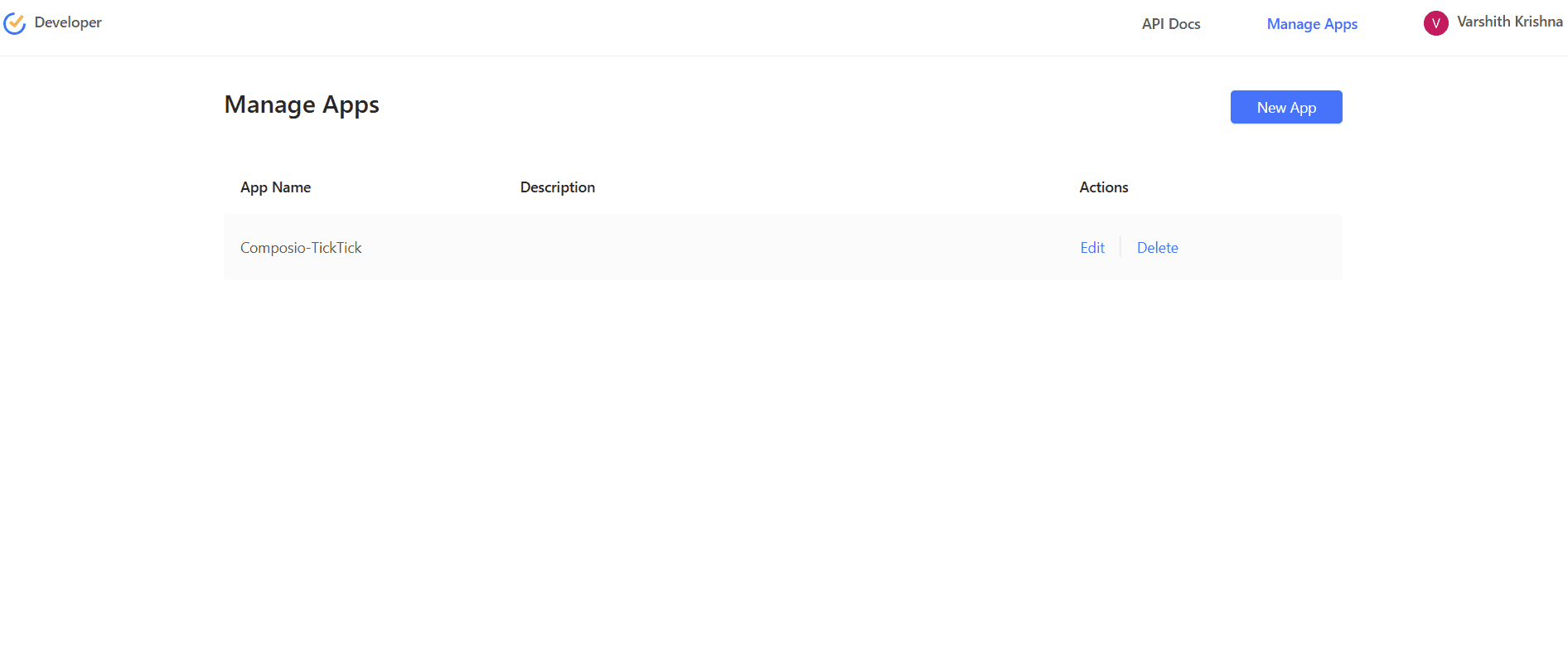
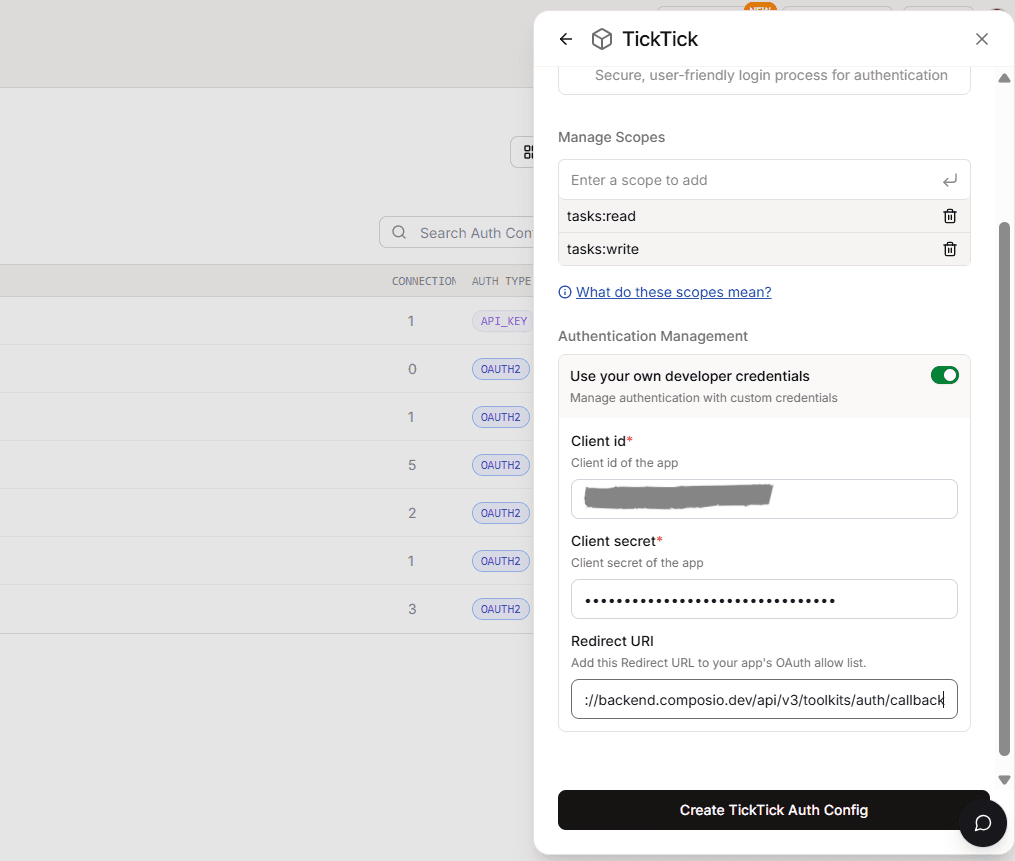
  1. Navigate to My Apps.

  2. Click Create App.

Step 2: Register Your OAuth App and Generate Credentials

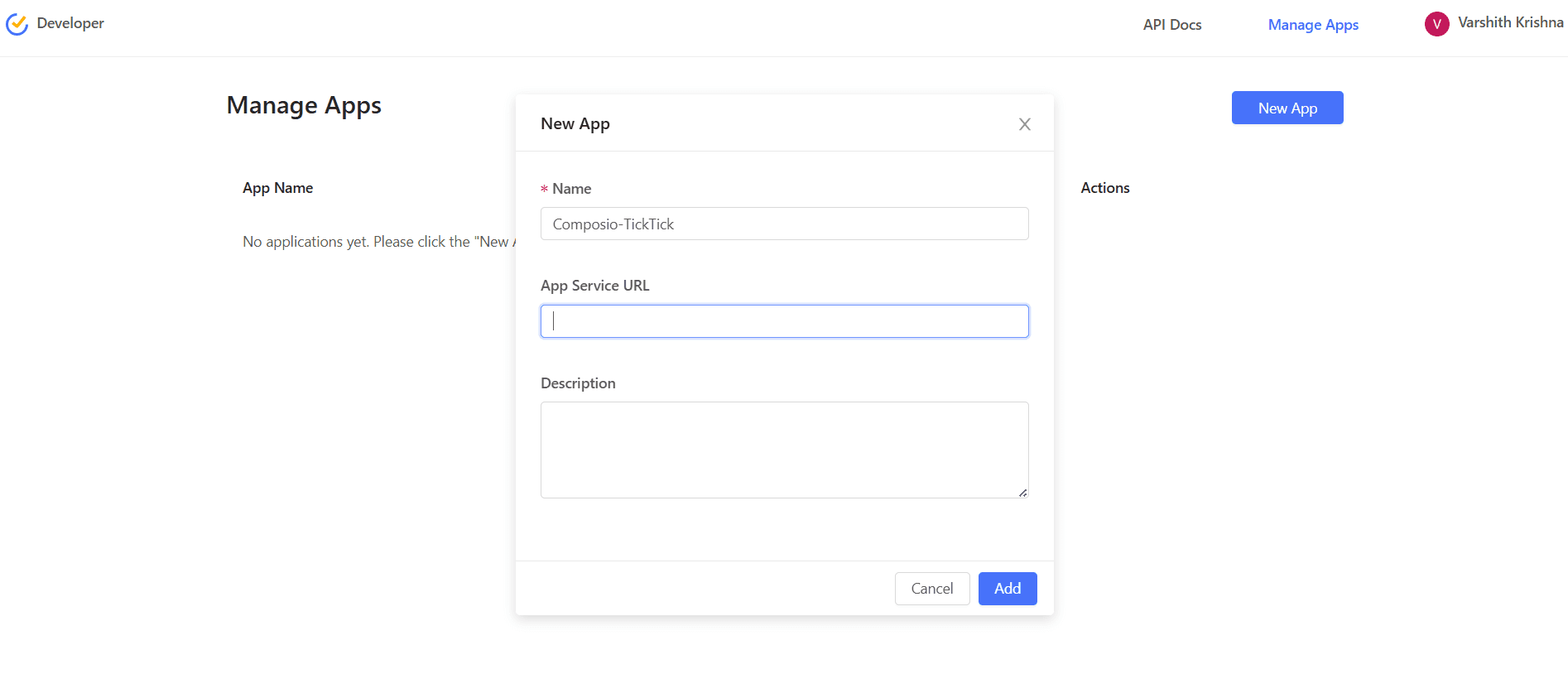
While creating the app, fill in the following details:

  • App Name: Example: Composio-TickTick

Image 2
  • App Description: Short description of your integration

  • Redirect URI

https://backend.composio.dev/api/v3/toolkits/auth/callback

Important:

  • Must be HTTPS

  • No trailing slash

  1. Save the application.

Image 3

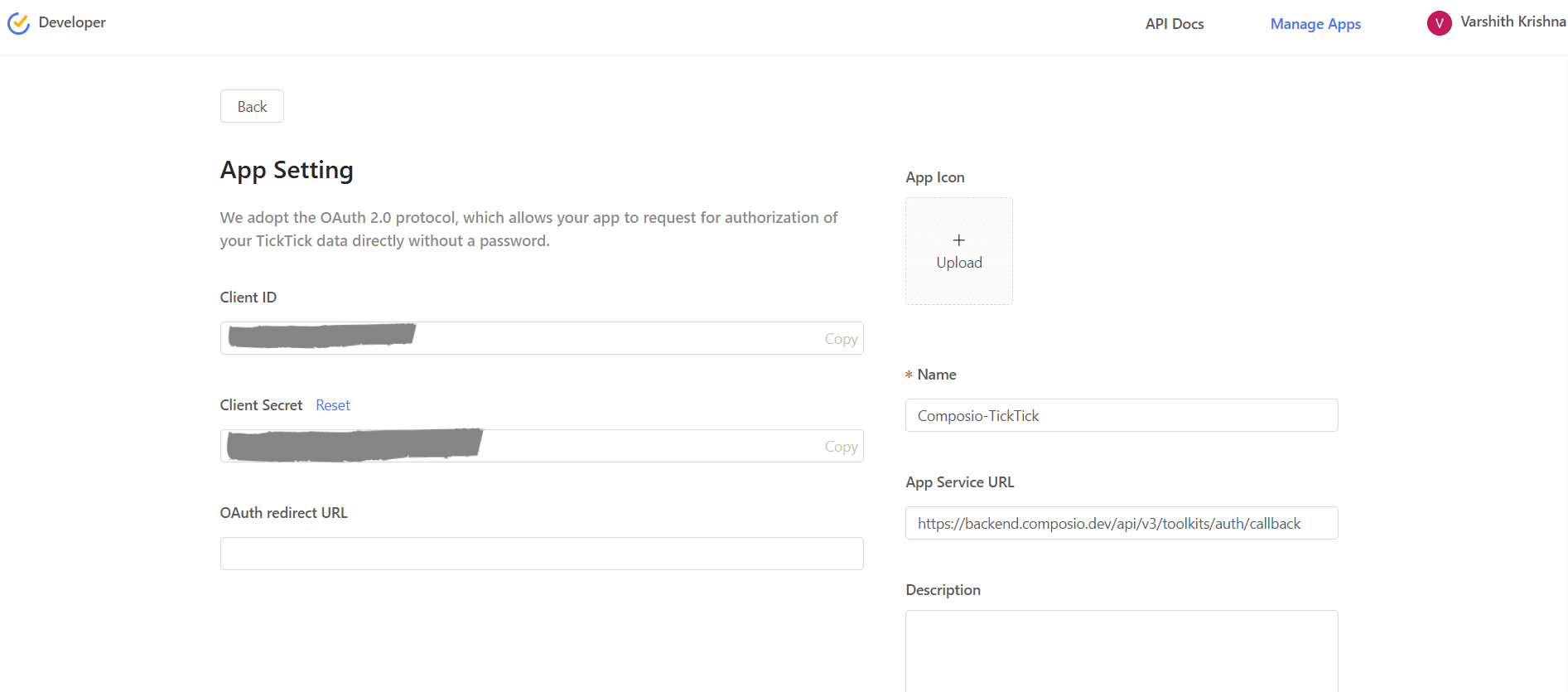
Once created, TickTick will generate:

  • Client ID

  • Client Secret

Image 4
  1. Copy both values and store them securely, you’ll need them shortly.

Step 3: Configure Redirect URI

Ensure the following redirect URI is configured in your TickTick app:
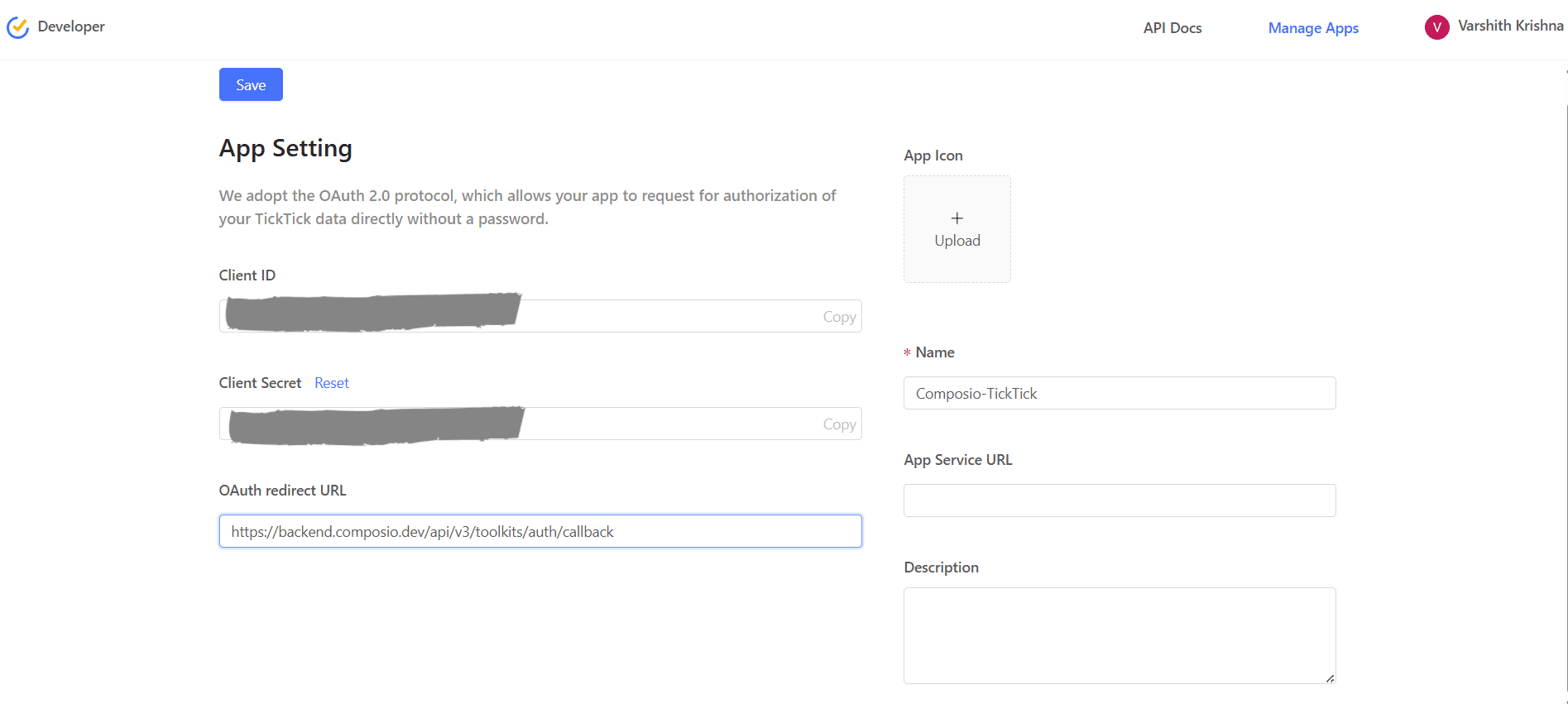
Image 5
https://backend.composio.dev/api/v3/toolkits/auth/callback

OAuth Scopes in TickTick

TickTick uses OAuth2 with predefined API scopes.

Unlike some platforms:

  • TickTick does not provide a UI to manually select scopes per request

  • Scopes are implicitly granted based on the API endpoints accessed

When using Composio, scopes are handled automatically during the OAuth flow.

Common TickTick API Permissions

TickTick APIs typically cover access to:

  • Tasks

  • Projects (lists)

  • User profile information

You do not need to manually configure scopes inside the TickTick dashboard.

All required permissions are requested automatically during authorization.

Creating the Auth Config in Composio

With your OAuth credentials ready, head to the Composio dashboard:

https://platform.composio.dev/

Step 1: Create Auth Config

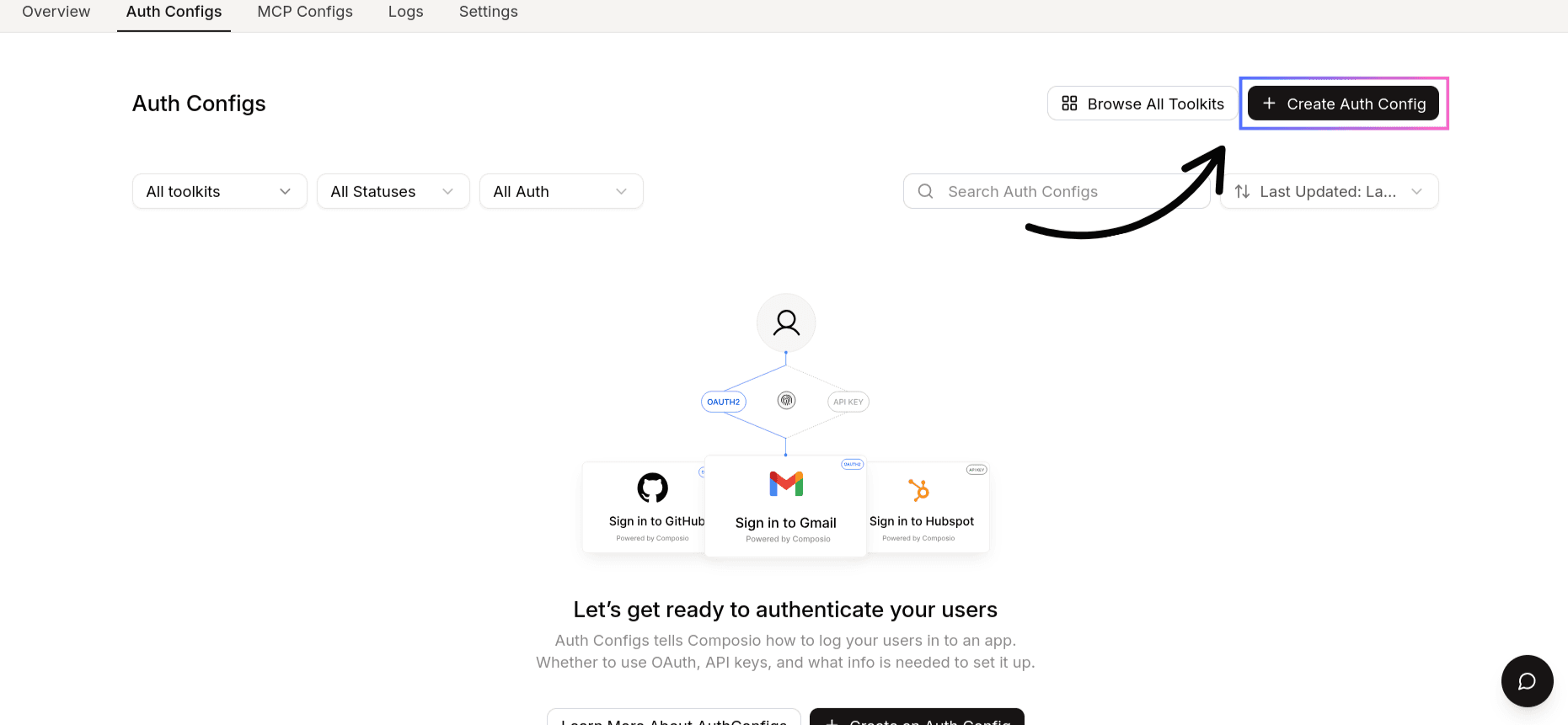
  1. Click Create Auth Config

Image 6
  1. Select TickTick from the toolkit list
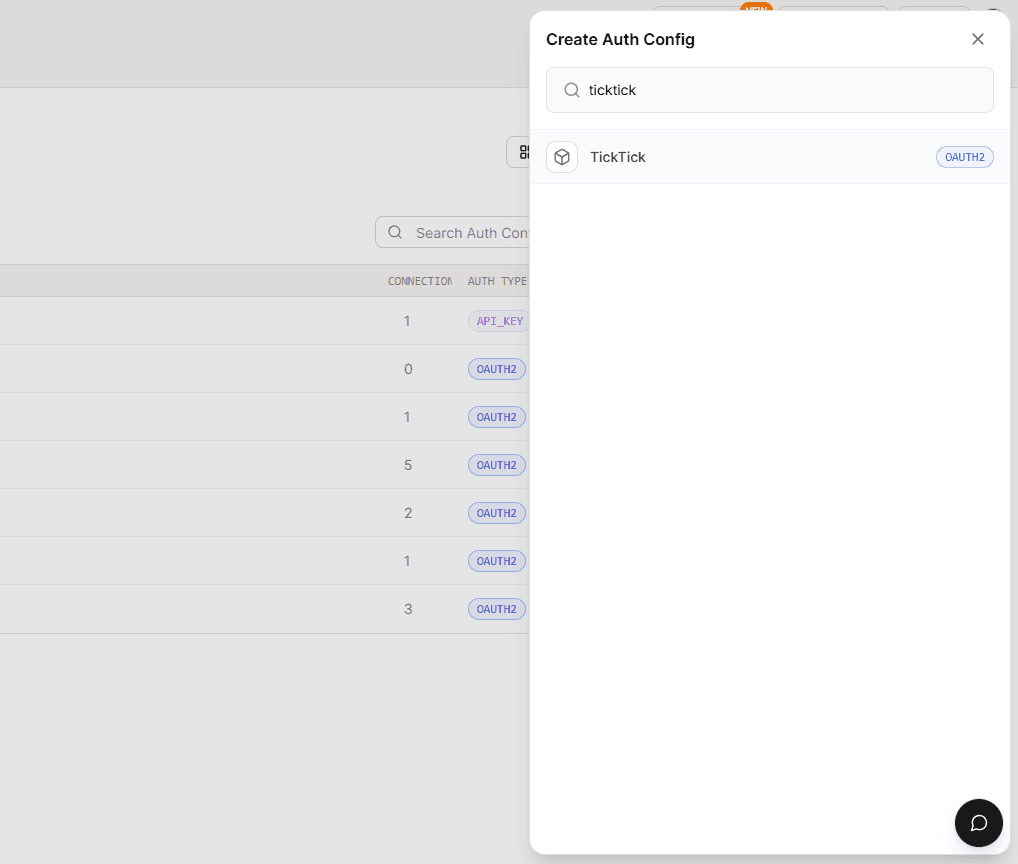
Image 7

Step 2: Configure Authentication Type

  1. Ensure authentication is set to OAuth2
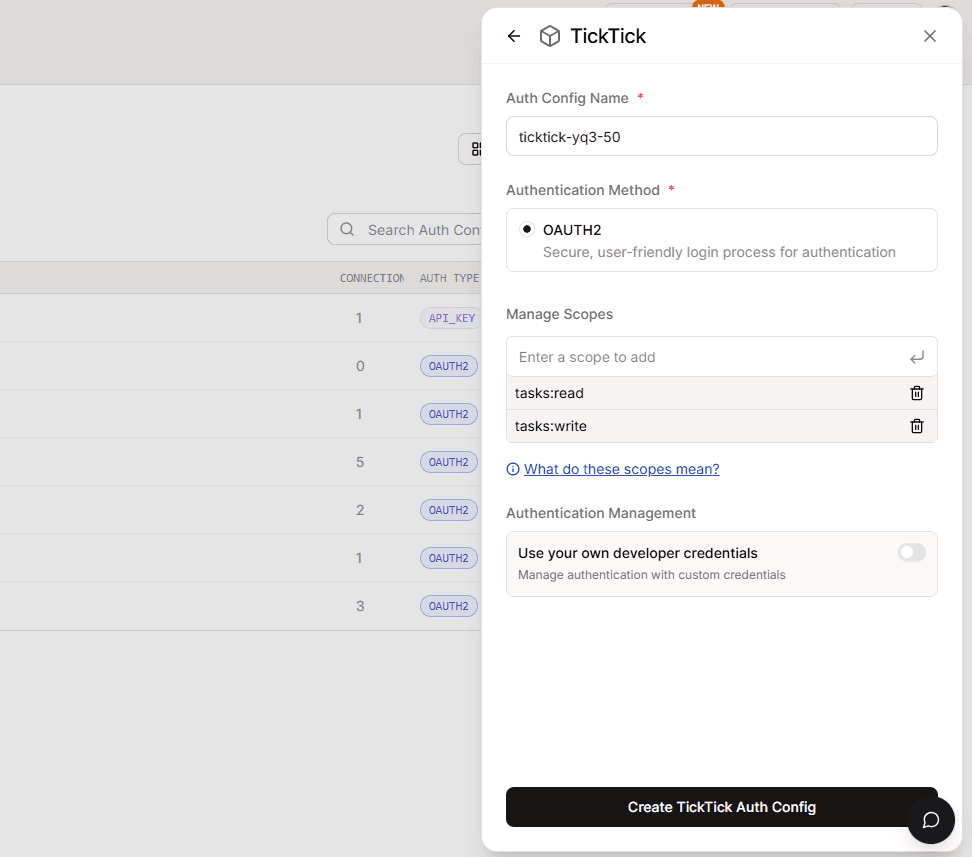
Image 9
  1. Enable Use your own developer authentication

Image 10
  1. Click Create TickTick Auth Config

Image 11

Base URL for TickTick

All TickTick API requests are made through:

https://api.ticktick.com/open/v1/

How OAuth Works with Composio

When a user connects their TickTick account:

  • Composio manages the OAuth authorisation flow

  • TickTick prompts the user to approve access

  • An access token is issued and securely stored by Composio

  • Composio automatically refreshes tokens when required
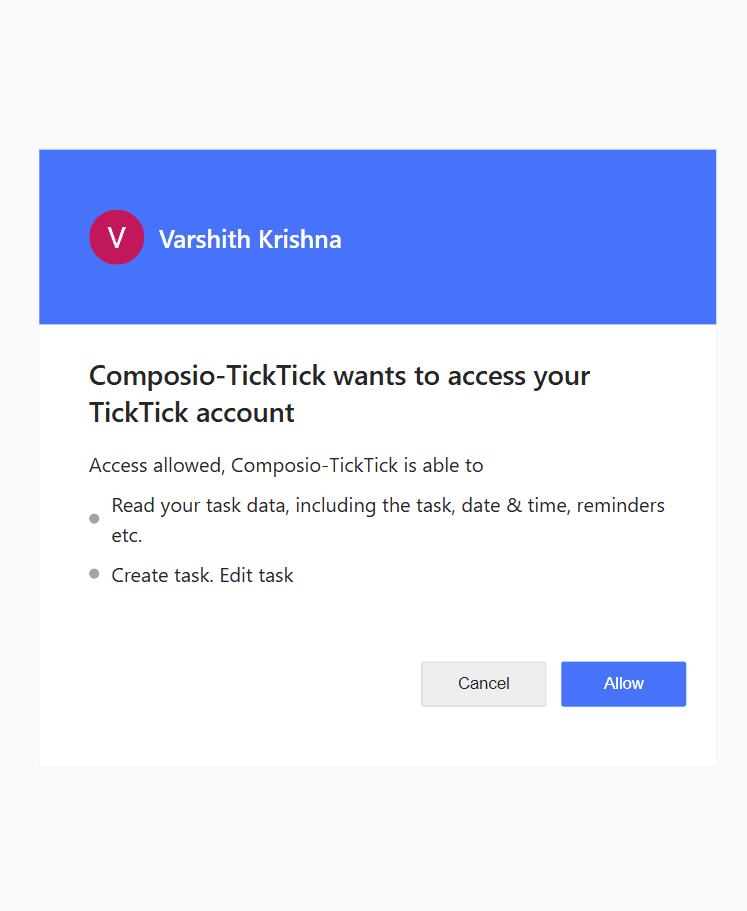
Image 12

You do not need to manually construct authorization URLs.

Final Step

Once everything is set up:

  1. Copy the Auth Config ID (starts with ac_)
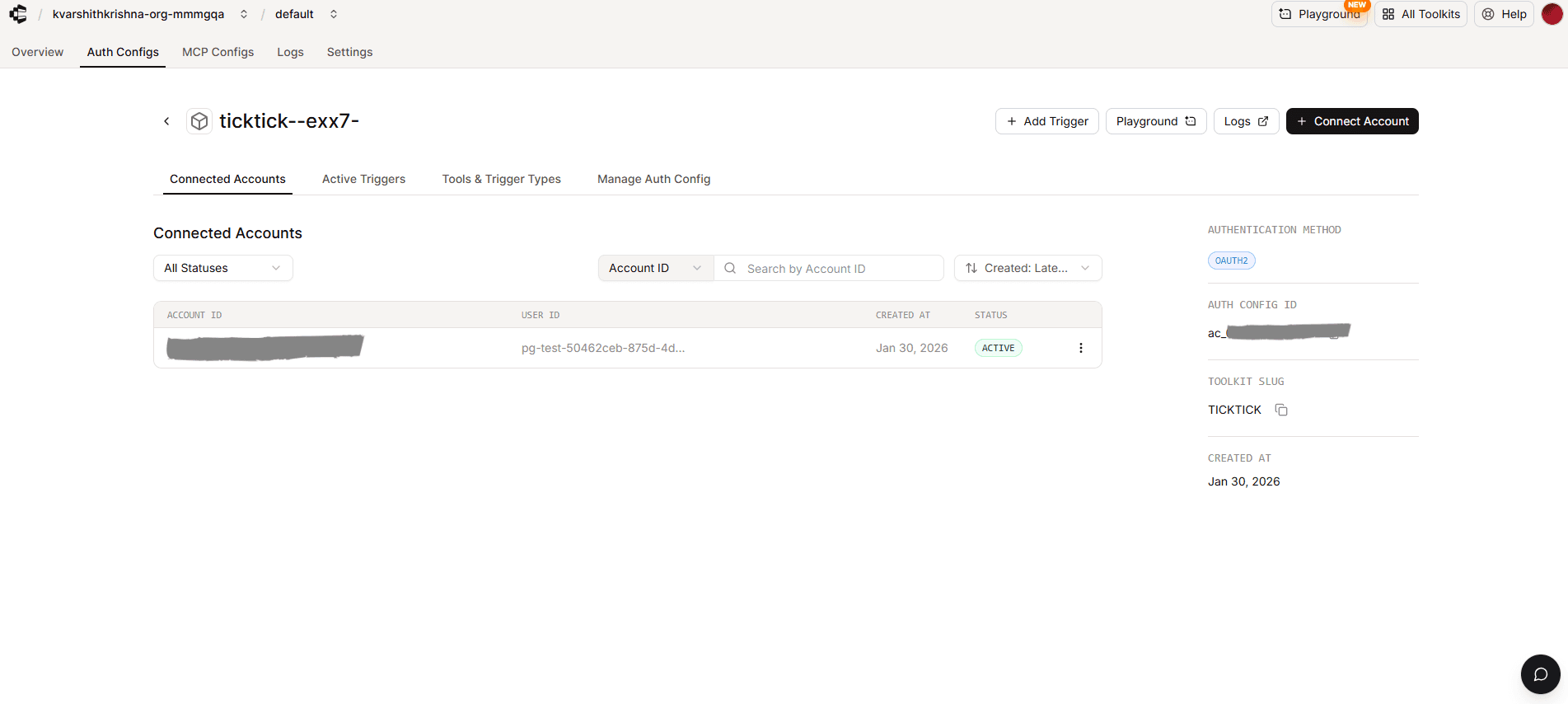
Image 13
  1. Store it securely using a secret manager

  2. Use it in your application code to authenticate TickTick via Composio

In this guide, I’ll walk you through the process of customizing the auth config for TickTick. Let’s get started.

Setting up TickTick

In this section, we’ll go through the process of creating a TickTick OAuth application.

NOTE:

If you already have a TickTick OAuth app and access to the Client ID and Client Secret, you can skip this section.

Step 1: Create a TickTick Developer App

  1. Log in to your TickTick account.

  2. Open the TickTick Developer Console:

https://developer.ticktick.com/
Image 1
  1. Navigate to My Apps.

  2. Click Create App.

Step 2: Register Your OAuth App and Generate Credentials

While creating the app, fill in the following details:

  • App Name: Example: Composio-TickTick

Image 2
  • App Description: Short description of your integration

  • Redirect URI

https://backend.composio.dev/api/v3/toolkits/auth/callback

Important:

  • Must be HTTPS

  • No trailing slash

  1. Save the application.

Image 3

Once created, TickTick will generate:

  • Client ID

  • Client Secret

Image 4
  1. Copy both values and store them securely, you’ll need them shortly.

Step 3: Configure Redirect URI

Ensure the following redirect URI is configured in your TickTick app:

Image 5
https://backend.composio.dev/api/v3/toolkits/auth/callback

OAuth Scopes in TickTick

TickTick uses OAuth2 with predefined API scopes.

Unlike some platforms:

  • TickTick does not provide a UI to manually select scopes per request

  • Scopes are implicitly granted based on the API endpoints accessed

When using Composio, scopes are handled automatically during the OAuth flow.

Common TickTick API Permissions

TickTick APIs typically cover access to:

  • Tasks

  • Projects (lists)

  • User profile information

You do not need to manually configure scopes inside the TickTick dashboard.

All required permissions are requested automatically during authorization.

Creating the Auth Config in Composio

With your OAuth credentials ready, head to the Composio dashboard:

https://platform.composio.dev/

Step 1: Create Auth Config

  1. Click Create Auth Config

Image 6
  1. Select TickTick from the toolkit list

Image 7

Step 2: Configure Authentication Type

  1. Ensure authentication is set to OAuth2

Image 9
  1. Enable Use your own developer authentication

Image 10
  1. Click Create TickTick Auth Config

Image 11

Base URL for TickTick

All TickTick API requests are made through:

https://api.ticktick.com/open/v1/

How OAuth Works with Composio

When a user connects their TickTick account:

  • Composio manages the OAuth authorisation flow

  • TickTick prompts the user to approve access

  • An access token is issued and securely stored by Composio

  • Composio automatically refreshes tokens when required

Image 12

You do not need to manually construct authorization URLs.

Final Step

Once everything is set up:

  1. Copy the Auth Config ID (starts with ac_)

Image 13
  1. Store it securely using a secret manager

  2. Use it in your application code to authenticate TickTick via Composio