How to create Oauth2 credentials for Strava

How to create Oauth2 credentials for Strava

In this guide, I will share the process for customising the auth config for Strava. So, let’s begin.

Setting up Strava

Strava supports a way of accessing the API through:

  • OAuth2 Application (required for multi-user apps)

NOTE: If you already have a Strava Access Token or OAuth credentials (Client ID + Client Secret), you can skip directly to the Composio setup section.

Using OAuth2

This is the approach if you want multiple users to authenticate their own Strava accounts.

Step 1: Create a Strava App

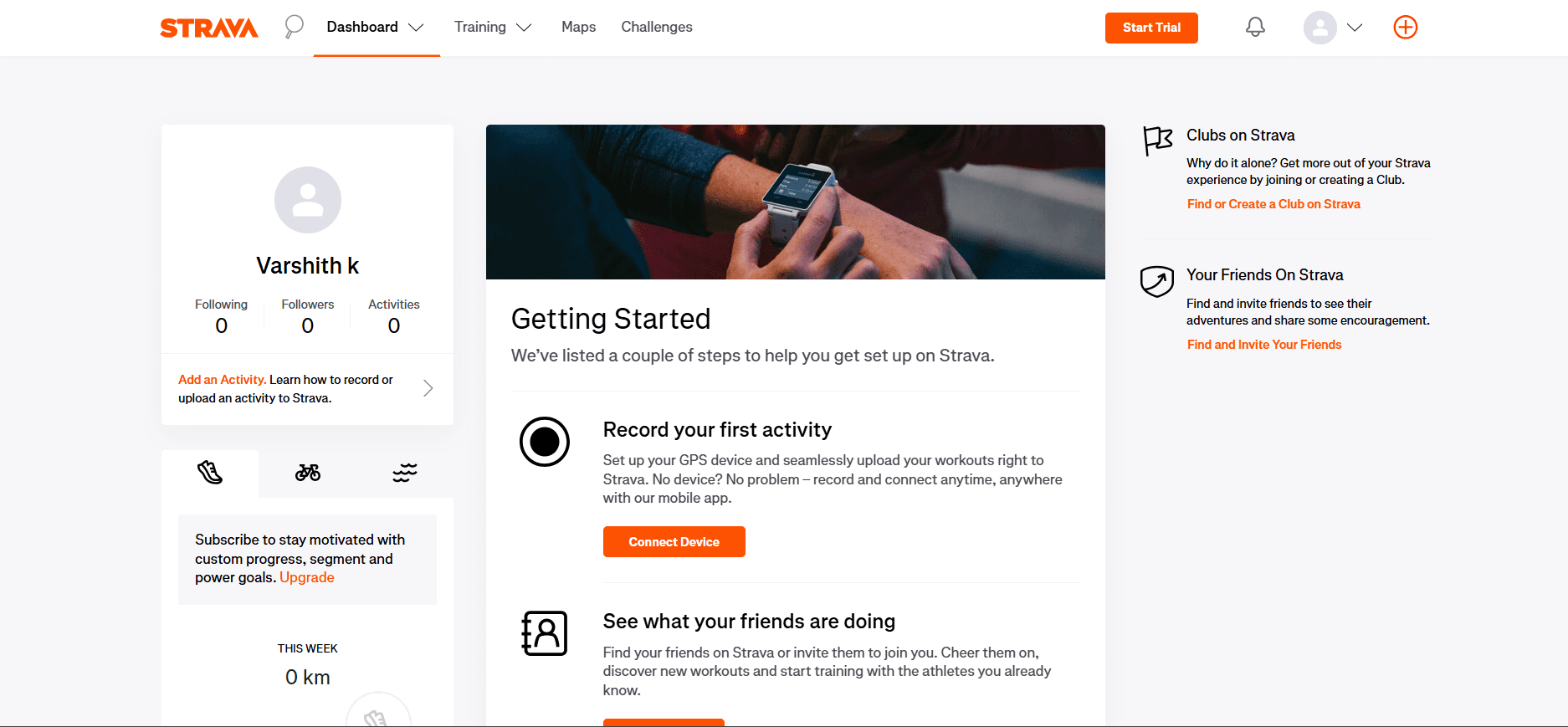
  1. Log in to Strava

Image 1

After Successful Login, navigate to:

https://www.strava.com/settings/api
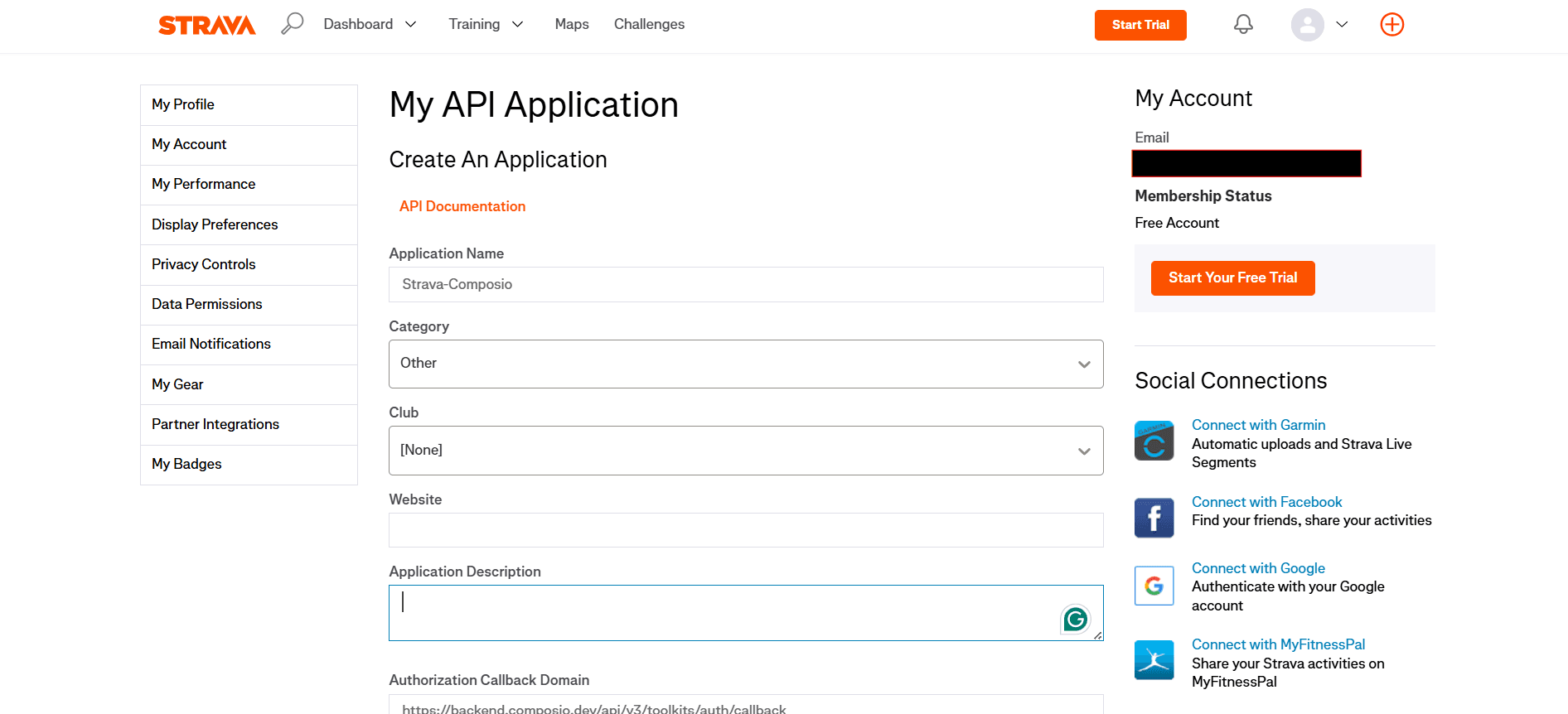
  1. Click Create & Manage Your Apps.

Image 2
  1. Click Create Application.

Step 2: Register Your OAuth App

Fill in the required fields:

  • App Name: Something recognizable

  • Website: Your website or app URL

  • Callback Domain: Must be set correctly
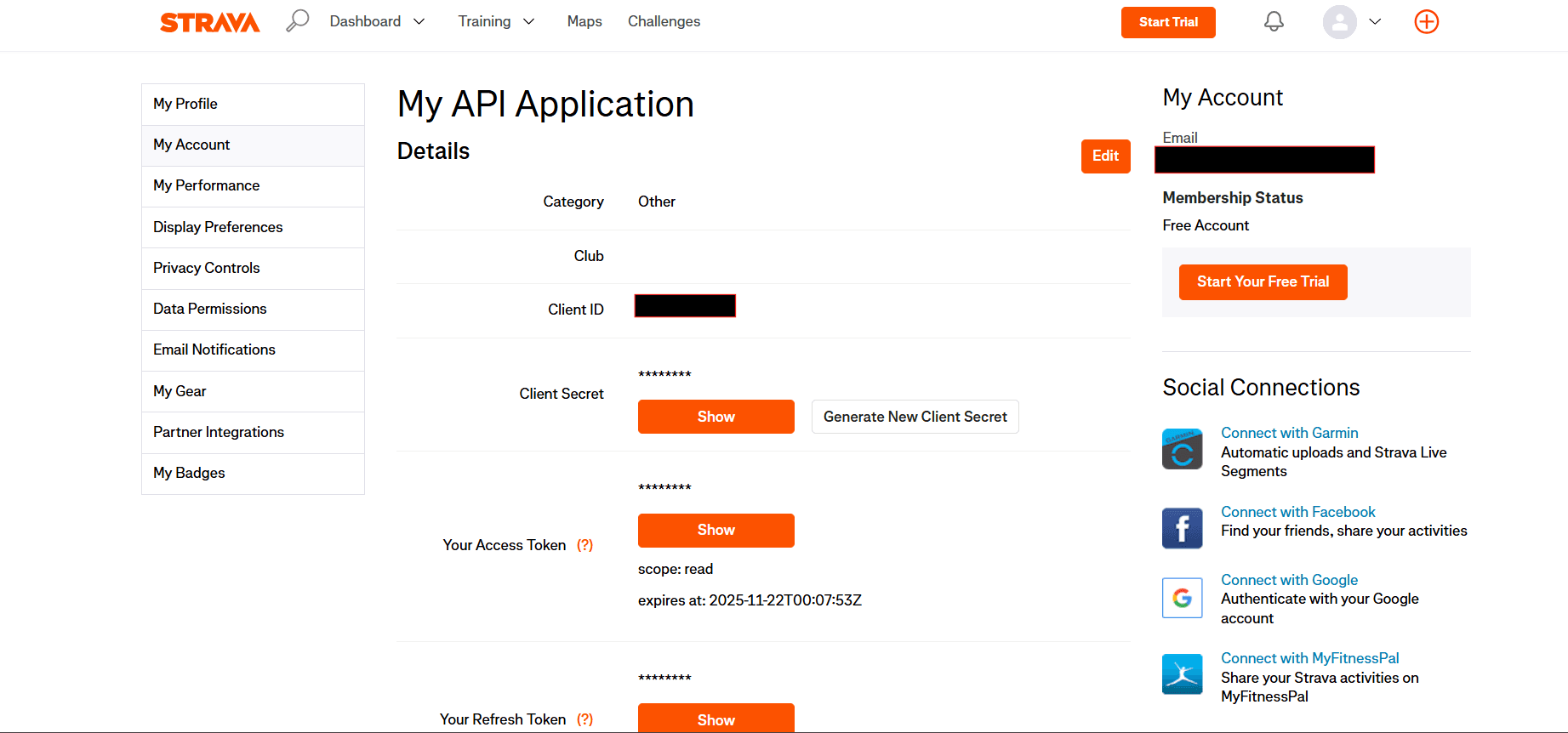
Image 3

Step 3: Configure Authorized Redirect URI

Add the following URI in your callback settings:

https://backend.composio.dev/api/v3/toolkits/auth/callback

Make sure:

  • No trailing slash

  • Must be https

Step 4: Copy Your OAuth Credentials

Strava will show you:

  • Client ID

  • Client Secret

Copy these and keep them secure—you’ll need them shortly.

To view the created API Application, open Settings and click on My API Application:
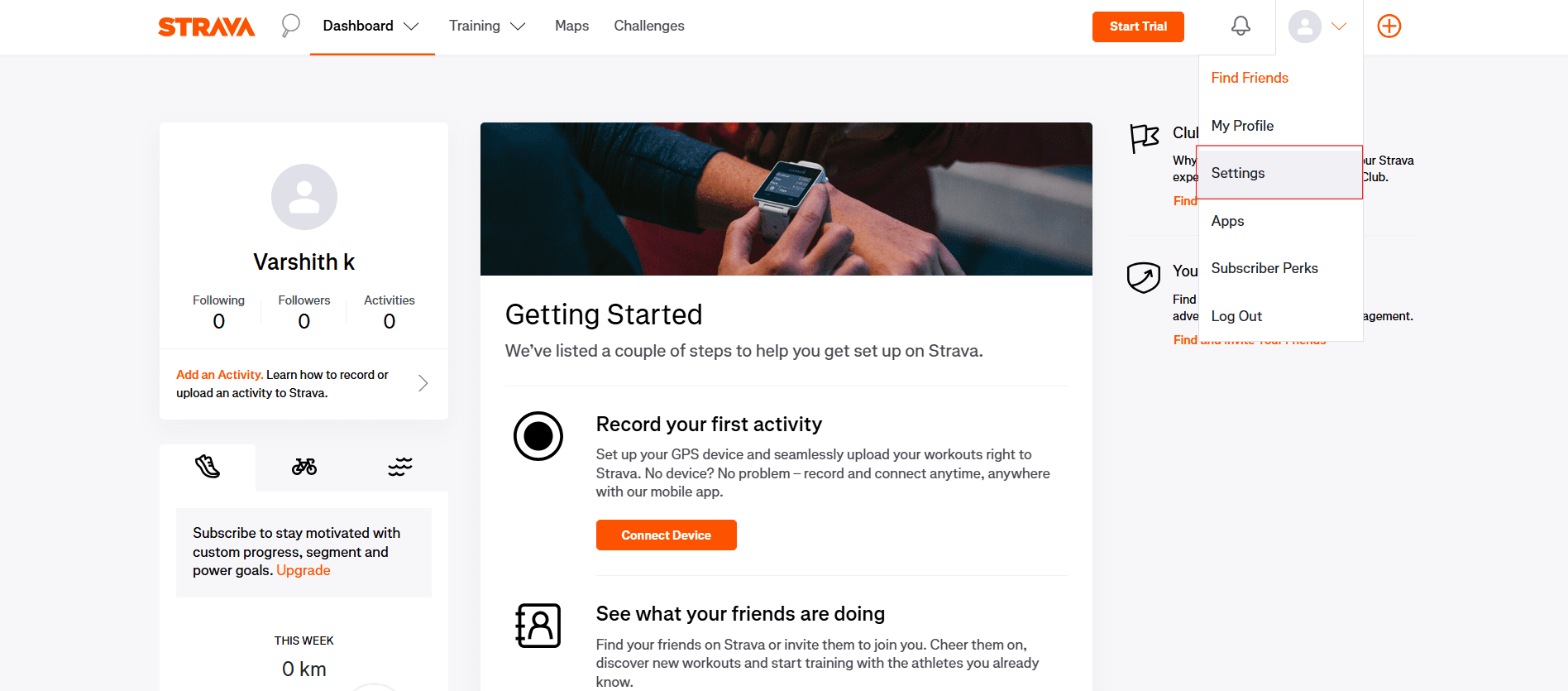
Image 4

Available Scopes

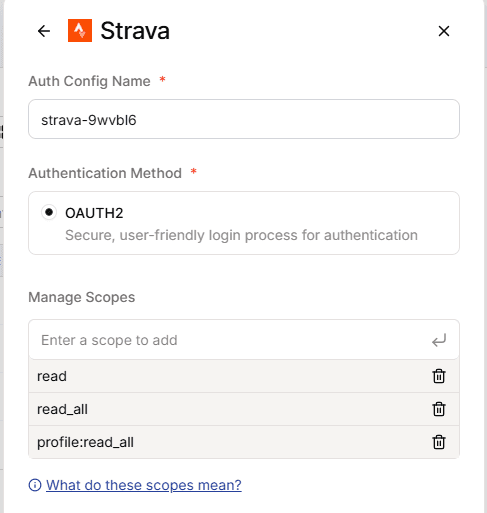
Strava supports multiple OAuth scopes such as:

  • read → Default access to profile and public data

  • read_all → Read all user data (including private)

  • profile:read_all → Read detailed profile

You can use only what your integration requires.

Supported OAuth Scopes in Composio

Below are all the scopes supported:

read, read_all, profile:read_all, profile:write, activity:read, activity:read_all, activity:write,
- `profile:write` Update user profile
- `activity:read` Read public activity data
- `activity:read_all` Read all activity data (including private)
- `activity:write` Create / edit / delete activities

Choose based on your integration needs.

Creating the Auth Config in Composio

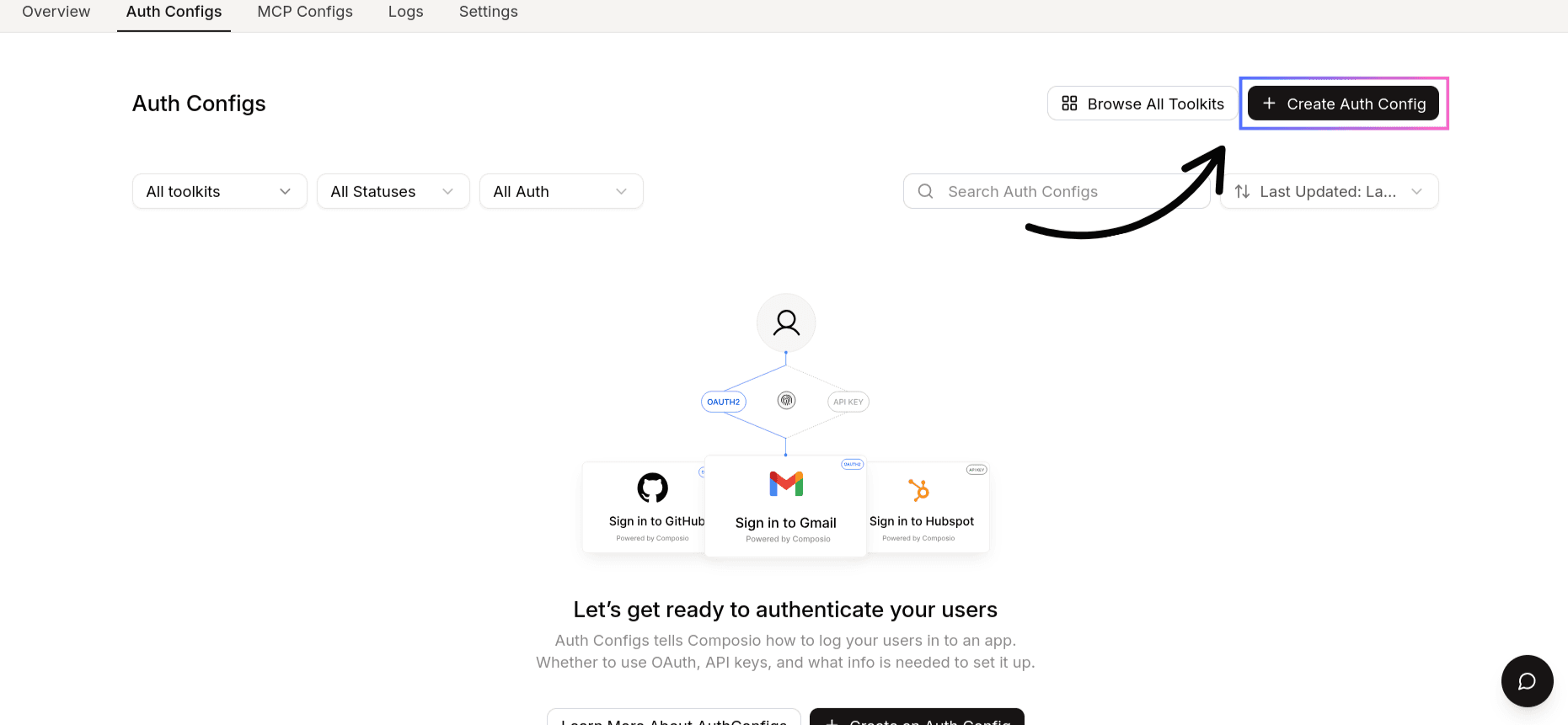
With your Strava credentials ready, navigate to the Composio dashboard.

  1. Click Create Auth Config.

Image 5

Step 2: Select Strava

From the list of toolkits, choose Strava.
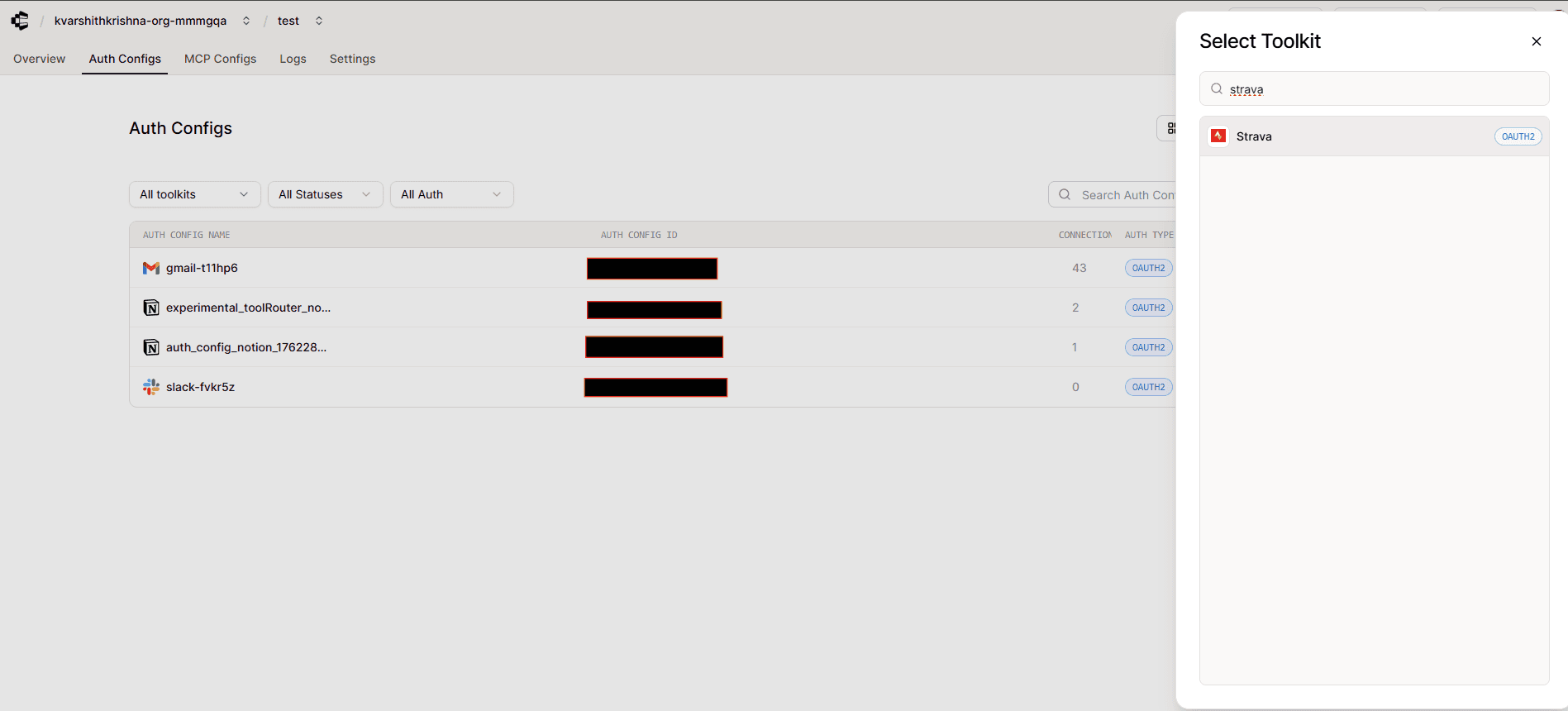
Image 6

Step 3: Choose Authentication Method

  • For OAuth2 → select OAuth2


Image 7

If using your own Strava app, make sure to check:
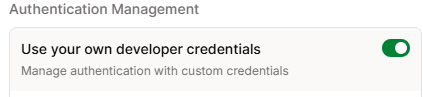
Image 8

Step 4: Fill in Your Auth Details

For OAuth2 Auth

You’ll see the following fields:

  • Client ID

  • Client Secret

  • Redirect URI

  • Scopes

Fill these out as:

  • Client ID: Paste from Strava

  • Client Secret: Paste from Strava

  • **Redirect URI: **Must match exactly:

https://backend.composio.dev/api/v3/toolkits/auth/callback
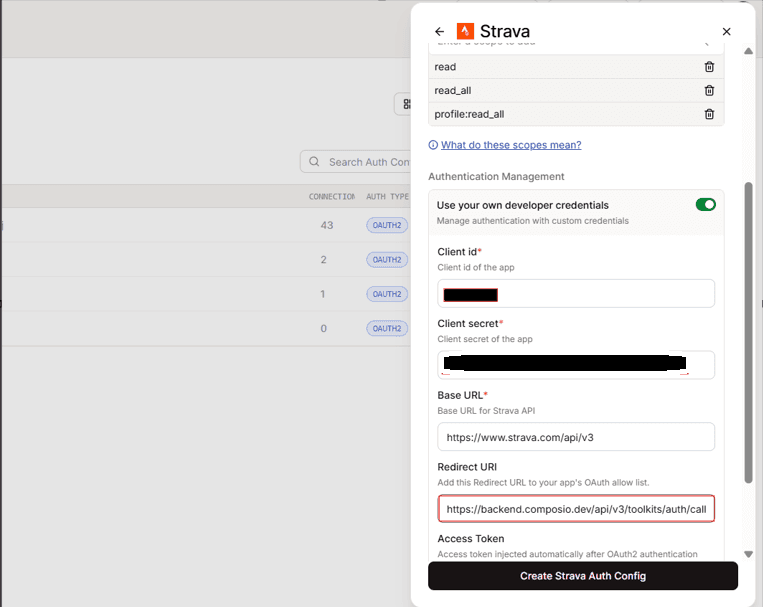
Image 9

Click Create Strava Auth Config.

Base URL for Strava

All Strava API requests use:

https://www.strava.com/api/v3

Using Your Auth in Applications

Once created, copy the Auth Config ID (ac_...) and reference it in your application via your secret or configuration manager.

Composio will:

  • Manage the OAuth handshake

  • Refresh access tokens

  • Handle secure token storage

Your Strava integration is now ready to go!

If you already have a Strava Access Token or OAuth credentials (Client ID + Client Secret), you can skip directly to the Composio setup section.

(e.g., Composio-Strava, My Fitness App)

In this guide, I will share the process for customising the auth config for Strava. So, let’s begin.

Setting up Strava

Strava supports a way of accessing the API through:

  • OAuth2 Application (required for multi-user apps)

NOTE: If you already have a Strava Access Token or OAuth credentials (Client ID + Client Secret), you can skip directly to the Composio setup section.

Using OAuth2

This is the approach if you want multiple users to authenticate their own Strava accounts.

Step 1: Create a Strava App

  1. Log in to Strava

Image 1

After Successful Login, navigate to:

https://www.strava.com/settings/api
  1. Click Create & Manage Your Apps.

Image 2
  1. Click Create Application.

Step 2: Register Your OAuth App

Fill in the required fields:

  • App Name: Something recognizable

  • Website: Your website or app URL

  • Callback Domain: Must be set correctly

Image 3

Step 3: Configure Authorized Redirect URI

Add the following URI in your callback settings:

https://backend.composio.dev/api/v3/toolkits/auth/callback

Make sure:

  • No trailing slash

  • Must be https

Step 4: Copy Your OAuth Credentials

Strava will show you:

  • Client ID

  • Client Secret

Copy these and keep them secure—you’ll need them shortly.

To view the created API Application, open Settings and click on My API Application:

Image 4

Available Scopes

Strava supports multiple OAuth scopes such as:

  • read → Default access to profile and public data

  • read_all → Read all user data (including private)

  • profile:read_all → Read detailed profile

You can use only what your integration requires.

Supported OAuth Scopes in Composio

Below are all the scopes supported:

read, read_all, profile:read_all, profile:write, activity:read, activity:read_all, activity:write,
- `profile:write` Update user profile
- `activity:read` Read public activity data
- `activity:read_all` Read all activity data (including private)
- `activity:write` Create / edit / delete activities

Choose based on your integration needs.

Creating the Auth Config in Composio

With your Strava credentials ready, navigate to the Composio dashboard.

  1. Click Create Auth Config.

Image 5

Step 2: Select Strava

From the list of toolkits, choose Strava.

Image 6

Step 3: Choose Authentication Method

  • For OAuth2 → select OAuth2


Image 7

If using your own Strava app, make sure to check:

Image 8

Step 4: Fill in Your Auth Details

For OAuth2 Auth

You’ll see the following fields:

  • Client ID

  • Client Secret

  • Redirect URI

  • Scopes

Fill these out as:

  • Client ID: Paste from Strava

  • Client Secret: Paste from Strava

  • **Redirect URI: **Must match exactly:

https://backend.composio.dev/api/v3/toolkits/auth/callback
Image 9

Click Create Strava Auth Config.

Base URL for Strava

All Strava API requests use:

https://www.strava.com/api/v3

Using Your Auth in Applications

Once created, copy the Auth Config ID (ac_...) and reference it in your application via your secret or configuration manager.

Composio will:

  • Manage the OAuth handshake

  • Refresh access tokens

  • Handle secure token storage

Your Strava integration is now ready to go!

If you already have a Strava Access Token or OAuth credentials (Client ID + Client Secret), you can skip directly to the Composio setup section.

(e.g., Composio-Strava, My Fitness App)