How to create Notion OAuth2 credentials and configure it in Composio

How to create Notion OAuth2 credentials and configure it in Composio

In this guide, we’ll walk through how to configure authentication for Notion using OAuth 2.0 and API Key with Composio.

Notion supports public OAuth integrations, making it straightforward to set up and test.

Setting up Notion

In this section, we’ll create a Notion integration to obtain the Client ID and Client Secret.

NOTE:

If you already have a Notion integration with OAuth credentials, you can skip to Creating the Auth Config in Composio.

Step 1: Create a Notion Account (if needed)

If you don’t already have one, sign up here:

https://www.notion.so/

A free workspace is sufficient.

Step 2: Create a Notion Integration

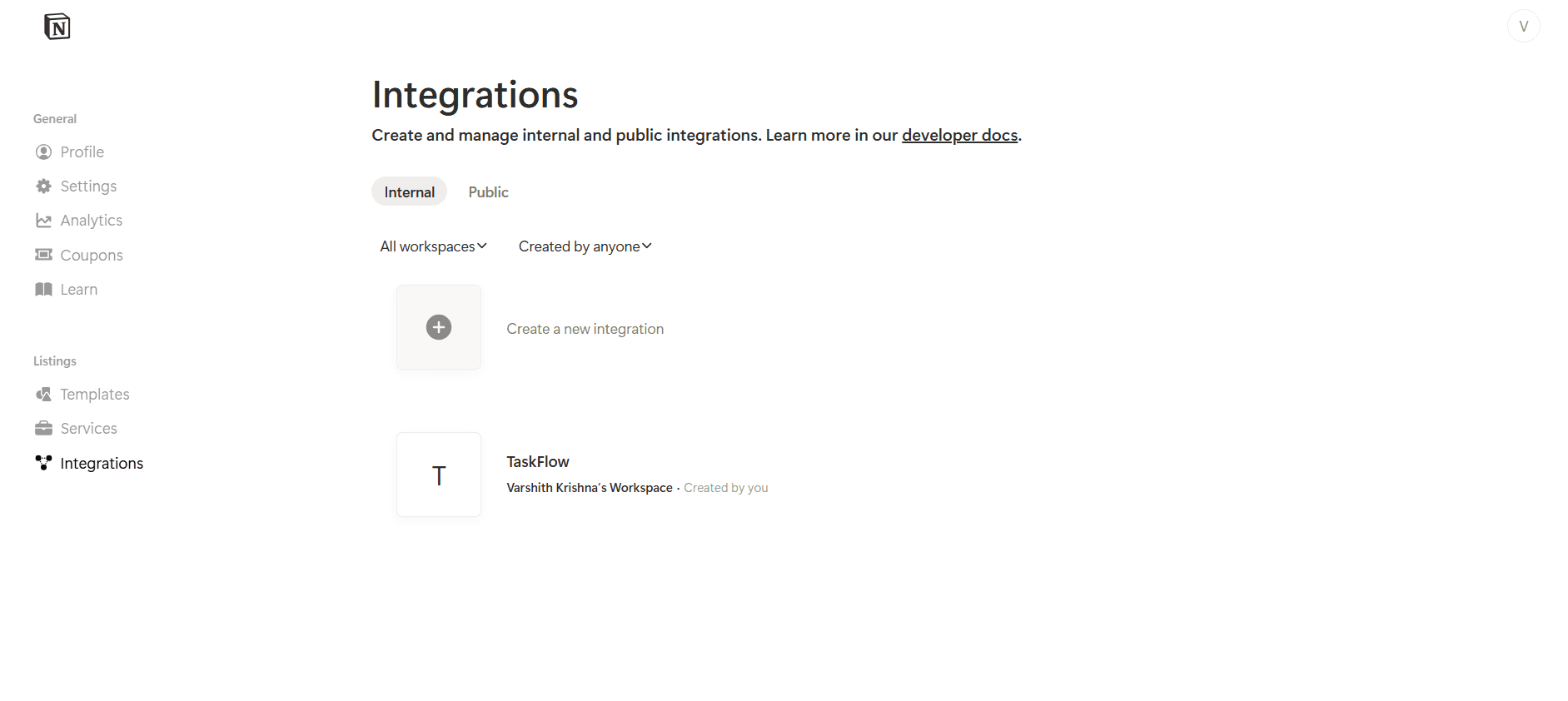
  1. Go to the Notion integrations page:

https://www.notion.so/profile/integrations
  1. Click New integration

Image 1

Step 3: Configure the Notion Integration

After creating a new integration, configure the basic details as follows:

Basic Information

  • Integration Name

Composio Notion Integration
  • Associated Workspace

    • Select the Notion workspace where this integration will be installed and tested.

  • Integration Type

    • Select Public

Why Public?

Public integrations allow OAuth-based authentication and can be connected by multiple users or workspaces. This is required for Composio’s OAuth flow.
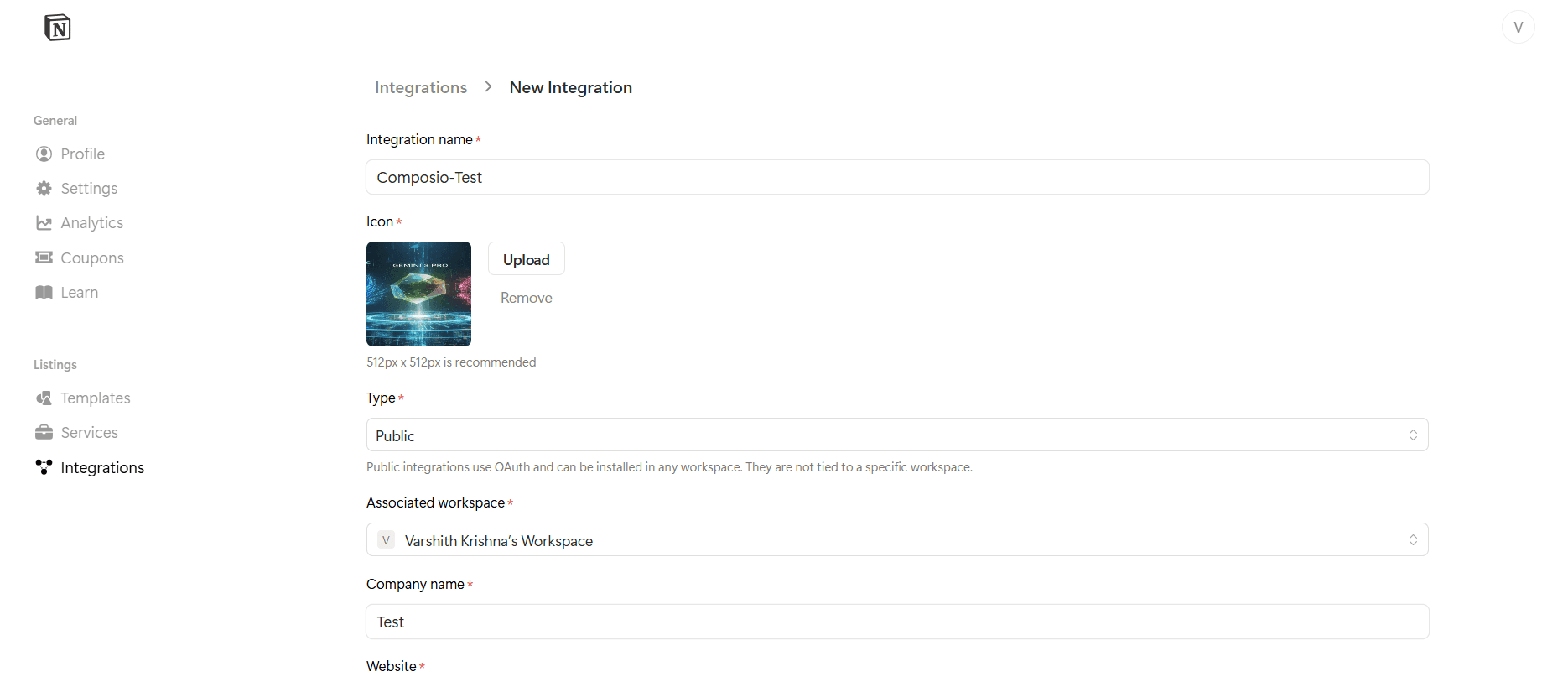
Image 2

Step 4: Configure OAuth Settings

  1. Navigate to the OAuth domains & URIs section in the integration settings.

  2. Add the following Redirect URI:

https://backend.composio.dev/api/v3/toolkits/auth/callback
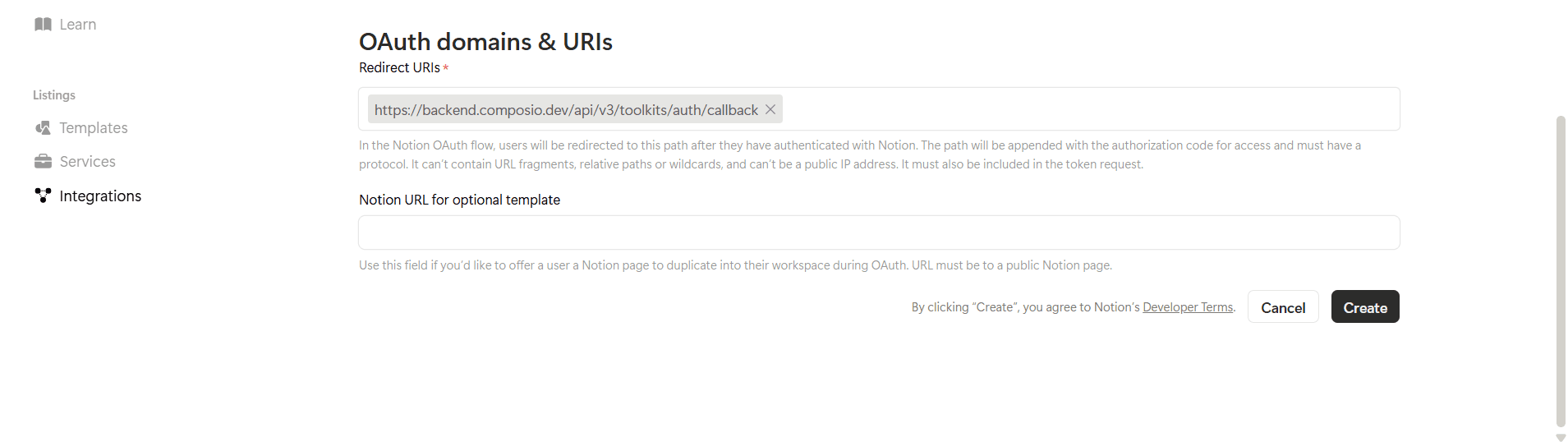
Image 3

Redirect URI Requirements

  • Must use HTTPS

  • Must match the URI exactly

  • No trailing slash

  • No URL fragments, wildcards, or relative paths

This redirect URI is required so Notion can return the authorization code to Composio after the user successfully authenticates.
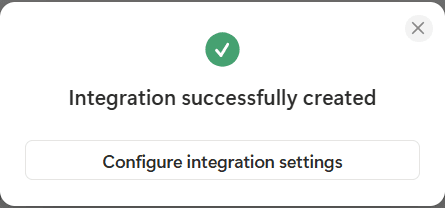
Image 4

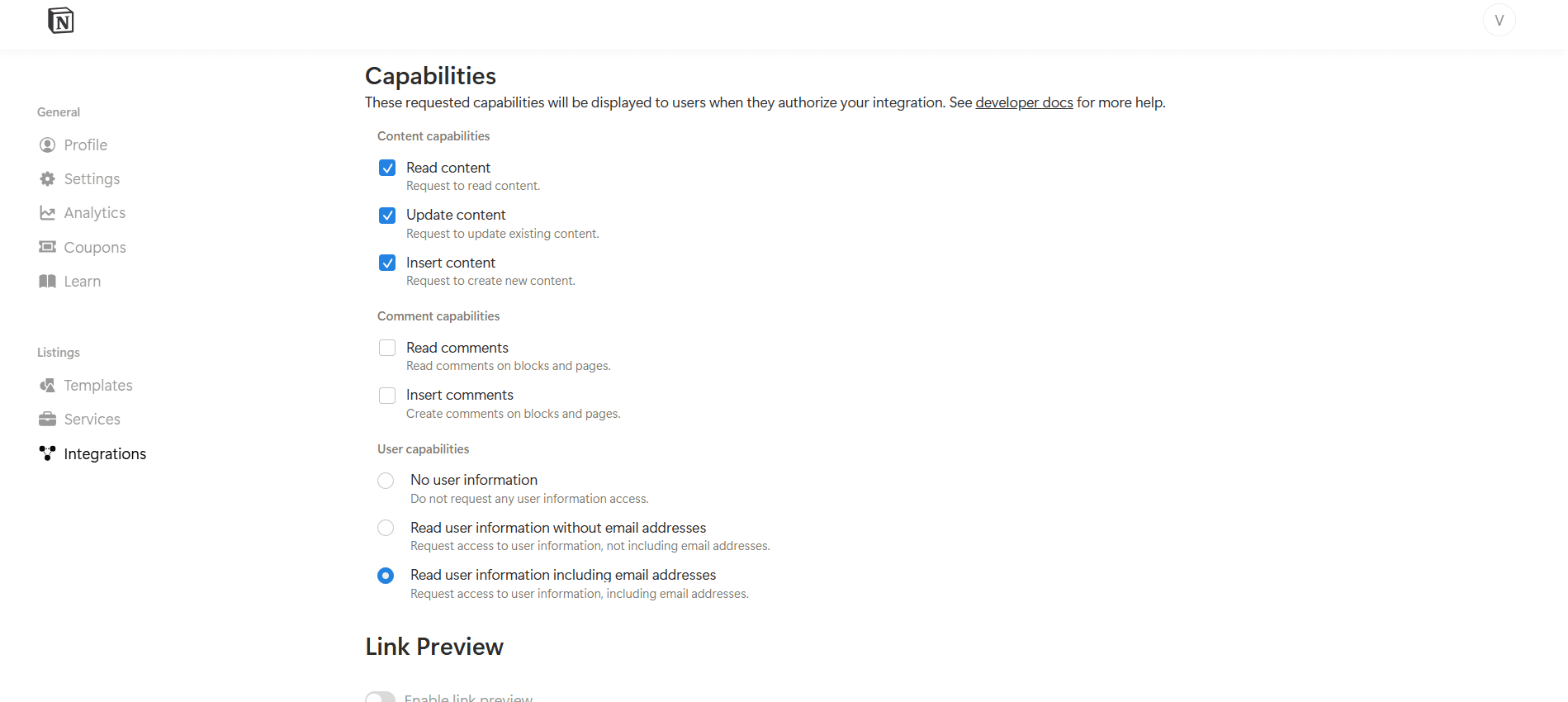
Step 5: Select Capabilities (Permissions)

Notion permissions are configured as Capabilities, not traditional scopes.

Commonly enabled capabilities:

  • Read content

  • Update content

  • Insert content

  • Read user information

Image 5

Select only the capabilities your integration requires.

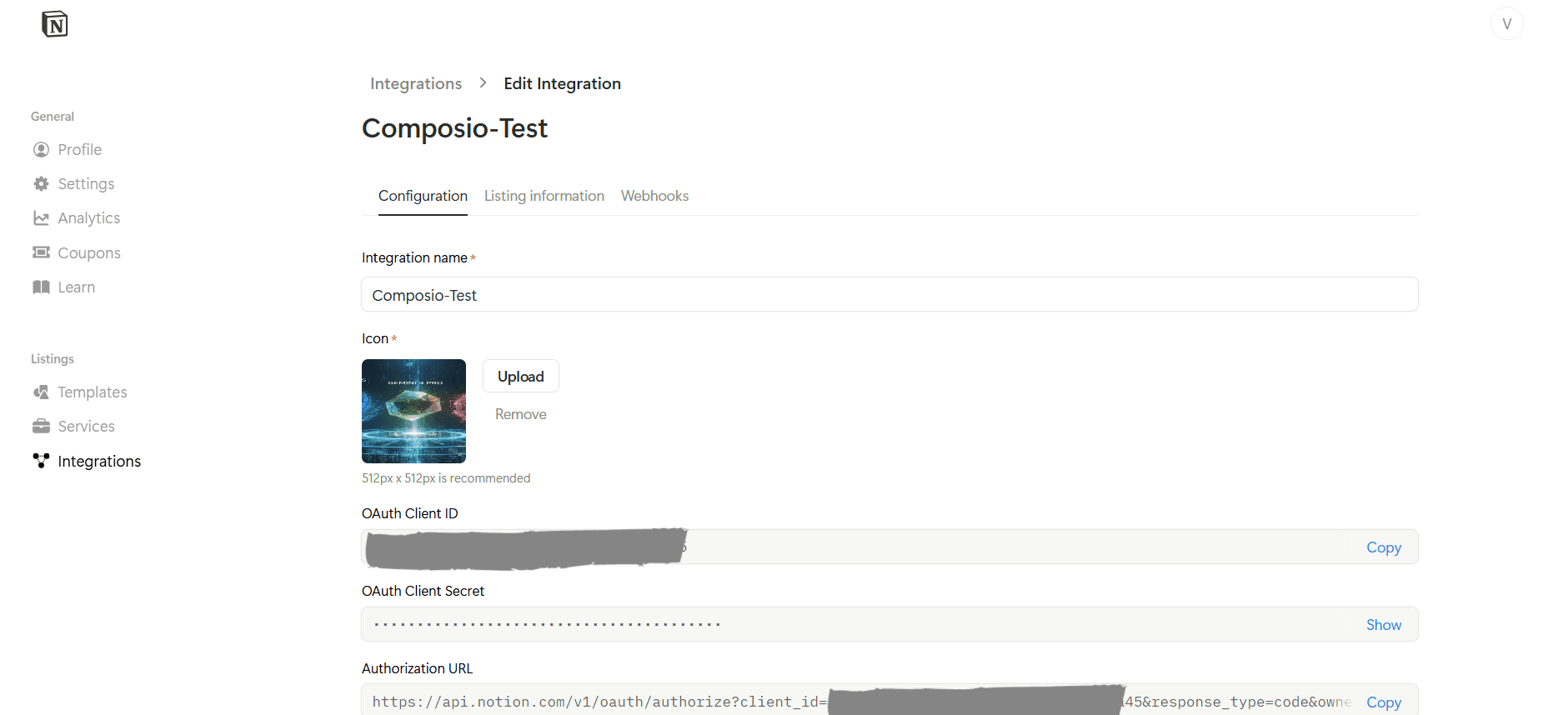
Step 6: Copy OAuth Credentials

Once saved, Notion will generate:

  • Client ID

  • Client Secret

  • Authorization URL

Image 6

Important:

Store the Client Secret securely. Treat it like a password.

Creating the Auth Config in Composio

Now that your Notion OAuth credentials are ready, configure them in Composio.

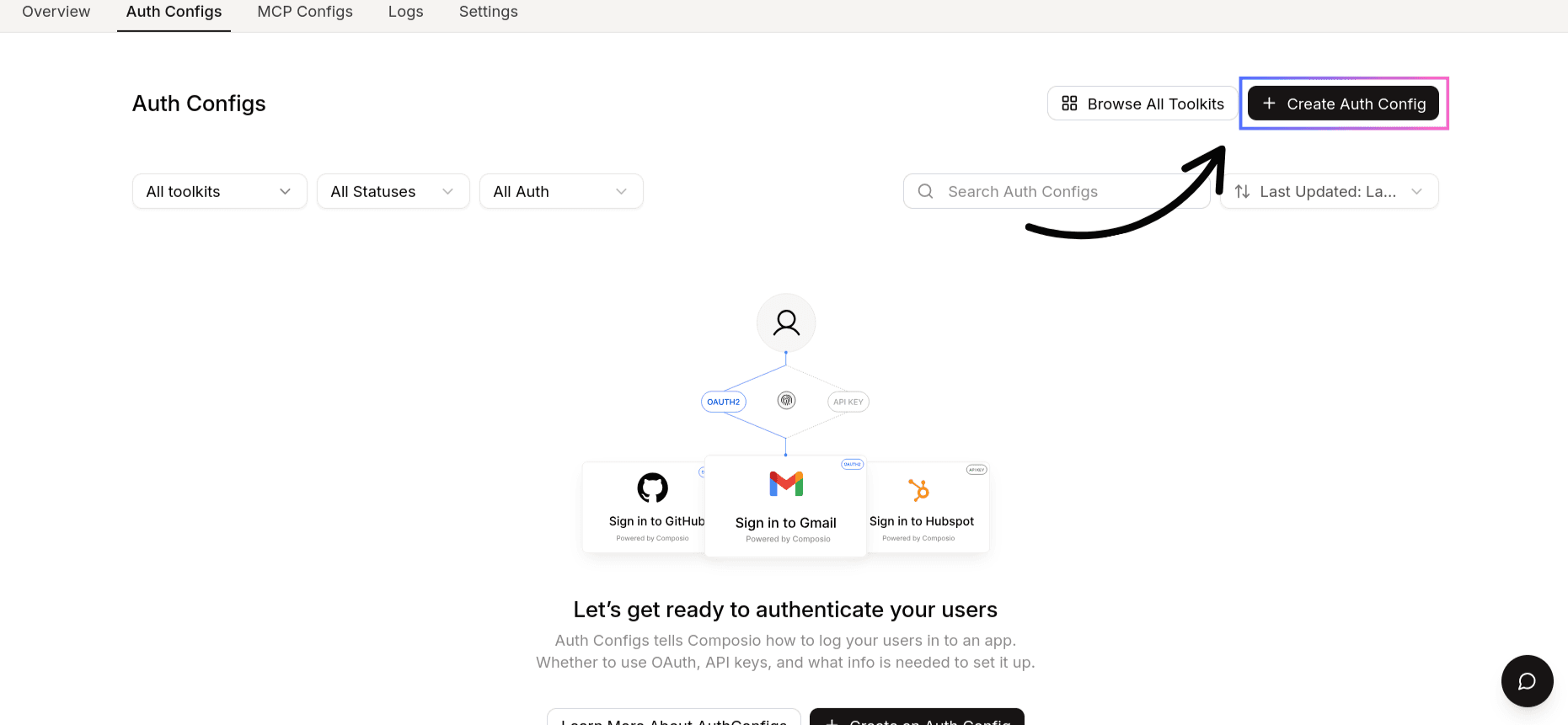
Step 7: Create a Notion Auth Config

  1. Go to the Composio Dashboard:

https://platform.composio.dev/
  1. Click Create Auth Config

Image 7
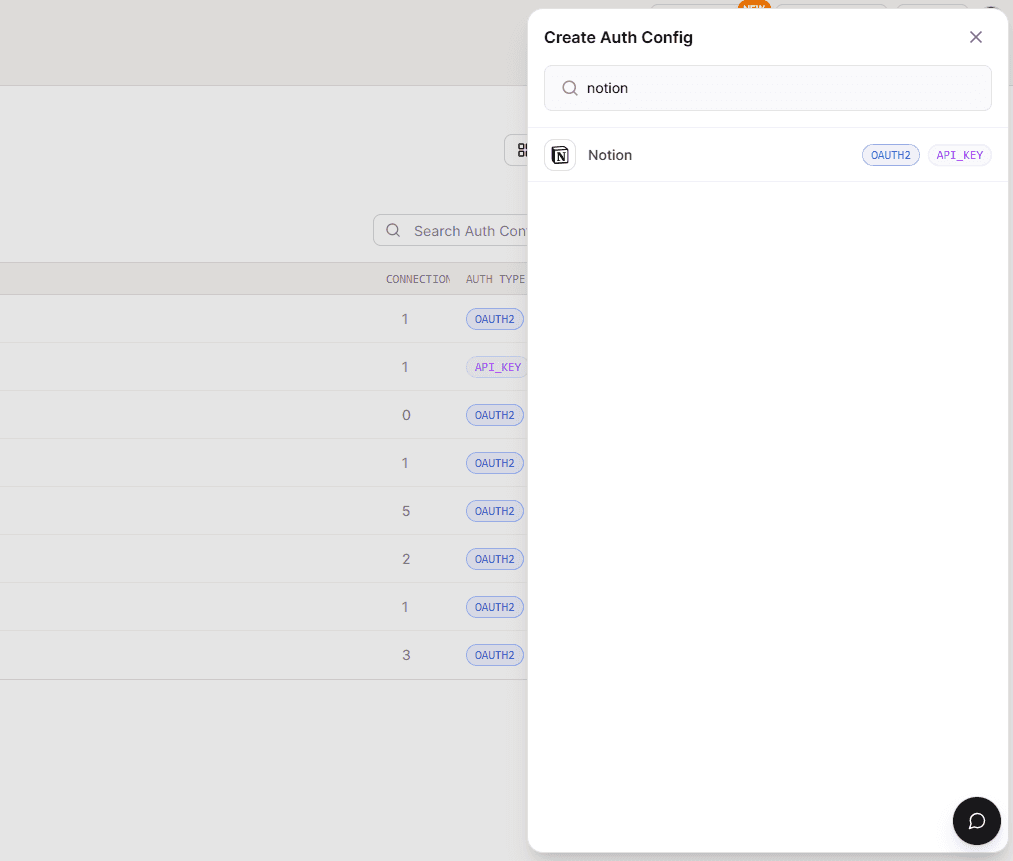
  1. Select Notion from the toolkit list

Image 8
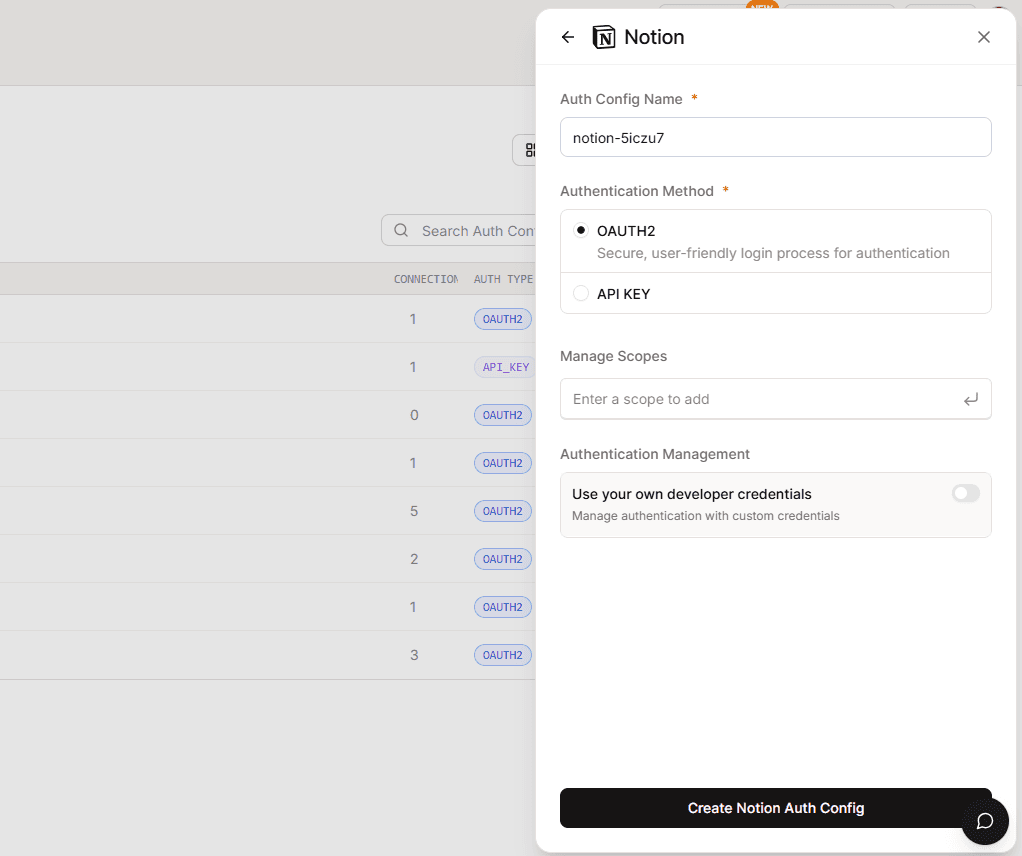
  1. Ensure authentication type is OAuth2

Image 9
  1. Enable Use your own developer authentication

Image 10
  1. Click Create Notion Auth Config

Step 8: Configure the Auth Config

Open the Manage Auth Config tab and fill in:

  • Client ID → from Notion

  • Client Secret → from Notion

  • Redirect URI

https://backend.composio.dev/api/v3/toolkits/auth/callback
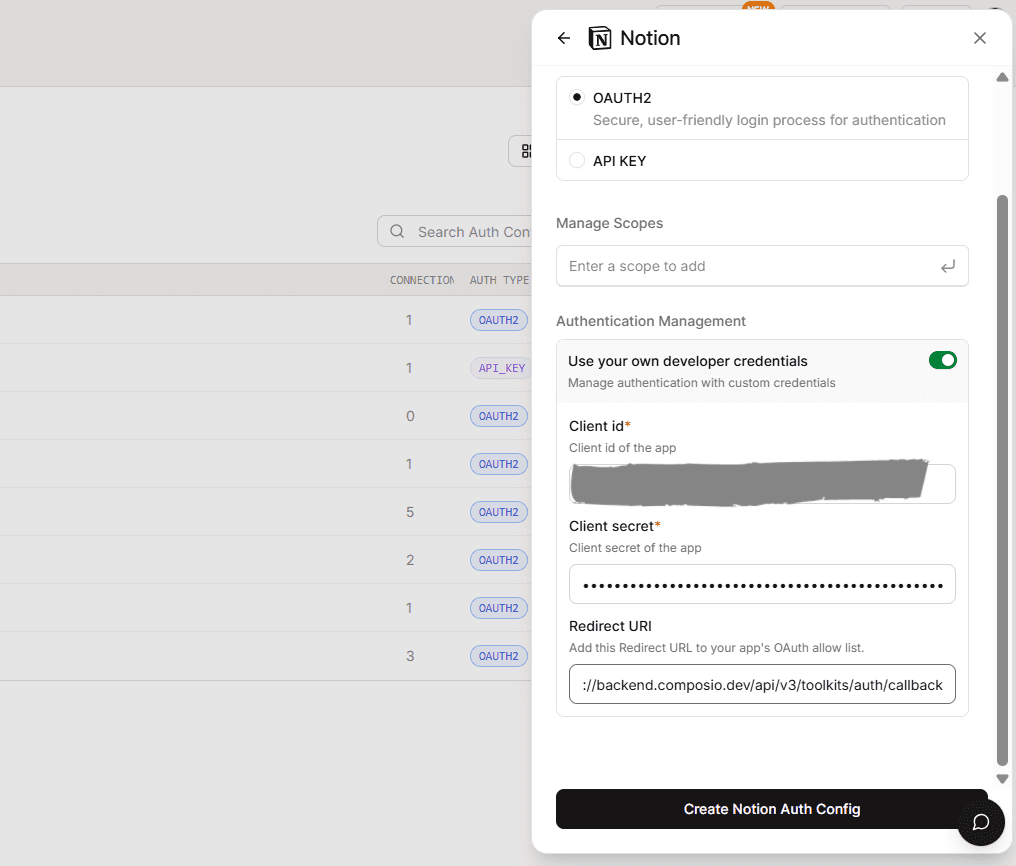

Image 11

METHOD 2: API Key (Internal Integration Secret) Authentication

In addition to OAuth, Notion also supports API Key–based authentication using an Internal Integration Token. This method is useful for server-to-server use cases or when OAuth is not required.
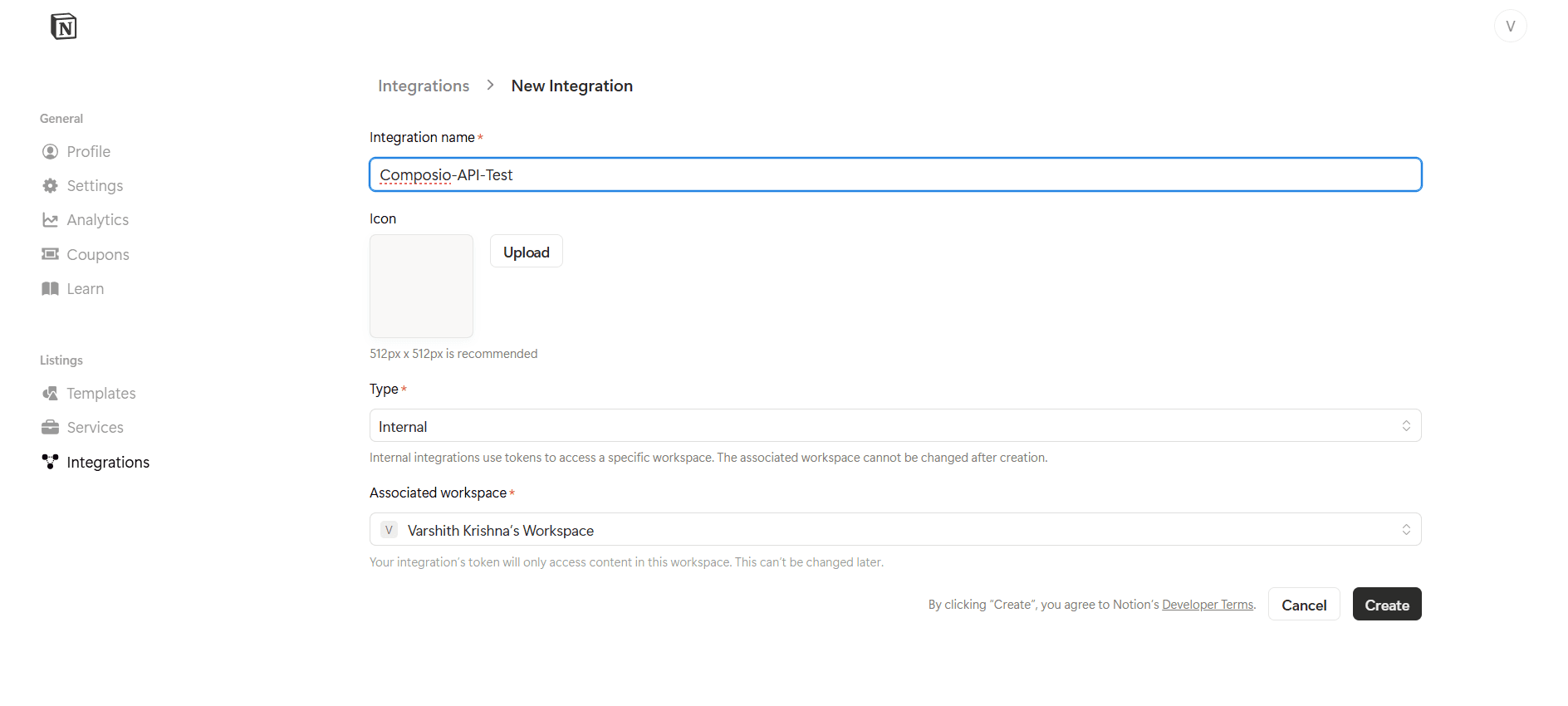
Image 12

Important: API Key authentication only works with Internal integrations. Public integrations must use OAuth.

When to Use API Key Authentication

Use an Internal Integration Token if:

  • You are integrating with your own Notion workspace

  • You do not need multi-user OAuth access

  • You want a simpler, non-redirect authentication flow

  • The integration will be used by a single workspace

Creating an Internal Integration Token

  1. On the Notion Integrations page, click New integration

  2. Enter a name such as:

Composio-API-Test
  1. Select the Associated Workspace

  2. Set the Integration Type to Internal

  3. Click Submit

Once created, Notion will generate an Internal Integration Token.
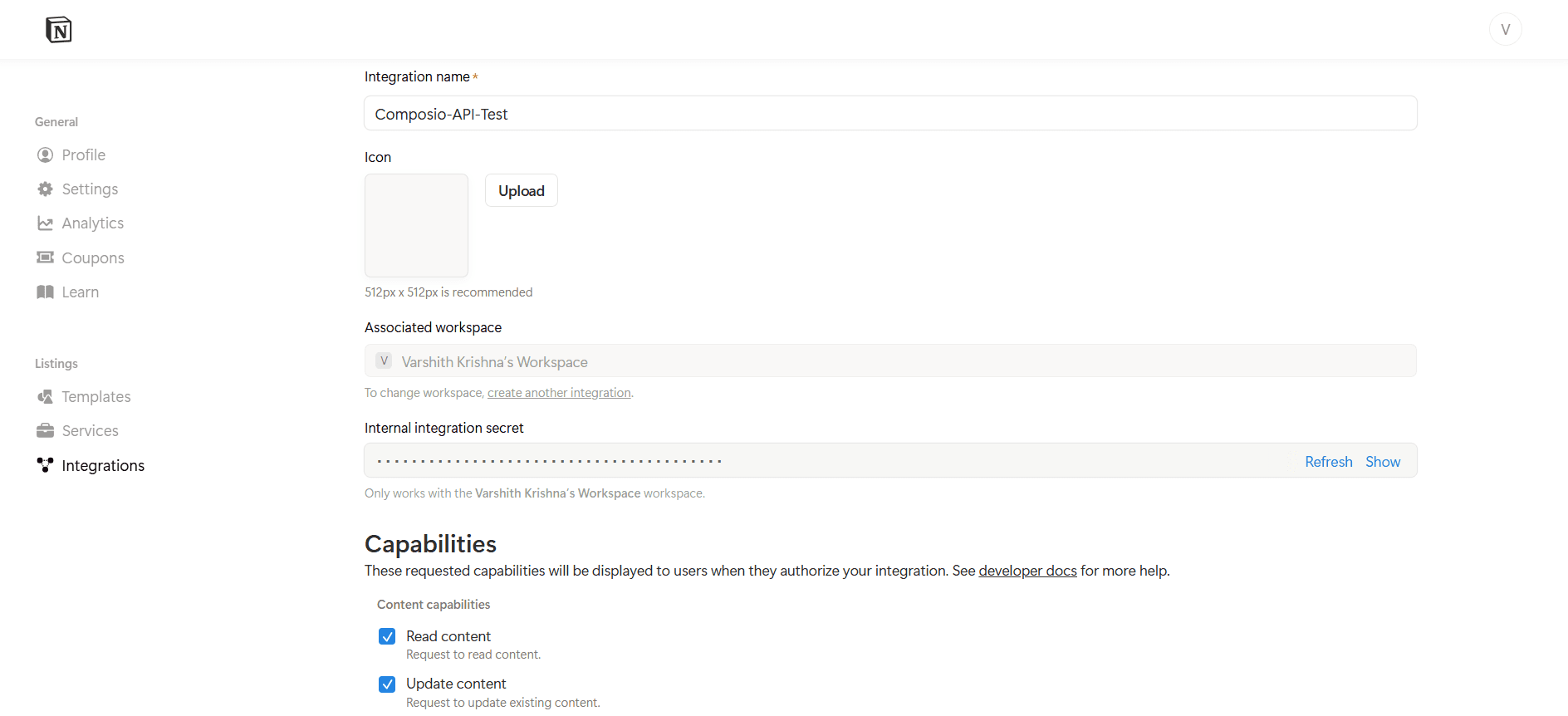
Image 13

Save the token immediately, it will not be shown again.

Using API Key Authentication in Composio

To configure API Key authentication in Composio:

  1. Choose API Key as the authentication method
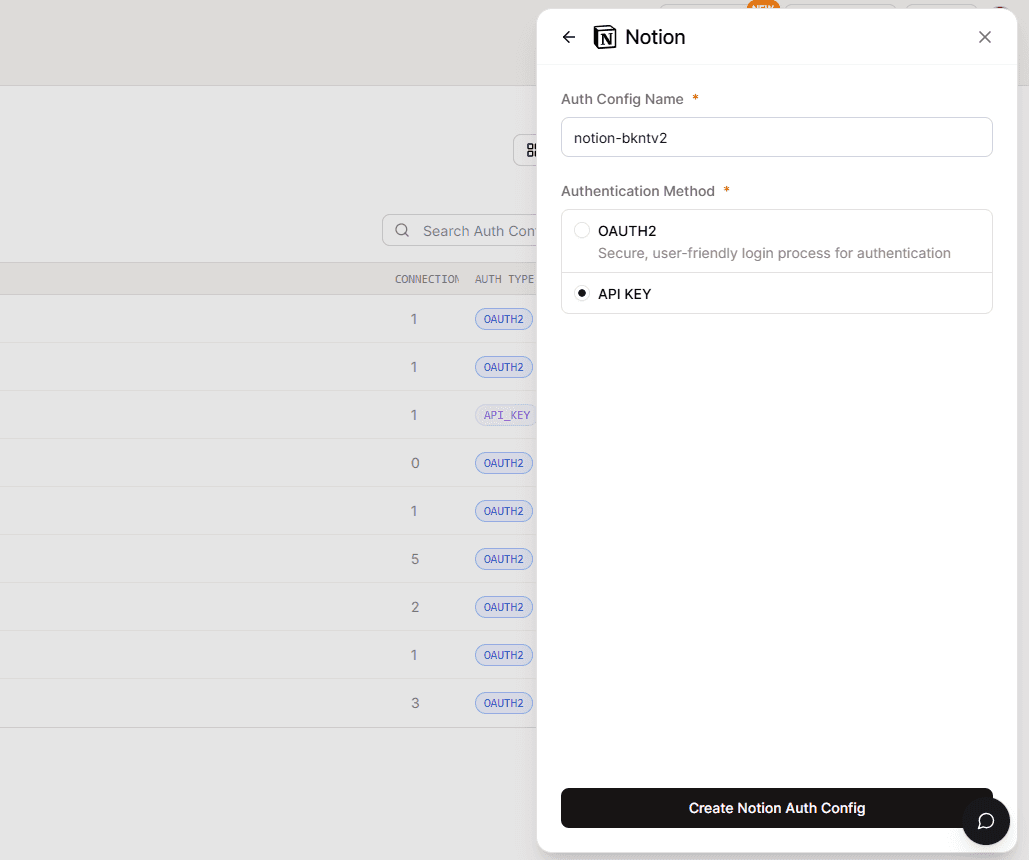
Image 14
  1. Click Create Auth Config

How OAuth Works with Composio

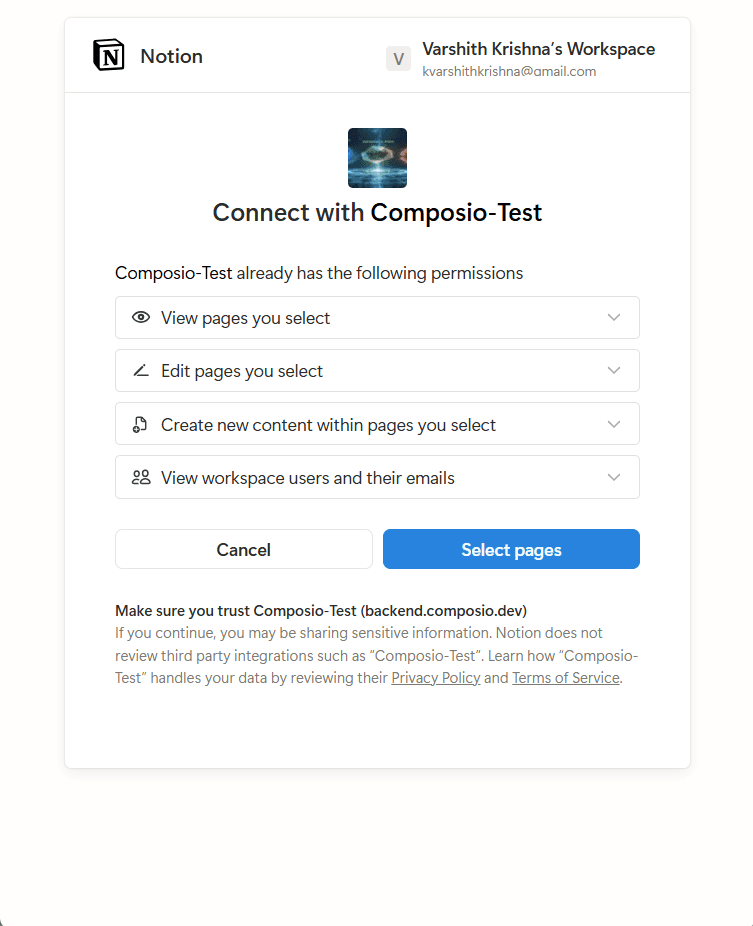
When a user connects their Notion account:

  • Composio handles the OAuth authorization flow

  • The user approves access to selected capabilities

  • Access and refresh tokens are securely stored by Composio

  • Tokens are refreshed automatically

Image 15

How Authentication Works (API Key)

  • The Internal Integration Token is stored securely in Composio

  • Composio sends the token in the request headers

  • No OAuth redirect or user consent flow is involved

  • Access is limited to explicitly shared pages only
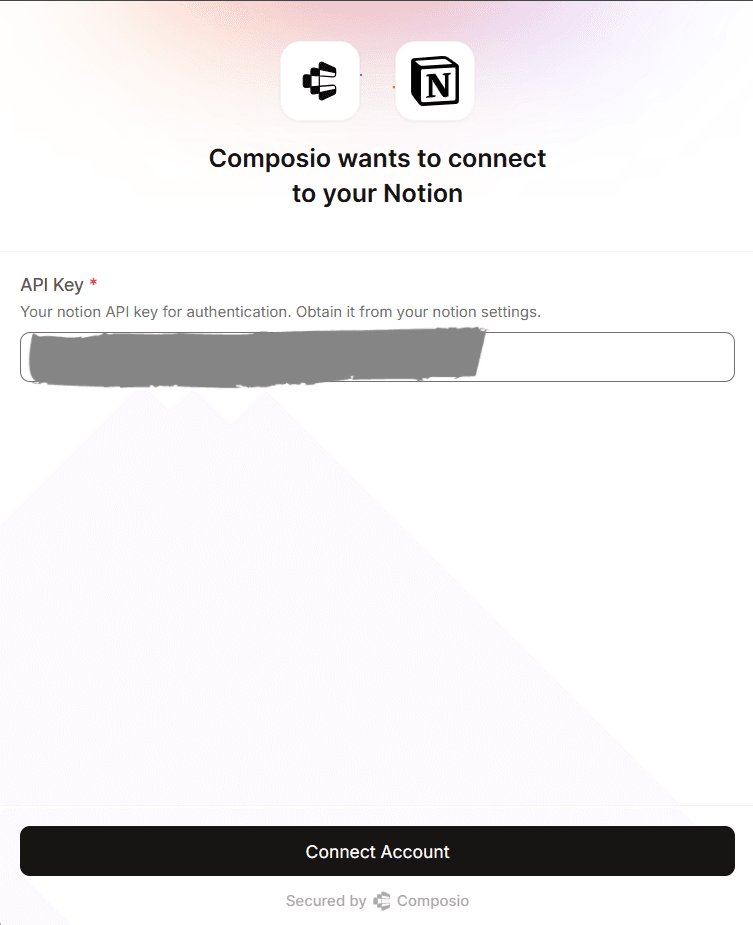
Image 16

Base URL for Notion API

All Notion API requests are sent to:

https://api.notion.com/v1

Test Notion Connection (Optional)

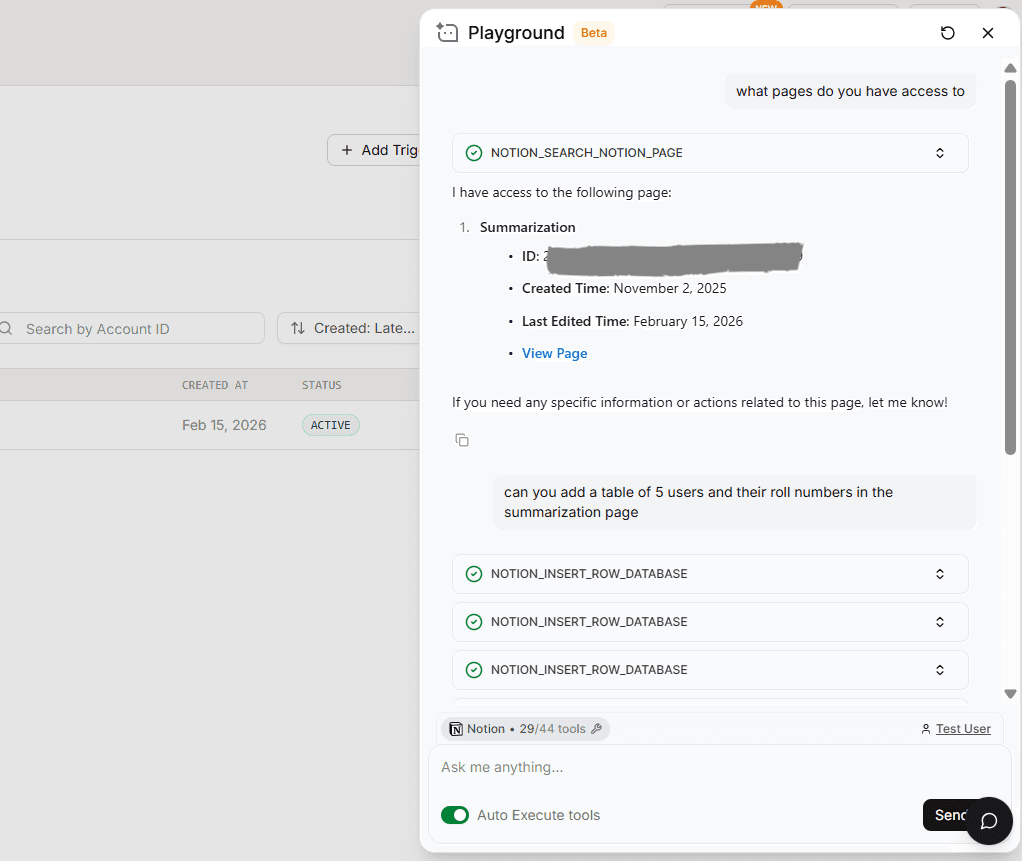
You can verify the connection using Composio Playground.

  1. Open your Notion Auth Config

  2. Navigate to the Playground

Image 17

If configured correctly, Composio will successfully access your Notion workspace.

Final Step

Once everything is set up:

  1. Copy the Auth Config ID (starts with ac_)
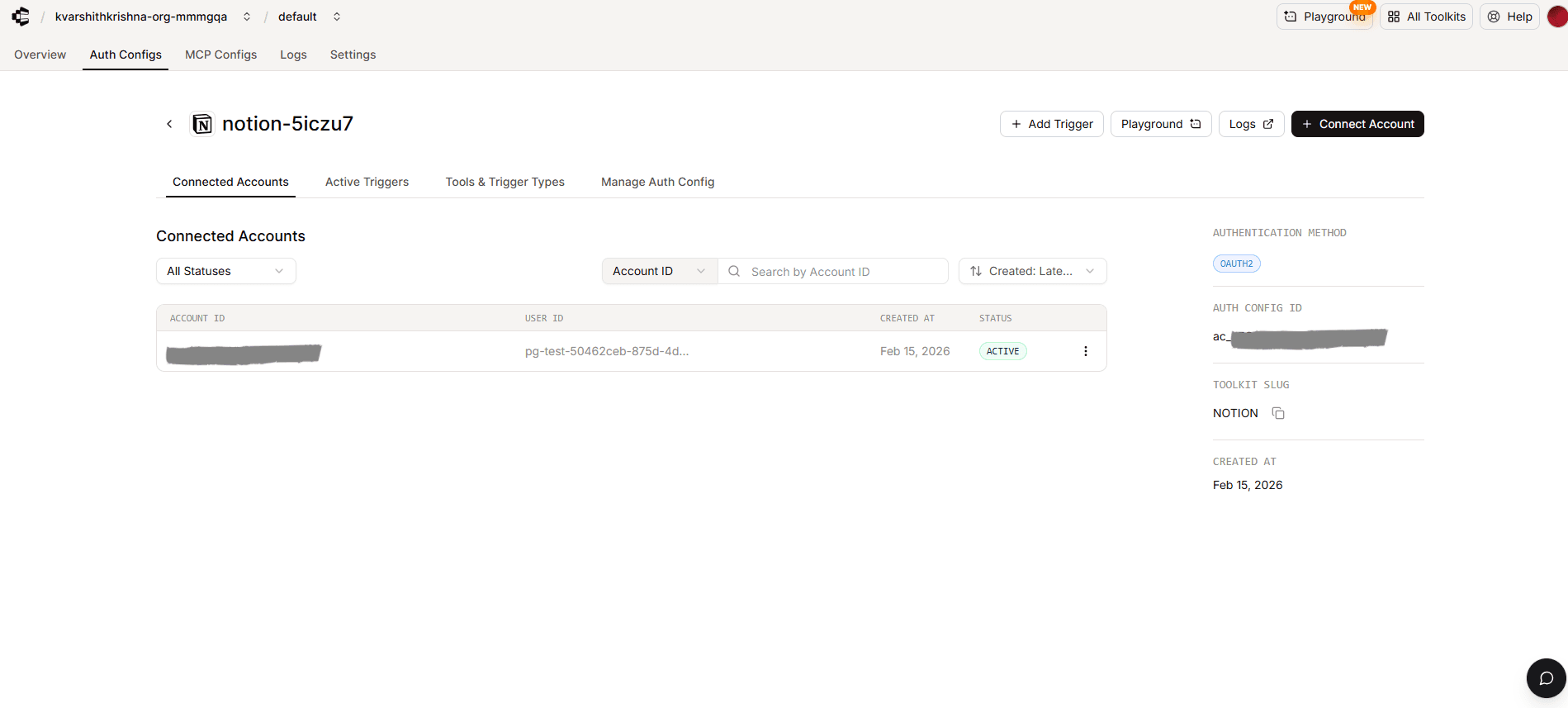
Image 18
  1. Store it securely in your secret manager

  2. Use it in your application code to authenticate Notion via Composio

Your Notion integration is now ready to use!

In this guide, we’ll walk through how to configure authentication for Notion using OAuth 2.0 and API Key with Composio.

Notion supports public OAuth integrations, making it straightforward to set up and test.

Setting up Notion

In this section, we’ll create a Notion integration to obtain the Client ID and Client Secret.

NOTE:

If you already have a Notion integration with OAuth credentials, you can skip to Creating the Auth Config in Composio.

Step 1: Create a Notion Account (if needed)

If you don’t already have one, sign up here:

https://www.notion.so/

A free workspace is sufficient.

Step 2: Create a Notion Integration

  1. Go to the Notion integrations page:

https://www.notion.so/profile/integrations
  1. Click New integration

Image 1

Step 3: Configure the Notion Integration

After creating a new integration, configure the basic details as follows:

Basic Information

  • Integration Name

Composio Notion Integration
  • Associated Workspace

    • Select the Notion workspace where this integration will be installed and tested.

  • Integration Type

    • Select Public

Why Public?

Public integrations allow OAuth-based authentication and can be connected by multiple users or workspaces. This is required for Composio’s OAuth flow.

Image 2

Step 4: Configure OAuth Settings

  1. Navigate to the OAuth domains & URIs section in the integration settings.

  2. Add the following Redirect URI:

https://backend.composio.dev/api/v3/toolkits/auth/callback
Image 3

Redirect URI Requirements

  • Must use HTTPS

  • Must match the URI exactly

  • No trailing slash

  • No URL fragments, wildcards, or relative paths

This redirect URI is required so Notion can return the authorization code to Composio after the user successfully authenticates.

Image 4

Step 5: Select Capabilities (Permissions)

Notion permissions are configured as Capabilities, not traditional scopes.

Commonly enabled capabilities:

  • Read content

  • Update content

  • Insert content

  • Read user information

Image 5

Select only the capabilities your integration requires.

Step 6: Copy OAuth Credentials

Once saved, Notion will generate:

  • Client ID

  • Client Secret

  • Authorization URL

Image 6

Important:

Store the Client Secret securely. Treat it like a password.

Creating the Auth Config in Composio

Now that your Notion OAuth credentials are ready, configure them in Composio.

Step 7: Create a Notion Auth Config

  1. Go to the Composio Dashboard:

https://platform.composio.dev/
  1. Click Create Auth Config

Image 7
  1. Select Notion from the toolkit list

Image 8
  1. Ensure authentication type is OAuth2

Image 9
  1. Enable Use your own developer authentication

Image 10
  1. Click Create Notion Auth Config

Step 8: Configure the Auth Config

Open the Manage Auth Config tab and fill in:

  • Client ID → from Notion

  • Client Secret → from Notion

  • Redirect URI

https://backend.composio.dev/api/v3/toolkits/auth/callback


Image 11

METHOD 2: API Key (Internal Integration Secret) Authentication

In addition to OAuth, Notion also supports API Key–based authentication using an Internal Integration Token. This method is useful for server-to-server use cases or when OAuth is not required.

Image 12

Important: API Key authentication only works with Internal integrations. Public integrations must use OAuth.

When to Use API Key Authentication

Use an Internal Integration Token if:

  • You are integrating with your own Notion workspace

  • You do not need multi-user OAuth access

  • You want a simpler, non-redirect authentication flow

  • The integration will be used by a single workspace

Creating an Internal Integration Token

  1. On the Notion Integrations page, click New integration

  2. Enter a name such as:

Composio-API-Test
  1. Select the Associated Workspace

  2. Set the Integration Type to Internal

  3. Click Submit

Once created, Notion will generate an Internal Integration Token.

Image 13

Save the token immediately, it will not be shown again.

Using API Key Authentication in Composio

To configure API Key authentication in Composio:

  1. Choose API Key as the authentication method

Image 14
  1. Click Create Auth Config

How OAuth Works with Composio

When a user connects their Notion account:

  • Composio handles the OAuth authorization flow

  • The user approves access to selected capabilities

  • Access and refresh tokens are securely stored by Composio

  • Tokens are refreshed automatically

Image 15

How Authentication Works (API Key)

  • The Internal Integration Token is stored securely in Composio

  • Composio sends the token in the request headers

  • No OAuth redirect or user consent flow is involved

  • Access is limited to explicitly shared pages only

Image 16

Base URL for Notion API

All Notion API requests are sent to:

https://api.notion.com/v1

Test Notion Connection (Optional)

You can verify the connection using Composio Playground.

  1. Open your Notion Auth Config

  2. Navigate to the Playground

Image 17

If configured correctly, Composio will successfully access your Notion workspace.

Final Step

Once everything is set up:

  1. Copy the Auth Config ID (starts with ac_)

Image 18
  1. Store it securely in your secret manager

  2. Use it in your application code to authenticate Notion via Composio

Your Notion integration is now ready to use!