How to configure Instantly Auth in Composio

How to configure Instantly Auth in Composio

In this guide, we’ll walk through how to configure authentication for Instantly using API Token–based authentication with Composio.

Instantly does not support OAuth or public app registration. Instead, it uses API keys (Bearer tokens) for authentication.

Setting Up Instantly

In this section, we’ll generate an API key from Instantly that will be used to authenticate requests via Composio.

Step 1: Generate an API Key in Instantly

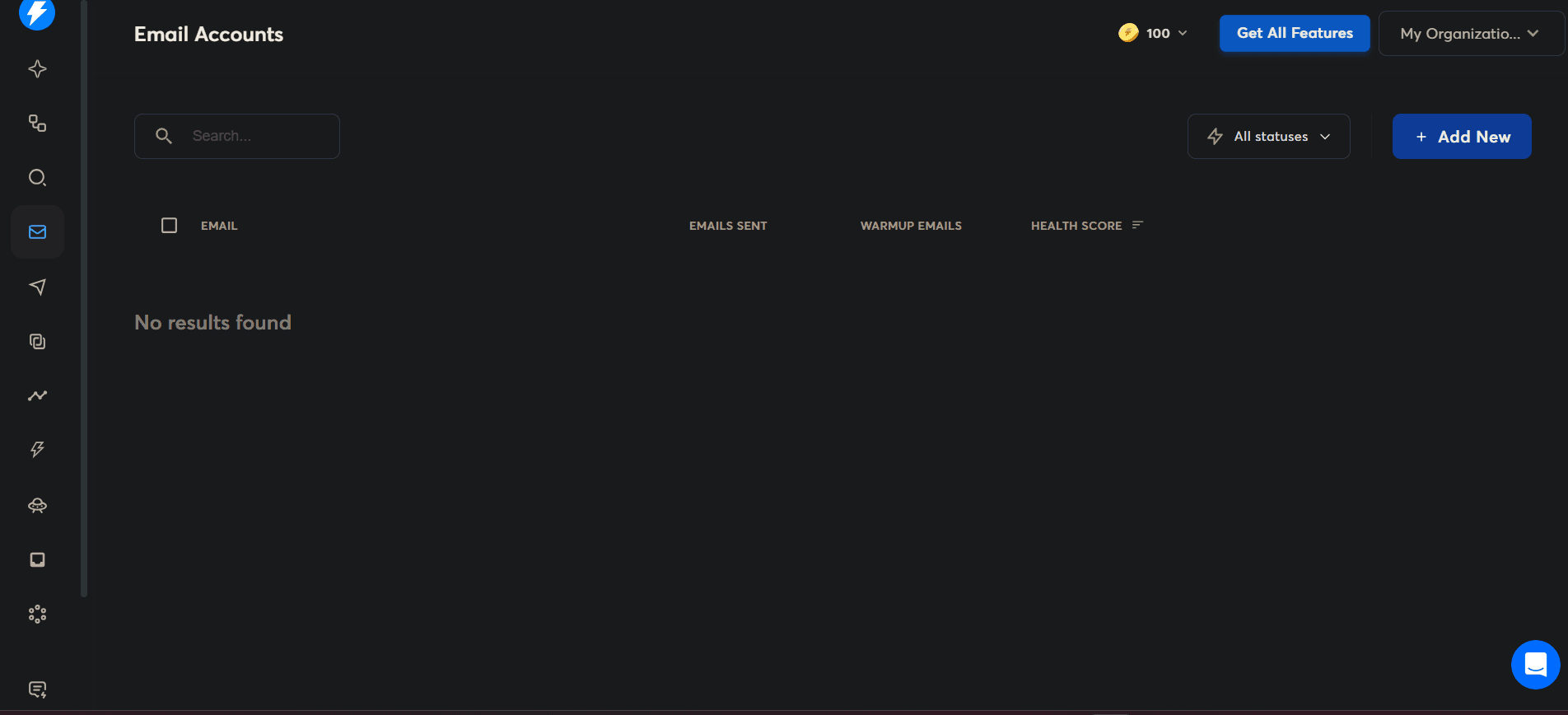
  1. Log in to your Instantly Dashboard

Image 1
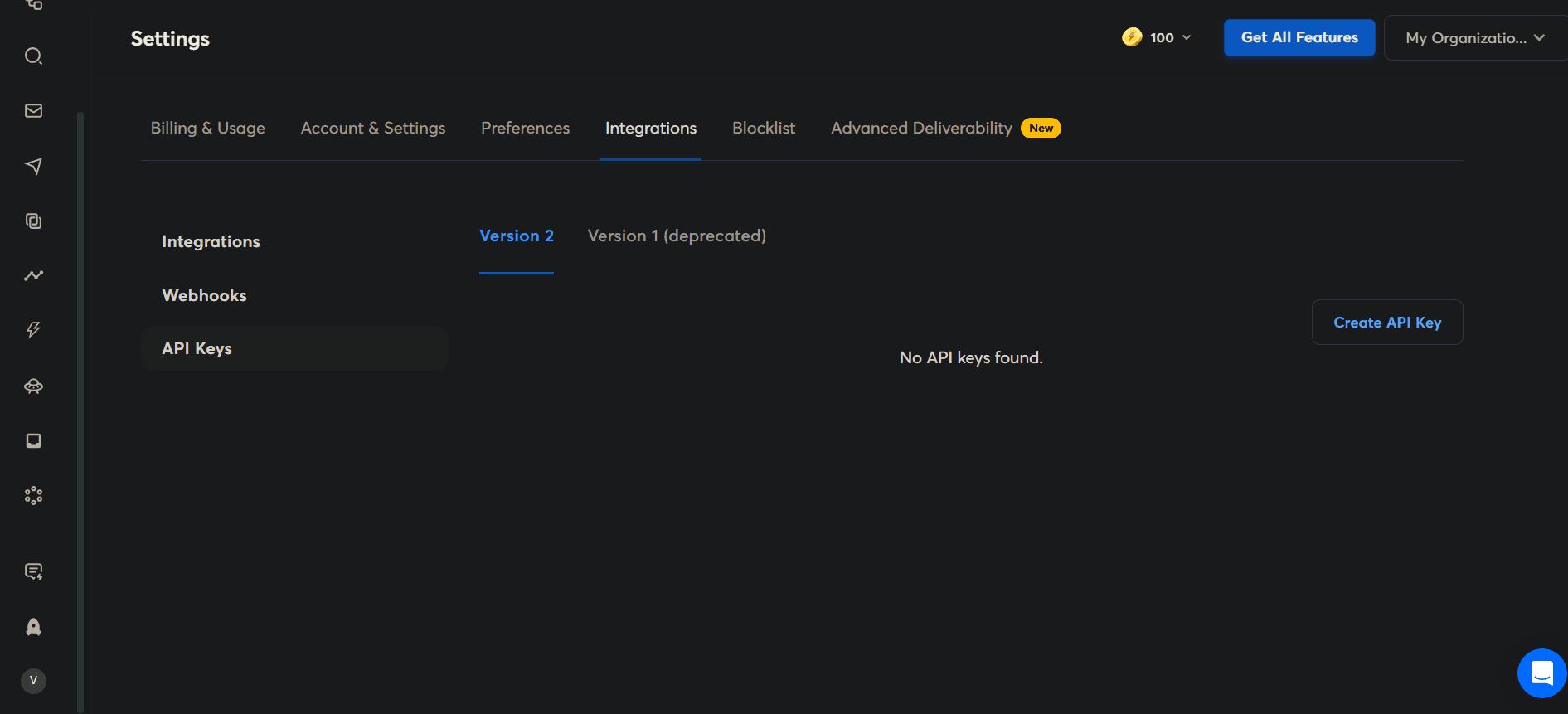
  1. Navigate to Settings

  2. Open the Integrations or API section (label may vary by account)

  3. Click Generate API Key

Image 2
  1. Copy the generated API key and store it securely

API Key Scopes in Instantly

Instantly controls API access using scoped API keys.

When generating an API key in Instantly, you must explicitly select the scopes that determine which resources and actions the key can access.

Important

  • Scopes are fixed at the time of creation

  • Scopes cannot be modified later

  • To change permissions, you must create a new API key

Full-Access Scope

Instantly provides a single full-permission scope:

all:all
  • Grants unrestricted access to all Instantly API endpoints

  • Includes read, create, update, and delete permissions across all resources

  • Not recommended unless your integration genuinely requires full access

Use this scope with caution.

All Available Instantly API Scopes

Below is the list of API scopes available in Instantly, as selectable when creating an API key:

all:all | all:create | all:read | all:update | all:delete

ai_agents:all | ai_agents:create | ai_agents:read | ai_agents:update | ai_agents:delete

campaigns:all | campaigns:create | campaigns:read | campaigns:update | campaigns:delete

leads:all | leads:create | leads:read | leads:update | leads:delete

lead_lists:all | lead_lists:create | lead_lists:read | lead_lists:update | lead_lists:delete

analytics:read

accounts:all | accounts:create | accounts:read | accounts:update | accounts:delete

inbox_tests:all | inbox_tests:create | inbox_tests:read | inbox_tests:update | inbox_tests:delete

webhooks:all | webhooks:create | webhooks:read | webhooks:update | webhooks:delete

api_keys:all | api_keys:create | api_keys:read | api_keys:update | api_keys:delete

Best Practices for Scopes

  • Select only the scopes required for your integration

  • Prefer resource-level scopes over global scopes

  • Avoid using all:all unless absolutely necessary

  • Treat scoped API keys as sensitive credentials

  • Store API keys securely using a secret manager
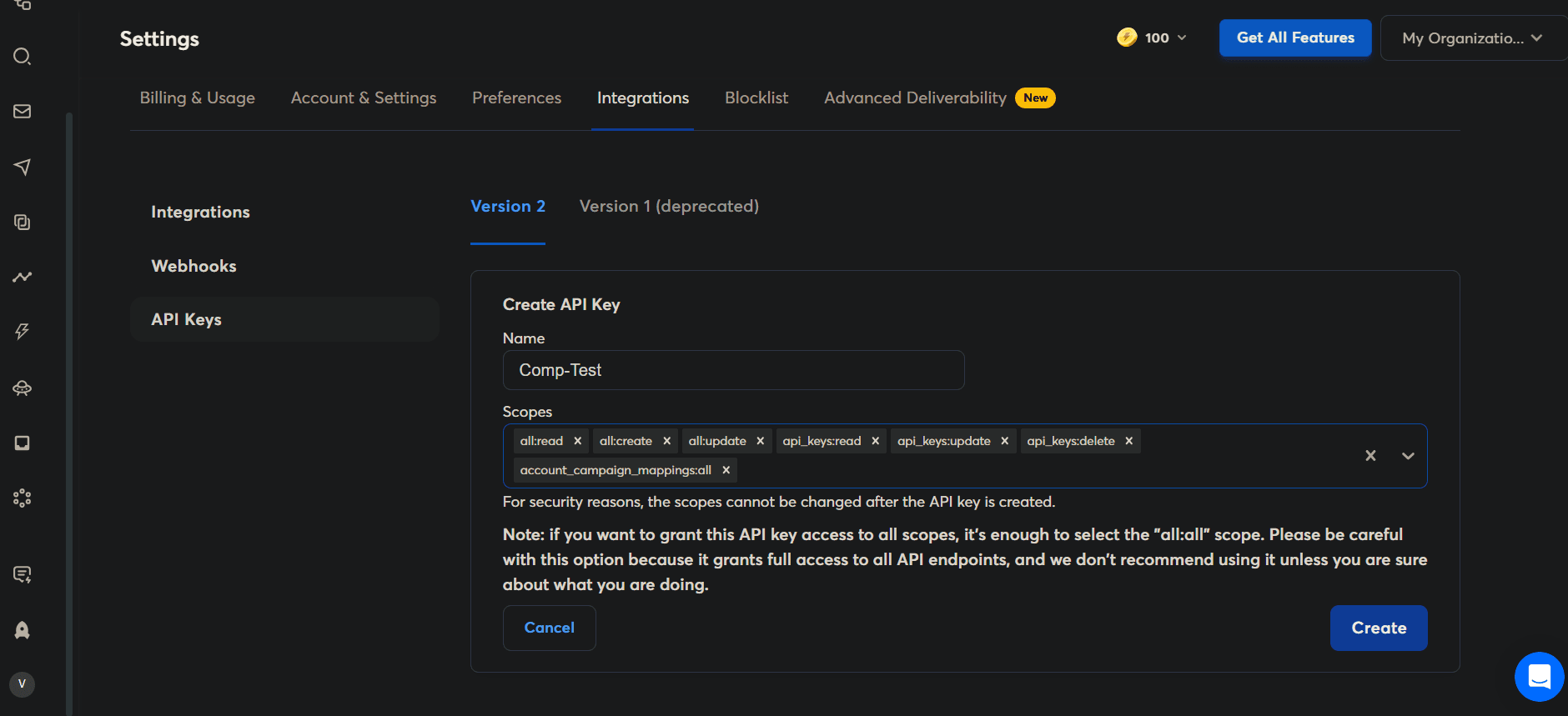
Image 3

Creating the Auth Config in Composio

Once you have your Instantly API key, you can configure authentication in Composio.

Step 2: Create a New Auth Config

  1. Go to the Composio Dashboard

  2. Click on the Create Auth Config button to get a list of all the toolkits available.
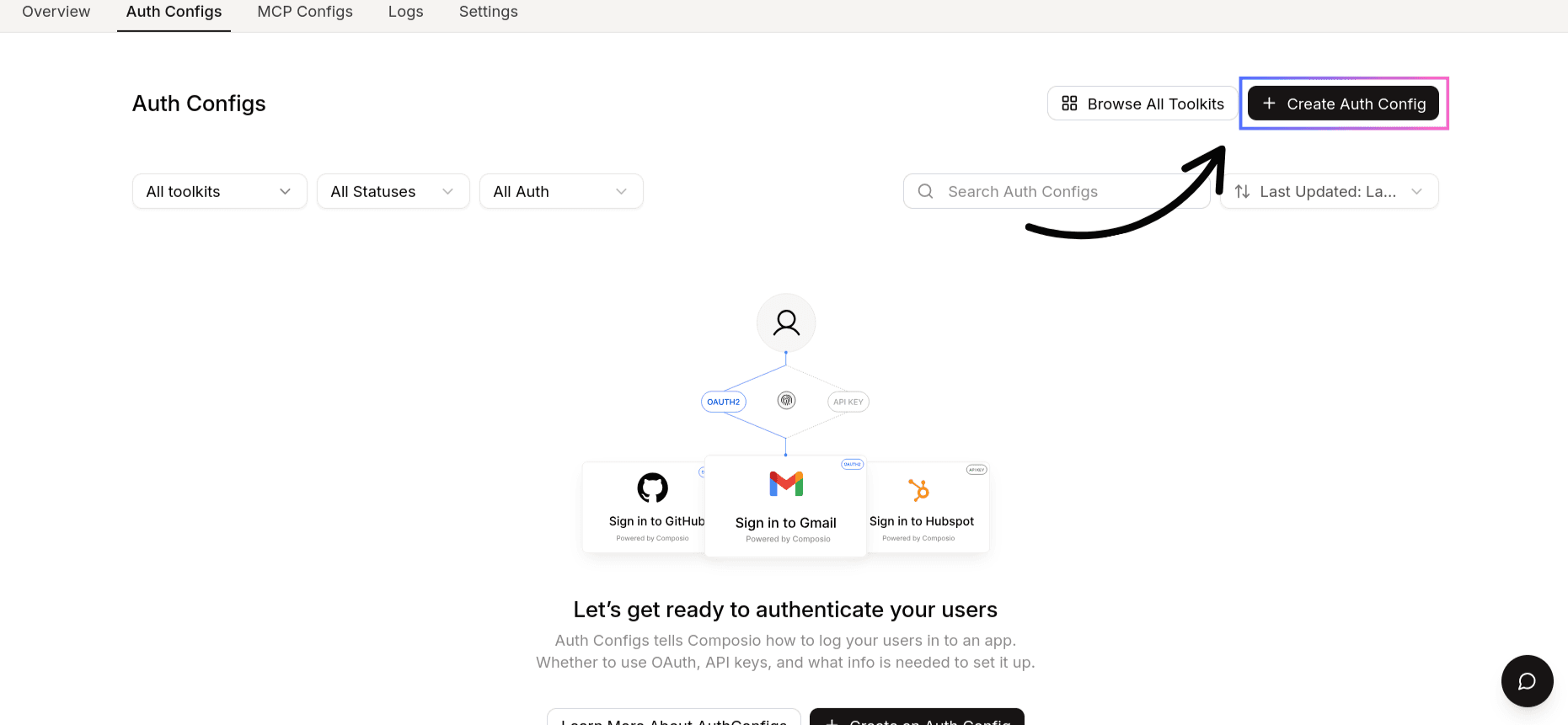
Image 4
  1. Search for and select instantly from the list of toolkits
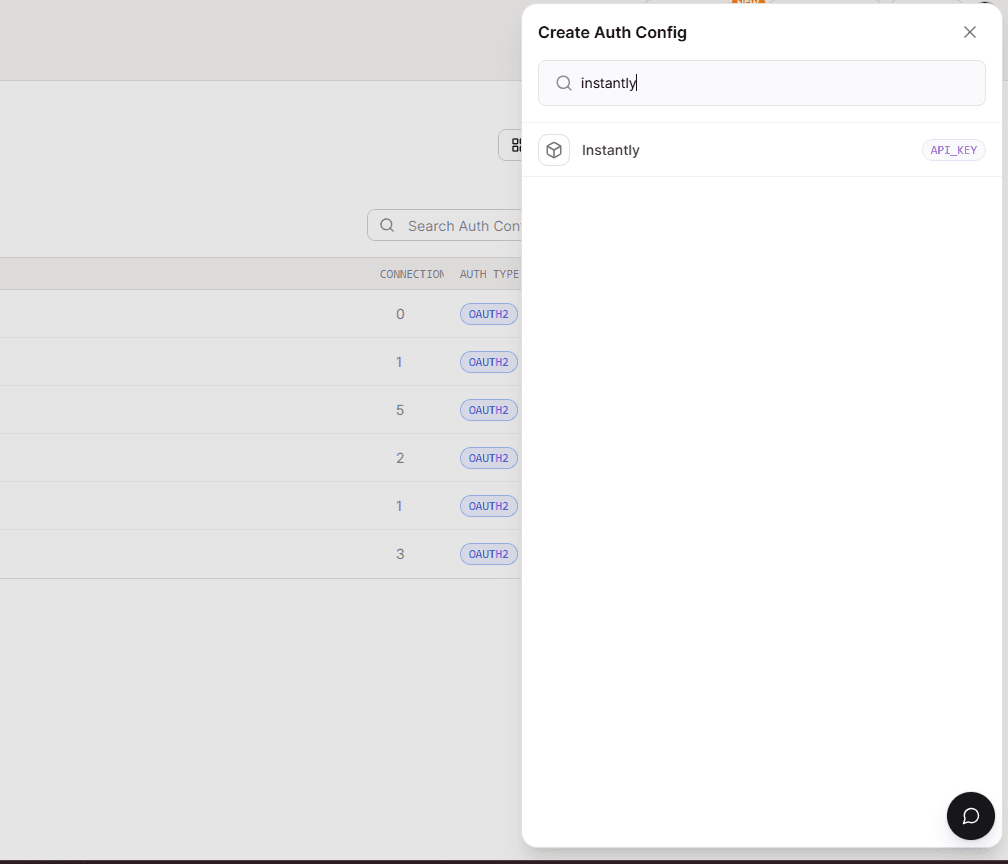
Image 5
  1. Ensure the authentication is API KEY.
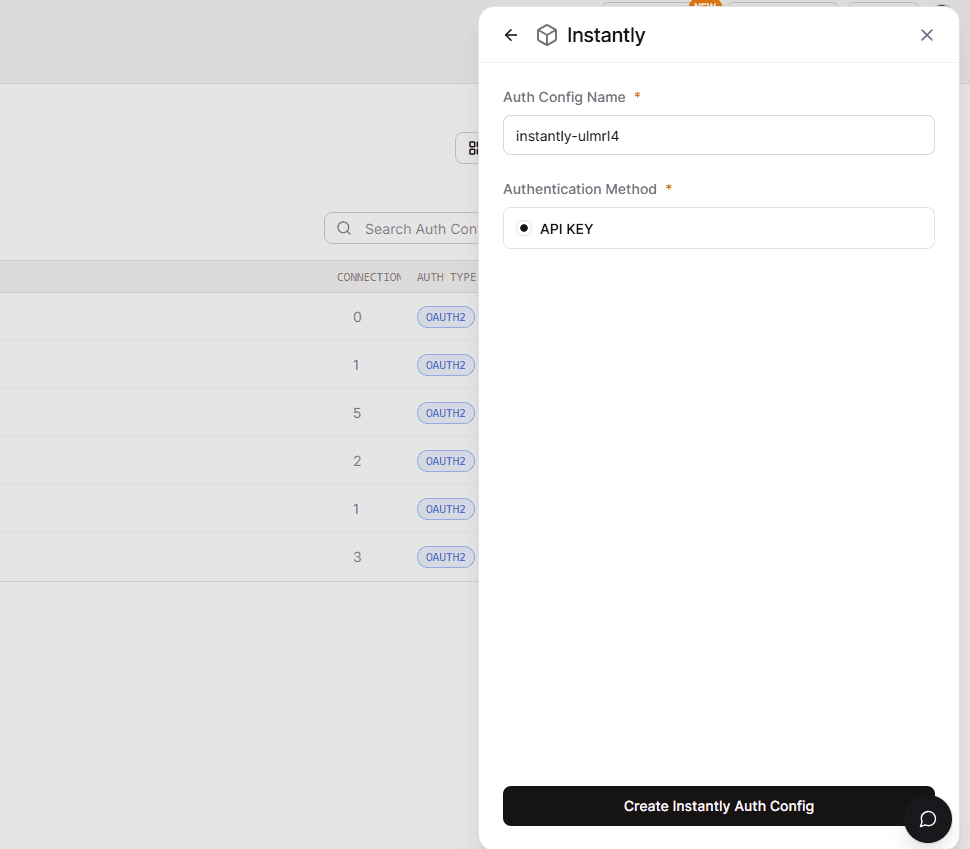
Image 6

Step 3: Configure Authentication Type

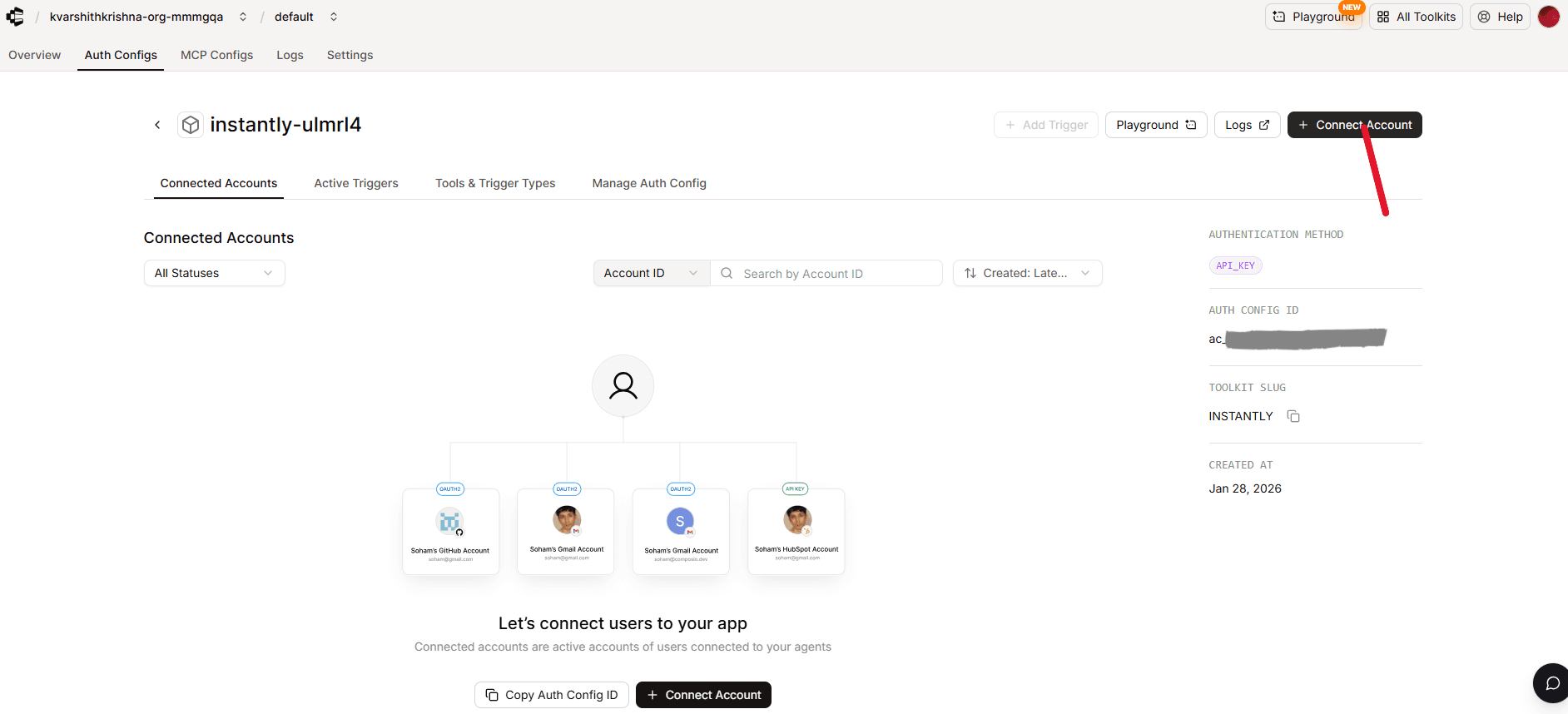
  1. Click on the Connect Account and

Image 7
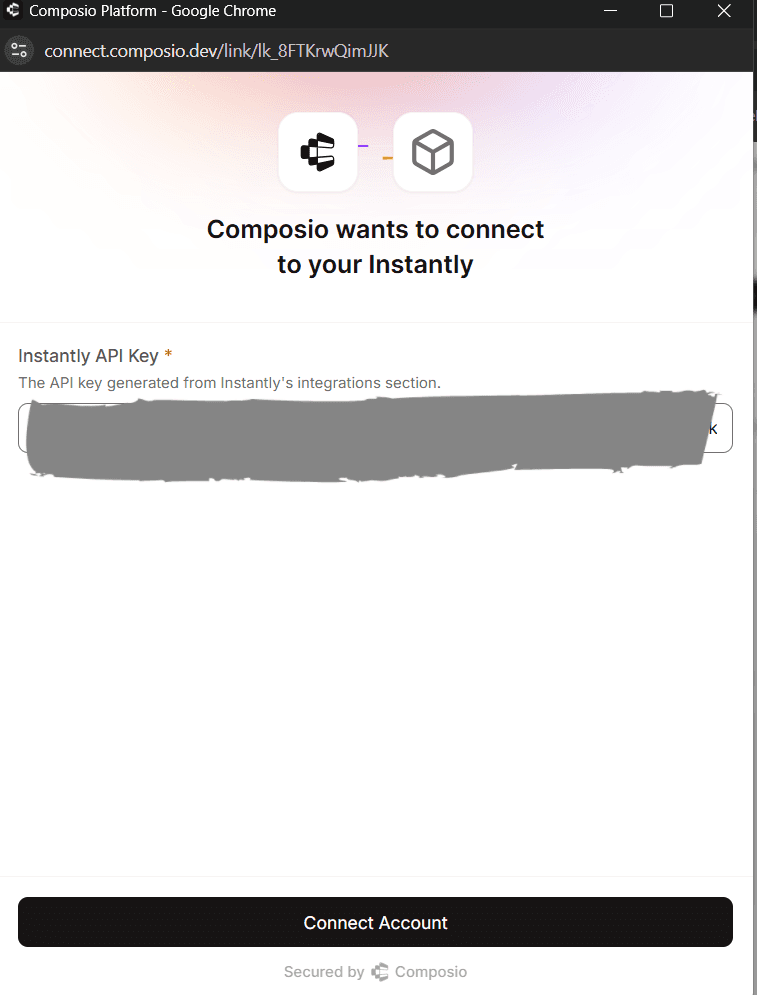
  1. Set Authentication Type to Bearer Token

  2. Paste your Instantly API Key into the token field

  3. Leave all other fields as default

Image 8

Instantly does not require:

  • Client ID

  • Client Secret

  • Redirect URLs

  • OAuth scopes

Scopes Supported by Composio for Instantly

Instantly uses a single API key with account-level permissions.

There are no configurable OAuth scopes.

When using Composio:

  • Permission control is handled entirely by Instantly

  • Composio forwards the API key as a Bearer token in requests

Example Authorization header:

Authorization: Bearer <YOUR_INSTANTLY_API_KEY

Base URL for Instantly

All Instantly API requests are sent to:

https://api.instantly.ai

How Authentication Works

When using Instantly with Composio:

  • The API key is stored securely in the Auth Config

  • Composio injects the key as a Bearer token

  • No OAuth consent screen is involved

  • No redirect flow is required

This makes Instantly one of the simplest integrations to set up.

Final Step

Once the Auth Config is created:

  1. Copy the Auth Config ID (starts with ac_)
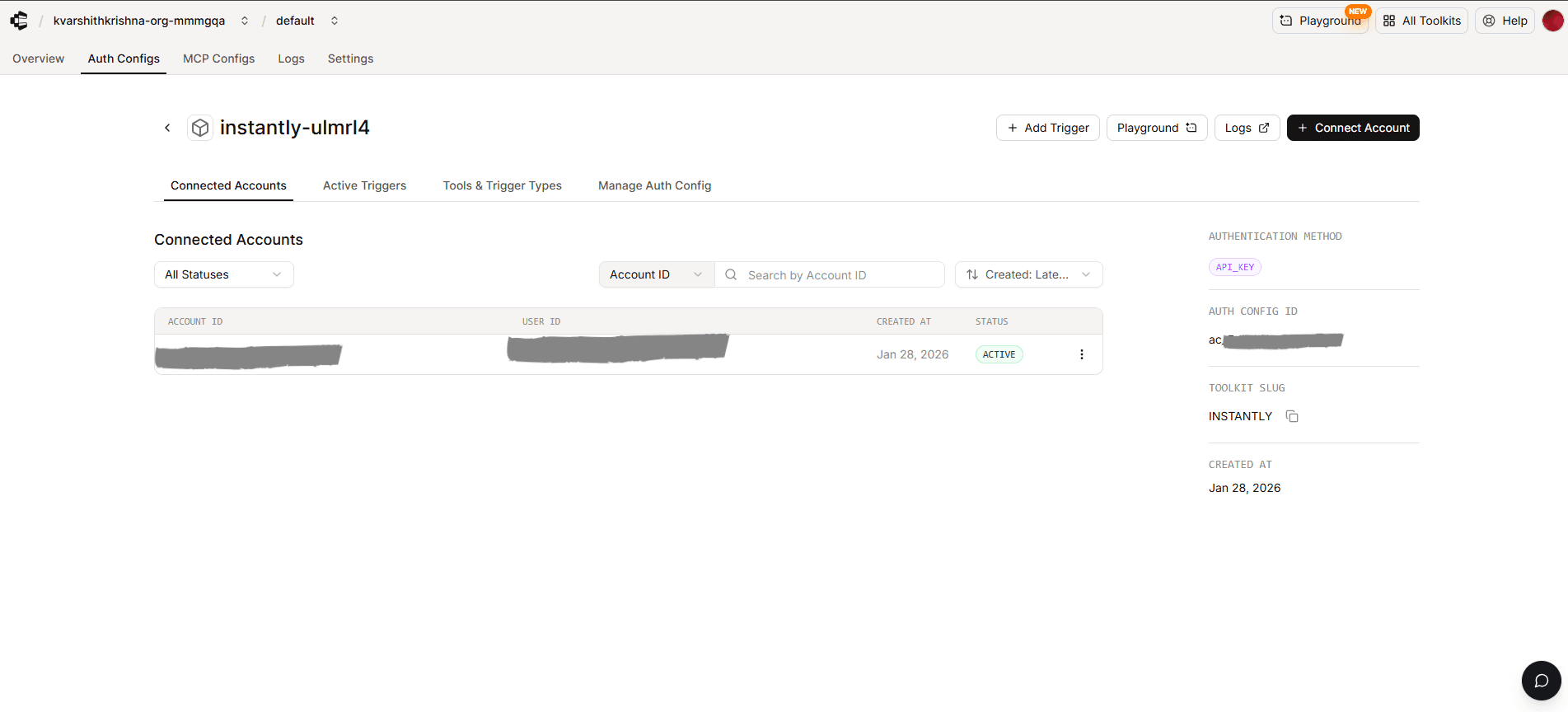
Image 9
  1. Store it securely using your secret manager

  2. Use it in your application code to authenticate Instantly via Composio

In this guide, we’ll walk through how to configure authentication for Instantly using API Token–based authentication with Composio.

Instantly does not support OAuth or public app registration. Instead, it uses API keys (Bearer tokens) for authentication.

Setting Up Instantly

In this section, we’ll generate an API key from Instantly that will be used to authenticate requests via Composio.

Step 1: Generate an API Key in Instantly

  1. Log in to your Instantly Dashboard

Image 1
  1. Navigate to Settings

  2. Open the Integrations or API section (label may vary by account)

  3. Click Generate API Key

Image 2
  1. Copy the generated API key and store it securely

API Key Scopes in Instantly

Instantly controls API access using scoped API keys.

When generating an API key in Instantly, you must explicitly select the scopes that determine which resources and actions the key can access.

Important

  • Scopes are fixed at the time of creation

  • Scopes cannot be modified later

  • To change permissions, you must create a new API key

Full-Access Scope

Instantly provides a single full-permission scope:

all:all
  • Grants unrestricted access to all Instantly API endpoints

  • Includes read, create, update, and delete permissions across all resources

  • Not recommended unless your integration genuinely requires full access

Use this scope with caution.

All Available Instantly API Scopes

Below is the list of API scopes available in Instantly, as selectable when creating an API key:

all:all | all:create | all:read | all:update | all:delete

ai_agents:all | ai_agents:create | ai_agents:read | ai_agents:update | ai_agents:delete

campaigns:all | campaigns:create | campaigns:read | campaigns:update | campaigns:delete

leads:all | leads:create | leads:read | leads:update | leads:delete

lead_lists:all | lead_lists:create | lead_lists:read | lead_lists:update | lead_lists:delete

analytics:read

accounts:all | accounts:create | accounts:read | accounts:update | accounts:delete

inbox_tests:all | inbox_tests:create | inbox_tests:read | inbox_tests:update | inbox_tests:delete

webhooks:all | webhooks:create | webhooks:read | webhooks:update | webhooks:delete

api_keys:all | api_keys:create | api_keys:read | api_keys:update | api_keys:delete

Best Practices for Scopes

  • Select only the scopes required for your integration

  • Prefer resource-level scopes over global scopes

  • Avoid using all:all unless absolutely necessary

  • Treat scoped API keys as sensitive credentials

  • Store API keys securely using a secret manager

Image 3

Creating the Auth Config in Composio

Once you have your Instantly API key, you can configure authentication in Composio.

Step 2: Create a New Auth Config

  1. Go to the Composio Dashboard

  2. Click on the Create Auth Config button to get a list of all the toolkits available.

Image 4
  1. Search for and select instantly from the list of toolkits

Image 5
  1. Ensure the authentication is API KEY.

Image 6

Step 3: Configure Authentication Type

  1. Click on the Connect Account and

Image 7
  1. Set Authentication Type to Bearer Token

  2. Paste your Instantly API Key into the token field

  3. Leave all other fields as default

Image 8

Instantly does not require:

  • Client ID

  • Client Secret

  • Redirect URLs

  • OAuth scopes

Scopes Supported by Composio for Instantly

Instantly uses a single API key with account-level permissions.

There are no configurable OAuth scopes.

When using Composio:

  • Permission control is handled entirely by Instantly

  • Composio forwards the API key as a Bearer token in requests

Example Authorization header:

Authorization: Bearer <YOUR_INSTANTLY_API_KEY

Base URL for Instantly

All Instantly API requests are sent to:

https://api.instantly.ai

How Authentication Works

When using Instantly with Composio:

  • The API key is stored securely in the Auth Config

  • Composio injects the key as a Bearer token

  • No OAuth consent screen is involved

  • No redirect flow is required

This makes Instantly one of the simplest integrations to set up.

Final Step

Once the Auth Config is created:

  1. Copy the Auth Config ID (starts with ac_)

Image 9
  1. Store it securely using your secret manager

  2. Use it in your application code to authenticate Instantly via Composio